Switching from ClassLink to Mosyle: A Clear Step-by-Step Guide
Discover a clear step-by-step guide for switching from ClassLink to Mosyle to ensure smooth migration and efficient device management.

Short answer: Switching from ClassLink to Mosyle involves carefully migrating user accounts, reconfiguring single sign-on (SSO), and transferring device management settings without disrupting daily operations. The process requires detailed steps to avoid pitfalls like identity mismatches and incomplete app provisioning.
This guide covers the essentials you need to know for a smooth transition. You'll get clear comparisons of how Mosyle handles identity and SSO versus ClassLink, a hands-on migration procedure emphasizing real-world challenges, common mistakes to sidestep, and methods to confirm your migration succeeded while maintaining ongoing device and user management.
What Are ClassLink and Mosyle, and Why Switch?
ClassLink focuses on identity and resource management, providing single sign-on (SSO) and access to cloud-based educational tools across multiple platforms. It centralizes login credentials and offers a customizable launchpad for apps and files, mainly supporting Windows, ChromeOS, and iOS devices. Its strength lies in simplifying user access but relies heavily on integrations with third-party device management systems for hardware control.
Mosyle centers on Apple device management, offering Mobile Device Management (MDM) with deep integration into the Apple ecosystem. It controls device settings, app deployment, security policies, and compliance, primarily for iPads, Macs, and Apple TVs. Mosyle also supports identity management and SSO but with a tighter focus on Apple’s environment, providing granular control over device security and user permissions.
Many K-12 IT administrators consider switching from ClassLink to Mosyle to consolidate device and identity management under one platform, especially when their infrastructure is Apple-heavy. For example, a school district with hundreds of iPads found Mosyle’s ability to enforce security policies remotely and automate app installation more efficient than juggling ClassLink plus a separate MDM. Cost considerations also play a role, as Mosyle offers tiered pricing aligned with Apple devices, potentially lowering overhead compared to multi-platform licensing.
| Feature | ClassLink | Mosyle |
|---|---|---|
| Primary Focus | Identity & resource management | Apple device management & security |
| Supported Devices | Windows, ChromeOS, iOS | iOS, macOS, tvOS |
| Single Sign-On (SSO) | Yes, broad platform support | Yes, Apple-centric |
| Device Management | Limited; relies on third-party MDM | Full MDM with remote control |
| Security Policy Enforcement | Basic | Granular & automated |
| Pricing Model | Platform-agnostic | Apple-focused tiers |
"Switching to Mosyle simplified our management of hundreds of iPads and Macs. The ability to push updates and enforce policies remotely saves hours weekly." — IT Administrator, mid-sized district
How Does Mosyle Handle User Identity and Single Sign-On Compared to ClassLink?
ClassLink uses roster synchronization and SAML-based Single Sign-On (SSO) to connect users to multiple apps with one login. It relies heavily on district-provided identity sources—often through SIS integration—to provision accounts and establish access. User credentials in ClassLink typically align with district email or student ID formats. During migration, you must ensure these identity mappings are preserved to prevent access issues.
Mosyle’s approach centers on Apple School Manager (ASM) integration for identity and device management. It uses Managed Apple IDs, which differ from standard district credentials, but supports SSO through SAML and OAuth providers configured in the Mosyle dashboard under “Settings > Single Sign-On.” You need to map ClassLink user identities to corresponding Managed Apple IDs or federated identities. This mapping is often done via CSV import or API sync, matching email addresses or SIS IDs.
For example, if a ClassLink user logs in with [email protected], you must ensure Mosyle's Managed Apple ID or federated identity uses that same email or a linked identifier. Without this, students and teachers will face login failures or require password resets. Expect a short downtime window—usually under two hours—while syncing identity data and updating device profiles. Plan to communicate this clearly to users to minimize confusion.
- Review ClassLink’s roster export to identify exact user ID formats.
- Map these IDs to Managed Apple IDs in Apple School Manager or federated identity providers.
- Configure Mosyle SSO settings to match your authentication source.
- Test login for a pilot group before full rollout.
- Schedule migration during low-usage hours to reduce impact.
What Are the Step-by-Step Procedures to Migrate from ClassLink to Mosyle?
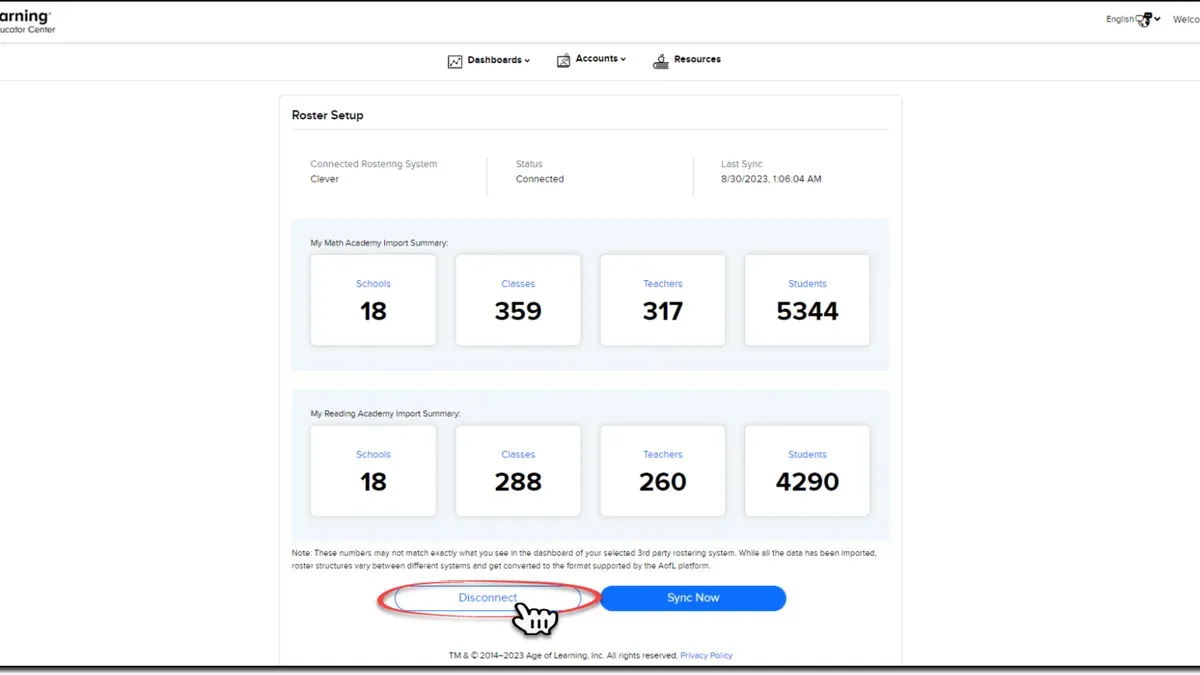
Start with a thorough pre-migration audit in ClassLink. Export your user rosters, device inventories, and any custom groups or roles. Navigate to ClassLink’s Admin Console, locate the Export section under User Management and Device Management, and save CSV files containing all relevant data. This ensures you have a baseline reference and backup before any changes.
Next, set up your Mosyle account. In Mosyle Business or Manager, create your organization profile, then import the exported CSV files through the "Users" and "Devices" import tools. Align the imported data with Apple School Manager’s Managed Apple IDs, verifying that usernames and email formats match to avoid login issues.
Configure your device management policies next. Replicate ClassLink’s restrictions and settings by creating profiles under "Device Management > Profiles". Pay special attention to network configurations, app whitelisting, and security settings. Differences in policy granularity may require prioritizing critical controls first and adjusting later.
Test the migration on a pilot group of 10-20 devices and users. Confirm user logins, app access, and policy enforcement work as expected. Monitor logs for sync errors or failed authentications. Use this stage to catch mapping errors or missing configurations before a full rollout.
- Export user and device data from ClassLink Admin Console as CSV files.
- Create Mosyle organization and import data via Users and Devices import tools.
- Map user accounts to Apple School Manager Managed Apple IDs.
- Recreate device policies and restrictions in Mosyle Profiles.
- Run pilot tests on a small group before full deployment.
What Common Mistakes Should You Avoid During the Switch?
Skipping thorough data validation before migration often leaves you with orphaned accounts—users who lose access because their ClassLink credentials didn’t map correctly to Mosyle’s Managed Apple IDs. One district experienced this when they imported roster data without verifying student IDs, causing over 100 devices to lock out users until manual fixes were applied.
Underestimating downtime and communication needs can create chaos. If you don’t clearly inform teachers and students about expected service interruptions or login changes, help desks get overwhelmed. A middle school’s IT team faced repeated calls for days after switching because the messaging wasn’t coordinated with Mosyle’s rollout schedule.
Misconfiguring Apple ID and device supervision policies is another frequent pitfall. For example, failing to enable “Automated Device Enrollment” in Apple School Manager before syncing with Mosyle resulted in devices not entering supervised mode, limiting remote management capabilities and requiring physical device handling to fix later.
Not backing up existing configurations in ClassLink and your device management profiles means you can’t revert easily when issues arise. This omission prolongs downtime during troubleshooting and forces rebuilding policies from scratch.
Neglecting training for help desk staff and end users leads to inefficient issue resolution. Without clear guides on Mosyle’s interface differences and login flows, support teams waste time on basic questions that could be preempted.
- Validate all roster and user data before import to avoid orphaned accounts.
- Communicate detailed migration schedules and expected downtime to all stakeholders.
- Enable and verify Automated Device Enrollment and supervision settings in Apple School Manager before syncing.
- Back up all ClassLink configurations and existing policies before starting.
- Train help desk staff and provide end users with clear login and usage instructions.
How to Verify Your Migration Was Successful and Maintain Ongoing Management?
After completing your migration to Mosyle, start by verifying device enrollment and compliance through the Devices > Enrollment Status report. This report shows the total number of devices enrolled, their operating system versions, and compliance with assigned profiles. Compare these figures to your pre-migration inventory to confirm no device was missed. For example, if you had 500 devices active in ClassLink, ensure Mosyle reflects a similar count with 95% or higher compliance to avoid gaps.
Next, monitor user login activity via Users > Login Logs to identify authentication issues. Pay close attention to repeated failed logins which often suggest identity mapping errors carried over from ClassLink. Address these immediately by reviewing Apple School Manager settings or Managed Apple ID assignments.
Adjust device and app policies based on user feedback collected during the first weeks post-migration. Use the Policies > Usage Reports to see which restrictions are frequently overridden or causing support tickets, then fine-tune settings to balance security and usability.
Finally, schedule periodic audits every quarter. Review Dashboard > Compliance Overview and export CSV reports to track trends over time. Regular updates to enrollment settings and profiles ensure your Mosyle environment adapts to changing technology and user needs.
- Run the Enrollment Status report and verify device counts and compliance
- Monitor Login Logs for authentication problems
- Adjust policies based on Usage Reports and user feedback
- Perform quarterly audits using Compliance Overview and export data
Frequently asked questions
Will switching from ClassLink to Mosyle affect student access to apps?
Student access to apps can be temporarily disrupted if single sign-on (SSO) and identity federation are not configured correctly during migration. You need to replicate the app launch URLs and SSO settings from ClassLink into Mosyle’s SSO module under SSO & SAML Settings to ensure seamless access. Missing these steps often leads to login failures until corrected.
Can I keep my existing user roster when moving to Mosyle?
Yes, you can import your existing roster by exporting it from your student information system (SIS) or ClassLink and uploading the CSV to Mosyle via Users > Import Users. Ensure that user IDs and email addresses match exactly to avoid duplicate accounts or mismatches. Mosyle does not sync directly with ClassLink, so manual or SIS-based export/import is necessary.
How long does a typical migration take?
Migration duration varies based on the number of users and devices but generally spans from a few days to two weeks. Initial setup of identity and device management policies takes the bulk of the time, followed by staged device enrollment and verification. Planning phased enrollment helps minimize downtime.
What support resources does Mosyle offer during migration?
Mosyle provides a dedicated support portal with step-by-step migration guides, live chat support, and access to a customer success team via the dashboard’s Help & Support section. They also offer onboarding webinars and can assign a technical account manager for larger districts to assist with troubleshooting and best practices.
Quick checklist
- Confirm your Apple device inventory is up to date in ClassLink before export.
- Export user accounts and groups from ClassLink via the Users & Groups menu.
- Verify your Mosyle MDM account is configured with Apple School Manager integration enabled.
- Import user data into Mosyle using the Users > Import feature, mapping ClassLink fields accurately.
- Set up Single Sign-On in Mosyle by configuring SAML with your identity provider, matching ClassLink settings.
- Test device enrollment on a sample device before full rollout.
- Communicate changes to end users, highlighting any new login procedures.
- Monitor Mosyle’s device and user reports for discrepancies after migration.
This guide does not cover mixed-device environments
This guide assumes the school primarily uses Apple devices managed through Apple School Manager. If your environment includes significant numbers of Windows, Chrome OS, or Android devices, you will need a different migration strategy that accounts for those platforms’ management tools and identity integrations.
Also, this guide focuses on the migration of user accounts, device enrollment, and SSO setup. If your district has complex custom app deployments or third-party integrations beyond native Mosyle capabilities, plan additional steps accordingly.
Next step
Start by exporting your current user and device data from ClassLink and verify the integrity of that export. This step lays the foundation for a smooth import into Mosyle and prevents common issues caused by missing or mismatched user attributes. Accurate data transfer here will save hours of troubleshooting later.
See also: Moving from ClassLink to Microsoft Intune: Your Essential Checklist · Moving from ClassLink to Jamf School: Your Precise Migration Checklist · Moving from ClassLink to Clever Checklist: A Practical Guide · ClassLink Implementation Timeline: What You Need to Know to Get Started