Promethean Board Implementation Timeline: A Step-by-Step Guide
This guide outlines a step-by-step Promethean board implementation timeline to help educators set up, train, and troubleshoot efficiently.

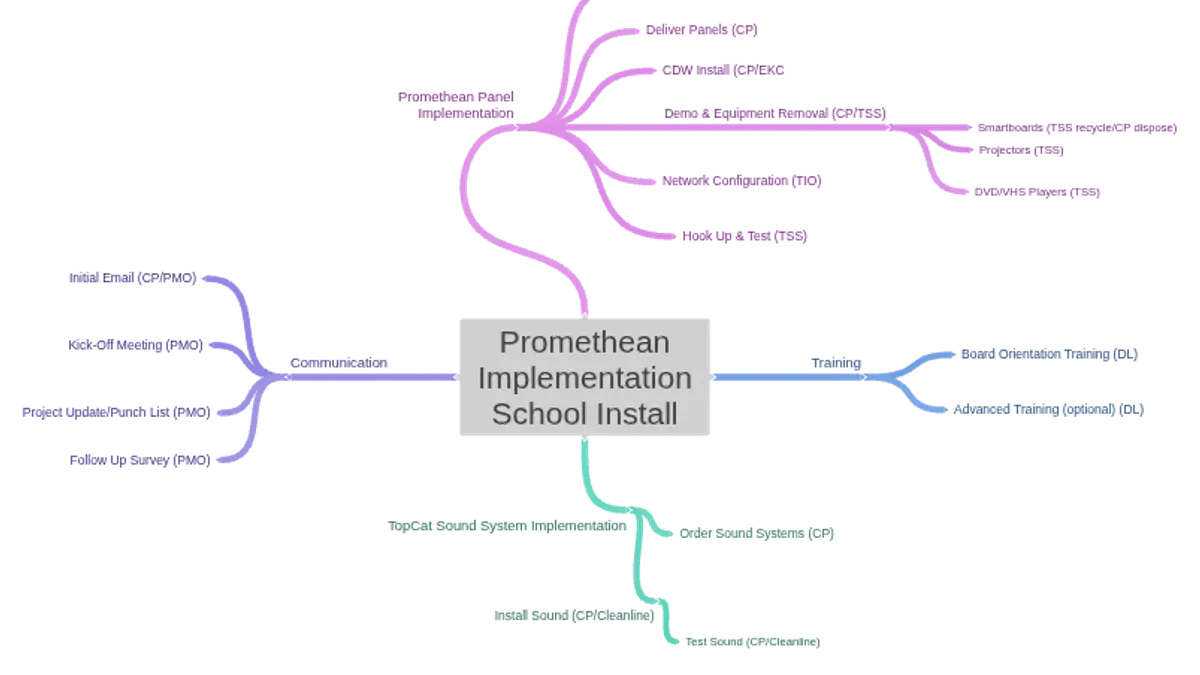
Short answer: The Promethean board implementation timeline involves a phased approach starting with understanding the device, performing initial setup, connecting and logging in, utilizing interactive tools, updating software, training educators, and troubleshooting common issues. Following a clear timeline helps ensure smooth integration and minimal classroom disruption.
This guide covers each step of the Promethean board implementation timeline with practical actions tailored for educators and school technology coordinators. You will learn how to set up the board properly, connect and use its features, keep the software current, and train staff effectively. It also includes troubleshooting tips to resolve frequent problems quickly, helping you manage the rollout confidently and keep classroom technology running optimally.
Understand what a Promethean board is and why it matters
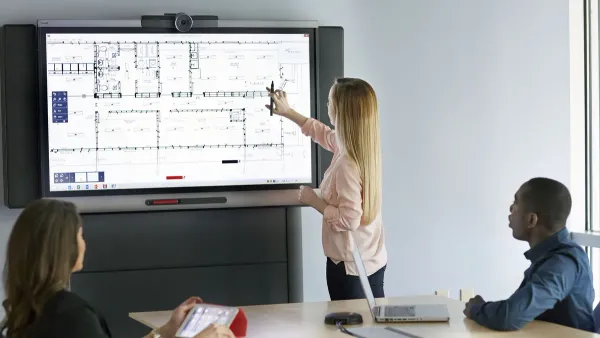
A Promethean board is an interactive display designed to replace traditional whiteboards by combining touchscreen technology with specialized software. This device enables teachers to write, draw, and manipulate digital content directly on the screen, making lessons more dynamic and engaging. Its seamless integration with educational software platforms allows for multimedia presentations, real-time quizzes, and collaborative activities.
Compared to other interactive whiteboards, Promethean boards stand out by offering a highly responsive touchscreen with multi-touch capabilities, plus a user-friendly interface tailored for educators. For example, while some competitors provide basic touch functions, Promethean boards include built-in lesson delivery tools and instant access to cloud resources, reducing setup time and technical disruptions.
Imagine a math teacher demonstrating geometry by drawing shapes that students can then interact with directly on the board, adjusting angles and dimensions. This hands-on approach increases student participation and retention. Feedback from schools using Promethean boards often notes higher engagement scores and smoother lesson flow compared to traditional or less integrated boards.
| Feature | Promethean Board | Other Brands | Notes |
|---|---|---|---|
| Touch Responsiveness | High, multi-touch | Moderate, often single-touch | Enables multiple users to interact simultaneously |
| Software Integration | Built-in lesson tools and cloud access | Limited or requires third-party apps | Speeds up lesson prep and delivery |
| Teacher Feedback | Generally positive, citing engagement and ease | Mixed, some report technical delays | Supports smoother classroom management |
Turn on Promethean board and perform initial setup
Begin by connecting the Promethean board securely to a power outlet using the provided power cable. Confirm the power indicator light, usually green or blue, illuminates to signal the board is receiving power. Next, connect the board to your classroom computer or projector via HDMI or USB, depending on your setup.
Press the physical power button, typically located at the bottom or side of the board, to turn it on. The startup screen should appear within 30 seconds. If the board prompts for software installation or updates, follow on-screen instructions carefully to ensure the latest features and security patches are applied.
Once the main interface loads, calibrate the touch interface by selecting the calibration option from the settings menu. This process involves touching specific targets on the screen to align the touch detection with the display. Successful calibration results in precise touch response, eliminating cursor offset.
For example, when the calibration targets appear, tap each red crosshair accurately. If the cursor lands anywhere but directly on your touch point, repeat calibration until it matches perfectly.
- Connect power cable and verify indicator light is on
- Attach board to computer or projector via HDMI/USB
- Press power button and wait for startup screen
- Follow prompts to install or update software if needed
- Navigate to settings and select touch calibration
- Touch each calibration point accurately until confirmed
Connect to Promethean board and log in to access features
Connecting your devices to the Promethean board ensures full access to its interactive capabilities and personalized settings. You can connect via USB for a direct wired link, HDMI for high-definition video without touch functionality, or wirelessly through your school's secure Wi-Fi network using the ActivConnect app or built-in wireless features.
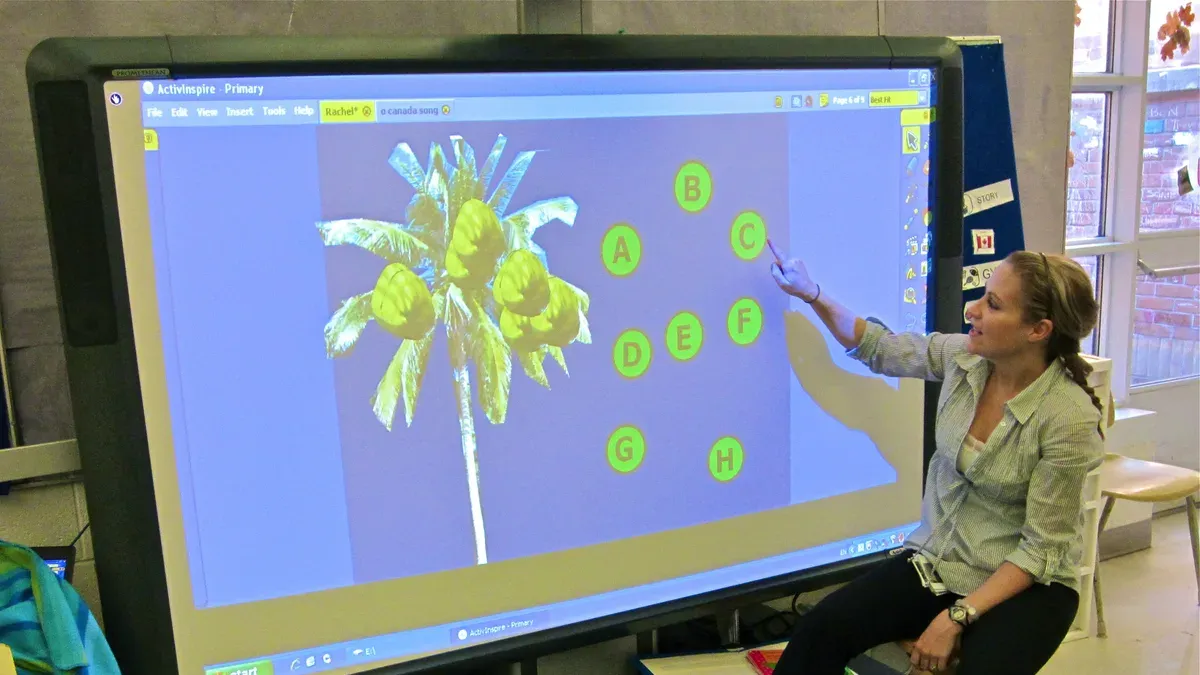
When connecting wirelessly, open the ActivConnect app on your laptop or tablet, select the Promethean board from the available devices list, and follow the prompts to pair. A typical connection process takes under 30 seconds, including authentication steps.
After establishing a connection, sign in to the Promethean board using your assigned user profile. This is accessible via the board’s home screen under "User Login." Profiles personalize settings like background preferences and saved lesson files. In a busy school setting, managing multiple users is streamlined by creating distinct profiles linked to staff email addresses or school IDs, enabling quick switching and secure access.
For example, a teacher connecting a laptop via USB will plug in, wait about 10 seconds for drivers to load, then select their profile from the login screen. This sequence grants immediate access to saved content and interactive tools without delay.
- Choose connection method: USB, HDMI, or wireless (ActivConnect app)
- Pair device with Promethean board following on-screen prompts
- Access "User Login" on the board’s home screen
- Select or enter your user profile credentials
- Verify connection by opening a saved lesson or interactive app
Write on Promethean board and use its interactive tools
Using the Promethean board’s stylus or your finger, you can write, draw, and annotate directly on the screen with precision. The writing tools are located on the ActivInspire toolbar, typically docked on the left side of the display. Select the pen icon to write or draw freely; you can adjust thickness and color from the toolbar’s dropdown menus for clearer emphasis.
Navigate the Promethean software interface via the bottom taskbar, where quick access buttons open whiteboard pages, educational apps, and annotation tools. For example, tapping the "Notebook" icon opens multi-page digital whiteboards where you can craft lessons, embed multimedia, and annotate over content live.
To save your work, use the “Save” button in the Notebook menu, which lets you store notes locally or export them as PDFs for easy sharing with students or colleagues. Sharing is seamless through the “Share” option, enabling email or cloud upload directly from the interface.
Picture a math lesson where you write equations with the stylus on a blank whiteboard page, highlight key steps with different colors, then save and send the annotated notes to the class email list — all without leaving the Promethean environment.
- Use the pen tool on the ActivInspire toolbar to write or draw.
- Adjust pen thickness and color for clarity.
- Access multi-page whiteboards via the Notebook icon.
- Save notes locally or export as PDFs.
- Share notes through built-in email or cloud options.
Update Promethean board software and firmware
Keeping your Promethean board’s software and firmware up to date is essential for maintaining security, stability, and access to the latest features. To check your current version, navigate to the board’s Settings menu, then select About. Here, you’ll find the software and firmware version numbers.
Next, check for updates by going to Settings > System Updates. If an update is available, follow the on-screen instructions to download and install it. Ensure the board remains powered and connected to a reliable internet source throughout the process to avoid interruptions that can cause update failures.
Common errors, such as stalled downloads or installation failures, can often be resolved by restarting the board and retrying the update. If problems persist, consult the Promethean support site or your IT team.
Updates are typically released quarterly and may include performance enhancements, bug fixes, and new interactive tools. For example, a recent update improved touchscreen responsiveness and added new annotation features, directly impacting lesson delivery quality.
- Open Settings > About to verify current version
- Navigate to Settings > System Updates to check for and start updates
- Keep the board powered and online during the update process
- Restart and retry if update errors occur
- Review update notes to understand new features and fixes
Implement Promethean board in classrooms: training and best practices
Begin your rollout by scheduling focused training sessions for teachers, ideally spanning two half-day workshops. These sessions should include hands-on practice using key features like the ActivInspire lesson builder and interactive whiteboard tools. Encourage teachers to create sample lesson plans that incorporate activities such as drag-and-drop exercises and real-time quizzes to engage students effectively.
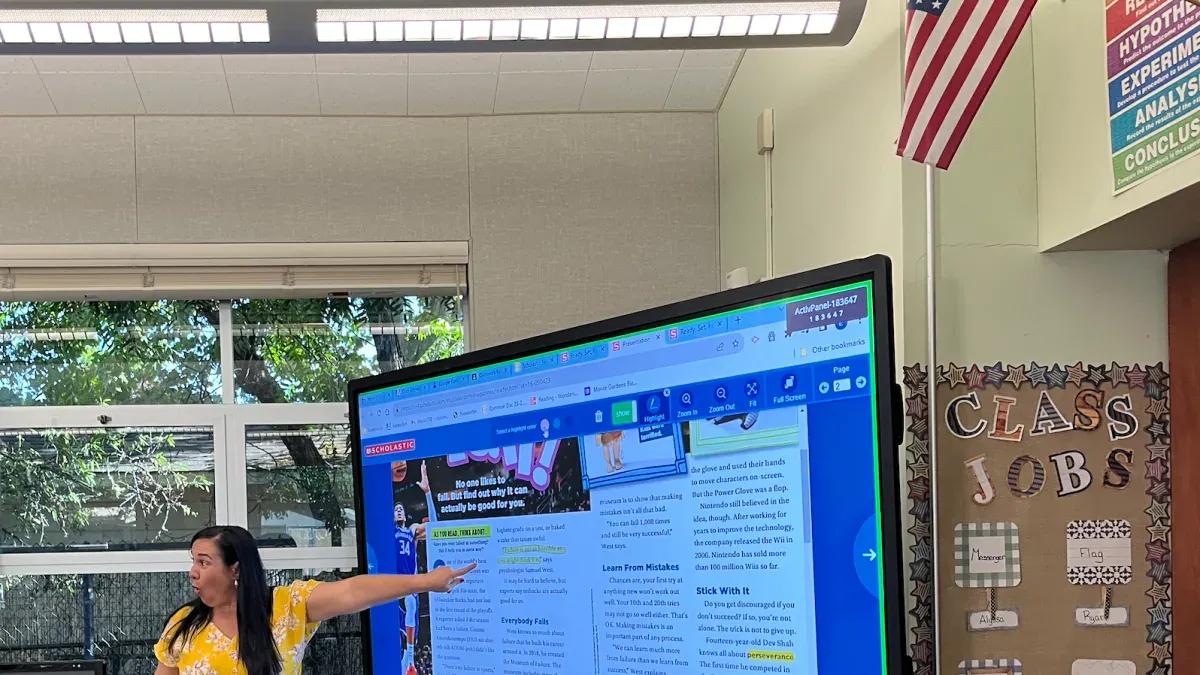
For classroom management, recommend setting clear usage routines, such as assigning a designated board operator in younger classes to minimize downtime. Advise against overloading lessons with excessive interactive elements that can distract rather than enhance learning. A common pitfall is insufficient practice time, which can lead to hesitation during live lessons; ensure teachers have ample opportunity to experiment before full integration.
At Lincoln Elementary, the technology coordinator reported success by pairing each teacher with a tech mentor during the first month of use. This support allowed quick troubleshooting and confidence-building, leading to smooth daily use and positive student feedback. This example shows that combining structured training with ongoing support is key to effective implementation.
- Schedule two half-day, hands-on training workshops
- Develop interactive lesson plans with ActivInspire tools
- Establish clear classroom usage routines
- Provide ongoing tech support and mentoring
- Avoid overwhelming lessons with too many interactive features
Troubleshoot common Promethean board issues
When your Promethean board does not power on, first verify the power cable is securely connected and the outlet is functioning by testing another device. If the power light remains off, try holding the power button for 10 seconds to reset. For connection errors, ensure the board and your device are on the same Wi-Fi network and that Bluetooth is enabled if required. Restart the board's network settings via the Settings menu under Network & Internet to refresh the connection.
Calibration or responsiveness problems often stem from misaligned touch inputs. Access the calibration tool under Settings > Display > Calibration and follow the on-screen prompts carefully. If the board still lags or misses touches, clean the screen with a microfiber cloth and check for software updates under Settings > System > Updates.
For example, if students report the board not responding to pen inputs during a lesson, recalibrating usually resolves the issue within minutes, minimizing downtime. However, persistent hardware issues or error codes like "E-01" indicate a need to contact Promethean technical support for professional assistance.
- Check power connections and perform a hard reset if the board won’t turn on.
- Confirm network settings and device compatibility for connection problems.
- Recalibrate touch input and clean the screen to fix responsiveness issues.
- Contact technical support when hardware faults or persistent errors appear.
Read next
- Master Your Pear Deck Implementation Timeline: A Step-by-Step Guide
- Master Your Padlet Implementation Timeline: Step-by-Step Guide
- Master Your Quizlet Implementation Timeline for Smooth Adoption
Frequently asked questions
How to update promethean board?
To update your Promethean board, access the Settings menu from the home screen, then select "Device" followed by "Software Update." Choose "Check for Updates" to see if a new version is available. Ensure your board is connected to a stable Wi-Fi network before starting the update. Allow the update to complete without interruption to avoid software issues.
How to set up promethean board?
Begin by mounting the Promethean board securely and connecting it to a power source and your computer or network. Turn on the board, then follow the on-screen setup wizard to configure language, Wi-Fi, and user accounts. Install the ActivPanel software on your connected device to enable full interactive functionality. Verify calibration to ensure touch accuracy.
How to turn on promethean board?
Locate the power button on the underside or side edge of the board, often marked with a power symbol. Press and hold it briefly until the board powers on and the startup screen appears. If the board does not respond, check that it is properly connected to power and that the power outlet is active. Some models may also power on automatically when connected to a computer.
How to work a promethean board?
To use the Promethean board, interact directly with the screen using your finger or the included stylus to write, draw, or manipulate objects. Access interactive tools by opening the ActivPanel menu, where you can select pens, shapes, or erase content. Connect your computer if you want to display and control software through the board. Regularly calibrate the touch surface for precise response.
What is promethean board?
A Promethean board is an interactive whiteboard designed for educational environments, combining a touch-sensitive display with software tools to enhance teaching and learning. It allows educators to write, draw, and interact with digital content directly on the board. The device supports multimedia integration, collaboration, and dynamic lesson delivery, making classroom technology more engaging and interactive.
Quick checklist
- Verify Promethean board powers on and completes initial setup without error.
- Confirm connection to the school network and test login credentials.
- Practice writing and using interactive tools to ensure responsiveness.
- Check for and apply the latest firmware and software updates through the settings menu.
- Schedule and conduct training sessions for educators focusing on core features and classroom integration.
- Prepare a troubleshooting guide covering common issues like touch response lag or connectivity drops.
What this guide does not cover
This guide does not cover advanced network security configurations or custom software integrations that may require IT professional support. If your rollout involves complex backend systems, multiple user profiles with strict permissions, or integration with third-party educational platforms, coordinate with your IT department or a certified Promethean technician to ensure compliance and stability.
To move forward effectively, prioritize setting up a hands-on training session for all educators who will use the Promethean board. Direct experience combined with guided practice reduces downtime and builds confidence, making the technology a seamless part of your classroom environment.