How to See Where You're Logged Into YouTube: Step-by-Step Guide
This guide shows you how to check where you're logged into YouTube across devices to maintain your account security.

This article explains how to see where you're logged into YouTube across its various platforms and devices. Identifying active sessions helps manage account security by showing all current logins on web browsers, mobile apps, and YouTube TV. Accessing these details allows for timely actions like signing out of unfamiliar devices or locations.
Instructions cover the exact steps within YouTube's settings menus, including Google Account device activity for comprehensive session management. This guide focuses on straightforward navigation and practical controls without unnecessary technical jargon. Understanding where a YouTube account is logged in ensures better account oversight and security.
Before you start: What is needed
Accessing active YouTube sessions requires signing into a Google account, as YouTube accounts are integrated with Google accounts. This sign-in is essential to view and manage where the account is currently logged in. Sessions can be checked using a web browser or the YouTube app available on mobile devices and smart TVs.
Supported platforms include web browsers (Chrome, Firefox, Safari, Edge), mobile apps on iOS and Android, and YouTube TV on smart TVs or streaming devices. Recognizing device names or approximate locations is helpful for identifying unfamiliar logins. Typical devices shown in session information include phones, tablets, desktop computers, laptops, smart TVs, and streaming devices.
Optionally, users can visit the Google Account security page for a detailed overview of all active sessions across Google services, including YouTube. This page provides extended tools for session management and account security.
- Ensure the Google account is signed into YouTube on the device being used. Successful sign-in shows the user’s profile icon in the top-right corner of the YouTube interface.
- Prepare a device with internet access—this can be a desktop, laptop, smartphone, tablet, or smart TV with the YouTube app installed. Opening YouTube on this device and confirming sign-in will allow session checking.
- Have a basic understanding of your commonly used devices' names or locations to distinguish authorized sessions from unfamiliar ones. Device names typically reflect device type and sometimes location, like “John’s iPhone” or “Home TV.”
- Optional: Navigate to the Google Account security page by visiting myaccount.google.com/security. This provides additional session details beyond YouTube-specific views.
How to see where you're signed into YouTube on the web
- Open a desktop or laptop web browser and go to youtube.com. Sign in with the Google account linked to the YouTube account if not already signed in. A profile icon will appear in the top-right corner once signed in.
- Click the profile icon, then select Manage your Google Account from the dropdown menu. This action opens the Google Account settings in a new tab.
- In the Google Account settings page, click Security in the left sidebar. Scroll down to find the Your devices section, then click Manage devices. This page lists all devices currently or recently signed into the Google account, including YouTube sessions.
- Review the device list to identify active YouTube logins. Each entry shows the device name (such as “Windows laptop” or “iPhone”), the last activity time, and approximate location based on IP address. Use these details to verify familiar devices and detect any unfamiliar access.
- To sign out of a device remotely, click the three-dot menu icon next to the device entry and select Sign out. Confirm the action when prompted. This immediately revokes YouTube and Google access on that device.
Tip: Signing out of devices you no longer use or recognize helps maintain YouTube account security by preventing unauthorized access.
How to see where you're logged in on the YouTube app
- Open the YouTube app on the mobile device. The home screen with video recommendations will appear.
- Tap the profile picture icon in the top right corner. This opens the account menu.
- Select Manage your Google Account. This redirects to the Google Account settings interface.
- Swipe or tap the Security tab at the top of the Google Account page.
- Scroll down and tap Your devices. A list of devices currently signed into the Google account, including YouTube, will display.
- Review each device's details such as device type, location, and last activity. If any device looks unfamiliar or suspicious, tap it and select Sign out to remove access.
The YouTube app itself does not provide session or device details directly. Instead, it directs users to Google Account security settings where full device management is possible. This integration ensures all Google services, including YouTube, use a centralized session overview for better security control.

Tip: Signing out of a device here revokes access to all Google services on that device, not just YouTube.
How to see where you are logged in on YouTube TV
To check the devices currently logged into YouTube TV, start by opening the YouTube TV app on the smart TV or streaming device. From the main screen, navigate to the Settings menu. Within Settings, select Account or Linked devices to view a list of devices connected to the YouTube TV account.
The displayed device names are often generic, such as "Living Room TV" or "Chromecast," which may require cross-referencing with the Google Account device information available on another device. The YouTube TV app provides a basic overview of linked devices but does not support detailed session management or sign-out options directly.
For full device management, including signing out of active sessions, users must visit the Google Account security page on a computer or mobile device. This page offers more comprehensive control, listing all devices signed into the Google account, including YouTube TV sessions, with detailed device information and the ability to remove access remotely.
| Feature | YouTube TV App | Google Account Security Page |
|---|---|---|
| View linked devices | Yes | Yes |
| Device name detail | Basic/generic | Detailed with device type and location |
| Sign out of devices | No | Yes |
| Session timestamps | No | Yes |
- Open the YouTube TV app on the smart TV or streaming device. The home screen will appear.
- Navigate to Settings by selecting the gear icon or menu option. The Settings screen will display.
- Choose Account or Linked devices. A list of currently linked devices will appear.
- Note the device names, keeping in mind they may be generic. To see detailed device info, open the Google Account security page on another device.
- On the Google Account security page, review all signed-in devices and sign out of any that should not have access.
Tip: Use the Google Account security page for accurate device details and to remotely sign out of YouTube TV sessions that appear unfamiliar or outdated.
How to check where I've logged in on YouTube from other devices
YouTube does not maintain a separate list of login sessions. Instead, device and session management occurs through the Google Account associated with the YouTube profile. To see all devices signed into the Google Account, including desktops, smartphones, tablets, and smart TVs, use the 'Your devices' section in Google Account settings.
Tracking devices involves recognizing device types, locations, and recent activity. Unfamiliar devices or locations suggest potential unauthorized access. Immediate action is recommended if suspicious devices are found.
- Open your Google Account by going to myaccount.google.com and signing in if prompted. You will land on the Account homepage.
- Click on the Security tab on the left sidebar. The security overview page appears.
- Scroll down to the Your devices section and select Manage devices. This displays a list of devices currently signed into your Google Account.
- Review the list carefully. Each entry shows the device type (e.g., Windows PC, iPhone), approximate location, and last activity time. Identify any device or location that seems unfamiliar.
- To sign out a suspicious device, click on the device entry to expand it, then select Sign out. Confirm the action when prompted. The device will be removed from your account and lose access to YouTube and other Google services.
- After signing out unknown devices, return to the Security tab and choose Password to reset your Google Account password. This step secures the account against unauthorized access.
Worked example: A user notices a device listed as an Android TV in a city they have never visited. They select the device, sign out remotely, and immediately reset their password, ensuring their YouTube account is protected.
Troubleshooting: What to do if you can't see all your YouTube logins
Sometimes the list of devices signed into YouTube does not show all active sessions immediately. Google Account security settings can take up to several minutes to update device activity, so delays are common. Devices may also appear with generic names or vague locations due to IP address routing through internet service providers or VPNs, causing confusion when identifying sessions.
Clearing the cache of the YouTube app and Google Play Services or updating these apps to the latest version can resolve visibility issues. Outdated app versions often fail to sync session data properly. Additionally, users should verify if multiple Google accounts are signed into YouTube on various devices, as sessions may be linked to different accounts, leading to incomplete device lists under one account.
If these steps do not reveal all logged-in devices, contacting Google Support is advisable. Persistent discrepancies or missing sessions might indicate account anomalies requiring direct assistance.
- Clear the YouTube app cache: Go to device Settings > Apps > YouTube > Storage > Clear Cache. Afterward, open YouTube and check the device list again. The complete session list should appear if caching was the issue.
- Update YouTube and Google Play Services: Open the app store, locate YouTube and Google Play Services, and tap Update if available. Relaunch YouTube and review logged-in devices for improved accuracy.
- Confirm Google account usage: On each device, open YouTube, tap the profile icon, and check the signed-in account. Matching accounts should show consistent device activity. If multiple accounts are used, check each account’s device list separately.
- Wait 10-15 minutes and refresh Google Account security page: Device sessions may take time to register. After waiting, reload the page to see if missing devices appear.
- Contact Google Support: If discrepancies remain after these steps, use the Google Account Help Center to report the issue for further investigation.
How to secure your YouTube account after reviewing logged-in devices
After identifying unknown or suspicious login locations, immediate action is essential to protect the YouTube account linked to the Google account. Signing out of all devices remotely prevents unauthorized access from sessions that remain active. Changing the account password strengthens security, especially if credentials may have been exposed. Enabling two-factor authentication (2FA) adds an extra verification step, significantly reducing the risk of unauthorized access even if the password is compromised.
- Go to the Google Account Security page and select the option to "Sign out of all devices." This ends all active sessions except the current one, visible as a confirmation message.
- Navigate to the "Password" section under Sign-in & security, enter a new strong password, and save changes. A confirmation email or notification will verify the update.
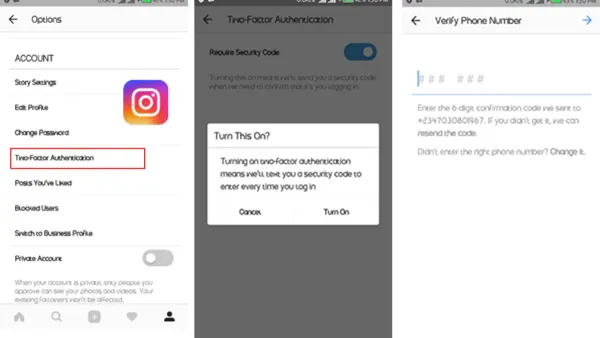
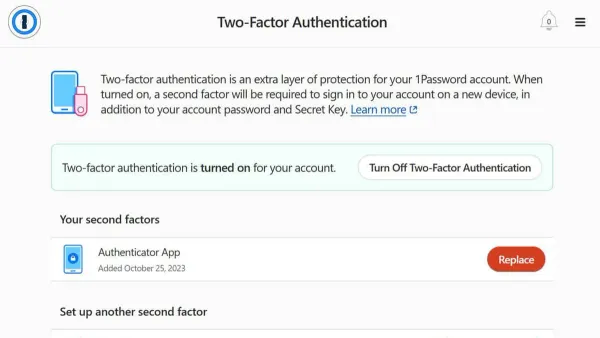
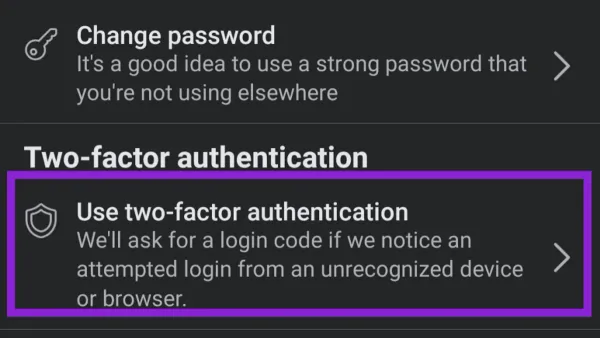
- Enable two-factor authentication by selecting "2-Step Verification" in the Security menu, following prompts to add a phone number or authentication app. Successful setup shows 2-Step Verification as "On."
- Review "Third-party apps with account access" under Security to revoke permissions for unfamiliar or unused apps. Revoked apps will no longer have access to account data.
- Regularly check "Your devices" and update recovery options like phone numbers and backup emails to ensure account recovery is possible if locked out. Updated recovery info will be reflected in the settings.
Tip: Enabling 2FA is one of the most effective ways to prevent account takeover, as it requires a second form of verification beyond the password.
Note that these steps secure the Google account and YouTube access but cannot stop hacking attempts if the Google account credentials are compromised on other platforms or through phishing. Continuous vigilance and regular security reviews are necessary to maintain account safety.
Frequently asked questions
How to see where you re logged into youtube tv?
Open the YouTube TV app or visit the YouTube TV website. Access the settings by selecting your profile icon, then go to "Settings" > "Devices" or "Manage devices." This section lists all devices currently signed into YouTube TV, showing device names and last active times.
Can i see where my youtube is logged in?
Yes, it is possible to view where a YouTube account is logged in by checking the Google Account's device activity. Visit the Google Account page, select "Security," then "Your devices" to see a list of all devices signed into the account, including those with YouTube access.
How to see what devices you re logged into youtube?
Devices logged into YouTube can be viewed through the Google Account security settings. After signing into the Google Account linked with YouTube, navigate to "Security" > "Your devices." This shows all devices with active sessions, including desktop, mobile, and smart TVs.
How to see where my youtube account is logged in?
To find where a YouTube account is logged in, go to the Google Account associated with the YouTube profile. Under "Security," select "Manage devices" to see a list of devices currently signed in, along with device type and location information when available.
Can you see where you're logged into youtube?
Yes, through the Google Account security dashboard, it is possible to view all active sessions of YouTube across devices. This includes web browsers, mobile apps, and connected devices like smart TVs, helping users monitor and manage account access.
What this guide does not cover and limitations
This guide covers only YouTube sessions linked to the Google account and does not include device-specific app data or offline usage. YouTube does not provide a dedicated session management interface separate from Google Account security, which may limit the ability to see every active session in detail. Some device locations shown may be inaccurate due to VPN usage or IP address masking, affecting geographic identification of logins.
Tip: For the most detailed device and session management, review the "Security" section in the Google Account settings directly.
After confirming where the YouTube account is logged in, the single most useful next step is to visit the Google Account's Security page and review the list of devices with account access. From there, users can sign out of sessions remotely, set up two-step verification, and update recovery options to enhance account security beyond just viewing login locations.
See also: How to See Where You're Logged Into Twitter: Step-by-Step Guide · How to See Where You're Logged Into WhatsApp: A Clear Step-by-Step Guide · How to See Where You're Logged Into WeChat: Step-by-Step Guide