How to See Where You're Logged Into Twitch: Step-by-Step
This guide explains how to check where you're logged into Twitch and manage active sessions for better account security.

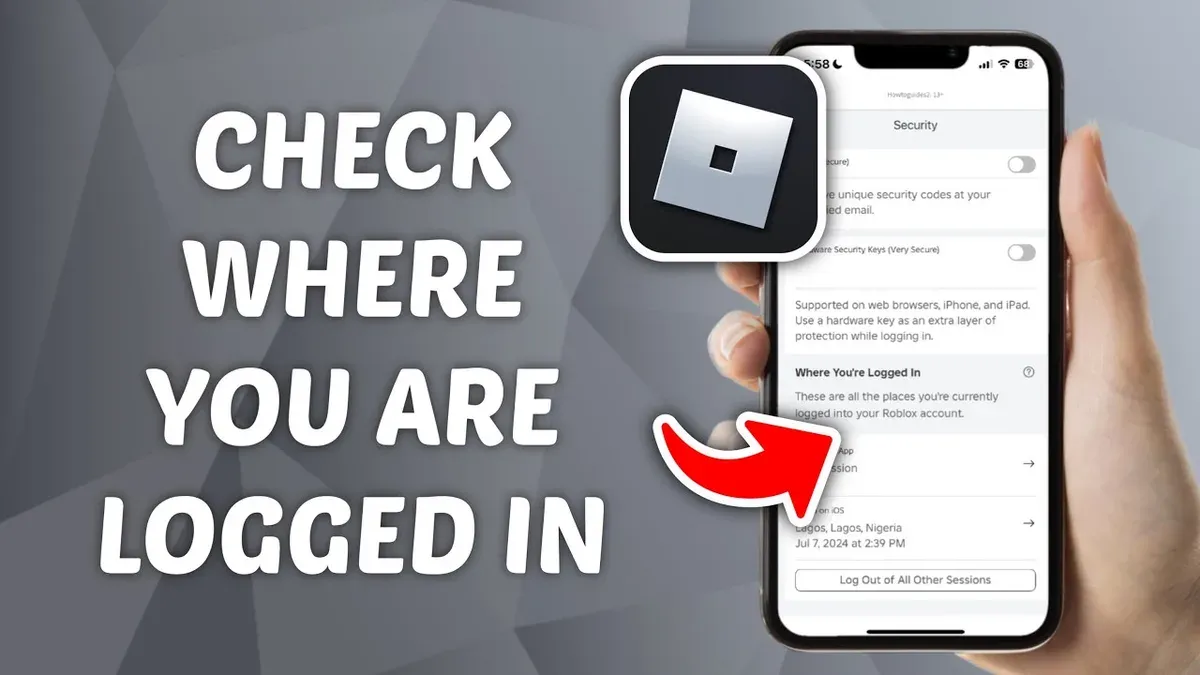
This article explains how to see where you're logged into Twitch and covers related features that help maintain account security and control. Twitch users can view active sessions to check which devices and locations have access, reducing the risk of unauthorized use. Beyond login checks, the article also guides on finding Twitch URLs, reviewing viewer information, and accessing chat logs for a comprehensive understanding of account activity.
Checking active sessions requires access to the Twitch account's security settings, where details like IP addresses, device types, and login timestamps appear. This step-by-step guide walks through these menus and explains how to interpret the information. It also addresses common questions about Twitch stream viewers and troubleshooting login visibility issues.
Before you start: What is needed to check Twitch login locations
Checking where a Twitch account is logged in requires specific preparations. First, access to a device with internet connectivity is essential. Twitch supports a wide range of devices including Windows and macOS computers, Android and iOS smartphones and tablets, as well as smart TVs and streaming devices that have the Twitch app installed.
A web browser or the official Twitch app must be used to log into the account. Supported browsers include Chrome, Firefox, Edge, and Safari. The login interface typically asks for a username or email and password, sometimes requiring two-factor authentication if enabled. A valid Twitch account with current credentials is necessary to gain access to account settings where session information is displayed.
Basic familiarity with Twitch’s interface helps in navigating to the correct menus. Active session details are found under the “Security and Privacy” section within account settings. Users should be prepared to identify devices and locations listed by IP addresses or device types, which Twitch provides as part of the session overview.
- Open a supported web browser or the Twitch app on a connected device. The Twitch login screen should appear.
- Enter valid Twitch account credentials and complete any two-factor authentication prompts. Successful login will lead to the Twitch homepage.
- Navigate to the user icon in the top-right corner and select “Settings” from the dropdown menu. The settings page confirms access to account management.
Tip: Using a desktop browser often offers the clearest view of security and session details compared to mobile apps.
How to see where you're logged in on Twitch
- Log into Twitch on a secure device using valid credentials. Upon successful login, the Twitch homepage appears.
- Click the profile icon in the top-right corner to open the user menu, then select Settings. The Settings page should load.
- Navigate to the Security and Privacy tab within Settings. This section contains account security options.
- Scroll down to the Active Sessions section. Here, a list of currently logged-in devices appears, showing device types, approximate locations, and last activity timestamps.
- Review the session details carefully. Each entry typically includes device information (e.g., Windows PC, iPhone), the location inferred from IP address, and the last time Twitch was accessed from that device.
- To log out of a specific device, click the Log Out button next to that session. Confirm if prompted. The session should disappear from the list immediately.
- To log out of all devices except the current one, select the Log Out of All Other Sessions option if available. This action secures the account by terminating sessions on all other devices.
Tip: Regularly reviewing active sessions helps detect unauthorized access and maintain account security.
How to see who's watching your Twitch stream
To monitor the number of viewers during a live stream, access the Twitch Creator Dashboard. The live viewer count appears prominently on the dashboard’s main page, reflecting how many users are currently watching. This number updates in real time but does not reveal individual viewer identities.
Twitch prioritizes user privacy, so streamers cannot see detailed viewer lists. The viewer count differs from chat participants—many viewers may watch without interacting in chat, so the chat user list is not a full representation of total viewers.
Some third-party tools claim to provide additional viewer data, but they rely on public information and have limitations. These tools cannot bypass Twitch’s privacy settings to show specific viewer identities. The most reliable source remains the Twitch dashboard’s live viewer count.
- Open the Twitch Creator Dashboard from the main Twitch website after logging in. The dashboard displays stream health and viewer metrics.
- Locate the "Stream Manager" tab on the left menu, then check the "Viewer Count" widget near the top. This number reflects current live viewers.
- To compare, open a third-party Twitch analytics site with the channel name entered. Notice that viewer numbers might lag or differ slightly due to data refresh rates and privacy restrictions.
Tip: Focus on the built-in Twitch viewer count for accurate live audience size rather than relying on third-party estimates.
How to see my Twitch URL
Twitch channel URLs follow a simple format: https://www.twitch.tv/username. The "username" is the unique identifier chosen during account creation. Finding this username allows users to quickly access and share their Twitch channel.
- Log into Twitch and click the profile icon in the top-right corner. A dropdown menu appears.
- Select Channel from the dropdown. This opens the user’s public Twitch channel page.
- Look at the browser's address bar. The URL displayed is the Twitch channel URL, typically in the form https://www.twitch.tv/username.
- To confirm the username, check the top-left corner of the channel page where the username is displayed prominently.
- Copy the URL from the address bar to share or bookmark. This link leads directly to the user’s Twitch channel.
Example: If the username is GamerX123, the channel URL will be https://www.twitch.tv/GamerX123.
Tip: Bookmark the channel URL for quick access or include it in social media profiles to promote the Twitch channel.
How to look at Twitch history
Accessing Twitch history involves reviewing past broadcasts, clips, and streaming activity through the Video Producer section of the Twitch Creator Dashboard. This interface organizes saved content, making it easy to find and manage historical streams and clips.
- Log in to the Twitch account and navigate to the Creator Dashboard by clicking the profile icon in the top-right corner and selecting Creator Dashboard.
- In the left sidebar, click Content and then select Video Producer. The Video Producer displays all saved past broadcasts and clips.
- Browse or search the list to find specific past broadcasts or clips. Each item shows the broadcast date and duration.
- To download content, click the three-dot menu next to a video and select Download. This saves a local copy of the broadcast or clip.
- To delete content, use the same three-dot menu and select Delete. Confirm to permanently remove the video from the account.
Note: Twitch retains past broadcasts for a limited time—typically 14 days for regular users and 60 days for Partners and Prime users. Clips remain available indefinitely unless deleted.
How to find someone on Twitch
- Go to the Twitch homepage and locate the search bar at the top of the screen. Enter the exact username of the person or streamer to find them directly. If the username is correct, the user’s channel will appear in the dropdown results.
- If the exact username is unknown, enter relevant keywords related to the user’s content or interests. After pressing Enter, the search results page will display matches categorized under Channels, Categories, and Videos.
- Use the filter tabs below the search bar to narrow results based on Channels for streamers, Categories for games or topics, or Videos for clips and past broadcasts. Selecting Channels will help find active or popular streamers matching the query.
- If Twitch’s internal search does not yield results, use an external search engine with the format "site:twitch.tv [username or keyword]". This can uncover channels or content not indexed prominently on Twitch’s own search.
- If the user is not found, they may have changed their username, set their account to private, or deleted their channel. In these cases, verifying the username from other social media or communities can help confirm the current Twitch identity.
Tip: Searching with partial usernames combined with known content topics often surfaces the correct channel even if the exact name is forgotten.
How to see chat logs on Twitch
Twitch does not offer public access to full chat logs for channels. Streamers and moderators can view recent chat history during live streams through Twitch’s built-in moderation tools but cannot retrieve complete past chat logs directly from Twitch once the stream ends. This limitation ensures user privacy and complies with Twitch’s data retention policies.
Streamers who want to save or review chat messages after a broadcast typically rely on third-party tools or chat bots that log messages in real time. Popular options include Nightbot, Streamlabs Chatbot, and others that record chat activity externally while the stream is live. These tools often provide searchable archives accessible through their dashboards.
To access recent chat history during a stream, open the Twitch Creator Dashboard and navigate to the Moderation panel. Here, moderators can view chat context around flagged messages, deleted messages, and user timeout history, aiding in managing community behavior.
Tip: Use third-party chat logging tools if saving chat history for moderation or community engagement purposes is necessary, as Twitch itself does not retain full logs after streams end.
How to stay logged in to Twitch
To maintain login status securely on Twitch, use the 'Remember me' checkbox on the login page. This feature keeps the session active on the device, preventing repeated logins. Avoid logging out manually or closing the browser or app with the session active to stay logged in.
Persistent login on shared devices poses significant security risks, as unauthorized users may gain access to the account. Using two-factor authentication (2FA) adds a crucial security layer, protecting accounts even if login credentials are saved. Twitch reports that a majority of account compromises involve reused passwords or lack of 2FA, while adoption of two-factor authentication continues to grow steadily among users.
- On the Twitch login page, enter username and password.
- Check the box labeled 'Remember me' before clicking the login button. The interface should redirect to the homepage without prompting for credentials again on future visits.
- Enable two-factor authentication by navigating to Settings > Security and Privacy > Two-Factor Authentication. Follow the prompts to link an authenticator app or phone number. Once enabled, login attempts will require a unique code, securing persistent sessions.
Tip: Never select 'Remember me' on public or shared computers; log out manually to protect account access.
Troubleshooting common issues when checking Twitch login locations
If session information fails to display or appears incomplete, refreshing the page or logging out and back in often resolves temporary glitches. Ensure the Twitch app or browser is updated, as outdated versions may cause display errors. If suspicious login locations appear, such as unfamiliar cities or devices, treat these as potential security threats. Twitch typically lists device type, approximate location, and login time; entries like logins from foreign countries or unknown devices require immediate action.
Difficulty logging out from other devices can occur if the "Log Out of All Devices" option under Settings > Security & Privacy is unresponsive. In such cases, clearing browser cache or using a different device to access Twitch may help. If the problem persists, contacting Twitch support is advisable. For accounts suspected of being compromised or hacked, immediately changing the password and enabling two-factor authentication (2FA) is critical. Twitch also recommends reviewing connected apps and revoking any unfamiliar access.
- Go to Settings > Security & Privacy > View Login Sessions. Confirm that the session list updates after page refresh. Successful refresh shows current active sessions with device types and locations.
- If suspicious sessions appear, select "Log Out" for those devices. The session should disappear from the list after logout.
- If unable to log out of all devices via the option, clear browser cache or try another device, then retry logout. Successful logout removes all sessions except the current one.
- Change the account password and enable 2FA under Settings > Security & Privacy if unauthorized access is suspected. Confirmation messages from Twitch indicate these changes took effect.
- Review connected apps under Settings > Connections and revoke any unknown or unwanted integrations. Confirm revoked apps no longer have access.
Example: A session showing "Windows PC, Moscow, 3 hours ago" for a user in the US is suspicious. Immediate logout and password reset are recommended.
Tip: Regularly monitor login sessions and update security settings to prevent unauthorized access.
Frequently asked questions
How to see my twitch password?
Twitch does not display saved passwords directly for security reasons. To recover a password, use the "Forgot password?" link on the login page to reset it via the registered email. Alternatively, check the password manager in the web browser if the password was saved there.
How to see chat logs twitch?
Twitch does not provide a built-in feature to view past chat logs on streams. Streamers and moderators can use third-party chat bots or moderation tools that save chat history. For personal chat review, some extensions or services may archive chat, but Twitch itself does not store accessible chat logs.
How to see who's watching twitch stream?
Streamers can see the current viewer count in the Twitch dashboard or on the stream player interface. However, Twitch does not reveal the identity of viewers to streamers to protect user privacy. Viewer lists showing individual usernames are not available.
How to see your password on twitch?
Passwords are not visible on Twitch for security. To manage account access, reset the password via email if forgotten. Browsers may allow viewing saved passwords through their settings if previously saved during login.
How to see my Twitch password
The only way to see a Twitch password is through a browser's password manager if it was saved there. Otherwise, use Twitch's password reset feature through the login page by entering the registered email address.
What this advice does not cover and when to seek additional help
This article does not cover advanced hacking or forensic methods for investigating account breaches. Users experiencing suspicious activity beyond visible login locations or unable to secure their account through standard settings should contact Twitch Support directly. This ensures access to specialized tools and assistance unavailable through user controls.
For severe security concerns, such as unauthorized access despite changing passwords and enabling two-factor authentication, professional intervention is necessary. Twitch Support can help with account recovery, in-depth security reviews, and restoring control.
The most effective next step after reviewing login locations and session details is to enable two-factor authentication under Settings > Security. This adds a critical layer of protection, reducing the risk of unauthorized access and helping maintain account integrity over time.
See also: How to See Where You're Logged Into TikTok: Step-by-Step Guide · How to See Where You're Logged Into Threads: A Step-by-Step Guide · How to See Where You're Logged Into Telegram: Step-by-Step Guide · How to See Where You're Logged Into Snapchat: Step-by-Step Guide