How to See Where You're Logged Into WhatsApp: A Clear Step-by-Step Guide
Discover how to check where you're logged into WhatsApp and manage your active sessions to keep your account secure.

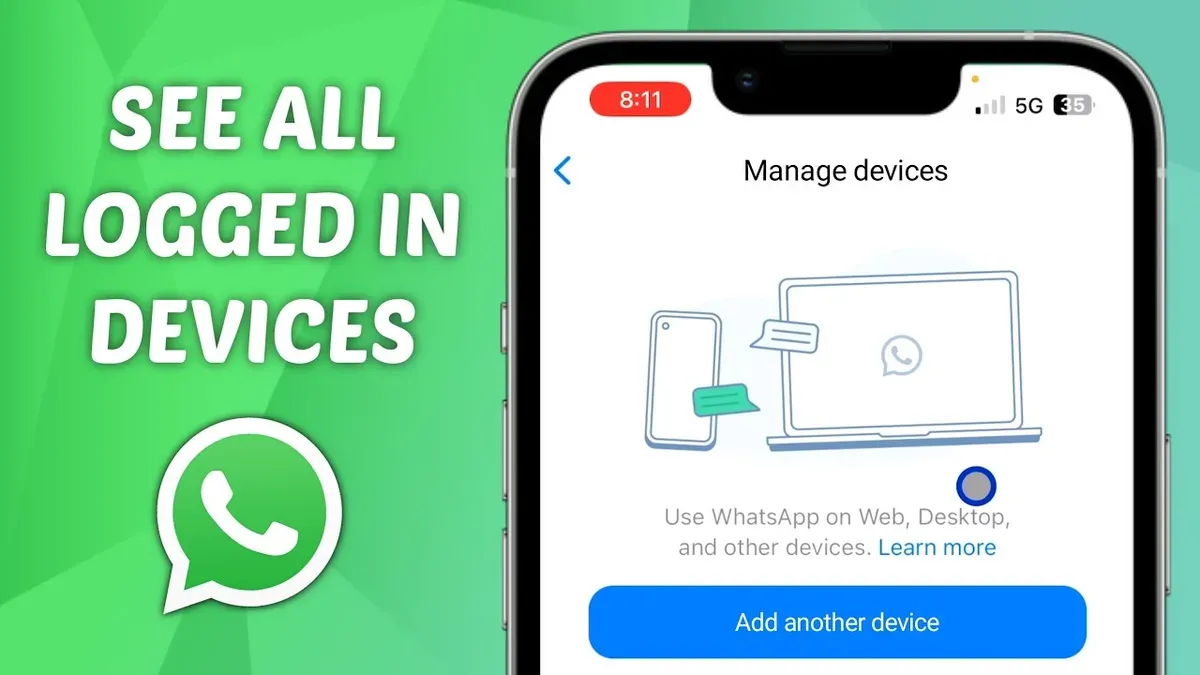
This article explains how to see where you're logged into WhatsApp and manage active sessions across devices. Identifying all devices currently connected to a WhatsApp account is essential for maintaining security and controlling access. WhatsApp allows users to view linked devices, including phones, tablets, and computers, through its mobile app and web interface.
Each session displays device type, location approximation, and last active time, helping users spot unfamiliar logins. Managing these sessions includes logging out remotely from devices that are no longer in use or appear suspicious. This guide covers exact menu paths, interpreting device details, and steps to handle unauthorized access efficiently.
Before you start: What is needed to check WhatsApp login devices
To review where a WhatsApp account is logged in, a smartphone with the WhatsApp app installed and active access to the account is essential. An internet connection is required to refresh session data and load current device information accurately. Understanding WhatsApp’s multi-device feature helps interpret session details; this feature allows using WhatsApp on multiple devices simultaneously without the primary phone being online.
WhatsApp Web and Desktop clients provide a different view of logged-in devices compared to the mobile app. The mobile app shows linked devices under its settings, including device type and last active time, while WhatsApp Web/Desktop focuses on active browser or app sessions. This distinction affects where and how login details are accessed and managed.
| Device Type | Where Login Info is Accessible | Details Provided |
|---|---|---|
| Smartphone (Mobile App) | Settings > Linked Devices | Device name, type, last active time, location (approximate) |
| WhatsApp Web | Web interface menu > Linked Devices | Browser type, device name, last active |
| WhatsApp Desktop App | App menu > Linked Devices | Device name, session status, last active |
- Open WhatsApp on the smartphone.
Look for the main screen with chats. - Ensure the device has an active internet connection.
Connection icon or data signal should be visible and working. - Navigate to Settings > Linked Devices.
The list of logged-in devices should appear. - For WhatsApp Web/Desktop, open the respective client and access the linked devices menu.
Session details for that platform will be listed.
How to see where you're logged in on WhatsApp using the mobile app
- Open the WhatsApp app on the mobile device. The main chat screen will appear.
- Tap the Settings icon located in the bottom-right corner on iOS or the three-dot menu in the top-right corner on Android, then select Settings. The settings menu will open.
- In Settings, tap Linked Devices. This section lists all active sessions linked to the WhatsApp account.
- Review the displayed list of active sessions. Each entry shows the device type (e.g., Chrome, Windows Desktop), approximate location based on IP address, and the last active time.
- Interpret the device names and details carefully. The device name typically reflects the browser or operating system used, not the specific device model. Location is approximate and may vary in accuracy.
- Note that only currently active linked sessions appear here. The mobile phone running the WhatsApp app itself is not listed among linked devices.
Tip: Regularly check this list to spot unfamiliar devices or locations, which may indicate unauthorized access.
How to check where you're logged in on WhatsApp Web or Desktop
- Open WhatsApp Web by visiting web.whatsapp.com or launch the WhatsApp Desktop app. The main chat interface should appear.
- Click on the three-dot menu icon (More options) at the top-left corner next to the search bar. A dropdown menu will appear.
- Select Linked Devices from the dropdown. This opens the session management screen showing all active linked devices.
- Review the list of linked devices displayed. Each session shows device type (e.g., Chrome on Windows, Safari on Mac), approximate location based on IP, and last active time.
- Compare this list with the one seen on the mobile app. The desktop view provides similar but sometimes less granular location details and session duration.
- To log out from a session, click on the session entry and select Log Out. This immediately terminates the session on that device.
- Logging out of the current session will require re-authentication on WhatsApp Web or Desktop to regain access.
Tip: The WhatsApp Web/Desktop Linked Devices screen updates in real time, so logging out from one device reflects instantly across all linked clients.
How to know where my WhatsApp is logged in on multiple devices
WhatsApp's multi-device feature allows linking up to four non-phone devices simultaneously, including WhatsApp Web, Desktop apps, and Portal devices. These linked devices operate independently, meaning the phone doesn’t need to be online for them to work. However, the mobile phone itself is not listed as a linked device because it is considered the primary device rather than an endpoint session.
To identify all logged-in endpoints, users should review the Linked Devices section in WhatsApp settings. This list shows active sessions on Web, Desktop, and Portal devices but excludes the mobile phone. Before multi-device support, WhatsApp required the phone to be online, and only one web or desktop session was allowed at a time. Now, multiple sessions can coexist and function independently.
Because the phone isn’t counted among linked devices, the total device count (phone plus linked devices) exceeds the number shown in the linked devices list by one. This explains why the number of logged-in devices may seem off when compared with the list.
- Open WhatsApp on the mobile phone and tap Settings.
- Select Linked Devices to view all active non-phone sessions.
- Check the list for Web, Desktop, or Portal sessions, each showing device type and last active time.
- Note that the phone itself will not appear here, confirming it is the primary device.
- Use the information to understand and manage the full set of devices currently connected to the WhatsApp account.
How to log out of WhatsApp sessions remotely
Logging out of active WhatsApp sessions remotely helps protect the account if a device is lost, stolen, or shows suspicious activity. The mobile app provides direct control to terminate individual sessions or end all linked sessions at once without affecting chats on the phone.
- Open WhatsApp on the mobile device and go to Settings.
- Select Linked Devices to see the list of active sessions.
- Tap the session to log out, which reveals device details such as type, last active time, and location.
- Choose Log Out for that session. The session disappears from the list, confirming successful logout.
- To log out of all sessions, tap the three-dot menu in the Linked Devices screen and select Log Out from All Devices. Confirm the action when prompted.
Tip: Log out immediately if any session shows an unfamiliar device or location to prevent unauthorized access.
Logging out removes the session's access to WhatsApp but does not delete any chat history from the phone. This makes session management safe without risking data loss.
For example, a suspicious session labeled "Chrome on Windows" last active an hour ago can be terminated by tapping it and selecting Log Out. The session then disappears, ensuring that device no longer has access.
How to see login history in WhatsApp: What is available and what is not
WhatsApp does not provide a comprehensive login history or detailed timestamps for user sessions. The only information accessible to users is the list of currently active linked devices, which appears under Settings > Linked Devices. This list shows device types, approximate locations, and last active times, but it does not include a historical log of past logins or session durations.
Login sessions on the primary mobile phone are not tracked or displayed separately. WhatsApp’s design focuses on privacy and minimizing stored user metadata, which explains why there is no feature to review past login attempts or previous session histories. According to WhatsApp’s official support documentation, users can only manage active sessions but cannot retrieve historical login data.
This limitation means users cannot audit every access event but can only monitor current active connections and disconnect suspicious sessions immediately. Understanding this trade-off helps set realistic expectations about WhatsApp’s approach to session transparency and user privacy.
How to find my WhatsApp login details and detect unauthorized access
To identify unauthorized access, review the Linked Devices list in WhatsApp for any unfamiliar device names, locations, or session times. Suspicious signs include devices that are not recognized, locations far from usual areas, or sessions active at unexpected hours. Multiple simultaneous sessions on different devices may also indicate unauthorized use.
Look for device descriptions such as "Windows PC," "Chrome on Mac," or unusual device models that are not personally used. The location shown is based on IP geolocation, which may help spot access from unexpected countries or cities. If any session appears suspicious, it is likely someone else has access to the WhatsApp account.
To secure the account when suspicious activity is detected, immediately log out of all linked devices remotely via the mobile app. Then, enable two-step verification in WhatsApp settings for added protection. Changing the phone’s lock screen password and checking for malware or spyware is also recommended.
- Open WhatsApp and go to Settings > Linked Devices. Confirm the list of active sessions and note device names, last active times, and locations.
- Identify any devices or locations that are unfamiliar or unexpected. Suspicious entries may include devices never used or locations outside common areas.
- If suspicious devices are found, tap the session and choose Log Out to disconnect that device. Confirm it disappears from the list.
- Return to Settings > Account > Two-step verification and enable it to add a passcode requirement for new device linkings.
- Secure the phone with a strong lock screen password and scan for malware to prevent further unauthorized access.
Troubleshooting: What to do if WhatsApp doesn’t show linked devices or sessions
When linked devices or active sessions fail to appear, the first step is to ensure the WhatsApp app is updated to the latest version. Older versions often have limited or no multi-device support, which can cause linked devices not to display. Confirm that the account is verified with the correct phone number, as unverified or incorrectly set numbers may prevent session details from loading.
Refreshing the session list can resolve temporary glitches. On the mobile app, navigate to Settings > Linked Devices and pull down to refresh; the list should update with current active sessions. If sessions appear stuck or fail to update, force-closing the app and restarting the device may help clear cached data causing the issue.
In some regions, multi-device features roll out gradually, so limited support could be the cause. If problems persist despite these steps, contacting WhatsApp support is advisable. Provide detailed information about the device, app version, and issue to receive targeted assistance.
- Open the WhatsApp app and go to Settings > Help > Contact Us to report the issue.
- Include screenshots of the empty Linked Devices screen and your app version found under Settings > Help > About.
- Follow any troubleshooting steps provided by support to resolve the problem.
Tip: Regularly updating WhatsApp prevents compatibility issues that block linked device visibility.
Frequently asked questions
How to know where you're logged in on whatsapp?
Open the WhatsApp mobile app and go to Settings > Linked Devices. This section lists all active sessions with device types, locations, and last active times. Reviewing this list helps identify where the account is currently logged in.
Can you see where you're logged into whatsapp?
Yes. WhatsApp allows users to view all linked devices through the Linked Devices menu within the app. It shows device names, last active timestamps, and platform information, aiding in session management.
How to see what devices your logged in on whatsapp?
Access WhatsApp Settings, then tap Linked Devices. The displayed list includes all devices where the account is logged in, such as smartphones, desktops, or web browsers. Each entry details device type and last activity.
How to see if someone has whatsapp?
To check if a phone number is registered on WhatsApp, save the number in the device contacts and open WhatsApp. Start a new chat and search for the contact; if it appears, the person uses WhatsApp. Alternatively, use the WhatsApp search bar to find the contact by number.
How to log in whatsapp?
Install the WhatsApp app on a smartphone and open it. Enter the phone number to receive a verification code via SMS or call. Input the code to complete login. For WhatsApp Web or Desktop, scan the QR code shown on the computer screen using the mobile app's Linked Devices > Link a Device feature.
What This Advice Does Not Cover and When to Seek More Help
This advice does not cover recovering deleted WhatsApp sessions or accessing historical login logs, as WhatsApp does not provide these features. Users needing to restore lost chats or recover account access due to hacking should follow WhatsApp’s official account recovery process or contact WhatsApp support directly. For managing device security beyond WhatsApp, such as full device scans for malware or advanced account protection, specialized security tools or professional assistance are recommended.
The most useful next step is regularly reviewing active sessions via WhatsApp’s linked devices feature and promptly logging out of any unfamiliar devices. This practice provides immediate control over where the account is accessed and helps prevent unauthorized use without relying on unavailable historical login data.
See also: How to See Where You're Logged Into WeChat: Step-by-Step Guide · How to See Where You're Logged Into Viber and Manage Sessions · How to Report Impersonation on WhatsApp: A Clear Step-by-Step Guide