Moving from Blooket to Edpuzzle: Your Complete Checklist
This checklist helps you smoothly move quiz content from Blooket’s game-based format to Edpuzzle’s interactive video lessons without losing engagement.

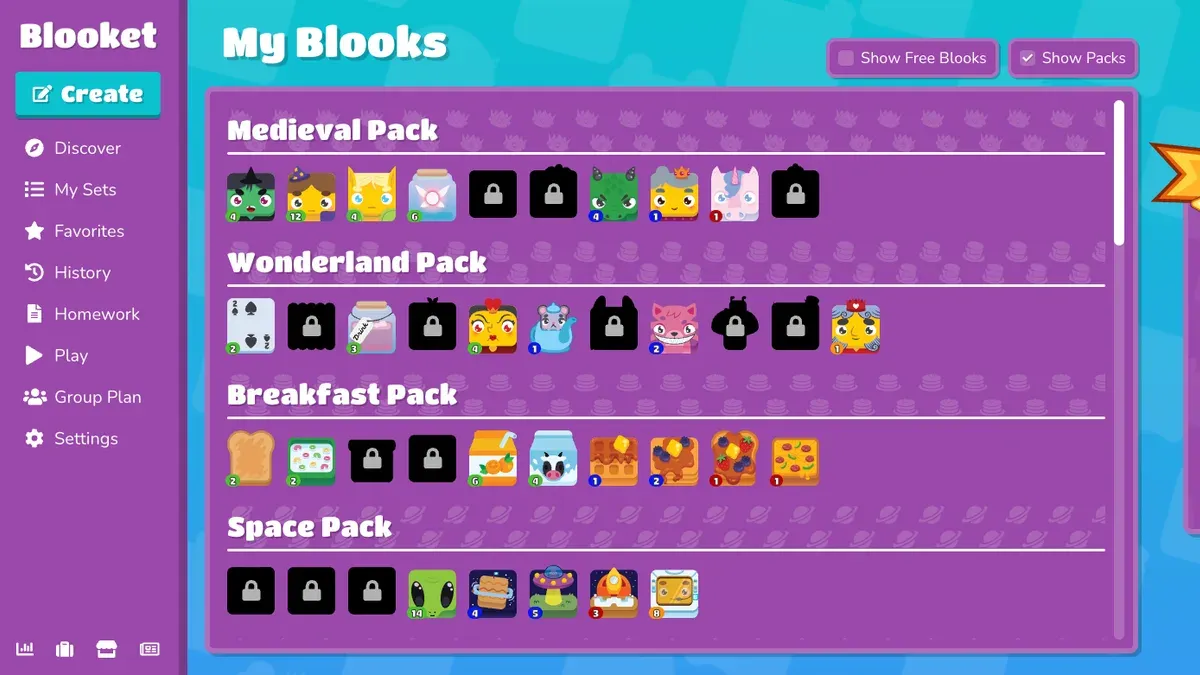
Short answer: Moving from Blooket to Edpuzzle requires adapting your quiz content from a game-based format to an interactive video experience. The moving from Blooket to Edpuzzle checklist focuses on exporting questions, reformatting them for video embedding, and adjusting settings to maintain student engagement.
This article outlines the key differences between the platforms, how to preserve your quiz material, and the exact steps to transition smoothly. You will find guidance on managing question flow, integrating media, and avoiding common pitfalls during the switch. The goal is to help you balance interactive gameplay elements with Edpuzzle’s video-driven learning environment without losing quiz integrity.
What are the main differences between Blooket and Edpuzzle?
Blooket centers on gamified quizzes that focus on speed and competition. Students answer sets of questions quickly to earn points, which keeps energy high but prioritizes recall and fast responses. Its interface supports multiple game modes like Tower Defense and Café, making it ideal for review sessions or light assessments.
Edpuzzle embeds interactive quizzes directly within educational videos. This allows students to engage with content at their own pace, answering questions tied to specific video moments. The emphasis is on comprehension and deeper learning rather than speed, making it suitable for flipped classrooms or remote learning where video content drives instruction.
| Feature | Blooket | Edpuzzle |
|---|---|---|
| Question Types | Multiple choice, true/false, open-ended | Multiple choice, open-ended integrated in video timeline |
| Media Support | Static images and text | Videos with embedded questions |
| Student Engagement Mode | Live competitive games | Self-paced video lessons |
| Reporting | Basic score summaries and leaderboards | Detailed analytics tied to video segments |
For example, if you run a live review before a test, Blooket lets students race to answer questions about vocabulary quickly. If you want to assign a video lesson where students watch a biology clip and answer questions as they go, Edpuzzle handles this seamlessly. The two platforms serve different instructional goals, and understanding these differences will help you decide how to integrate video quizzes into your workflow while maintaining student engagement.
How to add a Quizlet to Blooket before moving content?
To retain your Quizlet content before migrating to Edpuzzle, start by importing or manually recreating your Quizlet flashcards into Blooket. Blooket does not support direct import of Quizlet sets, so you’ll need to copy terms and definitions manually. Open your Quizlet set and export the terms by selecting the "Export" option under the menu. Copy the plain text list of terms and definitions.
Next, in Blooket, create a new quiz from the dashboard by clicking "Create a Set". Paste the copied terms into the "Term" field and corresponding definitions into the "Definition" field. Blooket supports multiple-choice quiz formats, so you may need to adjust or simplify some question types from Quizlet, as complex formatting or images won’t transfer.
For example, if your Quizlet set contains 20 flashcards focused on vocabulary, you paste those 20 terms and their definitions into Blooket's quiz creator. This process typically takes 10-15 minutes, depending on set size. Note that Blooket’s multiple-choice format requires you to create distractors if you want to mimic Quizlet’s testing style.
This manual transfer means you plan content migration carefully—Blooket’s quiz format differs from Edpuzzle’s video-embedded questions, so retaining raw Quizlet content in Blooket helps preserve quiz integrity before moving to Edpuzzle.
How does skipping questions work on Edpuzzle?
Edpuzzle lets students control video playback, including fast-forwarding and rewinding, but skipping embedded questions depends on teacher settings. By default, students cannot skip questions; the video pauses at each question, ensuring they engage with the material. This pause-and-answer design helps maintain lesson integrity by preventing students from bypassing key assessment points.
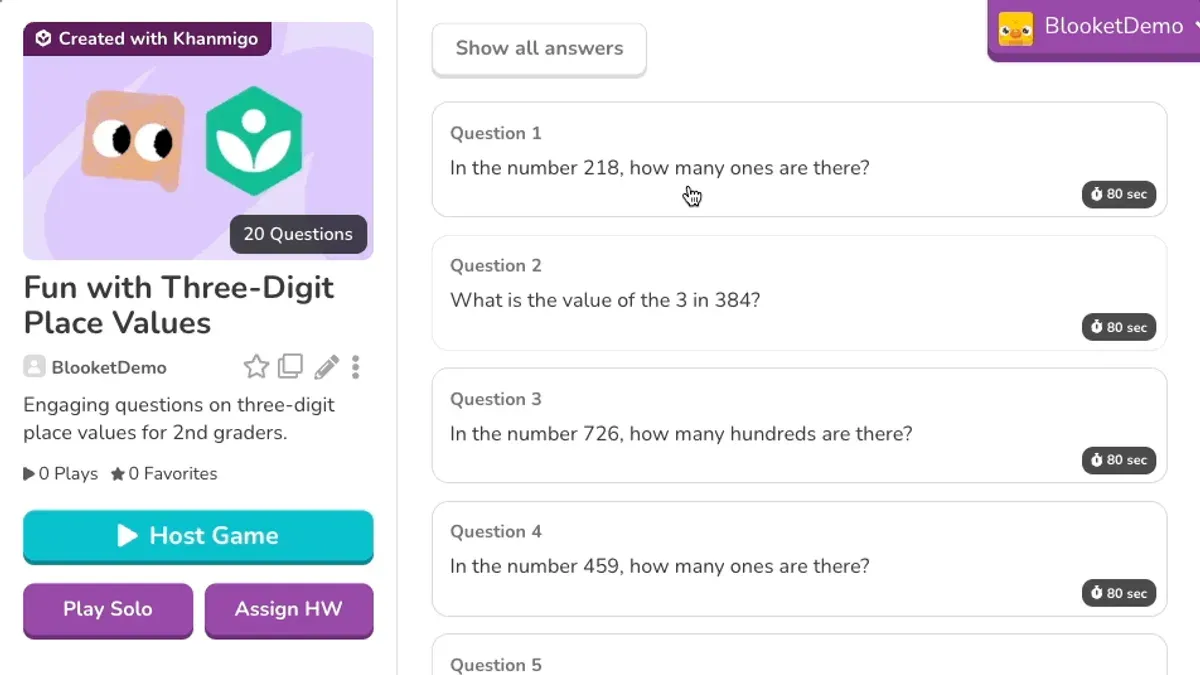
Teachers control skip permissions in the "Settings" tab under "Allow skipping questions." Turning this option on lets students fast-forward through questions, which can support self-paced learners but risks missing critical content. In contrast, leaving it off enforces completion of every question before the video continues.
For example, in a video lesson on photosynthesis with five embedded multiple-choice questions, if skipping is disabled, students must answer each question before proceeding. If enabled, students can skip a difficult question but might miss essential comprehension checks. Teachers should weigh the need for flexibility against ensuring full participation.
Use these steps to adjust skip controls:
- Open your Edpuzzle lesson and click "Settings."
- Locate the "Allow skipping questions" toggle.
- Enable or disable skipping based on your instructional goals.
- Save settings and preview the lesson to confirm behavior.
What is the step-by-step checklist for migrating Blooket quizzes to Edpuzzle?
Start by exporting or documenting your Blooket quiz questions and answers. Since Blooket lacks a direct export feature, manually copy each question and answer set into a document or spreadsheet. This typically takes 10-20 minutes per quiz, depending on length. Avoid skipping questions or answers to prevent gaps during reconstruction.
Next, select or create Edpuzzle videos that align with your quiz content. Browse Edpuzzle’s library or upload your own videos. Choose videos that naturally integrate your quiz topics for better engagement. This step can take 15-30 minutes per lesson and is crucial for smooth content alignment.
Then, recreate your quiz questions within Edpuzzle by embedding them at relevant video timestamps. Use multiple-choice or open-ended question types as needed. For example, if your Blooket quiz has a question on a specific concept, pause the video at that moment and insert the question. This takes roughly 20-40 minutes per quiz, depending on complexity. Be careful with timing—questions too close together can disrupt flow.
After embedding, test your Edpuzzle lessons thoroughly. Watch the video as a student would, answering questions to confirm correct settings and smooth playback. Allocate 10-15 minutes per lesson. Testing avoids surprises during live sessions.
Finally, communicate the change to your students. Explain how Edpuzzle’s interactive videos work and set expectations for self-paced learning and possible skipped questions. Clarify deadlines and technical requirements. This ensures readiness and reduces confusion.
- Document Blooket quiz questions (10-20 minutes)
- Select/upload relevant Edpuzzle videos (15-30 minutes)
- Embed questions at precise timestamps (20-40 minutes)
- Test full lesson for smooth functioning (10-15 minutes)
- Inform students and set expectations (5-10 minutes)
What common mistakes should you avoid when switching from Blooket to Edpuzzle?
One frequent error is expecting Edpuzzle to replicate Blooket’s fast-paced, competitive game environment. Edpuzzle is designed for interactive video lessons, not gamification, so trying to mimic timed battles or point races leads to frustration and loses engagement. Instead, adjust your expectations and leverage Edpuzzle’s strengths, such as embedding questions at key moments to deepen understanding.
Another mistake is neglecting to preview your entire Edpuzzle lesson before assigning it. For example, if question triggers are mistimed or videos run too long without interaction, students can lose focus. Always watch the full lesson from start to finish, checking that questions appear exactly when intended and that the pacing feels natural.
Overloading videos with too many embedded questions also reduces student engagement. Imagine a 10-minute video with a question every 30 seconds—students may feel overwhelmed or rushed. A better approach is to space questions thoughtfully, balancing assessment with content flow. This helps maintain attention and encourages reflection.
Finally, failing to adapt quiz formats to Edpuzzle’s style causes issues. Blooket’s multiple-choice or matching games don’t directly translate to Edpuzzle’s embedded quizzes. Converting questions carefully, avoiding complex game mechanics, and focusing on clear, straightforward interactions will improve lesson effectiveness.
Frequently asked questions
How to skip on edpuzzle?
On Edpuzzle, skipping questions is controlled by the teacher’s settings. When creating or editing a video lesson, navigate to the "Settings" tab and enable or disable the "Allow students to skip questions" option. If enabled, students can skip questions during playback; otherwise, they must answer each question to proceed.
Can I directly import Blooket quizzes into Edpuzzle?
No, Edpuzzle does not support direct import of Blooket quizzes. You must manually recreate quiz questions within Edpuzzle by embedding them into videos. This involves selecting relevant video content and inputting the questions and answers manually.
How do I handle student data when moving from Blooket to Edpuzzle?
Student data cannot be transferred automatically between Blooket and Edpuzzle. You should export any necessary student progress or results from Blooket before migrating. Then, set up your Edpuzzle classes and enroll students manually or via your learning management system integration.
Is it possible to skip questions on Blooket as you can on Edpuzzle?
Blooket does not offer an option for students to skip questions during gameplay. Students must answer each question to continue, which maintains the game’s flow but limits flexibility compared to Edpuzzle’s skip feature.
What features does Edpuzzle offer that Blooket does not?
Edpuzzle allows you to embed quizzes directly into videos, enabling a video-based interactive learning experience. It provides detailed student engagement analytics, options to skip questions, and integrates with many learning management systems. Blooket focuses on game-based quizzes without video embedding or the same level of integration and analytics.
Quick checklist
- Review each Blooket quiz question for relevance and clarity before transferring.
- Download or note any Quizlet sets linked to your Blooket quizzes.
- Create a new Edpuzzle video lesson or select an existing video matching your quiz topic.
- Insert questions manually into Edpuzzle at appropriate video timestamps.
- Test the Edpuzzle lesson fully to confirm question timing and skipping settings.
- Inform students of the new platform and provide access instructions.
- Monitor initial student engagement and adjust video pacing or question placement as needed.
What this advice does not cover
This guide does not cover institutional administrative migration policies or bulk data export/import tools, which may require IT support. If your school uses centralized platforms or has strict data management protocols, coordinate with your IT department before proceeding. Also, Edpuzzle’s format and engagement style differ fundamentally from Blooket’s gamified quizzes, so the transition may not suit all teaching scenarios. Consider whether your learning objectives are better met with video-embedded questions or game-based interaction before migrating.
Your next step is to select a representative video on Edpuzzle and manually recreate a sample quiz segment to verify workflow and student response. This hands-on test will clarify how your content adapts and highlight any timing or interaction adjustments needed before full migration.
See also: Blooket Rollout Plan for Homeschool Families: A Step-by-Step Guide · Moving from Mosyle to Google Admin Console: Your Essential Migration Checklist · Moving from Mosyle to Clever: Your Clear-Cut Migration Guide · Moving from Mosyle to ClassLink: Your Step-by-Step Checklist