Switching from ChatGPT to Microsoft Copilot: What You Need to Know
Discover how switching from ChatGPT to Microsoft Copilot streamlines your workflow by embedding AI within Microsoft 365 apps.

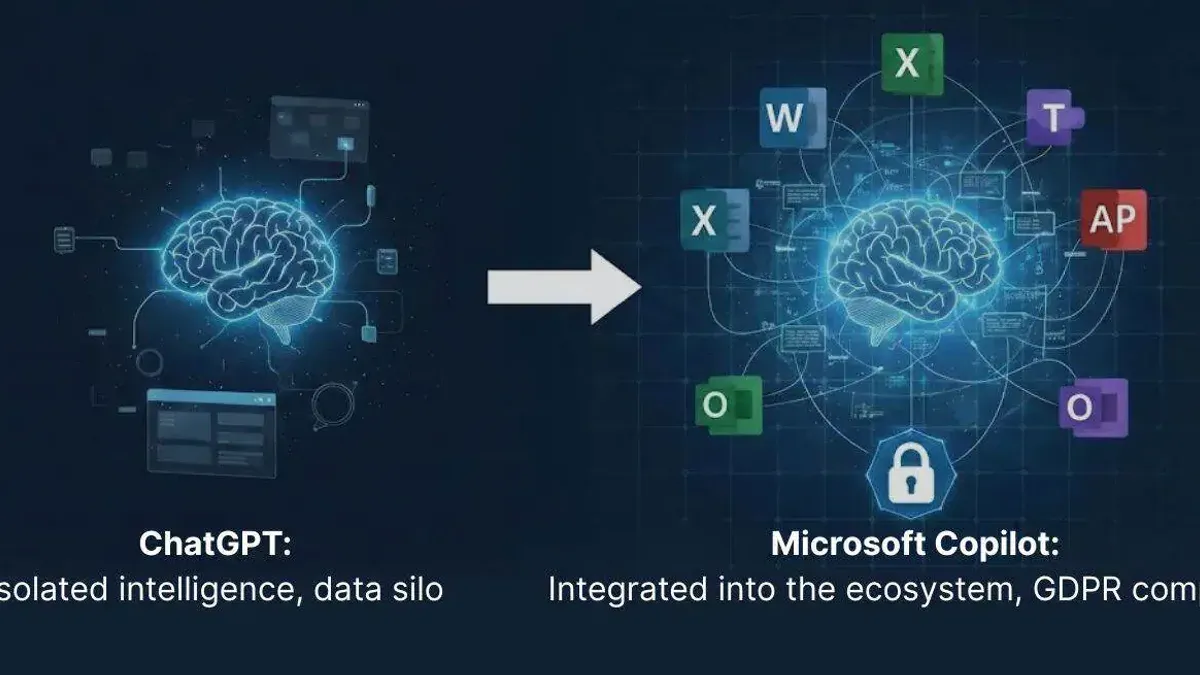
Short answer: Switching from ChatGPT to Microsoft Copilot means moving from a standalone AI chatbot to an AI assistant embedded within Microsoft 365 apps. While both offer AI-driven productivity help, Microsoft Copilot integrates directly into tools like Word, Excel, and Outlook, streamlining your workflow without jumping between platforms.
This article covers the practical aspects of switching from ChatGPT to Microsoft Copilot. You will learn how Copilot relates to ChatGPT, how to use it effectively within professional workflows, the key integration differences, and common pitfalls to avoid. This guide targets professionals and decision-makers who want clear, no-nonsense guidance on whether and how to adopt Microsoft Copilot as a replacement or complement to ChatGPT in daily work.
Is Microsoft Copilot related to ChatGPT?
Microsoft Copilot and ChatGPT share a technological foundation but serve different roles. Microsoft partnered with OpenAI to license and integrate OpenAI's GPT models, including GPT-4, into its suite of products, resulting in the Copilot feature. While ChatGPT is a standalone conversational AI accessible via OpenAI’s platform, Copilot embeds GPT-based AI directly into Microsoft applications such as Word, Excel, and Outlook.
This integration means Copilot is tailored to enhance productivity within Microsoft 365 apps by automating tasks like drafting emails, generating summaries, or creating data visualizations. In contrast, ChatGPT offers a more general-purpose conversational experience without deep integration into specific business software.
For example, when you use Copilot in Word, you can ask it to rewrite paragraphs or generate content based on your document context, all within the app interface. ChatGPT would require copying content out of Word and pasting it into its chat window to perform similar tasks. This distinction highlights Copilot’s design as a productivity assistant embedded in Microsoft’s ecosystem rather than a separate chatbot service.
How to use Microsoft Copilot like ChatGPT
Microsoft Copilot brings AI chat and content generation directly into Microsoft 365 apps like Word, Excel, and Outlook. To start using it, open the Copilot pane by clicking the Copilot icon in the ribbon or pressing Alt + Q to access the "Tell me what you want to do" box. Unlike ChatGPT's standalone chat interface, Copilot integrates AI prompts contextually within your document or email.
For example, to draft an email in Outlook, type a prompt such as "Write a follow-up email for last week's meeting," then press Enter. Copilot generates text inline, which you can accept, edit, or expand. In Word, you might ask, "Summarize this report," and Copilot will produce a concise summary within the document. This workflow differs from ChatGPT’s chat window but offers seamless task-specific AI assistance.
To refine outputs, use commands like "Make it more formal" or "Add bullet points" directly in the prompt box. If the response isn’t precise, rephrase your query or add details. Copilot also adapts to your editing, learning your style over time. Remember to review AI-generated content carefully before sending or finalizing.
- Click the Copilot icon or press Alt + Q to open the AI prompt box.
- Type your request clearly, e.g., "Create a project summary."
- Review and edit generated content inline.
- Use follow-up commands to refine output.
- Repeat or clarify prompts as needed for accuracy.
How to replace Copilot with ChatGPT
Microsoft Copilot is built into Microsoft 365 apps, offering AI support directly where you work. ChatGPT, by contrast, is a standalone service accessed via a web browser or dedicated apps. To switch from Copilot to ChatGPT, you first need to minimize or disable Copilot's AI features within your Microsoft applications.
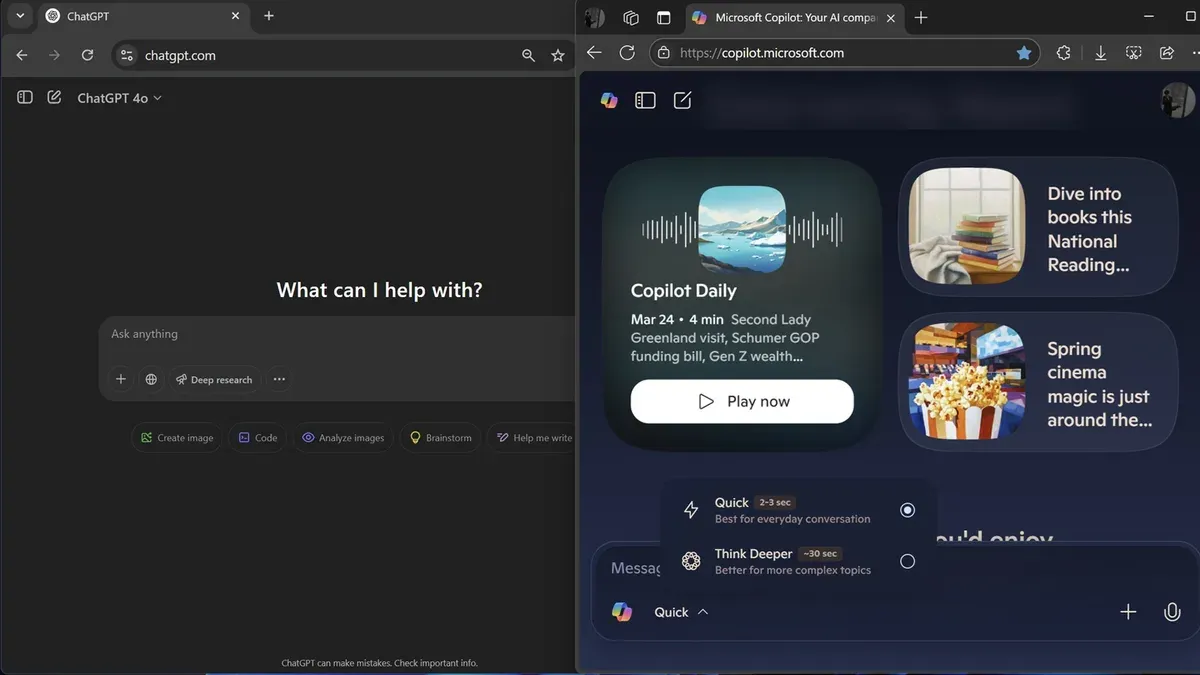
To turn off Copilot, open any Microsoft 365 app like Word or Excel, go to Settings > AI > Copilot, and toggle the feature off or adjust notification settings to reduce interruptions. This step prevents Copilot from automatically suggesting content or responses.
Next, access ChatGPT separately by navigating to chat.openai.com in your browser or using the official ChatGPT app on your device. You can run ChatGPT side-by-side with your Microsoft apps for AI assistance without Copilot's integration. For example, draft text in Word with Copilot off, then copy it into ChatGPT to refine or generate ideas.
Remember, ChatGPT does not integrate into your documents or emails automatically, so your workflow will involve switching contexts. This might slow down tasks normally accelerated by Copilot’s inline suggestions but offers broader conversational AI capabilities. Evaluate which AI behavior better fits your productivity needs.
- Disable Copilot in Microsoft 365 app settings under AI or Copilot options.
- Access ChatGPT at chat.openai.com or via the ChatGPT app.
- Use ChatGPT alongside Microsoft apps by switching between windows or devices.
- Adjust your workflow to compensate for lack of in-app AI integration.
Does Microsoft Copilot use ChatGPT?
Microsoft Copilot does not use ChatGPT as a product but is powered by the same underlying GPT technology developed by OpenAI. ChatGPT is a standalone conversational AI application built on OpenAI's GPT models, designed for direct user interaction through chat interfaces. In contrast, Copilot leverages GPT models via a licensed API to enhance Microsoft 365 apps, embedding AI capabilities seamlessly into productivity tools.
Think of ChatGPT as a specific software that runs on GPT models, whereas Copilot is a distinct implementation of those models customized for Microsoft's ecosystem. Official statements from Microsoft clarify that Copilot is built on OpenAI’s GPT-4 technology but is not ChatGPT itself. This means Copilot uses GPT’s language understanding and generation abilities but adapts them to work within apps like Word, Excel, and Outlook with tailored features and controls.
A concrete example: when you ask Copilot to draft an email in Outlook, it generates content using GPT’s models but does so inside Outlook’s interface without launching ChatGPT’s chat experience. The difference is similar to using a map app embedded in your phone versus opening a separate GPS device—the core technology is related, but the product experience is unique and integrated.
Common mistakes to avoid when switching from ChatGPT to Microsoft Copilot
Expecting exact feature parity between ChatGPT and Microsoft Copilot leads to frustration. Copilot is designed for productivity within Microsoft 365 apps, so features available in ChatGPT’s standalone interface, like free-form conversation or broad topic exploration, may not translate directly. For example, a marketing manager expecting Copilot to generate open-ended strategic plans in Word as fluidly as ChatGPT often finds that Copilot’s prompts are more task-specific and constrained.
Ignoring integration differences affects workflow and output style. Copilot operates through task panes and inline suggestions within apps like Excel or Outlook, requiring you to adapt to context-driven commands rather than typing free text. Users who don’t invest time learning Copilot’s UI and command syntax often underutilize its capabilities or get inconsistent results.
Overlooking privacy and data handling distinctions is another common pitfall. Copilot processes data within Microsoft’s cloud ecosystem under organizational compliance controls, whereas ChatGPT sessions run separately. Not understanding this can lead to unintentional data exposure or misaligned security expectations.
Finally, not training yourself or your team on Copilot’s interface and command structures wastes potential productivity gains. A case study from a consulting firm showed that teams who skipped formal onboarding struggled with prompt phrasing and failed to integrate Copilot efficiently, slowing adoption.
- Don’t expect ChatGPT features to map 1:1 to Copilot.
- Learn Copilot’s app-specific UI and commands thoroughly.
- Review your organization’s data policies for Copilot use.
- Invest in training sessions to avoid workflow disruption.
Frequently asked questions
Does microsoft use chatgpt for copilot?
Microsoft Copilot integrates AI technology developed in partnership with OpenAI, but it does not run directly on ChatGPT. Instead, Copilot uses a customized version of large language models optimized for Microsoft’s ecosystems like Office and Windows. This means the underlying AI shares roots with ChatGPT’s technology but is tailored for different tasks and integrations.
Does ms copilot use chatgpt?
MS Copilot leverages AI models related to those behind ChatGPT, but it is not the ChatGPT product itself. The Copilot AI is embedded within Microsoft software to provide contextual assistance, rather than being a standalone chatbot like ChatGPT. Its focus is on enhancing productivity apps with AI-generated suggestions and automation.
How to replace Windows Copilot with ChatGPT?
Windows Copilot is integrated into the operating system and cannot be directly replaced with ChatGPT. To use ChatGPT instead, you can access it through a web browser or third-party apps alongside Windows. If you want AI assistance similar to Copilot but powered by ChatGPT, you must run ChatGPT separately rather than swapping it in the OS.
Does Microsoft use ChatGPT for Copilot?
Microsoft uses AI models developed with OpenAI, the creators of ChatGPT, but Copilot is not the same as ChatGPT. Copilot incorporates these models in a way that fits Microsoft’s software environment, emphasizing task-specific AI functions. Therefore, while related, Copilot is distinct from the ChatGPT chatbot experience.
Does MS Copilot use ChatGPT?
MS Copilot is based on technology related to ChatGPT’s underlying models but is customized for Microsoft applications. It does not run the ChatGPT chatbot itself but uses similar AI to deliver productivity-focused assistance embedded in tools like Word, Excel, and Windows. This creates a different user experience than interacting with ChatGPT directly.
Quick checklist
- Confirm your primary Microsoft 365 apps support Copilot integration.
- Set up Microsoft Copilot through the Microsoft 365 admin center or app settings.
- Familiarize yourself with Copilot’s context-aware responses tied to your documents and emails.
- Adjust expectations: Copilot works best within Microsoft apps, not as a standalone chatbot like ChatGPT.
- Test specific workflow tasks to identify when Copilot or ChatGPT is more efficient.
- Plan for ongoing updates—Copilot and ChatGPT evolve differently over time.
What this advice does not cover
This article does not cover in-depth technical implementation or enterprise-level deployment scenarios, which require specialized IT guidance. If you are managing large-scale Copilot rollouts, compliance configurations, or custom API integrations, consult your IT department or Microsoft support. This guide focuses on the practical user-level transition and comparison.

Start by aligning your daily tasks with the strengths of each tool. If you rely heavily on Microsoft 365 apps and need AI assistance embedded directly into those workflows, prioritize Microsoft Copilot setup and training. If you require broad conversational AI for brainstorming or outside-the-Microsoft-suite tasks, keep ChatGPT accessible as a supplement.
See also: How to Switch from ChatGPT to Khanmigo: A Practical Guide · Switching from ChatGPT to Google Gemini: What You Need to Know