Canvas Feedback Comments Checklist for Private School Teachers
Ensure your feedback is clear and personalized with our Canvas feedback comments checklist designed for private school teachers.

Short answer: Canvas feedback comments checklist for private schools ensures your feedback is clear, targeted, and aligned with your school's rigorous academic standards. Using Canvas’s SpeedGrader and comment bank features, you can deliver personalized, actionable feedback that supports each student's growth.
This article guides you through why Canvas feedback comments are vital in private school settings and how they function within the platform. You'll learn to customize comments to meet your school's unique expectations, manage your comment bank efficiently, avoid common pitfalls, and effectively communicate feedback to students and parents. By following this checklist, you ensure your feedback is efficient, consistent, and supports individualized learning outcomes.
What Makes Canvas Feedback Comments Essential in Private Schools?
Private schools prioritize individualized attention and personalized learning goals, often supported by smaller class sizes. In this environment, feedback comments in Canvas become indispensable for delivering tailored guidance digitally. Unlike traditional paper methods, Canvas enables you to provide detailed, timely, and organized feedback directly within assignments, streamlining communication and documentation.
Effective use of Canvas feedback comments aligns with private schools’ focus on student growth by allowing precise tracking of progress and targeted recommendations. For example, when a student submits an essay through Canvas, you can leave specific comments on thesis clarity or argument development, helping the student refine skills step-by-step. This direct feedback supports not only student engagement but also transparent communication with parents, who can view comments through the parent portal and understand their child’s academic journey.
Surveys of private school teachers suggest that those using digital feedback tools report higher satisfaction with their ability to monitor individual progress and adjust instruction accordingly. This makes Canvas feedback comments a critical tool in maintaining the high academic standards and personalized learning experiences expected in private education.
How Do Canvas Feedback Comments Work?
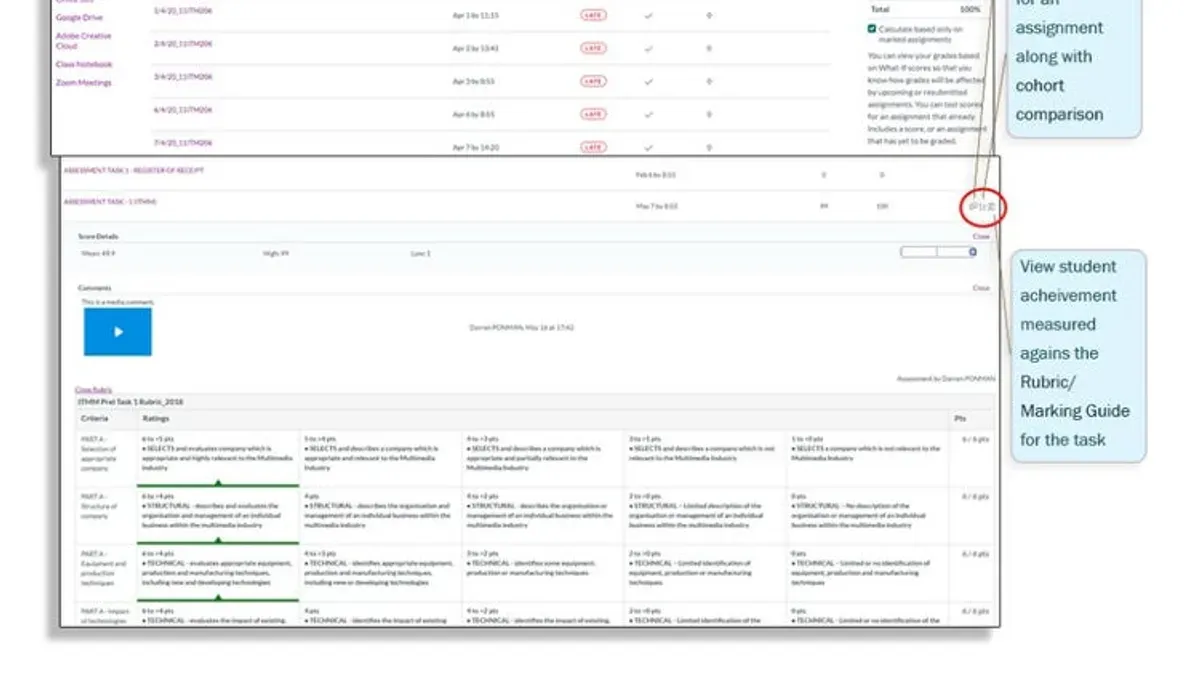
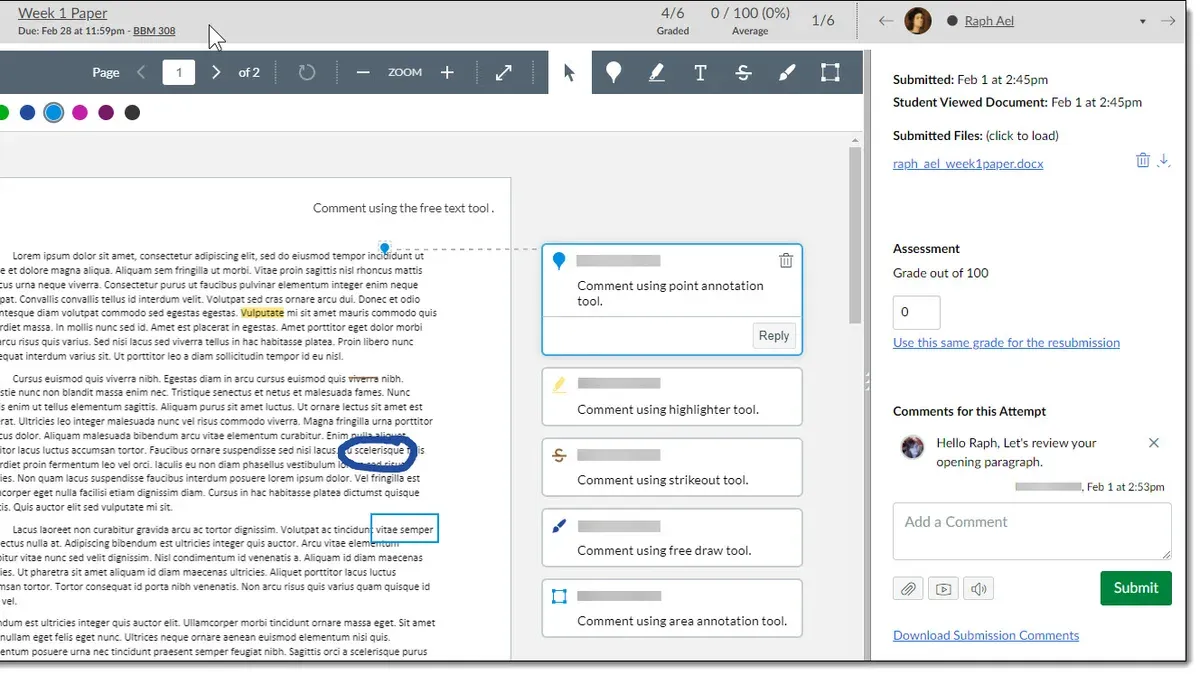
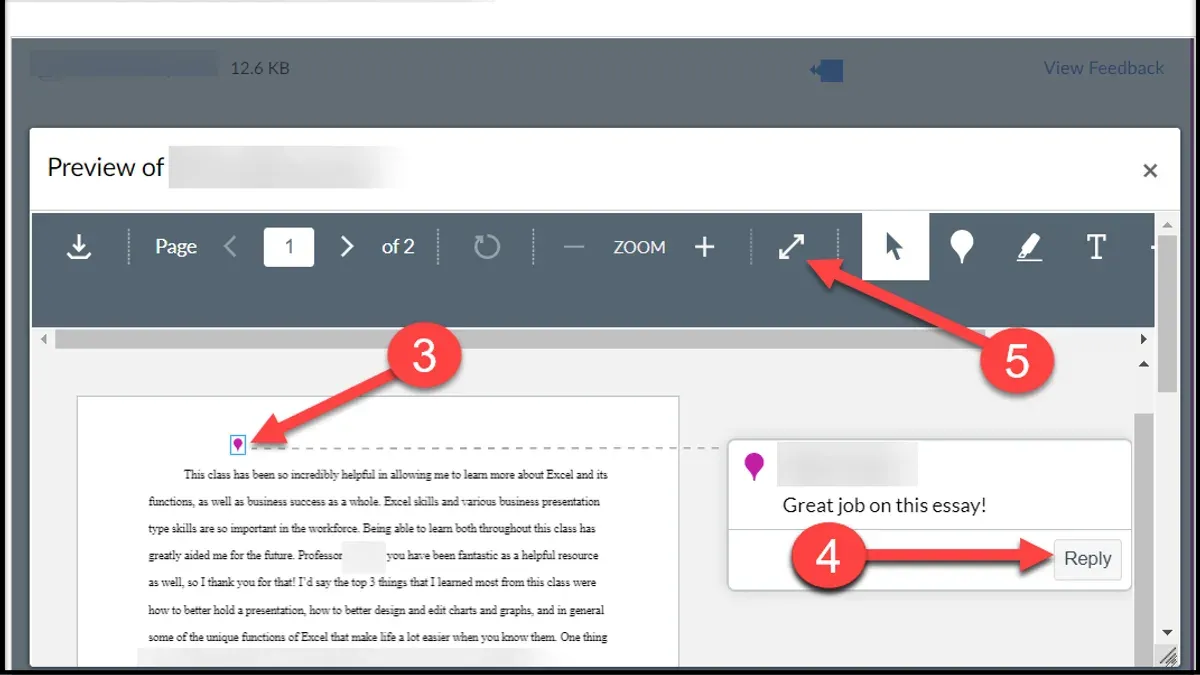
Canvas feedback comments appear in key locations like SpeedGrader, rubric comments, and inline annotations. SpeedGrader is your main tool for reviewing assignments and quizzes. Within SpeedGrader, you can add text comments in the comment box, record audio or video feedback using the microphone and camera icons, or highlight and annotate directly on student submissions.
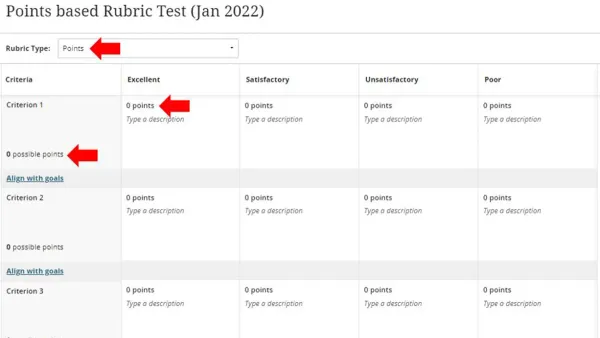
Rubric comments let you attach targeted feedback to specific criteria. When grading, click the rubric score and add a comment that aligns with your school’s standards. Inline annotations work well for essays or PDFs—use the annotation tool to highlight text and insert notes that students see when they review their work.
To manage feedback efficiently across multiple assignments, use the Grades page to view submissions and navigate directly to SpeedGrader. You can also save common feedback as comment banks to reuse personalized remarks quickly.
For example, while grading a literature essay, open SpeedGrader, highlight a paragraph to point out a strong thesis, leave an inline annotation there, then add a rubric comment on argument clarity. Finish with a brief audio summary to emphasize next steps.
- Open SpeedGrader via the Grades page.
- Use the comment box for text feedback.
- Click microphone or camera icons for audio/video comments.
- Highlight text and add inline annotations on submissions.
- Add rubric comments by clicking rubric criteria scores.
- Save frequent comments in comment banks for reuse.
How Can You Tailor Feedback Comments to Private School Standards?
Use language that communicates high expectations clearly yet supportively. Instead of vague praise, specify what meets or exceeds standards and where growth is needed. Reference your school's mission or values directly in comments to reinforce its academic culture. For example, if your school emphasizes critical thinking, a comment might read: "Your analysis demonstrates strong reasoning aligned with our commitment to intellectual rigor; focus next on integrating more diverse sources to deepen your argument."
Incorporate terminology from your grading rubrics and learning goals to maintain consistency. If a rubric highlights "conceptual understanding" and "application skills," tailor feedback accordingly—for instance, "Excellent conceptual grasp shown here; work on applying these concepts to real-world scenarios as outlined in our curriculum." This approach ensures feedback aligns with both school standards and student development.
Balance positive reinforcement with clear, actionable steps. Avoid generic remarks like "Good job" by adding, "Continue refining your essay structure to enhance clarity, which supports our school's standard for polished academic writing." This keeps students motivated while guiding improvement within your institution’s framework.
What Are Best Practices for Managing Feedback Comments Efficiently?
Creating reusable comment banks customized to your private school's curriculum significantly cuts grading time. Organize comments by subject and skill level within Canvas SpeedGrader's "Comment Library" to quickly insert detailed, consistent remarks. For example, a comment like "Demonstrates strong analytical skills but needs clearer thesis statements" can be saved and tailored slightly per student, reducing repetitive typing.
Using rubrics linked to comments further streamlines grading and maintains uniform standards. Align rubric criteria with preset comments so that when you select a score, the corresponding feedback automatically populates. This speeds grading and maintains clarity on expectations, such as pairing a "4 - Exceeds Expectations" score with a comment like "Exceptional insight and thorough evidence support."
Schedule dedicated feedback sessions to prioritize critical assignments needing detailed attention. Block 30-60 minutes after reviewing submissions to avoid rushed comments. For less critical work, rely more on rubric-based, automated feedback to balance thoroughness with workload.
- Create and categorize comment banks in SpeedGrader's Comment Library specific to your curriculum.
- Link rubric criteria to preset comments for faster, consistent feedback.
- Allocate focused time blocks for detailed comments on high-impact assignments.
What Common Mistakes Should You Avoid When Leaving Canvas Feedback Comments?
Avoid vague comments like "Good job" or "Needs improvement" that leave students unclear about next steps. Instead, specify what worked and what to fix, such as "Your thesis is clear, but support your arguments with more specific examples." This directs students toward actionable growth.
Failing to align comments with rubric criteria or assignment goals creates confusion. For example, if a rubric emphasizes analysis, feedback should focus on analytical skills rather than grammar alone. Misaligned comments undermine the purpose of the rubric and may frustrate students trying to meet expectations.
Overloading students with extensive feedback in one go can overwhelm rather than help. Prioritize key areas, limiting comments to the top two or three points per assignment. For instance, instead of listing ten issues, highlight the most critical ones and suggest focusing on those first.
Consider this example: A comment like "Work on clarity" is vague. A better comment reads, "Clarify your main argument in paragraph two by explicitly stating your position." Using targeted feedback increases student engagement and improvement.
How Do You Incorporate Feedback Comments into Parent and Student Communication?
Use the Canvas Parent Portal to share feedback comments directly with parents. Ensure comments are clear and highlight student strengths and areas for growth. For example, after grading an essay, post a summary comment via SpeedGrader, then notify parents through the Canvas Inbox or scheduled email updates. This transparency keeps parents informed of academic progress without needing separate meetings.
Before conferences or report distribution, prepare a brief summary of key feedback points from Canvas comments. This can be a bulleted list or a short narrative capturing the student's achievements and next steps. Use this summary to guide discussions and focus on actionable goals.
Encourage students to read and reflect on your Canvas feedback comments. Prompt them to write a response or set goals based on your input in the assignment comments or a linked journal. This practice fosters ownership of learning and clarifies expectations.
For instance, a private school teacher shared comments via the Canvas Parent Portal and followed up with a parent email that included a sample summary: "Your child showed strong analysis in their essay but needs to work on thesis clarity. We recommend reviewing the rubric section on argument development." This approach increased parent engagement and student accountability.
- Post clear, actionable feedback comments using SpeedGrader.
- Notify parents through the Canvas Parent Portal and Inbox messages.
- Summarize feedback points before conferences or reports.
- Ask students to reflect and respond to feedback in Canvas.
Frequently asked questions
Can I reuse feedback comments across different assignments in Canvas?
Yes, Canvas allows you to save and reuse feedback comments through the SpeedGrader comment bank. This feature helps maintain consistency and saves time when providing similar feedback across multiple assignments. You can access this by opening SpeedGrader, clicking the comment box, and selecting saved comments or adding new ones for future use.
How can I ensure my feedback comments align with private school grading rubrics?
Review your school’s grading rubric before drafting comments to match the specific criteria and language used. Incorporate rubric language directly into your feedback to clearly connect student performance with expectations. Use Canvas’s rubric tool to attach rubrics to assignments, which helps keep feedback aligned and transparent.
What types of feedback comments are most effective for student improvement?
Effective comments are specific, actionable, and focused on both strengths and areas for growth. Avoid vague praise or criticism; instead, point to precise examples and suggest clear next steps. Comments that recognize effort alongside skill development encourage motivation and deeper learning.
How do I manage feedback comments for large classes without losing quality?
Organize common feedback into a comment bank for quick access and consistency. Prioritize personalized comments on key assignments or areas where students struggle most. Use Canvas’s inline annotation tools to highlight specific parts of student work, saving time while maintaining quality.
Quick checklist
- Use Canvas SpeedGrader to leave targeted, rubric-aligned comments efficiently.
- Customize your comment bank with phrases that reflect your school's academic standards and values.
- Keep feedback clear, actionable, and student-centered to support individualized learning paths.
- Review comments for tone and clarity before publishing to maintain professionalism.
- Link feedback comments to parent communications by summarizing key points in Canvas conferences or emails.
This advice does not cover broader assessment strategies or other LMS platforms
This checklist focuses solely on maximizing the impact and efficiency of feedback comments within Canvas. If your school uses a different learning management system, you should consult resources specific to that platform. Additionally, this guide does not address broader assessment design or grading policies, which require separate planning aligned with your institution’s educational framework.
To improve your feedback practice right now, start by building a tailored comment bank in Canvas. Access it via SpeedGrader under the "Comment Library," and add concise, standards-based remarks that reflect your private school's expectations. This step saves time, ensures consistency, and helps you deliver precise, meaningful feedback every time.
See also: Canvas Assignment Setup Checklist for Elementary Teachers · Canvas Course Structure Checklist for Special Education Teachers · Canvas Co-Teacher Access Checklist for Low Tech Confidence Teachers