
Switching from Google Workspace to OneDrive: A Practical Migration Guide
This guide helps IT managers migrate from Google Workspace to OneDrive with step-by-step instructions to maintain data integrity and collaboration.

Short answer: Switching from Google Workspace to OneDrive requires careful planning to ensure data integrity and seamless access. You’ll need to understand the fundamental differences between Google Drive’s file management and OneDrive’s architecture, prepare your data for migration, and execute the transfer using suitable tools like Microsoft’s SharePoint Migration Tool or third-party solutions.
This article covers the specific challenges of switching from Google Workspace to OneDrive, providing a detailed roadmap tailored for IT managers and system administrators. You’ll learn how to create a Google Workspace Drive export, migrate data efficiently, handle permissions, avoid common pitfalls, and optimize your OneDrive environment for collaboration and security after the move.
Understand the Differences Between Google Workspace Drive and OneDrive
Google Workspace Drive organizes files in a flexible folder structure that users can share via links or direct permissions, emphasizing easy, granular sharing with anyone inside or outside the organization. OneDrive, integrated tightly with Microsoft 365, uses SharePoint for backend storage, enabling more centralized control and enterprise-grade security. While Google Drive supports real-time collaboration through Google Docs, Sheets, and Slides with seamless, in-document commenting and editing, OneDrive leverages Microsoft Office apps like Word, Excel, and PowerPoint, offering co-authoring with version history managed within the Microsoft 365 environment.
For example, when multiple users edit a document simultaneously, Google Workspace shows live typing in real time, whereas OneDrive syncs changes continuously but may show brief sync delays depending on the client and network. This difference affects user experience during group editing sessions.
| Feature | Google Workspace Drive | OneDrive (Microsoft 365) |
|---|---|---|
| File System | Flexible folders with shared links and permissions | Folders managed via SharePoint with centralized admin controls |
| Collaboration | Real-time editing with live cursor visibility | Co-authoring with near real-time syncing, integrated with Office apps |
| Version History | Automatic versioning accessible via file details | Version history integrated within Office apps and SharePoint |
| Storage Model | Individual user quotas plus shared drives | Storage pooled across Microsoft 365 with SharePoint-managed libraries |
| Integration | Google Workspace apps and third-party add-ons | Deep integration with Microsoft 365 apps, Teams, and security tools |
Understanding these architectural and functional differences helps you anticipate changes in user workflows and IT management as you plan your migration.
How to Create a Google Workspace Drive
Setting up Google Workspace Drive begins with creating a Google Workspace account for your organization. Start by visiting the Google Workspace Admin Console at admin.google.com where you can configure your domain and user accounts.
Once your domain is verified and users are added, each user automatically receives access to Google Drive. The Drive structure includes My Drive for personal files and Shared Drives (formerly Team Drives) for team-owned content, which is crucial when planning migration as Shared Drives often contain collaborative files with distinct ownership and permissions.
Manage user roles and permissions in the Admin Console under Apps > Google Workspace > Drive and Docs > Sharing settings. Here, you can set sharing restrictions and assign roles such as Viewer, Commenter, and Editor. Remember, only users with appropriate admin or content manager rights can migrate certain Shared Drive content.
For example, a marketing team’s Shared Drive may have editors who can add or remove files, while others have view-only access. Documenting these roles before migration prevents unexpected access issues in OneDrive.
A typical setup checklist:
- Verify domain ownership in Admin Console
- Add users and assign licenses
- Configure Drive sharing and permission settings
- Identify critical Shared Drives for migration
- Document user roles and access levels
How to Migrate from Google Workspace to Microsoft 365
Begin your migration by selecting the right tool. Google Takeout allows exporting Drive files in standard formats, but for a seamless transition, Microsoft's Migration Manager offers a more integrated approach, facilitating direct transfers to OneDrive while preserving folder structures.
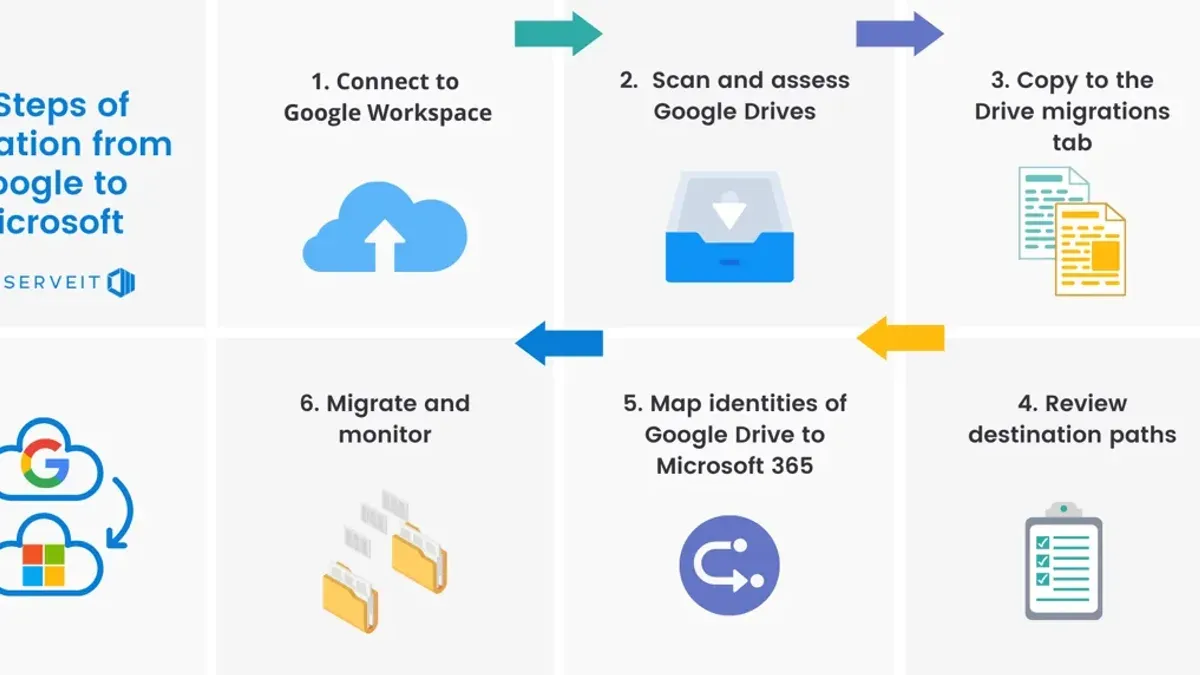
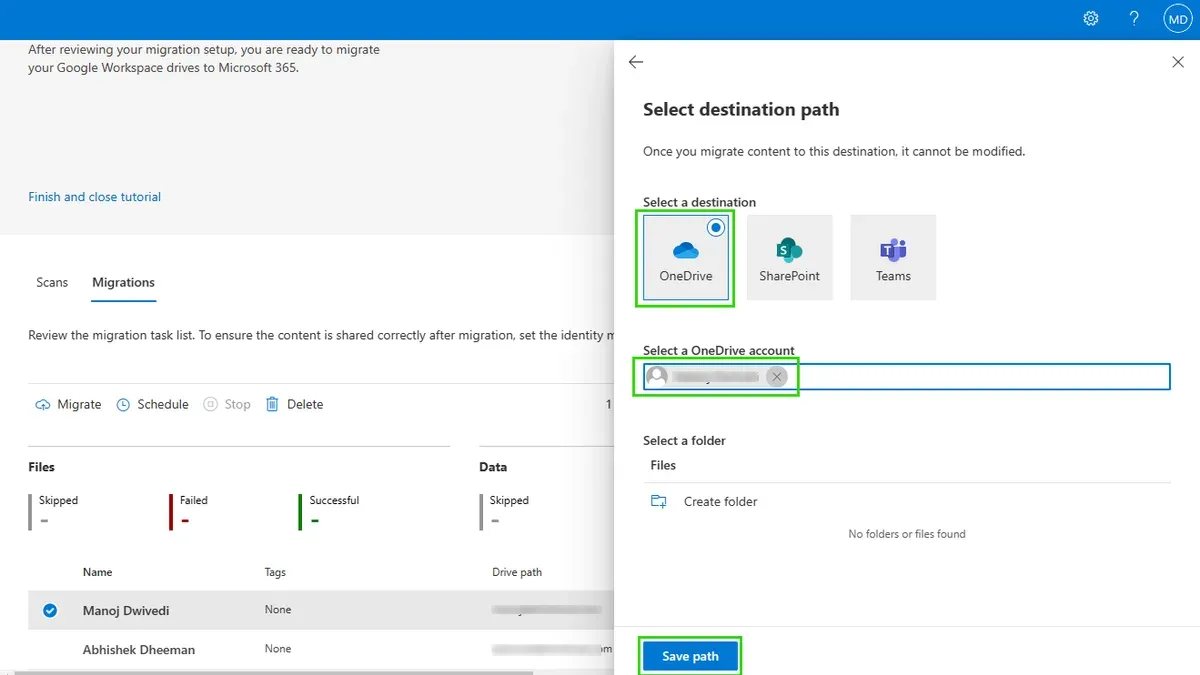
Start by preparing your Google Workspace data: use the Admin console to identify user accounts and shared drives slated for migration. Export individual user Drive content via Google Takeout if opting for manual migration, selecting the Drive data and choosing the ZIP format. For large datasets or multiple users, leverage Migration Manager, which connects to Google Workspace via OAuth and transfers files directly.
Once files are exported or connected through Migration Manager, import them into OneDrive. Maintain the original folder hierarchy by uploading folders directly through the OneDrive web interface or using the OneDrive sync client with mapped directories. Pay special attention to shared drives; recreate sharing permissions manually in OneDrive, as permissions do not migrate automatically.
For example, migrating a 100GB Drive folder using Migration Manager typically takes several hours, depending on network speed. Manual exports via Takeout may take longer due to compression and upload times. Plan migration windows accordingly to minimize user disruption.
- Choose Migration Manager for direct, large-scale migrations.
- Export user data via Google Takeout for smaller or manual transfers.
- Upload files to OneDrive preserving folder structures using sync client or web interface.
- Manually re-establish sharing permissions for shared drives.
- Account for several hours or more depending on data size and network conditions.
How to Switch from One OneDrive Account to Another
Switching OneDrive accounts typically involves transferring files between accounts, a common step during migrations or organizational changes. You can move files manually by downloading them from the source OneDrive and uploading them to the target account, but this risks interruptions, duplication, or data loss—especially with large datasets or complex folder hierarchies.
Alternatively, using Microsoft’s SharePoint Migration Tool or third-party solutions like Mover.io automates the transfer, preserving folder structure, timestamps, and sharing permissions where supported. For example, an IT manager moving a department’s files to a new tenant can use Mover.io to migrate 500 GB with shared folder settings intact, avoiding the manual overhead of re-sharing and re-permissioning.
After transfer, verify sharing settings in the target OneDrive—permissions do not always replicate perfectly. Reapply sensitive or externally shared permissions manually to avoid exposing data unintentionally.
In summary, manual transfers offer simplicity but risk errors and downtime; tool-assisted migrations reduce risk but require setup and possibly costs. Choose based on volume, timeline, and permission complexity.
- Assess file size and complexity before choosing a method
- Consider Microsoft’s SharePoint Migration Tool or trusted third-party tools
- Verify and reapply sharing permissions post-migration
- Test access with a small subset before full migration
Avoid Common Mistakes When Switching from Google Workspace to OneDrive
One frequent pitfall is neglecting file permission mismatches. Google Workspace allows granular sharing settings that don’t always translate directly to OneDrive’s permission model, risking access errors post-migration. For example, a company once migrated thousands of files without reconciling permissions, leaving critical folders inaccessible to key teams and halting workflows for days.
Underestimating transfer time is another common error. Large archives with nested folders and many small files can take significantly longer to move than planned, causing unexpected downtime. A firm migrating over 5 TB of data found that relying solely on basic upload tools extended the process by weeks, delaying project timelines.
Failing to inform end users about the switch leads to confusion and lost productivity. Clear communication on when and how access changes occur is crucial to avoid frustration and support overload.
Lastly, overlooking OneDrive’s file path length limits (around 400 characters) and unsupported file types can cause migration failures or file corruption. Files deeply nested in Google Drive or with special characters may fail to sync properly.
Checklist to avoid these mistakes:
- Audit and map Google Drive permissions to OneDrive equivalents before migration.
- Plan for extended transfer times, especially for large or complex data sets.
- Communicate migration timelines and changes clearly to all users.
- Scan for long file paths and unsupported file types; rename or restructure as needed.
Optimize Your New OneDrive Setup for Collaboration and Security
After migrating, configure OneDrive shared libraries by navigating to the OneDrive admin center and creating shared libraries linked to Microsoft Teams channels. This integration streamlines collaboration, allowing teams to co-author files directly within Teams, reducing email attachments and version conflicts. Microsoft reports that organizations using Teams and OneDrive together see noticeable productivity improvements due to seamless file access and communication.
Next, set up compliance policies under the Microsoft 365 compliance center. Enable Data Loss Prevention (DLP) policies targeting OneDrive to automatically detect and protect sensitive information like credit card numbers or personal data. Configure retention labels and multifactor authentication to enhance data security without impeding workflow.
Finally, train your users on the new collaboration workflows. Emphasize how to access shared files via Teams, use version history, and leverage OneDrive’s mobile app for remote access. For example, illustrate a scenario where a project team edits a shared document in Teams during a meeting, saving changes instantly without email back-and-forth.
- Create shared libraries linked to Teams channels via the OneDrive admin center
- Enable and customize DLP policies in the Microsoft 365 compliance center
- Set retention labels and enforce multifactor authentication
- Train users on Teams file collaboration, version history, and mobile app use
Read next
- Switching from Google Workspace to Dropbox: A Complete Expert Guide
- Moving from Dropbox to OneDrive Checklist: Your Step-by-Step Guide
Frequently asked questions
How do I migrate Google Workspace Drive to OneDrive without losing data?
Ensure you use a migration tool that supports metadata and file version preservation, such as Microsoft’s SharePoint Migration Tool or third-party services like Mover. Before migrating, verify all files are fully synced in Google Drive and plan for downtime to avoid changes during transfer. Always run a pilot migration to compare data integrity and confirm that all file types and permissions are retained as expected.
Can I switch from Microsoft to Google Workspace and back easily?
Switching between Microsoft 365 and Google Workspace can be done but requires careful planning due to differences in file formats and permission models. Tools like Google Workspace Migration for Microsoft Outlook and Microsoft’s Migration Manager can assist, but expect some manual adjustments, especially for shared drives and collaboration settings. Repeated switching increases complexity and risk of data misalignment, so plan the transition carefully.
What are the best tools for migrating from Google Workspace to Microsoft 365?
Microsoft’s SharePoint Migration Tool and Mover (now integrated into Microsoft) are widely recommended for seamless transfer of Drive files to OneDrive or SharePoint. These tools handle bulk data, maintain folder structures, and support metadata migration. For complex environments, consider third-party solutions like CloudFuze or BitTitan, which offer advanced features like incremental sync and permission mapping.
How do I maintain file sharing permissions when moving from Google Drive to OneDrive?
File sharing permissions don’t directly transfer due to differing models between Google and Microsoft. To preserve access control, export sharing settings using migration tools that support permission mapping, or manually recreate permissions post-migration in OneDrive’s sharing interface. Communicate with users about potential access changes and verify permissions after migration to prevent disruptions.
What this guide does not cover
This guide does not cover migrating email or calendar data, which require separate processes and tools such as Microsoft’s Migration Manager or third-party services tailored for Exchange and Gmail data transfer.
Large enterprise environments with complex permissions, shared drives, or regulatory compliance requirements may need professional migration services beyond this article’s scope to ensure data integrity and security.
Quick checklist
- Review and map your Google Drive folder structure to OneDrive’s folder and library model before migration.
- Use Microsoft’s SharePoint Migration Tool or a reliable third-party tool for bulk data transfer.
- Verify file and folder permissions after migration, especially shared links and access rights.
- Test file access and collaboration features in OneDrive with a small user group before full rollout.
- Educate users on key OneDrive features like Files On-Demand and version history to ease adoption.
- Configure OneDrive sync client settings, including Files On-Demand and network throttling, for optimal performance.
The most effective next step is to perform a pilot migration with a representative subset of your data and users. This hands-on approach uncovers unforeseen challenges, validates your migration plan, and builds confidence in your team for a smooth transition to OneDrive.



