
Switching from iPads to MacBooks: Your Expert Transition Guide
Learn how to switch from iPads to MacBooks smoothly by syncing devices, transferring data safely, and boosting your productivity with expert tips.

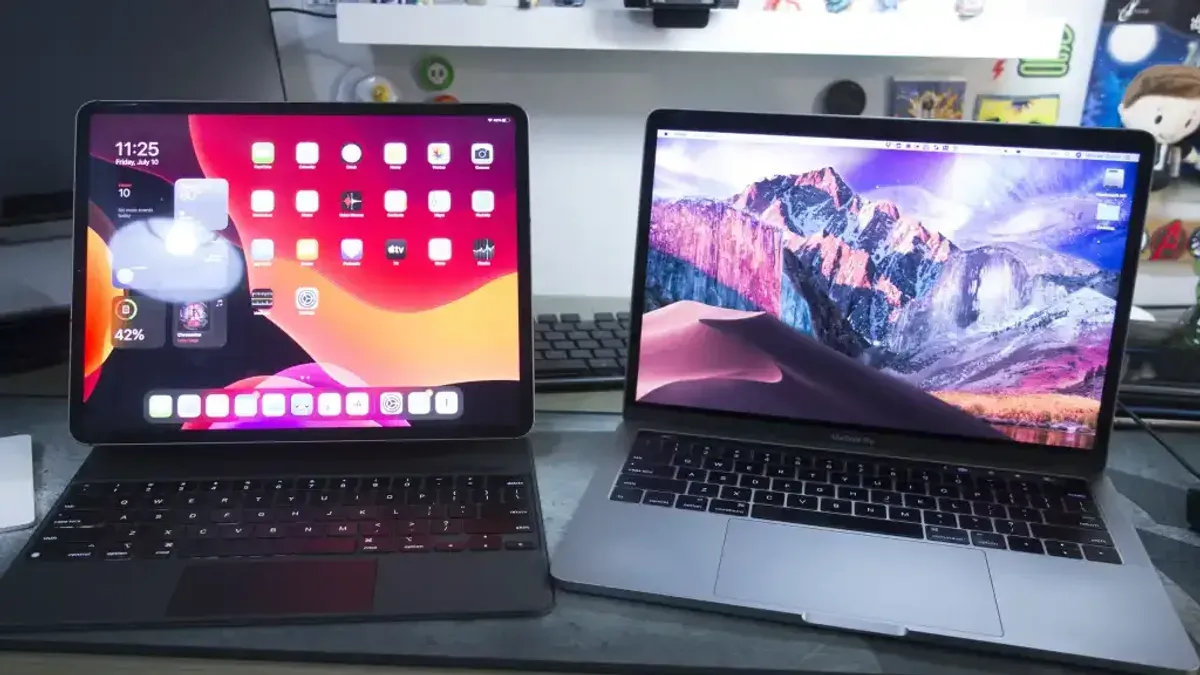
Short answer: Switching from iPads to MacBooks involves understanding the differences in hardware and software, transferring your data efficiently, and optimizing how both devices can work together for a smoother experience. It’s not just about moving files but about leveraging the strengths of each device to enhance your workflow.
This article covers the practical aspects of switching from iPads to MacBooks, focusing on how to connect the two devices for seamless syncing, transfer your data without loss, and use them in tandem for maximum productivity. You’ll also learn how to manage Apple IDs safely and avoid common mistakes that can disrupt your Apple ecosystem. This guide aims to give you expert control over your devices beyond the basic setup, ensuring a confident transition.
Understanding the Differences Between iPads and MacBooks
Switching from an iPad to a MacBook means moving from a touch-first device to one designed around a keyboard and trackpad. The iPad uses iPadOS, optimized for touch gestures and apps that often run full screen or in split view. In contrast, MacBooks run macOS, which supports windowed multitasking, more complex file management, and desktop-class applications.
The hardware reflects these differences: iPads rely on a touchscreen with limited ports, while MacBooks come equipped with multiple USB-C or Thunderbolt ports, allowing connection to external displays, storage, and accessories. For example, a graphic designer might use an iPad for sketching with Apple Pencil, but switch to a MacBook to run professional photo editing software with precise keyboard shortcuts and larger screen real estate.
| Feature | iPad | MacBook |
|---|---|---|
| Interface | Touchscreen | Keyboard + Trackpad |
| Operating System | iPadOS | macOS |
| App Behavior | Fullscreen/Split View apps | Resizable Windows |
| Ports | 1-2 USB-C (depending on model) | Multiple USB-C/Thunderbolt |
| External Displays | Limited support | Supports multiple high-resolution monitors |
The learning curve lies mainly in adapting to macOS’s more complex multitasking and file system, but the payoff is greater control and productivity. Imagine writing a report while referencing multiple documents side-by-side on your MacBook, a workflow less fluid on an iPad.
How to Connect Your iPad to Your MacBook for Seamless Syncing
Linking your iPad and MacBook enables smooth data syncing, continuity features, and easy file sharing to optimize your workflow during and after the switch. Start by pairing your devices through Wi-Fi, Bluetooth, or a USB cable for the best connectivity options.
Pairing Your Devices
First, ensure both devices are signed in with the same Apple ID. Enable Bluetooth on both your iPad (Settings > Bluetooth) and MacBook (System Settings > Bluetooth). Make sure both devices are connected to the same Wi-Fi network.
To pair via USB, connect your iPad to your MacBook using a Lightning or USB-C cable. This direct connection often provides faster syncing and reliable Continuity feature support.
Using iCloud for Automatic Syncing
iCloud seamlessly syncs photos, documents, and app data across your devices. On both devices, go to Settings (iPad) or System Settings (MacBook), tap your name, then iCloud. Enable options like Photos, iCloud Drive, and Contacts to keep your data updated automatically.
Enabling and Using Continuity Features
Continuity features bridge your iPad and MacBook for integrated workflows. For example, Handoff allows you to start an email on your iPad and finish on your MacBook. Enable it by going to Settings > General > AirPlay & Handoff on iPad and System Settings > General > AirDrop & Handoff on MacBook.
The Universal Clipboard lets you copy text or images on one device and paste on the other instantly. Sidecar extends your MacBook display to your iPad as a second screen—enable it by clicking the AirPlay icon in the menu bar and selecting your iPad.
For example, when setting up Sidecar, connect the iPad via USB or Wi-Fi, click the AirPlay icon on your MacBook, and choose your iPad. Your MacBook screen will then mirror or extend to your iPad, allowing you to use Apple Pencil or touch input.
How Syncing Helps You
By setting these connections and features, you ensure your files and apps stay current across devices, minimizing the friction of switching. This synergy lets you use the iPad as a drawing tablet or quick reference while working on your MacBook, creating a more versatile setup.
- Sign in to the same Apple ID on both devices
- Enable Bluetooth and connect both to the same Wi-Fi network
- Pair devices via Bluetooth or USB cable
- Turn on iCloud syncing for key data types
- Activate Continuity features: Handoff, Universal Clipboard, and Sidecar
- Use the AirPlay menu on MacBook to connect to iPad for Sidecar
How to Transfer Data from Your iPad to Your MacBook
Transferring your data efficiently ensures a smooth transition from iPad to MacBook. The most comprehensive method is using Migration Assistant or Finder to move backups and files. Connect your iPad via USB to your MacBook, then open Finder and select your device. Choose "Back Up Now" to create a local backup. Migration Assistant on your MacBook can then import this backup, preserving app data, settings, and files. Expect transfer speeds to vary based on your USB connection; USB-C offers faster rates than older USB-A ports.
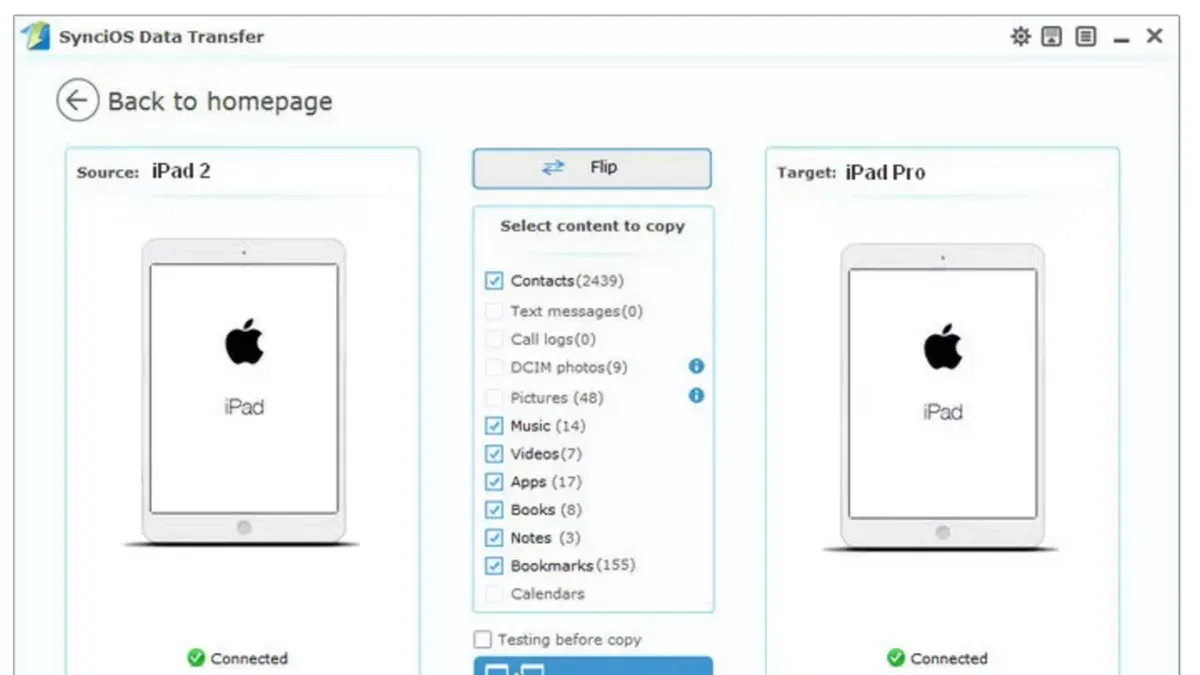
For a manual approach, AirDrop offers a quick way to move individual files like PDFs or photos wirelessly. Open AirDrop on both devices, select files on your iPad, tap the Share icon, and pick your MacBook. iCloud Drive syncs documents and app data automatically if enabled, but note that large files or extensive libraries may sync slowly depending on your internet speed. External drives formatted as exFAT or APFS are compatible for manual file copying, useful for large video or project files.
App data compatibility can be tricky because MacBook apps often differ from their iPad counterparts. For example, a drawing app on iPad may store project files in a format that requires a Mac desktop version to open. Check if the Mac app supports the same formats or export your projects to standard formats like PDF or JPEG before transfer.
Photo libraries are best managed with the Photos app and iCloud Photos enabled; this keeps your images synced and accessible on both devices. For notes and emails, ensure your iCloud account is signed in on both devices with Notes and Mail toggled on in iCloud settings to keep everything up to date.
- Backup your iPad using Finder via USB connection
- Use Migration Assistant on MacBook to import backup
- Use AirDrop for quick file transfers between devices
- Enable iCloud Drive for automatic document syncing
- Check app data compatibility and export to common formats if needed
- Keep Photos, Notes, and Mail synced through iCloud settings
How to Use Your iPad and MacBook Together to Maximize Productivity
Instead of viewing your iPad and MacBook as separate tools, leverage their integration to create a fluid, complementary workflow. Start by using Sidecar to extend or mirror your MacBook's display onto your iPad. This transforms your iPad into a second screen, perfect for keeping reference materials or communication apps visible while you work on your MacBook.
For example, open a lengthy report on your MacBook and mirror it to the iPad via Sidecar. On the iPad, use Apple Pencil or keyboard to take notes in a dedicated app like Notes or GoodNotes without switching windows on your MacBook. This setup keeps your workflow uninterrupted and your focus sharp.
You can also control your MacBook directly from the iPad using Universal Control, which allows a single mouse and keyboard to move effortlessly between devices. This means you can drag and drop files or even use the iPad as a drawing tablet for Mac apps. Third-party apps like Duet Display provide alternative control solutions if needed.
Real-time sharing of clipboard data and files between devices further streamlines your tasks. Copy text or images on one device and paste them on the other instantly, which is particularly useful when compiling research or assembling presentations.
Users report that combining these features reduces context switching and speeds up multi-step tasks. For example, a designer might sketch ideas on the iPad using Sidecar while simultaneously accessing design assets and communication channels on the MacBook, enhancing both creativity and efficiency.
- Enable Sidecar via System Preferences > Displays > Add Display > Select iPad
- Activate Universal Control in System Preferences > Displays > Universal Control
- Use drag-and-drop and shared clipboard features between devices
- Set up note-taking apps on iPad alongside document editing on MacBook
How to Switch Apple Accounts on Your iPad and MacBook Safely
Switching Apple IDs on your iPad and MacBook requires careful handling to avoid data loss and ensure continuous access to your purchases and subscriptions. Before making any changes, back up your device using iCloud Backup or Finder on Mac to secure your current data.
Signing Out and Signing In
On your iPad, go to Settings > [your name], then scroll down and tap Sign Out. You’ll be asked whether to keep a copy of your iCloud data locally—choose to keep data like contacts and calendars if you want them on the device after signing out. On your MacBook, open System Preferences > Apple ID, then click Overview > Sign Out. Again, decide which data to keep on your Mac. After signing out, sign in with the new Apple ID on both devices via the same menus.
Implications and Best Practices
Switching accounts impacts iCloud data, app licenses, and subscriptions. Purchased apps and media are tied to the original Apple ID and won’t transfer; you’ll need to re-purchase or switch back to access them. Subscriptions such as Apple Music or iCloud storage also stay with the original account unless family sharing is active.
For example, if you switch your iPad from a personal Apple ID to a work Apple ID, any apps bought under the personal ID may become inaccessible. To mitigate this, use Family Sharing to share purchases and subscriptions between accounts. Also, ensure your devices are authorized in Account Settings > Devices on Apple’s website.
Apple Support warns that signing out of iCloud disables Find My iPad/Mac, which can affect device security. Always verify your backup before switching and ensure you have the new account credentials ready.
- Back up your iPad and MacBook data before switching accounts.
- Sign out via Settings on iPad and System Preferences on Mac, choosing which data to keep.
- Sign in with the new Apple ID on both devices.
- Understand purchased apps and subscriptions remain linked to the original Apple ID.
- Use Family Sharing to share purchases and subscriptions if needed.
- Check device authorization under your Apple ID account online.
- Remember signing out disables Find My services temporarily.
How to Switch On and Off Your iPad and MacBook Correctly
Switching On and Off Your iPad
For most iPad models, including the iPad Pro, press and hold the top button until the Apple logo appears to power on. To turn it off, press and hold the top button along with either volume button until the "slide to power off" slider appears, then swipe to turn off. This method prevents data corruption and ensures a clean shutdown.
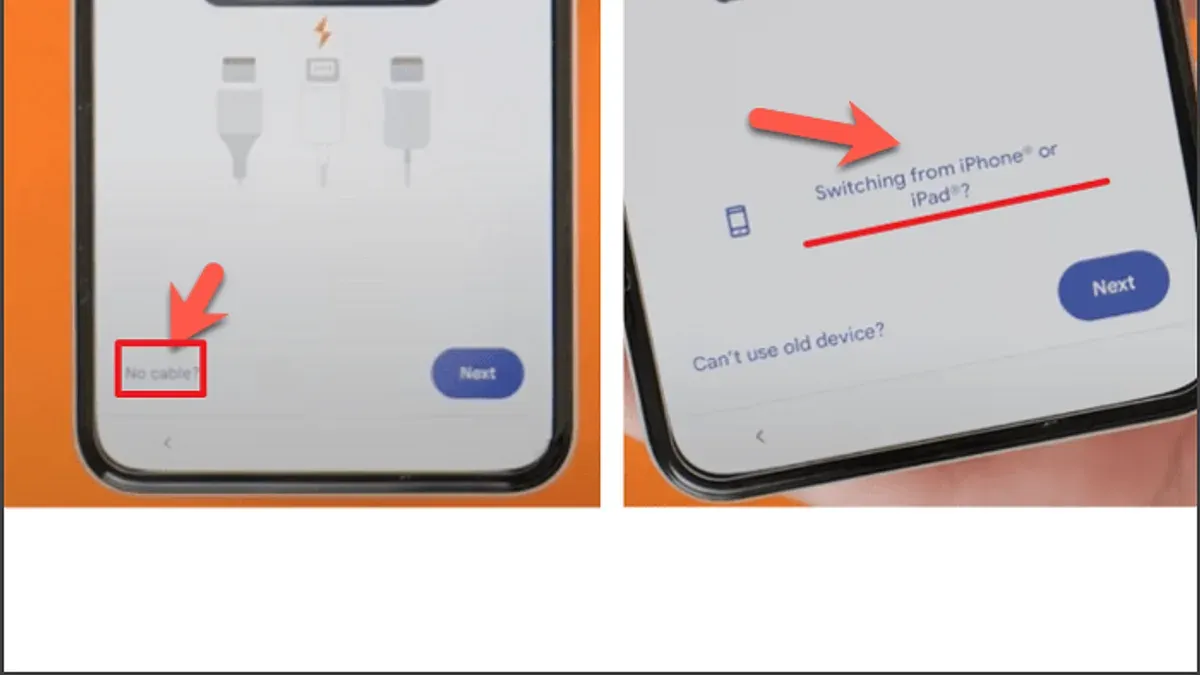
If your iPad fails to switch on, try a force restart: quickly press and release the volume up button, then the volume down button, and finally press and hold the top button until the Apple logo appears. This procedure resolves most startup issues without data loss, aligning with Apple’s official guidance.
Proper Shutdown and Sleep Mode on MacBook
To shut down your MacBook, click the Apple menu and select "Shut Down…"; confirm if prompted. This ensures all apps close properly and data is saved. Sleep mode is activated by closing the lid or selecting "Sleep" from the Apple menu, conserving battery while maintaining quick wake-up. Use sleep mode for short breaks, shutdown for extended periods.
Adjust your MacBook’s power settings under System Preferences > Battery > Battery and Power Adapter tabs. Enable "Put hard disks to sleep when possible" and "Slightly dim display while on battery power" to optimize battery life during the transition period.
For example, if you notice your iPad won’t power on after switching accounts, performing a force restart often resolves the issue without needing a full restore.
- Power on iPad: press and hold top button until logo appears
- Power off iPad: hold top + volume button, swipe slider
- Force restart iPad: volume up, volume down, hold top button until logo
- Shut down MacBook: Apple menu > Shut Down…
- Use sleep mode for short breaks, shutdown for longer periods
- Optimize MacBook battery: System Preferences > Battery settings
Common Mistakes to Avoid When Switching from iPads to MacBooks
One of the most frequent errors is not backing up your iPad data before starting the transfer. Without a recent backup via iCloud or Finder, you risk losing photos, documents, and app data if the transfer encounters issues. For example, a user who skipped this step found their Notes app content missing after migration, causing unnecessary frustration.
Ignoring differences in app availability and file compatibility is another common pitfall. Many iPad apps do not have direct MacBook equivalents or may store files in formats incompatible with macOS apps. This requires pre-planning to export or convert important files, or to find alternative Mac applications that support your workflow.
Failing to set up syncing properly between your devices often leads to fragmented data. If iCloud Drive, Photos, and other syncing services are not configured identically on both devices, you might end up with partial or outdated files on one or both devices. This disruption can slow down your productivity significantly.
Overlooking the complexities of Apple account management can also cause trouble. Switching accounts without fully understanding app licenses, subscriptions, and Family Sharing settings may lead to loss of access to purchased content or services. A common scenario involves a user losing access to their Apple Music library after switching accounts without re-authorizing the new one.
Lastly, underestimating the macOS learning curve leads some to underutilize their MacBook. The transition from touch gestures to keyboard shortcuts and menu-driven commands requires patience and practice. Rushing this adjustment can cause you to miss out on productivity-enhancing features like Spotlight search, Mission Control, or Finder tagging.
- Always back up your iPad data before transferring.
- Check app availability and plan for file compatibility.
- Ensure iCloud and syncing settings are consistent across devices.
- Understand Apple account implications before switching.
- Invest time learning macOS basics and shortcuts.
Read next
- Moving from iPads to Chromebooks Checklist for Smooth Transitions
- Switching from Windows Laptops to MacBooks: Your Expert Guide
- Switching from Chromebooks to MacBooks: Your Complete Expert Guide
Frequently asked questions
How to switch from iphone to ipad?
To switch from iPhone to iPad, start by signing into your Apple ID on the iPad. Use the Quick Start feature by placing the iPad near your iPhone, then follow the prompts to transfer settings and data wirelessly. After setup, ensure that apps and data like photos, contacts, and messages are synced via iCloud for continuity.
How to use ipad and macbook together?
You can use your iPad and MacBook together through features like Sidecar, which allows your iPad to act as a second display for your MacBook. Enable Sidecar via System Preferences on your Mac, then connect your iPad wirelessly or with a cable. Additionally, use Universal Clipboard to copy on one device and paste on the other seamlessly.
How to sync ipad to macbook?
Sync your iPad to your MacBook using Finder if you’re on macOS Catalina or later, or iTunes on earlier macOS versions. Connect your iPad via USB or Wi-Fi, select it in Finder or iTunes, then choose the types of content to sync such as music, photos, or files. Confirm the sync settings and apply to start transferring data.
How to switch on ipad?
To switch on your iPad, press and hold the Top button until the Apple logo appears. For models without a Home button, the Top button is on the device's upper edge; for others, it's usually on the side. If the device doesn't turn on, ensure it has sufficient charge by connecting it to power for at least 15 minutes.
How to connect switch to ipad?
Connecting a Nintendo Switch to an iPad directly is not supported as the devices use different operating systems and connection protocols. However, you can connect the Switch Pro Controller to the iPad via Bluetooth for gaming. To do this, put the controller in pairing mode by holding the Sync button, then select it under Bluetooth settings on your iPad.
Quick checklist
- Ensure both devices use the same Apple ID for smooth syncing.
- Use Finder or iCloud to transfer photos, documents, and app data.
- Enable Handoff and Universal Clipboard to work seamlessly between iPad and MacBook.
- Sign out of Apple ID on your iPad before switching accounts to avoid data conflicts.
- Power off devices properly via the Apple menu or side button to preserve battery health.
- Be mindful that some iPad-only apps may not have MacBook counterparts or may behave differently.
What this advice does not cover
This guide does not cover switching from iPads to non-Apple laptops or detailed troubleshooting of hardware faults unrelated to switching. Users heavily reliant on iPad-only apps or the touch interface may find MacBooks less intuitive initially and should consider gradual adaptation or use of accessories like the Magic Trackpad to bridge the experience.
The single most useful next step is to set up iCloud Drive on your MacBook and iPad, then test syncing a small folder or document. This confirms your Apple ID and syncing settings work correctly, allowing you to build confidence before transferring larger amounts of data or fully switching workflows.



