
How to Switch from Microsoft 365 to Google Drive: A Practical Guide
This guide explains how to switch from Microsoft 365 to Google Drive smoothly, covering file migration and adapting to new collaboration tools.

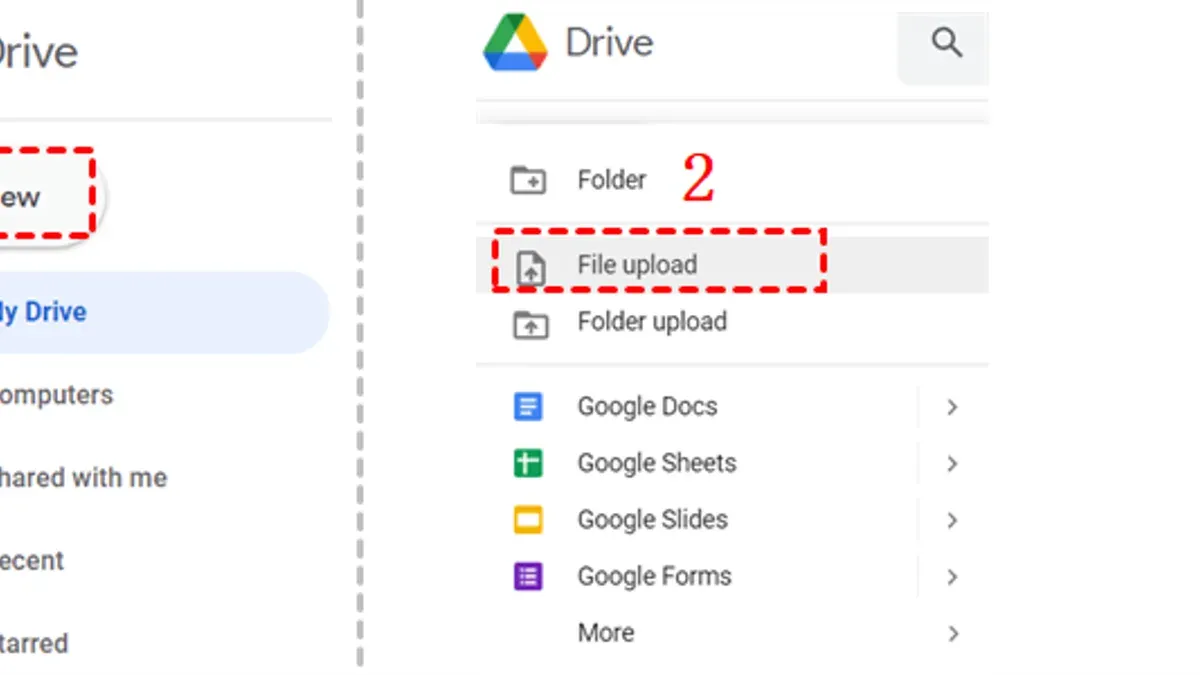
Short answer: Switching from Microsoft 365 to Google Drive involves migrating your files through Google Drive's Backup and Sync tool or manual upload, then adapting to different collaboration and file management methods. The core process is straightforward, but understanding the platform differences is key to a smooth transition.
This guide covers the essential steps to move your data, explains how to adjust from Microsoft Word to Google Docs, and highlights common pitfalls to avoid. You will also learn how Google Drive’s real-time collaboration model contrasts with Microsoft 365’s approach, helping you anticipate changes in your workflow. By focusing on both technical and practical aspects, this article prepares you to optimize your productivity after the switch.
Why Switch from Microsoft 365 to Google Drive
Switching from Microsoft 365 to Google Drive often comes down to differences in cloud storage models and collaboration styles. Google Drive's real-time collaboration and commenting features are tightly integrated with Google Docs, Sheets, and Slides, creating a seamless workflow that many users find more intuitive than Microsoft’s desktop-first approach.
Cost and subscription flexibility are also key motivators. Google Drive offers straightforward storage tiers with pay-as-you-go options, which can be more budget-friendly for teams that need scalable cloud space without bundled software licenses.
Integration with Google Workspace tools like Gmail, Calendar, and Meet means your files and communications live in one ecosystem, reducing app switching and simplifying notifications and sharing.
From a user interface perspective, Google Drive’s web-based design provides consistent accessibility across devices without requiring installations or updates, which is especially valuable for remote or mobile teams.
For example, imagine a project team collaborating on a proposal: Google Drive allows all members to edit the same document simultaneously and see changes instantly, whereas Microsoft 365 users often rely on version control and file locking to manage edits.
| Feature | Microsoft 365 | Google Drive |
|---|---|---|
| Collaboration Style | Desktop apps with cloud sync, version control | Real-time web collaboration with instant updates |
| Subscription Model | Software license bundled with storage | Flexible storage tiers, pay-as-you-go |
| Integration | Office apps, OneDrive, Outlook | Google Workspace apps, Gmail, Meet |
| Accessibility | Requires app installation, updates | Web-based, cross-device consistent |
How to Switch from Microsoft to Google: Core Migration Steps
Start by preparing your Microsoft 365 data for export. In OneDrive or SharePoint, organize files to mirror your intended Google Drive structure. Use the Microsoft 365 admin center to export user data and emails if needed. For a practical example, migrating a 100GB business folder involves first consolidating files and cleaning duplicates to avoid excess transfer time.
Next, employ Google Workspace Migration tools, such as Google Workspace Migrate or Google Drive for Desktop, which support bulk transfers and maintain folder hierarchies. For more complex setups, third-party utilities like CloudMigrator or SysCloud can handle permissions mapping and granular user access controls.
Map folder structures carefully, ensuring shared folder permissions in Microsoft 365 correspond to Google Drive sharing settings. Permissions rarely transfer automatically, so plan manual reassignment or use migration tools that support permission mapping.
After migration, verify data integrity by sampling files, checking folder organization, and confirming user access rights. This prevents workflow disruption and ensures all content is accessible as expected.
- Organize Microsoft 365 files and export relevant data
- Select appropriate Google migration tool or third-party utility
- Map folder structures and reassign permissions
- Transfer data in bulk, monitoring progress
- Verify file integrity and user access post-migration
How to Change from Microsoft Word to Google Docs
When switching from Microsoft Word to Google Docs, you face differences in file formats and feature support. Word uses.docx files, while Google Docs operates in its proprietary format. Converting.docx files into Google Docs format is crucial for full access to collaboration tools and edits within Google Drive.
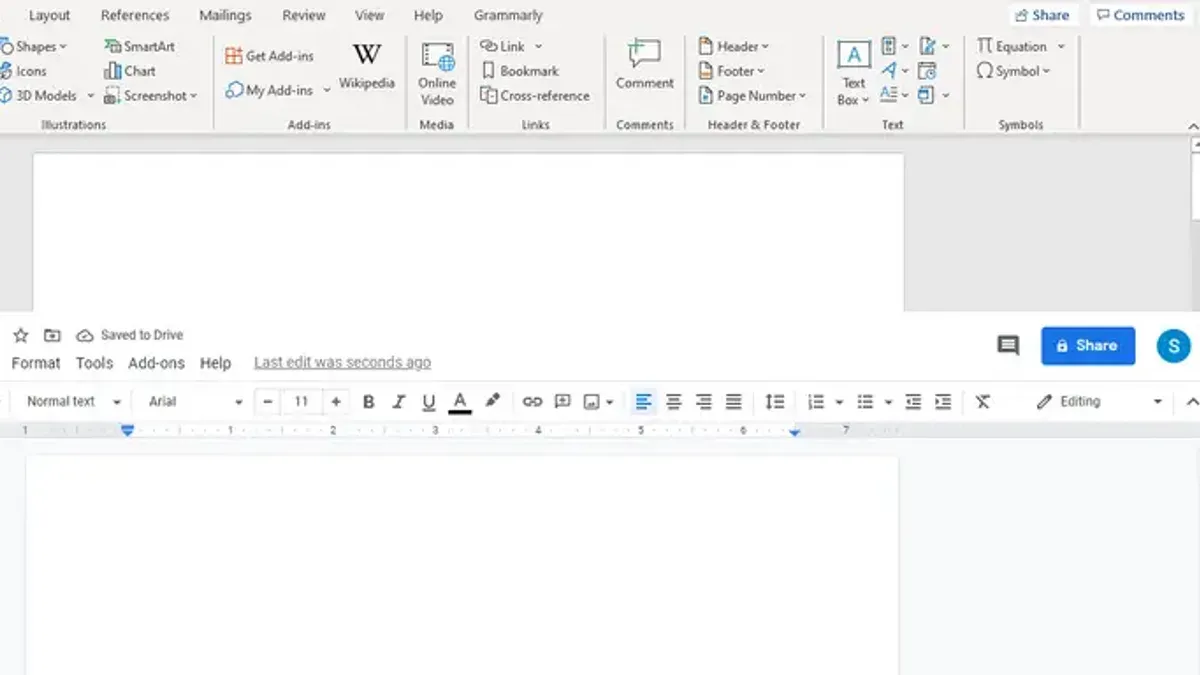
Start by uploading your.docx file to Google Drive, then right-click and select Open with > Google Docs. This converts the document, preserving most text formatting and basic styles. For example, a standard report with headings, bullet points, and tables will retain about 90% of its formatting.
However, complex elements like embedded Excel charts, SmartArt, or advanced Word macros do not transfer perfectly. These may appear as static images or lose interactivity. For such cases, consider recreating the elements directly in Google Docs or linking to Google Sheets.
Google Docs supports real-time multi-user editing with comment threads and suggestion mode, but it lacks some of Word's advanced track changes and review features. Expect a more streamlined but less feature-heavy collaboration experience.
| Feature | Microsoft Word | Google Docs |
|---|---|---|
| File Format | .docx (native) | Google Docs format |
| Complex Formatting | Full support | Partial support; some loss on conversion |
| Embedded Objects | Excel charts, SmartArt, Macros | Static images or unsupported |
| Collaboration | Track Changes, Comments | Real-time editing, Comments, Suggestions |
Checklist for converting and adapting documents:
- Upload.docx file to Google Drive
- Right-click and choose Open with > Google Docs
- Review formatting and fix any issues manually
- Recreate or link complex embedded objects in Google Workspace apps
- Use Google Docs collaboration tools for team editing
Can You Transfer Microsoft 365 to Another Computer?
Microsoft 365 licenses typically allow installation on multiple devices—often up to five PCs or Macs per user—so transferring your subscription to a new computer is permitted within these limits. To move your Microsoft 365 installation, first deactivate the license on the old device by signing out or uninstalling the software through your Microsoft account’s device management page. Then, download and install Microsoft 365 on the new machine and sign in with your Microsoft credentials to activate it.
When migrating to a new computer, distinguish between local files and cloud-stored data. Files saved locally—such as those in Documents folders—must be manually copied via external drives or network transfers. Conversely, files saved in OneDrive sync automatically once you sign in on the new device.
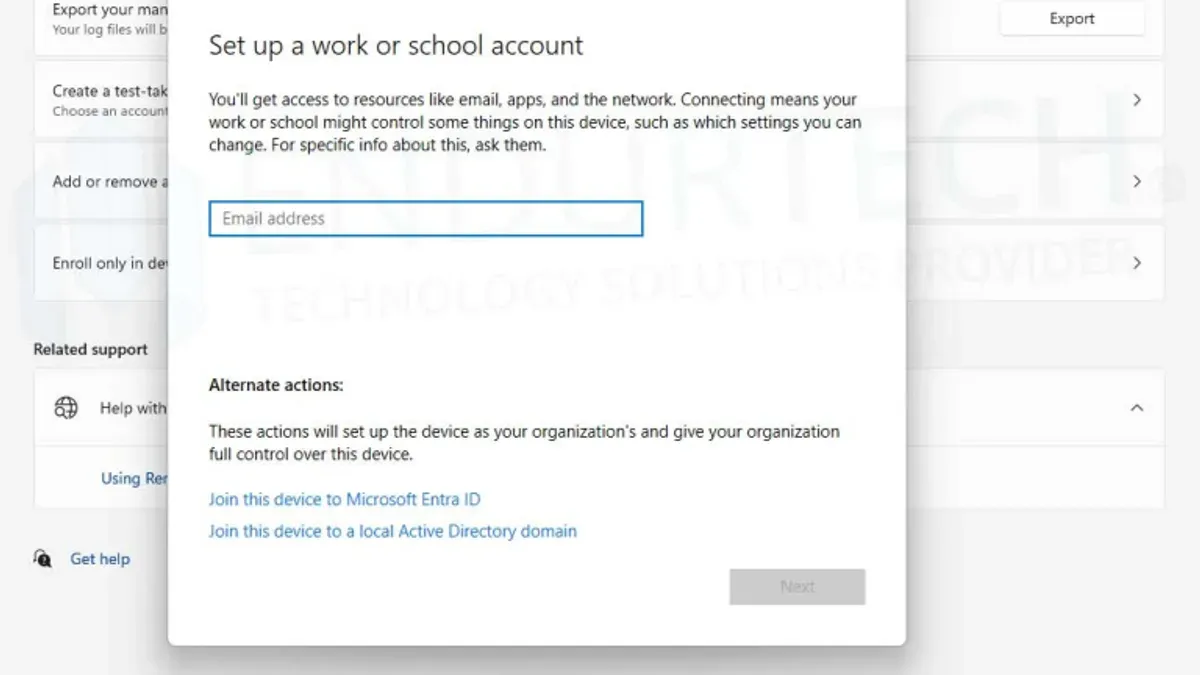
For users switching from Microsoft 365 to Google Drive on a new computer, remember that Google Drive relies on cloud storage accessible through browsers or the Google Drive app. After setting up Google Drive on your device, upload any local files you wish to migrate to the cloud for seamless access and collaboration.
Consider this scenario: you buy a new laptop and want to keep using Microsoft 365. You deactivate Office on your old PC via account.microsoft.com, then install and activate it on the laptop. Meanwhile, your OneDrive files sync automatically, but local Word documents you saved outside OneDrive require manual transfer. If you’re switching to Google Drive, you’ll upload those local files to Drive and access them through your new laptop’s browser or Drive app.
- Sign in to your Microsoft account and go to the Devices page.
- Deactivate the old computer’s Office license.
- Download and install Microsoft 365 on the new device.
- Sign in to activate your subscription.
- Transfer local files manually or ensure OneDrive sync is active.
- If switching to Google Drive, upload local files to Google Drive after setup.
Avoiding Common Mistakes When Migrating to Google Drive
Many migrations stumble due to overlooked differences in collaboration features and file management. For example, Microsoft 365’s versioning and co-authoring work differently than Google Drive’s real-time editing. If you don’t adjust workflows, users may experience confusion and duplicated efforts.
Permissions and sharing settings often cause serious issues. One case involved a team losing access to critical files because folder-level permissions weren’t properly transferred, breaking inherited sharing links. Always audit sharing settings using Google Drive’s "Manage Access" pane immediately after migration to prevent locked-out users.
User training on Google Drive’s idioms and tools is essential. Without it, users struggle with concepts like "Suggested Edits" in Google Docs or managing "Shared with me" files. Provide practical sessions covering Drive’s interface, Google Workspace apps, and collaboration best practices.
Finally, never skip backing up data before migration. A solid backup strategy allows recovery if anything goes wrong. Use Google Takeout or third-party tools to export data safely.
- Review feature differences and adapt workflows.
- Audit and replicate permissions carefully.
- Train users on Google Drive collaboration and tools.
- Backup all data before starting migration.
Optimizing Your Workflow After Switching to Google Drive
You can maximize Google Drive's collaborative power by using native features like shared drives and real-time commenting. For example, instead of emailing document versions, assign comments directly through the comment button on the toolbar, tagging teammates with @mentions for instant notifications.
Integrate Google Drive tightly with Workspace apps such as Sheets, Slides, and Forms to streamline your projects. Create a Google Form to collect team input, link responses directly to a Sheet for automated data analysis, and summarize results in Slides for presentations—all within the same ecosystem.
Leverage version history by accessing File > Version History > See Version History to track changes and restore previous iterations without duplicating files. This ensures clear accountability and reduces confusion during collaborative edits.
Automate repetitive tasks using Google Apps Script accessible via Extensions > Apps Script or install add-ons like “Yet Another Mail Merge” for bulk emailing directly from Sheets. Early adopters have found this reduces manual workload and speeds up routine processes.
- Use shared drives for team file ownership and consistent access
- Tag collaborators in comments with @mentions for clear communication
- Connect Forms, Sheets, and Slides to centralize data collection and reporting
- Review and restore file versions via Version History instead of saving duplicates
- Set up Apps Script or add-ons to automate frequent tasks and notifications
Read next
- Switching from Microsoft 365 to Dropbox: Your Expert Migration Guide
- Google Drive Rollout Plan for School Administrators: A Practical Guide
- Google Drive Implementation Timeline: Your Complete Guide
Frequently asked questions
How do I migrate from Microsoft 365 to Google Drive without losing data?
To migrate without losing data, start by exporting your files from OneDrive or SharePoint using the OneDrive sync client or web interface. Then upload these files directly to Google Drive via the Drive web app or Backup and Sync tool for Windows. For emails and calendars, use Google Workspace Migration for Microsoft Exchange (GWMME) to transfer Outlook data. Verify file permissions and sharing settings after migration to maintain access controls.
What is the Microsoft 365 equivalent to Google Drive?
The closest Microsoft 365 equivalent to Google Drive is OneDrive for Business. It provides cloud storage integrated with Microsoft Office apps, enabling file sharing, real-time collaboration, and version history similar to Google Drive’s core features.
Can I use Google Drive for Windows with Microsoft 365?
Yes, you can install Google Drive for desktop on a Windows machine where Microsoft 365 apps are installed. This setup allows you to sync files between your local device and Google Drive while continuing to work with Microsoft Office apps, but be mindful of potential syncing conflicts if files are edited simultaneously across platforms.
Is it possible to migrate from Google Drive back to Microsoft 365?
Yes, migrating back involves downloading your data from Google Drive and uploading it to OneDrive or SharePoint within Microsoft 365. For emails and contacts, tools like Google Workspace Migration for Microsoft Outlook (GWMMO) can help import Gmail data into Outlook. Always check file formats and compatibility when reversing the migration.
What This Guide Does Not Cover
This guide does not cover enterprise-level migrations involving complex compliance requirements, custom integrations, or hybrid cloud environments. Organizations with such needs should consult dedicated migration specialists to ensure data integrity, security, and regulatory compliance during transition. Additionally, this advice focuses on file and collaboration platform changes and does not address licensing transfer or third-party application migration complexities.
Quick checklist
- Confirm all files are backed up outside Microsoft 365 before starting migration.
- Use Google Drive's "Drive for Desktop" application for seamless file syncing.
- Convert Microsoft Word files to Google Docs format to enable real-time collaboration.
- Review and adjust sharing permissions in Google Drive to match your team's access model.
- Test collaborative workflows in Google Workspace apps to identify feature gaps early.
- Train users on Google Drive's version history and commenting features.
- Verify that all necessary add-ons or extensions are available or replaced in Google Workspace.
The single most useful next step is to initiate a pilot migration with a small, representative set of files and collaborators. This hands-on trial reveals practical workflow shifts and technical adjustments before committing fully, minimizing disruption and building confidence in the new platform.



