How to Switch from Microsoft Intune to Jamf School Without Losing Control
Switching from Microsoft Intune to Jamf School requires careful planning to maintain control and security over your Apple devices during migration.

Short answer: Switching from Microsoft Intune to Jamf School requires careful planning to maintain control over your devices and user experience. The process involves exporting device data from Intune, deregistering devices properly, and enrolling them in Jamf School while preserving configurations and compliance policies. You must anticipate differences in management approaches and prepare for a phased migration to avoid downtime.
This article covers the essential steps and challenges involved in switching from Microsoft Intune to Jamf School. You will learn how Jamf School’s device management differs, what preparatory actions you need to take, and how to execute the migration without losing device integrity. It highlights common pitfalls—including token and profile mismanagement—and offers solutions to maintain security and compliance throughout the transition.
Why Consider Switching from Microsoft Intune to Jamf School?
Microsoft Intune manages multiple device platforms but can be cumbersome when dealing exclusively with Apple devices. Jamf School focuses solely on Apple, offering streamlined workflows tailored to macOS, iPadOS, and iOS management. This specialization means you get built-in support for Apple Classroom integration, simplified Apple ID management, and tools designed specifically for education settings.
Jamf School includes education-specific features like easy deployment of student apps, device grouping by class or grade, and tighter control over Apple’s built-in educational tools. Intune’s broader scope often leads to extra configuration overhead and less intuitive controls for Apple devices, which can frustrate IT admins trying to manage hundreds or thousands of iPads in schools.
For example, a school district managing 1,000 iPads found Intune’s multi-platform interface slowed daily tasks like app deployment and device restrictions. Switching to Jamf School cut these steps by half, saving time and reducing help desk tickets. In scenarios where Apple devices dominate, Jamf School lowers complexity and licensing costs compared to Intune.
| Feature | Microsoft Intune | Jamf School |
|---|---|---|
| Platform focus | Multi-platform (Windows, Android, Apple) | Apple only |
| Education-specific tools | Limited, generic | Integrated Apple Classroom, grade-level device grouping |
| User interface | Complex for Apple device management | Streamlined for Apple devices |
| Cost | Higher with multi-platform licenses | Lower for Apple device fleets |
How Does Jamf School Work Compared to Microsoft Intune?
Jamf School is a cloud-based management platform built exclusively for Apple devices, leveraging Apple School Manager to streamline device enrollment and management. When you enroll devices, Jamf School communicates directly with Apple’s servers through Automated Device Enrollment (formerly DEP), allowing zero-touch configuration and instant assignment to classes or groups. This tight integration means policies and apps deploy almost immediately after activation, minimizing manual setup.
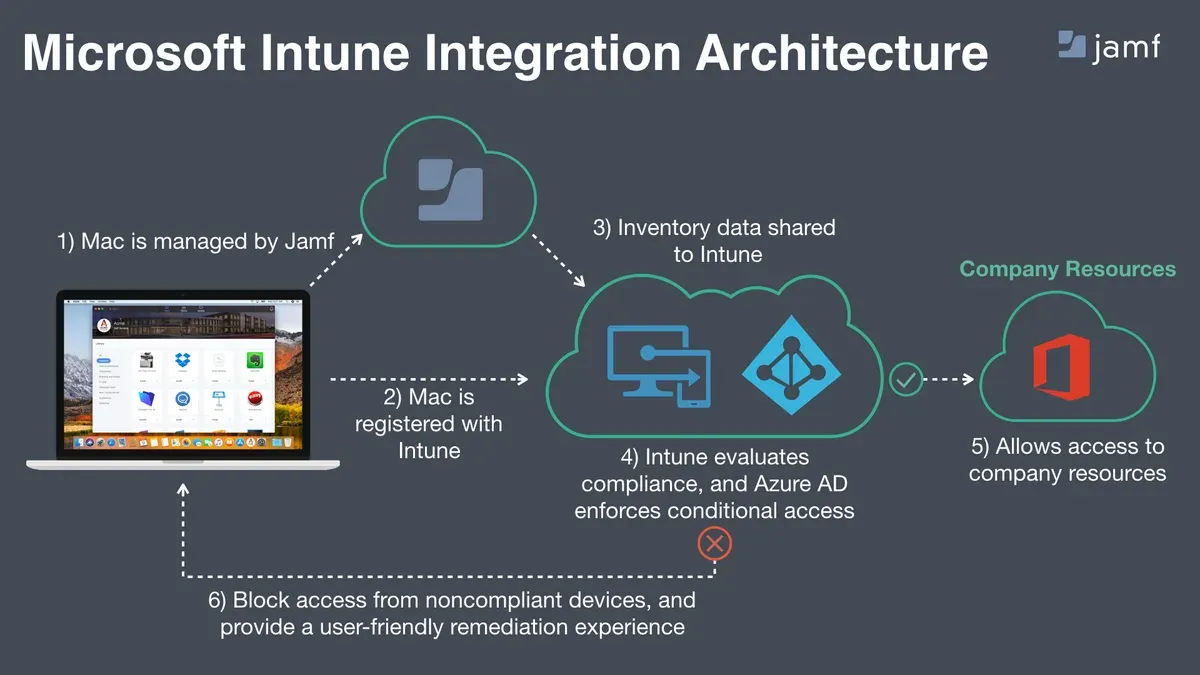
Microsoft Intune, by contrast, is a unified endpoint management system designed to handle multiple operating systems—Windows, Android, iOS, macOS—with a single console. Its broader scope introduces complexity in policy creation and deployment since you must configure device profiles and compliance rules that work across diverse platforms. Enrollment often involves more manual steps, especially for Apple devices without integration like Apple School Manager.
For example, with Jamf School, you create a profile that specifies network settings, app installations, and restrictions, then assign it to a student group. Devices enrolled via Apple School Manager receive this profile automatically during setup. In Intune, you create device configuration profiles and app assignments separately, then push them to users or devices, sometimes needing manual enrollment or user interaction.
The workflows differ: Jamf School’s device enrollment and policy deployment are tightly coupled and automated through Apple’s ecosystem, while Intune requires managing policies across multiple OS types with varying enrollment methods. This affects how quickly and reliably devices are configured and managed after the switch.
What Are the Critical Steps to Prepare Before Migration?
Start by auditing all devices currently managed in Microsoft Intune. Use the Intune portal to export a list of enrolled devices via Devices > All devices, noting device type, OS version, and enrollment status. Review policies under Devices > Configuration profiles and apps assigned under Apps > All apps. This audit reveals what you must replicate in Jamf School and highlights obsolete or redundant settings.
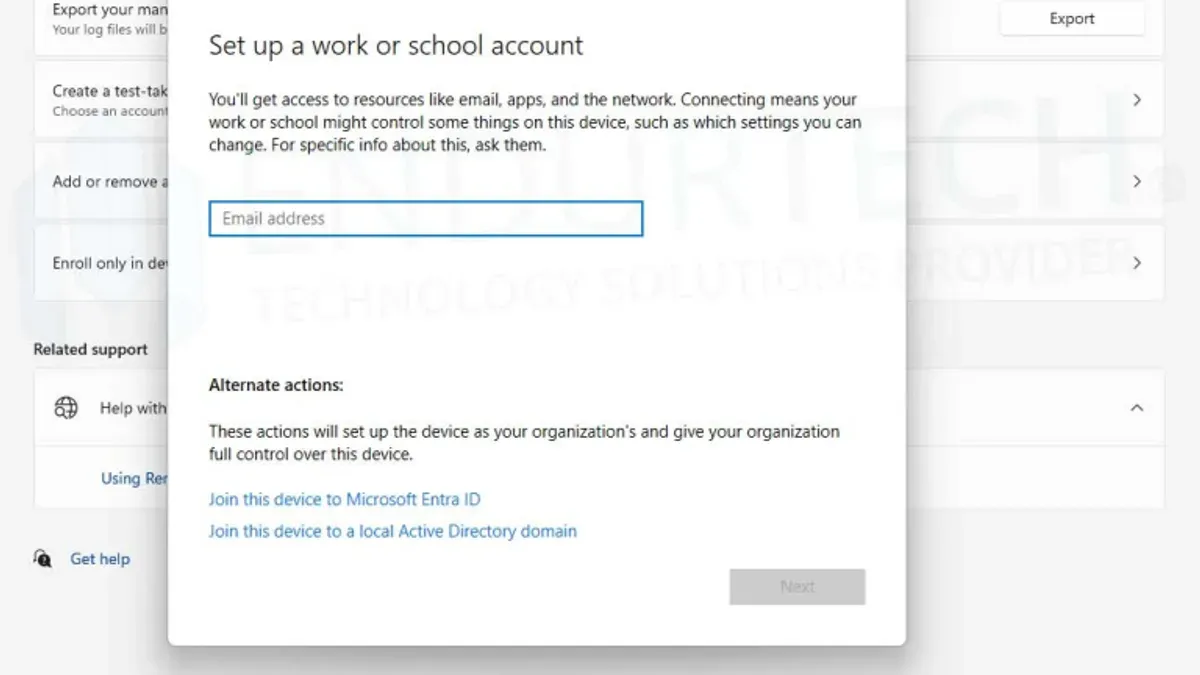
Next, back up your configuration profiles and app assignments. Export configuration profiles as JSON or XML files where possible. For example, an iOS Wi-Fi profile should be saved with exact SSID, security type, and password settings. Document app deployment methods—whether assigned or available—to ensure smooth re-deployment. Missing this step risks data loss and user disruption.
Plan how devices will be re-enrolled into Jamf School. Communicate clearly with users about any required device actions like factory resets or installing new management profiles. A common timeline includes a 2-week audit and backup phase, 1 week for licensing and account setup, and 1-2 weeks for enrollment scheduling and user training.
Finally, confirm your Jamf School licensing matches your device count and features needed. Set up your Jamf School account and integrate with Apple School Manager before migration begins to avoid delays.
- Export device list and policy details from Intune
- Back up configuration profiles and app assignments accurately
- Develop a device re-enrollment plan with user communication
- Verify Jamf School licensing and complete account setup
- Schedule migration timeline with buffer for unexpected issues
How to Execute the Migration from Intune to Jamf School?
Start by disenrolling devices from Microsoft Intune to clear existing management profiles. Navigate to the Intune portal, select Devices > All devices, and initiate retire or wipe commands for the target devices. This removes Intune profiles without affecting user data, preparing devices for Jamf School enrollment.
Next, configure your Jamf School environment. Set up scopes aligned with your institution’s organizational units, create device groups based on roles (e.g., students, teachers), and apply necessary configuration policies such as Wi-Fi credentials and app restrictions. Ensure your Jamf School instance is fully integrated with Apple School Manager (ASM) for automated device enrollment.
Use Apple School Manager to automate enrollment by assigning devices to your Jamf School MDM server within ASM. This step allows devices to enroll automatically when they connect to the internet after being reset. For example, a batch of 50 iPads can be assigned in ASM, then distributed to users who will see Jamf School profiles install during startup without manual intervention.
After enrollment, validate device status in Jamf School by checking inventory reports and policy deployment logs. Troubleshoot common issues such as incomplete profile installation by verifying network access and Apple ID configurations. A staged migration over several days helps isolate and resolve errors without disrupting the entire fleet.
- Disenroll devices from Intune: Intune portal > Devices > Select devices > Retire/Wipe
- Configure Jamf School: Set scopes, device groups, and policies
- Assign devices in Apple School Manager to Jamf School MDM server
- Distribute devices; verify automatic enrollment and policy application
- Check Jamf School inventory and troubleshoot profiles as needed
- Plan batch migration in phases to minimize disruption
What Common Mistakes Should You Avoid During This Switch?
One frequent error is poor timing and lack of clear communication. If you switch without notifying users and scheduling carefully, expect confusion and helpdesk overload. For example, a school district once transitioned mid-semester without alerting teachers; device downtime doubled, disrupting classes for days.
Failing to remove Microsoft Intune management profiles completely before enrolling devices in Jamf School causes conflicts. Devices may refuse new policies or repeatedly prompt users for credentials. You must use Intune’s portal to retire or wipe devices properly before re-enrollment.
Underestimating Apple School Manager’s role leads to manual enrollment bottlenecks. Skipping its integration means you lose automated device assignment and streamlined scope application, causing delays and errors.
Not validating app licenses and content post-migration results in unavailable resources for users. Check app assignments and volume purchase licenses in Jamf School immediately after enrollment to avoid missing essential educational content.
- Coordinate migration timing and communicate clearly with all users.
- Fully retire or wipe devices from Intune before Jamf School enrollment.
- Integrate Apple School Manager to automate enrollment and scope management.
- Verify app licenses and content availability right after migration.
How Can You Maintain Security and Compliance Throughout the Transition?
During migration, keep device encryption active by ensuring FileVault on Macs remains enabled throughout disenrollment and re-enrollment. Jamf School enforces encryption compliance via its Security Policies under Devices > Security, similar to Intune’s Device Compliance menu. Parallel monitoring is critical: use Intune’s Azure portal to track devices flagged as non-compliant while simultaneously verifying Jamf School’s Device Inventory > Compliance page for enrolled units.
App and content access permissions must carry over seamlessly. Pre-stage app licenses in Jamf School and confirm Apple School Manager syncs app assignments before switching. Failure to do so risks users losing access to essential apps mid-transition, disrupting learning.
Implement continuous auditing using tools like Jamf Pro’s Smart Groups and Microsoft Endpoint Manager’s Compliance reports. These enable you to catch policy deviations immediately.
Prepare rollback plans by retaining Intune enrollment profiles until Jamf School enrollment is fully validated. For example, if a device fails Jamf School compliance checks, you can temporarily re-enroll it in Intune to maintain security posture without downtime.
- Confirm FileVault and encryption remain active during migration
- Pre-stage app licenses and sync Apple School Manager before switching
- Monitor compliance status concurrently in Intune and Jamf School dashboards
- Use Smart Groups and compliance reports for real-time auditing
- Keep Intune profiles active as a fallback until Jamf School validation completes
Frequently asked questions
Can I migrate devices one at a time or must it be all at once?
You can migrate devices individually rather than all at once. Jamf School supports phased enrollment, allowing you to transition groups of devices at your own pace. This approach helps minimize disruption by verifying each batch's setup before proceeding with the next.
Will user data or settings be lost during the switch?
User data and settings generally remain intact if migration steps are followed correctly. However, device profiles managed by Intune will be removed and replaced with Jamf School profiles, so ensure critical configurations are replicated. Backing up important data before starting the process is recommended to avoid accidental losses.
How does Jamf School handle Apple-specific features better than Intune?
Jamf School offers deeper integration with Apple’s ecosystem, supporting features like Apple Classroom, seamless DEP enrollment, and native configuration profiles. It provides granular control over Apple-specific settings such as AirPlay restrictions, Managed Apple IDs, and iCloud configurations that Intune handles less comprehensively.
What support resources are available during migration?
Jamf provides extensive documentation, including step-by-step migration guides and best practices tailored for education. You can access Jamf Nation forums for community support and contact Jamf School’s support team directly for personalized assistance during your transition.
What this advice does not cover
This guide assumes you manage primarily Apple devices and does not cover migrating non-Apple endpoints from Intune to Jamf School. If your environment includes significant numbers of Windows or Android devices, you will need a separate migration strategy. Additionally, this article does not address advanced custom scripting or integration with third-party identity providers beyond Jamf School’s built-in options.
Quick checklist
- Audit all enrolled Apple devices and document current Intune policies.
- Back up user data and ensure cloud services are properly synced.
- Remove device management profiles from Intune before enrolling in Jamf School.
- Set up Jamf School with your institution’s Apple School Manager account and configure basic settings.
- Test Jamf School enrollment on a small group before full rollout.
- Communicate the transition clearly to end users and provide support resources.
- Monitor device compliance and user experience closely after migration.
Start by auditing your existing Intune policies and device inventory. Understanding exactly what you manage and how is critical before introducing Jamf School. This step reveals potential conflicts, gaps, or features you must replicate, letting you plan a smooth migration that preserves control and minimizes disruption.
See also: Moving from Clever to Jamf School: Your Complete Checklist · Moving from ClassLink to Jamf School: Your Precise Migration Checklist · Switching from Google Admin Console to Jamf School: A Clear-Cut Guide