Switching from Quizizz to Edpuzzle: A Practical Educator’s Guide
This guide helps educators switch from Quizizz to Edpuzzle by outlining practical steps to enhance student engagement and manage assessments effectively.

Short answer: Switching from Quizizz to Edpuzzle involves understanding the shift from quiz-centric gamified assessments to video-embedded lessons that promote deeper engagement. You will need to adapt your workflow by integrating video content, setting up interactive questions within videos, and managing student progress differently to maintain assessment quality and student motivation.
This guide covers the practical steps you need to take to transition smoothly. It walks you through recognizing the key differences between the platforms, maximizing Quizizz usage before switching, effectively using Edpuzzle in your classroom, assigning lessons, managing retakes, speeding up videos, responsibly viewing answers, editing quizzes, and avoiding common pitfalls. Each section provides actionable advice tailored to real classroom scenarios, helping you maintain instructional continuity and student engagement throughout the switch.
Understand the key differences between Quizizz and Edpuzzle
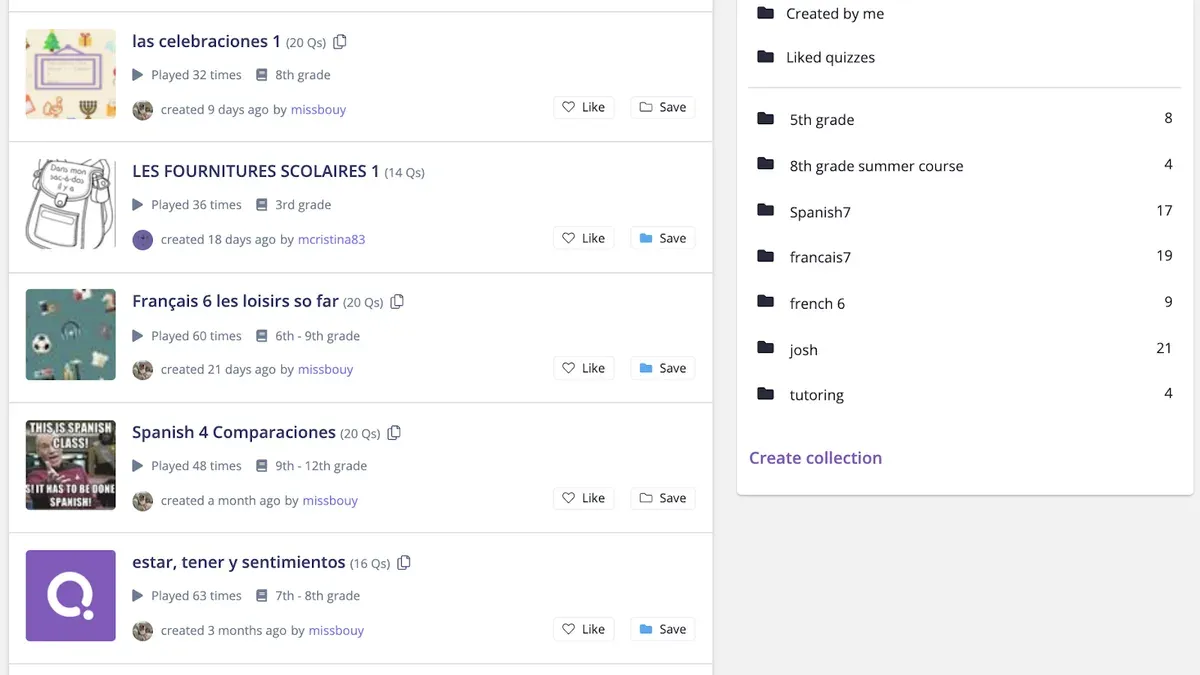
Quizizz is designed around gamified quizzes that promote instant feedback and friendly competition. Its interface prioritizes bright visuals, timed questions, and leaderboards that motivate students to engage actively and quickly recall knowledge. For example, you might launch a 10-question multiple-choice quiz on fractions where students race to answer and see their rank update in real time.
Edpuzzle, by contrast, centers on interactive video lessons with embedded questions placed at specific timestamps. This approach supports deeper comprehension by encouraging students to pause, reflect, and apply concepts as they watch. Imagine assigning a 5-minute science video where students answer questions about photosynthesis during key moments, reinforcing understanding rather than speed.
| Feature | Quizizz | Edpuzzle |
|---|---|---|
| Core Functionality | Gamified quizzes with instant scoring and competition | Interactive video lessons with embedded questions |
| Learning Focus | Engagement and recall speed | Comprehension and reflection |
| User Interface | Bright, game-like, with timers and leaderboards | Video player with pause, rewind, and question overlays |
| Teacher Controls | Quiz creation, live game hosting, progress dashboards | Video editing, question embedding, student progress tracking |
Choosing between them depends on your instructional goals. Use Quizizz when you want to boost engagement with fast-paced, competitive quizzes. Choose Edpuzzle to deepen understanding through multimedia lessons that require thoughtful interaction. Both platforms offer teacher dashboards, but Edpuzzle’s controls focus more on customizing video content and pacing, while Quizizz emphasizes real-time game management.
How to use Quizizz as a teacher before switching
Before moving to Edpuzzle, it's helpful to recap how Quizizz functions in your teaching routine. On Quizizz, you create quizzes by selecting "Create" from the main dashboard, then choosing "Quiz". You add questions by typing them directly or importing from the extensive public library. Editing involves clicking on any question to modify text, answer choices, or point values. For example, you might create a 15-question math review quiz, adjusting difficulty levels as you go.
Once your quiz is ready, you can launch it live by selecting "Play Live" or assign it as homework via "Assign". Live quizzes allow real-time interaction and leaderboard competition, while homework assignments let students complete at their own pace within a set deadline. For instance, assigning homework with a due date three days ahead helps students manage their time independently.
Monitoring progress happens through the "Reports" tab. Here, you see detailed analytics, including question-by-question accuracy, average completion time, and individual student scores. The reports offer downloadable CSV files for deeper analysis. A common step teachers miss is checking the "Question Analytics" to identify concepts where many students struggle, informing future instruction.
- Create quizzes using the "Create" > "Quiz" path
- Launch quizzes live or assign as homework with deadlines
- Use the "Reports" tab to track class and individual performance
- Review "Question Analytics" to pinpoint learning gaps
How to use Edpuzzle in the classroom effectively
Start by searching or uploading a video lesson within Edpuzzle’s library. Once you find a suitable video, click “Add to my content” to customize it. Embed questions directly into the video at specific timestamps by selecting “Add question”, choosing from multiple-choice, open-ended, or true/false formats. Make sure to toggle “Answer tracking” on to monitor student responses in real time.
For example, assign a biology video on cell structures to your class by clicking “Assign”, setting a due date, and selecting your class roster. After students complete the lesson, go to the “Analytics” tab to review their answers, see who struggled with specific questions, and identify video sections where students paused or replayed.
Use Edpuzzle’s grading tool to assign points per question automatically or manually adjust scores for open-ended responses. To keep students engaged, pace the video by embedding questions before key concepts, encouraging active watching rather than passive viewing.
- Search or upload a video lesson
- Embed questions with answer tracking enabled
- Assign the lesson with a clear due date
- Use analytics to review student answers and engagement
- Grade automatically or manually as needed
- Place questions strategically to maintain student attention
How to assign Edpuzzle lessons to your students
Start by selecting an existing video lesson from Edpuzzle’s library or create your own by uploading a video or importing from YouTube. Use the Edit button to add interactive questions or notes that align with your learning objectives.
Next, click Assign on the video page to set parameters. Choose the class or group from your roster, set a clear due date, and decide if you want to allow multiple attempts or require watching the entire video before submission. These settings help define expectations and pacing.
To share the assignment, you can integrate Edpuzzle with your Learning Management System (LMS) such as Google Classroom, Canvas, or Schoology. For example, in Google Classroom, select Assign within Edpuzzle, then choose Google Classroom as the delivery method, pick the relevant class, and post it directly. Alternatively, generate a shareable link and send it via email or class communication channels.
Remember to preview the assignment from a student view to ensure everything functions smoothly before assigning.
- Select or create your video lesson in Edpuzzle
- Click Assign and set class, due date, and attempt options
- Share via LMS integration or copy the shareable link
- Preview assignment as a student before distribution
How to retake an Edpuzzle quiz and manage student attempts
Edpuzzle allows you to control whether students can retake quizzes embedded in video lessons through the "Allow Multiple Attempts" setting found under the Assignment Settings menu. By default, this option is off, meaning students have only one chance to complete the quiz. Enabling it opens the door for students to improve their understanding by revisiting the video and answering questions again.
Communicate your retake policy clearly to students at the time of assignment. For example, you might state: “You have two attempts to complete this quiz; your highest score will be recorded.” This clarity helps manage expectations and encourages students to engage thoughtfully with the material.
Tracking progress across multiple attempts is straightforward. In the Student Progress tab, you will see each attempt listed with timestamps and scores. This allows you to identify improvements or persistent challenges. For instance, if a student scores 60% on the first attempt and 85% on the second, you can provide targeted feedback based on the areas they missed initially.
Picture this workflow: After assigning a lesson with multiple attempts enabled, you check progress mid-week. You notice a few students retook the quiz and improved their scores. You send personalized feedback highlighting the concepts they mastered and suggesting review materials for still-challenging questions.
Remember, balancing retake flexibility with accountability is key. Too many attempts may encourage guessing, while too few might limit learning opportunities.
- Go to the assignment’s Settings and toggle Allow Multiple Attempts on or off.
- Communicate the retake limits and scoring policy clearly to students.
- Monitor attempts and scores in the Student Progress tab.
- Use progress data to provide targeted feedback after each attempt.
- Adjust retake permissions based on student needs and lesson goals.
How to speed up Edpuzzle videos and skip sections
Edpuzzle allows you to adjust video playback speed directly within the player, giving students control to learn at their own pace. To change the speed, use the gear icon on the video player, then select from preset options like 1.25x, 1.5x, or 2x. This flexibility helps students who grasp content quickly or need more time to process information.
When speeding up videos, be mindful that embedded questions pause playback, maintaining the necessary engagement regardless of speed. However, speeding through videos too fast can reduce comprehension, so balance speed with thoughtful question timing.
Skipping sections is possible by dragging the progress bar, but this can risk students missing critical content or questions. To maintain assessment integrity, disable skipping in the lesson settings if you require students to watch all parts sequentially. If skipping is allowed, clearly communicate expectations so students don’t bypass key material.
For example, if a math lesson video is 10 minutes, but students master the concepts quickly, setting playback to 1.5x cuts viewing time to about 6 minutes 40 seconds. Questions embedded every 2 minutes still pause playback, ensuring focus. If skipping is enabled, advise students to only jump to question points to avoid missing explanations.
- Click the gear icon on the video player.
- Select desired playback speed (e.g., 1.25x, 1.5x).
- Ensure question timing aligns with increased speed.
- Adjust lesson settings to enable or disable skipping.
- Communicate skipping policies clearly to students.
How to view Edpuzzle answers and get free answers responsibly
To access student responses in Edpuzzle, navigate to your lesson dashboard and click the “Student Progress” tab. Here, you’ll find detailed reports showing each student’s answers, timestamps, and completion status. Use the “Question Breakdown” view to analyze which questions were most challenging, enabling you to adjust your instruction to address gaps.
For example, if a majority of students miss a question about photosynthesis, you can plan a targeted review session rather than moving on prematurely. This data-driven approach supports deeper understanding instead of surface-level memorization.
While some may be tempted to use free answer sites promising Edpuzzle solutions, these undermine student learning and assessment integrity. Such sites often provide outdated or incomplete answers, causing confusion and unfairness. Instead, use Edpuzzle’s built-in answer keys and student responses to guide remediation and encourage honest engagement.
Caution: Sharing or accessing free answers outside your own reporting violates ethical standards and can lead to distorted assessment results. Focus on using Edpuzzle’s analytics as a teaching tool, not a shortcut.
- Go to your Edpuzzle lesson dashboard
- Select “Student Progress” to view answers
- Use “Question Breakdown” to identify common errors
- Avoid external free answer sites; rely on Edpuzzle’s data
- Use insights to tailor follow-up instruction
How to edit quizzes in Quizizz before fully switching
Before transitioning fully to Edpuzzle, you want to ensure your existing Quizizz content remains valuable and accessible. Start by navigating to your Quizizz dashboard, select the quiz you want to edit, then click the Edit button. Here, you can modify questions, answer choices, and settings such as time limits or points allocation. For example, if a math quiz has outdated questions, update the problem statements or answer options directly instead of recreating the quiz from scratch.
To safeguard your content, consider exporting your quiz data. Quizizz allows exporting reports in CSV format, which includes student responses and scores. However, exporting complete quiz questions and structure requires manual copying, as there is no direct export for quiz content. Archiving old quizzes by marking them as inactive is a practical way to keep your dashboard organized without deleting valuable work.
Plan a phased migration: continue editing and using essential Quizizz quizzes while gradually building or importing equivalent Edpuzzle lessons. This approach avoids disruption and gives students time to adjust. For instance, keep a well-performing vocabulary quiz active in Quizizz while you develop corresponding interactive videos in Edpuzzle.
- Access Quizizz dashboard and select quiz
- Click Edit to modify questions and settings
- Export student reports in CSV from the Reports tab
- Archive unused quizzes by setting them inactive
- Implement phased migration by running key quizzes in Quizizz while creating Edpuzzle lessons
Common mistakes to avoid when switching from Quizizz to Edpuzzle
One frequent pitfall is underestimating the time required to create interactive videos in Edpuzzle. Unlike Quizizz’s rapid quiz setup, embedding questions into videos and ensuring smooth playback demands careful editing and previewing. For example, a teacher who planned to convert ten quizzes into Edpuzzle lessons in one evening found the process took several days, affecting her lesson schedule.
Another critical error is failing to communicate changes clearly to students and parents. Without advance notice about the new platform, students may struggle with login procedures or assignment formats, causing frustration and missed deadlines. Sharing detailed instructions and setting expectations upfront avoids this confusion.
Not aligning assessment methods across platforms can also disrupt learning continuity. Quizizz’s gamified scoring differs from Edpuzzle’s video interaction tracking, so simply replicating quizzes can lead to misaligned grading criteria and unclear feedback.
Finally, ignoring platform-specific training for both educators and students leads to underutilization of Edpuzzle’s features. Schools that do not allocate time for hands-on tutorials often see incomplete data reporting and lower student engagement.
- Allocate sufficient time to build and test Edpuzzle lessons
- Communicate platform changes clearly to students and parents with step-by-step guides
- Adjust assessment strategies to fit Edpuzzle’s interactive video format
- Provide training sessions or resources to familiarize all users with Edpuzzle
Read next
- Switching from Quizizz to Blooket: A Step-by-Step Educator’s Guide
- Switching from Pear Deck to Edpuzzle: A Confident Educator’s Guide
- Switching from Nearpod to Edpuzzle: A Practical Educator’s Guide
- Moving from Padlet to Edpuzzle Checklist: A Confident Educator’s Guide
Frequently asked questions
How to get answers on edpuzzle?
Edpuzzle does not provide direct answer keys for its lessons to maintain academic integrity. However, as a teacher, you can view student responses and correct answers by accessing the "Analytics" tab within your assigned lesson. This lets you monitor understanding without compromising test security.
How to skip on edpuzzle?
Skipping sections in Edpuzzle videos is controlled by the lesson creator. If the creator enabled skipping, you can use the progress bar to jump ahead. Otherwise, the video will lock at certain points to ensure engagement with embedded questions.
How to edit quiz in quizizz?
To edit a quiz in Quizizz, open your dashboard and select the quiz you want to modify. Click the "Edit" button, make changes to questions or settings, and then save your updates. Remember, if the quiz is assigned, edits might affect ongoing student progress.
how to get answers on edpuzzle
Since Edpuzzle restricts direct answer access, the best approach is to review the lesson's embedded questions and prepare by previewing the video yourself. As a teacher, use the "Student Responses" feature to see how students performed and identify common challenges.
how to retake an edpuzzle quiz
To allow students to retake an Edpuzzle quiz, go to the "Assignments" tab, select the lesson, and adjust the "Allow Multiple Attempts" setting. You can specify the number of attempts permitted, ensuring students have the opportunity to improve their scores while tracking progress.
What this guide does not cover
This guide does not cover integrating Edpuzzle with all possible LMS platforms, which can vary widely in setup complexity. If your school uses a specific LMS like Canvas, Schoology, or Google Classroom and you want seamless grade syncing or single sign-on, consult the dedicated Edpuzzle integration documentation or your school’s IT support. Also, this guide does not delve into advanced video editing features or premium subscription benefits that may impact your workflow.
Quick checklist
- Identify key differences between Quizizz and Edpuzzle focusing on video interactivity.
- Complete any ongoing Quizizz quizzes and export student data before switching.
- Create your first Edpuzzle lesson and embed questions strategically in the video timeline.
- Assign Edpuzzle lessons via direct links or LMS integration, ensuring clear deadlines.
- Set up attempt limits and retake options in Edpuzzle based on your assessment goals.
- Use Edpuzzle’s video speed controls and skip features to tailor content pacing.
- Access student answers through Edpuzzle’s analytics dashboard responsibly for feedback.
- Maintain, edit, or archive Quizizz quizzes during the transition to avoid data loss.
- Avoid common pitfalls such as neglecting student account setup or underusing interactive video features.
Your most effective next step is to create and assign a simple Edpuzzle video lesson with embedded questions to a small group of students. Monitor their engagement and feedback closely, then adjust your approach before a full classroom rollout. This hands-on trial will highlight the practical differences and help you confidently shift your assessment focus from static quizzes to interactive video learning.