Switching from Quizlet to Formative: A Practical Guide for Educators
This guide helps educators transition from Quizlet to Formative to improve assessment feedback and student learning outcomes.

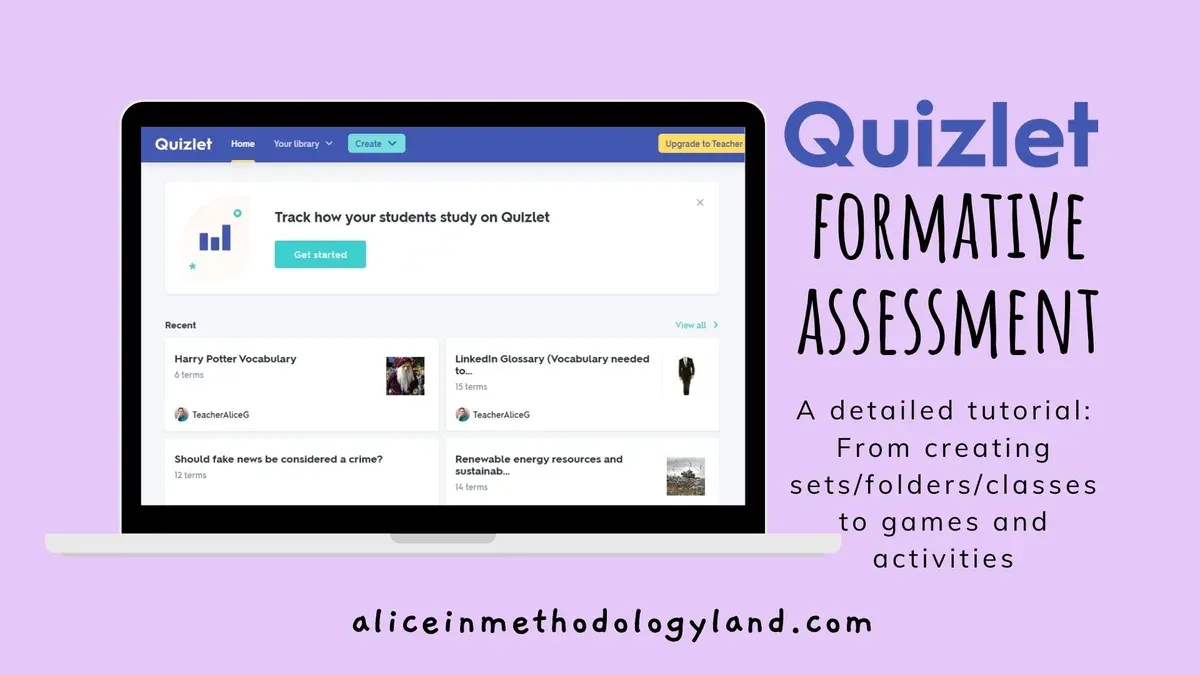
Short answer: Switching from Quizlet to Formative means moving from a primarily flashcard-based tool with simple quizzes to a platform designed for real-time formative assessment and detailed student feedback. Formative offers interactive question types, instant responses, and deeper insights into student understanding that better support ongoing learning.
This article guides you through the key differences in assessment approaches between Quizlet and Formative, helping you evaluate how each fits your instructional goals. You will learn how to prepare your Quizlet content for migration, set up assessments in Formative to maximize feedback effectiveness, avoid common mistakes during the transition, and integrate Formative smoothly into your teaching workflow.
Understand the difference between formative and summative quizzes
Formative assessment is an ongoing process designed to monitor student learning and provide continuous feedback. Its primary goal is to help both you and your students identify areas that need improvement during the learning journey. For example, a quiz question asking students to explain a concept in their own words encourages reflection and adjustment.
Summative assessment measures learning outcomes at a specific point, typically at the end of a unit or course. It evaluates mastery and assigns grades based on performance. A summative quiz might include multiple-choice questions covering all key topics to determine whether students meet the learning objectives.
The classification of a quiz as formative or summative depends on your intent and how you use the results. The same quiz could be formative if used to guide instruction or summative if used for final evaluation.
| Characteristic | Formative Assessment | Summative Assessment |
|---|---|---|
| Purpose | Guide learning and provide feedback | Evaluate achievement and assign grades |
| Timing | Throughout instruction | End of instruction period |
| Feedback | Immediate and detailed | Often delayed and final |
| Question Types | Open-ended, reflective | Objective, comprehensive |
By understanding this distinction, you can design quizzes in Formative that align with your instructional goals rather than simply replicating Quizlet’s features.
Compare Quizlet and Formative on assessment types and features
Quizlet centers on memorization through flashcards and simple quizzes, primarily supporting retrieval practice. Its quiz formats, such as multiple choice and matching, focus on reinforcing knowledge, making them more summative or practice-oriented. The reporting dashboard offers summary scores and time spent, but lacks detailed insights into individual student misconceptions.
Formative, by contrast, emphasizes live student engagement with a wide variety of question types—including short answer, drawing, and show-your-work options—delivering instantaneous feedback. Its real-time dashboard updates as students respond, allowing you to identify errors or misunderstandings immediately and adjust instruction accordingly. Formative’s gradebook integration streamlines summative scoring while maintaining formative insights.
For example, when assessing vocabulary retention, Quizlet’s flashcard quiz might show a student’s overall accuracy post-quiz. Formative allows you to see which specific words students struggled with during the activity, enabling targeted reteaching on the spot.
| Feature | Quizlet | Formative |
|---|---|---|
| Assessment Types | Flashcards, multiple choice, matching | Multiple choice, short answer, drawing, show work, polls |
| Feedback Timing | After quiz completion | Instantaneous, live updates |
| Analytics Detail | Aggregate scores, time spent | Item-level insights, class and individual reports |
| Integration with Grading | Limited export options | Direct gradebook syncing and manual grading |
Prepare your existing Quizlet content for migration
Begin by reviewing your Quizlet sets and quizzes to ensure they still align with your instructional goals. Look for outdated terms, irrelevant questions, or gaps that can be addressed with Formative’s richer interaction options.
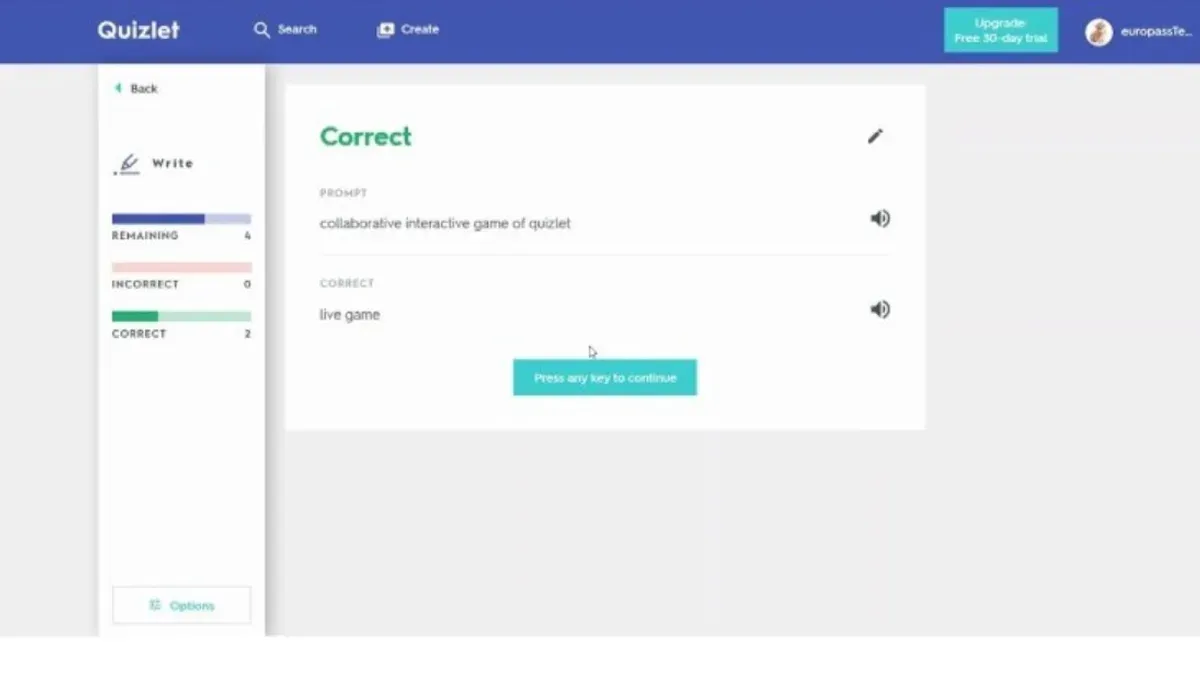
Quizlet allows you to export content primarily as plain text or CSV files. Navigate to your set, click the "More" button, then select "Export." Copy the terms and definitions or download the CSV, but note that Quizlet does not export images or question metadata, which you will need to re-add manually.
To leverage Formative’s interactive capabilities, adapt your flashcard-style Quizlet content into question types like multiple choice, short answer, or show-your-work. For example, a Quizlet term-definition pair such as "Photosynthesis - process by which plants convert light to energy" can become a multiple-choice question or a short answer prompt in Formative with instant feedback.
Use this migration as an opportunity to clean up ambiguous language and enrich questions with hints or explanations. This enhances engagement and provides the detailed formative feedback that Formative excels at delivering.
- Review Quizlet sets for relevance and alignment.
- Export content via "More > Export." Copy or save as CSV.
- Manually re-add images or media in Formative.
- Transform flashcards into interactive Formative questions.
- Enhance questions with hints and feedback.
Set up and customize assessments in Formative for effective feedback
Begin by creating a new assessment in Formative using the New Formative button on your dashboard. You can build from scratch or import your adapted Quizlet content via the Import Questions option under the Actions menu. For example, a science quiz might start with multiple-choice questions on concepts, followed by a drawing question asking students to label parts of a cell.
Incorporate varied question types—multiple choice, open-ended responses, drawings, and even audio recordings—to promote deeper understanding and accommodate different learning styles. Use the Settings tab to enable Real-Time Feedback, allowing students to see instant correctness indicators and hints. Activate Student Self-Assessment by turning on the Reflection feature, which prompts students to rate their confidence after each question.
Align your assessment by structuring questions to match your learning objectives and by setting the Due Date and Allow Multiple Attempts options appropriately. For instance, to encourage mastery, you might permit multiple attempts with immediate feedback. Remember to preview your formative with the Preview button to verify the flow and feedback settings before assigning.
- Create a new formative or import content via the New Formative and Import Questions features
- Use diverse question types: multiple choice, open-ended, drawing, audio
- Enable Real-Time Feedback and Reflection for student self-assessment
- Set due dates and attempt limits to fit your instructional goals
- Preview the formative to ensure settings and flow are correct
Avoid common pitfalls when switching from Quizlet to Formative
One frequent mistake is directly replicating Quizlet quizzes in Formative without adapting them for formative assessment. For example, an educator once imported a Quizlet flashcard set as a formative quiz without adding open-ended questions or space for student reflections, which limited the potential for meaningful feedback and stalled engagement.
Managing student data requires attention too. Formative’s privacy settings differ from Quizlet’s; you must configure class rosters under “Manage Classes” and review permissions in the “Settings” tab to comply with institutional policies. Overlooking this can cause confusion or data access issues.
Training is key. In one district rollout, teachers and students struggled initially because they weren’t introduced to Formative’s interface or live feedback features. Scheduling short training sessions and sharing tutorial links via the “Help” menu can significantly boost confidence and adoption.
Finally, pace your rollout. Introducing Formative gradually—starting with one class or assignment—prevents overwhelming users and allows time to troubleshoot. This staged approach supported a smooth transition in a middle school setting, ultimately increasing formative assessment use.
- Adapt quizzes to leverage formative features rather than copying Quizlet sets verbatim
- Review and configure Formative’s privacy and class settings carefully
- Provide targeted training for both students and educators
- Introduce Formative incrementally to manage workload and user comfort
Integrate Formative into your broader teaching workflow
To embed Formative seamlessly, start by syncing it with your LMS and gradebook. Formative supports direct integration with platforms like Canvas, Schoology, and Google Classroom, enabling automatic grade transfers via the gradebook sync feature found under Settings > LMS Integration. This reduces manual entry and maintains consistency across systems.
Use Formative’s detailed student data to tailor instruction. For example, after a quiz, filter results by question or skill mastery to identify learners needing targeted support. Then, assign differentiated tasks directly within Formative or through your LMS, ensuring timely intervention based on real-time insights.
Engage parents by sharing progress reports generated in Formative’s Reports tab. Export PDF summaries or schedule automated email updates to keep families informed on their child’s growth and areas for improvement, fostering collaboration beyond the classroom.
To sustain effective use, leverage Formative’s professional development resources including webinars, tutorials, and the educator community available via the Help Center. Regular training helps you stay current on new features and best practices.
For example, a middle school math teacher might plan a lesson on fractions with a formative quiz embedded in the LMS module. After students complete the quiz, the teacher reviews mastery reports to group students for targeted small-group instruction, then shares progress snapshots with parents via email—all streamlined through Formative’s integrations.
- Connect Formative to your LMS via Settings > LMS Integration
- Use mastery filters in Reports to guide differentiated instruction
- Export or email progress reports to parents regularly
- Access webinars and tutorials through the Formative Help Center
- Embed formative assessments within lesson plans for real-time feedback
Read next
- Moving from Quizlet to Edpuzzle: Your Complete Checklist Guide
- Moving from Quizlet to Blooket Checklist: A Practical Educator’s Guide
- Switching from Quizizz to Formative: A Practical Educator’s Guide
- Switching from Pear Deck to Formative: A Practical Educator’s Guide
Frequently asked questions
Is a quiz formative or summative?
A quiz can be either formative or summative depending on its purpose and design. Formative quizzes are used during the learning process to provide feedback and guide instruction, while summative quizzes evaluate student learning at the end of an instructional period. The key difference lies in whether the quiz is intended to inform ongoing learning or to assign a final grade.
Are quizzes formative or summative?
Quizzes can serve both formative and summative roles. Formative quizzes help you monitor progress and adjust teaching strategies, offering immediate feedback to students. Summative quizzes assess cumulative knowledge and usually contribute to final grades or evaluations.
is a quiz formative or summative
The classification of a quiz as formative or summative depends on its instructional context. If the quiz is designed to support learning with feedback and opportunities for improvement, it is formative. If it is meant to measure mastery after instruction, it is summative.
are quizzes formative or summative
Quizzes are flexible tools that can be either formative or summative. When used to check understanding during a lesson and guide next steps, they are formative. When used to evaluate overall achievement at the end of a unit, they are summative.
how do I export Quizlet content to Formative
Quizlet does not offer a direct export feature to Formative, so you will need to manually transfer content. Start by exporting your Quizlet sets as CSV files via Quizlet’s settings menu, then import or recreate the questions in Formative. Copying and pasting content into Formative's assessment builder is often the most straightforward method, especially for quizzes with varied question types.
What this guide does not cover
This guide focuses on switching from Quizlet to Formative primarily for educators aiming to enhance formative assessment practices. It does not address use cases where Quizlet’s strengths in memorization, language learning, or flashcard-based study methods are the priority. If your instructional goals rely heavily on those capabilities, retaining Quizlet or exploring specialized language learning tools may better serve your needs.
Quick checklist
- Review your current Quizlet content for suitability in formative assessments
- Export or download Quizlet materials in accessible formats
- Create new assessments in Formative using question types that provide immediate, actionable feedback
- Customize settings such as instant grading, student annotations, and open response options
- Test your Formative assessments with a small group before full implementation
- Train students on using Formative’s interactive features
- Integrate Formative data with your existing grading or learning management system
- Monitor student responses and adjust your assessments for clarity and effectiveness
To move forward confidently, start by importing a small selection of your Quizlet content into Formative and redesigning it using Formative’s interactive question types that encourage deeper understanding. This hands-on approach helps you experience firsthand how formative assessment can transform student engagement and feedback, ensuring that your switch supports your instructional goals effectively.