How to Turn On Two-Factor Authentication on Bluesky: Step-by-Step
Learn how to enable two-factor authentication on Bluesky with step-by-step instructions to enhance your account security.

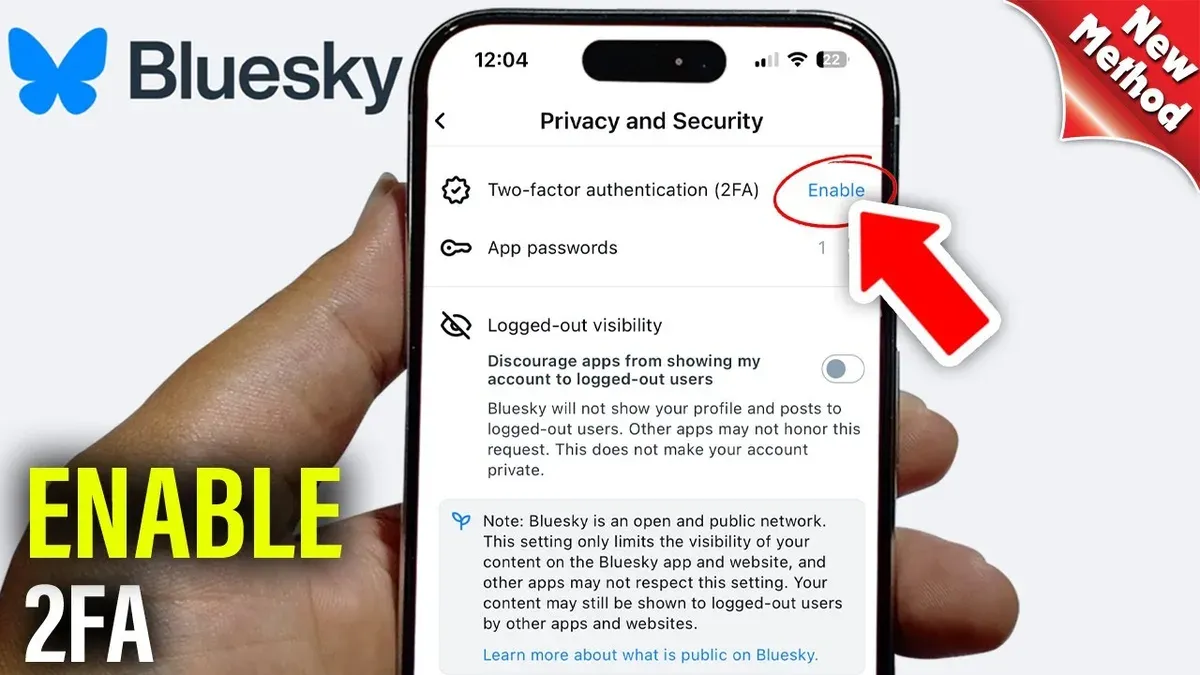
This article explains how to turn on two-factor authentication on Bluesky with precise, platform-specific instructions. Enabling two-factor authentication (2FA) adds a critical layer of security by requiring a second verification step to access the account, reducing risks from password compromises. Bluesky’s 2FA system supports authenticator apps and backup codes but does not currently support SMS-based verification, a common method on other platforms.
Understanding Bluesky’s unique 2FA options and common setup pitfalls ensures a smooth experience. This guide covers everything from prerequisites to activating 2FA on both the app and web interfaces, troubleshooting code rejection, and managing backup codes for account recovery.
What is needed before enabling two-factor authentication on Bluesky?
Before enabling two-factor authentication (2FA) on Bluesky, ensure the account has verified login credentials to avoid access issues during setup. A compatible authenticator app is required; Bluesky supports apps like Google Authenticator, Authy, Microsoft Authenticator, and 1Password's built-in authenticator. Access to the Bluesky app or web interface with a stable internet connection is necessary to complete the process.
Additionally, prepare a backup method for account recovery. This includes securely saving the set of recovery codes Bluesky provides when 2FA is enabled. Recovery codes are essential to regain access if the authenticator device is lost or the 2FA code is unavailable.
- Confirm the Bluesky account is active and login credentials are current—sign in to verify. Successful login indicates verified credentials.
- Install a supported authenticator app on a smartphone or desktop; open the app to confirm functionality.
- Ensure a reliable internet connection on the device used to access Bluesky.
- Locate a secure storage method for recovery codes, such as a password manager or encrypted note.
Tip: Use an authenticator app that supports exporting accounts to simplify transferring 2FA settings if changing devices.
How to enable two-factor authentication in the Bluesky app?
- Open the Bluesky app and tap the profile icon at the bottom right to access account settings. The settings menu should appear.
- Scroll down and select Security & Privacy. This section contains security-related options.
- Tap Two-Factor Authentication. The 2FA setup screen will display available methods.
- Choose Authenticator app as the preferred 2FA method. A QR code and a manual setup key will appear.
- Open a compatible authenticator app (such as Google Authenticator or Authy) and scan the QR code or enter the manual key. The app will generate a 6-digit code.
- Enter the generated 6-digit code into the Bluesky app’s input field and tap Verify. A confirmation message will indicate successful activation.
- Download or copy the provided backup codes and store them securely. These codes are essential for account recovery if access to the authenticator app is lost.
Tip: Back up the backup codes externally, such as in a password manager or a secure physical location, to avoid lockout.
How to enable two-factor authentication using Bluesky’s web interface?
- Log in to Bluesky at blueskyweb.com using a supported browser such as Chrome, Firefox, or Edge. The homepage should display the user’s timeline on successful login.
- Click the profile icon in the top-right corner to open the dropdown menu, then select Settings & privacy. The settings page will load with a sidebar menu.
- From the sidebar, choose Security & account access, then click Two-factor authentication. This opens the 2FA setup panel, similar in options but with a slightly different layout than the app.
- Click the button to Enable two-factor authentication. A QR code and manual key will appear for scanning or entry into an authenticator app. The web interface uses the same authenticator app options as the mobile app.
- Enter the 6-digit code generated by the authenticator app into the web form, then click Confirm. A success message will appear once the code is accepted.
- Download or write down the backup codes presented on screen. These codes are essential for account recovery if the authenticator device is unavailable and are accessed via a clearly labeled button.
Note: The web interface steps mirror the app’s process but use a sidebar navigation and dropdowns instead of bottom tabs, which can cause confusion if users expect identical layouts.
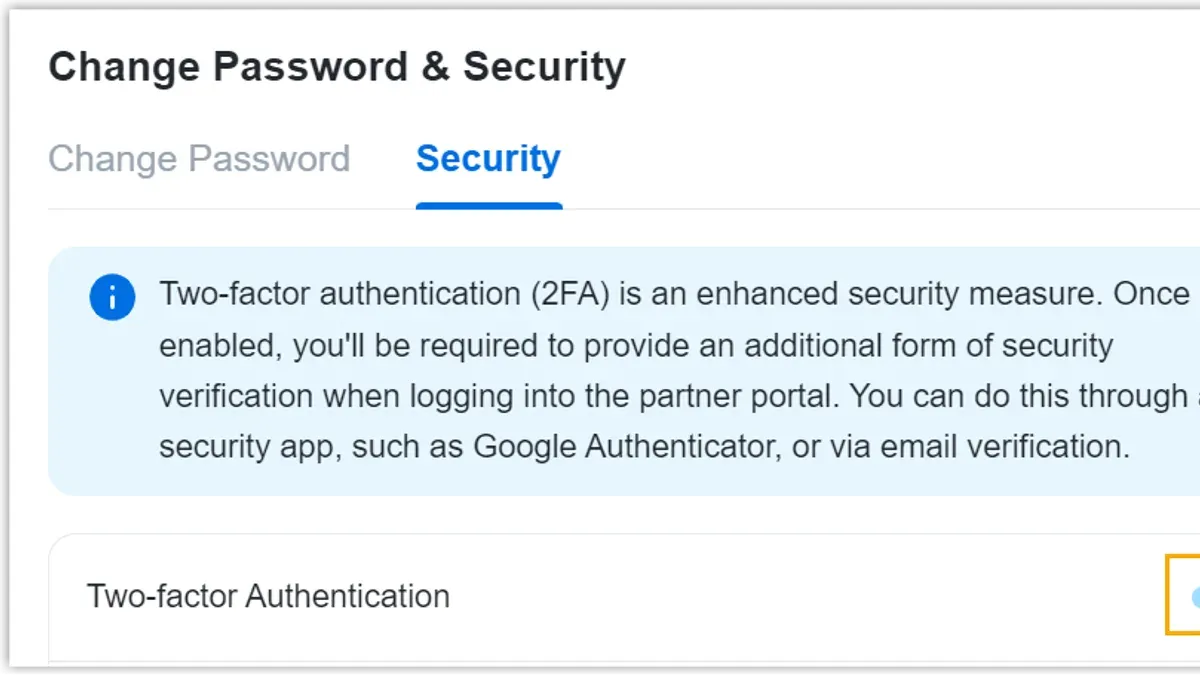
Tip: Keep backup codes in a secure but accessible location separate from the authenticator device to prevent lockout.
What to do if the two-factor authentication code is not accepted?
Two-factor authentication codes depend on accurate time synchronization between the device generating the code and Bluesky's servers. A common error message is "Invalid code" or "Code expired," often caused by the device's clock being out of sync. Check the device's time settings and enable automatic time and date updates through the operating system to fix this.
Ensure the authenticator app in use is the one paired with the Bluesky account. Some users mistakenly generate codes from a different account or app, causing rejection. Also, verify that the correct account is selected if the app supports multiple accounts.
If scanning the QR code failed during setup or login, try re-scanning it or manually enter the provided secret key. This step often resolves mismatched key issues. Restarting the Bluesky app or the web browser can clear temporary glitches affecting code acceptance.
Conflicts may occur if multiple two-factor methods are enabled simultaneously. Review the security settings in Bluesky to disable any unused or conflicting 2FA methods to ensure only the intended method is active.
- Check device time synchronization: Open the device's settings, enable automatic date & time, then generate a new code; the code should now be accepted.
- Confirm the correct authenticator app and account: Open the authenticator app, select the Bluesky entry, and use the displayed code; the app should match the account in Bluesky.
- Re-scan the QR code or manually enter the secret key: In Bluesky security settings, choose to set up 2FA again, scan the QR or enter the key; an authenticator app should generate a valid code.
- Restart the Bluesky app or web browser: Close and reopen the app or browser, then attempt login again; the code acceptance should improve.
- Disable unused 2FA methods: In Bluesky’s security settings, review active 2FA methods and turn off any extras; only one method should remain active.
How to use backup codes and what to do if locked out?
Backup codes serve as a critical fallback when the primary two-factor authentication (2FA) method is unavailable. These one-time use codes must be stored securely, such as in a password manager or a locked physical location, since losing them can severely limit account recovery options.
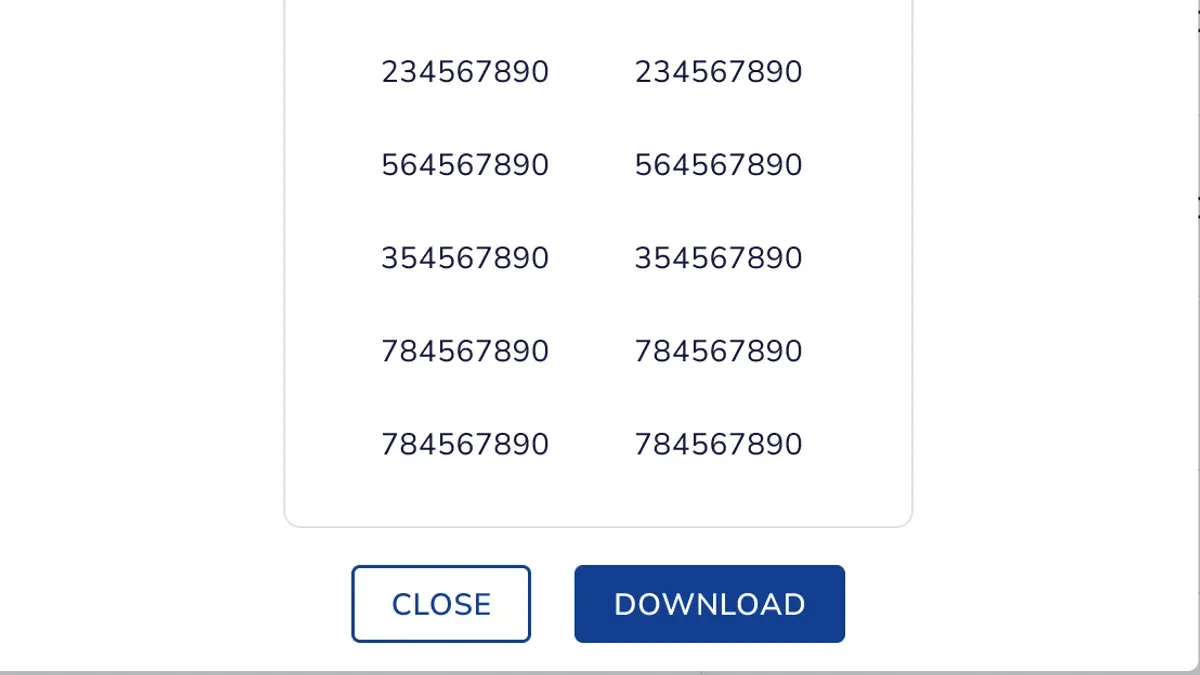
To log in using a backup code, enter the username and password as usual. When prompted for the 2FA code, select the option to use a backup code if available. Input one of the saved backup codes exactly as provided. Successful entry will grant access and invalidate that backup code, which cannot be reused.
If all backup codes are lost or expired, contacting Bluesky support is the only remaining option. Support typically responds within a few days but may require identity verification to confirm account ownership. Recovery is not guaranteed, emphasizing the importance of proactive backup management.
- At login, enter username and password, then proceed to the 2FA prompt; the option to use a backup code appears if set up.
Result: Backup code input field is displayed. - Enter a valid backup code from the stored list.
Result: Access is granted; the used backup code is deactivated. - If backup codes are unavailable, visit Bluesky's support page and submit an account recovery request.
Result: An acknowledgement email confirms receipt, and support will respond with next steps.
Tip: Regularly verify backup codes are accessible and replenish them after use to maintain uninterrupted account access.
Why enable two-factor authentication on Bluesky?
Two-factor authentication (2FA) significantly reduces the risk of unauthorized access to Bluesky accounts by requiring a second verification step beyond passwords. Password compromises alone no longer grant account access when 2FA is active, protecting users from common threats like brute-force attacks and credential stuffing. Security analyses across social networks show that 2FA can block the majority of automated breach attempts, a benefit that extends to Bluesky users.
However, 2FA on Bluesky does not defend against all security threats. It cannot prevent phishing attacks that trick users into revealing codes, nor does it protect against device theft where attackers gain physical access to logged-in devices. Users should not rely on 2FA exclusively but combine it with strong passwords, cautious link clicking, and device security measures.
Bluesky continues to update its security protocols to enhance user protection, and enabling 2FA adds a crucial layer of defense. The platform’s 2FA implementation focuses on ease of use and compatibility with popular authenticator apps to encourage widespread adoption and improve overall account security.
Frequently asked questions
Can two-factor authentication be used with SMS on Bluesky?
Bluesky does not support SMS-based two-factor authentication. The platform relies solely on authenticator apps for generating time-based one-time codes. Users must use compatible authenticator apps rather than SMS for 2FA.
What types of authenticator apps work best with Bluesky?
Bluesky supports standard Time-based One-Time Password (TOTP) apps such as Google Authenticator, Authy, Microsoft Authenticator, and similar apps that generate 6-digit rotating codes. Any app that supports the TOTP protocol will work properly with Bluesky’s 2FA implementation.
How often does the two-factor authentication code change?
The authentication code generated by the authenticator app changes every 30 seconds on Bluesky. This is a standard timing for TOTP codes, ensuring enhanced security by frequently updating the required verification number.
What should be done if the phone with the authenticator app is lost?
If the phone with the authenticator app is lost, use the backup codes provided when setting up 2FA to regain account access. If backup codes are unavailable, contacting Bluesky support is necessary to verify identity and recover the account, as the platform does not provide SMS or email fallback for 2FA.
What this guide does not cover and who should look elsewhere
This guide does not cover setting up hardware security keys or biometric two-factor authentication methods, as Bluesky currently supports only authenticator app-based 2FA. Users seeking to implement physical security keys like YubiKeys or biometrics must consult alternative resources or wait for future Bluesky updates that may add support. Additionally, this article does not provide troubleshooting for account recovery beyond the scope of backup codes and basic code acceptance issues.
For users who require more advanced security setups or experience persistent problems with 2FA codes, contacting Bluesky support or using dedicated security forums is advisable. This guide focuses strictly on enabling and managing the built-in authenticator app method within Bluesky's existing user interfaces.
The single most useful next step is to immediately generate and securely store backup codes once two-factor authentication is enabled. Backup codes provide a critical fallback if the authenticator app is lost or stops working, preventing permanent lockout from the account.
See also: How to See Where You're Logged Into Bluesky: Step-by-Step