How to Turn On Two-Factor Authentication on BeReal: Step-by-Step
Learn how to turn on two-factor authentication on BeReal to enhance your account security with easy, step-by-step instructions.

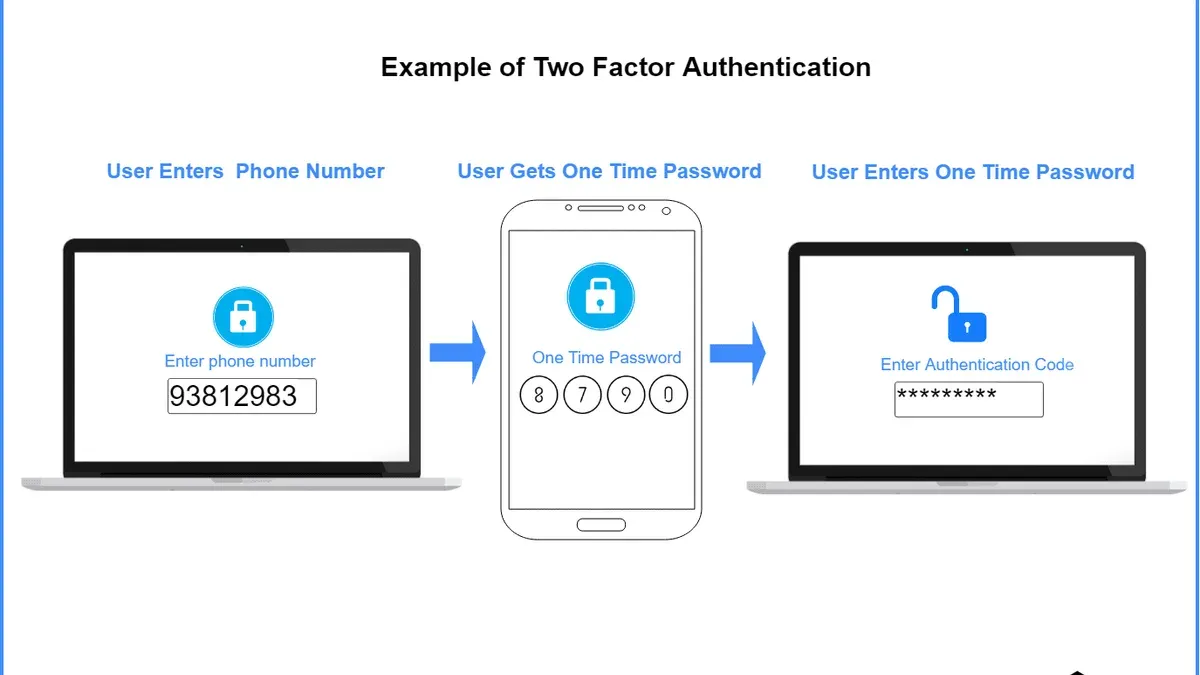
This article explains how to turn on two-factor authentication on BeReal to boost account security with clear, direct instructions.
Two-factor authentication (2FA) adds a second verification step beyond the password, usually a code sent via SMS or generated by an authentication app. BeReal’s 2FA settings are located within the app’s Security section, accessible from the profile menu. Enabling 2FA requires a valid phone number or a compatible authentication app. This guide covers each step, highlights common setup mistakes such as incorrect phone numbers or app misconfigurations, and clarifies what level of protection 2FA on BeReal realistically provides.
Follow this straightforward walkthrough to secure the BeReal account against unauthorized access without confusion or unnecessary detail.
Before You Start: What Is Needed to Enable 2FA on BeReal
Enabling two-factor authentication (2FA) on BeReal requires a few prerequisites to ensure a smooth setup process. First, a BeReal account must be active and accessible through the official mobile app on either iOS or Android. Next, the account needs to have a verified phone number or email address linked, as these are commonly used for sending authentication codes.
Users must also have a secondary device or app ready to receive 2FA codes. This could be the same phone via SMS or an authenticator app like Google Authenticator or Authy. Many apps rely on SMS for 2FA, though authenticator apps offer more security. Basic familiarity with 2FA concepts, such as the purpose of verification codes and the need for an additional authentication step beyond the password, is essential to avoid setup errors.
Common pitfalls include not having access to the linked phone number or email during setup and confusion about which authenticator app to use. Ensuring all elements are prepared beforehand minimizes interruption and helps complete the process efficiently.
- Open the BeReal app and log into the account; the main feed should display.
- Confirm the account has a linked and verified phone number or email by checking the profile settings; verification status appears next to the contact info.
- Prepare a secondary device or open an authenticator app on the phone; it should be ready to receive a verification code.
How to Locate the Two-Factor Authentication Settings in BeReal
- Open the BeReal app to reach the home screen, where the daily BeReal posts are displayed.
- Tap the profile icon located in the top right corner to navigate to the user’s personal profile page.
- On the profile page, tap the gear-shaped Settings icon in the upper right corner; this opens the main settings menu.
- Scroll down to find the Account and Security section; tap it to access security-related options.
- Within Account and Security, locate and select Two-Factor Authentication to open the 2FA setup and management screen.
BeReal’s interface places 2FA settings under Account and Security, consolidating authentication options in one place. Recent UI updates moved security settings from a general Privacy tab to improve accessibility. Both iOS and Android versions follow this layout, with only minor visual style differences; the navigation path remains consistent across platforms.
Tip: If the Two-Factor Authentication option is missing, ensure the app is updated to the latest version available in the App Store or Google Play.
How to Enable Two-Factor Authentication on BeReal
- Open the BeReal app and navigate to Settings > Account & Security > Two-Factor Authentication. The 2FA options screen will appear, showing methods such as SMS codes and Authenticator app.
- Select the preferred 2FA method. For SMS, enter the phone number if not already linked; for authenticator apps, a QR code will display for scanning.
- If using an authenticator app, scan the QR code with the app (e.g., Google Authenticator or Authy). The app will generate a 6-digit code, which must be entered back into BeReal.
- For SMS, after entering the phone number, wait for an SMS with a verification code and input it into the BeReal prompt.
- Once the code is entered correctly, BeReal will confirm that two-factor authentication is active with a success message and show recovery code options.
Tip: Save the recovery codes displayed after activation in a secure location; they are essential if the second factor device is lost.
What to Do If Two-Factor Authentication Setup Fails
When two-factor authentication (2FA) setup fails on BeReal, start by checking network connectivity and ensuring the app is updated to the latest version. An unstable internet connection or outdated app often causes verification codes not to be sent or accepted. Confirm that the linked phone number or authenticator app is correctly associated with the BeReal account; mismatches here are a common source of error.
Common error messages include “Verification code expired,” “Invalid code,” or “Cannot send code.” For “Verification code expired,” request a new code and enter it promptly. If “Invalid code” persists, verify the time synchronization on the authenticator app device or re-link the phone number. “Cannot send code” usually signals network issues or incorrect contact details in account settings.
If locked out due to failed 2FA attempts, reset the 2FA setup through account recovery. Follow these steps:
- Open BeReal and go to Settings > Account & Security > Two-Factor Authentication.
- Select “Reset Two-Factor Authentication” and follow the prompts to confirm identity via email or phone verification.
- Once reset, re-enable 2FA by linking the phone number or authenticator app again.
- Test the new setup by requesting a verification code and entering it immediately.
Tip: Keep backup codes or alternative recovery methods handy to avoid being locked out.
How to Manage and Disable Two-Factor Authentication on BeReal
To modify two-factor authentication (2FA) settings or disable it on BeReal, access the Settings menu under Account and Security, then select Two-Factor Authentication. From there, users can update the linked phone number or switch the authenticator app by following the prompts to verify the new method.
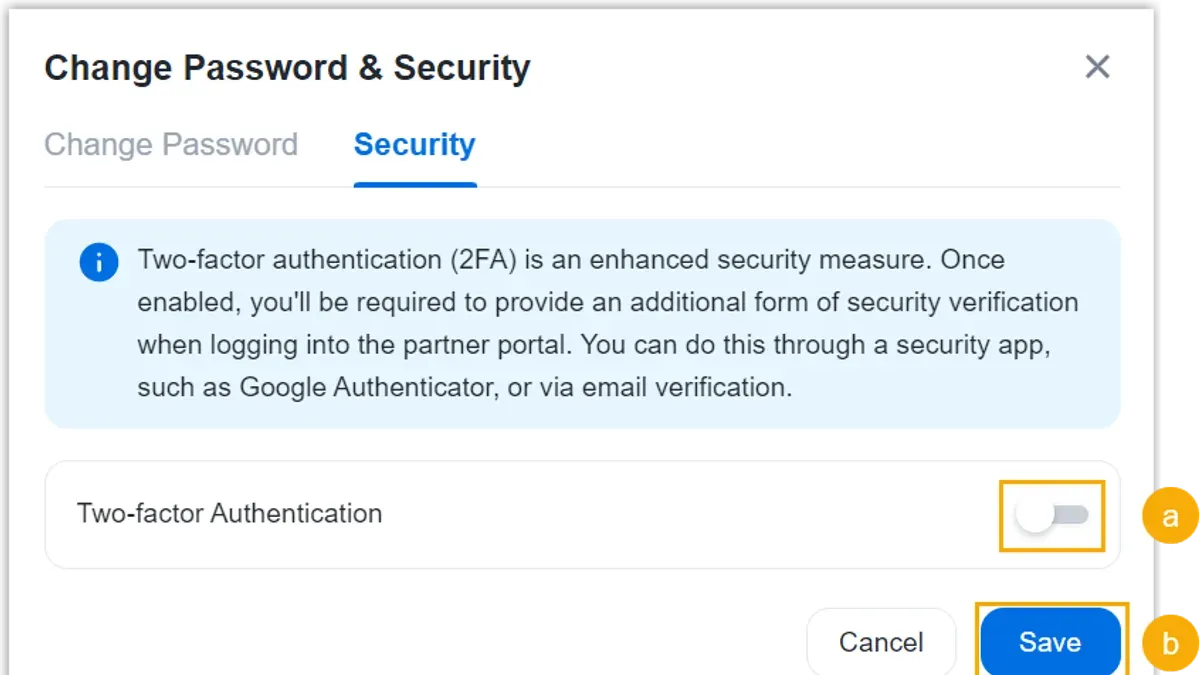
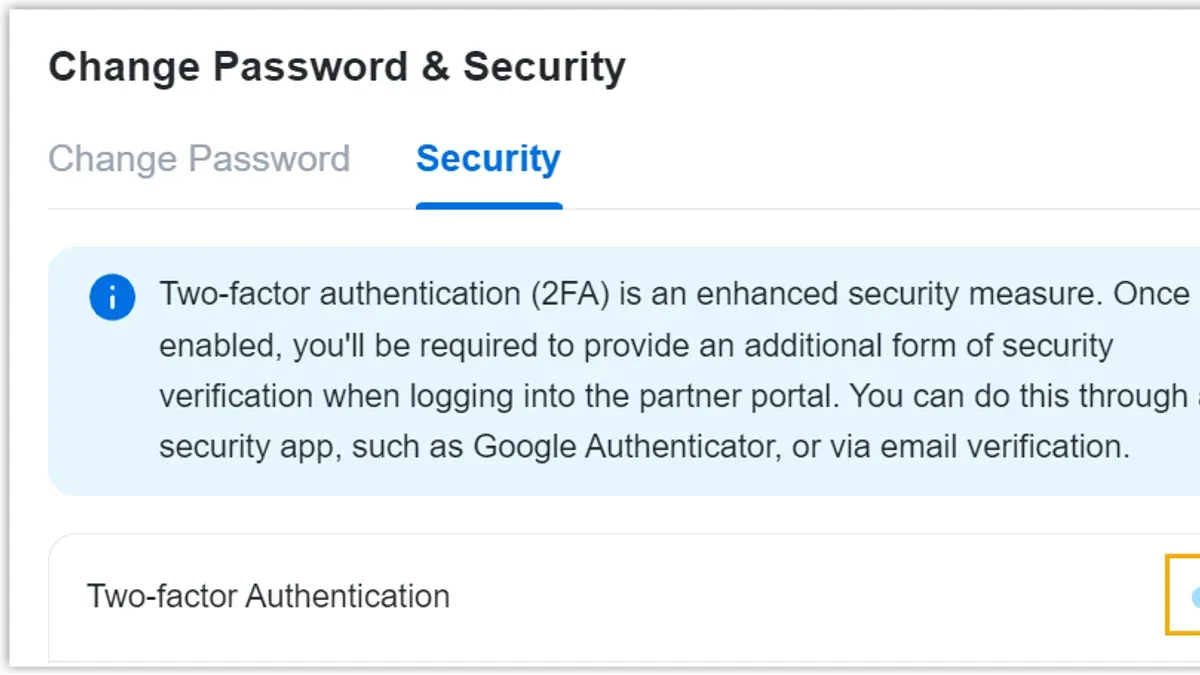
To safely disable 2FA, the user must first verify their identity through the current authentication method. This ensures the account owner is making the change. Disabling 2FA removes the extra verification layer, leaving the account more vulnerable to unauthorized access, especially if the password is compromised.
- Open BeReal and go to Profile > Settings > Account and Security > Two-Factor Authentication. The current 2FA status appears.
- Tap Disable Two-Factor Authentication. The app prompts for authentication using the current 2FA method.
- Enter the verification code received via SMS or authenticator app. Successful entry will show confirmation that 2FA is off.
- To update the linked phone number or authenticator app, select Change Method instead of disable. Follow verification steps to confirm the new device or number.
Security implications: Disabling 2FA immediately lowers account security, making it reliant solely on the password. Accounts without 2FA are more susceptible to hacking attempts, especially if passwords are reused or weak.
How Secure Is Two-Factor Authentication on BeReal?
Two-factor authentication (2FA) on BeReal primarily relies on methods like SMS codes or authenticator apps. SMS-based 2FA offers basic protection by requiring a code sent to a phone number, but it is vulnerable to SIM swapping and interception. Authenticator apps provide stronger security by generating time-limited codes locally, reducing reliance on network security.
Enabling 2FA protects BeReal accounts from unauthorized access due to stolen or guessed passwords, a common threat on social media platforms. It adds a layer that requires physical access to a secondary device, significantly lowering the risk of account takeover.
However, 2FA does not prevent phishing attacks that trick users into revealing credentials and codes. It also cannot defend against device compromise, such as malware on the phone used for authentication. Security experts emphasize that 2FA is an important but not foolproof safeguard, best combined with cautious online behavior and device security measures.
Frequently asked questions
Can two-factor authentication be used with any phone number on BeReal?
Two-factor authentication on BeReal requires a valid phone number that can receive SMS messages. The phone number must be capable of receiving international text messages if the user is outside their home country. Using a temporary or virtual phone number is often unreliable and can prevent successful verification.
What should be done if the authentication code is not received?
If the authentication code does not arrive, first confirm that the phone number entered is correct and active. Check for network issues or SMS blocking settings on the device. Waiting a few minutes before requesting a new code is recommended. If problems persist, restarting the phone or contacting BeReal support may be necessary.
Is it possible to use an authenticator app instead of SMS for BeReal 2FA?
BeReal currently supports two-factor authentication exclusively via SMS codes sent to the registered phone number. It does not offer the option to use third-party authenticator apps like Google Authenticator or Authy for 2FA. Users seeking app-based authentication will need to wait for future feature updates.
Will enabling two-factor authentication affect the login process on multiple devices?
Enabling two-factor authentication on BeReal requires entering the verification code at each new device login. However, once a device is authenticated, repeated logins on the same device typically do not require re-entering the 2FA code unless the app is reinstalled or the device is reset. This adds security without significantly complicating frequent device use.
What This Guide Does Not Cover
This guide does not cover recovery options if access to the 2FA device or phone number is lost. Users should prepare backup methods such as recovery codes or alternative authentication methods separately. It also does not address advanced security settings beyond the basic two-factor authentication setup within BeReal. For users managing multiple accounts or requiring enterprise-grade security, consulting a security professional or using dedicated authentication apps with backup support is advisable.
Enabling two-factor authentication on BeReal improves account security but is only part of a broader security strategy. The single most useful next step is to store backup recovery codes securely immediately after enabling 2FA. This step prevents permanent lockout if the primary authentication method becomes unavailable and ensures continued access to the account without hassle.
See also: How to See Where You're Logged Into BeReal: Step-by-Step Guide · How to Set Up a Passkey for Google Account: A Step-by-Step Guide · How to Secure Your Quora Account: A Step-by-Step Guide