How to Set Up Two-Factor Authentication for Citizens Bank Accounts
Step-by-step guide to setting up two-factor authentication for your Citizens Bank account to boost security and avoid common setup issues.

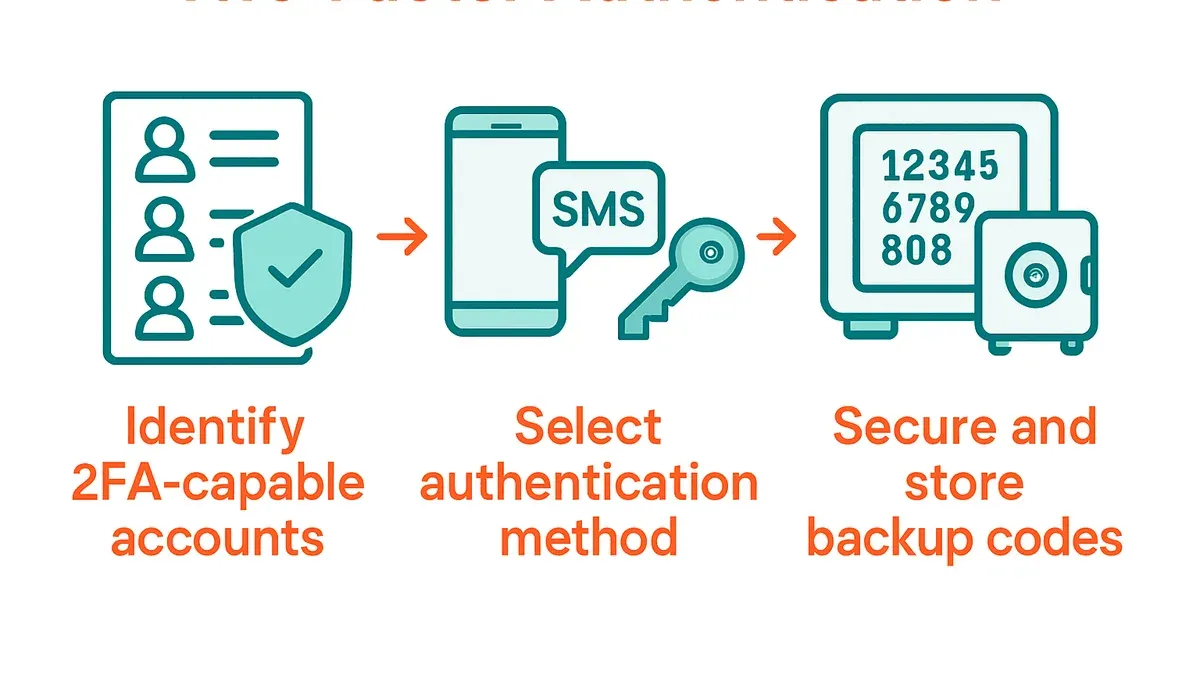
You log into your Citizens Bank account and notice a prompt to enable two-factor authentication. While this extra layer of security is beneficial, the setup can feel confusing without clear guidance.
This article walks you through the Citizens Bank two-factor authentication setup step-by-step, compares it with other major banks' approaches, and highlights common issues to avoid. By understanding your options and the typical pitfalls, you can choose the best security method tailored to your needs.
Key takeaways
- Citizens Bank offers multiple two-factor authentication methods including SMS codes and authentication apps.
- Setup requires access to your online banking profile under Security Settings.
- Unlike some banks, Citizens Bank does not currently support hardware security keys.
- Common setup issues include incorrect phone numbers and app synchronization delays.
- Regularly review your two-factor authentication settings to maintain account security.
Before you start: What you need to set up two-factor authentication
To enable two-factor authentication (2FA) for your Citizens Bank account, you need to have certain tools and information ready. First, ensure you have active access to your Citizens Bank online banking account through the website or the mobile app.
You will also need a smartphone capable of receiving SMS text messages or running an authenticator app. Citizens Bank supports widely used apps such as Google Authenticator, Microsoft Authenticator, and Authy. Compatible smartphones include most iOS devices running iOS 12 or later, and Android devices running Android 7.0 or later.
Gather your Citizens Bank login credentials, including your username and password, as you will need to log in to initiate the setup. Additionally, make sure your email address or phone number is up to date and registered with Citizens Bank, as these are used for verification and recovery purposes.
Setting up 2FA typically takes between 5 and 10 minutes, depending on your familiarity with the process and the method you choose. Having these items ready helps ensure a smooth and quick setup.
- Confirm you can log in to your Citizens Bank online account or mobile app. You should reach your account dashboard after successful login.
- Verify your smartphone can receive SMS messages or install one of the supported authenticator apps. After installation, you should see a setup or scan screen ready for a QR code.
- Check your contact information on file with Citizens Bank to confirm your email and phone number are current. You should be able to view and edit your contact details in the profile or settings section.
How to set up two factor authentication with Citizens Bank step-by-step
- Log in to your Citizens Bank online banking account via the website or open the Citizens Bank mobile app. Once logged in, you should see your account dashboard.
- Navigate to the "Profile & Settings" menu, typically found by clicking your name or the gear icon in the top-right corner. Within this menu, select "Security Settings" or "Account Preferences."
- Locate the "Two-Factor Authentication" or "Multi-Factor Authentication" option and click "Manage" or "Set Up." A page will appear showing available authentication methods.
- Choose your preferred authentication method: SMS code, an authenticator app (such as Google Authenticator or Authy), or a phone call. Each option usually has a brief description explaining it.
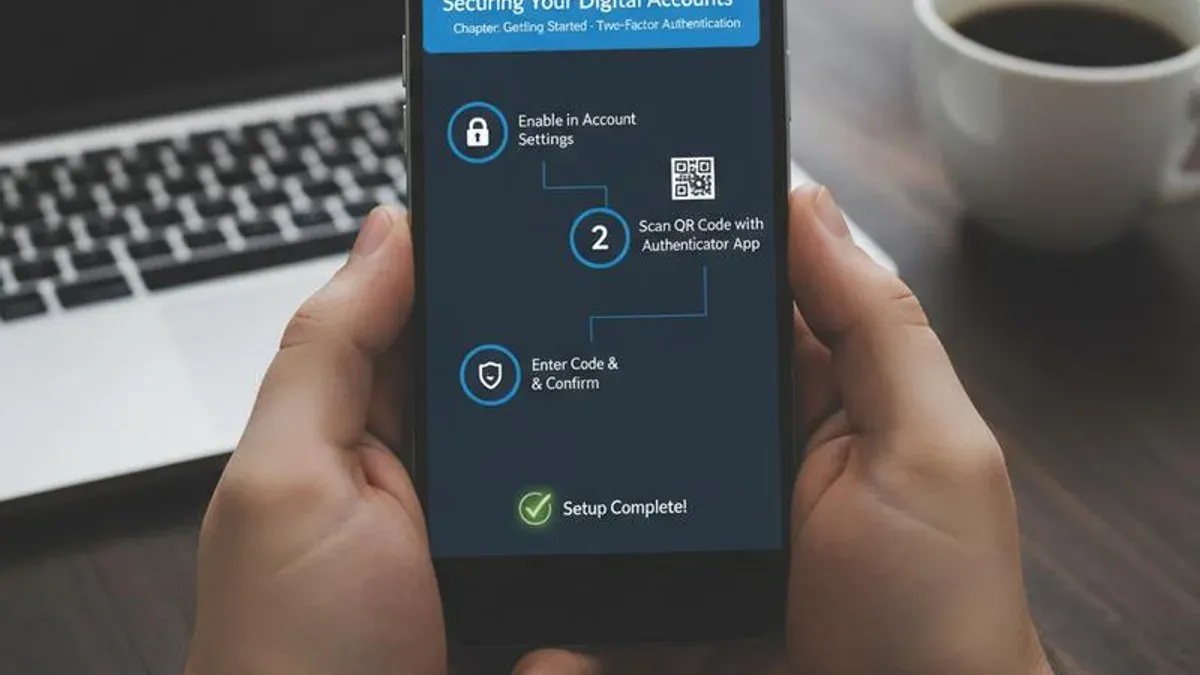
- Follow the prompts to register your chosen device or phone number. For SMS or phone call, enter the phone number to receive codes. For authenticator apps, scan the provided QR code with your app.
- After registration, you will receive a verification code via your selected method. Enter this code into the verification field on the website or app and submit it.
- Once the code is accepted, confirm your settings by clicking "Save" or "Enable." You will typically see a confirmation message indicating two-factor authentication is active.
Most users complete this setup within 5 to 10 minutes. Keep in mind that if you change your phone or number, you will need to update these settings to maintain access.
Banks with 2 factor authentication: How Citizens Bank compares
Citizens Bank offers two-factor authentication (2FA) primarily through SMS codes and authenticator apps, similar to many competitors. Chase and Citi provide additional biometric options like fingerprint and facial recognition integrated into their mobile apps, enhancing convenience and security. Key Bank also supports SMS and authenticator apps but has fewer biometric features than Chase or Citi.
| Feature | Citizens Bank | Chase | Citi | Key Bank |
|---|---|---|---|---|
| 2FA Methods | SMS codes, authenticator apps | SMS, authenticator apps, biometrics | SMS, authenticator apps, biometrics | SMS, authenticator apps |
| Ease of Setup | Moderate; setup via security settings menu | Streamlined; guided prompts in app | Streamlined; clear in security settings | Moderate; similar to Citizens Bank |
| Backup Codes | Available for authenticator app users | Available and easy to access | Available and easy to access | Available but less prominent |
| Customer Support | Phone and chat support specifically for 2FA | Dedicated support with quick response | Comprehensive support including 2FA issues | Standard support; may have longer wait times |
While Citizens Bank’s 2FA setup covers essential methods effectively, Chase and Citi stand out by integrating biometric authentication options, which can offer faster access and stronger protection. However, Citizens Bank provides reliable backup code options and dedicated customer support, which is crucial if you encounter setup problems or device changes.
Troubleshooting common issues when setting up two-factor authentication
When setting up two-factor authentication (2FA) with Citizens Bank, users may encounter several common problems. Not receiving verification codes via SMS or email is often due to outdated contact information or temporary network delays. Confirm your phone number and email in your account settings, then request a new code.
Authenticator app codes sometimes fail due to time sync issues between your device and the server. Open your authenticator app’s settings and use the “Sync now” or “Time correction for codes” feature to realign the app’s clock.
Problems with device recognition or registered phone numbers can occur if you recently changed your device or phone number. Updating your security settings in the Citizens Bank online portal to register your current device or new number usually resolves this.
If you get locked out or cannot complete 2FA setup, you can reset or disable 2FA by following these steps:
- Log in to your Citizens Bank account using your username and password.
- Navigate to “Profile & Settings” and select “Security Settings.”
- Choose “Manage Two-Factor Authentication” and select the option to reset or disable 2FA.
- Follow on-screen prompts to verify your identity via security questions or email.
- Once completed, you should regain access and can set up 2FA anew.
If these steps do not resolve your issue, contact Citizens Bank support directly. Their team can assist with account-specific problems, device registration errors, or persistent verification failures. Official bank resources emphasize quick resolution when customers reach out, especially for locked accounts or repeated code delivery failures.
Setting up 2 factor authentication: Best practices for ongoing security
Maintaining your two-factor authentication (2FA) protection requires ongoing attention to ensure it remains effective against evolving threats. Follow these steps to optimize your account security:
- Regularly update your contact information: Navigate to Citizens Bank online banking settings under "Profile" > "Contact Information" to verify your phone number and email address are current. Successful updates will prompt a confirmation message and send a verification code to the new contact method.
- Prefer authenticator apps over SMS: Switch to apps like Google Authenticator or Microsoft Authenticator by going to "Security Settings" > "Two-Factor Authentication" > "Change Method". This reduces risks from SIM swapping and interception. A successful switch shows a QR code to scan and confirms app registration.
- Back up your recovery codes securely: After setting up 2FA, Citizens Bank provides recovery codes. Store these in a password manager or a physically secure location. Confirm the backup by checking that recovery codes are accessible outside your device to avoid lockout.
- Recognize phishing attempts targeting 2FA: Be cautious of unsolicited requests for your authentication codes or login credentials. Citizens Bank will never ask for your 2FA codes via email or phone. Identifying suspicious messages protects you from fraud attempts.
- Consider multi-factor authentication (MFA) for enhanced security: If available, add biometric factors or hardware tokens. While Citizens Bank currently focuses on 2FA, some major banks offer MFA options that provide an extra layer of defense against account breaches.
Security experts agree that properly maintained 2FA significantly reduces the risk of unauthorized access. Staying proactive with these practices helps you keep your Citizens Bank account secure.
Frequently asked questions
How do I set up two factor authentication on my Citizens Bank mobile app?
Open the Citizens Bank mobile app and sign in. Navigate to the menu, then select "Profile & Settings." Under "Security," tap "Two-Factor Authentication" and follow the prompts to choose your preferred method, such as SMS or an authenticator app. Complete verification by entering the code sent to your device.
What is the difference between SMS and app-based two factor authentication?
SMS authentication sends a one-time code to your phone via text message each time you log in, which can be convenient but vulnerable to SIM swapping. App-based authentication uses apps like Google Authenticator or Authy to generate time-sensitive codes locally on your device, offering stronger security without relying on cellular networks.
Can I use the same two factor authentication method for multiple bank accounts?
Yes, you can use the same method, such as an authenticator app, across multiple accounts by adding each account’s setup to the app. However, if you use SMS, each account will send codes to its respective phone number, so separate numbers may be needed. Using an authenticator app is often more manageable for multiple accounts.
What should I do if I lose access to my two factor authentication device?
Immediately use Citizens Bank’s account recovery options, such as backup codes provided during setup or alternative verification methods like email or phone verification. Contact Citizens Bank customer support if you cannot access these options. It’s recommended to set up multiple authentication methods or store backup codes securely to prevent lockout.
What this guide does not cover and who should seek additional help
This guide covers setup and troubleshooting of two-factor authentication (2FA) for Citizens Bank accounts but does not address advanced security breaches, identity theft, or account recovery beyond 2FA-related issues. If your account has been compromised or you cannot access it despite following 2FA steps, contact Citizens Bank directly via their official customer service channels for specialized support.
For enhanced protection beyond standard 2FA, consider additional security measures such as hardware security keys or biometric options if your device and bank support them. These are not covered here but can provide stronger safeguards against sophisticated threats.
The most useful next step is to log into your Citizens Bank online banking portal, navigate to the “Security Settings” section, and enable two-factor authentication by selecting your preferred verification method—whether it’s SMS codes, authenticator apps, or push notifications. This immediate action significantly reduces the risk of unauthorized access to your account.