Moving from Webex to Google Meet Checklist for Smooth Transition
This checklist helps you transition smoothly from Webex to Google Meet, covering meetings, participant data, device setup, and key feature differences.

Transitioning between these platforms often fails due to overlooked feature gaps and device limitations that impact user experience.
Google Meet supports meetings with up to 500 participants on Workspace for Education and Enterprise plans, a capacity that may exceed some Webex subscriptions. However, Webex devices cannot access participant lists, whiteboarding, far end camera control, or grid layout changes during Google Meet calls, limiting functionality after migration.
Moreover, Google Meet recordings store on Google Drive and count against user storage quotas, unlike Webex’s cloud storage policies. The checklist addresses these critical differences and procedural steps to ensure scheduled meetings, participant data, and device setups transition smoothly without lost functionality or access.
Settings, menu paths and limits here were checked against GAX Online, QikAlt, Webex Help Center (full list at the end) in November 2026.
How to schedule a meeting on Webex before migrating to Google Meet
Navigate to the "Meetings" tab, then select "Schedule a Meeting." Fill in the meeting details such as title, date, time, participants, and any required options like password protection or audio preferences. Confirm by clicking "Schedule."
Webex does not support bulk exporting of scheduled meetings with Google Meet links embedded. This limitation means all existing Webex meetings must either be manually recreated in Google Meet or their calendar feeds imported and edited to insert Google Meet links afterward. For example, exporting a CSV of scheduled meetings is possible, but the links will remain Webex URLs and require replacement.
To prepare for migration, IT managers should export contacts, calendars, and recordings from Webex using available export options or migration tools. Then, import these into Google Workspace manually or with third-party migration utilities. Careful note-taking or exporting of meeting details from Webex ensures all meetings can be re-established in Google Meet with the correct join information and scheduling.
In practice, after exporting the calendar from Webex, the calendar file must be updated to replace Webex meeting URLs with Google Meet links before importing to ensure smooth transition and avoid confusion. This process requires coordination between calendar administrators and meeting schedulers for accuracy.
How to see who attended Webex meeting and check meeting history
Accessing participant lists and attendance reports in Webex requires logging into the Webex Control Hub or Webex site administration portal. From the dashboard, navigate to Meetings > Usage Reports or Analytics > Meetings, then select the specific meeting to view details. The attendance report can be exported as a CSV file, showing attendee names, join and leave times, and duration of participation. This export must be done manually before migration because Google Meet does not import Webex participant data or meeting history.
For example, an IT manager preparing for migration should download attendance reports for recurring or critical meetings to preserve records of participation. These reports provide a clear record that will not carry over automatically when meetings move to Google Meet. Without this step, historical attendance data is lost.
Note that Webex devices used to join Google Meet calls lack support for viewing participant lists, whiteboarding, far end camera control, and grid layout changes during those calls. This limitation affects meeting management on Cisco endpoints after migration, making it essential to export attendance data while still on Webex.
How to start a meeting by Webex and how to log into or access a Webex meeting
Hosts launch meetings either by clicking “Start Meeting” on the Webex desktop app or by selecting the scheduled meeting from the Webex site and hitting “Start.” Participants join by clicking the meeting link or entering the meeting number and password if required. On Cisco Webex devices like Board, Desk, or Room series, meetings with hybrid calendar integration appear on the device screen. Users tap the “Join” button shortly before the meeting starts to access the call directly.
Devices sync with calendars to show upcoming meetings, simplifying access without manual entry. This integration allows seamless host controls and participant management during Webex calls.
When joining Google Meet calls from Cisco Webex devices, several limitations apply. Devices such as Board, Room Kit, and Room 55 do not support content sharing from the device during Google Meet calls. This restriction means users cannot share presentations or screens directly from these Cisco devices while connected to Google Meet. Users must use alternative sharing methods, such as sharing from a laptop or mobile device, to present content in these meetings. These constraints impact meeting flow and require prior planning when migrating to Google Meet on existing Cisco hardware.[source]
What features differ between Webex and Google Meet that affect migration decisions
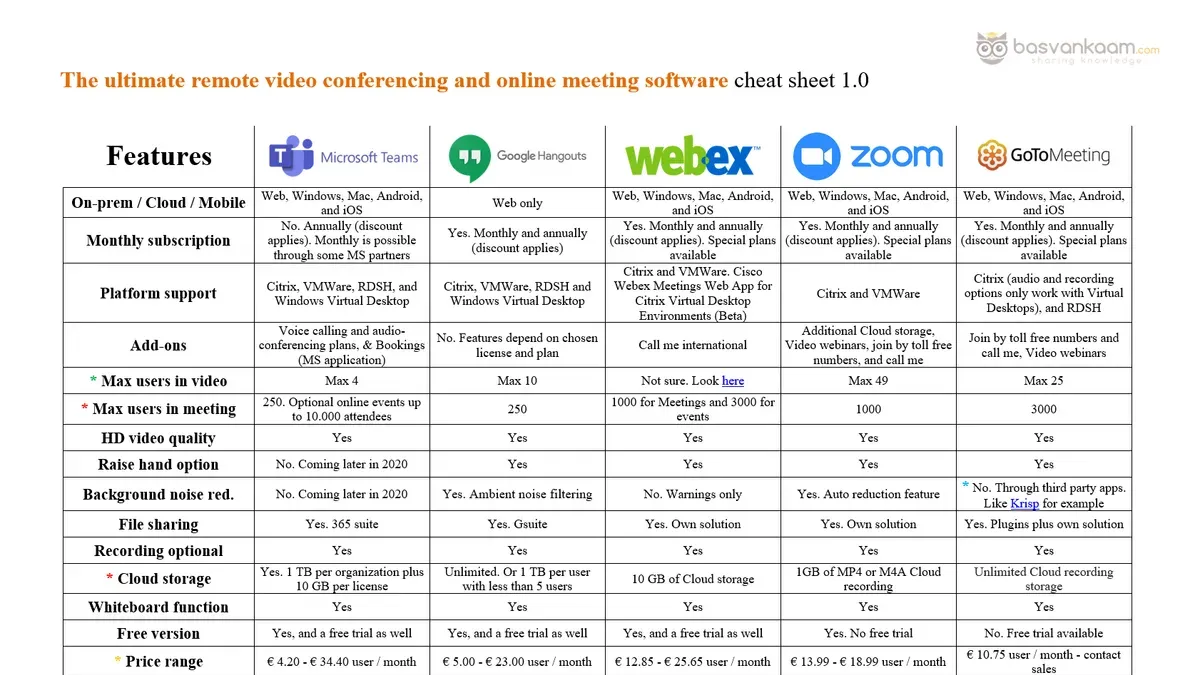
Google Meet supports up to 100 participants on its free plan without a 40-minute time limit, while paid Workspace for Education and Enterprise plans increase this limit to 500 participants. This difference impacts organizations with large audiences, as Google Meet’s participant capacity depends on the subscription level. Breakout rooms, a common feature in Webex, require a paid Google Workspace plan starting from Business Starter; they are not available on the free Google Meet version. This limitation affects session formats relying heavily on smaller group discussions.
Recording behavior also differs significantly. Google Meet recordings save directly to the user’s Google Drive and count against the storage quota. Unlike Webex, which manages cloud storage differently, this requires monitoring Drive space to avoid interruptions. Additionally, Google Meet lacks some advanced Webex features such as detailed security compliance options and analytics, which may be critical for organizations embedded deeply in Cisco’s ecosystem.
Cisco Webex hardware devices have restrictions when used with Google Meet. They do not support participant lists, whiteboarding, far end camera control, or changing the grid layout during Google Meet calls. These device limitations can hinder the meeting experience and require planning alternative collaboration methods.
| Feature | Webex | Google Meet Free | Google Meet Paid (Workspace) |
|---|---|---|---|
| Participant Limit | Varies by plan | 100 participants, no time limit | Up to 500 participants on Education and Enterprise plans |
| Breakout Rooms | Available | Not available | Available starting Business Starter plan |
| Recording Storage | Cloud storage managed separately | Not available | Stored in Google Drive, counts against user quota |
| Advanced Features (Security, Analytics) | Available with Cisco ecosystem | Limited | Limited compared to Webex |
| Device Support on Cisco Webex Hardware | Full support | Limited: no participant list, whiteboarding, far end camera control, or grid layout change | Same as free |
Using Webex devices to run Google Meet calls will restrict interactive controls like whiteboarding and participant views, potentially requiring additional hardware or software alternatives. These differences shape migration decisions and post-migration workflows.
More details on Google Meet participant limits
How to plan the migration sequence from Webex to Google Meet for minimal disruption
Inventory all active Webex meetings and export necessary data, such as attendance reports, before migration. Confirm which meetings require recreation or calendar feed edits to embed Google Meet links. This stage prevents data loss and scheduling conflicts during transition.
Focus on Google Meet’s interface, feature limitations compared to Webex, and specific device restrictions, such as the lack of participant lists or whiteboarding on Cisco devices. Proper training reduces user frustration and support calls immediately after rollout.
This controlled environment reveals unforeseen issues and user adaptation challenges. For instance, scheduling Google Meet meetings before updating calendar defaults can cause invitations to default back to Webex links, causing confusion.
Implement the full migration only after successful pilot validation. Update calendar integrations and defaults organization-wide to reflect Google Meet as the primary meeting platform. Provide ongoing support and troubleshooting during this phase to ensure smooth adoption and quick resolution of issues.
Deviating from this order risks operational disruptions. Scheduling new meetings before calendar default updates leads to mixed meeting invitations. Skipping training causes feature misunderstandings and inefficient use. Launching full migration without pilot testing can expose widespread technical or user problems that interrupt workflows. Following this structured four-week plan — assessment, training, pilot testing, and rollout with support — minimizes downtime and confusion throughout the switch from Webex to Google Meet.
What this checklist does not cover and who should consider other options
These capabilities often lack direct equivalents in Google Meet, posing significant challenges for organizations that depend on them. For example, a company relying on Webex’s detailed compliance reporting cannot expect a seamless feature match after switching and should plan accordingly.
Maintaining Webex for critical operations while adopting Google Meet for general communication reduces risk and ensures business continuity during transition periods.
Teams that use breakout rooms extensively must verify their Google Workspace plan supports this feature. Breakout rooms require at least the Business Starter plan or higher in Google Meet. Migrating without this consideration risks losing essential collaboration tools.
Instead, a gradual transition allows low-risk use of Google Meet alongside Webex, adjusting policies and training as needed. This approach prevents operational gaps while balancing new platform adoption.
For those unable to meet these conditions, retaining Webex for key workflows or employing hybrid setups is advisable. Organizations with such needs require customized migration planning beyond this guide’s scope.
How to confirm the migration to Google Meet worked and troubleshoot issues
Verify that new meetings are scheduled with Google Meet links by default in the organization’s calendar application. This confirms proper integration with Google Workspace and that users are not still creating Webex links. Attendee reports should be tested by generating meeting attendance logs through Google Workspace or third-party tools, as Google Meet does not import Webex reports.
Test joining Google Meet calls from different devices, including Cisco Webex hardware. Note that on Cisco devices such as Board, Room Kit, and Room 55, sharing content directly from the device during Google Meet calls is unsupported. Additionally, participant lists, whiteboarding, far end camera control, and grid layout changes are unavailable on these devices when connected to Google Meet.
| Symptom | Cause | Fix |
|---|---|---|
| Meetings still show Webex links in calendar invites | Calendar defaults not updated to Google Meet | Change default conferencing setting in calendar to Google Meet and recreate invites |
| Unable to share content from Cisco Webex Board or Room Kit during Meet calls | Device limitations prevent sharing on some Cisco models during Google Meet calls | Use alternative sharing methods such as casting from a connected laptop or use Google Meet app sharing |
| No participant list or whiteboarding on Cisco devices in Meet calls | Device does not support these features during Google Meet sessions | Use Google Meet on supported platforms (desktop, mobile) for those features |
If critical features are missing or user disruption occurs, revert affected users to Webex temporarily while issues are resolved. Engage support channels for deeper configuration or device firmware updates. Confirming migration success requires both technical validation and real-world testing across all device types in use.
Frequently asked questions
How to log into webex meeting?
Open the Webex app or go to the Webex site, enter the meeting number or click the invitation URL, then input the password when prompted. Signing into a Webex account is not mandatory for attendees but is required for hosts or internal users.
How to check webex meeting history?
Hosts can review attendance reports and meeting metrics here. This section covers meeting history visualization and attendance tracking.
How to schedule meeting in webex app?
Unlike Google Meet, bulk exporting meetings with updated links is unsupported, so each meeting must be recreated manually or calendar imports adjusted. Setting recurrence and meeting options is done within the scheduling interface.
Common mistakes to avoid when moving from Webex to Google Meet
- Recreating meetings without updating calendar invites: Bulk export with Google Meet links is unsupported in Webex, so failing to edit calendar entries to add Google Meet links causes confusion. Always import calendar feeds and edit meeting links before the migration date.
- Assuming Webex devices fully support Google Meet features: Webex hardware does not support participant lists, whiteboarding, far end camera control, or grid layout changes in Google Meet calls. Plan device usage accordingly to avoid missing features.
- Overlooking storage quota implications for recordings: Google Meet saves recordings to Google Drive, consuming user storage quota unlike Webex cloud storage. Account storage limits must be checked to prevent recording failures.
- Starting migration steps out of sequence: Scheduling meetings before updating calendar invites or switching users to Google Meet prematurely can cause access issues and meeting overlap. Follow the correct operation order to minimize disruption.
- Ignoring feature differences by account type or platform: Variations in recording availability, participant limits, and meeting controls affect user experience and licensing choices. Confirm feature sets before finalizing migration plans.
Key actions to complete a smooth Webex to Google Meet migration
Confirming successful migration and resolving common issues
Confirm migration success by verifying that scheduled meetings appear with Google Meet links in calendars and that users can join without errors. Check that recordings save correctly to Google Drive and that storage quotas are sufficient. If users encounter "Meeting not found" or "Access denied" errors, verify calendar link updates and user permissions. Join failures with missing participant lists or disabled camera controls on Webex devices reflect hardware limitations and are expected. For recording upload failures, ensure Google Drive storage is not full and that recording settings align with account privileges.
Address issues promptly by rechecking calendar integrations, user licenses, and device compatibility notes. This reduces downtime and user frustration during the transition.
Documentation used
- Moving from Webex to Google Meet: A 4-Week Playbook | GAX Online — GAX Online
- Zoom to Google Meet Migration Guide: Step-by-Step — QikAlt
- Join Google Meet meetings on your Cisco device — Webex Help Center
- Cisco Webex to Google Workspace Migration Guide— Evonence | Google Cloud Partner — Cloudnyx.ai — Cloudnyx.ai
See also: Switching from Google Meet to Webex: A Practical Guide · Moving from Google Meet to Zoom: A Practical Migration Checklist · Google Meet Rollout Plan for School Librarians: A Practical Guide · Switching from Google Meet to Microsoft Teams: A Clear Guide