Zoom Rollout Plan for Instructional Coaches: A Practical Guide
A Zoom rollout plan for instructional coaches ensures long, collaborative sessions with AI note-taking and integrated tools for seamless coaching.

Many attempts stall when coaches select plans that cap meetings too short or restrict participant numbers, constraining effective group coaching. A clear Zoom rollout plan for instructional coaches addresses these pitfalls by matching organizational needs with Zoom Workplace Business Plus features that allow meetings up to 30 hours and 100 participants. This plan also leverages unlimited AI note-taking and 10 GB of cloud storage to streamline session documentation. Without aligning these capabilities to coaching demands, rollouts often fail to support seamless, productive interaction.
Zoom rollout essentials for instructional coaches
- Unlimited AI-powered note-taking automates session documentation and insight capture.
- Integrated tools like chat, calendar, and whiteboard simplify collaboration from one platform.
Last verified November 2026 against Zoom.
What is Zoom Workplace and why should instructional coaches consider it?
Zoom Workplace is a unified platform that combines meetings, chat, documents, calendar, mail, whiteboard, clips, tasks, and notes into a single environment. This integration simplifies collaboration and communication for instructional coaching teams, allowing them to manage sessions, resources, and follow-ups without switching between multiple apps. The platform’s Business Plus plan supports 10 GB of cloud storage and unlimited AI note-taking, which helps coaches keep detailed records and easily access session content.
Instructional coaches benefit from ZoomMate, an AI assistant built into Zoom Workplace. ZoomMate captures meeting context in real time, highlights key points, and generates actionable insights. This reduces the manual workload of note-taking and helps coaching teams focus on discussion and reflection.
For example, a coaching team can schedule a session using the integrated calendar, conduct the meeting with up to 100 participants, and have ZoomMate automatically produce summarized notes stored securely in the cloud. This seamless workflow supports efficient collaboration and ongoing coaching documentation without extra steps.
How many participants and how long can instructional coaching sessions last on Zoom?
This capacity suits most coaching groups, workshops, or collaborative sessions that involve multiple educators or stakeholders. It ensures that even larger coaching events stay within platform limits without requiring additional accounts or upgrades.
This extended meeting duration enables coaches to conduct long workshops, split sessions over several hours, or hold multi-part coaching meetings without interruption. For example, a full-day instructional coaching workshop that includes breaks and varied activities can run in one meeting without forcing participants to reconnect or reschedule.
Coaches should design sessions with participant numbers capped at 100 and schedule meeting blocks that do not exceed 30 hours to avoid automatic cutoffs. This clarity helps ensure smooth delivery and avoids surprises that disrupt the coaching flow.
They provide a solid baseline for instructional coaching needs and support complex coaching schedules with large groups efficiently. More details can be found on Zoom's collaboration tools overview.
What steps should instructional coaches follow to roll out Zoom effectively?
Confirm the plan’s features meet session length, participant count, and AI needs before committing.
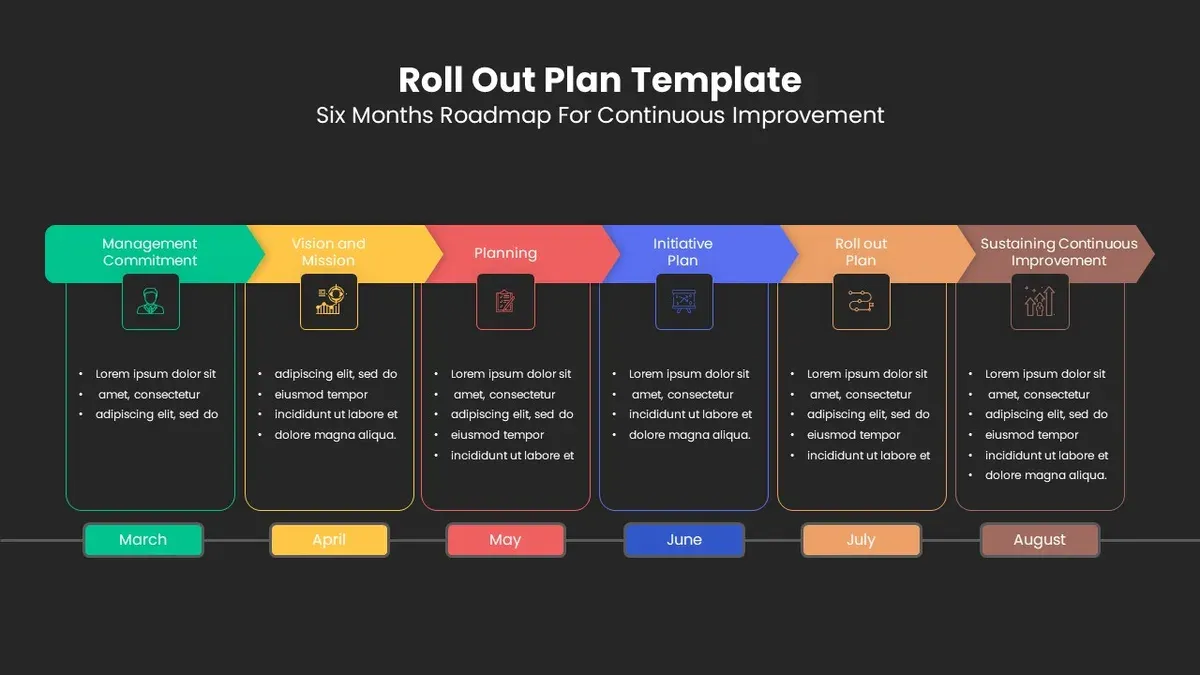
Next, create user accounts and assign roles within the Zoom admin portal. Ensure instructional coaches have host or co-host permissions to manage meetings, record sessions, and use AI tools. Proper role assignment prevents access issues and supports seamless meeting control.
Use email or internal communication channels to distribute this guidance ahead of scheduled sessions. Clarity in instructions reduces technical interruptions and participant confusion.
Integrate Zoom with other collaboration tools in Zoom Workplace, such as Docs, Calendar, and Whiteboard. This consolidation streamlines workflows by enabling coaches and participants to schedule, share materials, and collaborate within one platform. Integration minimizes app switching and improves engagement.
Confirm meeting duration limits, participant capacity, AI note-taking functionality, and integration performance. Address any technical glitches or user confusion identified during testing to ensure a smooth rollout.
For example, a school district choosing the Business Plus plan can assign coaches host roles, send step-by-step joining instructions, connect Zoom meetings with shared coaching documents, and run a mock session. This approach anticipates and resolves problems before wider deployment.
Choosing the right plan, onboarding users with correct permissions, instructing participants clearly, integrating tools, and testing thoroughly form the core steps for an effective Zoom rollout tailored to instructional coaching teams. Zoom Workplace centralizes these capabilities.
How to use ZoomMate and AI features to enhance instructional coaching meetings?
ZoomMate, integrated within Zoom Workplace, automatically captures the context of coaching sessions, eliminating the need for manual note-taking. This AI assistant records key discussion points and decisions in real time, allowing coaches to focus fully on participant interaction rather than juggling note duties. It generates concise summaries and highlights follow-up tasks, streamlining documentation and action planning.
This feature ensures comprehensive records of conversations, insights, and agreed next steps are always available. Additionally, 10 GB of cloud storage facilitates easy access and sharing of session data across teams.
For example, during a coaching meeting, ZoomMate identifies when a participant raises a key challenge in classroom management. It flags this as a follow-up task and includes it in the meeting summary, so coaches can assign and track related actions efficiently. Using these AI capabilities reduces administrative overhead and increases the quality of coaching by preserving critical information accurately and promptly.
Instructional coaches should enable ZoomMate from the Zoom Workplace settings under collaboration tools and verify AI note-taking is active in their Business Plus subscription. Leveraging these tools transforms instructional coaching meetings into productive, well-documented sessions without the distraction of manual record keeping. Learn more about ZoomMate and AI note-taking.
What common issues arise during Zoom rollout for instructional coaches and how to fix them?
This happens because the Business Plus plan limits meetings to 100 participants. The solution is to either schedule multiple concurrent sessions or upgrade the plan if larger meetings are frequent. For example, if a coaching workshop expects 120 attendees, splitting it into two sessions of 60 participants each avoids capacity errors.
Session cutoffs occur when meetings exceed the 30-hour time limit per session. Zoom will automatically end the call at the 30-hour mark, interrupting ongoing coaching. Coaches should plan sessions within this maximum or divide longer events into multiple parts. This avoids unexpected disconnections that disrupt participant engagement.
User access problems often stem from incorrect role assignments or incomplete account setups in Zoom Workplace. Participants unable to join or access features may have missing permissions. Admins must verify roles under account management and ensure users complete setup steps. Clear role assignment prevents access denials and feature restrictions.
Technical difficulties with joining meetings typically result from unclear instructions or lack of troubleshooting resources. Participants unfamiliar with Zoom settings may struggle to connect. Providing detailed joining guides and troubleshooting tips before sessions reduces connection failures. This includes guidance on app installation, link usage, and troubleshooting common audio or video issues.
| Symptom | Cause | Fix |
|---|---|---|
| "Meeting capacity exceeded" error | More than 100 participants in one meeting | Schedule multiple sessions or upgrade plan |
| Meeting ends abruptly at 30 hours | Session duration limit reached | Plan sessions under 30 hours or split event |
| Users cannot join or access features | Incorrect roles or incomplete account setup | Verify and assign correct roles; complete setup |
| Participants fail to connect or have technical issues | Lack of clear joining instructions or support | Provide detailed guides and troubleshooting steps |
What to check and maintain after the Zoom rollout for instructional coaches?
Confirm that meeting recordings and AI-generated notes are correctly saved within the allocated 10 GB cloud storage. Access the Zoom web portal and navigate to Recordings and AI Notes sections to verify file integrity and storage usage. Regular checks prevent data loss and ensure documentation remains accessible for review and reference.
Monitor user adoption by gathering feedback from instructional coaches and participants. Use surveys or direct communication to identify gaps in training or technical issues. Adjust support materials and participant instructions accordingly to address common difficulties and improve user confidence.
Review meeting usage against the plan limits to avoid disruptions. Track session duration and participant counts to ensure they remain within the Business Plus plan constraints. Proactively managing this prevents unexpected cutoffs during coaching sessions and aligns resource allocation with actual needs.
Update participant instructions and troubleshooting guides based on recurring user experiences. Refine step-by-step guidance for joining meetings, handling audio/video issues, and using AI features. Clear, updated instructions reduce support requests and streamline session flow.
For example, if several coaches report difficulty accessing AI notes, revise the instructions to include navigating to the AI Notes tab after meetings and checking cloud storage space. This practical adjustment directly addresses user pain points and sustains smooth operation.
Subscription billing occurs monthly or annually; maintain awareness of renewal dates and plan changes that might affect storage or feature availability. Addressing these post-rollout tasks keeps the Zoom environment stable and tailored to coaching demands. Learn more about Zoom Workplace Business Plus plan features.
Final Thoughts on Zoom Rollout for Instructional Coaches
The Zoom Workplace Business Plus plan offers instructional coaches extended meeting durations, large participant capacity, and robust AI features tailored to the needs of instructional coaching sessions. Properly leveraging these capabilities ensures coaching collaboration runs without technical interruptions. Post-rollout monitoring and maintenance are essential to maintain seamless meeting experiences and to address any emerging issues promptly.
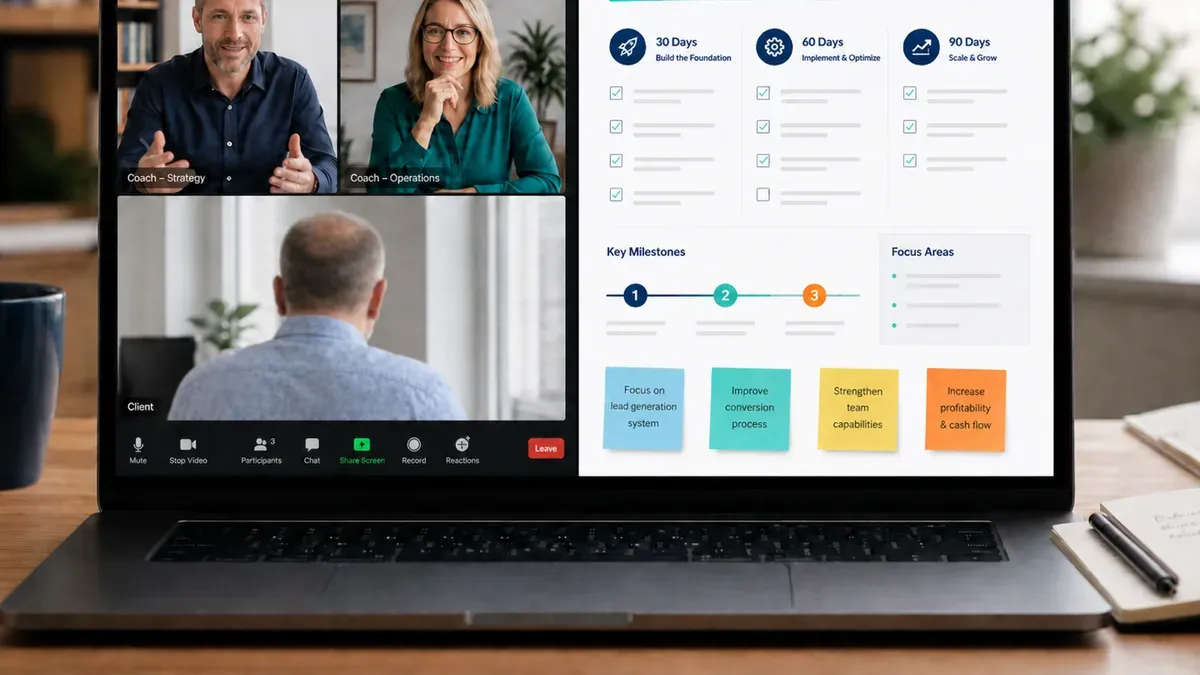
This step ensures instructional coaches maximize session length and productivity without manual note-taking distractions.
Pages this guide relies on
See also: Moving from Google Meet to Zoom: A Practical Migration Checklist · Webex Rollout Plan for High School Teachers: A Practical Guide · Zoom Implementation Timeline: Limits, Setup, and Usage Explained · Moving from Microsoft Teams to Zoom Checklist