Zoom Implementation Timeline: Limits, Setup, and Usage Explained
Learn how to implement Zoom with clear timelines, meeting limits, and setup tips for effective usage and smooth virtual communication.

Paid plans extend meeting durations up to 30 hours, with the Business Plus tier allowing unlimited meeting length and up to 300 participants.
It incorporates how to start using Zoom effectively, adjust duration settings, and understand the developer lifecycle that governs APIs and SDKs.
Settings, menu paths and limits here were checked against Zoom in November 2026.
What is the Zoom time limit and why does it exist?
Zoom sets meeting duration limits to differentiate its free and paid plans while managing server load effectively. The free plan restricts meetings to 40 minutes with up to 100 participants. This cap often surprises free users when meetings cut off abruptly once the limit is hit.
Paid Zoom Workplace plans extend meeting times to a maximum of 30 hours, still supporting up to 100 participants. This allows for lengthy sessions without interruption, suitable for extended workshops or training. For organizations needing greater capacity, the Business Plus plan removes time limits entirely and supports meetings with up to 300 participants.
These tiered limits create a clear upgrade path. For example, a free plan user hosting a 45-minute team meeting with 80 people will be cut off at 40 minutes, requiring an upgrade or session split. Meanwhile, a Business Plus subscriber can run a 5-hour meeting with 250 attendees without restrictions.
| Account Type | Max Meeting Duration | Max Participants |
|---|---|---|
| Free Plan | 40 minutes | 100 |
| Paid Workplace Plans | 30 hours | 100 |
| Business Plus Plan | Unlimited | 300 |
The time restrictions exist primarily to manage resources and encourage upgrading. Users needing longer meetings or more participants must select a plan that meets those needs.
Tip: Plan meeting length based on your Zoom plan to avoid unexpected cutoffs, especially on the free tier.
When did Zoom launch and how has it evolved?
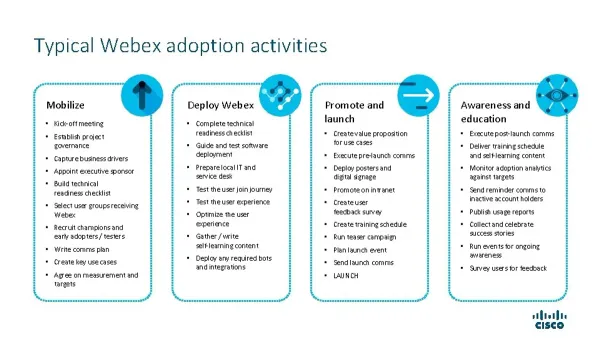
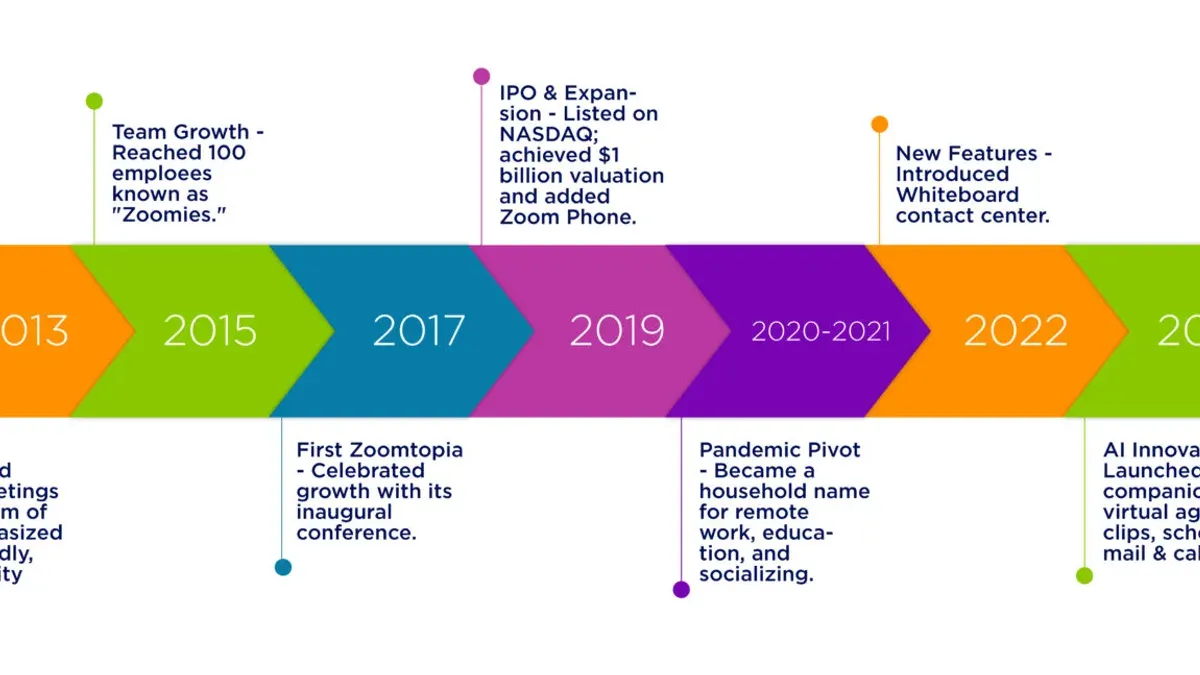
Its early focus was on straightforward video meetings with clear time limits based on account types. Over time, Zoom expanded beyond basic hosting to become a platform offering extensive developer support and integrations.
This lifecycle ensures developers can plan around forthcoming changes and maintain compatibility.
Such tools reflect a shift toward richer, integrated meeting experiences beyond basic communication.
This approach protects integration stability and aligns with Zoom’s ongoing platform development.
Overall, Zoom’s growth from a simple meeting tool to a comprehensive, developer-friendly ecosystem shapes how users and developers manage meeting limits and build on the platform’s capabilities.
How to use Zoom for the first time and get started quickly
Choose a plan carefully: the free plan allows meetings up to 40 minutes with a maximum of 100 participants. Selecting a plan upfront prevents unexpected meeting interruptions caused by time limits.
Next, download and install the Zoom client app for desktop or mobile. Alternatively, the web app can be used without installation but may have limited features.
To start a meeting, click “New Meeting” or schedule one via the “Schedule” button to set date and time.
Keep in mind the 40-minute limit on free accounts: meetings will end automatically when time expires. For example, a team planning a 1-hour session should schedule shorter segments or upgrade to a paid plan to avoid disconnection. This limitation applies regardless of platform or device.
Tip: Before a meeting, inform participants about the time limit to manage expectations and avoid surprises.
How to change the time limit on Zoom meetings
Meeting duration limits on Zoom depend entirely on the selected plan. Users on the free plan face a strict 40-minute limit per meeting, regardless of participant count, capped at 100 attendees. This limit cannot be adjusted without upgrading the account.
Upgrading to a paid Zoom Workplace plan immediately extends maximum meeting length to 30 hours, with the participant limit remaining at 100. For example, a team needing a single, uninterrupted session longer than 40 minutes would select this tier to avoid forced disconnections.
For larger events or longer sessions, the Business Plus plan and higher tiers remove meeting duration limits entirely and increase participant capacity to 300. This plan is optimal when hosting webinars, large team meetings, or company-wide presentations where both extended time and more attendees are required.
The upgrade process activates new limits immediately, eliminating the 40-minute constraint.
Tip: If consistent long meetings with up to 100 participants are needed, the standard paid Workplace plan suffices. For anything larger in scale or duration, the Business Plus plan is necessary.
How to zoom into timeline views in video editing and project management tools
Each application uses its own shortcuts or mouse gestures to adjust the timeline scale, allowing detailed editing or planning.
In Premiere Pro, timeline zooming typically uses the + and - keys or dragging the zoom slider at the bottom of the timeline panel. This lets editors precisely expand or contract the timeline to focus on specific frames or sequences. OpenShot uses the mouse wheel over the timeline area to zoom in and out smoothly, enhancing navigation speed without leaving the main editing view. VSDC’s timeline zoom adjusts through a slider or by holding Ctrl and scrolling, giving control over clip detail and arrangement.
This helps project managers see broader or finer scheduling details. Importantly, these timeline zoom controls have no connection to Zoom’s video conferencing limits or meeting durations.
This contrasts entirely with Zoom meetings, where “zoom” relates to video call duration or participant limits, not timeline navigation.
Tip: Familiarize with each tool’s timeline zoom shortcuts to speed up editing or planning workflows effectively.
Understanding Zoom’s developer lifecycle: release, deprecation, and sunset
Zoom’s developer lifecycle for APIs and SDKs follows a strict three-stage process: Initial release, Deprecation, and Sunset. The Initial release stage marks a stable, production-ready API or SDK suitable for integration and ongoing development. At this point, developers receive full support, including bug fixes and new feature updates.
During the Deprecation phase, the API or SDK remains functional but is flagged for replacement. Zoom issues clear notices detailing the deprecation date, recommended alternative versions, and the expected timeline for sunset. No new features or bug fixes are provided for deprecated versions, increasing the risk of unresolved issues over time.
Zoom may disable new app registrations, restrict specific endpoints, and block the generation of new API keys. Support for the deprecated version ends, causing existing integrations to risk failure or loss of functionality if migration is not completed beforehand.
For example, continuing to use a deprecated API beyond sunset can cause integration breakdowns, such as authentication failures or blocked endpoints, which halt core functionalities. Proper sequencing is critical: releasing a new API version must precede deprecating the old one, which in turn must occur before the sunset phase.
Tip: Always track lifecycle updates on the Zoom developer site to schedule timely migrations and avoid unexpected disruptions.
Zoom developer lifecycle documentation
Common pitfalls with Zoom meeting time limits and developer tools
This limit is hardcoded into the service, and meetings exceeding this duration require an upgrade to a paid plan to proceed uninterrupted. Missing this detail can disrupt scheduled sessions, causing confusion and frustration among participants expecting longer calls.
Developers face risks when continuing to use deprecated Zoom API versions. Deprecated APIs no longer receive updates or bug fixes, and eventually may be sunset, leading to sudden loss of functionality in integrations. Without timely migration to supported API versions, applications that rely on these interfaces may break, halting automated workflows or causing unexpected errors during operations.
Failure to upgrade Zoom plans or migrate APIs in a timely manner directly impacts meeting continuity and integration stability. For example, a team using the free plan might plan a one-hour meeting only to have the call cut off at 40 minutes. Similarly, a developer using an outdated API version might experience broken features after an unannounced sunset event, forcing emergency fixes under pressure.
Understanding these limits and lifecycle stages beforehand allows users and developers to plan upgrades and migrations strategically. This foresight prevents workflow interruptions and maintains a smooth Zoom experience for meetings and integrations alike.
| Symptom | Cause | Fix |
|---|---|---|
| Meeting ends abruptly at 40 minutes | Using Zoom free plan which restricts meetings to 40 minutes | Upgrade to a paid plan with extended meeting duration |
| Integration stops working or returns errors | Continued use of deprecated Zoom API versions | Migrate to the current supported API versions promptly |
Tip: Check your Zoom plan’s meeting duration limit before scheduling longer calls to avoid unexpected cutoffs.
Tip: Monitor Zoom developer announcements to stay ahead of API deprecations and sunsets.
Decision matrix: Choosing the right Zoom plan and API lifecycle stage
Selecting the appropriate Zoom plan depends on meeting duration, participant count, and developer integration needs. The free plan suits meetings lasting up to 40 minutes with no more than 100 participants. If sessions exceed 40 minutes but remain under 100 participants, a paid Zoom Workplace plan with up to 30 hours per meeting is required. For meetings involving more than 100 participants or requiring unlimited duration, the Zoom Workplace Business Plus plan supports up to 300 participants and unlimited meeting length.
| Situation | Recommended Zoom Plan | Key Deciding Factor |
|---|---|---|
| Meetings ≤ 40 minutes and ≤ 100 participants | Free Plan | 40 minutes max per meeting, 100 participants max |
| Meetings > 40 minutes and ≤ 100 participants | Paid Zoom Workplace Plan | Up to 30 hours max per meeting, 100 participants max |
| Meetings > 100 participants or unlimited duration needed | Zoom Workplace Business Plus Plan | Supports up to 300 participants, unlimited meeting duration |
For developers using Zoom APIs or SDKs, monitoring the lifecycle of their tools is critical. Upgrading integrations before the sunset phase prevents service interruptions. Initial release, deprecation, and sunset stages dictate when and how to migrate APIs effectively.
| Developer Situation | Recommended Action | Reason |
|---|---|---|
| Using APIs/SDKs before sunset | Upgrade to current API version | Avoid disruption by migrating before sunset |
For example, a team hosting weekly meetings with 80 participants lasting 2 hours must upgrade from the free plan to a paid Workplace plan. If the same team grows to 250 participants or requires unlimited meeting duration, the Business Plus plan becomes necessary. Developers supporting these integrations must track API lifecycle updates to maintain functionality.
Tip: Regularly check Zoom developer documentation to stay ahead of deprecation and sunset dates for APIs in use.
Zoom plan features and limits provide the official details for these decisions.
Frequently asked questions
Why does zoom have a time limit?
The time limit exists to differentiate between free and paid plans, controlling server load and encouraging upgrades. It enables Zoom to allocate resources efficiently while providing a generous free usage tier.
How to change time limit on zoom?
Time limits cannot be extended on the free plan. Upgrading to a paid plan like Workplace Business Plus removes meeting duration limits, allowing unlimited meeting length.
When did zoom start?
Zoom began development prior to its public launch, with its debut product released in early 2013 as a video conferencing solution.
When was zoom launched?
Zoom was launched publicly in 2013, marking its entry into the video conferencing market.
How to use zoom first time?
To start using Zoom, create a free account on the Zoom website, download the Zoom client for your platform, and sign in. From there, scheduling or joining a meeting can be done via the client or the web interface.
How to zoom in on premiere timeline?
Zooming in on the timeline in Adobe Premiere Pro is done using the "+" key, or by dragging the Zoom slider at the bottom of the timeline panel. This allows precise editing by expanding the timeline view.
Sources
- Zoom Workplace: Team Collaboration Tools — Zoom
- Developer lifecycle - Build - Zoom Developer Docs — Zoom
- One platform to connect | Zoom — Zoom
See also: Webex Implementation Timeline Explained: From Setup to Adoption · Moving from Microsoft Teams to Zoom Checklist · Moving from Google Meet to Zoom: A Practical Migration Checklist · How to Build and Manage a monday.com Implementation Timeline