
How to Convert ISO to USB on Mac: A Clear Step-by-Step Guide
Step-by-step guide on converting ISO files to USB drives on Mac and creating ISO images from USB for backups or installers.

You have an ISO file downloaded and want to create a bootable USB drive on your Mac, or perhaps you need to convert a USB drive back into an ISO image for backup or sharing. These tasks can seem confusing because the processes look similar but require different tools and steps.
This article covers how to convert ISO to USB on Mac and also guides you through turning USB drives into ISO images. Whether you aim to create a bootable installer or archive your USB content, this step-by-step guide clarifies both directions and helps you choose the method best suited to your technical comfort level.
Key takeaways
- Use Disk Utility and Terminal commands to convert macOS installers into ISO files.
- Create bootable USB drives from ISO files with the 'dd' command, ensuring correct device identification.
- Convert USB drives back to ISO images with 'dd' for backup or distribution.
- Verify USB device names carefully to avoid overwriting the wrong disk.
- Troubleshoot common permission and formatting issues when working with ISO and USB on Mac.
Before you start: what you need to convert ISO to USB on Mac
To successfully convert ISO files to USB drives or create ISO images from USB drives on your Mac, you need the right hardware, software, and understanding of the process. First, ensure you have a USB drive with enough storage. Most ISO files for operating system installers range from 4 GB to 8 GB, so a USB drive of at least 8 GB is recommended to accommodate these files safely.
You will also need a Mac computer running a compatible macOS version. The built-in Terminal app is a powerful tool for these conversions using command-line utilities like dd. For users who prefer graphical interfaces, Disk Utility offers basic options for creating disk images, while third-party apps like balenaEtcher provide user-friendly ways to write ISO files to USB drives.
ISO files are disk image files that contain the complete contents and structure of a disk, while USB drives are physical storage devices. Converting an ISO to USB generally means writing the image onto the USB to make it bootable or accessible like the original disk. Conversely, converting USB to ISO involves creating an image file from the USB’s contents.
Be aware that formatting or writing to a USB drive will erase all existing data on it. Back up any important files before proceeding.
- Prepare a USB drive with at least 8 GB capacity and connect it to your Mac; the drive should appear in Finder.
- Choose your preferred software method: Terminal for command-line control, Disk Utility for basic image creation, or third-party apps for ease of use; you should see the app launch successfully.
- Verify the ISO file you want to convert is accessible on your Mac; it should appear in Finder with an.iso extension.
- Ensure you have backed up any data on the USB drive, as the process will erase the drive’s contents; confirm your backup is complete.
How to convert macos installer to ISO
Creating an ISO file from a macOS installer app is often necessary before you can write it to a USB drive. This process involves using Terminal commands to convert the installer app into a disk image, then into an ISO format.
- Open Terminal and create a temporary disk image with the command:
hdiutil create -o /tmp/macos_installer -size 8500m -volname macOS -layout SPUD -fs HFS+
You should see a message confirming the image creation, e.g., "created: /tmp/macos_installer.dmg". - Mount the disk image:
hdiutil attach /tmp/macos_installer.dmg -noverify -mountpoint /Volumes/macos
The volume should appear mounted at /Volumes/macos. - Use the createinstallmedia tool from the macOS installer app to copy files to the mounted image:
sudo /Applications/Install\ macOS\ [Version].app/Contents/Resources/createinstallmedia --volume /Volumes/macos --nointeraction
Terminal will show progress; wait until it completes without errors. - Unmount the disk image:
hdiutil detach /Volumes/macos
Ensure the volume is unmounted successfully. - Convert the disk image to ISO format:
hdiutil convert /tmp/macos_installer.dmg -format UDTO -o ~/Desktop/macos_installer.iso
This creates an ISO file on your Desktop named macos_installer.iso.cdr. - Rename the ISO file by removing the.cdr extension:
mv ~/Desktop/macos_installer.iso.cdr ~/Desktop/macos_installer.iso
The file size should be several gigabytes, roughly matching the original installer size.
Verify the ISO exists on your Desktop and its size with:
ls -lh ~/Desktop/macos_installer.iso
You should see a file size that indicates a successful conversion, typically around 6-8 GB depending on the macOS version.
This step is necessary when you only have the macOS installer app and need an ISO file to create a bootable USB drive or to use with virtualization software.
How to convert ISO to bootable USB on Mac
Creating a bootable USB drive from an ISO file on Mac can be done using native Terminal commands or user-friendly third-party apps. Both methods have advantages depending on your comfort with the command line and specific use case.
Using Terminal with the ‘dd’ command
- Insert your USB drive and identify its device path by running diskutil list. Note the identifier like /dev/disk2.
- Unmount the USB drive with diskutil unmountDisk /dev/diskX (replace X with your disk number). The terminal should report the disk is unmounted.
- Flash the ISO to USB using sudo dd if=/path/to/your.iso of=/dev/rdiskX bs=1m. Using the raw disk rdiskX speeds up the process. Wait until the terminal returns to the prompt without errors.
- Once complete, eject the USB with diskutil eject /dev/diskX. Your bootable USB drive is ready for use.
This method is reliable but requires caution; mistyping the device path can erase the wrong drive.
Using Disk Utility or third-party apps
Disk Utility cannot directly write ISO files to USB drives for booting but is useful for formatting the USB with the correct scheme. For flashing ISOs, third-party tools like balenaEtcher offer graphical interfaces that simplify the process. Etcher supports multiple image formats, verifies writes automatically, and is suitable for users unfamiliar with Terminal.
| Tool | Usability | Reliability |
|---|---|---|
| Terminal ‘dd’ | Advanced, requires command line knowledge | High, if used correctly |
| balenaEtcher | Beginner-friendly graphical interface | High, with automatic verification |
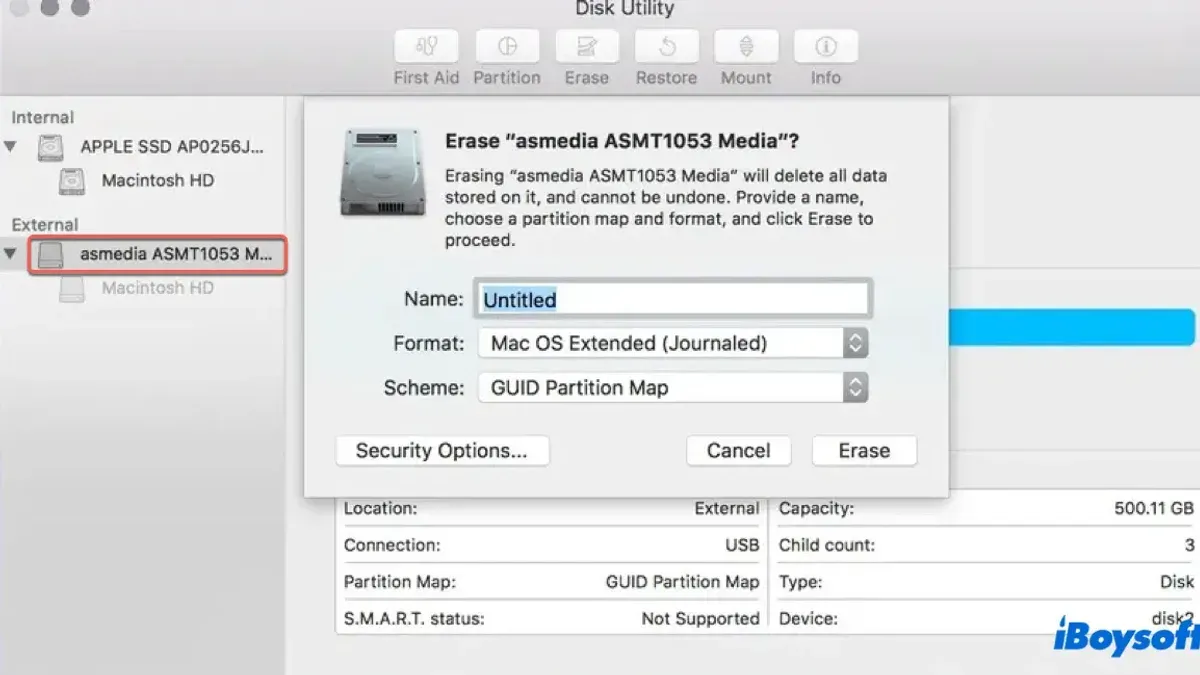
When preparing your USB, format it as MS-DOS (FAT) with a GUID Partition Map in Disk Utility before flashing to ensure compatibility. After flashing, verify the bootable USB by restarting your Mac and holding the Option (⌥) key to select the USB drive as the boot device.
How to convert USB to ISO image on Mac
Creating an ISO image from a USB drive on Mac is useful for backing up the drive’s contents or duplicating it later. You can achieve this by first creating a disk image using Disk Utility and then converting that image to ISO format with Terminal.
- Insert the USB drive and open Disk Utility from Applications > Utilities.
- Select your USB drive from the sidebar (not the volume, but the actual device name).
- Click File > New Image > Image from <USB name>.
- Choose a save location and set the format to DVD/CD master (.cdr). Click Save. You should see a.cdr file roughly matching the USB size.
- Open Terminal and navigate to the folder with the.cdr file using the
cdcommand. - Convert the.cdr to.iso by running:
hdiutil convert <filename>.cdr -format UDTO -o <filename>.iso. Terminal outputs progress and creates a.iso.cdr file. - Rename the resulting file to remove the extra extension:
mv <filename>.iso.cdr <filename>.iso. Check the file size to confirm it matches the original image.
Note that this method copies the entire USB content, including empty space, so the ISO file size may be large. It works best when the USB contains a disk image or installer. For USBs with complex file systems or proprietary formats, the ISO might not boot or replicate functionality perfectly.
Use cases for USB to ISO conversion include archiving bootable installer drives, sharing exact USB contents without physical media, or preparing images for virtual machines.
Troubleshooting common issues when converting ISO and USB on Mac
When converting ISO files and USB drives on Mac, you may encounter permission errors or messages like “resource busy” in Terminal. These typically occur if the USB drive is mounted or in use. To fix this, unmount the drive using Disk Utility or the command diskutil unmountDisk /dev/diskX (replace X with your disk number), then retry the operation. Successful unmounting will show a confirmation message.
If your USB is not recognized after conversion or fails to boot, check that it was properly formatted as MS-DOS (FAT) or ExFAT before writing. Reformatting the USB drive and repeating the process often resolves this. Also, verify the ISO file integrity; corrupted ISOs can cause incomplete writes or boot failures.
Corrupted ISO files may produce errors such as “cannot read from source” or unexpected termination. To rule this out, download the ISO again from a reliable source or check the checksum if available.
If Terminal commands repeatedly fail or errors persist, consider using alternative tools like balenaEtcher or UNetbootin, which provide graphical interfaces and automatic error handling.
- Unmount the USB drive using Disk Utility or Terminal. You should see confirmation that the disk is unmounted.
- Verify USB formatting in Disk Utility is as MS-DOS (FAT) or ExFAT; reformat if necessary. The drive should appear empty and correctly formatted.
- Check the ISO file for corruption by comparing checksums or downloading again. The file should match the expected hash or open without errors.
- Retry the conversion using Terminal commands or third-party apps. The process should complete without permission or resource errors.
- If errors persist, switch to a graphical tool like balenaEtcher and follow its prompts. The tool should complete the write and validate the USB.
- How to Convert DMG to ISO on Mac: Step-by-Step Guide
- How to Open.vhd Files on Mac: Complete Step-by-Step Guide
- How to Open a.vmdk File on Mac: Clear Step-by-Step Guide
Frequently asked questions
How to convert usb to iso mac?
To convert a USB drive to an ISO image on Mac, use the Terminal app with the dd command. First, identify the USB device identifier with diskutil list, then unmount it using diskutil unmountDisk /dev/diskN (replace N with your disk number). Finally, run sudo dd if=/dev/diskN of=~/Desktop/usbimage.iso bs=1m to create the ISO file, where usbimage.iso is the output filename.
How to convert usb boot to iso?
Converting a bootable USB drive to an ISO on Mac follows the same process as converting any USB to ISO. Use dd in Terminal after unmounting the USB. Remember, this method creates a raw disk image that can be saved as an ISO, suitable for backup or replication purposes.
How to flash iso to usb mac?
To flash an ISO to a USB on Mac, first insert your USB drive and identify it with diskutil list. Unmount the USB with diskutil unmountDisk /dev/diskN. Then use sudo dd if=/path/to/file.iso of=/dev/diskN bs=1m to write the ISO onto the USB. Be careful to select the correct disk to avoid data loss.
How to write iso to usb macos?
Writing an ISO to USB on macOS involves using the Terminal and the dd command. After unmounting the target USB drive, execute sudo dd if=/path/to/your.iso of=/dev/diskN bs=1m, replacing /dev/diskN with your USB's device identifier. This method creates a bootable USB if the ISO supports it.
Limits of this guide and who should look elsewhere
This guide does not cover converting encrypted or proprietary ISO images, which often require specific software or licensing. It also assumes you have a basic understanding of using the Terminal and handling disk management tasks on your Mac. If you encounter ISO files protected by DRM, or if you prefer a fully graphical interface without command line use, consider specialized third-party applications designed for those purposes. For complex partitioning or multi-boot configurations, professional tools or advanced user support may be necessary.
To move forward confidently, focus on carefully following the Terminal commands and Disk Utility steps outlined here. The most useful next step is to ensure your USB drive is properly formatted as Mac OS Extended (Journaled) with a GUID Partition Map before creating a bootable USB. This simple but crucial preparation avoids many common errors and streamlines the conversion process for both ISO to USB and USB to ISO tasks.



