How to Convert DMG to ISO on Mac: Step-by-Step Guide
Step-by-step guide on how to convert DMG to ISO on Mac using native tools and free software for easy cross-platform compatibility.

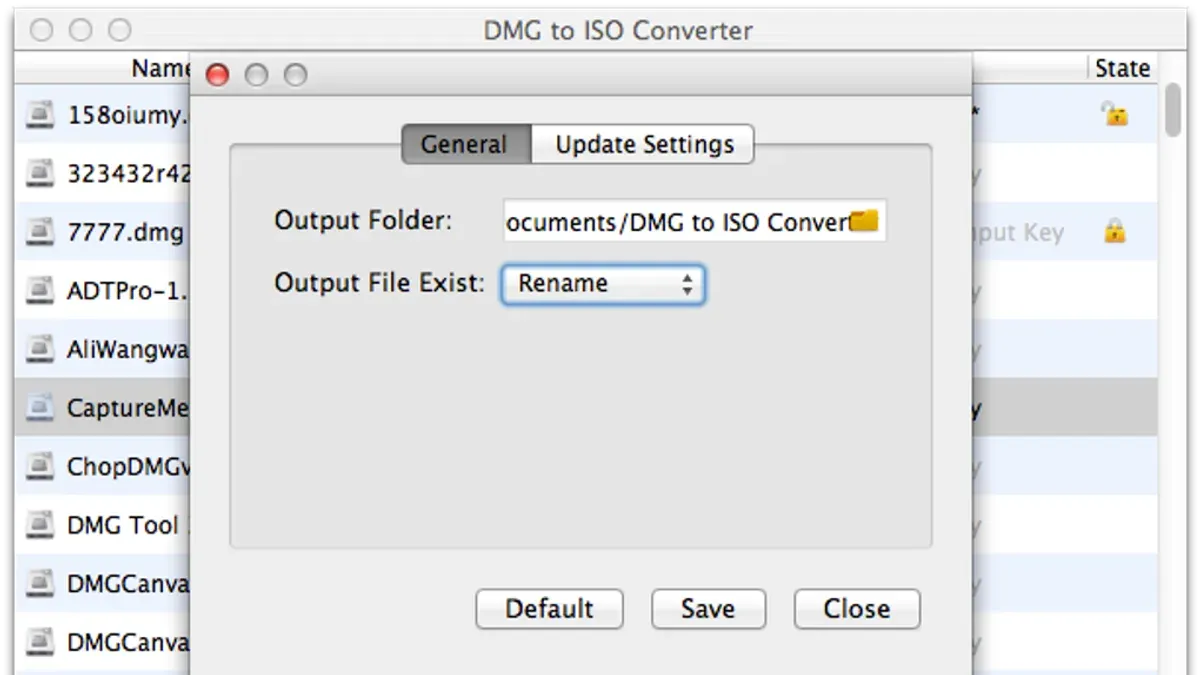
You have a DMG file that you need to use on a Windows PC or create bootable media from it, but ISO is the required format. Or maybe you have an ISO image that you want to mount or use on your Mac. Understanding how to convert DMG to ISO on Mac and vice versa is essential for software installation and cross-platform compatibility.
This article covers step-by-step methods using native Mac tools like Terminal and Disk Utility, as well as free third-party options. You will also learn how to create bootable ISO files from macOS DMGs and troubleshoot common issues during conversion.
Key takeaways
- Use the Terminal command 'hdiutil convert' to change DMG files to ISO format efficiently.
- Disk Utility allows easy conversion of ISO images to DMG without additional software.
- Creating bootable ISO requires careful preparation of the DMG and specific Terminal commands.
- Free tools on Mac and Windows can supplement native options but may vary in reliability.
- Common conversion problems include permission errors and file corruption; verifying disk images helps avoid issues.
Before you start: What you need to convert DMG to ISO on Mac
DMG and ISO files are disk image formats used to store exact copies of discs or volumes. On a Mac, DMG files are common for software installation and system backups, while ISO files are widely used for cross-platform compatibility and bootable media creation.
To convert between these formats, you will primarily need native Mac utilities: Terminal for command-line conversions and Disk Utility for mounting or converting images. In some cases, third-party tools may be necessary to handle specific ISO variants or advanced features not supported by macOS.
Before starting, verify the integrity of your DMG or ISO files to avoid errors during conversion. For example, DMG files often range from a few hundred megabytes to several gigabytes, so ensure you have at least double the file size available in free disk space to accommodate temporary files created during conversion.
System permissions are also essential; you should have administrative access to run necessary commands and write files to your chosen destination.
- Locate your DMG or ISO file in Finder.
- Right-click the file and select "Get Info" to check its size; expect sizes from 500 MB to 5 GB for typical software images.
- Open Terminal and type ls -lh <path-to-file> to confirm file size and permissions; you should see readable permissions (e.g., -rw-r--r--).
- Check available disk space using df -h. in Terminal; ensure you have free space at least equal to twice the file size.
- Confirm you have administrative rights by running whoami and ensuring your username has sudo privileges if needed.
How to convert DMG to ISO using Terminal commands
- Open Terminal from Applications > Utilities. You will use the built-in hdiutil command-line tool.
- Type the following command to convert your DMG file to a CDR image:
hdiutil convert /path/to/yourfile.dmg -format UDTO -o /path/to/outputimage.cdr
This command converts the DMG to a Universal Disk Image Format (UDTO) file, which macOS saves with a.cdrextension by default. You should see output indicating the conversion progress and completion. - Rename the resulting
.cdrfile to have an.isoextension. You can do this in Terminal:
mv /path/to/outputimage.cdr /path/to/outputimage.iso
This step simply changes the file extension so that other systems recognize it as an ISO image. - Verify the ISO file by checking its size and mounting it:
hdiutil mount /path/to/outputimage.iso
This mounts the ISO so you can confirm its contents are intact. After verification, unmount it with:
hdiutil unmount /Volumes/nameofmountedimage - Compare the original DMG and newly created ISO file sizes by running:
ls -lh /path/to/yourfile.dmg /path/to/outputimage.iso
The sizes should be very similar, confirming a successful conversion.
This method uses macOS's native tools, avoiding third-party software while ensuring the converted ISO remains usable for installation or bootable media purposes.
How to convert ISO to DMG on Mac using Disk Utility
Disk Utility provides a straightforward way to convert ISO files to DMG format without additional software. Follow these steps to create a DMG from an ISO image on your Mac.
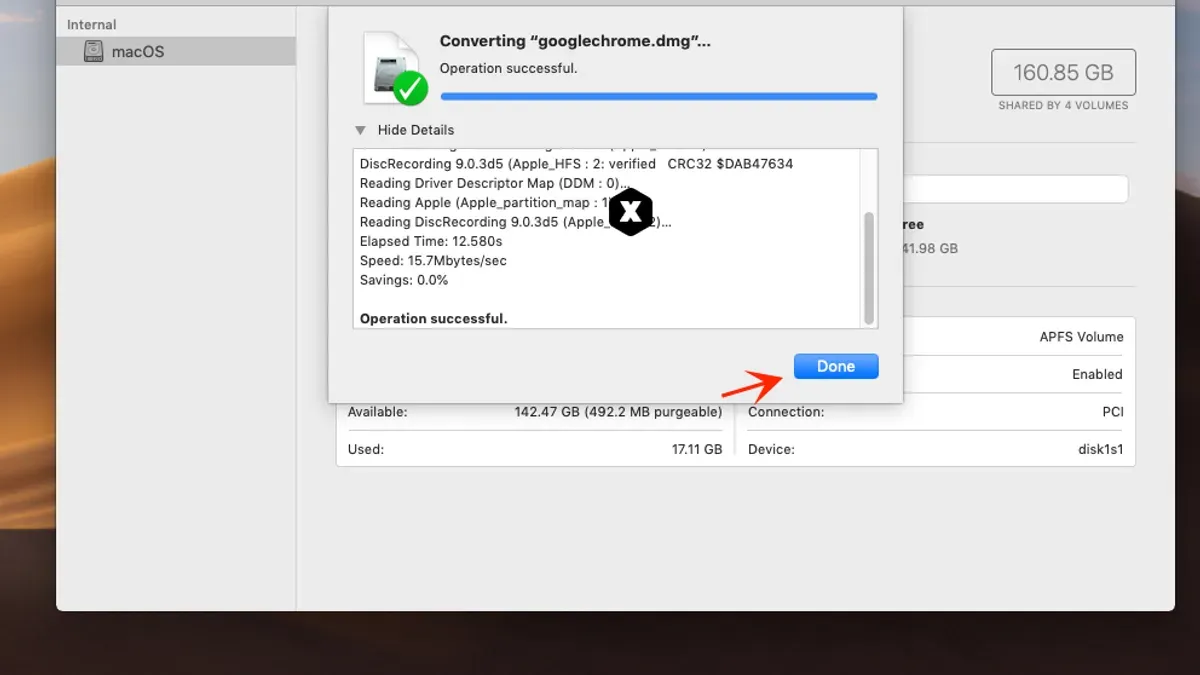
- Open Disk Utility from the Applications > Utilities folder. You should see the main window with a sidebar listing your drives.
- From the top menu, select File > New Image > Image from Folder. Although the ISO is not a folder, this option allows you to select and wrap files into a DMG container.
- In the dialog, navigate to your ISO file's location, select it, and click Open. Disk Utility will prepare to create the image.
- Choose a destination for the new DMG file and enter a name. Set the Image Format to read/write or compressed depending on your needs. Avoid DVD/CD master format to ensure compatibility.
- Under Encryption, select none unless you want password protection. Click Save to start the conversion.
- Wait for Disk Utility to finish creating the DMG. The new file will appear in the chosen folder.
- Verify the DMG by double-clicking it to mount. Confirm the contents match the original ISO and check that the file size is consistent with some overhead expected due to format differences.
If Disk Utility does not directly convert the ISO via the above method, an alternative is to mount the ISO first, then create a DMG from the mounted volume by selecting Image from Folder and choosing the mounted drive in the sidebar.
Keep in mind that DMG files often include additional metadata and compression options, which can slightly alter file size compared to the ISO source.
How to create a bootable ISO from a macOS DMG
Bootable ISO images are essential when installing macOS on virtual machines or creating bootable USB drives for system recovery or clean installations. Native macOS tools like hdiutil can create ISO images, but making them bootable often requires extra steps or third-party utilities.
- Convert the DMG to a CDR image with bootable properties by running hdiutil convert /path/to/source.dmg -format UDRW -o /path/to/output.cdr. Success is indicated by output showing conversion progress and completion.
- Rename the CDR file to ISO using mv /path/to/output.cdr /path/to/output.iso. The file should appear with an.iso extension.
- Test bootability by mounting the ISO in virtualization software like VMware Fusion or Parallels Desktop. The system should boot from the ISO without errors.
- If the ISO doesn’t boot, native tools may lack full boot sector support. Use third-party tools such as balenaEtcher or UNetbootin to write the ISO to USB or to assist creating bootable images.
Note that bootable ISOs differ from non-bootable ones by containing a valid boot record and system files recognized by the firmware or virtual machine BIOS. Testing in your target environment confirms compatibility.
Alternative free tools and methods to convert DMG to ISO on Mac and Windows
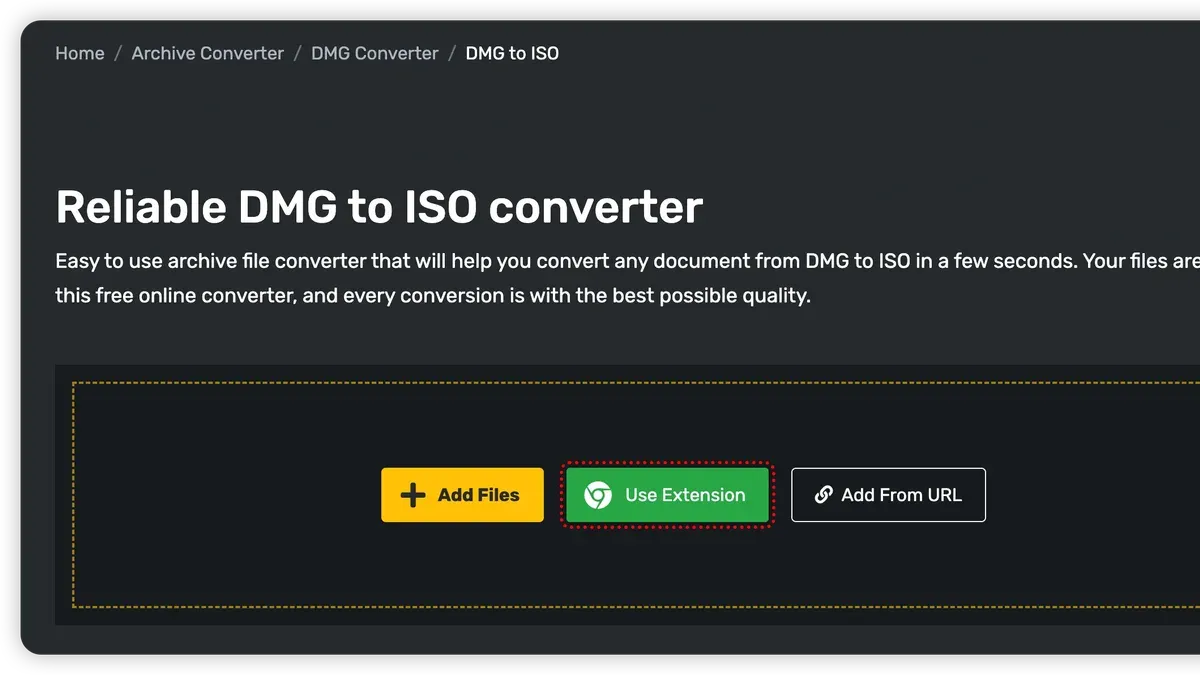
For users who prefer graphical interfaces or need to convert disk images on Windows, several free tools and online services are available. These options vary in ease of use, file size limits, and privacy considerations.
| Tool | Platform | File Size Limit | Features |
|---|---|---|---|
| AnyToISO | Mac, Windows | Up to 870 MB free version | Simple GUI, supports DMG to ISO, limited free version |
| DMG2IMG (Windows) | Windows | No explicit limit | Command-line, converts DMG to IMG (can be renamed to ISO) |
| Online Convert (website) | Browser | Up to 100 MB | Convenient, no installation, privacy depends on service |
| PowerISO (Windows) | Windows | Limited in free trial | Full featured ISO/DMG manipulation |
Online converters offer convenience but require uploading your files to external servers. Ensure no sensitive data is in the DMG and check file size limits, often around 100 MB.
Using AnyToISO on Mac
- Download and install AnyToISO from the official website.
- Launch the app and select the "Convert" tab.
- Click "Open Image" and choose your DMG file.
- Set the output format to ISO and choose a destination folder.
- Click "Convert"; upon completion, verify the ISO file appears in the destination.
AnyToISO’s free version is best for images smaller than 870 MB. For larger files, the paid version removes this restriction.
Cross-platform tips for Windows users
Windows lacks native support for DMG files, so use tools like DMG2IMG to convert DMG to IMG, which most Windows programs recognize. Alternatively, mount DMG files using third-party software like 7-Zip or HFSExplorer before conversion.
Choose tools based on your file size, privacy needs, and platform to ensure smooth, safe conversions.
Troubleshooting common problems when converting DMG and ISO files
When Terminal commands fail or return permission errors, first ensure you run Terminal with appropriate privileges. Using sudo before commands often resolves "permission denied" messages. Also, check System Preferences > Security & Privacy > Privacy > Full Disk Access to grant Terminal necessary permissions.
If you encounter corrupted or partially downloaded DMG/ISO files, verify the file checksum using shasum -a 256 [filename] in Terminal and compare it with the official source. Redownloading the file from a trusted source is recommended if checksums do not match.
Unsupported image formats or encrypted DMG files may cause errors like "no mountable file system". For encrypted files, ensure you have the correct password before conversion. Unsupported formats might require conversion via third-party utilities.
To verify file integrity post-conversion, mount the resulting ISO or DMG by double-clicking it. If it mounts successfully without errors, the conversion likely succeeded. You can also inspect file sizes and use hdiutil verify [file] to confirm integrity.
- Run Terminal as an administrator by typing
sudobefore your conversion command. You should be prompted for your password, and the command should execute without permission errors. - Check your downloaded file's integrity with
shasum -a 256 [filename]. If the checksum differs from the official source, download the file again. - For encrypted DMG files, open Disk Utility and attempt to mount the file. Enter the password when prompted to confirm accessibility before converting.
- After conversion, double-click the new ISO or DMG to mount it. A successful mount indicates a valid image.
- Use
hdiutil verify [converted_file]in Terminal to perform a deeper integrity check. The tool should report the image as valid.
For additional help, consult Apple's official Disk Utility and Terminal documentation or visit Apple Support Communities where similar issues are discussed with detailed user solutions.
- How to Open.NRG Files on Mac: Clear Step-by-Step Instructions
- How to Open.mdf Files on Mac: Step-by-Step Guide
- How to Open.vhd Files on Mac: Complete Step-by-Step Guide
- How to Open a.vmdk File on Mac: Clear Step-by-Step Guide
Frequently asked questions
How to convert macos dmg to iso?
To convert a macOS DMG to ISO, use the Terminal command hdiutil convert with the -format UDTO option. For example, run hdiutil convert /path/to/your.dmg -format UDTO -o /path/to/output.iso. This creates a CDR file that you can rename with an.iso extension for compatibility.
How to convert iso file to dmg on mac?
You can convert an ISO to DMG using Disk Utility by opening the ISO file and then exporting or saving it as a DMG. Alternatively, use Terminal with hdiutil convert /path/to/input.iso -format UDRW -o /path/to/output.dmg to create a writable DMG.
How to convert dmg file to iso?
Convert a DMG to ISO by running hdiutil convert in Terminal with the -format UDTO flag. The output file will have a.cdr extension by default, which you can rename to.iso if needed. This method uses native Mac tools and requires no third-party software.
How to convert dmg to iso free?
Free conversion of DMG to ISO can be done using built-in macOS Terminal commands like hdiutil convert. No paid software is necessary. There are also free third-party tools available, but native commands are reliable and widely recommended.
How to convert iso to dmg on Mac in Disk Utility?
Open Disk Utility and choose File > Open Disk Image to select your ISO file. Once mounted, select the image in the sidebar, then go to File > New Image > Image from [device]. Choose the DMG format, name the file, and save it. This method creates a DMG from the mounted ISO without using Terminal.
What this guide does not cover and who should look elsewhere
This guide does not cover converting encrypted or password-protected DMG files, which require additional authentication steps or specialized software. Some advanced bootable ISO creation scenarios, such as creating multi-boot installers or including custom scripts, may require third-party tools beyond native Mac utilities. Additionally, while online converters exist, they often impose file size limits and may pose privacy risks; for sensitive or large files, performing local conversions is recommended.
For your next step, focus on mastering Terminal commands for DMG to ISO conversion, paying close attention to the exact syntax and file paths. Ensuring your disk images are properly unmounted before conversion typically prevents common errors. Taking the time to verify each step will save time troubleshooting later and allow you to confidently handle both conversions and bootable media creation on your Mac.