Edpuzzle Implementation Timeline: A Step-by-Step Guide for Educators
This guide breaks down the Edpuzzle implementation timeline into clear phases to help educators integrate interactive videos effectively.

Short answer: An Edpuzzle implementation timeline outlines the key steps and realistic timeframes for integrating Edpuzzle into your teaching workflow. It covers everything from initial account setup and video creation to classroom deployment and troubleshooting, helping you plan an effective rollout without guesswork.
This article breaks down the Edpuzzle implementation timeline into clear phases, focusing on what you need to do and when. You’ll get straightforward instructions on logging in, making your first interactive video, using Edpuzzle during class, handling common technical issues, and optimizing your practice to avoid pitfalls. This guide prioritizes your decision-making and practical application over just listing features.
What is an Edpuzzle and why does it matter to educators?
Edpuzzle is an interactive video platform designed specifically for education. It allows teachers to take any video—whether from YouTube, Khan Academy, or their own recordings—and embed questions, voice notes, and audio comments directly into the timeline. This transforms passive watching into an active learning experience where students engage with material in real time.
By integrating formative assessments within videos, Edpuzzle helps teachers monitor students’ understanding continuously rather than relying on traditional tests alone. For example, a science teacher can assign a video on photosynthesis, embedding multiple-choice questions and short-answer prompts at key points. This immediate feedback identifies concepts students struggle with and guides targeted follow-up instruction.
Edpuzzle supports flipped classrooms and remote learning effectively. Schools report increased student engagement and accountability because videos cannot be skipped without answering embedded questions. Educators often highlight how the platform streamlines lesson preparation and offers valuable insights into student progress, making it a popular choice in thousands of K-12 classrooms nationwide.
When was Edpuzzle created and how has it evolved?
Edpuzzle launched in 2013 with the goal of transforming passive video watching into active learning. Its initial focus was on enabling teachers to add questions and notes directly into videos, making it easier to check student understanding in real time. This early capability addressed a key classroom challenge: ensuring students stay engaged and accountable during video lessons.
Over time, Edpuzzle expanded its features in response to educator feedback and technology trends. In 2015, it introduced integration with major learning management systems like Google Classroom, simplifying assignment distribution and grade syncing. Around 2017, the platform added detailed analytics dashboards, allowing teachers to track student progress and identify who struggled with specific video sections.
More recently, Edpuzzle incorporated a library of pre-made interactive videos across subjects, saving teachers time on content creation. The platform’s evolution reflects a clear pattern: each major update focuses on enhancing usability and aligning with educators’ instructional workflows. For example, the introduction of real-time progress reports helps teachers intervene promptly rather than waiting for end-of-unit tests.
How to log into Edpuzzle and get started quickly
Start by navigating to Edpuzzle’s homepage and click the “Sign Up” or “Log In” button in the top right corner. You can choose to log in using your Google or Microsoft account for a quicker process, or create a dedicated Edpuzzle account using your email. Logging in with Google or Microsoft ties your Edpuzzle account to your existing credentials, reducing password fatigue.
If your school uses login codes, select the “Use Code” option on the login page. Enter the code exactly as provided by your administrator—codes are case-sensitive and often expire after a set period. This method bypasses password creation and links you directly to your school’s Edpuzzle environment.
Once logged in, you land on the dashboard, where you’ll see tabs like “My Content,” “Assignments,” and “Analytics.” The left sidebar allows quick navigation between creating new videos, browsing content, and checking student progress. New users often miss the top-right profile menu, where you can adjust settings like notifications and connected accounts.
For example, a teacher logging in with Google clicks “Log In,” selects their school account, then lands on the dashboard. They click “My Content” to start creating or assigning videos immediately. If the dashboard appears blank, check that you’re in the correct school account or try logging out and back in.
- Choose a login method: Google, Microsoft, Edpuzzle account, or code
- Enter credentials carefully; watch for case sensitivity in codes
- Familiarize yourself with the dashboard tabs and sidebar
- Use the profile menu to configure settings and linked accounts
- If content doesn’t appear, verify the correct account and try re-logging
How to make an Edpuzzle: Creating your first interactive video
Start by selecting a video to transform into an interactive lesson. Click the "Add Content" button, then choose "Upload Video" to add your own file or "Search Videos" to find a clip from YouTube, Khan Academy, or other integrated platforms. For example, pick a short science experiment video from YouTube for your next lesson.
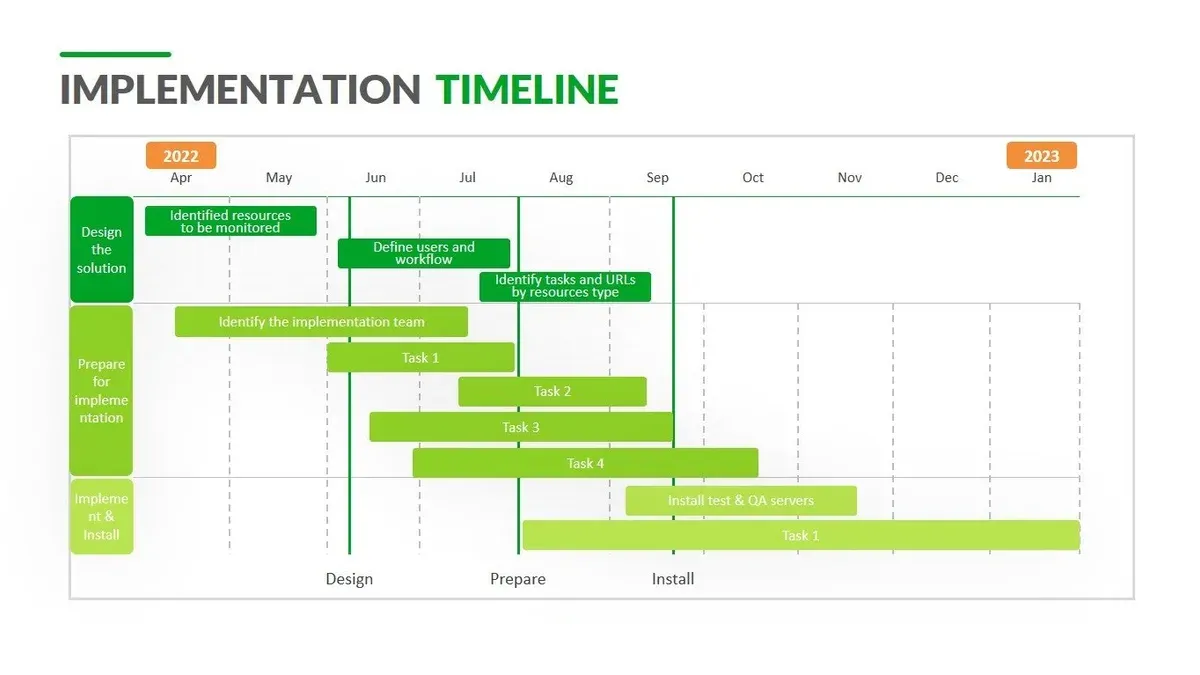
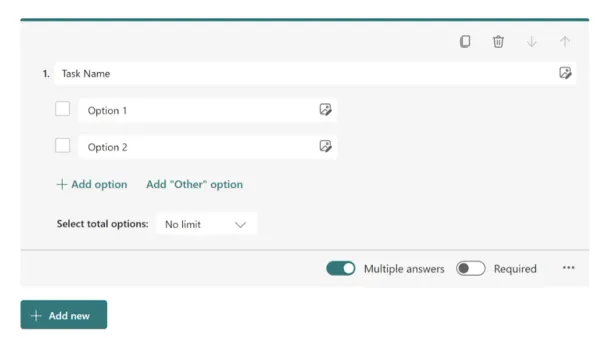
Once the video loads in the editor, add interaction points by clicking the timeline where you want to pause. Use the "Add Question" button to insert multiple-choice, open-ended, or true/false questions that check student understanding. You can also add "Notes" to highlight key information or provide additional explanations. To personalize the lesson, record a "Voiceover" that replaces or supplements the original audio.
After adding questions and notes, click "Save". Preview your Edpuzzle by selecting "Preview" to experience it as a student would. This step ensures timing and interactions align well with your teaching goals.
- Choose or upload a relevant video
- Add questions and notes at key moments
- Record voiceover if needed
- Save and preview before assigning
How to use Edpuzzle in the classroom for effective learning
Assigning Edpuzzle videos starts with selecting the desired class and clicking "Assign" in the video dashboard. You can set a due date and decide if students can rewatch the video or must answer questions in one go. Once assigned, track student progress under the "Progress" tab, where you see completion rates and individual scores. This visibility lets you identify students who need extra help or topics that require reteaching.
Integrate Edpuzzle with your LMS, such as Google Classroom or Canvas, by linking accounts through the "Settings" menu. This allows seamless assignment posting and grade syncing, reducing administrative tasks and keeping all materials in one place. Students access the video directly from the LMS, maintaining workflow consistency.
Use Edpuzzle’s data reports to inform instruction. The "Analytics" section displays question-by-question responses and time spent per video segment. For example, if many students miss a question on a specific concept, plan a targeted review session. Comparing engagement before using Edpuzzle often shows a clear increase in student interaction, as passive watching turns into active participation.
- Assign videos with clear deadlines and settings.
- Link Edpuzzle to your LMS for smooth integration.
- Monitor progress and use analytics to guide teaching.
How to skip Edpuzzle time and the implications
Skipping Edpuzzle time means trying to avoid watching the full assigned video or speeding through it without engaging with the content. Some students use browser extensions or hacks that allow them to fast-forward or bypass embedded questions. Popular tools include video speed controllers or scripts that automatically mark questions as answered. However, Edpuzzle’s platform tracks watch time and interaction, so many extensions are only partially effective or get detected.
For example, a student might use a browser extension to increase playback speed to 3x, reducing actual viewing time. While this saves time, it often results in missed content and poor comprehension. Teachers notice this as lower quiz scores or incomplete assignments. Some educators report that skipping time breaks the integrity of the lesson and complicates classroom management, as it undermines real engagement.
Using these hacks defeats Edpuzzle’s purpose: ensuring students watch and understand the material. Instead of focusing on shortcuts, encourage clear communication on learning expectations and use Edpuzzle’s progress reports to spot disengagement early.
- Be aware that browser extensions can speed up or skip content but may not bypass question answering.
- Recognize that skipping time lowers learning effectiveness and risks incomplete assignments.
- Use Edpuzzle’s analytics to detect unusual viewing patterns.
- Address skipping behavior by reinforcing the value of full engagement.
Why is Edpuzzle not working and troubleshooting tips
Login failures often stem from incorrect credentials or browser issues. Ensure you use supported browsers like Chrome, Firefox, or Edge, updated to their latest versions. Clear your browser cache and cookies if login repeatedly fails. Also, check if your school's network or firewall blocks Edpuzzle domains, which can prevent access.
Video loading problems typically relate to internet connectivity or device performance. A slow or unstable connection causes buffering or failure to load videos. For example, a teacher reported videos stuck at 0% loading; switching from Wi-Fi to a wired connection resolved it immediately. Close other bandwidth-heavy applications and try restarting your device if videos remain unplayable.
Account permission errors occur when students cannot access assignments or features. Verify that students are enrolled in the correct class and that assignments are properly published. A common case is a student seeing "Assignment not found" because the teacher forgot to click "Assign" after creating the lesson. Confirm roles in the "Manage Classes" section and reassign if needed.
- Use updated, supported browsers and clear cache for login issues
- Check internet speed and connection type if videos won’t load
- Confirm student enrollment and assignment publishing to fix permission errors
- Contact Edpuzzle support with screenshots and device details if problems persist
How to use Edpuzzle for teachers: Best practices and mistakes to avoid
Set clear learning goals before assigning an Edpuzzle video. Instead of random engagement, define what skills or knowledge you want students to demonstrate. For example, target specific comprehension questions aligned with your lesson objectives rather than scattering unrelated queries throughout the video.
Balance the number of questions with the video length. Overloading a 5-minute video with more than 8 questions can overwhelm students and disrupt flow. Conversely, a 20-minute video with only a couple of questions may fail to maintain attention or assess understanding effectively. Aim for roughly one question every 1–3 minutes depending on complexity.
Avoid over-reliance on hacks or shortcuts, such as skipping questions or fast-forwarding. These undermine learning and are often detectable through Edpuzzle’s analytics. Instead, encourage students to engage fully and use the platform’s features as intended.
Teacher surveys indicate that effective Edpuzzle use includes deliberate question placement and clear instructions. Poor implementations typically feature excessive questions that frustrate students or vague goals that reduce usefulness. A concrete example: assigning a 10-minute video on photosynthesis with 5 well-placed multiple-choice questions focusing on key concepts yields better engagement and assessment results than a similar video loaded with 15 questions spread randomly.
- Define learning objectives for each Edpuzzle assignment
- Match question quantity appropriately to video length
- Use Edpuzzle analytics to monitor genuine student engagement
- Resist shortcuts that bypass learning tasks
- Give clear guidance on expectations and pacing
Frequently asked questions
How do I create an Edpuzzle?
To create an Edpuzzle, first log into your account and click on the Create button at the top right. Choose a video from YouTube, Khan Academy, or upload your own. Use the editing tools to cut, add voice notes, and insert multiple-choice or open-ended questions. Save your work and assign it directly to your class or share the link.
What is the Edpuzzle speed up code or extension?
The Edpuzzle speed up code or extension refers to third-party browser tools some users try to use to skip or accelerate video playback. These are not officially supported and can cause syncing issues with questions or progress tracking. Edpuzzle's built-in player allows you to play videos at 1x or 1.5x speed, but speeding up beyond that or skipping interactive parts can undermine learning objectives and data accuracy.
Can I login to Edpuzzle with a code?
You cannot log in to Edpuzzle with just a code. Instead, teachers and students create accounts using an email or Google sign-in. Students join classes by entering a class code provided by their teacher after logging in. This method ensures secure access to assignments and progress tracking.
Are there free answers or hacks for Edpuzzle questions?
There are no legitimate free answers or hacks for Edpuzzle questions. Attempting to use unauthorized methods violates academic integrity and can lead to penalties from your school or district. The best approach is to engage with the material and use the platform as intended for meaningful learning.
Quick checklist
- Set up your Edpuzzle account and verify your email.
- Choose or upload a video and add interactive questions.
- Assign the Edpuzzle video to your class via the "My Classes" tab.
- Monitor student progress regularly through the "Progress" dashboard.
- Prepare to address common issues like video load failures or login errors.
What this advice does not cover
This article does not cover advanced Edpuzzle integration with enterprise LMS systems or district-wide rollout logistics, which require separate planning and IT support. If you are managing a large-scale implementation across multiple schools or need syncing with platforms like Canvas or Google Classroom at an organizational level, consult your IT department or Edpuzzle’s dedicated support resources.
Focus first on mastering the basic Edpuzzle workflow and classroom use. The single most useful next step is to create and assign your first interactive video. This hands-on approach reveals practical challenges and opportunities, helping you decide how Edpuzzle fits your teaching style and students’ needs.
See also: Moving from Blooket to Edpuzzle: Your Complete Checklist · Jamf School Implementation Timeline: A Clear Guide for IT Admins · How to Create and Use a Mosyle Implementation Timeline Effectively · How to Build a Clever Implementation Timeline That Works