How to Fix Telegram Two-Factor Authentication Code Not Working
Learn how to quickly identify and fix Telegram two-factor authentication code not working issues to restore secure account access.

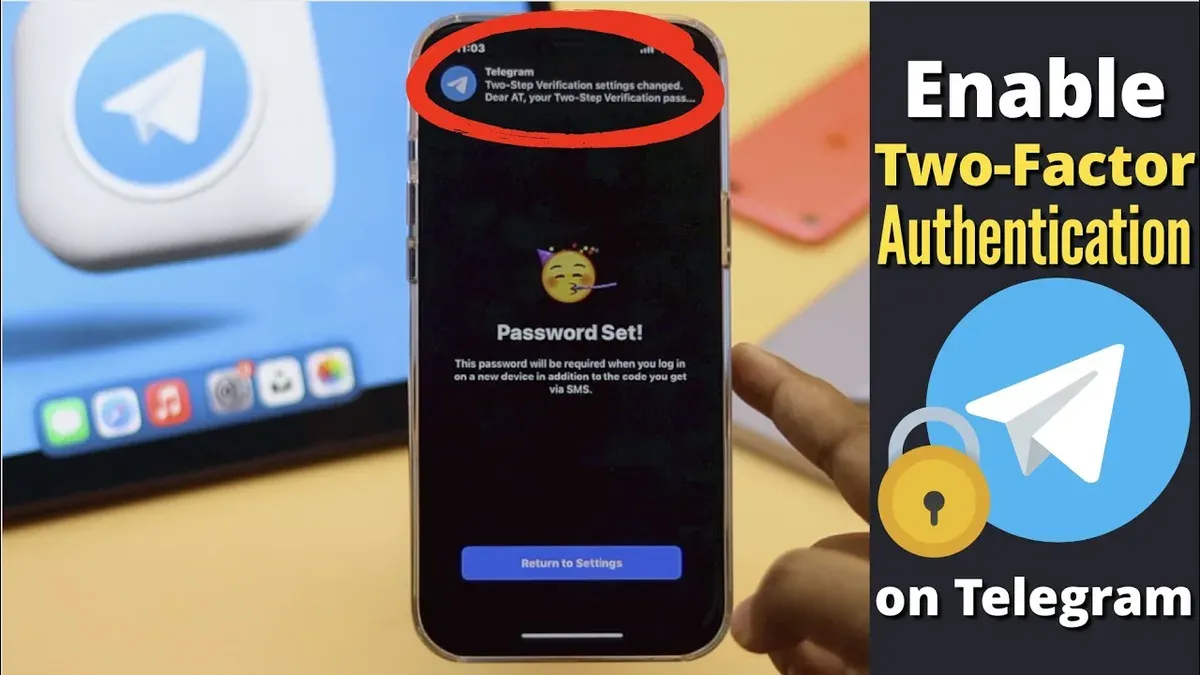
This guide explains how to identify and resolve issues when the Telegram two-factor authentication code is not working. Telegram users often encounter problems receiving or entering the 2FA code, which blocks account access and causes frustration. Common causes include incorrect time settings, outdated app versions, or confusion between the login password and 2FA password. This article lays out a clear troubleshooting path that prioritizes fixes by security and speed, avoiding generic advice that misses Telegram-specific nuances. Following the steps here helps restore access without risking account safety or wasting time on ineffective solutions.
How to Recognize When Telegram Two-Factor Authentication Codes Are Not Working
Telegram two-factor authentication (2FA) code failures show distinct symptoms that differentiate them from other login problems. Users typically encounter codes being rejected despite correct entry, error messages such as "Invalid code" or "Code expired," or receiving no code at all via SMS or the authentication app. These issues often surface during attempts to log in on a new device or after reinstalling the Telegram app.
It is crucial to distinguish 2FA code problems from password errors or app malfunctions. Password errors will prompt messages like "Wrong password," while app errors might cause the login screen to freeze or crash without code-related alerts. Recognizing this difference prevents unnecessary troubleshooting steps.
Common scenarios triggering 2FA code failures include time desynchronization on devices generating codes, network interruptions blocking SMS delivery, and misconfigured authentication apps. These issues can affect a small but notable portion of Telegram users, especially those switching devices or updating apps.
To confirm a 2FA code problem:
- Attempt login on the intended device.
- Enter the received 2FA code carefully.
- If the code is rejected or no code arrives within a few minutes, verify network connectivity and device time settings.
- Check for error messages specifically mentioning code validity.
- If these conditions hold, the issue is with the 2FA code process.
Success is confirmed when the 2FA code is accepted and access to the Telegram account is granted without further code errors. Avoid guessing or bypassing 2FA to maintain account security.
What Causes Telegram Two-Factor Authentication Codes to Fail?
Telegram two-factor authentication (2FA) codes can fail due to several technical and user-related issues. A primary technical cause is time synchronization problems. Telegram's authentication codes are time-sensitive, usually valid for about 30 seconds. If the device generating or receiving the code has a clock that is out of sync with Telegram's servers, the code will be rejected.
Another common cause involves incorrect or outdated contact details linked to the 2FA setup, such as an old phone number or email address. This results in codes being sent to unreachable destinations or not arriving at all. SMS delivery failures also contribute, especially in regions with unstable mobile networks or carrier restrictions. Telegram occasionally experiences server outages or network issues, which can delay or prevent code generation or verification.
User errors play a significant role. Entering codes incorrectly—such as mistyping digits or confusing similar numbers—or waiting too long between receiving and entering the code causes expiration. Using third-party authenticator apps that are not correctly linked or configured can also lead to invalid codes.
Fix for time synchronization issues:
- On the device, ensure the date and time are set to automatic or network-provided.
- Check if the timezone is correctly configured under Settings > Date & Time.
- Restart the device to apply changes.
- Attempt login again using the new code.
The fix works if Telegram accepts the new code without error. If problems persist, checking for server status or updating contact details is advisable.
What Are the Quickest and Safest Ways to Fix Telegram Two-Factor Authentication Code Issues?
Immediate fixes for Telegram 2FA code failures focus on eliminating common, low-risk problems that block code acceptance. Start by ensuring the device's time and date are correctly set, as Telegram codes rely on accurate time syncing. Enabling automatic time synchronization prevents expiration caused by clock discrepancies.
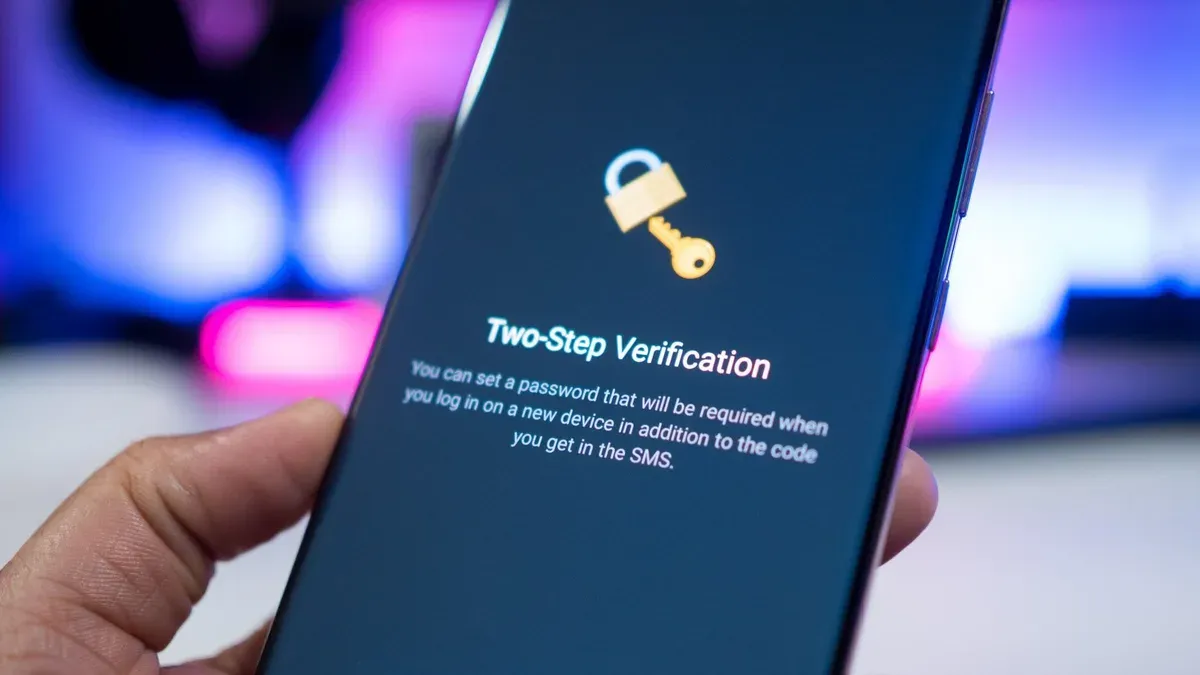
- Open device Settings > Date & Time.
- Enable “Automatic date & time” and “Automatic time zone.”
- Restart Telegram and attempt login again.
Success is signaled by the acceptance of the new code without error.
If time syncing is correct but codes still fail, request a new authentication code from Telegram. Codes typically expire within 60 seconds, so enter them promptly. Delays in entry or network lags can cause rejections.
- Tap “Resend code” on the login screen.
- Enter the code immediately upon receipt.
Successful entry leads to immediate access. Failure here suggests network or app issues.
Next, verify the network connection. Telegram requires stable internet access to communicate with its servers and validate codes. Switching between Wi-Fi and mobile data can resolve hidden connectivity problems.
- Check network status in device Settings or status bar.
- Switch from Wi-Fi to mobile data or vice versa.
- Retry code entry.
If codes still fail, restart the Telegram app to clear temporary glitches. Force-close the app and reopen it, or reboot the device for a fuller reset.
- Close Telegram completely via app switcher.
- Reopen Telegram and repeat login.
- If needed, power off and on the device.
These steps address the majority of 2FA code issues quickly and safely. If codes are accepted after any step, the problem is resolved. Avoid risky actions like resetting passwords or disabling 2FA unless guided by official support.
Tip: Codes expire fast—enter them within 30 seconds for best results.
How to Troubleshoot More Involved Telegram Two-Factor Authentication Problems
When quick fixes fail, deeper troubleshooting steps become necessary to regain access and secure the Telegram account. One effective method is resetting the 2FA password through Telegram’s recovery options, especially if the password was forgotten or compromised. This process requires access to the linked email or phone number configured during 2FA setup.
- Open Telegram and go to the login screen.
- Tap on “Forgot password?” or “Reset two-step verification”.
- Follow prompts to receive a recovery code via the linked email or phone.
- Enter the recovery code and set a new 2FA password.
Success is confirmed when Telegram accepts the new password and grants access without errors.
Updating the linked phone number or email is crucial if those contacts are outdated. This must be done from within Telegram’s settings before losing access, under Settings > Privacy and Security > Two-Step Verification > Recovery Email or Phone.
Clearing app cache or reinstalling Telegram can fix persistent bugs or corrupted files affecting 2FA. To clear cache, navigate to Settings > Data and Storage > Storage Usage > Clear Cache. If problems persist, uninstall the app and reinstall it from the official app store.
Users often find that reinstalling Telegram resolves unexplained 2FA errors; before reinstall, login attempts may fail repeatedly, but after reinstall, authentication proceeds smoothly.
Checking for app updates is essential as Telegram frequently releases patches addressing 2FA bugs. Review the app store for updates and install the latest version to ensure all fixes are applied.
Warning: Avoid third-party tools promising 2FA bypasses or password recovery, as these risk account security and violate Telegram policies.
When Is It Time to Get Professional Help for Telegram 2FA Problems?
Professional help becomes necessary when Telegram two-factor authentication issues persist despite following all recommended troubleshooting steps or when there are signs of account compromise. Indicators of a hacked account include unexpected password or 2FA changes, unknown active sessions visible under Settings > Devices, unauthorized messages sent, or sudden lockout without valid reasons. These signs suggest that the account security has been breached and immediate expert intervention is required to prevent data loss or misuse.
If problems continue after resetting passwords, confirming contact details, reinstalling the app, and ensuring device time is accurate, contacting Telegram support or cybersecurity professionals is advised. Telegram’s official support can be reached through the in-app Settings > Ask a Question or via their verified website contact forms. Response times vary but can take several days depending on the issue severity and volume of requests.
When seeking help, avoid third-party services or unverified contacts to prevent scams. Never share recovery codes, passwords, or 2FA credentials outside official channels. A legitimate support process will never ask for such sensitive information upfront.
Steps to follow when professional help is needed:
- Document all symptoms and prior troubleshooting attempts.
- Access Telegram’s official support via Settings > Ask a Question or their verified website.
- Provide clear details and any evidence of suspicious activity.
- Follow instructions strictly without sharing sensitive codes outside official communication.
- Monitor account activity for confirmation that unauthorized access has ceased.
Success is confirmed when access is restored securely, suspicious sessions are terminated, and no further unauthorized activity occurs.
Frequently asked questions
Why does my Telegram two-factor authentication code say it is invalid?
Invalid codes often result from time desynchronization between the device generating the code and Telegram's servers. Another common cause is entering an outdated or previously used code. Ensure the device’s clock is set to automatic and generate a fresh code before trying again.
How long does a Telegram 2FA code remain valid?
Telegram two-factor authentication codes generated by authenticator apps typically remain valid for about 30 seconds before a new code is generated. Using a code after this window leads to invalid errors, so always use the current code displayed.
Can Telegram 2FA codes be sent via SMS or only the app?
Telegram does not send 2FA codes via SMS; the two-factor authentication password is set by the user and must be entered manually. Telegram’s login codes are sent via SMS or in-app chat but differ from the 2FA password, which is a separate security layer.
What should be done if the phone number linked to Telegram 2FA changes?
If the phone number linked to Telegram changes, the user must update the phone number within the Telegram app settings before losing access. The 2FA password remains the same, but recovery options tied to the old number may no longer work, so ensure all recovery email addresses are current.
What This Advice Does Not Cover
This guide does not cover recovering Telegram accounts when no two-factor authentication recovery options are set up, such as a recovery email or password hint. In these situations, account recovery depends entirely on direct Telegram support, which may offer limited or no resolution. Users locked out without recovery methods should prepare for the possibility of permanent account loss. Additionally, this guide does not address issues related to Telegram account bans or suspensions, which require separate appeal processes.
The most useful next step is to verify that the two-factor authentication password is correctly entered and that any time-based one-time password (TOTP) apps used are synchronized accurately with Telegram's server time. Checking the device’s time settings and ensuring no delays or mismatches often resolves code generation failures quickly and securely.
See also: LinkedIn Two-Factor Authentication Code Not Working: How to Fix It Fast · How to Turn On Two-Factor Authentication on Telegram: Step-by-Step Guide · Instagram Two-Factor Authentication Code Not Working: How to Fix It