What Is T-Mobile Port Out Protection and How Does It Work?
Learn how T-Mobile port out protection prevents unauthorized number transfers and keeps your phone number secure from fraud.

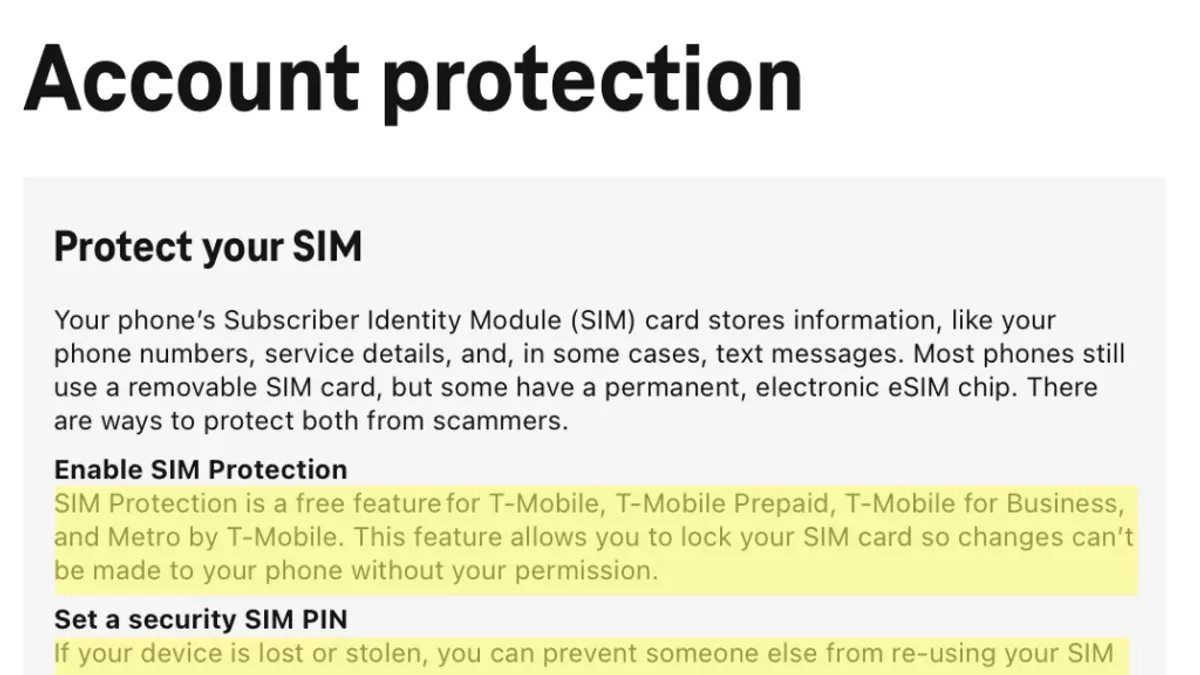
This article explains T-Mobile port out protection, focusing on its practical use and management to prevent unauthorized number porting. T-Mobile port out protection adds a layer of security that restricts attempts to transfer a phone number to another carrier without explicit account holder approval. It helps block fraudulent port-out requests that can lead to identity theft or service disruption.
Understanding how to enable and disable this protection correctly is crucial. Mismanaging the feature can cause inconvenience, such as legitimate porting delays or accidental lockouts. This guide outlines the step-by-step processes to manage port out protection safely and highlights common mistakes to avoid for optimal security and usability.
What is T-Mobile Port Out Protection?
T-Mobile Port Out Protection is a security feature designed to prevent unauthorized transfer of a phone number to another carrier, commonly known as number porting fraud. This type of fraud occurs when someone illegitimately ports a customer’s number to a different provider without permission, potentially leading to loss of service, identity theft, or unauthorized access to accounts that use the phone number for verification.
Number porting fraud has been a growing concern across the telecommunications industry, prompting carriers like T-Mobile to implement protective measures. Port Out Protection acts as a barrier by requiring additional verification steps before a port request can be processed. Without this protection enabled, a malicious actor who has gathered basic account information might successfully transfer the number away from the original account holder.
For example, if an unauthorized person attempts to port a T-Mobile number to another carrier, the port out protection setting will block the transfer or prompt for a unique PIN or password. This extra layer of security fits into T-Mobile’s broader strategy to combat fraud, which includes account verification protocols and alerts for suspicious activity. It helps maintain control over the phone number and secures the customer’s access to services linked to that number.
What Does T-Mobile Port Out Protection Do?
T-Mobile Port Out Protection acts as a gatekeeper by intercepting any request to transfer a phone number to a new carrier. When enabled, it requires additional verification steps beyond the standard porting process, such as a passcode or confirmation from the account holder before approving the request. This extra layer aims to prevent unauthorized port outs initiated by fraudsters who have acquired basic account information but lack full access.
The protection primarily blocks unauthorized porting attempts that rely on identity theft or social engineering, catching suspicious activity before the number moves away. However, it does not protect against other forms of account compromise, such as SIM swaps or device theft, which require separate security measures like device protection or multi-factor authentication.
For example, without Port Out Protection, a fraudster with a stolen Social Security number and basic account details might successfully port the number to another carrier. With Port Out Protection active, the porting request triggers a verification step that the fraudster cannot complete, preventing the transfer and securing the phone number.
Compared to accounts without this protection, users have a significantly reduced risk of losing control of their phone number through unauthorized porting. However, the feature is only effective when properly enabled and managed alongside other T-Mobile security options.
How Does T-Mobile Port Out Protection Work?
When a port out request is initiated on a T-Mobile number protected by Port Out Protection, the system triggers multiple verification steps before allowing the transfer. First, the request is flagged by the network as requiring additional authentication. T-Mobile then sends a notification to the account holder, typically via text message or email, alerting them of the port out attempt.
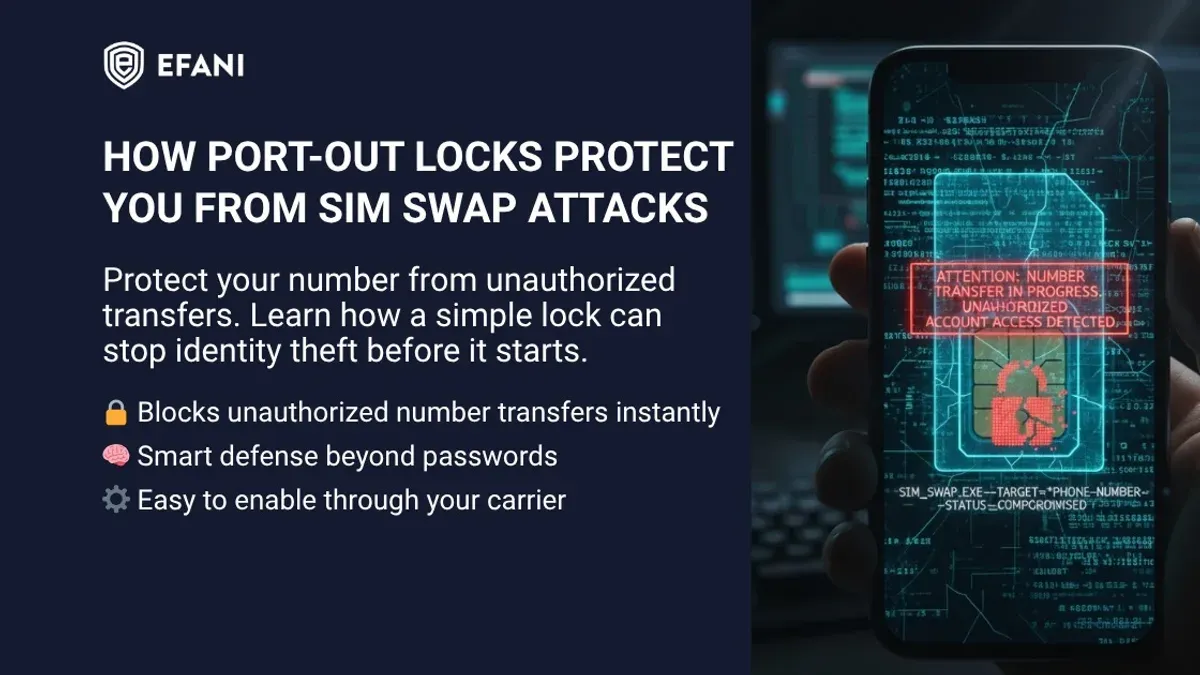
The customer must confirm the legitimacy of the request by responding through a secured channel, often by entering a verification code sent to their registered contact method. If the customer does not verify or denies the request, the port out is blocked automatically. This two-factor interaction ensures that only authorized port out requests proceed.
For example, if a customer attempts to port their number to a new carrier, after submitting the port out request through the new carrier, T-Mobile intercepts the request. The customer receives a text with a unique code and a prompt to confirm or reject the port out. Only upon successful confirmation does T-Mobile release the number for transfer.
This process balances security and user control, preventing unauthorized transfers without unduly delaying legitimate port outs. The system also logs each attempt and verification attempt for security auditing.
Does T-Mobile Offer Device Protection Alongside Port Out Protection?
T-Mobile provides separate device protection plans that cover physical damage, loss, or theft of smartphones, which are distinct from port out protection. While port out protection focuses solely on preventing unauthorized phone number transfers, device protection plans like Protection360 and Premium Handset Protection safeguard the actual device against accidental damage and other risks.
For example, a T-Mobile customer using Protection360 can get repair or replacement services if their phone screen cracks or the device is stolen. This plan typically includes features such as same-day replacement and technical support, which port out protection does not provide. Conversely, port out protection works by locking the phone number from being ported out without explicit verification, offering a layer of security for the account itself rather than the device.
Both protections address different vulnerabilities and can work together for comprehensive security. A customer who only has port out protection remains exposed to device loss or damage, while one with only device protection risks unauthorized number transfers. Using both ensures the phone number and the physical device are protected.
| Service | Purpose | Key Features |
|---|---|---|
| Port Out Protection | Prevent unauthorized phone number porting | Verification steps, notifications, confirmation codes |
| Protection360 | Device insurance for damage, loss, theft | Same-day replacement, repair coverage, tech support |
| Premium Handset Protection | Enhanced device coverage with additional benefits | Extended warranty, loss/theft protection, priority service |
Tip: Activate port out protection for account security and enroll in a device protection plan to cover physical risks; managing both reduces overall vulnerability.
How to Turn Off Port Out Protection at T-Mobile
Disabling port out protection requires deliberate action due to the security risks involved. If a customer wants to turn off this feature—perhaps for troubleshooting or because they plan to port their number temporarily—T-Mobile offers multiple methods to do so.
Via the T-Mobile App
- Open the T-Mobile app and log into the account.
- Navigate to the "Profile" tab and select "Settings."
- Scroll down to "Port Out Protection" under the security settings.
- Toggle the switch to disable the feature.
- Confirm the action by entering the account PIN or verification code sent via SMS.
Example: After toggling off port out protection, the app will display a confirmation screen stating "Port Out Protection Disabled," signaling that the account is now vulnerable to porting requests without extra verification.
Via T-Mobile Online Account
- Log in at my.t-mobile.com.
- Go to "Profile Settings" and find the "Security" section.
- Click "Manage Port Out Protection."
- Uncheck or disable the port out protection option.
- Submit the changes and verify identity using security questions or a code sent to the mobile number.
Contacting Customer Service
Call T-Mobile customer service at 611 from a T-Mobile phone or 1-877-746-0909. Request to disable port out protection. The representative will verify the account holder’s identity before processing the request. This method is recommended if app or web access is not available.
Security Risks: Disabling port out protection removes an important layer of defense against unauthorized number transfers. Without it, the account is more susceptible to SIM swap fraud and port-out scams, potentially leading to loss of phone number control and access to sensitive accounts linked to that number.
Tip: Only disable port out protection temporarily and re-enable it immediately after completing necessary tasks to minimize exposure to fraud.
Common Mistakes to Avoid When Managing T-Mobile Port Out Protection
One frequent mistake is disabling port out protection without fully understanding its security implications. Users sometimes turn it off to simplify number transfers or troubleshooting, unaware that this leaves their number vulnerable to unauthorized porting. For example, a user on Reddit reported disabling the feature to transfer their number, only to have their account targeted by port-out fraud shortly after because the protection was off.
Another common error is failing to properly verify identity during the enabling or disabling process. T-Mobile requires accurate verification through the app, website, or customer service, including correct answers to security questions or possession of registered devices. Users who provide incomplete or incorrect information often experience delays or failed changes, increasing frustration and sometimes leading to disabling the feature prematurely.
Ignoring notifications related to port out attempts is also a critical pitfall. T-Mobile sends alerts when a port out request is initiated, and neglecting these can result in missed opportunities to stop fraudulent activity early. Official T-Mobile support data highlights that customers who promptly respond to such alerts can prevent most unauthorized port-outs.
Tip: Always double-check identity verification steps and respond immediately to port out notifications to maintain account security.
How to Remove or Disable T-Mobile Port Out Protection Safely
Removing or disabling T-Mobile Port Out Protection requires deliberate steps to avoid exposing the account to unauthorized porting risks. There is a key difference between temporarily disabling the feature and permanently removing it: temporary disabling allows quick reactivation without losing verification settings, while permanent removal requires reconfiguring protections from scratch if re-enabled later.
To safely disable port out protection, start by logging into the T-Mobile app or website and navigating to Profile > Privacy & Security > Port Out Protection. Select the option to temporarily disable the feature and confirm your identity using multi-factor authentication, such as a verification code sent via SMS or email. This step ensures only the authorized user can make changes.
After disabling, immediately review account security settings, updating passwords and enabling two-factor authentication if not already active. Monitor port out alerts closely during this period to respond swiftly to any suspicious activity.
For example, a customer recently contacted T-Mobile customer support to temporarily disable port out protection while switching devices. The representative verified the customer's identity through account PIN and security questions, disabled the protection, and advised the customer to re-enable it once the device change was complete. The customer followed up by reactivating port out protection in the app under the same menu, restoring full security without loss of preferences.
Tip: Always keep contact information current in your T-Mobile profile to ensure verification codes reach you without delay during port out protection changes.
Managing Port Out Protection Through the T-Mobile App
The T-Mobile app offers a streamlined interface to manage port out protection settings directly from a mobile device. Accessing these settings involves navigating to the Profile tab, selecting Settings & Preferences, and then tapping Security. Within this section, the Port Out Protection toggle allows for quick enabling or disabling of the feature. The app provides clear status indicators, showing whether the protection is active or inactive, which helps avoid confusion.
Using the app for port out protection management reduces dependence on customer service calls or desktop login, enabling immediate control and real-time updates. For example, if a customer suspects unauthorized activity, they can instantly activate port out protection without delay. The app also sends push notifications for related alerts, enhancing awareness and security responsiveness.
Common app issues include delayed status updates or failed toggle changes, often resolved by ensuring the app is up to date and the device has a stable internet connection. If toggling port out protection does not reflect immediately, logging out and back in or reinstalling the app typically resolves the problem. The app’s help section offers step-by-step troubleshooting guides for these scenarios.
Example: A user opens the app, accesses Profile > Settings & Preferences > Security, and finds the port out protection toggle off. They switch it on, receive a confirmation pop-up, and the status updates to active. Shortly after, a push notification confirms the change, providing peace of mind that their number cannot be ported without additional verification.
Frequently asked questions
What is t mobile port out protection?
T-Mobile Port Out Protection is a security feature that prevents unauthorized transfers of a phone number to another carrier. It adds a layer of verification before a port out request can be processed, helping to protect accounts from fraudulent number porting.
What does t mobile port out protection do?
This protection blocks port out requests unless the account holder completes additional verification steps. It stops scammers from hijacking phone numbers by requiring confirmation before the number can be transferred to another service provider.
How does t mobile port out protection work?
Port Out Protection requires the account holder to authorize port out requests either through their T-Mobile profile online, via customer service, or through the T-Mobile app. Without this authorization, port out attempts are automatically denied, securing the number against unauthorized transfers.
Does t mobile offer device protection?
Yes, T-Mobile offers device protection plans that cover repairs, replacements, and theft or loss for eligible devices. These plans are separate from Port Out Protection and can be managed via the T-Mobile app or website.
What is port out protection t-mobile?
Port Out Protection on T-Mobile is a service that requires explicit confirmation before a phone number can be ported out to another carrier. It acts as a safeguard against unauthorized porting, which is a common tactic used in phone number fraud.
What This Advice Does Not Cover
This guide focuses solely on protecting against unauthorized phone number porting through T-Mobile's port out protection feature. It does not address other account takeover tactics such as phishing, SIM swapping, or password breaches. Strong overall account security practices, including using a complex password, enabling two-factor authentication, and monitoring account activity, remain essential and should be maintained independently of port out protection.
The single most practical next step is to verify the current status of port out protection on the T-Mobile account by navigating to the T-Mobile app's “Profile & Settings” section, selecting “Account Security,” and confirming that “Port Out Protection” is enabled. This immediate check ensures the feature is active, preventing unauthorized porting attempts before they occur and minimizing the risk of number theft.
See also: How to Use Signal Privacy Settings to Secure Your Conversations · How to Manage Messenger Privacy Settings for Secure Messaging · How to Manage Quora Privacy Settings for Safe and Smart Use · How to Manage and Secure Pinterest Privacy Settings Effectively