Switching from Canva for Education to Google Sites: Your Expert Transition Guide
Discover expert tips for switching from Canva for Education to Google Sites to improve collaboration and streamline your educational content.

Short answer: Switching from Canva for Education to Google Sites involves a strategic shift from a graphic design-focused platform to a web publishing tool better suited for building structured, collaborative educational websites. This transition requires careful planning to preserve your existing content and workflows while adapting to Google Sites' unique features and limitations.
This article covers why moving to Google Sites aligns better with educational goals like streamlined collaboration, easy content updates, and integration with Google Workspace. You will learn how to prepare your Canva projects for migration, practical steps to build your initial Google Site, ways to manage collaboration and sharing, common pitfalls to avoid, and strategies for ongoing maintenance and training to ensure a smooth, confident transition.
Understand the Core Differences Between Canva for Education and Google Sites
Canva for Education centers on design and visual content creation, offering educators and students a rich library of templates for presentations, posters, infographics, and worksheets. Its interface prioritizes drag-and-drop ease, enabling users to produce polished, graphic-heavy materials quickly. However, Canva functions primarily as a design tool rather than a platform for hosting or publishing content.
Google Sites, by contrast, is a web publishing platform focused on organizing, collaborating, and sharing information within the Google Workspace ecosystem. It integrates tightly with tools like Google Drive, Docs, Sheets, and Slides, allowing seamless embedding and real-time collaboration. This makes Google Sites ideal for creating class websites, portfolios, project hubs, and resource repositories accessible to students and staff.
| Feature | Canva for Education | Google Sites |
|---|---|---|
| Primary Purpose | Design and create visual content | Build and publish websites |
| Collaboration | Limited to design editing | Real-time multi-user editing and commenting |
| Integration | Limited external integrations | Deep integration with Google Workspace (Drive, Docs, Sheets) |
| Content Hosting | Exports files, no native hosting | Native web hosting with live updates |
| Typical Educational Use | Creating lesson visuals, presentations, posters | Hosting class websites, portfolios, collaborative projects |
For example, if you want to produce a visually compelling lesson poster or infographic, Canva excels with preset layouts and design assets. But if you aim to create a dynamic class website that updates with student projects stored in Drive and allows ongoing collaboration, Google Sites is the natural choice. Understanding these core differences will help you align your platform choice with your educational goals and workflow needs.
Assess Why Switching to Google Sites Matters for Your Educational Goals
Switching to Google Sites offers a strategic advantage if your educational priorities emphasize seamless integration with Google Workspace tools like Google Drive, Docs, and Calendar. This integration supports real-time collaboration, allowing multiple educators and students to simultaneously update content, which is crucial for dynamic curriculum development and project-based learning.
However, Google Sites provides less design flexibility compared to Canva for Education and lacks an extensive library of built-in creative assets. If your focus is on highly polished visual presentations or graphic-rich assignments, this limitation might affect your workflow.
Consider the example of Lincoln Middle School, which transitioned to Google Sites to create centralized resource hubs and student portfolios. Educators reported that the ease of publishing site-wide updates and embedding Google Forms for assessments significantly improved communication and student engagement across departments.
Ultimately, Google Sites is well-suited for schools aiming to build collaborative, accessible digital spaces that align with curriculum goals involving ongoing content updates and interactive elements, even if it requires adapting to a more streamlined design environment.
Prepare Your Canva Content for Migration
Begin by auditing your Canva projects to determine which assets are essential for your Google Sites transition. Focus on relevance—remove outdated or duplicated designs to streamline your migration. Use the Canva homepage to locate all projects, and sort by last modified date to prioritize recent work.
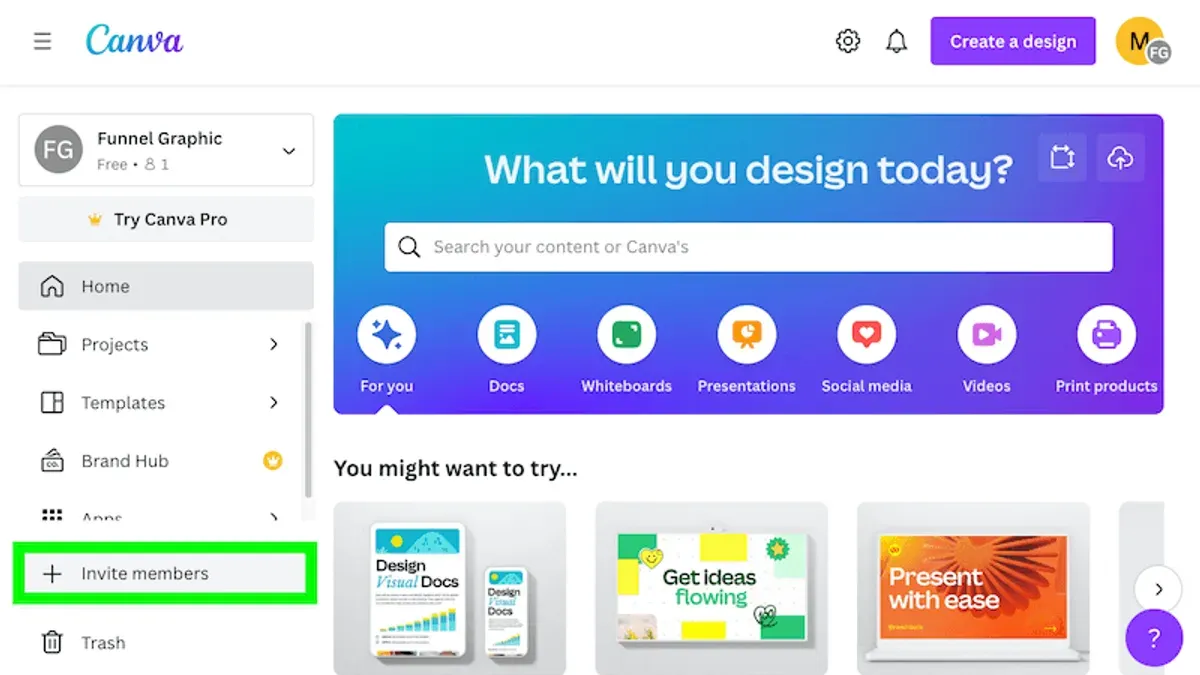
Export assets that retain quality and usability outside Canva, such as images (PNG or JPG), PDFs, and presentations (PDF or PPTX). Note that interactive elements, animations, and editable Canva templates cannot be directly exported and must be recreated in Google Sites.
To export, open a Canva project, click the Share button, select Download, choose your file type (e.g., PNG for images, PDF Standard for documents), and click Download. Repeat for each critical asset.
Organize exports into clearly labeled folders (e.g., "Lesson Plans Images," "Student Projects PDFs") to match your planned Google Sites structure. This organization simplifies uploading and site building. For example, if your Google Site will have pages by subject, sort exports accordingly to align content placement.
- Audit projects for relevance and duplication
- Export images as PNG or JPG, documents as PDF or PPTX
- Note unsupported Canva features requiring manual rebuild
- Organize files by intended Google Sites page or topic
Build Your First Google Site: Practical Steps and Tips
Start by visiting sites.google.com and clicking + New Google Site at the top-left corner. Choose a template that suits your educational purpose—Portfolio for student showcases or Project for collaborative assignments work well. Name your site clearly to reflect its content, such as "Science Class Resources."
Add pages via the Pages tab on the right sidebar. Structure your site logically with sections like Lessons, Assignments, and Resources to help students navigate intuitively.
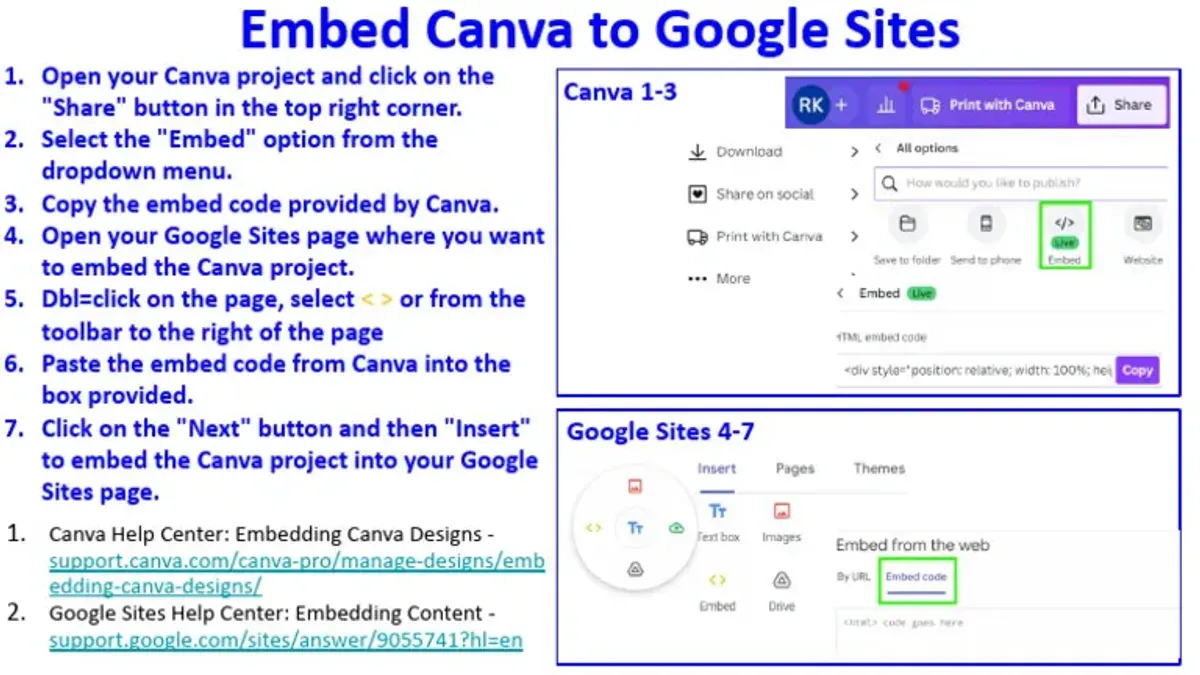
Embed your exported Canva content by inserting images or PDFs using the Insert > Images or Embed > Upload options. Integrate Google Workspace tools by adding Docs, Slides, or Forms directly through Insert > Drive, maintaining continuity while leveraging collaboration features.
Design for accessibility: use clear headings, contrasting colors, and alt text for images. Enable the Navigation Menu to be fixed for easy access. Keep page layouts uncluttered—side-by-side text and visuals work well, like a lesson summary next to an embedded slide deck.
For example, a Math Homework page can have a linked Google Form for submission, an embedded Canva infographic on problem-solving steps, and a Google Doc with additional practice problems—all seamlessly integrated.
- Create your site from sites.google.com with a relevant template
- Add structured pages reflecting your educational content
- Embed exported Canva assets as images or PDFs
- Insert Google Docs, Slides, and Forms for interactive learning
- Apply accessibility principles: headings, alt text, fixed navigation
- Use clear, balanced layouts to engage students effectively
Manage Collaboration and Sharing in Google Sites
Google Sites offers granular control over collaboration through its permissions settings accessible via the Share with others button. You can assign roles such as Viewer, Commenter, or Editor to individuals or groups, controlling who can edit content or simply view it. Unlike Canva for Education, where collaboration centers on design editing within projects, Google Sites supports simultaneous co-editing of entire pages and integrated Google Workspace files, enhancing real-time teamwork.
To manage student contributions, assign them Editor access to specific site pages or embed Google Forms and Docs for feedback and submissions. For example, you might grant students editor permissions only on a “Project Gallery” page while restricting other sections to teachers. This preserves content integrity while encouraging student engagement.
Below is a comparison of collaboration features to clarify workflow differences:
| Feature | Canva for Education | Google Sites |
|---|---|---|
| Role-based Permissions | Design Editor, Viewer | Viewer, Commenter, Editor (page/site level) |
| Real-time Co-editing | Yes, on designs | Yes, on site pages and embedded Docs/Slides |
| Student Feedback | Comments on designs | Comments on embedded Docs, Forms integration |
| Version History | Design versioning | Full site and document version history |
Imagine a scenario where you’re preparing a collaborative class project site. You assign students Editor role on a dedicated page to add their work using embedded Google Docs. Meanwhile, you keep the homepage restricted to Editors only among staff to maintain control over overall site structure. This workflow supports both collaborative creation and administrative oversight, a balance less flexible in Canva’s design-focused environment.
- Use Share with others to set precise permission roles for users or groups
- Assign Editor access selectively to control student content input
- Embed Google Docs, Slides, and Forms to collect feedback and enable collaboration
- Monitor version history via the Page history menu for accountability
- Communicate clear guidelines on editing boundaries to students and staff
Avoid Common Mistakes When Transitioning from Canva to Google Sites
One frequent error is underestimating the time needed to reformat content for Google Sites’ page and navigation structure. Canva’s design freedom doesn’t translate directly to Sites, which requires more linear, user-friendly layouts. For example, attempting to recreate a multi-layered infographic as a single Google Sites page can lead to clutter and confusing navigation.
Another pitfall is trying to exactly replicate Canva’s visual style. Google Sites prioritizes functionality and accessibility over complex design. Instead of forcing Canva’s vibrant, freeform graphics into Sites, focus on clear headings, embedded documents, and intuitive menus that enhance learning and usability.
Be vigilant about permissions. Setting your Google Site’s sharing to “Anyone with the link can edit” risks unauthorized changes or broken links. Experienced educators recommend assigning specific editor roles through Google Sites’ "Share with people and groups" menu and regularly reviewing access under "Manage site settings" to maintain content integrity.
- Allocate ample time for redesigning content to fit Google Sites’ structure.
- Prioritize functionality and accessibility over duplicating Canva’s visuals.
- Set precise sharing permissions and review them frequently to avoid unauthorized edits.
Plan Ongoing Maintenance and Training for Your Google Sites Environment
Maintaining your Google Sites environment ensures it remains a reliable, up-to-date resource for your educational community. Start by scheduling quarterly site audits where you review page content accuracy, check embedded links, and verify permissions under Share with others settings to prevent access creep.
Provide structured training for teachers and students using Google's official resources, such as the Google Sites Help Center and Google for Education Teacher Center. Encourage hands-on workshops to familiarize users with site editing, embedding documents, and collaboration features.
For ongoing support, leverage Google Workspace’s admin console for user management and use community forums like the Google Sites Community to troubleshoot and share best practices. For example, a technology coordinator might set reminders for site reviews every three months and organize biannual training sessions aligned with new school terms.
- Review site content and links quarterly
- Verify and adjust sharing permissions regularly
- Schedule biannual training using Google’s official tutorials
- Monitor user feedback and questions via community forums
- Use Google Workspace Admin Console for user and site settings management
Read next
- Switching from Canva for Education to Book Creator: Your Expert Transition Guide
- Switching from Canva for Education to Adobe Express: Your Expert Guide
- Switching from Book Creator to Google Sites: A Complete How-To Guide
- How to Switch from Adobe Express to Google Sites: A Clear Expert Guide
Frequently asked questions
Can I import Canva designs directly into Google Sites?
Google Sites does not support direct import of Canva files. To transfer your designs, export them from Canva as image files (PNG or JPEG) or PDFs, then upload these assets into Google Sites. This preserves visual elements but requires manual reassembly of interactive or layered content.
What are the best Google Sites templates for educational purposes?
Google Sites offers templates like "Classroom," "Project Portfolio," and "Event" that suit educational needs. The "Classroom" template is ideal for lesson plans and resource sharing, while "Project Portfolio" works well for student showcases. Customize these templates by adding sections for assignments, calendars, and embedded Google Docs to match your specific workflow.
How do I maintain student privacy when sharing Google Sites projects?
Control privacy through Google Sites’ sharing settings under "Share with others." Restrict access to specific people or groups by entering their email addresses, and avoid setting the site to public or anyone with the link. For added security, disable options like "Allow viewers to download files" and regularly review permissions in the site's settings panel.
What are the key differences in collaboration between Canva for Education and Google Sites?
Canva for Education emphasizes real-time design collaboration with multiple editors working simultaneously on visual projects. Google Sites focuses more on structured content collaboration, with version history and commenting features tied closely to Google Workspace permissions. Unlike Canva, Google Sites requires more upfront planning for content organization but offers stronger integration with Google Docs, Sheets, and Drive for ongoing teamwork.
What this advice does not cover
This guide does not cover switching from Canva for Education to Google Sites if your primary need is advanced graphic design or animation, as Google Sites is focused on website creation rather than design flexibility. If your work heavily relies on complex visual content or multimedia animations, consider maintaining Canva or exploring specialized tools alongside Google Sites for web presence.
Quick checklist
- Review Canva projects and export all essential files (images, PDFs, text) via the Download menu.
- Map out your site structure in Google Sites before building to preserve workflow clarity.
- Use Google Drive to organize all exported assets for easy access during site construction.
- Set precise sharing permissions in Google Sites under the "Share with others" option to control collaboration.
- Create a training schedule for staff and students covering Google Sites basics and content updates.
- Regularly back up your Google Sites content using Google Takeout or manual exports.
- Monitor site access and update permissions quarterly to maintain security and relevance.
The single most useful next step is to start by exporting your Canva content and organizing it within Google Drive. This foundational task ensures you retain control over your materials and provides a clear starting point for building your Google Site with confidence and precision.