Switching from Canva for Education to Loom: Your Expert Transition Guide
Learn how to switch from Canva for Education to Loom and enhance your classroom with dynamic video communication and interactive lessons.

Short answer: Switching from Canva for Education to Loom means moving from a design-focused platform to a video communication tool that enhances classroom engagement through recorded lessons, feedback, and presentations. This shift requires adapting your workflow to prioritize video creation and interactive communication over static visuals.
This guide covers the key differences between Canva for Education and Loom, practical steps for using both platforms effectively before and after your transition, and strategies to manage your classroom settings in each. You'll also find common pitfalls to avoid and tips for integrating Loom with Canva and other tools to maintain a flexible, hybrid workflow that supports diverse teaching needs.
Understand the core differences between Canva for Education and Loom
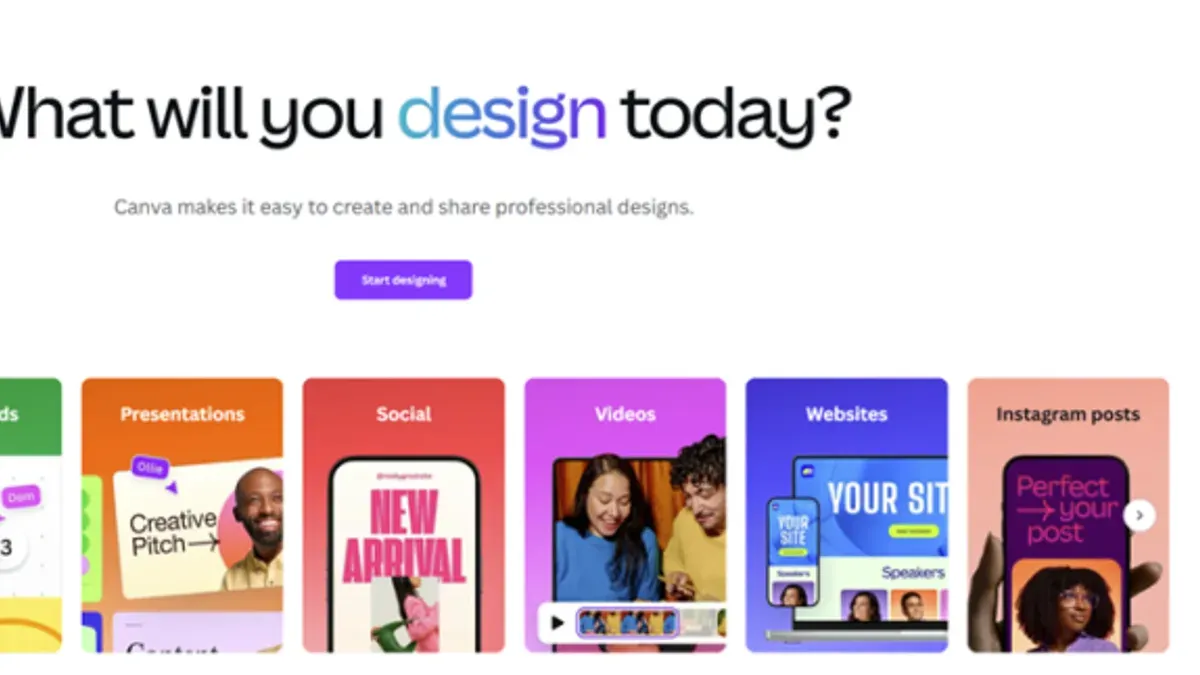
Canva for Education is designed primarily for graphic design, collaborative projects, and classroom management. It offers templates, drag-and-drop design tools, and shared folders to help you create posters, presentations, and infographics collaboratively with students. The platform emphasizes visual creativity and structured project workflows.
Loom, by contrast, centers on video creation, screen recording, and asynchronous communication. It enables you to record your screen, webcam, or both simultaneously, making it ideal for delivering personalized explanations, walkthroughs, and feedback outside of live sessions. Loom’s strength lies in enhancing verbal and visual communication through recorded content.
| Feature | Canva for Education | Loom |
|---|---|---|
| Primary Function | Graphic design and collaboration | Video recording and communication |
| Classroom Management | Project assignment, shared folders | Video sharing with links, viewer analytics |
| Content Type | Static and animated visuals | Dynamic video content |
| Student Engagement | Co-creation and visual projects | Interactive video explanations and feedback |
For example, if you previously assigned students to create a group infographic in Canva, switching to Loom means shifting to tasks like recording a video presentation or providing verbal feedback on student work asynchronously. This requires rethinking how you plan lessons and engage students, moving from collaborative graphic production to dynamic video communication.
How to use Canva for teachers effectively before switching
Canva for Education offers a robust platform to create and share engaging designs and presentations tailored for classroom use. To start, you typically set up a classroom by navigating to Classrooms & Teams in the left sidebar and selecting Create a Classroom. Here, you add students via email, enabling collaborative access to projects and resources.
Once your classroom is established, you can create lesson materials by choosing templates under Create a Design. For example, a teacher might prepare a slide deck on a science topic and share it directly with students by clicking Share and selecting Classroom to assign it as an editable or view-only resource.
Managing classroom content is streamlined through the Classroom Settings, where you can edit rules, update access permissions, and organize student submissions. Collaborative editing is a key feature; multiple students can contribute to a poster or presentation simultaneously, visible in real time.
For maximizing Canva’s educational tools, use the Comments feature to provide feedback on student work, and leverage the Folders section to keep projects organized by topic or date. A common oversight is neglecting to adjust sharing settings, which can restrict student access unintentionally.
- Go to Classrooms & Teams > Create a Classroom to set up your class
- Add students via email to enable collaboration
- Create lesson materials using Create a Design and share directly with the classroom
- Use Classroom Settings to manage access and edit rules
- Enable collaborative editing and use comments for feedback
- Organize materials in folders and review sharing permissions
How to use Loom for teachers: setting up and engaging your classroom
Start by creating a Loom account at loom.com using your school email to access Loom’s free plan, which provides essential video recording tools suitable for educators and students. The free plan includes up to 25 videos per person, with a maximum recording length of 5 minutes per video. For longer lessons or more storage, consider upgrading to a paid plan.
To record a lesson, open Loom’s desktop app or browser extension, select "Screen + Cam" to capture your screen and webcam simultaneously, ideal for walkthroughs or presentations. For example, you might record a math tutorial explaining problem-solving steps while showing your screen. Click "Start Recording," and when finished, click "Stop." Loom automatically uploads your video to your library.
Share videos by copying the unique URL and sending it via email or your learning management system (LMS). You can also embed videos directly into platforms like Google Classroom or Canvas using Loom's embed code, making access seamless for students. This method replaces static Canva visuals with dynamic, narrated content.
- Create a Loom account with your school email
- Choose free or paid plan based on your video length needs
- Use "Screen + Cam" mode to record lessons
- Share video links or embed in your LMS
- Use Loom videos to supplement or replace Canva materials
How to create and manage a classroom on Canva versus Loom
In Canva for Education, creating a classroom is straightforward: navigate to the "Classrooms" tab, select "Create a Classroom," then name it and invite students via email or a join link. You can organize assignments within each classroom, control sharing permissions, and monitor student submissions in one centralized place. This setup supports collaborative design work with clear content organization and access control, which is essential for managing class projects.
Loom, by contrast, lacks a dedicated classroom management feature. Instead, you manage students and assignments by creating shared folders or teams within your organization’s Loom workspace. You must manually share video links or folders with students, as there is no direct assignment tracker or submission portal. A common workaround is using LMS integrations or email to distribute videos and collect responses.
For example, if you switch from assigning a design project in Canva to a video presentation in Loom, maintain engagement by setting clear video tasks with deadlines and follow-up discussions. Use Loom’s timestamped comments to simulate interactive feedback. Some educators report that managing access can be cumbersome without native classroom tools, so pairing Loom with an LMS or a shared document for tracking works best.
- Create and name classrooms in Canva via the "Classrooms" tab
- Invite students using email or join links in Canva
- Organize assignments and monitor submissions centrally in Canva
- Use Loom shared folders or teams to organize content
- Distribute Loom videos through LMS or email for assignment delivery
- Leverage Loom’s timestamped comments to engage students
Common mistakes to avoid when switching from Canva for Education to Loom
One frequent mistake is expecting Loom to fully replace Canva’s design features. Loom excels in video communication but lacks Canva’s extensive graphic templates and drag-and-drop design tools. For example, an educator who tried to replicate Canva’s interactive posters with Loom videos found the results less engaging and visually limited, causing student interest to drop.
Another pitfall is underestimating the learning curve associated with video creation and editing on Loom. Teachers new to recording might struggle with framing, audio quality, or editing clips, leading to lower-quality lessons that fail to engage students effectively.
Failing to clearly communicate the transition to students and parents often causes confusion. Without announcements via email or LMS notifications explaining the new format and expectations, many parents reported difficulty accessing assignments or understanding how to support their children.
Lastly, neglecting to integrate Loom videos into lesson plans systematically can reduce their impact. Simply replacing static Canva content with standalone videos, without embedding them in activities or discussions, risks losing student engagement and learning outcomes.
- Do not expect Loom to replace all Canva design capabilities.
- Prepare for the video creation learning curve with practice and tutorials.
- Communicate changes clearly to students and parents through multiple channels.
- Embed Loom videos thoughtfully within your lesson plans to maintain engagement.
Integrating Loom with Canva and other tools for a hybrid workflow
Combining Canva's design capabilities with Loom's video communication creates a powerful hybrid workflow that leverages the strengths of both platforms. For example, you can create custom visuals, infographics, or slides in Canva and then embed those images directly into your Loom videos to illustrate key points. This approach enriches your lessons by pairing dynamic visuals with your verbal explanations, making content more engaging and accessible.

While Loomly, a social media scheduling tool, integrates with Canva for design creation, it does not offer direct integration with Loom. Therefore, your best option is to import Canva exports manually into Loom or your learning management system (LMS). Consider exporting Canva designs as high-resolution PNG or PDF files and then uploading them to Loom’s video editor or sharing them as downloadable resources alongside your videos.
For instance, in a science lesson about the water cycle, you might design detailed diagrams in Canva, export them as images, and then reference these visuals while narrating and demonstrating processes in Loom videos. This method supports diverse learning styles and maintains a consistent visual identity without abandoning Canva entirely.
Maintain Canva alongside Loom when your lessons require intricate graphic design or collaborative visual projects that Loom cannot replicate. Use Loom primarily for explanations, demonstrations, and personalized video feedback, while Canva handles static or interactive visual content.
- Create visuals in Canva and export as PNG or PDF files
- Upload exported visuals to Loom when recording or editing videos
- Use Loom videos to narrate and explain Canva visuals for clarity
- Integrate both platforms through your LMS or shared drives for seamless access
- Continue using Canva for collaborative design tasks alongside Loom’s video features
Read next
- Switching from Canva for Education to Google Sites: Your Expert Transition Guide
- Switching from Canva for Education to Book Creator: Your Expert Transition Guide
- Switching from Canva for Education to Adobe Express: Your Expert Guide
- Moving from Book Creator to Loom: Your Expert Checklist for a Smooth Transition
Frequently asked questions
Can canva teachers share their designs?
Yes, Canva teachers can share their designs directly through the platform by clicking the Share button and choosing to send via email, link, or invite collaborators with editing or viewing permissions. They can also download designs in various formats like PNG, PDF, or MP4 to share outside Canva.
Does loomly integrate with canva?
Loomly does not offer a direct integration with Canva. However, you can export your Canva designs and upload them manually into Loomly for scheduling and social media management, enabling a complementary workflow between the two tools.
How to create a classroom on canva?
To create a classroom on Canva, go to the Education tab and select Create a Classroom. Enter a class name, invite students via email or class code, and set permissions. This allows you to organize assignments and share templates with your students efficiently.
How to edit classroom rules in canva?
Editing classroom rules in Canva requires accessing the Classroom Settings from the Education dashboard. There, you can modify guidelines such as collaboration permissions and submission deadlines under the Rules or Settings section, ensuring your class policies are clear and up to date.
How to use canva education?
Canva for Education is used by signing up with a school email to access free premium features tailored for teaching. You can create lesson plans, presentations, and assignments using ready-made templates, share resources with students, and collaborate in real time to enhance classroom engagement.
What this guide does not cover
This guide does not cover advanced video editing features outside of Loom’s native capabilities; educators needing sophisticated video production may require additional tools. Loom’s classroom management features are limited compared to Canva for Education; schools with complex LMS needs may need supplementary software. If your institution relies heavily on detailed assignment tracking or grading workflows, consider integrating Loom with your existing LMS rather than replacing it entirely.
Quick checklist
- Review your current Canva classroom setup and export any essential assets.
- Create a Loom account using your school email and explore the dashboard.
- Set up your first Loom video, adjusting settings for recording quality and privacy.
- Invite students to your Loom classroom by sharing the unique class link.
- Plan your video communication strategy to complement or replace static Canva designs.
- Test integrating Loom videos into your existing Canva projects or other platforms.
- Train colleagues or students on the new tools and workflows.
The most useful next step is to record a short introduction video on Loom for your classroom, focusing on engaging students with clear expectations and how they can interact with your video content. This initial recording sets the tone for effective communication and helps you gain familiarity with Loom’s core features quickly.