How to Handle Plagiarism Concerns in Blackboard: A Clear Step-by-Step Guide
This guide explains how to handle plagiarism concerns in Blackboard with practical steps for detection, review, and fair management.

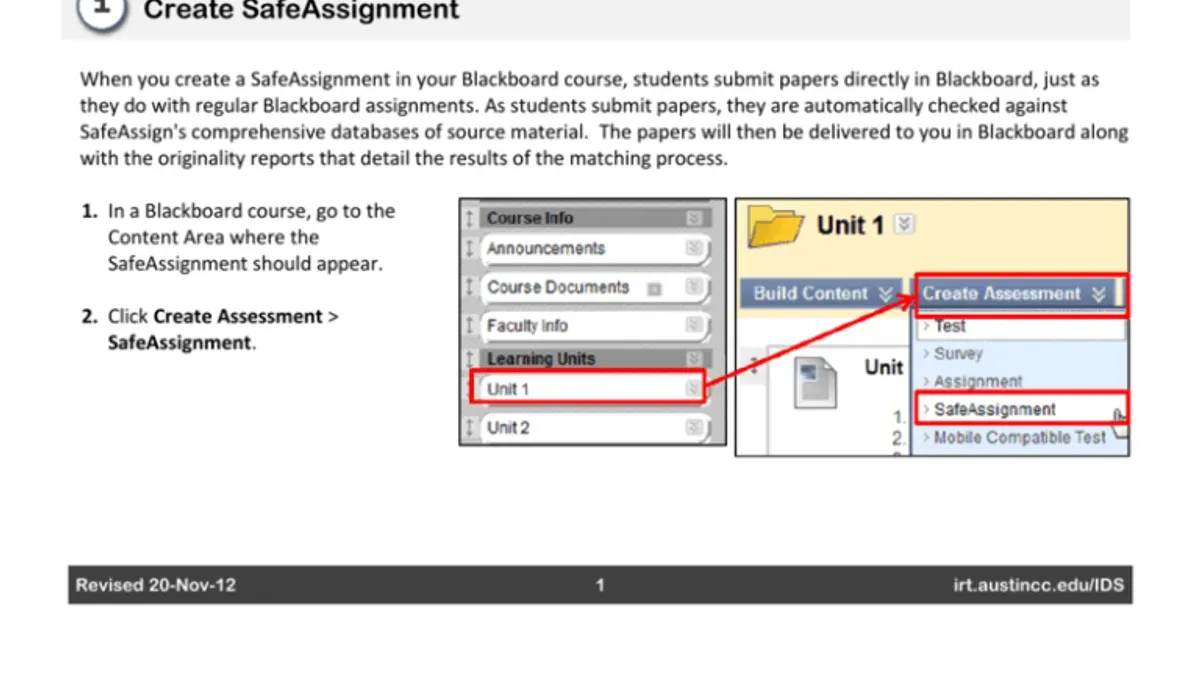
Short answer: To handle plagiarism concerns in Blackboard, you must first enable SafeAssign on your assignments, review the originality reports carefully, and follow a clear, fair process for addressing issues. This involves setting up plagiarism detection tools, interpreting reports without bias, and communicating transparently with students. Acting promptly and fairly maintains academic integrity and trust.
This guide covers how to handle plagiarism concerns in Blackboard with practical steps. You’ll learn what preparations you need before addressing plagiarism, how to configure assignments for plagiarism detection, how to correctly interpret SafeAssign reports, and the best practices for managing confirmed cases fairly. It also includes tips on preventing plagiarism proactively and troubleshooting common issues with Blackboard’s plagiarism tools.
What Do You Need Before Addressing Plagiarism in Blackboard?
You must have access to Blackboard’s plagiarism detection tools like SafeAssign or any integrated third-party services your institution uses. Verify that these tools are active and properly linked to your course assignments.
Ensure you have clear, current institutional or departmental plagiarism policies on hand. These policies guide your decisions and help maintain compliance when reviewing cases. They are usually available on your institution’s academic integrity webpage or internal staff portal.
Student submissions must be fully uploaded and accessible within Blackboard. Confirm that files are complete and properly linked to the relevant assignments to avoid confusion during review.
Understand Blackboard’s course management roles and permissions. Typically, instructors and course administrators have access to plagiarism reports, but teaching assistants may require additional permissions. Check your course’s Control Panel under Users and Groups > Users to verify your role.
Lastly, have contact details ready for academic integrity officers or support staff for cases that require escalation. This ensures you can quickly involve the appropriate authorities if a dispute arises or further investigation is needed.
- Confirm you have instructor or administrator permissions in Blackboard. You should see the Control Panel with access to Grade Center and Course Tools.
- Check that SafeAssign or your institution’s plagiarism tool is enabled by navigating to Course Tools > SafeAssign.
- Locate your institution’s plagiarism policy on the official website or staff portal. Save or bookmark it for reference.
- Verify student submissions are accessible under Grade Center > Assignments or the relevant submission area.
- Save contact info for your academic integrity office from your institution’s directory or policy documents.
How Do You Set Up Assignments to Enable Plagiarism Detection?
To activate plagiarism detection in Blackboard, start by creating or editing an assignment. Within the assignment settings, locate the SafeAssign section to configure submission options effectively.
- Select "Enable SafeAssign" under the plagiarism tools. You should see confirmation it is active for this assignment.
- Choose whether to exclude quoted material and bibliography by toggling the respective options. Excluding these can reduce false positives but may miss some copied content.
- Decide how to handle multiple submissions: allow students to submit multiple times or only once. Allowing multiple submissions lets students revise and resubmit before the deadline, enhancing fairness.
- Set clear deadlines using Blackboard’s date and time pickers. Consistent, unambiguous deadlines prevent late submissions from being flagged incorrectly.
- Use a naming convention for assignments that clearly identifies course, assignment type, and due date (e.g., "ENG101_Essay1_DeadlineOct05") to avoid confusion when reviewing reports.
- If anonymity is required, enable anonymous grading in the assignment settings. This ensures student identities are hidden during plagiarism review.
These settings directly impact the accuracy and fairness of plagiarism detection. For example, excluding quotes lowers false matches but might miss some copied sections. Allowing multiple submissions encourages student corrections but requires you to check the final submission. Naming conventions and deadlines reduce administrative errors affecting report clarity.
Check the SafeAssign summary after setup to confirm all options are active and saved correctly before publishing the assignment.
What Is the Process to Review and Interpret Plagiarism Reports?
- Log into your Blackboard course and navigate to the Grade Center. Locate the assignment column with SafeAssign enabled. When successful, you will see a colored flag or percentage score next to each student's submission.
- Click the score or SafeAssign icon to open the detailed similarity report. This report highlights matched text, sources, and overall similarity percentage. You should see a breakdown of matched content by color-coded categories.
- Understand the similarity score: generally, scores under 15% are low risk, 15%-40% require review, and above 40% often indicate significant overlap. These thresholds can vary by discipline and assignment type.
- Review highlighted matches carefully. Watch for common false positives such as bibliography entries, quoted material, or commonly used phrases. The report will show the exact source of each match, helping you judge intent versus acceptable use.
- Use the report to differentiate between proper citations and problematic copying. A high similarity score alone does not confirm plagiarism; context and source comparison are essential.
For example, a SafeAssign report showing 25% similarity with 10% from bibliography and 5% from common phrases suggests only 10% potentially problematic content. This helps you focus your investigation fairly.
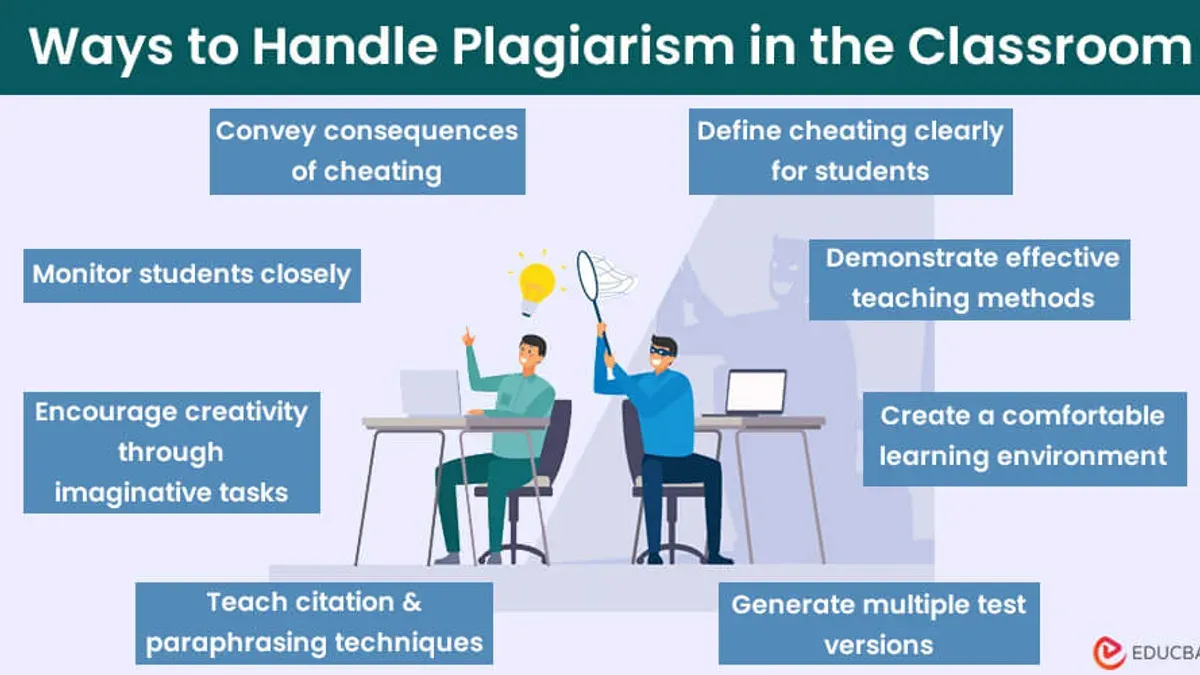
How Should You Handle Confirmed Plagiarism Cases Fairly?
- Initiate Clear, Professional Communication. Send a direct email to the student outlining the specific plagiarism concern. Use a template like: “We have identified content in your submission that matches external sources without proper citation. Please respond within five business days to discuss this matter.” Successful communication results in a scheduled discussion or student response.
- Document Evidence and Timeline. Save SafeAssign reports, submission timestamps, and all correspondence. Maintain a chronological file in your academic integrity system. Proper documentation ensures transparency and supports institutional review if needed.
- Evaluate Penalty Versus Remediation. Consult institutional policies to decide on sanctions—ranging from grade penalties, assignment resubmission with guidance, to mandatory academic integrity workshops. For example, some institutions allow a zero on the assignment for first offenses but encourage educational remediation to prevent recurrence. Select the option balancing deterrence with learning.
- Escalate When Necessary. If the case involves repeated offenses or severe violations, refer to your academic integrity office per policy. Provide your documented evidence and communication logs. Escalation should be timely to avoid delays in resolution.
- Maintain Firmness and Transparency. Clearly explain consequences and appeal procedures to the student. Transparency fosters trust and reinforces institutional integrity standards. Firmness in policy enforcement deters future violations without alienating students.
Example initial contact email excerpt:
Subject: Academic Integrity Concern Regarding Your Assignment Submission
Dear [Student Name],
During a routine review of your recent submission, we identified sections that closely match external sources without proper citation. This raises a concern of plagiarism under our academic integrity policy. Please contact me by [date] to discuss this matter.
Sincerely,
[Your Name]
[Your Position]
Penalty comparison:
| Penalty Type | Outcome |
|---|---|
| Grade Reduction or Zero | Immediate academic consequence, strong deterrent |
| Assignment Resubmission with Guidance | Educational opportunity, may reduce repeat offenses |
| Academic Integrity Workshop | Raises awareness, supports long-term integrity culture |
How Can You Prevent Plagiarism in Your Blackboard Courses?
Design assignments that require original thought and discourage copy-paste. Use personalized prompts related to course content or current events, and break large assignments into staged submissions. This reduces last-minute copying and encourages steady progress. Several educators report fewer plagiarism cases when adopting these approaches.
Use Blackboard’s originality reports as teaching tools. Share SafeAssign similarity feedback with students before final submission to help them understand proper citation and paraphrasing. This proactive step builds academic integrity awareness.
Incorporate honor codes and academic integrity statements prominently within course modules and assignment instructions. Clear reminders emphasize the institution’s expectations and the consequences of dishonesty.
Leverage peer review and draft submissions for formative assessment. Enable students to give and receive feedback through Blackboard’s peer review tools. Early drafts coupled with feedback reduce plagiarism by promoting ownership of work.
- Create assignments with unique, contextual prompts and staged deadlines. You should see submissions spread over time with individual focus.
- Share SafeAssign draft reports with students before the final due date. Students should review and revise work based on feedback.
- Add academic integrity statements in the course syllabus and assignment instructions. The statements should be visible and referenced regularly.
- Set up peer review assignments using Blackboard’s peer review feature. Students will submit drafts and provide feedback as scheduled.
What Troubleshooting Steps Can You Take When Plagiarism Tools Fail or Reports Seem Off?
- Verify assignment and submission settings. Go to the assignment’s settings panel in Blackboard and confirm that SafeAssign or your chosen plagiarism tool is enabled for the submission type. If reports don’t generate, check that submissions are set to accept files and that the tool integration is active. Successful setup shows the plagiarism tool option checked and submission receipts generated.
- Check third-party tool integrations and authorizations. Navigate to the Blackboard Admin Panel under “Building Blocks” or “Integrations” and ensure the plagiarism detection tool is authorized and connected. Missing or expired authorization tokens often cause report failures. A valid connection status or green indicator means the tool is properly linked.
- Understand report generation delays. Plagiarism reports can take from a few minutes up to several hours depending on server load and submission volume. If a report is not ready after 24 hours, it likely failed. Look for status messages like “Processing” or “Error” in the submission details.
- Interpret low or no similarity scores cautiously. A score of zero or near zero does not guarantee originality if the tool's database misses sources or if the submission is a poor file format. Review the file type and consider resubmitting in a compatible format like DOCX or PDF.
- Contact Blackboard support or institutional IT when issues persist. Provide error messages such as “SafeAssign unavailable” or “Submission could not be processed.” Support can verify server-side logs, update plugins, or resolve authorization issues. Keep track of ticket numbers and response times for accountability.
Frequently asked questions
How accurate are Blackboard's plagiarism detection tools?
Blackboard uses SafeAssign as its built-in plagiarism detection tool. It compares submissions against a database of academic papers, internet content, and publications. While it effectively flags matching text, it may produce false positives for common phrases or properly cited content. Always review the originality report carefully rather than relying solely on the similarity score.
Can students see their plagiarism reports before grading?
Students can view their SafeAssign originality reports only if you enable this option in the assignment settings under "Reveal SafeAssign Originality Reports to Students." If this setting is off, students won’t see the report until after grading. Be deliberate about this choice to manage expectations and reduce disputes.
What steps should I take if a student contests a plagiarism finding?
Start by reviewing the flagged content alongside the student's submission and sources. Allow the student to explain or provide context, such as citation errors or draft versions. Follow your institution’s academic integrity policy for formal review, which may include a hearing or committee. Document all communications and maintain fairness throughout.
Does Blackboard support integration with external plagiarism detection services?
Yes, Blackboard supports integration with third-party tools like Turnitin through LTI (Learning Tools Interoperability). This requires institution-level configuration and licensing. Check with your Blackboard administrator to enable and configure external plagiarism services if needed.
What this guide does not cover
This guide focuses on Blackboard’s built-in and commonly integrated plagiarism tools but does not cover manual plagiarism checking methods or legal enforcement beyond institutional policies. If you need guidance on manual plagiarism detection techniques or handling legal disputes, consult your institution’s academic integrity office or legal advisors. For complex cases involving third-party content or potential copyright infringement, specialized support is necessary.
Quick checklist
- Ensure plagiarism detection is enabled in Assignment Settings under Submission Details.
- Set the similarity report to generate immediately upon submission for timely review.
- Review similarity scores critically, focusing on matched sources and context, not just percentages.
- Follow your institution’s protocol for notifying students and documenting findings.
- Use Blackboard’s SafeAssign or integrated tools consistently across assignments.
- Communicate clear expectations about plagiarism in your course syllabus.
- Provide resources or workshops on citation and academic honesty.
- Have a backup plan for technical issues, such as manual report downloads or contacting Blackboard support.
Start by enabling plagiarism detection on a new assignment right now. This small step ensures you’re set up to catch potential issues early and maintain fairness from the outset.
See also: How to Grade Student Work Efficiently in Blackboard · How to Handle Plagiarism Concerns in Brightspace Step-by-Step