How to Handle Plagiarism Concerns in Brightspace Step-by-Step
This article guides you step-by-step on handling plagiarism concerns in Brightspace by enabling detection tools and applying academic integrity policies.

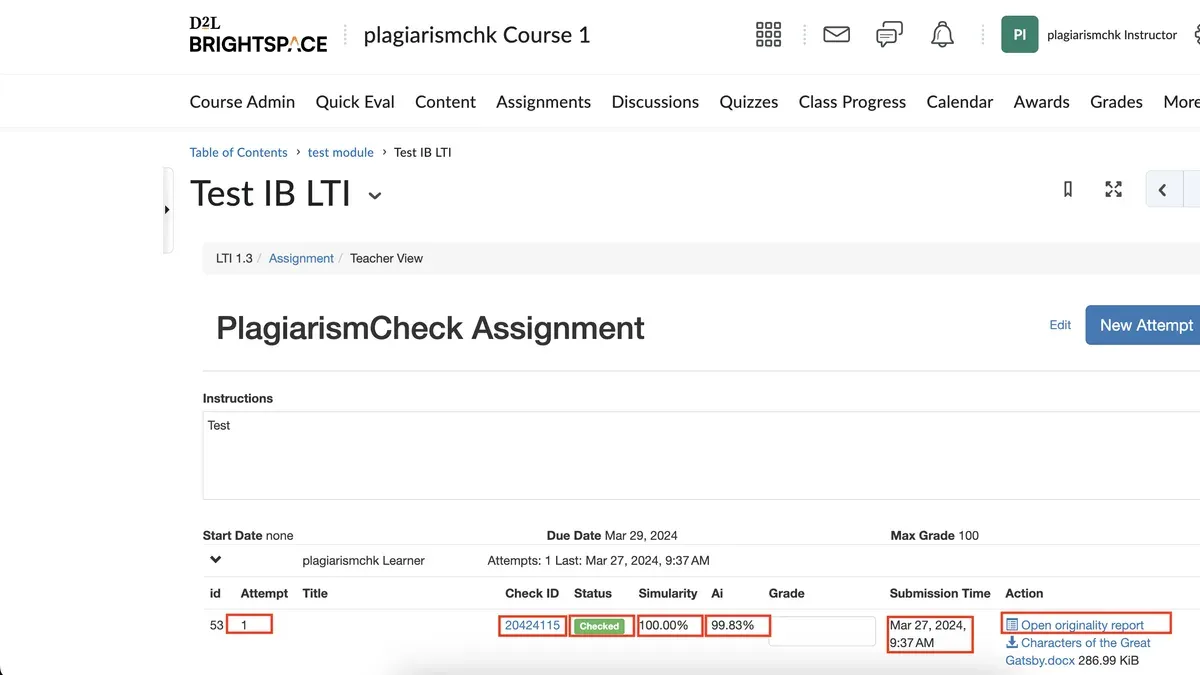
Short answer: To handle plagiarism concerns in Brightspace, you must enable plagiarism detection tools, review originality reports carefully, and apply your institution’s academic integrity policies consistently. Brightspace integrates with plagiarism detection services like Turnitin, allowing you to set up automatic checking and manage flagged submissions within the platform.
This article covers how to handle plagiarism concerns in Brightspace step-by-step. You’ll learn how to activate and configure plagiarism detection, interpret reports effectively, investigate suspected cases, and use Brightspace features to prevent plagiarism before it happens. It also addresses common challenges and practical solutions to keep your course integrity intact without disrupting your workflow.
Before You Start: What You Need to Handle Plagiarism in Brightspace
To manage plagiarism concerns effectively in Brightspace, you must have the right permissions and tools. Ensure you have instructor or administrator access with assignment management rights. Without these, you cannot configure assignments, access originality reports, or take follow-up actions.
Familiarize yourself thoroughly with your institution’s plagiarism policies and the consequences outlined for violations. This understanding guides fair and consistent handling of cases. You will also need access to plagiarism detection tools integrated with Brightspace, such as Turnitin or Brightspace’s Originality Check. Confirm these tools are enabled in your course and that you have permission to view reports.
Basic knowledge of Brightspace assignment settings related to originality checking is necessary. This includes knowing where to enable plagiarism detection under the assignment’s Submission & Completion settings and how to locate the generated similarity reports.
- Verify your role in Brightspace grants assignment management rights. You should see the Assignments tool with editing options.
- Confirm institutional plagiarism policies are accessible, typically via your academic affairs or compliance office resources.
- Check that plagiarism detection tools like Turnitin or Originality Check are active in your course under Course Tools > External Learning Tools.
- Review assignment settings to ensure originality checking is enabled and reports will be available.
How Do You Enable and Configure Plagiarism Detection in Brightspace?
- Go to the course where you want to enable plagiarism detection and navigate to the Assignments area. You should see a list of existing assignments or the option to create a new one.
- Create a new assignment or edit an existing assignment by clicking its title. The assignment creation or editing page will open.
- Locate the "Submission & Completion" section within the assignment settings. Here, find and check the box labeled "Enable Originality Check" or "Enable Turnitin integration," depending on your institution's configured tool. After enabling, additional settings related to plagiarism detection will appear.
- Configure the originality report settings. Set when the report should generate—options often include "Immediately upon submission" or "On due date." Choose the timing that fits your workflow.
- Adjust similarity thresholds if available. This setting defines the percentage of matched content that triggers alerts or flags for review. Set a threshold consistent with your institution’s policy; a common threshold is around 15-25% similarity.
- Decide if students can view originality reports. Allowing student access promotes transparency and encourages self-review, but disabling it can prevent premature disclosure of flagged content.
- Save your assignment settings. Confirm that the plagiarism detection options remain enabled after saving by reopening the assignment settings.
- Communicate the plagiarism detection setup clearly to your students in the assignment instructions or course announcements. Let them know when originality reports will be generated and if they can view them.
How Do You Review and Interpret Plagiarism Reports Effectively?
Access the originality or similarity report by clicking the assignment submission in Brightspace, then selecting the "Originality" or "Similarity" tab. The report displays a percentage indicating how much of the text matches external sources. Focus on the context behind these percentages rather than the raw number alone.
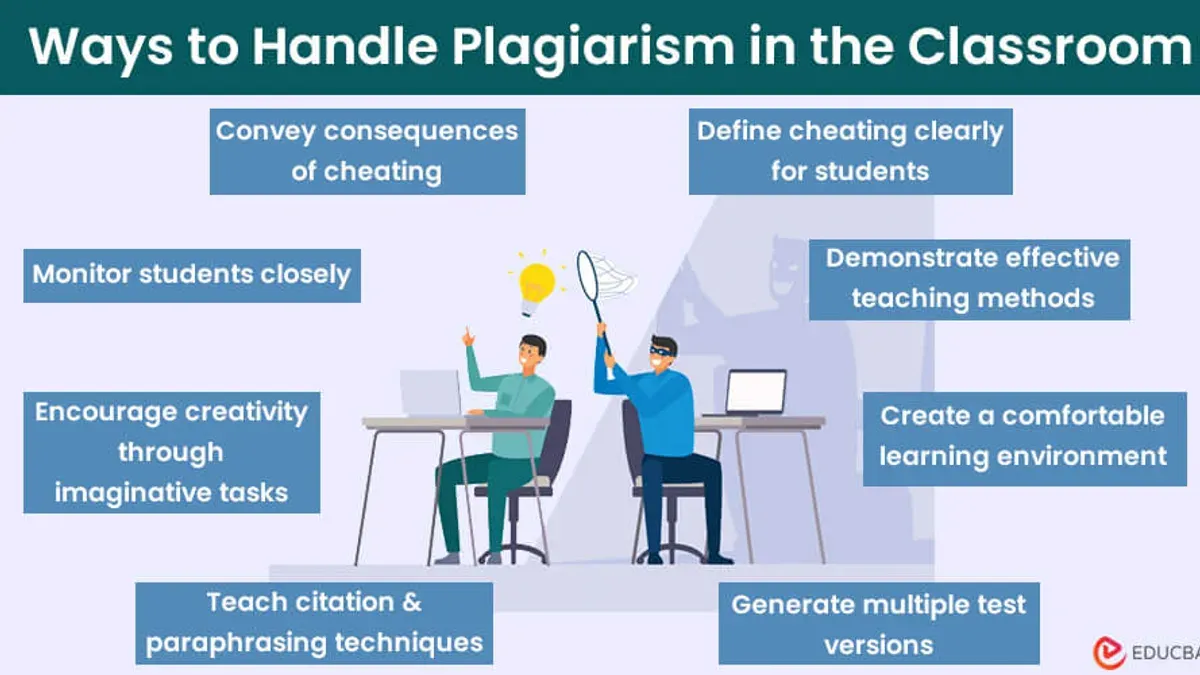
High similarity percentages often highlight copied content, but not all matches indicate plagiarism. Common false positives include properly quoted material, bibliography sections, and frequently used phrases. Review each highlighted match carefully to distinguish between legitimate overlaps and problematic copying.
Use the report annotations to identify source types—websites, publications, or student submissions—and check the matched text in context. This helps avoid penalizing proper citations or standard terminology. The goal is to support fair assessment decisions by combining report data with your judgment and course policies.
- Open the submitted assignment in Brightspace and select the "Originality" or "Similarity" report tab. You should see a detailed report with a similarity score and highlighted text matches.
- Review the highlighted text blocks and note their sources as indicated in the report annotations. Confirm whether matches are quotations, references, or common phrases.
- Compare the flagged text with the student's submission context to identify any inappropriate copying or paraphrasing. The report should help you differentiate between acceptable and suspicious content.
- Document your findings and decide on next steps based on institutional guidelines, using the report as evidence to support your assessment.
What Steps Should You Take When You Suspect Plagiarism?
- Gather and document evidence. Download the originality report and save the submitted assignment file. Highlight matching text and note similarity scores. This creates a clear record to support your case.
- Communicate with the student. Send a direct message via Brightspace or institutional email outlining your concerns. Include specific examples from the report and ask for an explanation. Use a respectful, factual tone to encourage honest dialogue.
- Follow institutional protocols. Refer to your institution’s plagiarism policy for reporting procedures. This may involve submitting the case to an academic integrity office or using a formal incident report form. Ensure you meet all deadlines and provide all requested documentation.
- Record actions taken. Log your communications and outcomes in Brightspace’s gradebook notes or the designated system. Keep detailed records of all steps for accountability and future reference.
Different institutions vary in their workflows. Some require initial student meetings before formal reporting, while others emphasize documentation and immediate referral. A sample message might read: "Your assignment shows significant similarity with external sources. Please explain the source of this material within three days." Adjust tone and timing based on local guidelines.
- Download and save plagiarism reports and submissions
- Contact students with clear, specific concerns
- Follow your institution’s reporting and disciplinary procedures
- Keep thorough records of all steps and communications
How Can You Prevent Plagiarism Before It Happens Using Brightspace Features?
Preventing plagiarism starts with smart assignment design and clear communication. Use Brightspace’s assignment settings to randomize quiz questions and answer order. This reduces opportunities for copying by ensuring each student receives a unique test experience. Timed submissions also limit the window for unauthorized collaboration or searching for answers externally.
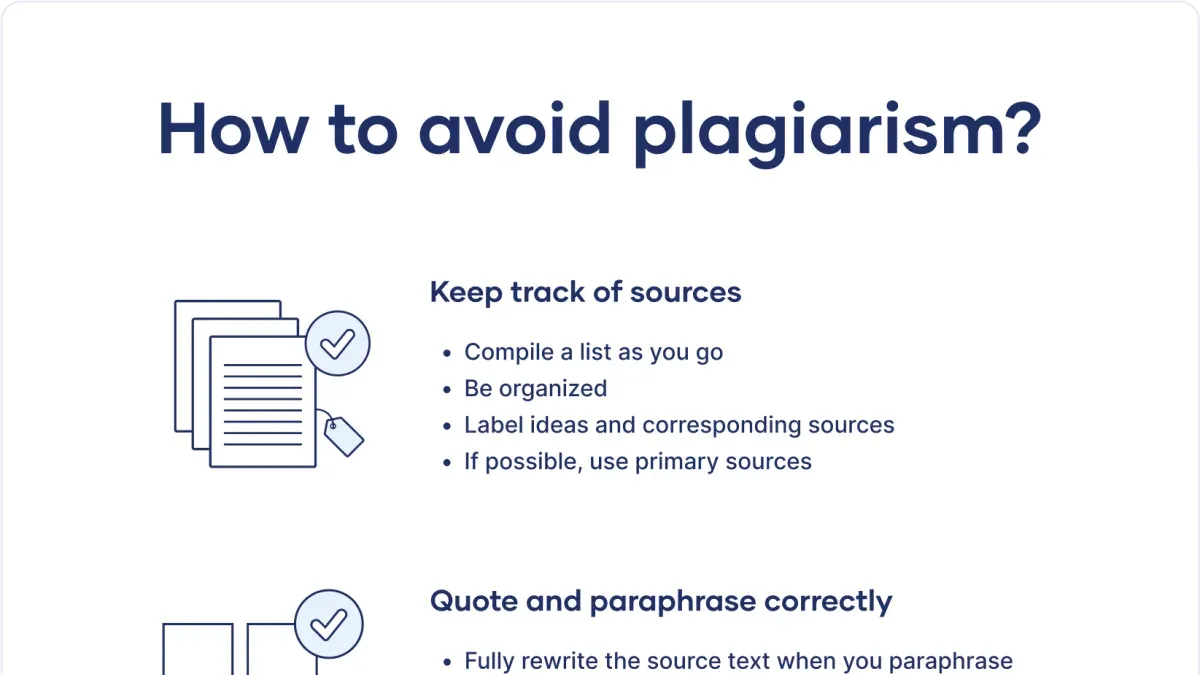
Require draft submissions to allow students to receive originality check feedback early. This guides them to correct citation errors and improve originality before final submission. Peer review activities further engage students in evaluating each other’s work, reinforcing academic integrity norms.
Make assignment instructions and plagiarism policies clearly available in the course content or assignment description. Brightspace’s content modules or announcement tools help ensure students understand expectations upfront. Visible policies combined with ongoing feedback help reduce unintentional plagiarism.
Institutions have noted lower plagiarism rates when instructors use these proactive Brightspace features together. Thoughtful design and communication shift the focus from detection to prevention.
- Set up quizzes with randomized questions and shuffled answers under Quiz > Properties > Shuffle Questions. You should see varied question order on student previews.
- Enable timed submissions in Assignment or Quiz settings by specifying start and end times. The system will enforce submission within that window.
- Require draft uploads by creating a separate draft assignment with originality check enabled. Students will receive similarity reports before final submission.
- Activate Peer Review under Assignments > Submission & Completion > Peer Assessment. Students can then review each other’s drafts.
- Upload plagiarism policies and detailed instructions to Content > Modules or include them in assignment descriptions. Students will access them before submitting.
What Are Common Issues When Handling Plagiarism in Brightspace and How Do You Fix Them?
Delays in plagiarism report generation often occur due to server load or large file sizes. If you see a "Report Pending" status for more than 24 hours, verify your internet connection and resubmit the assignment if necessary. Check the integration status under Admin Tools > External Learning Tools to ensure the originality check service is active.
High similarity scores can result from legitimate citations or common phrases. When the report flags standard references or quoted material, adjust the similarity threshold or exclude bibliographic materials in the settings. This prevents false positives without compromising detection accuracy.
Student disputes about plagiarism findings require clear communication. Provide annotated reports showing matched sources and explain the criteria used. If the student insists on appeal, follow your institution’s formal process and document all correspondence within Brightspace’s grade comments or communication logs.
Permission errors or missing plagiarism tool integrations block report generation. Confirm that assignment settings have "Enable Originality Check" selected and that your user role has submission review rights. If you encounter error messages like "Access Denied" or "Integration Failure," contact your Brightspace administrator to verify external tool configurations.
- Check assignment submission status and wait up to 24 hours for report generation; if delayed, resubmit or refresh the page. Success: Report status changes to "Complete."
- Review similarity matches and exclude bibliographic or quoted sections through assignment settings. Success: Similarity score reflects relevant matches only.
- Respond to student disputes with annotated reports and institutional appeal steps. Success: Clear record of communication and resolution.
- Verify permissions and tool integrations under Admin Tools; correct any errors. Success: No "Access Denied" or integration errors on report generation.
Frequently asked questions
Can I use Brightspace plagiarism tools for all file types?
Brightspace plagiarism tools primarily support text-based file formats such as.doc,.docx,.pdf, and.txt. Other file types like spreadsheets or presentations may not be fully analyzed for plagiarism. Always check the supported file types in the plagiarism tool settings before enabling detection for assignments.
How do I handle plagiarism if my institution doesn’t use Turnitin?
If Turnitin is not available, use Brightspace’s native plagiarism detection features or integrate alternative third-party tools approved by your institution. You can also manually review submissions for inconsistencies or unusual writing styles. Establish clear procedures for investigating and documenting suspected cases when automated tools are limited.
What if a student disputes the plagiarism report findings?
When a student disputes a plagiarism report, review the highlighted matches carefully and compare the original sources. Provide the student with a copy of the report and any relevant guidelines. Consider a meeting to discuss the findings, and if needed, involve academic integrity officers for further investigation.
Are students notified automatically about plagiarism checks?
Students are not always notified automatically unless the plagiarism check is part of the assignment setup that includes a submission confirmation message. To ensure transparency, enable the notification option in assignment settings or communicate your plagiarism detection policy clearly in the course syllabus.
What this guide does not cover
This guide does not replace institutional academic integrity policies or legal advice. You must always follow your organization’s official procedures when handling plagiarism cases. For complex disputes, appeals, or legal matters, consult your institution’s academic integrity office or legal counsel. This advice focuses solely on using Brightspace tools and workflows to identify, review, and manage plagiarism concerns within your course.
Quick checklist
- Confirm plagiarism detection is enabled under Course Admin > Dropbox > Submission > Turnitin settings.
- Configure similarity score thresholds in the Turnitin configuration panel.
- Review similarity reports carefully, focusing on highlighted matches and excluded sources.
- Document suspected cases with evidence from the similarity report and assignment submission.
- Follow your institution’s procedure for investigation and communication with the student.
- Use Brightspace’s assignment instructions to clearly communicate plagiarism policies and citation expectations.
- Set up safe assignment submission folders with Turnitin integration before course start.
- Address common issues like delayed reports by checking Turnitin service status and submission formats.
The most useful next step is to verify your Brightspace course has Turnitin plagiarism detection properly configured and tested before students submit work. This proactive setup prevents delays and ensures you have reliable similarity reports ready for review as soon as assignments are submitted.
See also: How to Grade Student Work in Brightspace: A Clear Step-by-Step Guide · How to Build and Manage a Quiz in Brightspace: A Step-by-Step Guide · How to Assign Work to Small Groups in Brightspace: A Step-by-Step Guide