How to Install AWS CLI on Mac: A Clear Step-by-Step Guide
Discover simple steps to install AWS CLI on Mac using Homebrew or the official installer for effective AWS service management from your terminal.

You want to manage AWS services directly from your Mac terminal but aren’t sure how to start. Whether you’re setting up AWS CLI for the first time or updating an existing installation, knowing the right steps makes the process smoother.
This article covers how to install AWS CLI on Mac using two main methods: Homebrew and the official AWS installer. You’ll also find instructions on installing AWS SAM CLI, configuring AWS CLI after installation, tips for effective terminal use, and solutions for common Mac-specific issues.
Key takeaways
- Use Homebrew for a quick, easily updatable AWS CLI installation on Mac.
- The official AWS installer provides a standalone package with version control.
- Configuring AWS CLI requires setting up access keys and default region values.
- AWS SAM CLI installation is separate but essential for serverless app development.
- Common installation issues often relate to path settings and permissions on Mac.
Before you start: What you need to install AWS CLI on Mac
Installing AWS CLI on your Mac requires meeting specific prerequisites to ensure a smooth setup. First, confirm your Mac is running macOS 10.13 (High Sierra) or later, as earlier versions may not support the latest AWS CLI features. Your hardware should be compatible with your macOS version, generally any Mac with Intel or Apple Silicon processors running the supported OS will suffice.
You must have administrator access or sudo privileges on your Mac to install software and modify system files. Without these permissions, the installation process will fail or be incomplete.
If you plan to use Homebrew for installation, verify that Homebrew is already installed and updated. Open your Terminal and type brew --version. You should see a version number if it is installed, such as Homebrew 4.0.0 or newer. If Homebrew is missing, install it from https://brew.sh/ before proceeding.
Lastly, ensure you have an active AWS account or access to AWS credentials. These are necessary to configure the AWS CLI and authenticate your commands. You will need your Access Key ID and Secret Access Key ready for setup.
- Check your macOS version by clicking the Apple menu and selecting About This Mac. Confirm it reads macOS 10.13 or newer.
- Open Terminal and enter sudo -v to verify administrator privileges. If prompted, enter your password. Successful completion means you have the required access.
- In Terminal, type brew --version. A version number means Homebrew is installed; if not, visit brew.sh to install it.
- Log in to your AWS Management Console to confirm your account is active and locate your Access Key ID and Secret Access Key under My Security Credentials.
How to install AWS CLI on Mac using Homebrew
Homebrew is a popular package manager for macOS that simplifies installing software like AWS CLI. Using Homebrew, you can quickly install, verify, and upgrade AWS CLI with straightforward commands.
- Open your Terminal application.
- Update Homebrew to ensure you have the latest package information by running:
brew update
You should see output indicating Homebrew is fetching updates, ending with "Updated Homebrew" or similar confirmation. - Install AWS CLI by running:
brew install awscli
During installation, you will see messages about downloading and installing files. When complete, the prompt will return without errors. - Verify the installation by checking the AWS CLI version:
aws --version
The output should display something like:
aws-cli/2.x.x Python/3.x.x Darwin/x86_64
This confirms AWS CLI version 2 is installed on your Mac. - In the future, to upgrade AWS CLI to the latest Homebrew version, run:
brew upgrade awscli
Homebrew’s method is favored by many Mac users for its simplicity and integration with macOS. It handles dependencies and keeps the AWS CLI up to date with minimal effort.
How to install AWS CLI on Mac using the official AWS installer
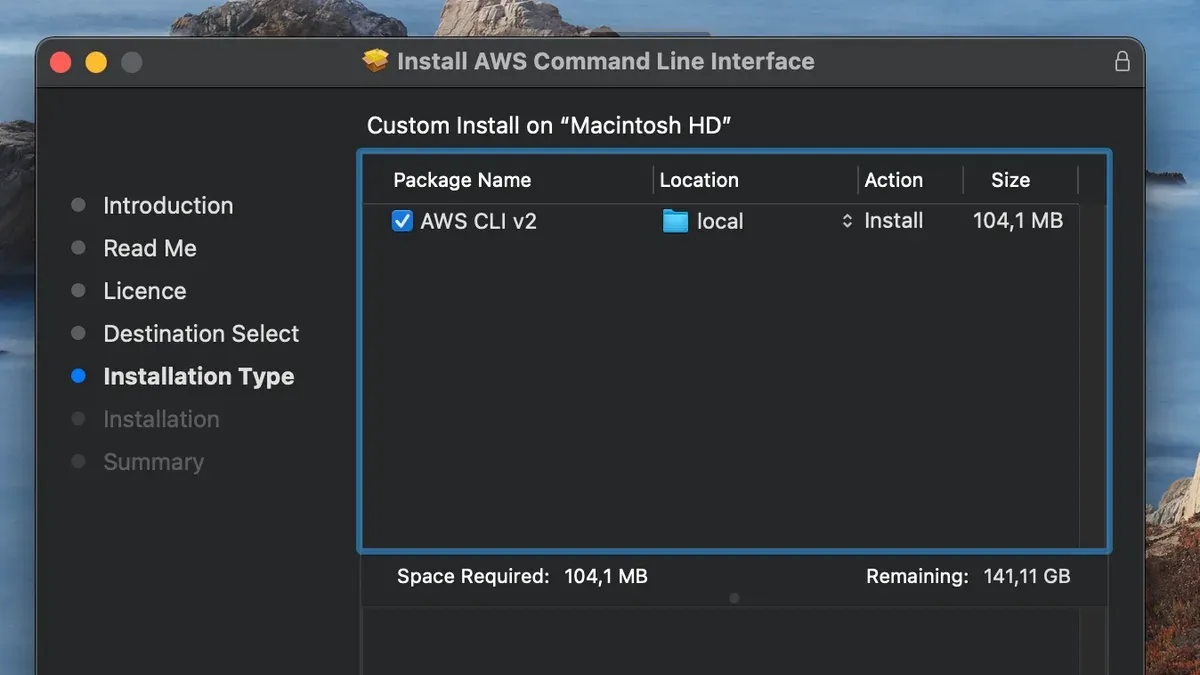
If you prefer to use the official AWS installer rather than Homebrew, you can download and run the AWS CLI v2 package directly from the AWS website. This method ensures you get the latest stable release as packaged by AWS, independent of Homebrew's update cycle.
- Open your web browser and go to the official AWS CLI version 2 download page for macOS at https://awscli.amazonaws.com/AWSCLIV2.pkg.
- Download the AWSCLIV2.pkg installer package to your Mac.
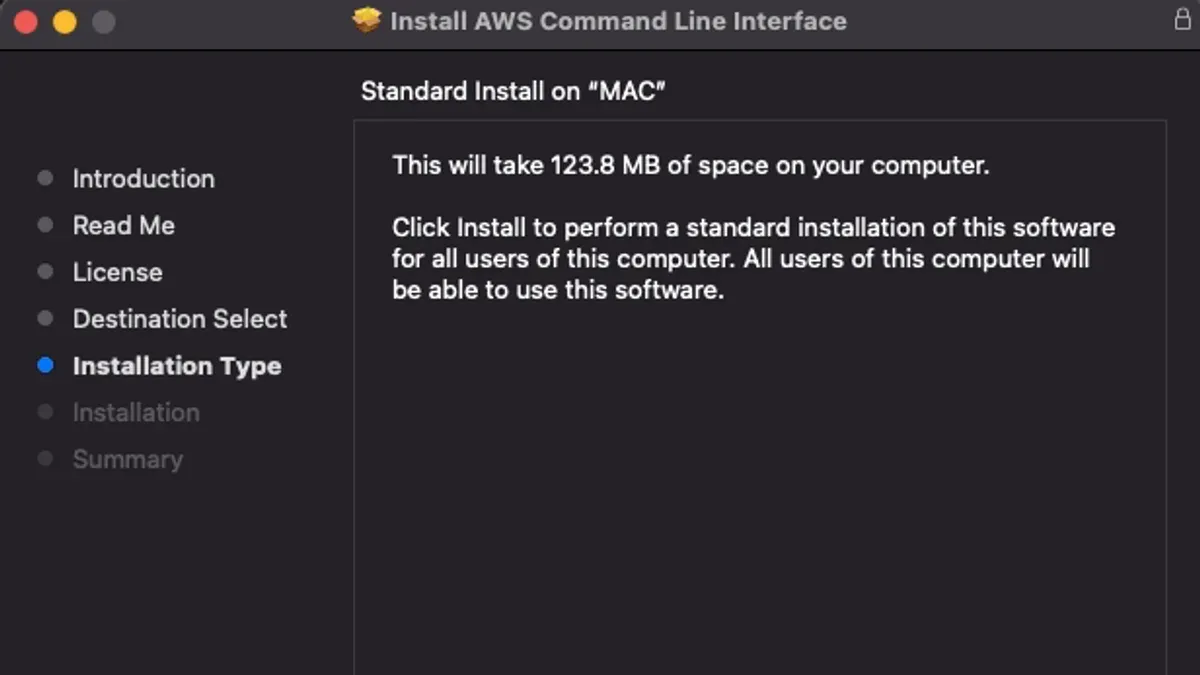
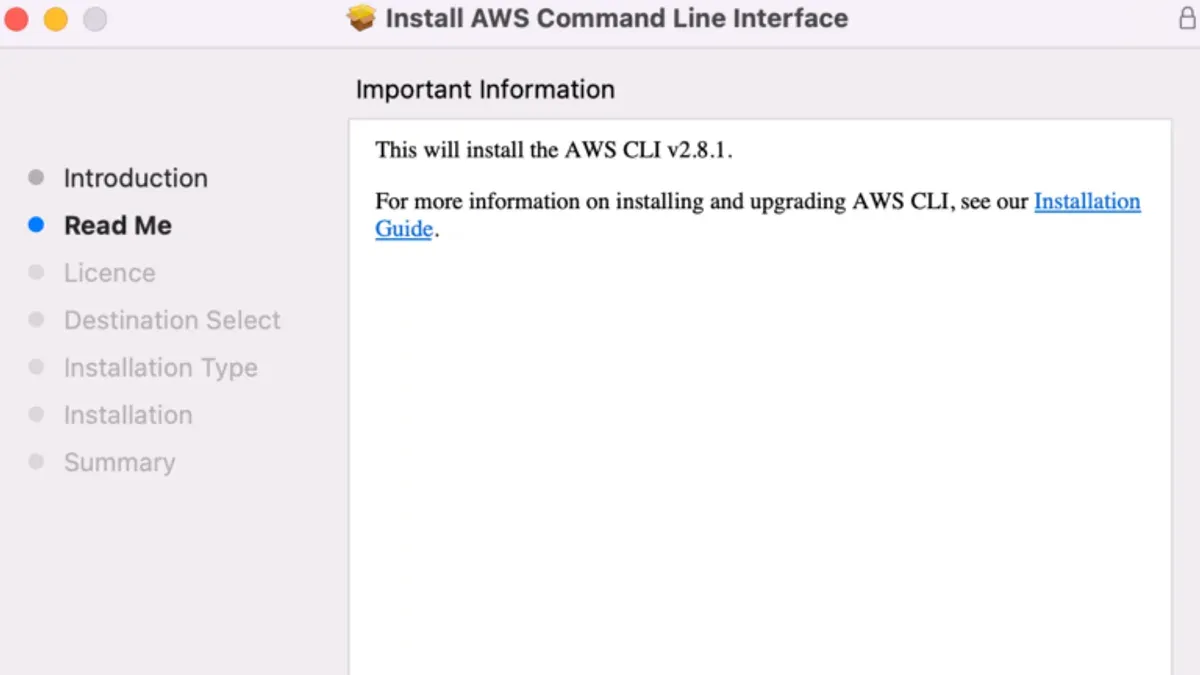
- Locate the downloaded.pkg file in your Downloads folder and double-click it to launch the macOS Installer.
- Follow the on-screen prompts to complete the installation. You should see a confirmation screen indicating the installation was successful.
- Open your Terminal app and run aws --version to verify the installed AWS CLI version. The output should look similar to:
aws-cli/2.x.x Python/3.x.x Darwin/x86_64confirming the CLI is correctly installed.
The official installer provides a version controlled directly by AWS, which can be beneficial if you want to avoid potential delays in Homebrew updates or prefer a standalone installation. However, it does not integrate with Homebrew's upgrade commands, so you will need to manually download and install newer versions when available.
This approach is especially useful if your environment restricts package managers or you want to keep AWS CLI isolated from other software management tools.
How to install AWS SAM CLI on Mac
AWS SAM CLI (Serverless Application Model Command Line Interface) is a tool designed for building, testing, and deploying serverless applications defined by AWS SAM templates. Use it when you want to develop serverless functions locally, package your application, and deploy it to AWS Lambda and related services.
You can install AWS SAM CLI on Mac either via Homebrew or by downloading the official installer directly from AWS.
- To install via Homebrew, open your Terminal and run brew tap aws/tap to add the AWS tap repository. Then execute brew install aws-sam-cli. When the installation finishes, type sam --version to verify. You should see an output like SAM CLI, version 1.XX.X, confirming the tool is ready.
- To install using the direct installer, visit the AWS SAM CLI GitHub releases page or AWS official documentation to download the latest macOS.pkg installer. Run the installer and follow the prompts. After installation, open Terminal and enter sam --version. The version output should appear similar to the Homebrew method.
The AWS SAM CLI complements the AWS CLI by focusing specifically on serverless application workflows, while the AWS CLI manages a broad range of AWS resources and services. This makes SAM CLI essential for developers working specifically with serverless architectures.
How to configure AWS CLI on Mac after installation
After installing AWS CLI, you need to configure it with your AWS credentials and preferences to start managing AWS services.
- Open your Terminal and enter aws configure. You will be prompted to enter your AWS Access Key ID. After typing it, press Enter.
- Next, input your AWS Secret Access Key when prompted, then press Enter.
- Enter your default region name, such as us-east-1, and press Enter. This sets where your AWS CLI commands will run by default.
- Finally, specify the output format (json, table, or text). The default is json. Press Enter to complete the setup.
Successful configuration will not display an error and returns you to the command prompt. Example output during configuration looks like this:
$ aws configure
AWS Access Key ID [None]: AKIAIOSFODNN7EXAMPLE
AWS Secret Access Key [None]: wJalrXUtnFEMI/K7MDENG/bPxRfiCYEXAMPLEKEY
Default region name [None]: us-east-1
Default output format [None]: json
The AWS CLI stores these settings in two files located in your home directory under ~/.aws/: config and credentials. The credentials file holds your AWS keys, while config contains region and output preferences.
You can edit these files manually with any text editor to add or modify profiles. For example, a named profile called dev in config looks like this:
[profile dev]
region = us-west-2
output = table
And in credentials:
[dev]
aws_access_key_id = AKIAIOSFODNN7DEVEXAMPLE
aws_secret_access_key = wJalrXUtnFEMI/K7MDENG/bPxRfiCYDEVKEY
To use a specific profile, add --profile dev to your AWS CLI commands. This helps manage multiple sets of credentials and configurations efficiently.
How to use AWS CLI on Mac terminal effectively
After installing and configuring AWS CLI, you can start using it in the Mac terminal to interact with AWS services. Begin with simple commands to verify connectivity and understand available options.
- To get help on a specific command, use aws s3 help or aws ec2 describe-instances help to see detailed usage information for those commands.
- Set environment variables like AWS_PROFILE or AWS_SESSION_TOKEN in your terminal session to switch credentials or use temporary security tokens without reconfiguring.
For example:
export AWS_PROFILE=dev
changes the active profile for the session.
Type aws help to display the general help menu.
Expected output:
NAME
aws - Universal Command Line Interface for Amazon Web Services
DESCRIPTION
The AWS Command Line Interface is a unified tool to manage your AWS services.
USAGE
aws [options][parameters]
AVAILABLE COMMANDS
s3 Amazon Simple Storage Service
ec2 Amazon Elastic Compute Cloud
...
This shows available commands and global options.
Open your terminal and enter aws s3 ls to list your S3 buckets.
Expected output:
2024-01-15 10:30:00 example-bucket-1
2024-06-10 14:22:45 example-bucket-2
This confirms your CLI is communicating with AWS and retrieving resources.
Using these commands and environment variables allows you to operate AWS CLI efficiently and tailor your workflow to different projects or access needs.
Troubleshooting common AWS CLI installation issues on Mac
Installation or configuration of AWS CLI on Mac can sometimes encounter issues that are usually resolvable with targeted steps.
Fixing permission errors
If you encounter errors like "Permission denied" or "Operation not permitted" during installation or running AWS CLI commands, it typically indicates insufficient privileges.
- Use sudo before installation commands, for example:
sudo brew install awscli. You should see the installation proceed without permission errors. - Check directory permissions for AWS CLI binaries, especially in
/usr/local/binor/opt/homebrew/bin. Usels -lto verify ownership and adjust withchmodorchownif necessary. - If you face permission issues running
awscommands, ensure your user has execute permissions on the binary.
Resolving conflicts from multiple AWS CLI versions
Having multiple versions installed, such as via Homebrew and the official installer, can cause command confusion or unexpected behavior.
- Run
which awsto identify which executable path is being used. It should point to one consistent location. - Remove redundant versions by uninstalling via Homebrew (
brew uninstall awscli) or deleting installer files in/usr/local/aws-cli. - After cleanup, verify the correct version with
aws --version. It should display only one version.
Correcting PATH and environment variable issues
If the aws command is not recognized, your PATH might not include the AWS CLI binary location.
- Check your PATH by running
echo $PATH. Confirm it includes/usr/local/binor/opt/homebrew/bin, depending on your installation method. - If missing, add the path in your shell profile file (e.g.,
~/.zshrcor~/.bash_profile) withexport PATH=/usr/local/bin:$PATHor the appropriate path. - Reload your shell configuration with
source ~/.zshrcor restart the terminal, then verify withwhich aws.
Verifying network connectivity to AWS endpoints
Connectivity issues may prevent AWS CLI from functioning correctly, causing errors like "Could not connect to the endpoint URL".
- Test internet access by pinging a public site:
ping google.com. Successful replies indicate basic connectivity. - Use
curl https://aws.amazon.comto check access to AWS endpoints. - If behind a proxy or firewall, configure environment variables such as
HTTP_PROXYandHTTPS_PROXYaccordingly. - Run
aws sts get-caller-identityto confirm AWS CLI can reach AWS and authenticate.
- How to Install Terraform on Mac: A Step-by-Step Guide
- How to Install Kubernetes Minikube on Mac: A Step-by-Step Guide
- How to Install Docker on Mac: A Clear Step-by-Step Guide
- How to Install MongoDB on Mac: A Clear Step-by-Step Guide
Frequently asked questions
How to setup aws cli on mac?
To set up AWS CLI on Mac, first install the CLI using Homebrew or the official AWS installer. After installation, run aws configure in the Terminal and enter your AWS Access Key ID, Secret Access Key, default region, and output format. This configures your credentials and preferences for managing AWS services.
How to install aws cli on macos?
You can install AWS CLI on macOS either via Homebrew by running brew install awscli or by downloading the official AWS CLI package from the AWS website. Both methods install AWS CLI v2, but Homebrew provides easier updates, while the installer ensures you have the latest stable release.
How to install aws cli on macbook?
On a MacBook, installing AWS CLI is the same as on other Macs. Use Homebrew if you have it installed, or download the official AWS installer package. After installation, verify it with aws --version to ensure it’s properly installed.
How to install aws cli v2 on mac?
AWS CLI version 2 can be installed on Mac by downloading the official installer from Amazon’s site or using Homebrew, which typically installs the latest version. The direct installer includes all dependencies, while Homebrew simplifies upgrades. Confirm the version by running aws --version after installation.
How to install aws cli on local machine?
Installing AWS CLI on your local machine involves downloading the appropriate installer for your operating system or using a package manager like Homebrew on Mac. For Mac, choose the Homebrew method for convenience or the official installer for a manual approach. After installation, configure your credentials using aws configure.
What this guide does not cover and who should look elsewhere
This guide does not cover AWS CLI usage beyond initial setup and basic commands; users needing advanced scripting, automation, or integration with other AWS services should consult the official AWS documentation for detailed guidance. Additionally, if your MacOS environment is heavily customized, uses non-standard shells, or operates under corporate restrictions such as managed security policies or network firewalls, you may encounter unique challenges not addressed here.
The single most useful next step after installing and configuring AWS CLI is to verify your setup by running aws s3 ls or another simple AWS command to confirm connectivity and credentials are working as expected. From there, explore the AWS CLI command reference to tailor your experience to your specific workflows and cloud management needs.