How to Install Kubernetes Minikube on Mac: A Step-by-Step Guide
This guide explains how to install Kubernetes Minikube on Mac step by step for efficient local Kubernetes cluster setup and development.

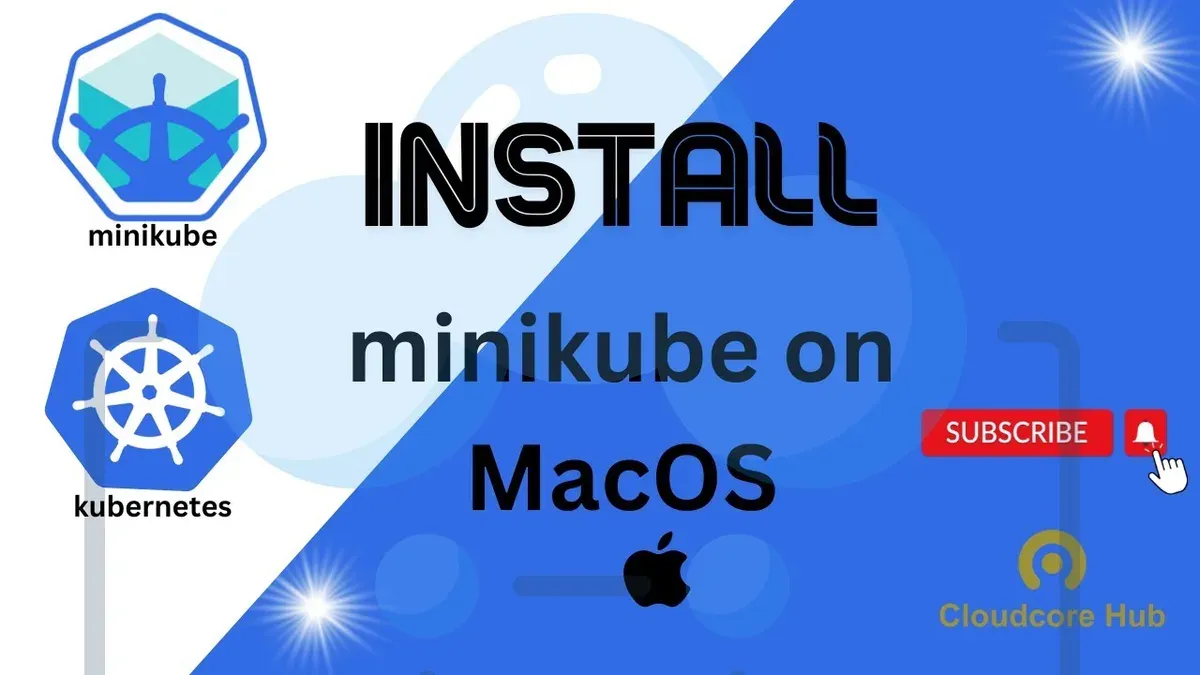
You want to run Kubernetes clusters locally on your Mac to develop and test containerized applications efficiently. Setting up Minikube offers a lightweight, single-node Kubernetes cluster tailored for local use, but you might wonder how it compares with other tools or Linux setups.
This article explains how to install Kubernetes Minikube on Mac step by step. It also covers Minikube installation on Ubuntu and provides a comparison with alternatives like Kind, helping you choose the best local Kubernetes environment for your needs.
Key takeaways
- Minikube requires a hypervisor like HyperKit or VirtualBox on Mac for virtualization.
- The installation process involves Homebrew commands and configuring your shell environment.
- On Ubuntu, Minikube installation differs mainly in dependencies and virtualization options.
- Kind is a popular Kubernetes alternative using Docker containers instead of virtual machines.
- Troubleshooting common issues often involves checking your virtualization settings and network configurations.
Before you start: what you need for Minikube on Mac
To run Minikube on a Mac, your system must meet certain hardware and software requirements. First, ensure your Mac is running macOS 10.14 Mojave or later to guarantee compatibility with virtualization frameworks and Kubernetes tools. Supported Mac models typically include those with Intel processors from 2012 onward and Apple Silicon Macs (M1/M2), though virtualization support differs between architectures.
Virtualization is essential for Minikube. On Intel Macs, you can use the native Hypervisor framework or install Docker Desktop, which includes a VM driver. Popular VM drivers on Mac include Hyperkit, Docker, and VirtualBox. Hyperkit offers lightweight, high-performance virtualization tailored for macOS, while Docker provides an integrated container environment. VirtualBox is a versatile alternative but may have slower performance and requires additional installation steps.
Before installation, install Homebrew, the macOS package manager, to simplify tool setup. Using Homebrew, you can install kubectl, the Kubernetes command-line tool required to interact with Minikube clusters.
- Check your macOS version via About This Mac > Overview > Software Version. You should see 10.14 or later. If not, update macOS.
- Verify virtualization support by opening Terminal and running
sysctl -a | grep kern.hv_support. A response ofkern.hv_support: 1indicates Hypervisor framework availability. - Install Homebrew by running
/bin/bash -c "$(curl -fsSL https://raw.githubusercontent.com/Homebrew/install/HEAD/install.sh)". Once complete, you should be able to runbrew --version. - Using Homebrew, install kubectl with
brew install kubectl. Confirm the installation withkubectl version --client. - Decide on your VM driver. For best performance on Intel Macs, Hyperkit is recommended and can be installed via Homebrew (
brew install hyperkit). Alternatively, install Docker Desktop from its official site if you prefer Docker-based virtualization.
Choosing the right VM driver affects startup speed and resource usage. Hyperkit is lightweight and designed for macOS, while Docker offers container management alongside virtualization. VirtualBox is more general-purpose but less optimized for Mac performance.
How to install Minikube on Mac step by step
- Check for Homebrew: Open Terminal and type
brew --version. If Homebrew is installed, you will see its version number. If not, install it by running/bin/bash -c "$(curl -fsSL https://raw.githubusercontent.com/Homebrew/install/HEAD/install.sh)". Upon success, you’ll see a message confirming installation. - Install Minikube and kubectl: In Terminal, run
brew install minikube kubectl. This command downloads and installs both tools. Successful installation shows messages like "minikube: stable x.y.z" and "kubectl: stable x.y.z" with completion notes. - Start Minikube with the recommended VM driver: Use
minikube start --driver=hyperkitif you chose Hyperkit, orminikube start --driver=dockerif you prefer Docker. The Terminal will display progress logs, ending with "Done! kubectl is now configured to use minikube". - Verify your Minikube cluster: Run
kubectl get nodes. You should see a node named "minikube" with status "Ready". Runningminikube statusalso confirms that the cluster, the host, and the kubelet are running.
Successful installation typically shows output like:
NAME STATUS ROLES AGE VERSION minikube Ready control-plane 2m v1.24.0At this point, your local Kubernetes cluster is operational and ready for development or testing.
How to install Minikube in Ubuntu
Installing Minikube on Ubuntu involves different prerequisites and commands compared to Mac. Ubuntu requires essential packages like curl, conntrack, and virtualization support via KVM or container runtimes such as Docker or Podman.
- Update your package list by running sudo apt update. This ensures you have the latest package information.
- Install prerequisite packages with sudo apt install -y curl apt-transport-https conntrack. These are needed for downloading Minikube and managing networking.
- Download the latest Minikube binary using curl -LO https://storage.googleapis.com/minikube/releases/latest/minikube-linux-amd64. This fetches the official Minikube executable.
- Make the binary executable and move it to your PATH: sudo install minikube-linux-amd64 /usr/local/bin/minikube. Verify with minikube version.
- Choose a VM driver or container runtime. For Ubuntu 24.04 LTS, KVM is recommended for performance but requires libvirt-daemon-system and qemu-kvm. Alternatively, Docker can be used if installed.
- Start Minikube with the chosen driver, for example: minikube start --driver=kvm2 or minikube start --driver=docker. Successful start will show cluster status and IP.
- Verify the cluster is running by typing kubectl get nodes. You should see the Minikube node listed and ready.
Ubuntu installation commands rely on apt and curl, differing from Mac’s Homebrew approach. Performance on Ubuntu 24.04 LTS benefits from native virtualization with KVM but Docker is a flexible alternative.
What is Minikube Kubernetes and why use it locally
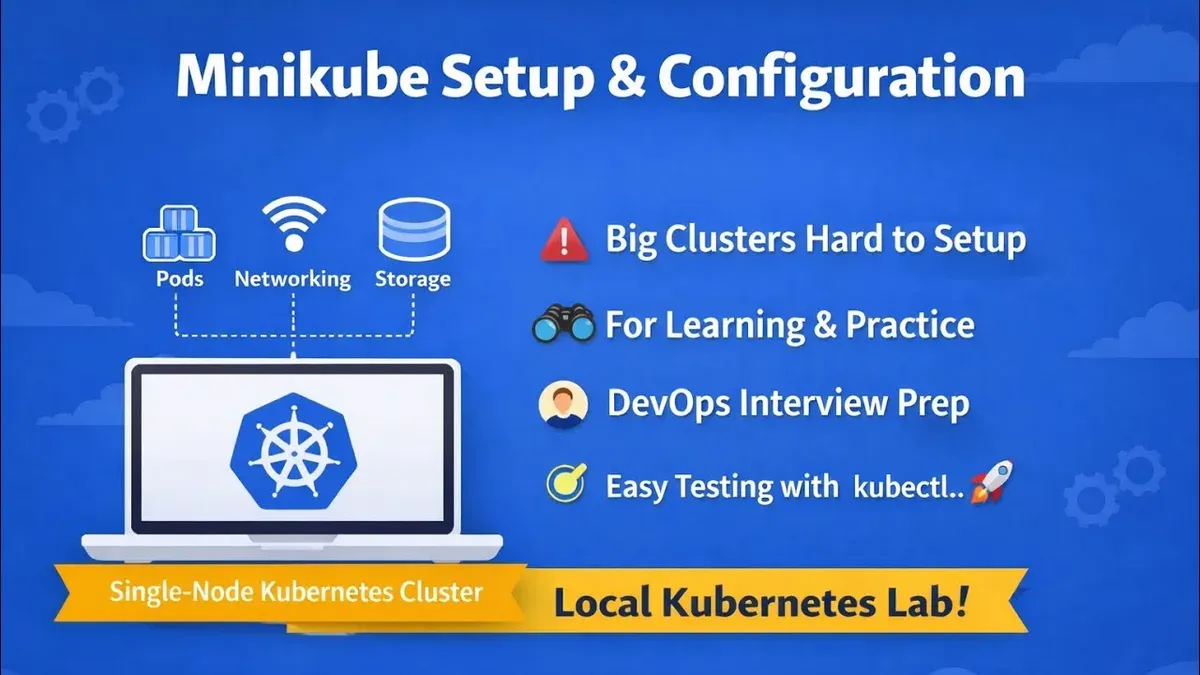
Minikube is a tool that runs a single-node Kubernetes cluster locally on your computer. It provides a lightweight environment to develop, test, and learn Kubernetes without needing access to remote or cloud-based clusters.
Using Minikube locally allows you to experiment with Kubernetes features, deploy applications, and simulate cluster behaviors in isolation. This setup is especially valuable for developers and IT professionals who want to validate configurations or troubleshoot before moving to production environments.
Compared to managed Kubernetes clusters, Minikube is simpler and more resource-efficient but lacks the scalability and high availability of multi-node clusters. It runs inside a virtual machine or container on your Mac, which means it is limited by your hardware resources.
Alternatives like Kind (Kubernetes IN Docker) also offer local Kubernetes clusters but use Docker containers instead of VMs, which can be faster to start and easier to integrate with Docker workflows.
| Feature | Minikube | Kind | Managed Clusters |
|---|---|---|---|
| Setup complexity | Moderate (VM or Docker driver) | Low (Docker only) | High (cloud provider setup) |
| Resource usage | Moderate (VM overhead) | Low (containers) | Varies (cloud resources) |
| Cluster size | Single-node | Multi-node possible | Multi-node, scalable |
| Use cases | Development, testing, learning | CI pipelines, lightweight dev | Production, staging |
Choosing between Minikube and alternatives depends on your workflow needs. Minikube offers a straightforward way to run Kubernetes locally with VM isolation, while Kind provides container-based clusters suitable for CI. Both serve as valuable tools before deploying to managed clusters.
Troubleshooting common Minikube installation issues on Mac
Virtualization errors often stem from driver mismatches or disabled hardware support. If you encounter an error like "Driver 'hyperkit' not found" or "Virtualization is not supported on this platform", verify that your chosen VM driver is installed and compatible with your Mac's hardware and macOS version. Run minikube config get driver to check the active driver and switch it with minikube config set driver docker if needed.
Network or DNS issues inside Minikube can cause pod communication failures. Use minikube ssh to enter the VM, then test DNS resolution with nslookup kubernetes.default. If DNS fails, restarting the DNS addon via minikube addons enable coredns may help.
Insufficient CPU or memory allocation results in errors like "Unable to start VM: insufficient resources". Adjust resources by running minikube config set cpus 4 and minikube config set memory 8192, then restart the cluster.
Permission errors such as "Permission denied" often require running commands with appropriate user privileges or fixing file ownership on ~/.minikube. Avoid using sudo with Minikube commands to prevent permission conflicts.
To reset or delete your Minikube cluster if issues persist, follow these steps:
- Run minikube stop to halt the cluster. You should see a confirmation that the cluster is stopped.
- Execute minikube delete to remove the cluster and associated files. Success is indicated by messages confirming deletion.
- Optionally clear cached ISO images with minikube cache delete to ensure a fresh start.
- Start Minikube again with your preferred driver: minikube start --driver=docker. The cluster should initialize without previous errors.
- How to Install Python on Mac: A Clear Step-by-Step Guide
- How to Install Node.js with NVM on Mac: A Clear Step-by-Step Guide
- How to Install MongoDB on Mac: A Clear Step-by-Step Guide
Frequently asked questions
How to install minikube on ubuntu 24.04?
To install Minikube on Ubuntu 24.04, first update your package list with sudo apt update. Install dependencies like curl, conntrack, and a container runtime such as Docker or containerd. Then, download the latest Minikube binary with curl -LO https://storage.googleapis.com/minikube/releases/latest/minikube-linux-amd64, make it executable using chmod +x minikube-linux-amd64, and move it to /usr/local/bin. Finally, start Minikube with your preferred driver, for example, minikube start --driver=docker.
How to install minikube on linux?
Installing Minikube on Linux involves downloading the Minikube binary that matches your architecture, making it executable, and placing it in a directory within your system's PATH. You should also ensure a compatible container runtime or hypervisor is installed, such as Docker or KVM. After installation, start Minikube by specifying a driver that suits your setup.
Kubernetes minikube install windows - how is it different?
Minikube installation on Windows differs mainly in the installer type and dependency management. Windows users typically download an executable installer or use package managers like Chocolatey. Additionally, Minikube requires a virtualization platform such as Hyper-V or VirtualBox, and enabling Hyper-V involves activating it through Windows Features. The command-line syntax remains similar but must be run in PowerShell or Command Prompt with administrator privileges.
Kubernetes kind vs minikube: which should I choose?
Kind and Minikube serve similar purposes but differ in architecture and use cases. Kind runs Kubernetes clusters in Docker containers and is lightweight, making it ideal for CI pipelines and local development with minimal overhead. Minikube provides a more full-fledged VM-based environment with broader driver support, suitable if you want a closer experience to a production cluster. Your choice depends on your resource constraints and whether you prefer container-based or VM-based local clusters.
What this guide does not cover and who should look elsewhere
This guide does not cover production Kubernetes deployments or advanced cluster configurations; it is intended for local development and testing only. If you require multi-node cluster setups, high availability, or cloud-native integrations, consider using managed Kubernetes services like Amazon EKS, Google GKE, or Azure AKS. Production environments demand robust security, persistent storage, and resource optimization strategies which are beyond the scope of this walkthrough.
The single most useful next step after installing Minikube on your Mac is to start deploying and managing simple Kubernetes workloads. Try creating a deployment with kubectl create deployment and expose it with a service to understand how Minikube handles networking and pod lifecycle. This hands-on approach will help solidify your grasp of local Kubernetes and prepare you for more complex scenarios or alternative tools like Kind if your work requires containerized cluster testing beyond Minikube’s capabilities.