How to Install MongoDB on Mac: A Clear Step-by-Step Guide
This guide shows how to install MongoDB on Mac using Homebrew or manual methods for Apple Silicon and Intel Macs with troubleshooting tips.

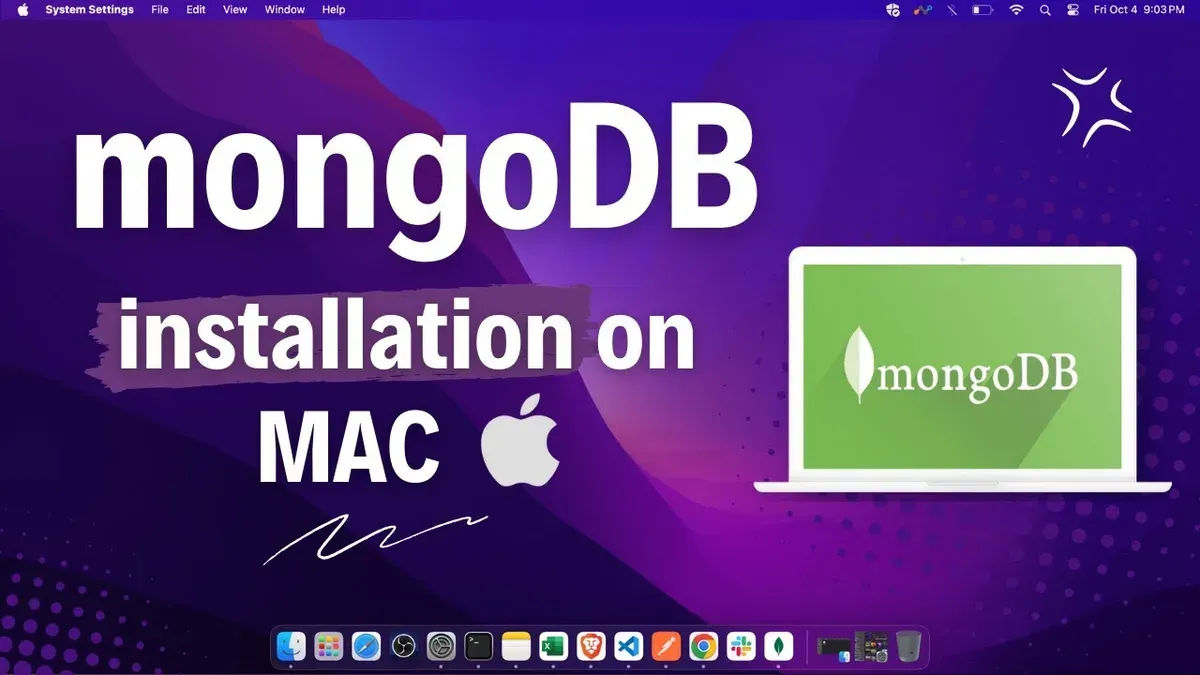
Installing MongoDB on a Mac can feel confusing if you’re unsure which method suits your hardware or preferences. Whether you’re working on an Apple Silicon (M1) Mac or an Intel-based model, the installation process has distinct steps and considerations.
This guide covers how to install MongoDB on Mac using both Homebrew and manual methods, helping you decide the best approach for your setup. You’ll also find tailored instructions for M1 and Intel Macs and tips for using MongoDB Compass and the Terminal. Troubleshooting common issues is included to ensure a smooth setup experience.
Key takeaways
- Choose Homebrew for an easy and automated MongoDB installation on Mac.
- Manual installation offers more control, especially if you prefer not to use Homebrew.
- Apple Silicon Macs require specific binaries or Rosetta 2 to run MongoDB effectively.
- MongoDB Compass provides a graphical interface for database management on Mac.
- Common installation issues often involve permissions or missing dependencies; these can usually be resolved with simple commands.
Before you start: What you need to install MongoDB on Mac
Before installing MongoDB, verify your Mac’s hardware and software to ensure compatibility. MongoDB supports macOS versions 10.14 (Mojave) and later, with better compatibility and performance on the latest system updates. Identify whether your Mac uses an Intel processor or Apple Silicon (M1/M2), as this affects installation methods and tooling.
You should decide if you prefer using Homebrew, the popular package manager for macOS favored by many developers, or a manual installation. Homebrew simplifies dependency management and updates, but manual installation offers more control and is necessary on some Apple Silicon setups.
Basic familiarity with the command line and access to the Terminal app are essential, as installation involves command-line instructions. Ensure you have a stable internet connection to download necessary packages and dependencies.
- Check your Mac model: Click the Apple menu > About This Mac. You should see either “Apple M1”/“Apple M2” for Apple Silicon or an Intel processor listed. This confirms your hardware type.
- Confirm your macOS version: In the same window, note the macOS version. It should be 10.14 or newer. If not, update via System Preferences > Software Update.
- Decide on installation method: Research Homebrew by visiting https://brew.sh to learn about its usage and popularity, or prepare for manual installation by downloading MongoDB directly from the official MongoDB website.
- Open Terminal: Navigate to Applications > Utilities > Terminal. Test basic commands like ls or pwd to ensure you can use the command line.
- Verify internet connection: Open a browser and visit any website to confirm your Mac is online and able to download required files.
How to install MongoDB on Mac using Homebrew
Homebrew is the most common method to install MongoDB Community Edition on Mac. If you don’t have Homebrew installed, start by opening Terminal and entering the official installation command:
- Install Homebrew by pasting
/bin/bash -c "$(curl -fsSL https://raw.githubusercontent.com/Homebrew/install/HEAD/install.sh)"and press Enter. When successful, Terminal will show "Installation successful!" or similar confirmation. - Update Homebrew package information with
brew update. You should see a list of updated formulae or a message confirming Homebrew is up to date. - Install MongoDB Community Edition using
brew tap mongodb/brewto add MongoDB’s official tap, followed bybrew install mongodb-community. Terminal will display download progress and installation logs. - Start the MongoDB service with
brew services start mongodb-community. A success message like "Service `mongodb-community` started" confirms MongoDB is running. - To stop MongoDB, use
brew services stop mongodb-community. You’ll see a confirmation message indicating the service stopped. - Verify installation by launching the MongoDB shell with
mongosh. The prompt changes to the MongoDB shell interface, displaying the server version and a command prompt.
Homebrew installation on Mac has a high success rate, as it handles dependencies and service management automatically. This method simplifies updates and ensures MongoDB runs as a background service.
How to install MongoDB on Mac without Homebrew
If you prefer not to use Homebrew, you can manually install MongoDB by downloading the official MongoDB Community Server.tgz archive from the MongoDB website. This method gives you full control over the installation and is useful if you want to avoid package managers.
- Visit the official MongoDB download center and select the macOS version matching your hardware and macOS version. Choose the.tgz archive instead of the.pkg installer. Once downloaded, the archive size is typically around 400MB, larger than the Homebrew package due to the bundled binaries.
- Open Terminal and navigate to the folder containing the downloaded.tgz file. Extract it using
tar -xvzf mongodb-macos-*.tgz. You should see the extracted folder with binaries and libraries. - Create necessary directories for data and logs, for example:
sudo mkdir -p /usr/local/var/mongodbandsudo mkdir -p /usr/local/var/log/mongodb. Set permissions withsudo chown -R $(whoami) /usr/local/var/mongodb /usr/local/var/log/mongodb. This ensures MongoDB can write data and logs properly. - To run MongoDB manually as a service, create a configuration file at
/usr/local/etc/mongod.confwith paths for data and logs specified. Then launch MongoDB by running./mongod --config /usr/local/etc/mongod.conffrom the extracted bin directory. The Terminal will output logs showing that MongoDB has started successfully. - Verify MongoDB is running by opening another Terminal window and entering
./mongofrom the bin directory. This connects to the MongoDB shell, confirming a successful setup.
This manual approach generally takes longer to set up and requires more steps than Homebrew but avoids dependency on external package managers. It also offers flexibility in customizing installation paths.
How to install MongoDB on Mac M1
Apple Silicon Macs use the ARM architecture, which differs from Intel’s x86, impacting software compatibility. MongoDB does not yet offer a fully native ARM build, so installation requires specific steps.
First, ensure Rosetta 2 is installed. Rosetta translates Intel-based apps for Apple Silicon, enabling MongoDB to run smoothly. You can install it by running softwareupdate --install-rosetta in Terminal if not already present.
For Homebrew users, install the ARM version of Homebrew in the standard location /opt/homebrew. However, MongoDB formulas often run under Rosetta, so you may need to launch Terminal using Rosetta to install or run MongoDB. This can be done by selecting Terminal in Finder, using Get Info, and checking "Open using Rosetta." Alternatively, manual installation with the official MongoDB Intel.tgz archive and Rosetta works reliably.
Community feedback indicates MongoDB running under Rosetta 2 on M1 Macs is stable for development, though some performance overhead exists compared to native Intel hardware. Benchmarks show MongoDB operations on M1 generally perform well but can be slower than native ARM apps.
- Verify Rosetta 2 is installed by running
softwareupdate --install-rosetta. You should see a confirmation message if installed correctly. - Decide your preferred method: Homebrew under Rosetta or manual installation.
- If using Homebrew, launch Terminal with Rosetta enabled, then run
brew install mongodb-community. Success shows MongoDB installed and service started. - If installing manually, download the Intel macOS.tgz from MongoDB’s site, extract it, configure data directories, and launch MongoDB using Terminal. You should see MongoDB starting without errors.
- Confirm MongoDB is running by connecting with
mongoshell or checking the service status. It may be running under Rosetta translation.
How to install MongoDB on Mac Intel
Installing MongoDB on Intel-based Macs offers flexibility via Homebrew or manual installation, with attention to version compatibility and common Intel-specific issues.
- Open Terminal and update Homebrew with brew update. You should see the update process complete without errors.
- Install MongoDB using Homebrew by running brew tap mongodb/brew followed by brew install mongodb-community. Successful installation will show “mongodb-community” installed with no errors.
- Start the MongoDB service using brew services start mongodb-community. Confirm MongoDB is running by checking the status with brew services list, which should show “started” for MongoDB.
- Access the MongoDB shell by typing mongosh in Terminal. The shell prompt should appear, indicating a successful connection.
- If opting for manual installation, download the appropriate MongoDB.tgz archive for Intel Macs from the official MongoDB download center. Extract it and place the binaries in a directory included in your PATH.
- Create the data directory with mkdir -p /usr/local/var/mongodb and set permissions. Start MongoDB manually using mongod --dbpath /usr/local/var/mongodb. You should see log messages indicating MongoDB started successfully.
Ensure MongoDB version compatibility by selecting versions built for Intel architecture; newer releases often support both Intel and Apple Silicon but verify in the release notes. Common Intel-specific issues include permission errors on data directories and conflicts with existing MongoDB installations. Check error logs located typically at /usr/local/var/log/mongodb/mongo.log for troubleshooting. Adjust directory permissions with chmod and chown if needed.
How to install and use MongoDB Compass on Mac
- Go to the official MongoDB website's Compass download page at https://www.mongodb.com/try/download/compass. Select the macOS version compatible with your system (Intel or Apple Silicon) and click the download button. You should see a.dmg file in your Downloads folder after completion.
- Open the downloaded.dmg file by double-clicking it. A window will appear with the MongoDB Compass app icon and an Applications folder shortcut. Drag the Compass icon into the Applications folder. This installs Compass on your Mac.
- Navigate to your Applications folder and double-click MongoDB Compass to launch it. The first launch may prompt you to confirm that you want to open an app downloaded from the internet; click "Open" to proceed.
- On the Compass welcome screen, you will see a connection form. In the "Hostname" field, enter "localhost" and ensure the default port "27017" is set. Leave other settings at defaults unless you have a custom MongoDB setup. Click "Connect" to establish a connection to your local MongoDB server. If successful, the main Compass interface will load, showing your databases.
- Use the sidebar to navigate databases and collections. Click a collection name to view documents in a table format. Use the toolbar to filter, project, or sort documents. The UI also provides options to insert, update, and delete documents interactively.
Typical Compass UI elements include the left sidebar listing databases, a central document viewer, and a top menu with query and aggregation pipeline builders. Screenshots on the MongoDB website illustrate these elements clearly. Connecting to the local server usually requires no additional authentication unless your MongoDB instance is secured.
How to install MongoDB on Mac Terminal
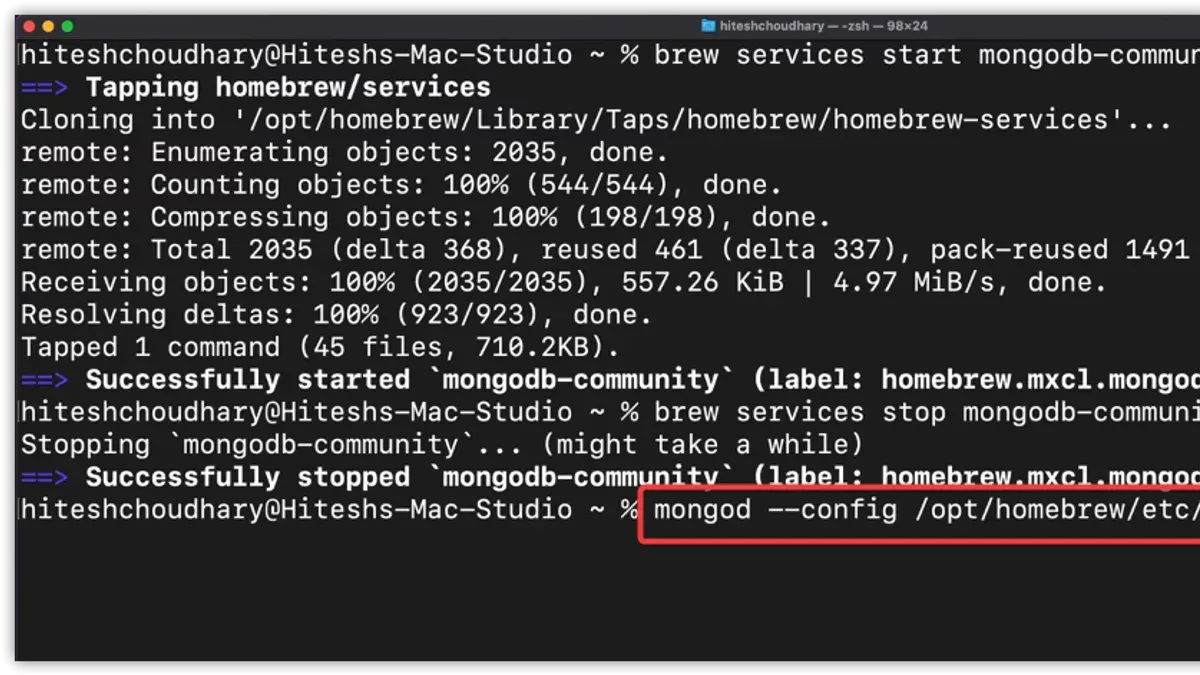
Using Terminal is key to installing and managing MongoDB on your Mac, whether you use Homebrew or manual installation. Terminal commands streamline setup, starting the server, and troubleshooting.
- Open Terminal. You can find it in Applications > Utilities or search with Spotlight.
- Install or verify MongoDB. For Homebrew users, type brew services start mongodb-community. You should see a message confirming the service started successfully. For manual installs, navigate to your MongoDB bin directory (e.g.,
cd ~/mongodb/bin) and run./mongod --config /usr/local/etc/mongod.conf. Terminal will show MongoDB starting logs. - Run the MongoDB shell. In a new Terminal window, enter
mongoor./mongofrom the bin directory. You should see the MongoDB shell prompt>indicating a successful connection. - Check MongoDB service status. For Homebrew, use
brew services listto see if MongoDB is running. The status column should say started. For manual setups, check active processes withps aux | grep mongodto confirm the server is running. - Troubleshoot common issues. If MongoDB fails to start, check Terminal output for errors like port conflicts or permission issues. Use
tail -f /usr/local/var/log/mongodb/mongo.log(or your log path) to monitor logs live. Restart services withbrew services restart mongodb-communityor by stopping and rerunning./mongod.
Terminal provides precise feedback for each command, helping you confirm successful installation and quickly diagnose problems.
Troubleshooting common MongoDB installation issues on Mac
MongoDB installation on Mac can encounter a few frequent issues, but most are fixable with straightforward steps.
Fixing permission errors
If you see errors like "EACCES: permission denied" during installation or startup, it usually means your user account lacks write access to MongoDB directories.
- Run sudo chown -R $(whoami) /usr/local/var/mongodb to change ownership of MongoDB data folders.
Success looks like no error returned. - Check permissions with ls -ld /usr/local/var/mongodb showing your username as owner.
If correct, MongoDB can write to its data files.
Resolving Homebrew conflicts or outdated formulae
Conflicts or outdated Homebrew formulae can cause install failures or version mismatches.
- Run brew update to refresh Homebrew’s list.
You should see "Updated Homebrew" messages. - Then run brew upgrade mongodb-community to get the latest MongoDB build.
Successful upgrade ends without errors. - If conflicts persist, run brew doctor and follow its recommendations to fix environment issues.
Handling MongoDB service startup failures
When the MongoDB service does not start, check the log file at /usr/local/var/log/mongodb/mongo.log for errors.
- Look for messages like "Address already in use" indicating port conflicts.
This means another service uses MongoDB’s default port 27017. - Change the port in your
/usr/local/etc/mongod.conffile and restart the service.
Restart should complete without errors.
Dealing with port conflicts or firewall blocks
Port conflicts or macOS firewall settings can block MongoDB connections.
- Verify no other service uses port 27017 with lsof -i:27017.
Empty output confirms the port is free. - Allow MongoDB through macOS firewall via System Preferences > Security & Privacy > Firewall > Firewall Options, adding MongoDB if needed.
Firewall permits MongoDB traffic.
Verifying environment variables and PATH settings
MongoDB commands might not be found if PATH does not include the MongoDB binaries.
- Check PATH with echo $PATH and ensure it includes
/usr/local/binor wherever MongoDB is installed.
PATH shows the directory containing MongoDB executables. - Add export
PATH=/usr/local/bin:$PATHto your shell profile (e.g.,.zshrcor.bash_profile) and reload.
MongoDB commands become available in Terminal.
- How to Install CMake on Mac: A Complete Step-by-Step Guide
- How to Install Node.js with NVM on Mac: A Clear Step-by-Step Guide
- How to Install Python on Mac: A Clear Step-by-Step Guide
- How to Install Java JDK 21 on Mac: A Step-by-Step Guide
Frequently asked questions
How to install mongodb on windows?
To install MongoDB on Windows, download the MSI installer from the official MongoDB website. Run the installer, selecting either the Complete or Custom setup type. After installation, configure the MongoDB service to start automatically and verify the installation by running mongod from the Command Prompt.
How to install mongodb on ubuntu?
Install MongoDB on Ubuntu by importing the MongoDB public GPG key and adding the official MongoDB repository. Then, update the package list and install MongoDB using sudo apt-get install mongodb-org. Finally, start the MongoDB service with sudo systemctl start mongod and enable it to run on startup.
How to install mongodb on macbook?
On a MacBook, you can install MongoDB using Homebrew by running brew tap mongodb/brew followed by brew install mongodb-community. Alternatively, download the official MongoDB macOS package for manual installation. Make sure to choose the method best suited to your Mac’s processor type, Intel or Apple Silicon.
How to install mongodb in macbook?
The process to install MongoDB in a MacBook is the same as installing it on a Mac. Use Homebrew for a quick setup or download the MongoDB macOS installer. After installation, start the MongoDB server from Terminal and check its status to confirm it’s running properly.
How to install MongoDB on Windows?
Installing MongoDB on Windows involves downloading the MSI installer from the MongoDB website and running it with administrator privileges. Choose the option to install MongoDB as a service for easier management. After installation, add MongoDB’s bin directory to your system PATH to use MongoDB tools from the command line.
What this guide does not cover
This guide does not cover advanced MongoDB cluster setups or production-grade deployments. If you require enterprise features, high availability, or cloud-managed solutions, you should consult the official MongoDB documentation or seek professional services tailored to your needs. This walkthrough focuses on local installations suitable for development, testing, and learning purposes on Mac hardware.
The best next step after installing MongoDB is to familiarize yourself with MongoDB Compass, the official GUI for MongoDB. Using Compass, you can visually explore your databases, run queries, and manage collections without needing to use the command line. Installing and configuring Compass will help you quickly interact with your MongoDB instance and understand its structure, improving your productivity and easing the learning curve.