How to Install Terraform on Mac: A Step-by-Step Guide
Follow this step-by-step guide to install Terraform on your Mac using Homebrew or manual methods, including Apple Silicon tips and troubleshooting.

You’re ready to automate infrastructure on your Mac but aren’t sure how to get started with Terraform. Whether you prefer using package managers or manual installation, understanding the best approach for your system is key.
This article covers how to install Terraform on Mac, offering clear, step-by-step instructions tailored to different Mac setups. You’ll learn installation methods using Homebrew and manual downloads, terminal-only commands, Apple Silicon considerations, and how to add terraform-docs for documentation. Troubleshooting tips address common errors specific to Mac environments, ensuring a smooth setup experience.
Key takeaways
- Homebrew simplifies Terraform installation with automatic updates and dependency management.
- Manual installation provides control and works without Homebrew but requires setting PATH variables.
- Apple Silicon Macs need attention to architecture compatibility when installing Terraform.
- Using the terminal alone can streamline installation, especially on minimal setups.
- Troubleshooting common Mac-specific errors helps avoid permission and PATH issues.
Before you start: What you need to install Terraform on Mac
Terraform is a popular infrastructure as code (IaC) tool that enables you to define, provision, and manage cloud infrastructure through declarative configuration files. Installing Terraform correctly on your Mac is essential to streamline your development and deployment workflows.
Before proceeding, confirm that your Mac meets the system requirements. Terraform supports macOS versions 10.15 (Catalina) and later. Both Intel-based Macs and Apple Silicon (M1/M2) models are compatible, though some installation steps may vary slightly for Apple Silicon.
You should have basic familiarity with the command line interface (Terminal) since Terraform is primarily operated via commands. Administrator privileges on your Mac are necessary to install software and manage system paths.
While this guide covers installation using both Homebrew and manual download methods, having Homebrew installed can simplify the process. Homebrew is a widely used package manager for macOS that automates software management.
This guide focuses strictly on installation steps for Terraform and related tools on macOS. Post-installation configuration, writing Terraform files, or cloud provider setup are beyond its scope.
- Verify your macOS version: Open the Apple menu and select About This Mac. Ensure your version is 10.15 or newer.
- Check your hardware type: In the same window, note if your Mac has an Intel processor or Apple Silicon (M1/M2).
- Confirm you have administrator access: You will need to enter your password during installation.
- Decide whether to use Homebrew: If you already have Homebrew installed, you can use it to install Terraform easily. Otherwise, prepare to download Terraform manually.
- Open Terminal and test your command line skills by running
terraform -help. If the command is not found, Terraform is not yet installed.
How to install Terraform on Mac with Homebrew
If you don’t have Homebrew installed, start by installing it. Open Terminal and enter the following command:
/bin/bash -c "$(curl -fsSL https://raw.githubusercontent.com/Homebrew/install/HEAD/install.sh)"This downloads and runs the Homebrew installation script. Upon success, you should see messages confirming Homebrew has been installed.- Once Homebrew is installed, update its formulae by running
brew update. You should see output indicating Homebrew is fetching the latest package lists. - Next, install Terraform with the command
brew install terraform. The terminal will download and install Terraform and its dependencies. - Verify the installation by running
terraform version. A successful install displays the current Terraform version, for example:Terraform v1.5.2 - If you encounter errors such as permission denied or outdated formulas, try running
brew doctorto diagnose issues and follow its recommendations.
Homebrew manages Terraform updates and dependencies, making this the easiest and most maintainable installation method on Mac.
How to install Terraform on Mac without Homebrew
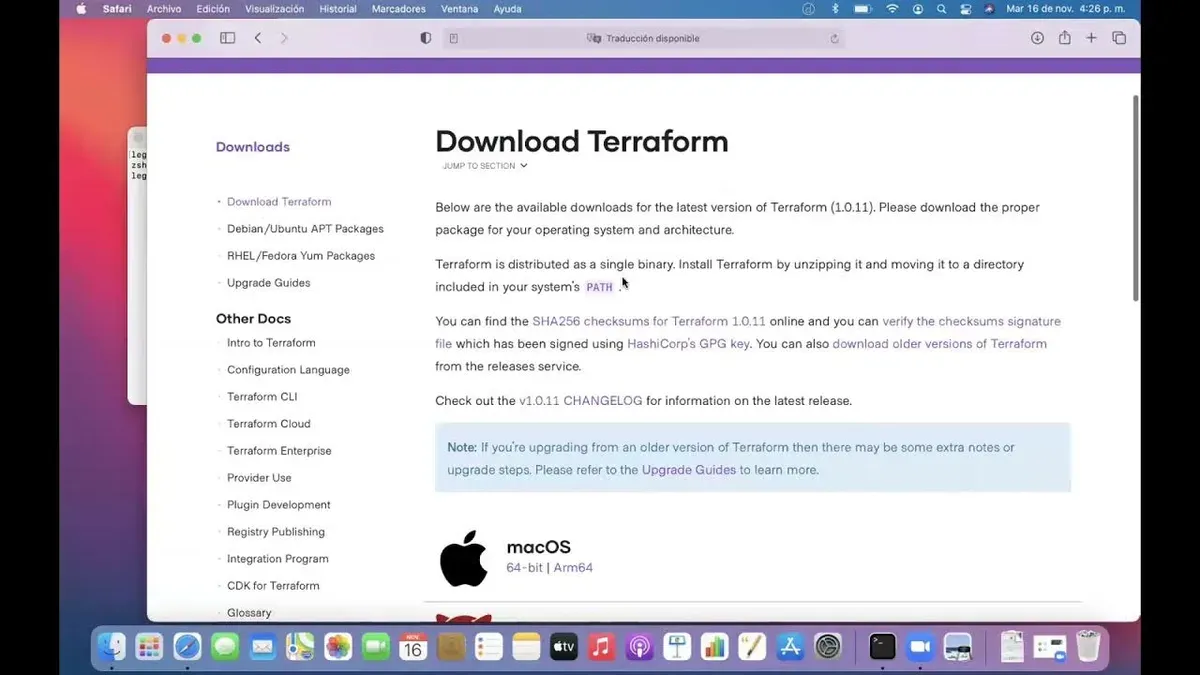
If you prefer not to use Homebrew, you can install Terraform manually by downloading the binary directly from HashiCorp's official releases. This method gives you full control over the installation location and version but requires extra steps.
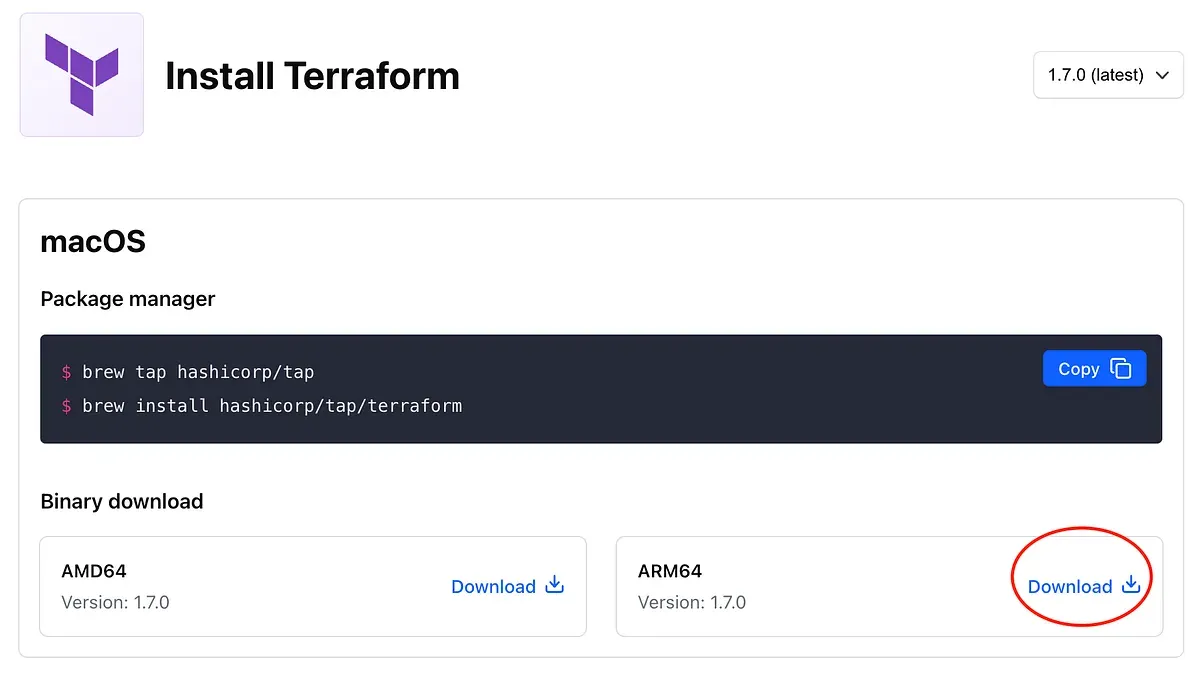
- Download the Terraform binary: Visit https://releases.hashicorp.com/terraform/ and select the latest stable version. Choose the macOS 64-bit (or ARM64 for Apple Silicon) zip file and download it. When successful, you will see the zip file in your Downloads folder.
- Unzip the downloaded file: Open Terminal and navigate to your Downloads folder by running
cd ~/Downloads. Unzip withunzip terraform_version_darwin_amd64.zip(replace with the actual filename). After extraction, you should see the 'terraform' executable in the folder. - Move the binary to a directory in your PATH: Use
sudo mv terraform /usr/local/bin/to move the executable. This location is commonly included in your shell's PATH, allowing you to run Terraform from anywhere. If /usr/local/bin is not writable, you might need to adjust permissions or select another directory in PATH. - Set executable permissions: Run
sudo chmod +x /usr/local/bin/terraformto ensure the binary is executable. - Verify the installation: Run
terraform versionin Terminal. You should see the installed Terraform version printed, confirming a successful setup.
Advantages: Manual installation avoids dependency on package managers and lets you choose specific versions easily. It is useful in restricted environments or when you want to manage Terraform versions yourself.
Disadvantages: You must manually handle updates and PATH configurations. It is less convenient than Homebrew, which automates these tasks and integrates with macOS package management.
How to install Terraform on Mac terminal: Using command line only
You can install Terraform entirely through the terminal using command line tools like curl or wget. This method downloads the official binary directly, extracts it, sets permissions, and places it in your system PATH.
- Download the latest Terraform zip archive with curl or wget. For example:
curl -O https://releases.hashicorp.com/terraform/1.5.6/terraform_1.5.6_darwin_amd64.zip
Expected output: The zip file downloads without errors. - Unzip the archive using the terminal command:
unzip terraform_1.5.6_darwin_amd64.zip
Expected output: Extraction of the terraform binary in the current directory. - Make the binary executable:
chmod +x terraform
Expected output: No message; executable permission is set. - Move the binary to a directory in your PATH, such as /usr/local/bin:
sudo mv terraform /usr/local/bin/
Expected output: No message; the binary is moved. - Verify the installation:
terraform version
Expected output: Displays the installed Terraform version, e.g., Terraform v1.5.6.
To streamline this, you can automate the steps with a shell script. For example:
Run this script with bash scriptname.sh to install Terraform in one go. Adjust the VERSION variable to target a different release. This approach offers precise control over the installation process without relying on package managers.
Terraform setup on Mac with Apple Silicon (M1/M2) considerations
Macs with Apple Silicon chips (M1 and M2) use ARM64 architecture, which requires attention when installing Terraform. HashiCorp provides official ARM64 binaries compatible with these chips, offering better performance and efficiency compared to running Intel (x86_64) versions through emulation.
If you plan to use Terraform on an Apple Silicon Mac, download the ARM64 version of the Terraform binary from HashiCorp's releases page. This ensures native execution without relying on translation layers.
However, if you have software dependencies or plugins that only support x86_64, you might need to run Terraform under Rosetta 2. Rosetta 2 translates Intel binaries on Apple Silicon but can impact performance and compatibility.
- Check if Rosetta 2 is installed by running softwareupdate --install-rosetta --agree-to-license in Terminal. If installed, it will notify you; otherwise, it will install automatically.
- Download the ARM64 Terraform binary for native performance, or the x86_64 binary if you require compatibility with Intel-only plugins.
- Install the binary as usual and verify with terraform version. The output should indicate the architecture, confirming the correct binary is running.
- Be aware that running the x86_64 version under Rosetta 2 may cause slightly slower execution and greater resource use compared to the ARM64 binary.
Choosing the ARM64 binary aligns with Apple Silicon’s architecture and is generally recommended unless specific compatibility issues arise. HashiCorp’s official documentation confirms support for ARM64 on macOS, with binary sizes similar to Intel versions but optimized for ARM performance.
How to install terraform-docs on Mac for documentation generation
terraform-docs is a helpful companion tool that automatically generates documentation from your Terraform modules' source code. This streamlines creating consistent README files by extracting inputs, outputs, and resources directly from your Terraform configuration.
You can install terraform-docs easily using Homebrew or by manually downloading the binary if you prefer.
- Open your terminal and run brew install terraform-docs. When successful, you will see a message confirming the installation, such as "==> Installing terraform-docs" followed by "🍺 /usr/local/Cellar/terraform-docs/..." indicating the version installed.
- Alternatively, visit the official terraform-docs GitHub releases page to download the Mac binary. After downloading, move the binary to a directory in your PATH, for example
/usr/local/bin, and make it executable withchmod +x terraform-docs. Confirm the binary is executable by runningterraform-docs --version, which should output something like terraform-docs v0.16.0. - Navigate to a Terraform module directory containing your
.tffiles. Runterraform-docs markdown.to generate module documentation in markdown format. A successful command outputs a structured markdown table listing inputs, descriptions, types, and defaults.
Example output snippet from terraform-docs markdown.:
| Name | Description | Type | Default | Required |
|---------------|-------------------------|--------|---------|----------|
| region | AWS region to deploy in | string | us-east-1 | no |
| instance_type | EC2 instance type | string | t2.micro | no |
This documentation can then be included in your module's README, ensuring clarity for users and maintainers.
Troubleshooting common issues installing Terraform on Mac
If you encounter issues after installing Terraform on your Mac, the following steps can help resolve common problems related to PATH settings, permissions, Homebrew conflicts, binary compatibility, and checksum verification.
PATH issues: Terraform command not found
- Open Terminal and run
echo $PATH. Ensure the directory containing the Terraform binary (e.g.,/usr/local/binor/opt/homebrew/bin) is listed. If not, add it by editing your shell profile (~/.zshrcor~/.bash_profile) withexport PATH=$PATH:/path/to/terraform. - Reload your profile with
source ~/.zshrcor open a new terminal window, then typeterraform -version. You should see Terraform's version output. If the command is still not found, check that the binary exists in the expected location withls -l /path/to/terraform.
Permission denied errors
- If you see permission denied when running Terraform, ensure the binary has execute permissions:
chmod +x /path/to/terraform. - Verify ownership with
ls -l /path/to/terraform. If you lack ownership, usesudo chown $(whoami) /path/to/terraformto transfer ownership. - After adjusting permissions, retry
terraform -versionto confirm it runs without errors.
Homebrew conflicts or outdated formula
- Run
brew updateto refresh Homebrew andbrew upgrade terraformto get the latest version. - If you have multiple Terraform installations, check with
which terraformto confirm which binary is active. - Unlink unwanted versions using
brew unlink terraformand then link the preferred one withbrew link terraform.
Binary compatibility errors on Apple Silicon Macs
- If you get errors like exec format error, verify you downloaded the ARM64 Terraform binary designed for M1/M2 chips.
- Run
uname -mto check your Mac’s architecture:arm64indicates Apple Silicon. - If you have an x86_64 binary, either download the ARM64 version or run Terminal using Rosetta 2 with
arch -x86_64 /bin/zsh.
Verifying checksum on manual downloads
- HashiCorp provides SHA256 checksums for each Terraform release. After downloading, run
shasum -a 256 terraform_version_os_arch.zip. - Compare the output to the checksum listed on the official HashiCorp release page.
- If checksums differ, redownload the binary to avoid corrupted or tampered files.
- How to Install Kubernetes Minikube on Mac: A Step-by-Step Guide
- How to Install Docker on Mac: A Clear Step-by-Step Guide
- How to Install Redis on Mac: A Clear Step-by-Step Guide
- How to Install MongoDB on Mac: A Clear Step-by-Step Guide
Frequently asked questions
How to install terraform on windows?
To install Terraform on Windows, download the appropriate ZIP package from the official Terraform website. Extract the executable and place it in a directory included in your system's PATH environment variable, such as C:\Windows\System32. You can verify the installation by running terraform -version in Command Prompt or PowerShell.
How to install terraform in windows machine?
On a Windows machine, get the Terraform ZIP file for Windows from HashiCorp’s releases page. Unzip it to a folder like C:\Terraform and add that folder to your PATH environment variable via System Properties > Environment Variables. Open PowerShell or CMD and run terraform version to ensure it is correctly installed.
How to install terraform on windows machine?
Installing Terraform on a Windows machine involves downloading the Windows 64-bit ZIP archive from the official site. Extract the terraform.exe file to a folder on your system, then update your PATH variable to include that folder. Confirm the setup by executing terraform --version in a terminal window.
How to install terraform on macos without brew?
To install Terraform on macOS without Homebrew, download the macOS ZIP archive from HashiCorp’s website. Extract the terraform binary and move it to /usr/local/bin to make it accessible system-wide. You may need to adjust permissions with chmod +x /usr/local/bin/terraform and verify with terraform version.
How to install terraform on mac with brew?
Using Homebrew on Mac, install Terraform by running brew install terraform in the Terminal. Homebrew handles the download and places Terraform in your PATH automatically. After installation, verify the version by typing terraform --version.
What this advice does not cover and who should look elsewhere
This guide focuses on installation only and does not cover Terraform configuration, usage, or advanced setups such as integrating with cloud providers or CI/CD pipelines. If you are looking to manage complex infrastructure workflows or automate deployments, additional resources will be necessary.
Users unfamiliar with command line tools or system administration may find manual installation challenging. In such cases, starting with foundational tutorials on macOS terminal basics or seeking help from experienced peers can provide a smoother learning curve.
The most useful next step is to verify your Terraform installation by running terraform version in your terminal. This confirms that Terraform is correctly installed and accessible, allowing you to begin writing and applying your infrastructure code with confidence.