
How to Install HandBrake on Mac: A Step-by-Step Guide
Follow this step-by-step guide to install HandBrake on Mac and start converting videos efficiently with ease.

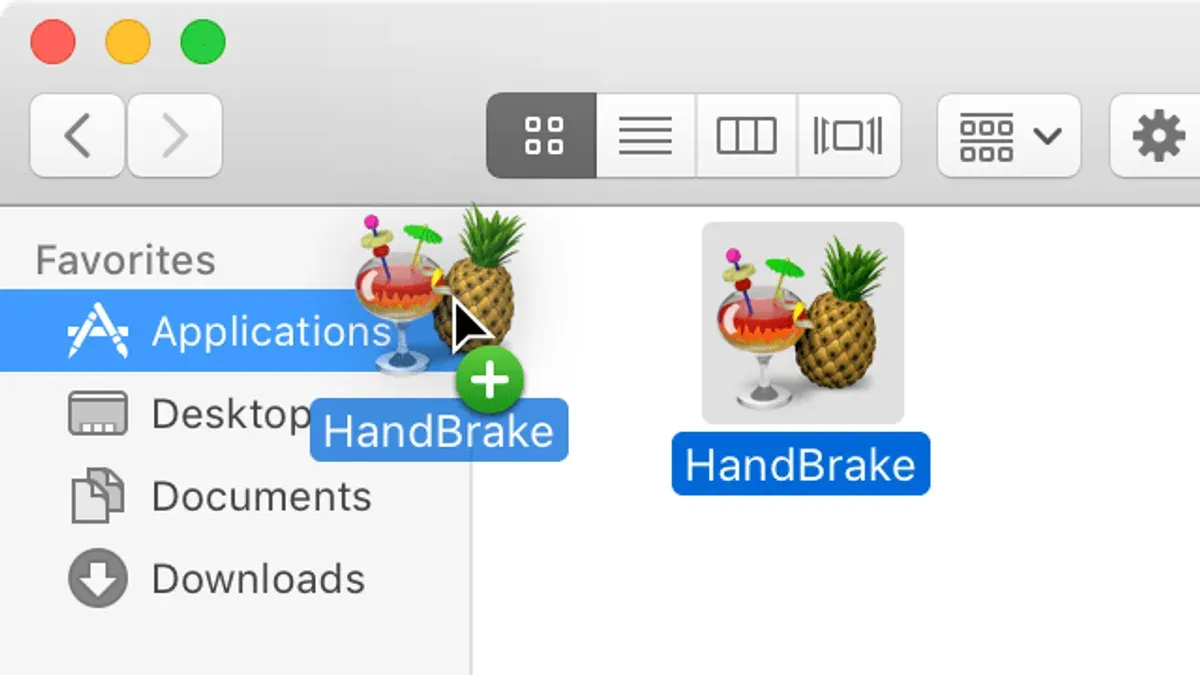
Short answer: To install HandBrake on Mac, you download the official DMG file from HandBrake’s website, open it, and drag the HandBrake app into your Applications folder. This straightforward process gets you ready to convert videos efficiently on macOS.
This article guides you step-by-step through how to install HandBrake on Mac, covering what you need beforehand, the precise download and installation steps, and initial setup tips. You’ll also get clarity on common platform confusions, practical usage advice, and troubleshooting insights that typical generic guides often miss. By the end, you’ll feel confident about whether HandBrake fits your video conversion needs and how to optimize its performance on your Mac.
Before you start: What you need to install HandBrake on Mac
To ensure a smooth installation of HandBrake on your Mac, first confirm your system meets the minimum requirements. HandBrake requires macOS 10.13 (High Sierra) or later to run properly. Older versions of macOS may not support the latest HandBrake builds, so verify your macOS version by clicking the Apple menu and selecting About This Mac.
Next, make sure you have a stable internet connection. HandBrake's installer is around 20-30 MB, but a consistent connection avoids corrupted downloads and saves time.
Download HandBrake only from trusted sources, preferably the official website at handbrake.fr. This reduces the risk of malware and ensures you get authentic, up-to-date software. After downloading, verify the file’s integrity by checking its SHA-256 checksum, which is usually listed on the download page. This step confirms the download is complete and unaltered.
Understanding supported video formats helps you decide if HandBrake suits your needs. HandBrake handles most common video containers like MP4, MKV, and AVI. It supports a wide range of codecs including H.264, H.265 (HEVC), MPEG-2, and VP8/VP9, letting you convert videos from many sources efficiently.
- Check your macOS version via Apple menu > About This Mac. You should see 10.13 or later.
- Confirm your internet connection is stable by loading a reliable website quickly.
- Go to handbrake.fr and download the Mac version of HandBrake.
- Locate the downloaded file, then compare its SHA-256 checksum to the one listed on the website. If they match, the file is safe to open.
How to download HandBrake on Mac
To download HandBrake safely, always start at the official website: https://handbrake.fr. This ensures you avoid malicious software that can be found on third-party sites, which are known to sometimes distribute malware or outdated versions.
- Open your preferred web browser and go to https://handbrake.fr. You should see the homepage with a clear download button for Mac.
- Click the Download HandBrake for Mac button. The site automatically detects your Mac’s processor architecture (Intel or Apple Silicon), but you can also select the correct version manually if needed.
- Save the .dmg installer file to your Mac. The file name will typically include "macOS" and the version number.
- Once downloaded, verify the file’s integrity using the checksum provided on the download page. Open Terminal and run
shasum -a 256 /path/to/HandBrake.dmg. Confirm the output matches the checksum listed on the website exactly.
Third-party download sources may offer outdated or tampered versions, increasing the risk of security issues. Sticking to the official site reduces this risk dramatically.
Example checksum verification output:
e3b0c44298fc1c149afbf4c8996fb92427ae41e4649b934ca495991b7852b855 /Users/yourname/Downloads/HandBrake.dmg
- Visit the official HandBrake website
- Select the correct Mac installer version
- Download the DMG file
- Verify the checksum to confirm file authenticity
- Avoid third-party download sites
How to install HandBrake on macOS
Installing HandBrake on your Mac involves a few straightforward steps, but macOS security features like Gatekeeper can affect the process. Follow these steps to ensure a smooth installation.
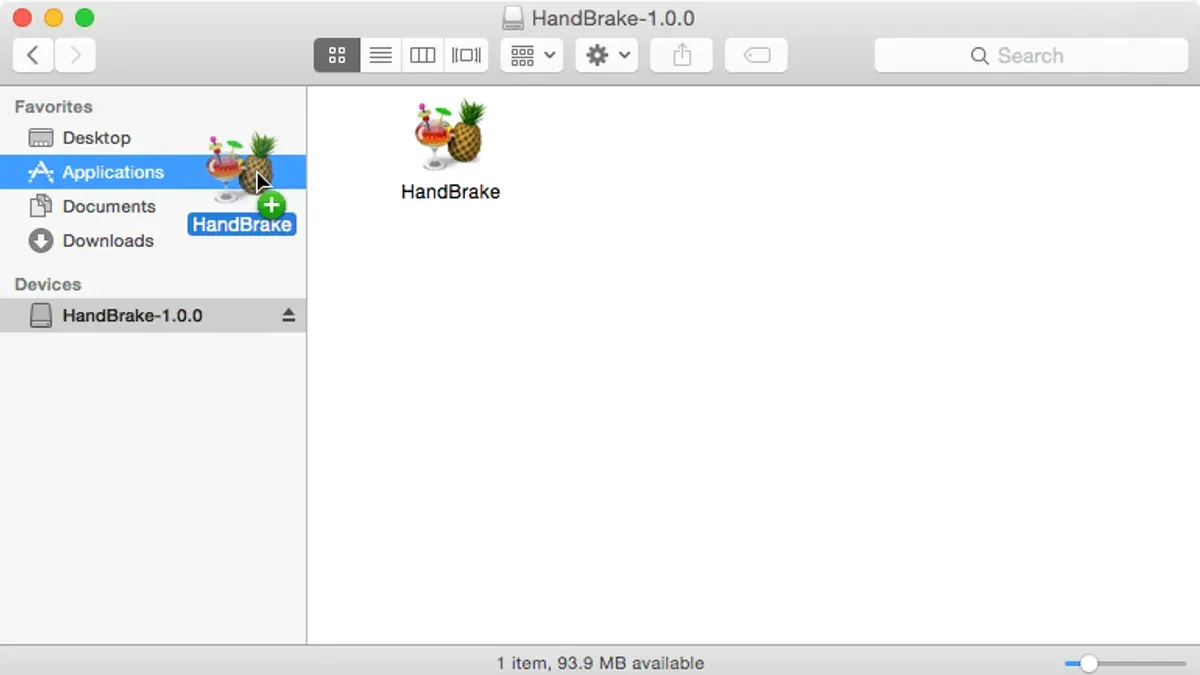
- Locate the downloaded .dmg file (usually in your Downloads folder) and double-click it. A new window should open, displaying the HandBrake app icon and the Applications folder shortcut.
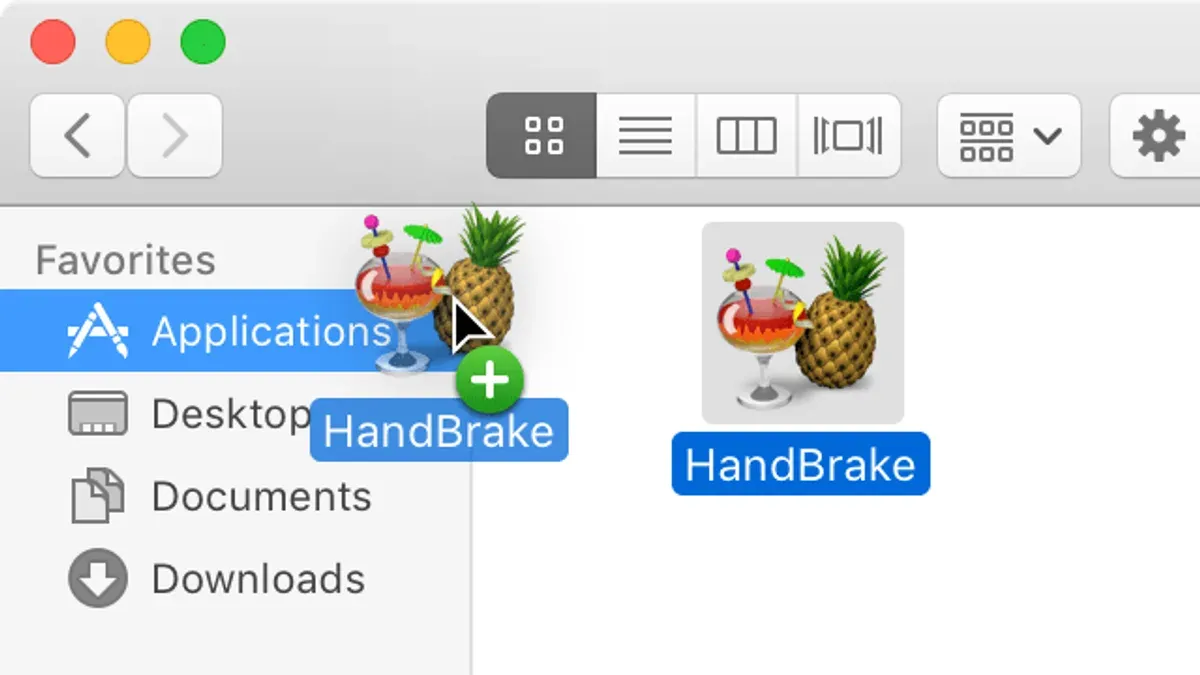
- Drag the HandBrake icon into the Applications folder shortcut. This copies the app to your system applications directory.
- Open the Applications folder and double-click HandBrake to launch it. If a warning appears stating the app is from an unidentified developer, this is Gatekeeper at work.
- To bypass Gatekeeper, go to System Preferences > Security & Privacy > General. You will see an option to "Open Anyway" for HandBrake. Click it, then confirm the action to allow the app to run.
- Once opened, HandBrake may prompt for permissions to access files or folders. Grant these when necessary to allow conversions.
- Verify the app launches without repeated warnings and that the main interface appears. This confirms a successful installation.
Gatekeeper behavior varies by macOS version: Older versions may block apps more aggressively, requiring manual permission settings, while newer versions offer the “Open Anyway” button in Security preferences, simplifying the process.
Following these steps ensures you install HandBrake correctly and understand how macOS security interacts with third-party apps.
- Open the downloaded DMG file
- Drag HandBrake to Applications
- Launch HandBrake and address Gatekeeper prompts
- Grant file access permissions as needed
- Confirm the app opens and is ready to use
How to use HandBrake on your Mac: Basic setup and first conversion
- Open HandBrake from your Applications folder. The main window displays the Source selection, Presets panel on the right, and the central Output settings area. This layout helps you navigate encoding options efficiently.
- Click Open Source and select the video file you want to convert. Once loaded, HandBrake shows the file details including duration and resolution at the top, confirming the file is ready.
- Choose a preset from the right panel that fits your goal. For example, select Fast 1080p30 for quick HD output, or HQ 720p30 Surround for higher quality with surround sound. Presets simplify settings and balance quality and speed.
- Review the Summary tab under Output Settings to confirm the container format (usually MP4) and video codec (H.264 or H.265). Adjust the Constant Quality RF value if needed; lower RF values improve quality but increase file size and encoding time.
- Set the destination folder and filename by clicking Browse below the Output file path. Choose a location you can easily access.
- Click Start at the top toolbar to begin encoding. The progress bar and time remaining appear at the bottom, along with an estimated frames per second. Expect encoding time to vary based on preset and Mac performance.
- When encoding completes, verify the output file by playing it in QuickTime or your preferred player. Compare quality and file size against the original to decide if adjustments are needed for future conversions.
How to install HandBrake on Windows 10 and Windows 11 (Brief overview)
Installing HandBrake on Windows differs primarily in the installer format and security prompts compared to macOS. On Windows, you download an EXE installer that guides you through the setup with a traditional wizard interface.
- Download the HandBrake EXE installer from the official website. You should see a file named like HandBrake-1.5.1-x86_64-Win_GUI.exe or similar.
- Double-click the downloaded EXE file to launch the installer. A User Account Control (UAC) prompt will likely appear, asking for permission to allow changes. Click Yes to proceed.
- Follow the on-screen installation wizard steps, including accepting the license agreement and choosing the installation folder. When finished, click Install.
- After installation completes, click Finish. You can now launch HandBrake from the Start menu or desktop shortcut.
The main difference from Mac is the presence of the UAC prompt and the installer wizard UI, instead of dragging the app to Applications. Permissions are managed through Windows' native dialogs rather than Gatekeeper.
Usage of HandBrake remains consistent across platforms, so your experience converting videos will be the same once installed.
| Step | Mac | Windows 10/11 |
|---|---|---|
| Download | DMG file from official site | EXE installer from official site |
| Installation | Drag HandBrake to Applications folder | Run installer wizard and complete steps |
| Security | Gatekeeper prompts to approve app | User Account Control prompts for permission |
| Launch | From Applications folder or Launchpad | From Start menu or desktop shortcut |
How to install HandBrake on Ubuntu and other Linux distributions (Brief overview)
On Linux, HandBrake is typically installed through your distribution's package manager, which handles dependencies and updates automatically. Ubuntu users can install the HandBrake CLI and GUI packages directly from official repositories or use a Personal Package Archive (PPA) for newer versions.
- Open a terminal window on your Linux system.
- Update your package list by running sudo apt update. This ensures you have the latest information on available packages.
- Install the HandBrake GUI and CLI with sudo apt install handbrake handbrake-cli. If successful, the system will download and install the latest stable versions available in the repository.
- To access the GUI, launch "HandBrake" from your applications menu. For CLI usage, run HandBrakeCLI in the terminal, which provides command-line video conversion.
- If you require a version newer than the repository offers, add the official HandBrake PPA with sudo add-apt-repository ppa:stebbins/handbrake-releases, then update and install again as above.
- Note that some Linux distributions may not include a GUI version or package it separately; in such cases, you might need to compile HandBrake from source following instructions on the official site.
This method covers the basics, but package names and availability can vary between distributions. Always refer to your distro’s documentation for specifics.
Troubleshooting common issues when installing HandBrake on Mac
HandBrake won’t open due to Gatekeeper blocking unsigned apps
If you see an alert saying "HandBrake can’t be opened because Apple cannot check it for malicious software," it means macOS Gatekeeper is blocking the app. To bypass this, open System Preferences > Security & Privacy > General. At the bottom, you should see a message about HandBrake being blocked. Click Allow Anyway, then try opening HandBrake again by right-clicking its icon and selecting Open. You should see a prompt to confirm; click Open again to launch successfully.
Download gets stuck or corrupted
If your download pauses indefinitely or the installer file is corrupted, first check your internet connection. Restart your router if needed. Delete the incomplete installer, then download HandBrake again from the official site. Confirm the file size matches the expected installer size listed on the site. A corrupted file often triggers errors during installation or app launch.
Insufficient permissions or disk space
Installation failures can occur if you lack write permissions to the Applications folder or don’t have enough free disk space. Ensure you have administrator privileges. Check your disk space by clicking the Apple menu > About This Mac > Storage. Free at least 1 GB to avoid issues.
Performance issues after installation
If HandBrake runs slowly or crashes, it often relates to incompatible presets or limited system resources. Try updating macOS to the latest version for better compatibility. Also, reduce the number of active background apps. Using simpler encoding presets can improve stability and speed.
- Open System Preferences > Security & Privacy > General and click Allow Anyway if HandBrake is blocked. You should see no block messages afterward.
- Re-download the installer from the official website if your previous download was stuck or corrupted. Confirm the file size matches the official listing.
- Verify you have admin rights and free disk space by checking About This Mac > Storage. Free up space if below 1 GB.
- Close unused apps and select simpler presets in HandBrake to improve performance. The app should run without crashes or lag.
Optimizing HandBrake settings for best performance on Mac
HandBrake on Mac offers hardware-accelerated encoding options that significantly speed up video conversions while reducing CPU load. To enable this, navigate to the Video tab and select a hardware encoder like Apple VT H264 or Apple VT HEVC if your Mac supports them. Hardware acceleration typically encodes faster than software x264/x265 but may produce slightly larger files or lower quality at identical bitrates.
Balancing quality and speed requires adjusting the Constant Quality slider. A value between 20–23 is a good starting point; lower values increase quality and file size, higher values reduce them. For example, setting RF to 20 might yield a 500 MB file from a 10-minute 1080p clip, while RF 23 could halve that size with minor quality difference.
Managing output file size is crucial if storage is limited. Use the Avg Bitrate option under the Video tab to set a target bitrate, understanding that lower bitrates reduce size but degrade quality. Applying the Web Optimized option optimizes files for streaming without affecting size.
For batch encoding, use HandBrake’s Queue feature to process multiple files sequentially with consistent presets. Save custom presets reflecting your preferred balance of quality, speed, and size for repeated use.
- Open HandBrake and load your source video. You should see it ready for encoding.
- Go to the Video tab, choose a hardware encoder like Apple VT HEVC. The encoding speed should increase noticeably.
- Adjust the Constant Quality slider to around 22. The estimated file size updates accordingly.
- If file size is critical, switch to Avg Bitrate and enter a target bitrate (e.g., 2000 kbps). The output size estimate changes.
- Enable Web Optimized in the Summary tab for streaming-friendly files.
- For multiple files, add them to the queue via Add to Queue, then start batch encoding. The queue processes each file in order.
- Save your custom settings as a preset via Presets > Save New Preset for future projects.
Read next
Frequently asked questions
How to use handbrake app?
To use the HandBrake app, start by opening it and selecting your video source via the "Open Source" button. Choose a preset from the right sidebar for common devices or quality settings. Then adjust output settings like format (MP4 or MKV), video codec (H.264 or H.265), and quality slider if needed. Finally, set your destination file location and click "Start Encode" to convert your video.
How to use handbrake on windows 11?
Using HandBrake on Windows 11 follows the same steps as on other platforms: open the app, load your video source, select a preset or customize settings, and start encoding. The interface is consistent across systems, but ensure you have administrator rights when installing. Windows 11 supports the latest HandBrake versions without compatibility issues.
How to use handbrake software?
HandBrake software requires you to import a video file, select a preset or manually adjust encoding options like codec, bitrate, and filters. You can batch encode multiple files by adding them to a queue. Confirm your output folder and format before starting the encoding process to ensure files save correctly.
How to install handbrake on windows 10?
To install HandBrake on Windows 10, download the official installer from HandBrake's website. Run the.exe file and follow the prompts, accepting the license agreement and choosing installation options. Once installed, launch HandBrake from the Start menu to begin using it.
How to install handbrake on windows 11?
Installing HandBrake on Windows 11 is similar to Windows 10: visit the official HandBrake site, download the Windows installer, and execute it with administrator privileges. Follow the setup wizard steps, and after installation, open HandBrake from the Start menu or desktop shortcut to start encoding videos.
What this guide does not cover
This guide does not cover advanced HandBrake features like scripting or command-line usage, which require separate expertise. Users with very old Mac hardware or operating systems earlier than macOS 10.13 may face compatibility issues not addressed here.
Quick checklist
- Verify your Mac runs macOS 10.13 or newer.
- Download HandBrake only from the official website to avoid malware.
- Open the downloaded.dmg file and drag HandBrake to the Applications folder.
- Allow permission for HandBrake in your Security & Privacy settings if prompted.
- Launch HandBrake, load a source video, and choose a preset that matches your desired output.
- Adjust video codec and quality settings as needed, balancing file size and quality.
- Start the encoding process and monitor progress via the status bar.
Once installed, the most valuable next step is to explore HandBrake’s presets tailored for Apple devices like iPhone, iPad, or Apple TV. These presets optimize encoding parameters for compatibility and performance, helping you get the best results without manual tweaking.



