How to Install Node.js with NVM on Mac: A Clear Step-by-Step Guide
This guide shows how to install Node.js with nvm on Mac to manage multiple versions smoothly and avoid common setup issues.

You want to run multiple Node.js projects on your Mac without conflicts, but managing versions manually quickly becomes frustrating. Switching between different Node.js versions for various projects can lead to compatibility issues or wasted time reinstalling.
This guide explains how to install Node.js with nvm on Mac, a tool designed to simplify version management and streamline your development workflow. You will learn the practical steps to set up NVM, install and switch between Node.js versions, and avoid common pitfalls with clear command examples.
Key takeaways
- NVM allows you to install multiple Node.js versions side-by-side on your Mac.
- Installing NVM involves running a shell script and configuring your terminal environment.
- You can switch Node.js versions instantly using simple NVM commands.
- Common errors include missing profile configuration and permission issues.
- Following the setup steps carefully ensures smooth version management for your projects.
Before you start: What you need to install Node.js with NVM on Mac
To install Node.js using NVM on your Mac, ensure your system meets a few basic requirements. First, you need a Mac running macOS with a stable internet connection to download necessary packages.
You should be familiar with using the Terminal app, as all installation steps involve command-line instructions. To check your Terminal version, open Terminal and enter echo $SHELL; you should see a response like /bin/zsh or /bin/bash.
While Homebrew is not mandatory, it is highly recommended for managing software on macOS. To verify if Homebrew is installed, run brew --version. If installed, you will see a version number such as Homebrew 4.0.0. If not, you can install it following instructions at brew.sh.
NVM, or Node Version Manager, is a command-line tool that allows you to install and switch between multiple Node.js versions easily. This flexibility is especially useful when working on different projects requiring specific Node versions. Using NVM prevents system-wide conflicts and simplifies Node.js version management.
- Open the Terminal app on your Mac. You should see a command prompt ready for input.
- Check if Homebrew is installed by typing brew --version. A version number confirms it is installed; an error means it is not.
- Confirm your shell environment by running echo $SHELL. The output should be /bin/zsh or /bin/bash, indicating compatibility with NVM.
- Ensure your Mac has internet access to download installation scripts and Node.js versions.
How to install Node.js using NVM on your Mac
- Open Terminal on your Mac.
- Install NVM. You can use curl by running:
curl -o- https://raw.githubusercontent.com/nvm-sh/nvm/v0.39.3/install.sh | bash
or Homebrew by running:
brew install nvm
If using Homebrew, create a directory for NVM and add its path to your shell profile:
mkdir ~/.nvm
Then add:
export NVM_DIR="$HOME/.nvm"
[ -s "/usr/local/opt/nvm/nvm.sh" ] &&. "/usr/local/opt/nvm/nvm.sh"
to your .zshrc or .bash_profile file. - Reload your shell profile to apply changes:
source ~/.zshrc
or
source ~/.bash_profile
Then verify installation by running:
command -v nvm
The expected output should be:
nvm - Install the latest stable Node.js version with:
nvm install node
You should see output indicating the download and installation of Node.js and npm. - Set the installed Node.js version as the default for new terminal sessions:
nvm alias default node
Confirm the default version by running:
nvm current
The output will display the Node.js version number, such as:
v18.15.0
How to install Node.js on Mac using NVM for multiple versions
NVM allows you to install and manage multiple Node.js versions side-by-side, making it easy to test compatibility or work on projects requiring different versions.
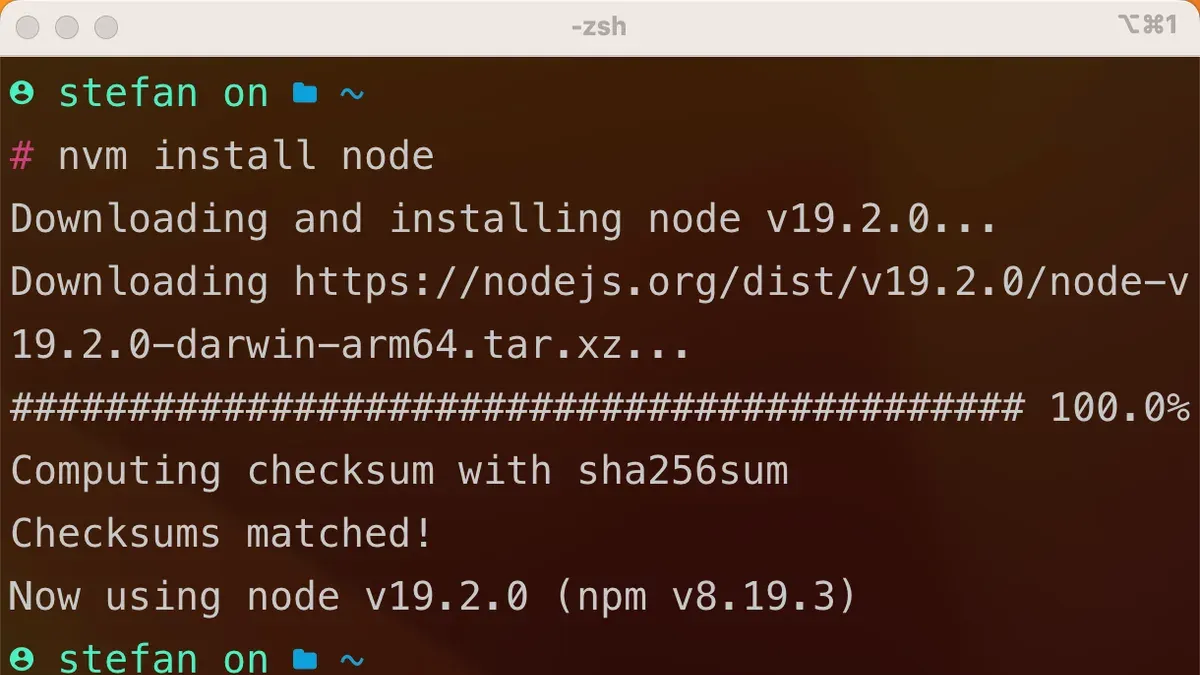
- Install a specific Node.js version by running nvm install 14. You should see output confirming the download and installation of Node.js version 14.x.
- Install another version, for example nvm install 18. The terminal will display messages indicating successful installation of Node.js 18.x.
- List all installed Node.js versions using nvm ls. This command outputs all versions installed locally, marking the currently active one with an arrow and the default version with a default label.
- Switch to a desired Node.js version using nvm use 14. Terminal output will confirm switching to Node.js 14.x.
- Verify the active Node.js version by running node -v. The output should show v14.x.x, confirming the switch.
- To set a default version that loads automatically in new terminal sessions, run nvm alias default 18. This sets Node.js 18.x as the default version.
Using multiple versions helps when maintaining legacy projects on older Node.js versions while experimenting with newer features on the latest releases. Switching versions is quick and does not require uninstalling or reinstalling Node.js.
How to use Node.js on Mac after installing with NVM
- Understand that NVM modifies your shell environment to ensure the correct Node.js version is active. When you open a new Terminal session, NVM automatically sets the default version you chose during installation, making Node.js and npm commands seamless to use without additional configuration.
To test basic npm usage, install a package globally, for example, nodemon, which helps restart your Node.js app automatically. Run:
$ npm install -g nodemon
Upon success, you will see npm messages confirming installation and the package version.
Create a simple Node.js script to test runtime functionality. Use a text editor to save the following as hello.js:
console.log('Hello, world!');
Run the script with node hello.js. The Terminal should output:
Hello, world!
Check the npm (Node Package Manager) version by typing npm -v. A version number like 9.5.0 indicates npm is installed alongside Node.js.
Example:
$ npm -v
9.5.0
Open your Terminal and verify the installed Node.js version by entering node -v. You should see output similar to v18.15.0, confirming Node.js is active.
Example:
$ node -v
v18.15.0
Troubleshooting common issues when installing Node.js with NVM on Mac
Errors during or after installing Node.js with NVM often stem from shell configuration, permissions, conflicting versions, or network problems. Address these systematically to get NVM working smoothly.
NVM command not found after installation
This typically means your shell profile isn’t loading NVM’s initialization script. You might see the error zsh: command not found: nvm or similar.
- Open your Terminal.
- Check if the NVM initialization line is present in your shell profile file (~/.zshrc, ~/.bash_profile, or ~/.bashrc). It should look like:
export NVM_DIR="$HOME/.nvm"
[ -s "$NVM_DIR/nvm.sh" ] && \. "$NVM_DIR/nvm.sh" - If missing, add these lines to your shell profile.
- Save the file and run source ~/.zshrc (or the appropriate profile file) to reload.
- Run nvm --version. You should see the version number without errors.
Permission errors when installing Node.js versions
Errors like EACCES: permission denied occur when Node.js versions are installed without correct user permissions.
- Do not use sudo with NVM commands.
- Ensure your user owns the NVM directory: run chown -R $(whoami) ~/.nvm.
- Try reinstalling the Node.js version with nvm install <version>.
- If permission errors persist, check file permissions in ~/.nvm and adjust accordingly.
Conflicts with previously installed Node.js or Homebrew versions
If node or npm commands run but don’t reflect the NVM version, a Homebrew or system Node.js may be conflicting.
- Run which node and which npm to see the executable paths.
- If they point outside ~/.nvm, uninstall or unlink the conflicting installation:
For Homebrew, use brew uninstall node or brew unlink node. - Restart your terminal and check node -v to confirm NVM’s version is active.
Network errors during installation
Timeouts or download failures can occur when fetching Node.js binaries.
- Check your internet connection.
- Retry the install command: nvm install <version>.
- If problems persist, use a mirror by setting the environment variable:
export NVM_NODEJS_ORG_MIRROR=https://npmmirror.com/mirrors/node/ - Run the install command again.
Following these steps resolves the majority of common issues, letting you manage Node.js versions confidently with NVM on your Mac.
- How to Install Python 3.13 with Pyenv on Mac: A Step-by-Step Guide
- How to Install Python on Mac: A Clear Step-by-Step Guide
Frequently asked questions
How to install nodejs with nvm?
To install Node.js with NVM, first ensure NVM is installed on your system. Then use the command nvm install node to install the latest Node.js version. You can verify the installation with node -v and switch between versions using nvm use <version>.
How to install node js on mac using nvm?
On a Mac, install NVM by running the install script from the official repository using curl or wget. After this, open a new terminal session, then install Node.js via nvm install node. Confirm with node -v that Node.js is correctly installed.
How to install node js using nvm in mac?
Installing Node.js using NVM on Mac involves first installing NVM through the command line. Once NVM is set up, use nvm install <version> to install a specific Node.js version or nvm install node for the latest. Make sure your terminal session recognizes NVM by restarting it or sourcing your profile file.
How to install Node.js using NVM?
After installing NVM, run nvm install <version> to install your desired Node.js version. Use nvm ls to list installed versions and nvm use <version> to switch between them. This method allows flexible version management without affecting system-wide settings.
How to install Node.js with NVM on Windows?
NVM for Windows is a different project and not the same as the Mac/Linux version. Download the NVM Windows installer from its official GitHub repository, then install and use commands like nvm install <version> and nvm use <version> in Command Prompt or PowerShell. Note that Windows NVM may have different behaviors and limitations compared to the Mac/Linux version.
What this guide does not cover and who should consider other options
This guide focuses exclusively on installing and managing Node.js versions using NVM on Mac systems. It does not cover installing Node.js without NVM or using alternative version managers such as n or asdf. If you are using Windows, the installation steps and tools differ significantly, and you may need to explore Windows-specific options like nvm-windows. Additionally, if you require a graphical interface for managing Node.js versions or prefer containerized environments, this guide does not address those approaches.
The next best step is to familiarize yourself with NVM commands beyond installation. Practice switching between Node.js versions using nvm use <version> and check your current version with node -v. This hands-on experience helps prevent version conflicts and ensures your projects run with the appropriate Node.js environment.