How to Install Python on Mac: A Clear Step-by-Step Guide
This guide shows you how to install Python on Mac using Terminal and Homebrew, including setup tips and troubleshooting for a smooth start.

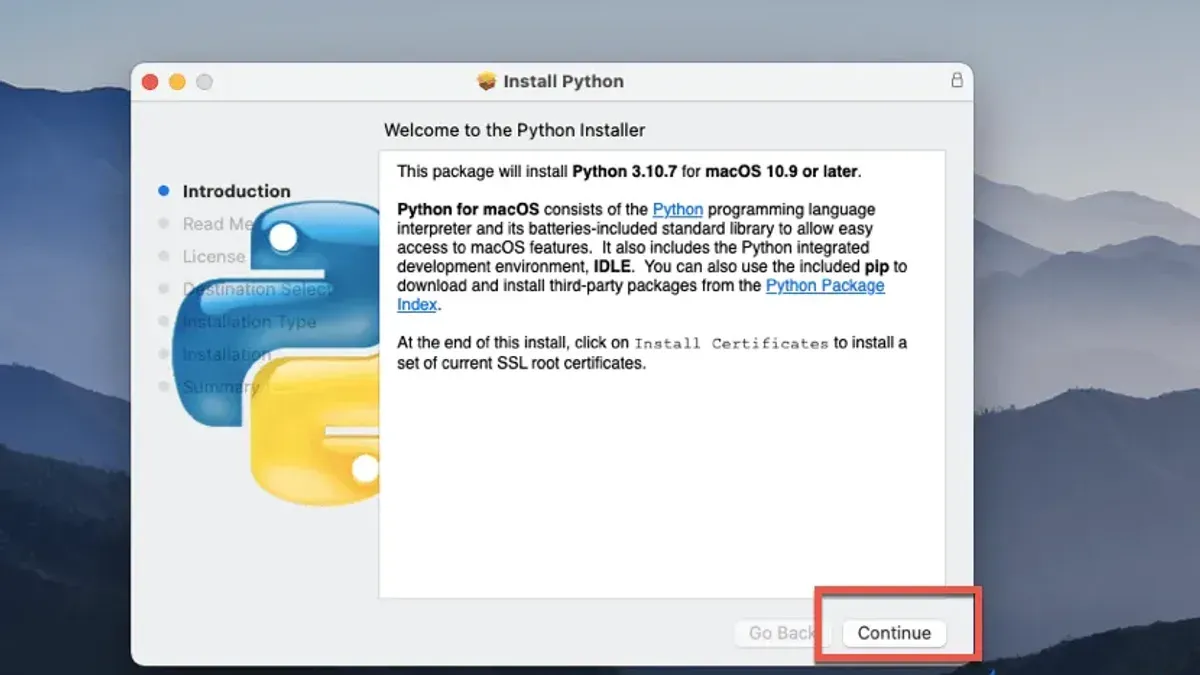
You've just opened your MacBook and want to start a new Python project, but you're unsure how to set up the environment properly. Whether you plan to write simple scripts or dive into machine learning, knowing how to install Python on Mac is essential.
This article guides you through multiple installation methods, focusing on using the Terminal and Homebrew. It also covers setting up Python machine learning packages, troubleshooting common issues, and verifying your installation to get you coding quickly and efficiently.
Key takeaways
- Use the Terminal or Homebrew for flexible and reliable Python installation on Mac.
- Ensure you have Xcode Command Line Tools installed before proceeding.
- Installing machine learning packages may require additional dependencies like Homebrew-installed libraries.
- Verify your Python version with
python3 --versionafter installation. - Troubleshoot common errors by checking PATH settings and Python environment conflicts.
Before you start: What you need to install Python on your Mac
macOS often comes with a version of Python pre-installed, typically Python 2.7 on versions up to macOS Mojave (10.14), but this version is outdated and no longer supported. Newer macOS versions still include Python for system use but usually lack the latest Python 3 releases necessary for modern development and machine learning tasks.
Before installing Python, check your macOS version by clicking the Apple menu and selecting About This Mac. Ensure your system is running macOS Sierra (10.12) or later for compatibility with current Python distributions and Homebrew, the popular package manager.
Deciding on which Python version to install is crucial. Python 3 is the current standard, preferred for new projects and supported by most libraries, while Python 2 is legacy with limited updates. Most users should install Python 3 unless you have a specific need for Python 2.
You will also need to familiarize yourself with macOS command line tools, which provide essential compilers and utilities. If not already installed, these can be added via the Terminal using xcode-select --install.
Homebrew simplifies Python installation and package management on Mac. If you don’t have Homebrew installed, you can install it from the Terminal, which will be covered in the next section.
- Check your macOS version: Click the Apple menu > About This Mac. You should see your macOS version number.
- Confirm if Python is installed: Open Terminal and type
python --versionorpython3 --version. You will see the installed Python version if present. - Install command line tools if needed: In Terminal, enter
xcode-select --install. A dialog will appear if installation is required. - Decide on Python version: Choose Python 3 for most uses, especially machine learning projects.
- Consider Homebrew: Verify if Homebrew is installed by typing
brew --versionin Terminal. If not installed, you will be prompted to install it in the next steps.
How to install Python on Mac using the Terminal
You can install the official Python release on your Mac directly through the Terminal without using third-party package managers. This method involves downloading the installer via command line tools and configuring your environment to use the new Python version alongside the system default.
- Download the official Python installer: Open Terminal and run
curl -O https://www.python.org/ftp/python/3.11.5/python-3.11.5-macos11.pkg(replace the version number with the latest stable release). You should see a progress bar indicating the download status. - Run the installer: Execute
sudo installer -pkg python-3.11.5-macos11.pkg -target /. Enter your password when prompted. The Terminal will show messages about installation progress and completion. - Verify the installed Python version: Type
python3 --version. The output should display the newly installed version, for example,Python 3.11.5. This confirms the installer succeeded. - Set PATH if necessary: If
python3is not recognized, you may need to add Python’s executable path. Runecho 'export PATH="/Library/Frameworks/Python.framework/Versions/3.11/bin:$PATH"' >> ~/.zprofileto update your shell configuration, then reload it withsource ~/.zprofile. - Check Python command to avoid conflicts: Use
python3instead ofpythonto explicitly call the newly installed Python version, since macOS includes a system Python 2.x that remains linked topython.
How to install Python on Mac with Homebrew
Homebrew is a popular package manager for macOS that simplifies software installation and management, making it a preferred choice for developers. If you don’t have Homebrew installed, you’ll need to add it first.
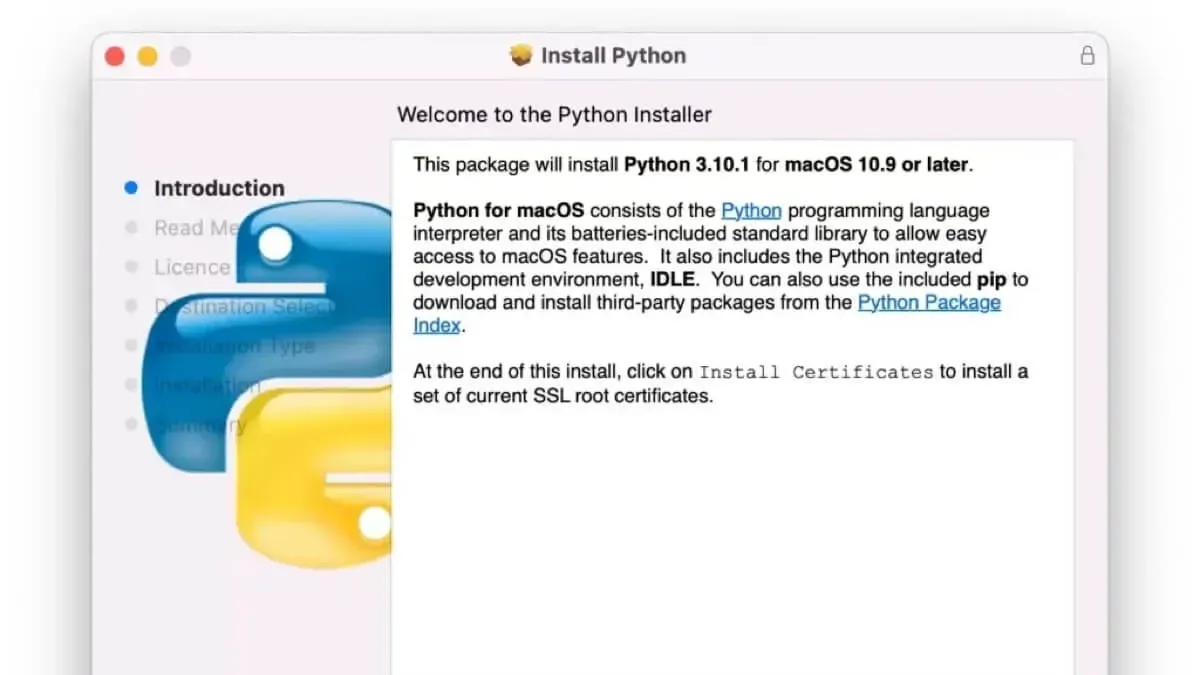
- Open the Terminal app on your Mac.
- To check if Homebrew is already installed, type brew --version and press Enter. If a version number appears, Homebrew is installed.
- If Homebrew is not installed, enter /bin/bash -c "$(curl -fsSL https://raw.githubusercontent.com/Homebrew/install/HEAD/install.sh)" and press Enter. Follow the on-screen instructions to complete the setup. Successful installation will display a message confirming it.
- Once Homebrew is ready, install Python by typing brew install python and pressing Enter. Homebrew will download and install the latest stable Python version along with required dependencies.
- After installation, verify Python is installed by typing python3 --version. You should see the Python version number confirming the installation.
- To upgrade Python in the future, run brew upgrade python. Homebrew manages version updates smoothly without manual intervention.
Using Homebrew often results in a smaller installation footprint compared to downloading the full Python installer, as it downloads only necessary components. The installation process is usually faster and integrates well with macOS system libraries. The brew install python command outputs progress messages showing download status and installation steps, which helps track the process in real time.
How to install Python on MacBook, MacBook Pro, or MacBook Air
The steps to install Python are essentially the same across all MacBook models, including MacBook, MacBook Pro, and MacBook Air. The installation process does not vary significantly by hardware, but understanding the performance differences between Apple Silicon (M1, M2) and Intel-based Macs can help optimize your Python environment.
Apple Silicon Macs generally offer faster performance and better energy efficiency for Python tasks, especially for workloads involving machine learning or data processing. However, some Python packages or dependencies may require specific versions or Rosetta 2 translation on these newer chips.
Here’s a straightforward procedure to ensure Python runs optimally on your MacBook, regardless of the model:
- Check your Mac’s processor type by clicking the Apple menu > About This Mac. You should see "Apple M1," "Apple M2," or an Intel processor listed. This confirms your hardware architecture.
Success: You know which architecture you are working with. - Install Python following the Terminal or Homebrew methods described earlier, which support both Intel and Apple Silicon architectures.
Success: Python is installed and accessible from the Terminal. - For Apple Silicon Macs, verify if your Python installation is running natively by entering
archin Terminal while in the Python environment.
Success: Output shows "arm64" indicating native Apple Silicon execution. - If you encounter compatibility issues with certain packages, install and run Python under Rosetta 2 by opening Terminal in Rosetta mode (right-click Terminal in Applications > Utilities, select Get Info, then check "Open using Rosetta"). Then reinstall Python.
Success: Python and packages run smoothly under Rosetta if needed. - Consider hardware performance when running intensive Python workloads; Apple Silicon Macs often complete tasks faster and with less heat generation compared to Intel Macs.
Success: Performance benefits are realized if using Apple Silicon.
Overall, you can follow the same installation steps for any MacBook, but be mindful of architecture-specific nuances for optimal Python usage on Apple Silicon versus Intel Macs.
How to install Python machine learning packages on Mac
Setting up Python for machine learning on your Mac involves installing key libraries and managing dependencies effectively. Using pip or pip3 is the standard way to install packages like numpy, pandas, scikit-learn, and tensorflow.
- Open Terminal and create a virtual environment to isolate your project dependencies. Run
python3 -m venv ml-env. You should see a new directory namedml-envcreated. - Activate the virtual environment by running
source ml-env/bin/activate. Your prompt will change to indicate the environment is active. - Upgrade pip inside the virtual environment with
pip install --upgrade pip. You will see a confirmation of the pip version being updated. - Install core machine learning packages by running
pip install numpy pandas scikit-learn tensorflow. The terminal will show download and installation progress for each package. - Verify installation by running
python -c "import numpy, pandas, sklearn, tensorflow; print('Packages installed successfully')". If successful, you will see the printed confirmation message without errors.
Compatibility notes: Use TensorFlow versions 2.11 or later for better support on macOS with Apple Silicon. These versions include hardware acceleration through Apple's Metal API, improving performance on supported Macs. For older Intel-based Macs, TensorFlow works without acceleration.
Managing dependencies in a virtual environment avoids conflicts between projects. If you need specific package versions, specify them explicitly during installation, for example, pip install tensorflow==2.11.0.
Troubleshooting common Python installation problems on Mac
Encountering errors during or after Python installation is common but usually straightforward to fix. Below are solutions to frequent issues including PATH errors, permission problems, conflicting versions, and Homebrew troubles.
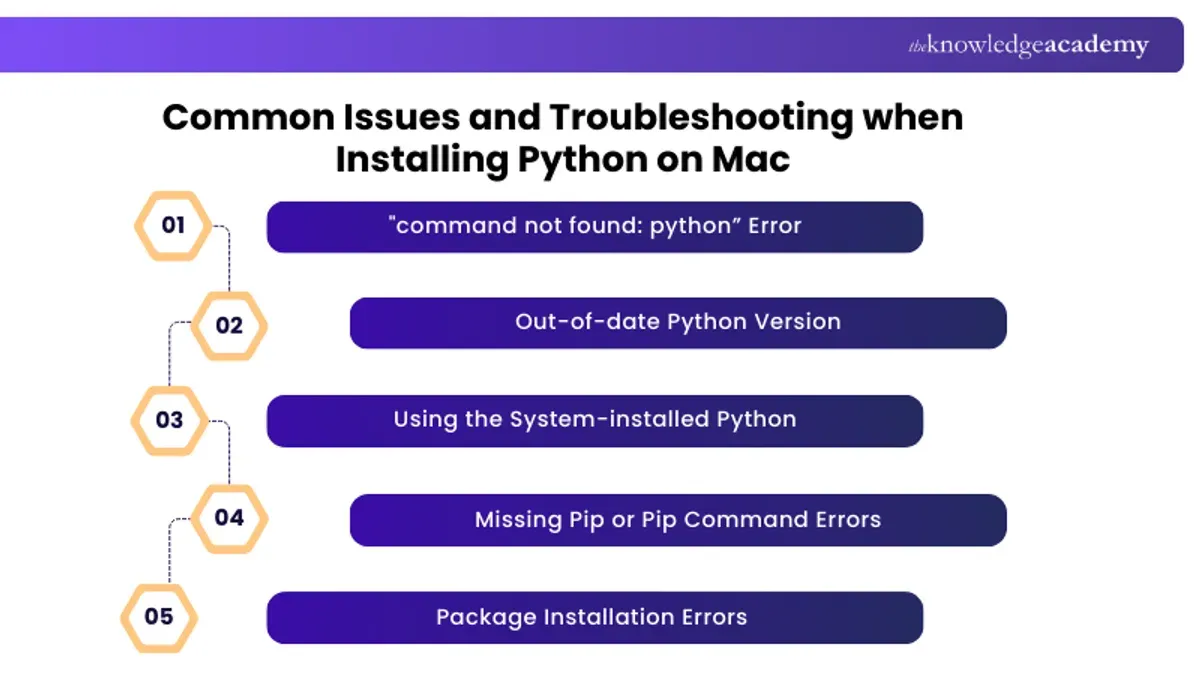
Fixing PATH issues and "command not found" errors
- Open Terminal and type echo $PATH. You should see directories including
/usr/local/binor/opt/homebrew/bin. If not, your PATH may not include Python’s install location. - Add Python’s bin folder to your PATH by running export PATH="/usr/local/bin:$PATH" for Intel Macs or export PATH="/opt/homebrew/bin:$PATH" for Apple Silicon. Then run python3 --version to confirm it works.
- To make this change permanent, add the export line to your shell profile file (
~/.zshrcor~/.bash_profile) and restart Terminal.
Before fixing PATH:
zsh: command not found: python3
After fixing PATH:
Python 3.11.4
Resolving permission errors during installation
If you see errors like Permission denied or Operation not permitted during installation, it often means you need administrator privileges.
- Prefix your install command with sudo, for example
sudo pip3 install package. - Enter your Mac user password when prompted.
- If the problem persists, check System Preferences > Security & Privacy > Privacy > Full Disk Access and add Terminal to the allowed apps.
Dealing with conflicting Python versions
Multiple Python versions can cause confusion about which one is active.
- Check all installed Python versions with ls -l /usr/local/bin/python* or ls -l /opt/homebrew/bin/python*.
- Use which python3 to see the active Python path.
- Adjust your PATH so the preferred Python version’s directory appears first.
- Consider using pyenv to manage multiple Python versions cleanly.
Troubleshooting Homebrew installation issues
If Homebrew commands fail, errors like brew: command not found or permission denied may appear.
- Verify Homebrew is installed by running /bin/bash -c "$(curl -fsSL https://raw.githubusercontent.com/Homebrew/install/HEAD/install.sh)".
- Ensure Homebrew’s bin directory (
/usr/local/binfor Intel or/opt/homebrew/binfor Apple Silicon) is in your PATH. - Fix permissions with sudo chown -R $(whoami) $(brew --prefix)/*.
- Run brew doctor to get diagnostics and follow suggested fixes.
Verifying your Python installation and running your first script
After installing Python on your Mac, confirming the installation and running a simple script will ensure everything is set up properly.
- Open the Terminal application.
- Type python3 --version and press Enter. You should see the Python version number displayed, for example, Python 3.11.4. This confirms Python is installed and accessible.
- Next, create a simple Python script. Use a text editor like TextEdit (set to plain text mode) or a command-line editor like nano by typing nano hello.py in Terminal.
- Save the file and exit the editor (in nano, press Control + O, then Enter to save, followed by Control + X to exit).
- Run the script by typing python3 hello.py in Terminal and pressing Enter. You should see Hello, World! printed on the next line.
- To check if pip is installed, type pip3 --version. A version number such as pip 23.0.1 indicates pip is ready for package management.
- Optionally, launch IDLE by typing idle3 in Terminal. IDLE provides a simple integrated development environment where you can write and run Python code interactively.
Enter the following code into the file:
print("Hello, World!")
Following these steps confirms your Python installation is functional and prepares you to begin programming or installing additional packages.
- How to Open.vhd Files on Mac: Complete Step-by-Step Guide
- How to Open a.vmdk File on Mac: Clear Step-by-Step Guide
- How to Open.mdf Files on Mac: Step-by-Step Guide
- How to Convert Audio to Transcript on Mac: A Step-by-Step Guide
Frequently asked questions
How to install python on mac terminal?
Open the Terminal app and check if Python is pre-installed by typing python3 --version. If it’s not installed or you want the latest version, use Homebrew by running brew install python. This method installs Python 3 and sets up the necessary environment for command-line use.
How to install python on macos?
macOS includes a system Python version, but it’s often outdated. To install a newer Python, download the official installer from python.org or use Homebrew in Terminal with brew install python. Homebrew manages dependencies and keeps Python updated more easily.
How to install python on mac os?
Installing Python on Mac OS involves either using the official Python website to download the installer package or using the Terminal with Homebrew. The Homebrew approach (brew install python) is preferred for managing versions and updates without conflicts.
How to install python on a mac?
To install Python on a Mac, you can either download the installer from python.org or install it via the Terminal using Homebrew. Homebrew installation (brew install python) is efficient and recommended if you plan to work extensively with Python and related packages.
How to install python on macbook pro?
Installing Python on a MacBook Pro is the same as on other Macs. Use the Terminal and Homebrew by typing brew install python or download the latest installer from python.org. This ensures you get the latest Python version compatible with your hardware.
What this guide does not cover and who should look elsewhere
This guide does not cover setting up complex Python environments for advanced data science workflows or using Anaconda. If you require isolated environments with multiple Python versions or need to manage extensive machine learning dependencies, consider exploring tools like Anaconda or virtual environment managers such as pyenv or conda. Dedicated resources and official documentation for those tools provide more specialized guidance.
The single most useful next step after installing Python on your Mac is to run a simple script to confirm your setup works correctly. Open the Terminal, type python3 --version to check the installed version, then create a file named hello.py with the line print("Hello, Python on Mac!"). Run it using python3 hello.py. This quick verification ensures your installation is functional and prepares you for further Python development or machine learning package installation.