How to Leave Clear, Actionable Feedback on Student Work in Blackboard
Discover how to provide clear, actionable feedback on student work in Blackboard using text, annotations, rubrics, and audio/video tools.

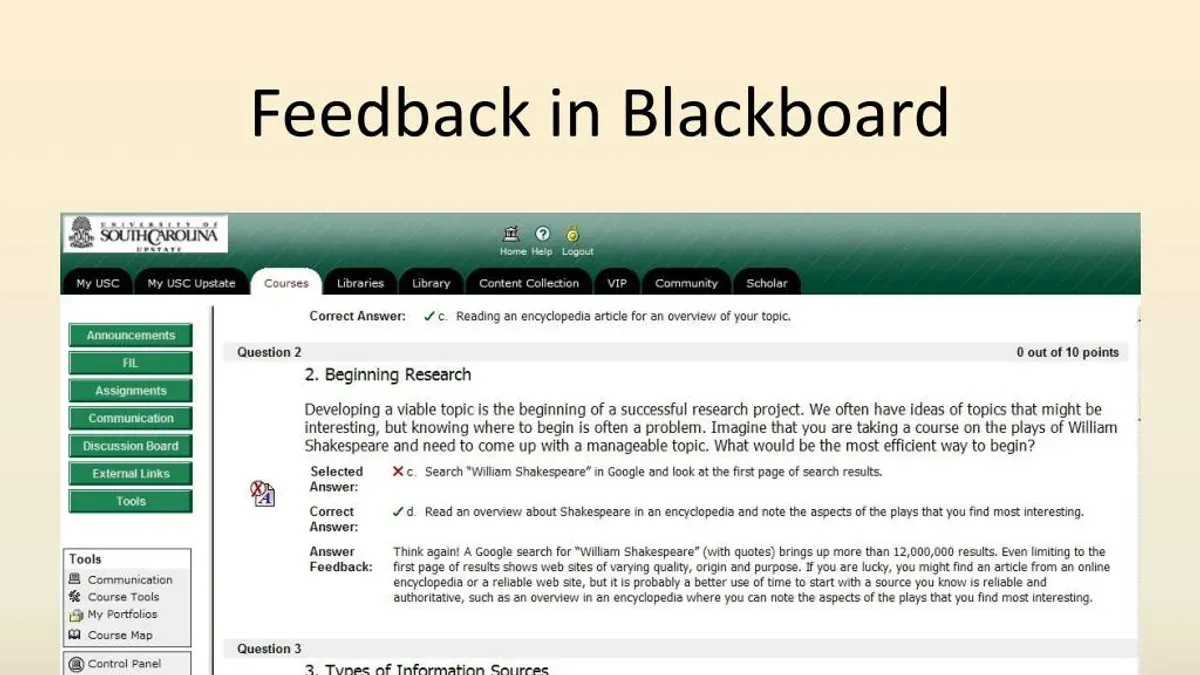
Short answer: To leave feedback on student work in Blackboard, access the Grade Center or the specific assignment submission area, open the student's file or attempt, and use the inline grading tools to add text comments, annotations, rubrics, or audio/video feedback. Submit your feedback to ensure students can view it in their course activity stream or assignment details.
This article covers how to leave feedback on student work in Blackboard with a focus on improving student learning outcomes. You will learn how to prepare for effective feedback, access submissions, use text and annotated comments, apply rubrics for consistency, provide richer audio or video feedback, and confirm students receive and understand your comments. It also addresses common issues you might face and how to resolve them.
Before you start: What you need to provide effective feedback in Blackboard
To give meaningful feedback in Blackboard, you must first ensure you have access to your course and the submitted student assignments. Verify that the assignment’s grading settings allow feedback input, such as text, annotations, or rubrics. Familiarize yourself with the available feedback options under the Grade Center and Assignment Submission areas.
Prepare clear grading criteria or a rubric before you begin. This helps maintain consistency and transparency in your feedback. Without a rubric or defined standards, feedback risks being subjective and less actionable.
Allocate enough time to review each submission thoughtfully. Rushing feedback diminishes its value and can confuse students. Plan your schedule to provide detailed and constructive comments rather than brief or generic notes.
- Log in to Blackboard and navigate to the relevant course. You should see the course dashboard and menu.
- Access the Grade Center or the specific Assignment link where student work is submitted. Confirm you can view submissions.
- Check the assignment settings under Control Panel > Grade Center > Full Grade Center > Column Settings to see what feedback options are enabled.
- Review or upload a rubric via the assignment’s settings if you want to use one. It should be accessible during grading.
- Set aside sufficient time based on the number of submissions and assignment complexity to avoid rushed feedback.
- Confirm course and submission access before grading
- Understand grading and feedback settings thoroughly
- Use clear criteria or rubrics for consistency
- Allocate time to review each work carefully
- Watch for common pitfalls like missing rubric links or disabled feedback options
How do you access student submissions for feedback?
Start by logging into Blackboard and navigating to the specific course where you want to review student work. Locate the assignment linked to the submissions you need to assess. This is usually found under the course menu in sections named Assignments, Course Content, or a similar label.
Next, open the Grade Center from the Control Panel. Select Full Grade Center to view all students and their assignment statuses. Alternatively, you can go directly to the assignment’s Submission area by clicking on the assignment link, then selecting View Submissions or Submissions to see uploaded files.
To review an individual submission, click on the student's name or the submission icon. This opens the work in a preview window or downloads it, depending on the file type. From here, you can begin your feedback process.
- Log into Blackboard and enter your course.
- Find the assignment through the course menu under Assignments or Course Content.
- Open the Grade Center via Control Panel, then choose Full Grade Center.
- Locate the assignment column and click the dropdown arrow, then select View Grade Details or View Attempt.
- Click the student’s name or submission link to open their work for review.
How do you leave text and annotated feedback on student work?
Blackboard offers multiple ways to provide clear, detailed feedback directly on student submissions. Use the inline grading tool to highlight specific parts of the document and add comments tied to exact sections. This targeted feedback helps students see exactly what needs improvement.
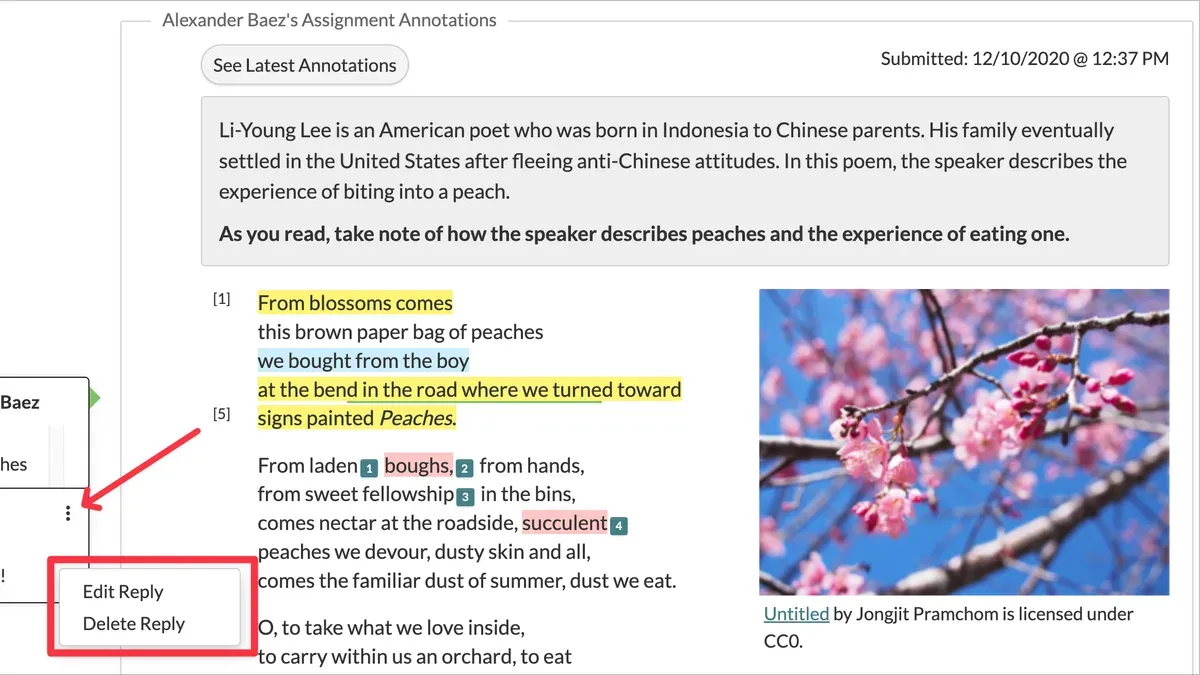
To add inline comments, open the student’s submission in the grading interface, then select text or areas on the document to annotate. You'll see a comment box appear where you can type your note. These annotations stay attached to the selected content, making feedback precise and actionable.
Besides inline comments, use the general feedback textbox below the submission viewer to provide an overall summary or suggestions. Combine specific annotations with a concise general comment to guide students effectively.
When writing feedback, use direct language focused on what can be improved or repeated. For example, instead of "Good job," say, "Your thesis is clear; strengthen your argument by adding two more supporting examples." This approach gives students clear next steps.
- Open the student’s submitted assignment from the Grade Center. The submission document appears in the inline grading viewer.
- Click and drag to highlight text or areas needing feedback. A comment popup appears.
- Type your comment and click outside the box; the annotation stays linked to that selection.
- Scroll down to the Feedback to Learner textbox. Enter overall comments summarizing strengths and areas to improve.
- Click Submit to save all comments and annotations. You should see your annotations visible on the document thumbnail and text in the feedback box.
How do you use rubrics to streamline feedback and ensure consistency?
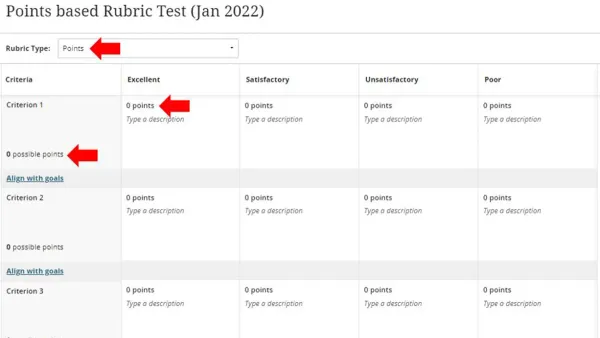
Attach a rubric to an assignment before grading to provide clear, standardized criteria that guide your evaluation and feedback. In the assignment settings, locate the "Add Rubric" option, select an existing rubric or create a new one, then attach it. Once attached, the rubric appears during grading, allowing you to assess each criterion with predefined performance levels, which generates consistent scores and highlights specific strengths or weaknesses.
Use rubric criteria to leave targeted feedback by selecting performance levels that automatically populate comments or scores. This method reduces time spent writing repetitive feedback and ensures all students receive detailed, comparable evaluations. For example, a rubric criterion might assess "Thesis clarity" with levels from "Unclear" to "Very clear," each linked to specific comments.
Export rubric results from the Grade Center to analyze overall performance patterns or integrate scores with the final gradebook. This step supports transparent grading and helps identify areas where students commonly struggle. Compared to leaving feedback without a rubric, using one standardizes comments, saving time and improving fairness.
- Open the assignment settings and click "Add Rubric"; you should see the rubric attached under grading options.
- During grading, select rubric criteria levels; selected levels display in the feedback panel.
- Complete grading and save; rubric scores appear in the Grade Center.
- Export rubric data via the Grade Center's "Work Offline" feature; confirm the exported file includes rubric scores.
How do you provide audio or video feedback for richer communication?
Blackboard allows you to record and attach audio or video feedback directly within the Grade Center’s feedback tools. This method adds tone and clarity that text alone can lack, helping students better grasp your points and feel more connected. Use media feedback when explaining complex concepts, addressing common errors, or delivering encouragement that benefits from vocal nuance.
To record, open the Grade Details panel for a student’s submission and click the "Add Content" button. Choose "Record Audio" or "Record Video", then use the built-in recorder to capture your message. After recording, preview the media and save it to attach it to the feedback. Students will see the media file alongside any written comments.
Technical tips: Use a quiet space and a quality microphone or webcam. Keep recordings brief—under 3 minutes—to maintain focus. If upload errors occur, try recording again or use the "Attach File" option to upload pre-recorded files directly.
For example, a text-only comment might say, "Review your thesis statement for clarity." An audio comment can explain, "Your thesis needs to clearly state your argument. For instance, you could say..." This richer explanation improves student understanding and reduces follow-up questions.
- Access the Grade Center and open the Grade Details for the chosen student. A panel appears on the right.
- Click "Add Content" above the feedback textbox; a menu opens.
- Select "Record Audio" or "Record Video"; the recorder launches.
- Record your feedback; then click "Save" once satisfied. The media attaches to the feedback.
- Submit the grade; the student can now view or listen to your feedback alongside their submission.
How do you ensure students receive and understand your feedback?
Enable feedback notifications in Blackboard by going to My Blackboard > Settings > Notification Settings, then activate alerts for Grades and Feedback. This ensures students get immediate email or app notifications when you post feedback. Encourage students to regularly check the My Grades section of your course, where all feedback is stored alongside their grades.
To confirm students engage with your feedback, use the Performance Dashboard in the Control Panel. This tool shows if students have clicked on assignment links and viewed graded submissions. Tracking these views helps identify who might need reminders or additional support. Studies suggest many students overlook feedback without direct prompts, so clear communication about its importance is key.
- Enable feedback notifications: Navigate to My Blackboard > Settings > Notification Settings and check Grades and Feedback. You'll see a confirmation that notifications are active.
- Instruct students to access My Grades in your course: Students should see detailed feedback alongside their scores.
- Use the Performance Dashboard: Open your course Control Panel, select Evaluation > Performance Dashboard. Confirm student feedback views by checking the status icons next to assignment submissions.
- Follow up with students who have not viewed feedback: Send reminders or discuss feedback during class.
What common problems might you encounter and how do you fix them?
Feedback not appearing to students often results from grade settings or timing issues. Check if the assignment is set to "Hide grades to users" under Grade Center settings. If students report seeing "No feedback available," ensure the assignment status is "Submitted" and that the feedback release date has passed.
Annotation tools may fail to load or respond slowly due to browser compatibility or cache issues. When the annotation interface shows errors like "Failed to load document," clear your browser cache, update to the latest version of Chrome or Firefox, and disable conflicting extensions.
Rubric scores sometimes don’t sync with the Grade Center, causing mismatched grades. Confirm that the rubric status is "Scored" and that the rubric is properly attached to the assignment. If you see "Rubric not applied," detach and reattach the rubric, then resubmit scores.
Media feedback upload failures can display errors such as "Upload failed" or "File type not supported." Limit file sizes to under 100MB and use supported formats like MP4 or MP3. If upload stalls, try a wired connection or split the feedback into shorter clips.
- Verify assignment grade visibility: Navigate to Control Panel > Grade Center > Full Grade Center, click the assignment column header, select "Edit Column Information," and confirm "Hide grades to users" is unchecked. Students should now see your feedback.
- Fix annotation tool issues: Clear browser cache, update browser, and disable extensions. Reload the submission—annotation tools should load correctly.
- Resolve rubric syncing: Open the assignment’s Grade Details, check rubric status, detach and reattach the rubric if necessary, then save. Rubric scores should sync with the gradebook.
- Address media upload errors: Check file size and format. Use a stable wired connection and try uploading shorter clips if problems persist. Successful uploads show the media preview and allow playback.
Frequently asked questions
Can I edit feedback after submitting it to students?
Yes, you can edit feedback after submission. Go to the Grade Center, find the relevant student and assignment, then click on the cell and select "View Grade Details." From there, click "Edit Grade" to update your feedback and save the changes. The student will see the revised feedback immediately.
How do I provide feedback on group assignments in Blackboard?
For group assignments, access the Grade Center and locate the group column. When you enter feedback for one member, it applies to all group members by default. You can also leave individual feedback by selecting each student's submission separately if needed.
Is it possible to reuse feedback comments across multiple assignments?
Yes, Blackboard’s Feedback Manager lets you create and save common comments. When grading, open the Feedback Manager panel, select saved comments, and insert them into multiple student assignments to save time and maintain consistency.
Can students reply to or discuss the feedback I leave?
Direct replies to feedback within the Grade Center are not available. However, you can encourage students to use Blackboard’s discussion boards or email to ask questions or discuss feedback. Alternatively, enable inline comments with collaboration tools for back-and-forth conversations.
What this advice does not cover and who should look elsewhere
This guide focuses on Blackboard’s standard feedback tools and does not cover third-party integrations or institutional customizations that may alter functionality. If your institution uses custom plugins, external apps for grading, or has unique workflow automations, you should consult your IT support or Blackboard administrator for specific instructions. This advice also does not address grading strategies or pedagogical approaches beyond the mechanics of delivering feedback within Blackboard.
Quick checklist
- Ensure you have access to the Grade Center and Assignment Submission areas in your course.
- Use the inline grading tool for text and annotation feedback directly on student submissions.
- Create or align your rubric in the Rubrics Manager and attach it to assignments to streamline consistent feedback.
- Record audio or video feedback through Blackboard's feedback options when richer communication is needed.
- Notify students to check their My Grades page and encourage questions to confirm understanding.
- Address common issues like browser compatibility or submission errors by clearing cache or contacting support.
The single most useful next step is to familiarize yourself thoroughly with the inline grading and rubric tools in Blackboard. Mastering these will save time and ensure your feedback is clear, actionable, and consistent, which directly supports improved student learning outcomes.
See also: How to Handle Plagiarism Concerns in Blackboard: A Clear Step-by-Step Guide