Your Expert Checklist for Moving from Adobe Express to Book Creator
This checklist guides you through key steps to smoothly transition your projects from Adobe Express to Book Creator while maintaining workflow and content quality.

Short answer: Moving from Adobe Express to Book Creator involves understanding key differences in how each platform handles multimedia content and interactivity, then methodically preparing your Adobe Express projects for a smooth transfer. This moving from Adobe Express to Book Creator checklist guides you through the critical steps to maintain your workflow while leveraging Book Creator’s strengths in collaborative digital publishing.
This article covers why you might choose to switch platforms, the fundamental operational differences, and practical steps to organize and export your existing Adobe Express assets. You’ll find clear instructions on setting up Book Creator projects, common pitfalls to avoid during the transition, and tips for integrating new tools without disrupting your current creative process. The goal is to help you move confidently, preserving your content’s quality and boosting your productivity with Book Creator’s features designed for educators and content creators.
Understand Why You Might Switch from Adobe Express to Book Creator
You might consider switching from Adobe Express to Book Creator when your projects demand more interactive, multimedia-rich experiences rather than purely design-focused visuals. Adobe Express excels at creating polished graphics, social media posts, and short-form visual content but has limitations with long-form, interactive, or sequential storytelling projects.
Book Creator is designed specifically for building digital books and presentations that integrate audio, video, text, and interactive elements seamlessly. For example, educators creating digital textbooks or portfolios find Book Creator’s drag-and-drop interface and real-time collaboration tools better suited to engage students and facilitate group projects.
User feedback often highlights Book Creator’s ability to maintain workflow continuity when moving beyond static design, enabling creators to enhance audience engagement through multimedia annotations and embedded quizzes. Transitioning platforms impacts your workflow by shifting from a primarily graphic-design mindset to one focused on layered content and interactivity, which can ultimately enrich how your audience experiences your work.
Map Out How Adobe Express and Book Creator Work Differently
Adobe Express centers on template-based graphic design with a drag-and-drop interface focused on single-page visuals, while Book Creator offers a page-by-page multimedia book structure supporting text, audio, video, and interactive elements. In Adobe Express, you design by selecting templates or starting blank, layering images and text within a fixed canvas. Book Creator uses a modular layout where each page acts like a digital scrapbook, letting you embed diverse media types seamlessly.
File exports differ notably: Adobe Express primarily exports as high-resolution PDFs, JPGs, or short videos, suitable for print or social sharing. Book Creator exports ePub files, PDFs, or video presentations designed for interactive reading experiences across devices. For example, a teacher creating an interactive storybook would export from Book Creator as an ePub to retain audio narration and video clips, which Adobe Express cannot embed in the same way.
Collaboration in Adobe Express happens through shared project links or Adobe Cloud libraries, enabling co-editing on specific assets. Book Creator supports real-time collaboration with multiple editors working within the same book, ideal for classroom or team projects. Integration-wise, Adobe Express connects tightly with Adobe Creative Cloud and stock libraries, while Book Creator integrates with Google Classroom and Microsoft Teams, facilitating distribution and assignment workflows.
Both platforms are accessible via web and iOS devices, but Book Creator’s app offers offline editing and better support for assistive technologies. Understanding these workflow and feature contrasts helps you plan your transition with clarity and leverage each tool’s strengths.
| Feature | Adobe Express | Book Creator |
|---|---|---|
| User Interface | Template-based, single canvas, drag-and-drop | Page-by-page modular book layout |
| File Formats | PDF, JPG, MP4 video | ePub, PDF, video presentation |
| Collaboration | Shared links, Adobe Cloud libraries | Real-time multi-editor collaboration |
| Integration | Adobe CC, stock assets | Google Classroom, Microsoft Teams |
| Accessibility & Devices | Web, iOS; limited offline | Web, iOS; offline editing, assistive tech support |
Prepare Your Existing Adobe Express Projects for Transition
Start by auditing your Adobe Express projects to decide which need to be moved, updated, or archived. Prioritize active projects or templates you frequently use. For example, if you have a multimedia poster with embedded videos, that should be a priority for migration, while older social media graphics might be archived.
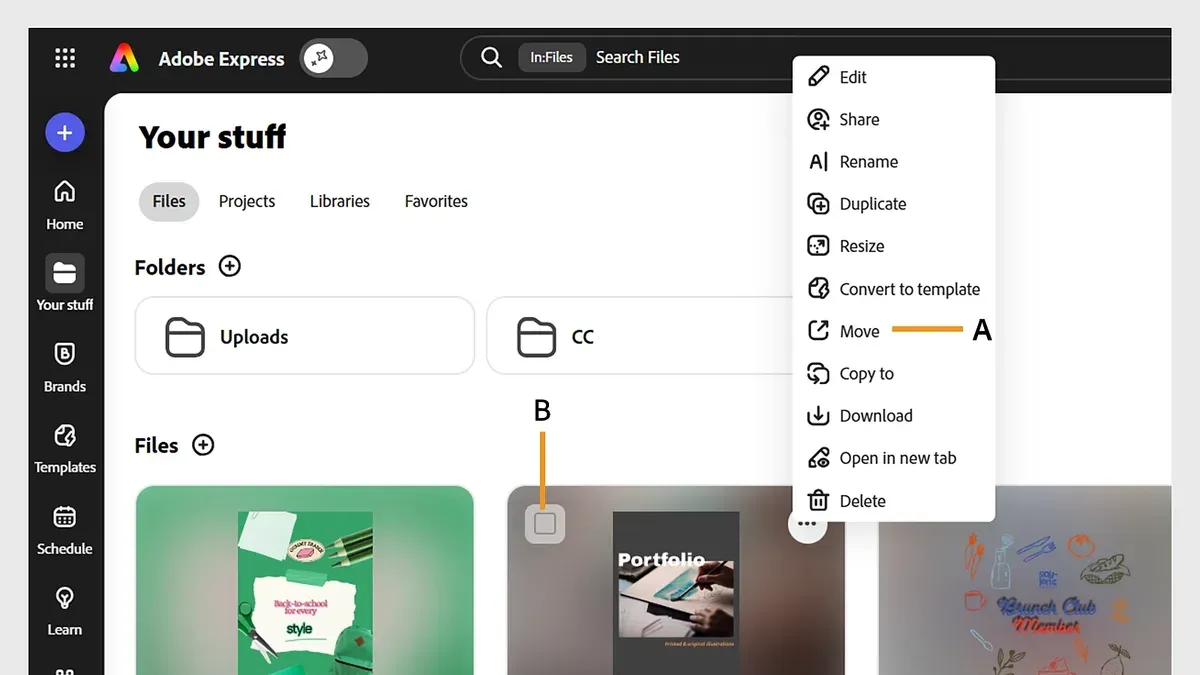
Export your assets by opening each project and selecting Download. Choose formats that preserve quality, such as PNG for images, MP4 for videos, and PDF for documents. Remember to download any embedded fonts or custom graphics separately, as Adobe Express does not package these automatically.
Structure your content to fit Book Creator’s modular book format. Break complex Adobe Express designs into pages or sections that can be recreated with Book Creator’s widgets. For instance, convert a single-page infographic into a multi-page interactive book with separate sections for text, images, and video.
Back up all exported files in a dedicated folder before starting the import process. This ensures you have original assets to revert to if something goes wrong. Be aware that Adobe Express projects using exclusive design features like branded templates or animation effects may not transfer perfectly and will require manual adjustments after import.
- Identify active vs. archival projects
- Download assets: images (PNG), videos (MP4), documents (PDF)
- Export embedded fonts and custom graphics separately
- Organize assets into folders matching Book Creator’s page structure
- Backup all exported content securely
- Note unsupported Adobe Express features for manual recreation
Set Up Book Creator and Start Building Your First Projects
Begin by creating your Book Creator account via bookcreator.com. After signing up, follow the onboarding prompts that guide you through basic navigation and project creation. Familiarize yourself with the dashboard's My Books area, where you create and manage your projects.
When starting your first project, choose a template that matches your content type—such as Interactive Book or Comic Strip. These templates come pre-configured with page layouts and interactive zones, helping you focus on content rather than design structure.
Importing assets from Adobe Express involves downloading your images, videos, and text files first. Then, upload them via the Insert menu in Book Creator, where you can drag and drop or browse files. For example, if you had a visual story in Adobe Express, import the images and recreate the narrative flow using Book Creator’s text and multimedia blocks.
Leverage Book Creator’s interactive tools like audio recording, video embedding, and drawing overlays to enhance engagement. Experienced users recommend using the Properties panel to fine-tune element size and positioning, ensuring your imported content fits seamlessly on each page.
- Create your Book Creator account and complete onboarding steps.
- Select an appropriate project template.
- Export and import Adobe Express assets carefully.
- Use multimedia features to enrich your content.
- Adjust layout with the Properties panel for polished results.
Avoid Common Mistakes When Switching Platforms
One common pitfall is underestimating the time required to learn Book Creator’s interface and convert existing Adobe Express projects. Users often expect a quick transfer but find that adapting to modular book layouts and interactive elements demands more planning and experimentation. For example, a content creator might try to replicate a complex Adobe Express infographic directly in Book Creator, only to face formatting issues and longer build times.
Another frequent error is ignoring differences in content formatting and interactivity. Adobe Express designs are typically flat graphics, whereas Book Creator supports layered multimedia and interactive widgets. Simply importing assets without redesigning them can result in broken links, misplaced elements, or non-functional interactions.
Failing to test your projects on target devices or with end users is another trap. Projects that look perfect on a desktop may render improperly on tablets or smartphones, especially if interactive features are involved. Testing early and often helps catch these issues before deployment.
Finally, overlooking collaboration setup and permissions can disrupt team workflows. Book Creator’s sharing settings require configuring edit rights and access controls explicitly. Neglecting this can lead to confusion or accidental overwrites in group projects.
- Allocate sufficient time for learning and conversion tasks
- Redesign, don’t just import, to fit Book Creator’s interactive format
- Test projects on all intended devices and user groups
- Set up collaboration permissions carefully to avoid access problems
Maintain Your Workflow and Maximize Book Creator’s Strengths
To integrate Book Creator seamlessly into your routine, establish a consistent content creation process by using the built-in "Page Manager" to organize pages and assets efficiently. Leverage the "Comments" feature to gather real-time feedback from collaborators, making iterative improvements without leaving the platform. For example, an educator creating an interactive textbook can assign peers or students to comment directly on specific pages, streamlining revisions and enhancing engagement.
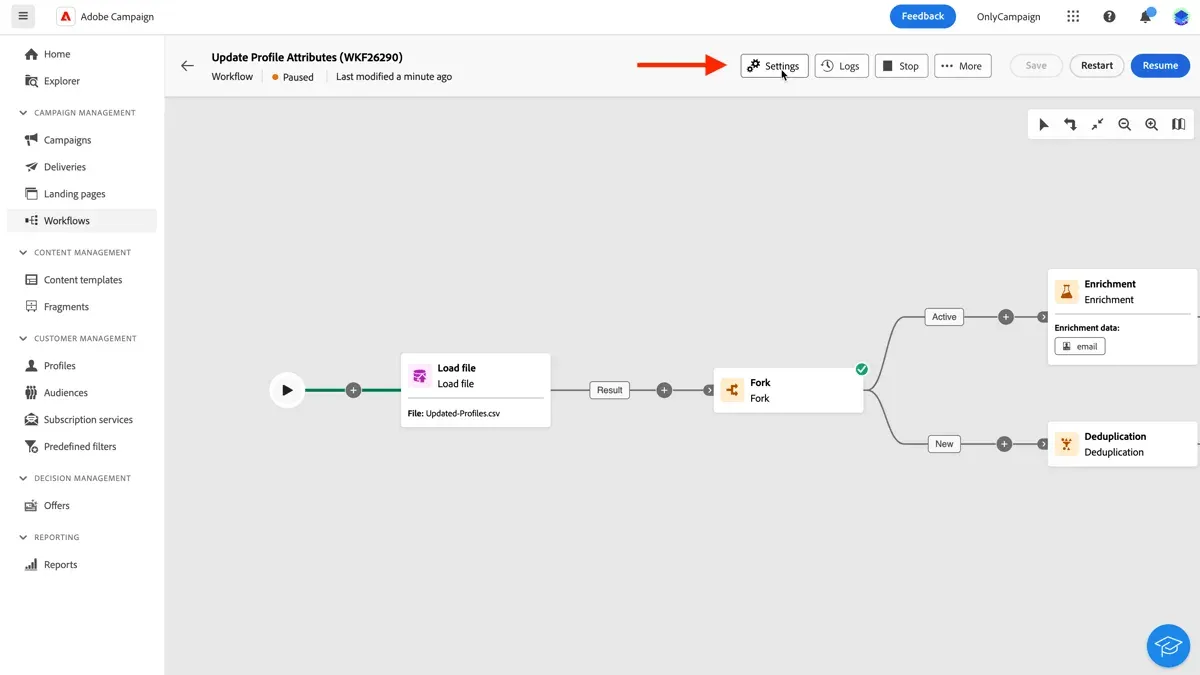
When publishing, use the "Publish" menu to export projects as ePub, PDF, or share a secure web link with customizable privacy settings. This flexibility supports different distribution needs, whether for online classrooms or public sharing. Maintain version control by duplicating projects before major edits and labeling versions clearly with dates and descriptors in the project title.
Users who applied a weekly review workflow reported smoother updates: block out 30 minutes to review comments, update content, and export fresh versions. This practice keeps projects current and archives organized without confusion. Organizing assets in folders within Book Creator’s library and regularly exporting backups ensures your work remains accessible and safe.
- Use "Page Manager" to keep pages and assets organized
- Utilize "Comments" for collaborative feedback and revision
- Export projects via "Publish" menu in multiple formats
- Duplicate and label project versions for clear version control
- Schedule regular review sessions to update and archive projects
- Organize assets in folders and export backups routinely
Read next
- How to Roll Out Adobe Express for Volunteers: A Step-by-Step Guide
- Mastering Adobe Express Implementation Timeline: A Complete Guide
Frequently asked questions
Can I directly import Adobe Express projects into Book Creator?
No, there is no direct import feature for Adobe Express projects in Book Creator. You will need to export your assets—such as images, text, and videos—from Adobe Express individually and then upload them manually into Book Creator. Planning this step ahead ensures smoother content migration without losing quality or formatting.
What types of content work best in Book Creator compared to Adobe Express?
Book Creator excels with interactive, multimedia-rich projects like eBooks, portfolios, and digital presentations that incorporate audio, video, and text collaboratively. While Adobe Express focuses more on quick graphic and social media content creation, Book Creator supports layered storytelling and educational content that benefits from reader interaction and sequential navigation.
How do I handle multimedia elements when switching platforms?
Export multimedia files from Adobe Express in standard formats—JPEG or PNG for images, MP4 for videos, and MP3 for audio. Upload these files into Book Creator’s media library using the “Add” button, then place them on pages as needed. Ensure file sizes are optimized to maintain performance without sacrificing quality.
Is there a learning curve when moving from Adobe Express to Book Creator?
Yes, the learning curve exists mainly because Book Creator emphasizes project structure and interactive elements, unlike Adobe Express’s focus on standalone graphics. You will spend time understanding page layouts, linking multimedia, and managing navigation. However, Book Creator’s intuitive interface and clear tooltips help ease this transition efficiently.
What this advice does not cover
This guide does not cover switching back to Adobe Express or using both platforms simultaneously for the same project. If you need to maintain workflows in both tools or require deep integration for hybrid use cases, consider consulting platform-specific support or exploring third-party workflow management solutions tailored to multi-platform use.
Quick checklist
- Identify key project elements in Adobe Express that must be preserved during transition.
- Export or save original files in compatible formats (e.g., PNG, JPG, PDF) for import into Book Creator.
- Set up your Book Creator account and familiarize yourself with the interface and page layouts.
- Recreate interactive elements using Book Creator’s native tools rather than importing unsupported features.
- Test your first Book Creator project on multiple devices to ensure consistent appearance and functionality.
- Avoid trying to replicate every Adobe Express feature exactly; focus on leveraging Book Creator’s strengths like collaborative editing and multimedia embedding.
- Establish a clear folder and file naming system to keep projects organized during the transition.
Start your transition by exporting a current Adobe Express project to a universal format and importing it into Book Creator. This hands-on step reveals workflow differences early and helps you adapt your process effectively.