Your Checklist for Moving from Jamf School to Google Admin Console
This checklist streamlines your transition from Jamf School to Google Admin console, covering device prep, migration steps, and minimizing classroom disruption.

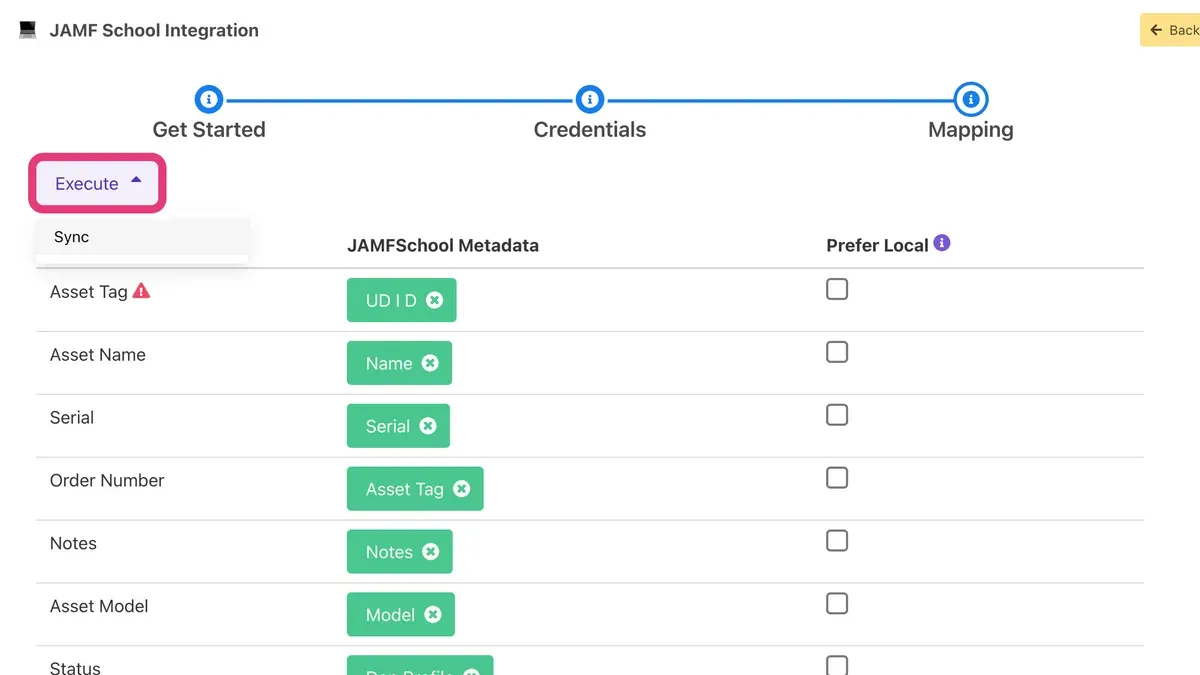
Short answer: Moving from Jamf School to Google Admin console checklist streamlines your transition from an Apple-focused device management system to a versatile, cross-platform environment. This checklist covers essential steps to prepare your devices, migrate settings, and avoid common pitfalls to maintain smooth operations.
This article breaks down the key differences between Jamf School and Google Admin console that impact your migration strategy. You’ll get a clear, actionable guide on preparing your environment, executing the migration process, and measuring success afterward. Focus is on minimizing classroom disruption while handling device enrollment, user policies, app distribution, and security settings.
What is Jamf School and why switch to Google Admin Console?
Jamf School is an Apple device management tool designed specifically for iOS and macOS environments. It delivers streamlined Mobile Device Management (MDM) for Apple devices, allowing you to configure settings, deploy apps, and enforce policies tailored to Apple’s ecosystem. However, it focuses exclusively on Apple hardware, limiting device diversity in schools.
Google Admin Console offers multi-platform management, handling Chromebooks, Windows PCs, Android devices, and Apple products from a single dashboard. It integrates tightly with Google Workspace for Education, letting you manage users, groups, and devices alongside app permissions and data access. For example, you can set device policies that automatically sync with Google Drive and Classroom, simplifying user access and reducing manual configuration.
Schools shifting toward diverse device fleets often choose Google Admin Console to centralize control and reduce complexity. This switch supports broader device support and deeper integration with Google’s education tools, aligning with evolving IT strategies that emphasize cross-platform flexibility and streamlined user management.
| Feature | Jamf School | Google Admin Console |
|---|---|---|
| Platform Support | iOS, macOS only | Chromebooks, Android, Windows, iOS, macOS |
| User & Device Management | Apple devices only | Unified across all supported platforms |
| Integration | Apple ecosystem apps | Google Workspace apps like Classroom, Drive, Meet |
What key differences affect your migration plan?
Jamf School and Google Admin Console operate on fundamentally different frameworks that shape your migration approach. Jamf School depends heavily on Apple’s Device Enrollment Program (DEP) and the Apple MDM framework, which tightly controls Apple devices from setup through management. In contrast, Google Admin Console uses Google’s device enrollment combined with endpoint management designed for cross-platform fleets including Chrome OS, Android, Windows, and macOS.
User identity management highlights another major difference. Jamf School enforces policies directly on devices without integrating deeply with user identities, focusing on local device management. Google Admin Console centers on cloud identity through Google Workspace accounts, linking device policies to user profiles for seamless access and security control.
| Feature | Jamf School | Google Admin Console |
|---|---|---|
| Device Enrollment | Apple DEP, Apple MDM framework | Google device enrollment, endpoint management for multiple OS |
| User Identity | Local device focus, limited user linking | Cloud identity via Google Workspace accounts |
| Configuration Profiles | Apple-specific profiles, fine-grained Apple settings | Cross-platform policies, limited Apple-specific controls |
| App Management | Apple App Store deployments, VPP integration | Google Play Store, Chrome Web Store, third-party app management |
For example, a common pitfall is attempting to replicate Jamf’s detailed Apple restrictions like blocking iCloud backup or enabling single app mode, which have no direct equivalent in Google Admin Console. These settings require redesigning your policy approach, often accepting trade-offs or using complementary solutions.
Understanding these distinctions lets you anticipate what settings you can migrate, which require reconfiguration, and how to minimize disruption to device users.
How do you prepare your environment before moving?
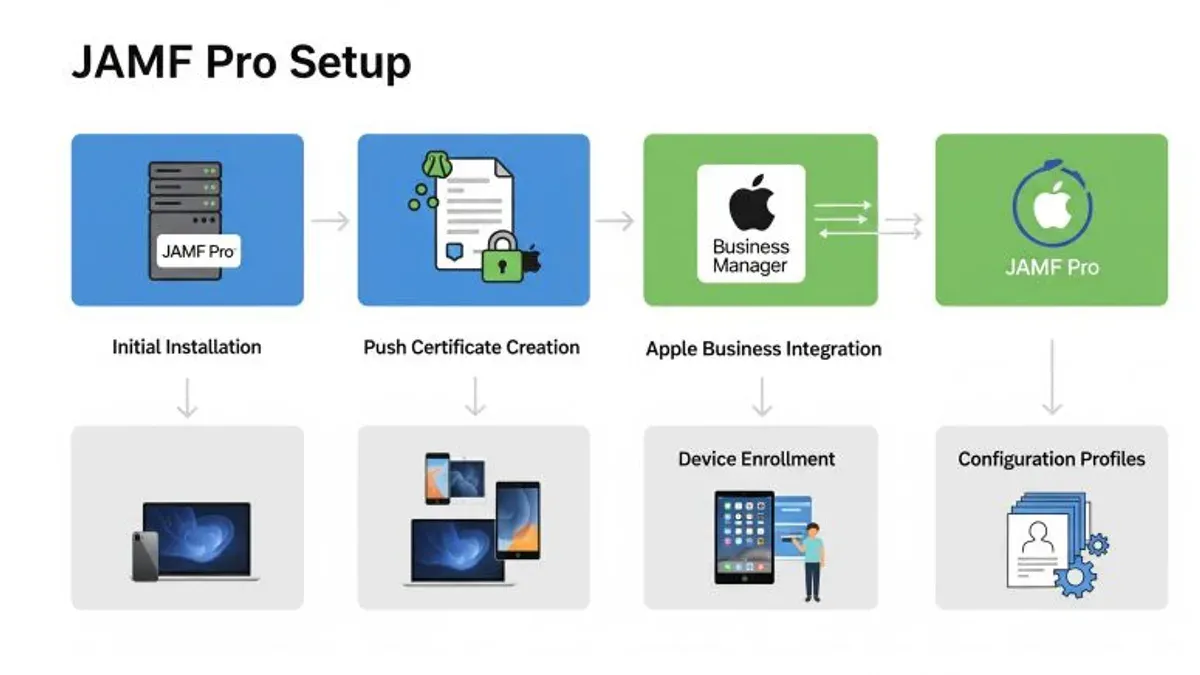
Start by auditing your Jamf School device inventory and configurations. Export lists of enrolled devices, installed profiles, and active policies from Jamf’s Devices and Configuration menus. Look for outdated or unused profiles—these often cause conflicts when migrating. A focused cleanup removes clutter and reduces errors later.
Next, verify your Google Admin Console setup. Confirm you have the necessary Chrome Education or Google Workspace licenses and that your domain is properly verified under Admin Console > Domains. Review user group structures in Directory > Groups to ensure they align with your school’s organizational units. Misaligned groups can complicate policy assignments post-migration.
Communicate clear timelines and expectations to all stakeholders. Send emails to teachers and staff outlining key dates, what changes to expect, and whom to contact for support. For example, a simple message: “Device management will switch from Jamf School to Google Admin starting next Monday. Expect some device restarts and app reassignments.”
Finally, backup critical data. Export important configuration files, user data, and documentation from Jamf School and related systems before you make changes. Use Jamf’s built-in export tools or third-party inventory software like Kandji or Mosyle for comprehensive backups.
- Export device and profile lists from Jamf School.
- Remove obsolete policies and profiles.
- Verify Google Admin licenses and domain verification.
- Align user groups with your school’s structure.
- Send clear stakeholder communication with timelines.
- Backup all critical data and configurations.
What is the step-by-step migration process?
Start by safely decommissioning Jamf School device management. Disable automatic device enrollment and remove devices from Jamf School one batch at a time to avoid conflicts. For example, if you manage 100 devices, remove 20 devices per day while monitoring their status to ensure no disruption.
Next, enroll devices into Google Admin Console. Use Google's zero-touch enrollment for bulk device setup, uploading a CSV with device serial numbers under Devices > Chrome Management > Device Settings. For Apple devices, use Apple School Manager integrated with Google’s device enrollment program to streamline this step.
Recreate device profiles and policies in Google Admin Console. Translate Jamf-specific settings into Google’s device management framework, configuring user settings, network configurations, and restrictions. Use the Admin Console’s Device > Configuration Profiles section to build these.
Deploy apps and extensions via Google Workspace Marketplace and Managed Google Play. Assign them through user groups or organizational units to ensure proper distribution.
Test a sample group of devices for policy enforcement and functionality. Confirm Wi-Fi connectivity, app availability, and security restrictions. Address any gaps immediately.
Finally, train IT staff and end-users on new workflows, focusing on Google Admin Console’s interface and device behavior changes.
- Disable Jamf School automatic enrollment and remove devices gradually
- Bulk enroll devices using Google Admin Console’s zero-touch or Apple School Manager integration
- Recreate device profiles and policies in Google Admin Console under Device > Configuration Profiles
- Deploy apps and extensions via Google Workspace Marketplace and Managed Google Play
- Test device compliance and functionality with a pilot group
- Train IT staff and users on the new management system
What common mistakes should you avoid during migration?
One frequent error is not fully understanding how Jamf School policies translate into Google Admin Console settings. For example, Jamf’s device restriction profiles often don't map directly to Google's device management policies, causing unexpected gaps in device security post-migration. Missing this can leave devices improperly configured.
Another critical mistake is skipping device backups before unenrollment. Without a full backup, you risk losing user data or configuration states that Jamf stored locally. Imagine needing to restore a student's device after unenrollment but having no reliable backup—this leads to extended downtime and frustrated users.
Underestimating user training needs creates a surge in support tickets. Schools that skip thorough hands-on training for staff and students often face overwhelmed help desks as users encounter unfamiliar workflows in Google Admin Console and their managed devices.
Failing to coordinate app licensing and deployment causes delays and app access issues. Jamf’s Apple App Store volume purchasing differs from Google Play or web app licenses. Without clear licensing plans, users may lose access to essential educational apps.
Lastly, overlapping management during the transition—where devices remain enrolled in both Jamf and Google Admin Console—can cause conflicts such as policy clashes and device instability. Ensuring Jamf devices are fully unenrolled before enrolling in Google Admin Console avoids this pitfall.
- Review policy mappings carefully and test on pilot devices before full rollout.
- Perform comprehensive device backups prior to unenrollment.
- Provide targeted, role-based training for all end users.
- Plan and verify app licensing and deployment in both systems.
- Strictly sequence device unenrollment from Jamf before Google enrollment.
How do you measure success and troubleshoot after migration?
Start by tracking device compliance rates using the Google Admin Console’s Reports > Device Compliance dashboard. Look for 95% or higher compliance within the first two weeks post-migration to confirm policies apply correctly. Complement this with a simple user satisfaction survey asking if device access, app availability, and performance meet expectations. Sample questions: "Are your school apps loading correctly?" and "Have you experienced any login issues?"
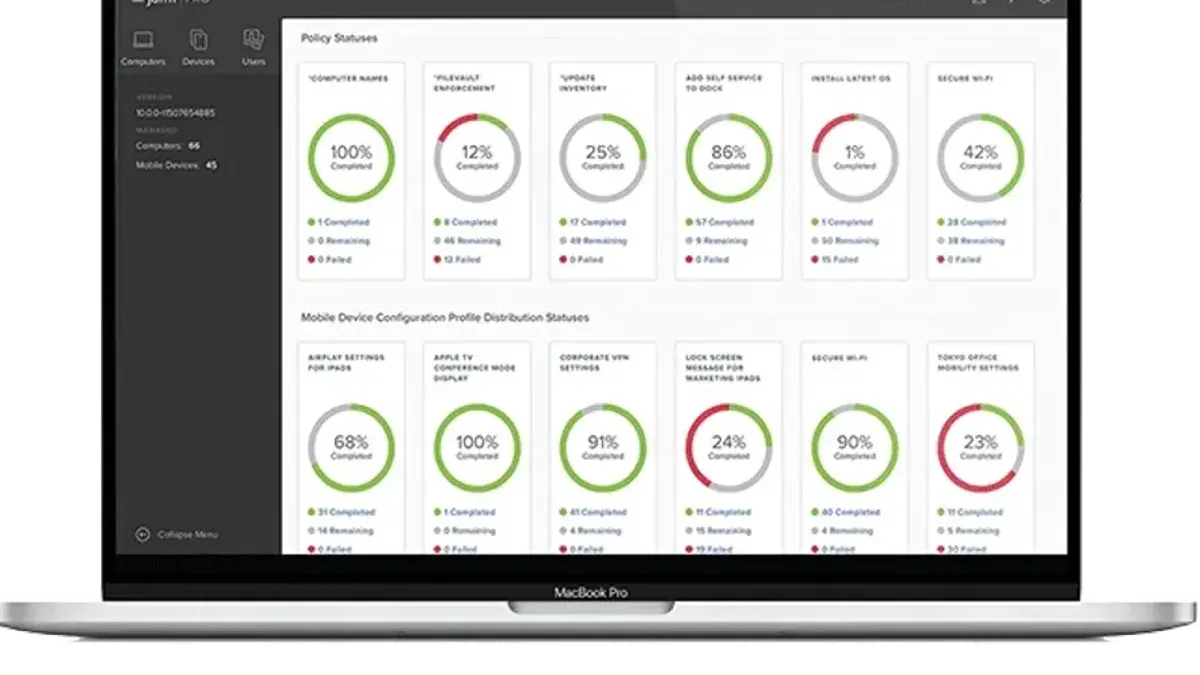
Use the Admin Console’s Audit logs (Reports > Audit > Admin) to monitor enrollment status changes and policy updates. This helps catch devices that drop off or fail to sync. When troubleshooting, begin with connectivity checks and policy refreshes under Devices > Chrome > Settings. Common issues include app sync failures or account sign-in errors, often resolved by re-enrolling devices or clearing cached profiles.
Roll out the migration in phases to isolate problems before full deployment. For example, start with a single grade or device type. If 10% of devices show sync errors, address those before proceeding. Keeping early feedback loops tight limits classroom disruption and builds confidence.
- Check compliance metrics weekly in Reports > Device Compliance
- Send targeted user surveys after each rollout phase
- Monitor Audit logs for enrollment and policy events
- Use Devices > Chrome > Settings for policy refresh and troubleshooting
- Re-enroll or reset devices showing persistent errors
- Plan phased rollouts to manage and isolate issues
Frequently asked questions
Can I migrate Jamf School configurations directly into Google Admin Console?
No, there is no direct migration tool that transfers Jamf School settings into Google Admin Console. You must manually recreate device profiles, policies, and restrictions within Google Admin’s Device Management section. Exporting user lists and device inventories from Jamf School can speed up this process but expect a hands-on setup for configurations.
What happens to Apple-specific management features after switching?
Apple-specific features like DEP (Device Enrollment Program) and custom configuration profiles do not transfer to Google Admin Console. Google Admin focuses on cross-platform controls and offers limited Apple device management compared to Jamf School. You may lose granular control over macOS or iOS-specific settings and will need to adjust expectations accordingly.
How long does the migration process typically take?
The migration timeline depends on the number of devices and complexity of policies but generally ranges from several days to a few weeks. Planning and staging devices in batches reduces risk. Allocate time for testing enrollment, policy application, and user training to avoid surprises during the rollout.
Will users notice downtime or changes during the switch?
Users might experience brief interruptions during device re-enrollment and policy updates, typically lasting 5 to 15 minutes per device. Scheduling migrations outside school hours and communicating changes clearly minimizes disruption. Some changes in app availability or settings behavior are expected and should be explained in advance.
What this guide does not cover
This guide assumes your school primarily uses Apple devices but wants broader management via Google Admin Console. If your environment is heavily Windows or Android-focused, some steps will differ significantly, especially around enrollment and device configuration profiles. For mixed-device environments, consider consulting platform-specific documentation or a specialist to tailor your migration strategy. This advice does not cover bulk Google Workspace licensing procurement or advanced Google API automation, which may require IT vendor support.
Quick checklist
- Audit all Apple devices currently enrolled in Jamf School and note enrollment status.
- Back up any critical user data and Jamf School configuration profiles.
- Set up your Google Admin Console with appropriate organizational units and user groups.
- Configure Apple Device Enrollment Program (DEP) integration within Google Admin for automated enrollment.
- Create and assign device policies, apps, and restrictions in Google Admin matching your previous Jamf setup.
- Communicate migration timelines clearly to staff and students to minimize classroom disruption.
- Test enrollment and policy application on a small batch of devices before full rollout.
- Unenroll devices from Jamf School only after successful Google Admin enrollment and configuration.
- Monitor device compliance and troubleshoot using Google Admin reports and logs.
Start by mapping your current Jamf School device inventory against Google Admin’s enrollment requirements and policies. This step uncovers potential gaps and prepares you to configure Google Admin Console effectively, ensuring a smoother transition with minimal downtime for end users.
See also: Switching from Google Admin Console to Jamf School: A Clear-Cut Guide · Google Admin Console Rollout Plan: A Guide for School Administrators · Switching from Jamf School to Clever: A Practical IT Admin Guide · Jamf School Implementation Timeline: A Clear Guide for IT Admins