Moving from Pear Deck to Kahoot Checklist for Educators
This checklist guides educators through moving from Pear Deck to Kahoot, ensuring smooth content transfer and maintaining student engagement.

Short answer: Moving from Pear Deck to Kahoot involves recognizing their distinct engagement styles and assessment formats. This moving from Pear Deck to Kahoot checklist will guide you through exporting your Pear Deck content, setting up Kahoot, and adapting your activities to maintain effective student interaction and formative assessment.
This article covers the key differences between Pear Deck’s interactive slide-based approach and Kahoot’s game-oriented quizzes, how to transfer your existing materials, and practical steps to ensure a smooth transition. You’ll learn how to leverage Kahoot’s real-time leaderboards and varied question types while preserving the pedagogical intent behind your Pear Deck lessons. Clear actions and common pitfalls to avoid help you switch confidently without losing the engagement and assessment value your students rely on.
Understand the core differences between Pear Deck and Kahoot
Pear Deck centers on interactive presentations, embedding formative assessments directly within Google Slides or PowerPoint. This setup allows you to guide students through content at a controlled pace while capturing real-time responses for nuanced feedback and ongoing comprehension checks.
Conversely, Kahoot emphasizes game-based learning primarily through quizzes and live competitions. Its format encourages rapid-fire engagement, often with a leaderboard to boost motivation, but pacing is driven by the game flow rather than slide progression.
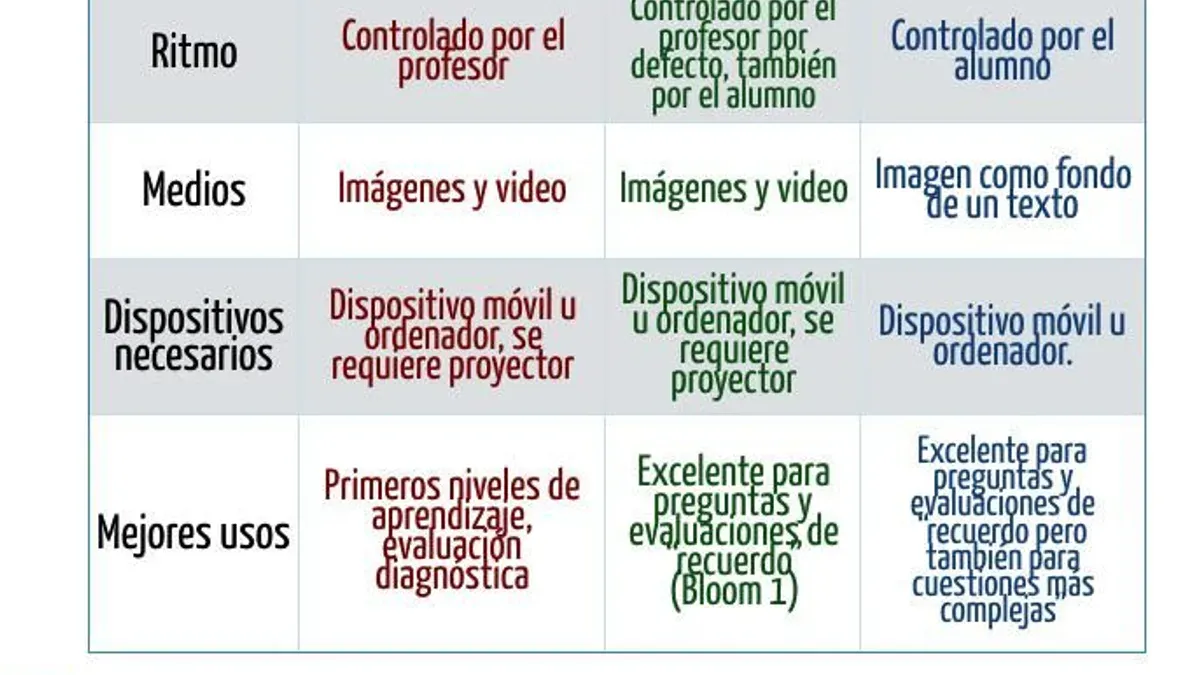
| Feature | Pear Deck | Kahoot |
|---|---|---|
| Interaction Type | Embedded questions in presentations (multiple choice, draggable, text) | Standalone quizzes and challenges (multiple choice, true/false, puzzles) |
| Feedback Mechanism | Individual student responses visible to teacher during the session for formative assessment | Immediate scoring with public leaderboard to encourage competition |
| Reporting | Detailed per-question insights post-session with ability to review open-ended answers | Summary of quiz results with correct answer statistics and player rankings |
Picture this: with Pear Deck, you present a slide about photosynthesis, then ask students to label parts of a diagram directly on the slide, allowing you to adjust your teaching based on their input. With Kahoot, you might run a timed quiz on photosynthesis terms, energizing the classroom through competition but offering less nuanced insight into individual misconceptions during the session.
How to access Pear Deck and export your existing content
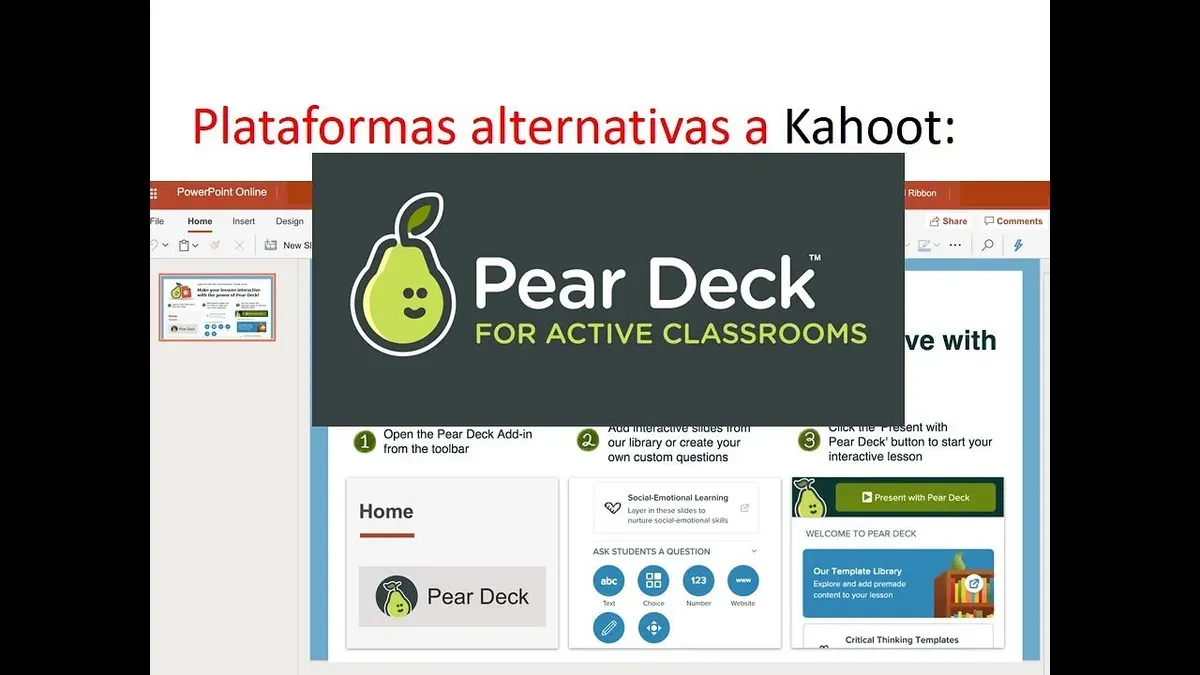
Begin by logging into your Pear Deck account at app.peardeck.com using your usual credentials. Once inside, navigate to the Library tab on the left sidebar, where your saved decks are organized. Locate the deck you want to export by scrolling or using the search bar.
Pear Deck does not offer a direct export option to formats compatible with Kahoot, such as quiz files. However, you can download your slides as a Google Slides file or PowerPoint (.pptx) by clicking the three-dot menu on the deck thumbnail and selecting Open in Google Slides or Download as PowerPoint. This preserves the visual layout and question text but does not carry over interactive Pear Deck features.
For example, after exporting to PowerPoint, you can extract question content and images manually to recreate quizzes in Kahoot. Keep in mind that Pear Deck’s formative question data and student response tracking cannot be exported for use in Kahoot, meaning assessment history will not transfer.
- Log into Pear Deck at app.peardeck.com
- Go to Library and find your deck
- Click the three-dot menu on the deck thumbnail
- Select Open in Google Slides or Download as PowerPoint
- Manually transfer question content to Kahoot as needed
Set up your Kahoot account and familiarize yourself with its interface
Start by visiting kahoot.com and selecting "Sign up" to create a teacher account. Kahoot offers multiple subscription tiers, including a free basic plan that supports essential quiz creation and hosting. Explore the dashboard after logging in; it centralizes your quizzes, recent activity, and templates.
To create a quiz, click "Create" in the top-right corner, then choose "Quiz". Kahoot's question types include multiple choice, true/false, and puzzle, differing from Pear Deck's interactive slide formats. For example, where Pear Deck allows open-ended slide responses, Kahoot emphasizes timed, game-like interactions with immediate scoring.
When setting quiz options, note the "Timer" setting per question, which controls pacing more rigidly than Pear Deck. You can also enable randomized answer order and leaderboard settings to boost engagement.
Imagine preparing a vocabulary review: in Pear Deck, you might use draggable words on slides, but in Kahoot, you’d create a multiple-choice quiz with a 20-second timer per question, promoting fast recall. Spend time navigating the "Reports" tab to understand post-game analytics.
Quick Kahoot setup checklist:
- Create a teacher account at kahoot.com/signup
- Familiarize yourself with the dashboard and navigation menus
- Explore quiz creation via the "Create" > "Quiz" path
- Review question types and select appropriate ones for your content
- Adjust timer and answer randomization settings
- Run a sample quiz to test hosting and reporting features
Recreate or adapt your Pear Deck activities into Kahoot quizzes
Not all Pear Deck questions transition smoothly to Kahoot’s game-based format. Pear Deck’s open-ended or drawing responses often need reworking into multiple-choice or true/false questions to fit Kahoot’s structure. Prioritize questions that assess knowledge recall or quick reasoning for better engagement.
When rewriting, simplify wording to suit Kahoot’s fast-paced environment. For example, a Pear Deck slide asking, “Explain the causes of the American Revolution” can become: “Which event directly triggered the American Revolution?” with four clear, concise options.
Leverage Kahoot’s multimedia by adding relevant images or short videos to questions, increasing visual appeal and context. Use the timer setting to maintain momentum—set it between 20 and 30 seconds per question depending on complexity.
For instance, a Pear Deck slide with a map labeling activity can be adapted to Kahoot by showing an image of the map and asking, “Which city is marked here?” with multiple-choice answers. This shifts from open interaction to quick recall while preserving content relevance.
- Identify Pear Deck questions suitable for multiple-choice formats
- Simplify and rewrite questions for concise, clear choices
- Add images or videos via Kahoot’s media upload
- Adjust question timer to balance challenge and pace
- Test adapted questions to ensure clarity and engagement
Run a test Kahoot session and gather feedback
Before launching your Kahoot quiz to the entire class, pilot it with a small group of students or trusted colleagues. This controlled setting lets you observe pacing, question clarity, and engagement without the pressure of a full class. Use the “Preview” mode or host a live session with 3–5 participants to simulate the real environment.
After the session, access the detailed reports via Kahoot’s “Reports” tab. Unlike Pear Deck’s slide-by-slide interaction analytics, Kahoot provides a summary of question-by-question performance, including correct response rates, average response times, and leaderboard stats. For example, if a question shows only 40% accuracy and longer-than-average response times, it indicates potential confusion or difficulty.
Compare this to Pear Deck’s session report, which highlights student answers per slide but lacks granular timing data. Use Kahoot’s insights to adjust pacing—perhaps adding more time for challenging questions—or modify question difficulty for clarity and balance.
Collect feedback directly from participants on the quiz flow and engagement. Then refine your quiz and settings accordingly to ensure smooth delivery and effective assessment.
- Pilot the Kahoot quiz with a small group or colleagues
- Review question performance and response times in Kahoot Reports
- Compare with Pear Deck insights to identify key differences
- Adjust question difficulty and pacing based on data and feedback
- Iterate before full-class implementation
Avoid common pitfalls when switching from Pear Deck to Kahoot
One frequent mistake is overloading your Kahoot quiz with too many questions or running sessions that last too long. For example, a 40-question Kahoot stretched over 45 minutes can lead to student fatigue and disengagement. Kahoot’s strength lies in fast-paced, energetic interactions, so keep quizzes concise—ideally under 20 questions and 15 minutes.

Another pitfall is ignoring the differences in formative assessment between the platforms. Pear Deck’s slide-by-slide feedback and open-ended responses allow nuanced insight, while Kahoot mainly offers multiple-choice and short answer formats with instant scoring. Expect to adapt your assessment goals accordingly rather than trying to replicate Pear Deck’s approach exactly.
Failing to communicate the switch and new expectations to your students creates confusion and reduces participation. If students aren’t prepared for Kahoot’s competitive timing and interface, engagement drops. Clearly explain the change, how to join games via kahoot.it or app, and what they should expect regarding pace and scoring.
- Limit Kahoot quizzes to about 15–20 questions or fewer and keep sessions under 15 minutes to maintain energy.
- Adjust formative assessment strategies to fit Kahoot’s mainly objective question types rather than expecting Pear Deck’s detailed feedback.
- Inform students ahead of time about the switch, explaining how Kahoot works and what changes to expect in class activities.
Read next
- Switching from Pear Deck to Google Forms: A Confident Educator’s Guide
- Switching from Pear Deck to Gimkit: A Practical Educator’s Guide
- Switching from Pear Deck to Formative: A Practical Educator’s Guide
- Switching from Pear Deck to Edpuzzle: A Confident Educator’s Guide
Frequently asked questions
How to access Pear Deck?
You access Pear Deck by visiting the official website and signing in with your Google or Microsoft account. Once logged in, navigate to the 'My Decks' section to view your presentations or create new ones. You can also use the Pear Deck add-on within Google Slides to integrate interactive elements directly into your slides.
Can I import Pear Deck slides directly into Kahoot?
Kahoot does not support direct imports of Pear Deck slides or presentations. You will need to manually recreate or adapt your Pear Deck activities into Kahoot’s quiz or challenge formats. This process involves copying questions, answers, and interactive elements, then customizing them to fit Kahoot’s engagement style.
What are the main benefits of Kahoot over Pear Deck?
Kahoot offers a highly gamified experience with real-time competition that can boost student motivation and engagement, especially in larger groups. Its quiz-based format excels in formative assessments and immediate feedback, while Pear Deck focuses more on guided interactive slides and formative checks during presentations. Kahoot’s user interface is simpler for quick game setup and sharing.
Do I need a paid Kahoot account to replace Pear Deck?
A free Kahoot account provides many core features suitable for classroom use, including quiz creation and live game hosting. However, to access advanced options like detailed reports, question bank access, and larger participant limits, a paid subscription may be necessary. Evaluate your class size and required features to determine if upgrading will better support your needs during the transition.
Quick checklist
- Review your Pear Deck content and use the export option via Dashboard > Sessions > Export to Google Slides or PDF.
- Create a Kahoot account at kahoot.com and complete the onboarding tutorials to understand the interface.
- Identify Pear Deck slides that best suit quiz-style questions and plan how to adapt them into Kahoot’s multiple-choice or puzzle formats.
- Use Kahoot’s Quiz Builder to recreate activities, ensuring you leverage features like timed questions and answer streaks for engagement.
- Run a low-stakes test Kahoot session with a small group to observe pacing and question clarity.
- Collect feedback from students on engagement and clarity, then refine your Kahoot accordingly.
- Watch for common pitfalls such as relying too heavily on open-ended Pear Deck slides that don’t translate well into Kahoot’s format.
What this advice does not cover
This guide does not cover switching to Kahoot alternatives or hybrid use of both platforms; it focuses solely on a full transition to Kahoot. Educators seeking deep formative assessment tools beyond Kahoot’s quiz format may find limitations in this transition. If your curriculum depends heavily on interactive slides with open-ended student input or requires detailed feedback loops, consider maintaining Pear Deck alongside Kahoot or exploring other specialized tools.
The single most useful next step is to schedule a dedicated session to rebuild your most effective Pear Deck activities within Kahoot’s quiz builder, focusing on question clarity and timing to preserve engagement and assessment quality. This hands-on practice will reveal nuances that streamline your transition and maximize student participation.