How to Roll Out Interactive Flat Panels for After-School Programs
Discover key steps to implement an interactive flat panel rollout plan tailored for after-school programs, ensuring smooth adoption and engagement.

Short answer: An effective interactive flat panel rollout plan for after-school programs requires tailoring your approach to accommodate flexible schedules, diverse user groups, and tight budgets. Prioritize planning around minimal disruption and practical training to ensure smooth adoption.
This article guides you through the critical steps of implementing interactive flat panels in after-school settings. You'll learn how to assess your program’s specific needs, strategize installation to avoid conflicts with activities, and train users efficiently. The focus is on overcoming challenges unique to after-school environments, such as variable attendance and multiple age groups, which standard rollout plans often overlook.
Understand What Interactive Flat Panels Bring to After-School Programs
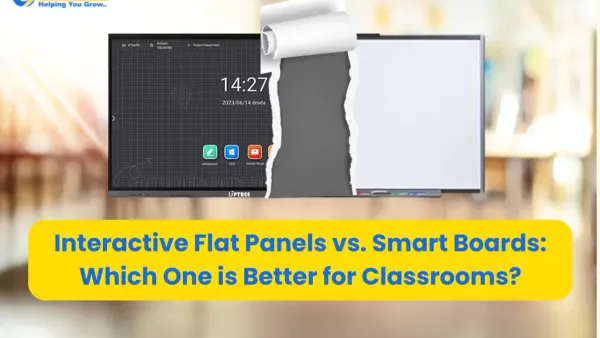
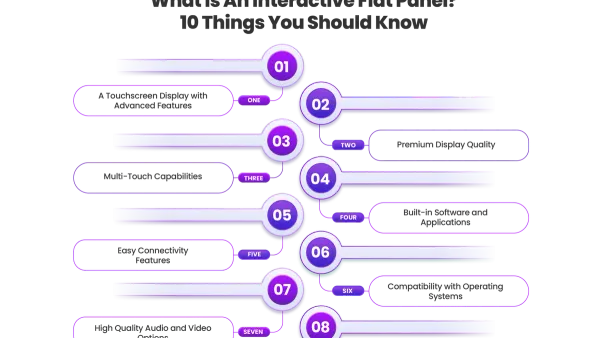
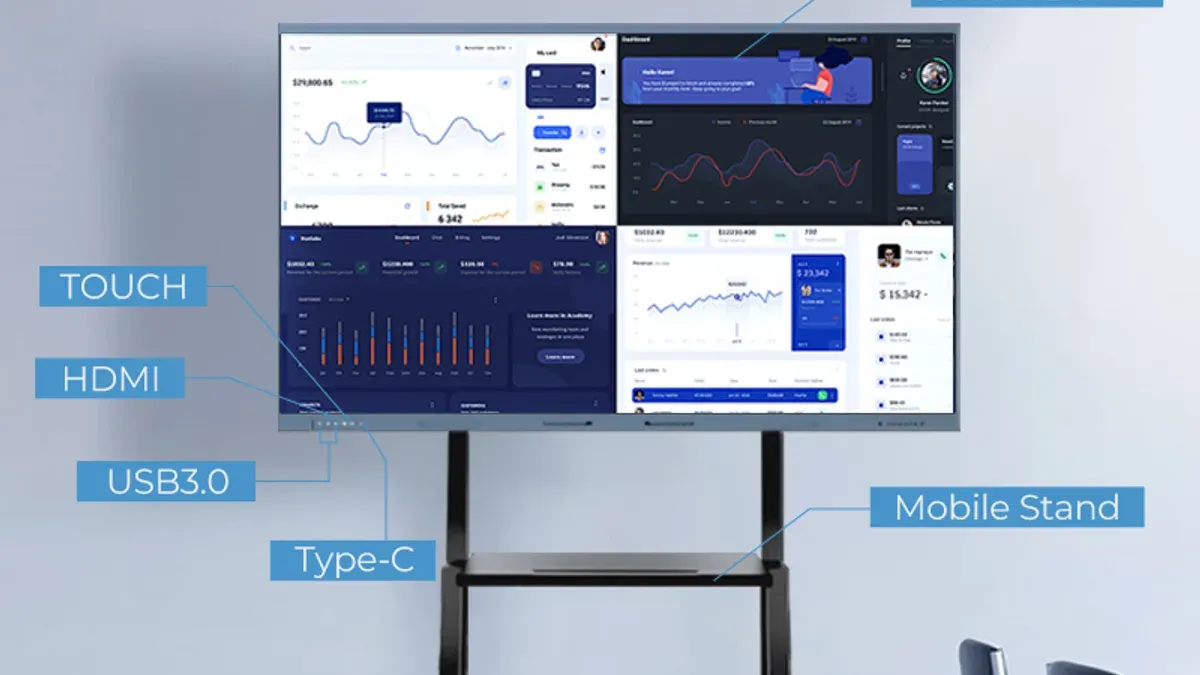
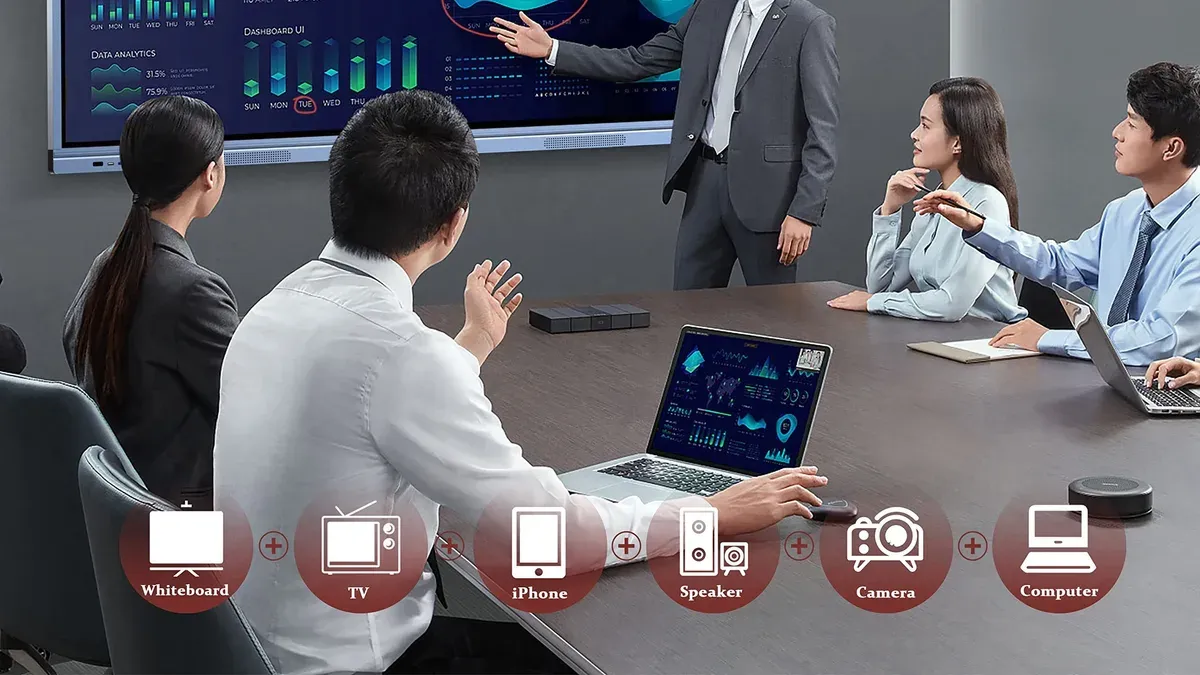
Interactive flat panels are large touchscreen displays equipped with multi-touch capabilities and integrated software that support app usage, annotation, and multimedia playback. Unlike traditional whiteboards or projectors, these panels enable simultaneous input from multiple users, allowing for collaborative activities that engage diverse groups.
For after-school programs, these features translate into versatile tools that accommodate varied activities—from group tutoring sessions to creative workshops. Their ease of use reduces setup time, crucial when schedules are tight and space is shared. For example, a STEM club can use the panel's app integrations to run coding exercises one day and switch to interactive quizzes the next, all without complex reconfiguration.
After-school settings differ from classrooms by requiring flexible technology that supports informal learning and fluctuating group sizes. Interactive flat panels address this by enhancing participation and adapting to different instructional styles, making them particularly effective for boosting engagement outside of regular school hours.
Assess Your After-School Program’s Unique Needs
Begin by identifying your user groups to tailor the interactive flat panel selection. Consider the age ranges of students—whether early elementary, middle school, or high school—as younger students benefit from simpler interfaces, while older ones may require advanced features. Also, evaluate staff technology experience; seasoned educators may leverage complex apps, whereas less tech-savvy staff need intuitive controls.
Clarify your program goals: Is the focus on tutoring, STEM projects, or creative arts? Each goal prioritizes different features, such as annotation tools for tutoring or coding apps for STEM. Review the physical spaces where panels will be installed. Measure room dimensions, check available wall space, and assess electrical outlets and network connectivity to ensure compatibility without costly infrastructure upgrades.
Budget constraints are a critical factor. Funding sources might include grants, school budgets, or parent contributions. Typical after-school programs with a tutoring focus often allocate less for hardware but emphasize durability, while STEM programs may invest more in interactive capabilities and additional software licenses.
Example checklist for assessing space and user needs:
- List age groups served and staff tech proficiency
- Define primary program activities
- Measure installation spaces and note outlet locations
- Check Wi-Fi strength and Ethernet availability
- Identify available budget and funding sources
| Program Type | Typical Budget Priority | Feature Focus |
|---|---|---|
| Tutoring | Low to Moderate | Durability, Annotation Tools |
| Creative Projects | Moderate | Touch Sensitivity, App Variety |
| STEM | Moderate to High | Software Integration, Connectivity |
For example, a middle school STEM club with limited wall space and inconsistent Wi-Fi might prioritize compact panels with wired Ethernet ports and robust software compatibility, while ensuring installation does not interfere with after-hours activities. This detailed upfront assessment prevents costly missteps and ensures the technology aligns with your program’s distinct requirements.
Plan the Rollout Strategy for Smooth Adoption
Develop a phased rollout that fits your after-school program’s unique rhythm. Begin with a pilot phase involving a small group of staff and students to identify challenges early. For example, a community center ran a 4-week pilot during weekday afternoons, allowing staff to familiarize themselves without interrupting peak program hours.
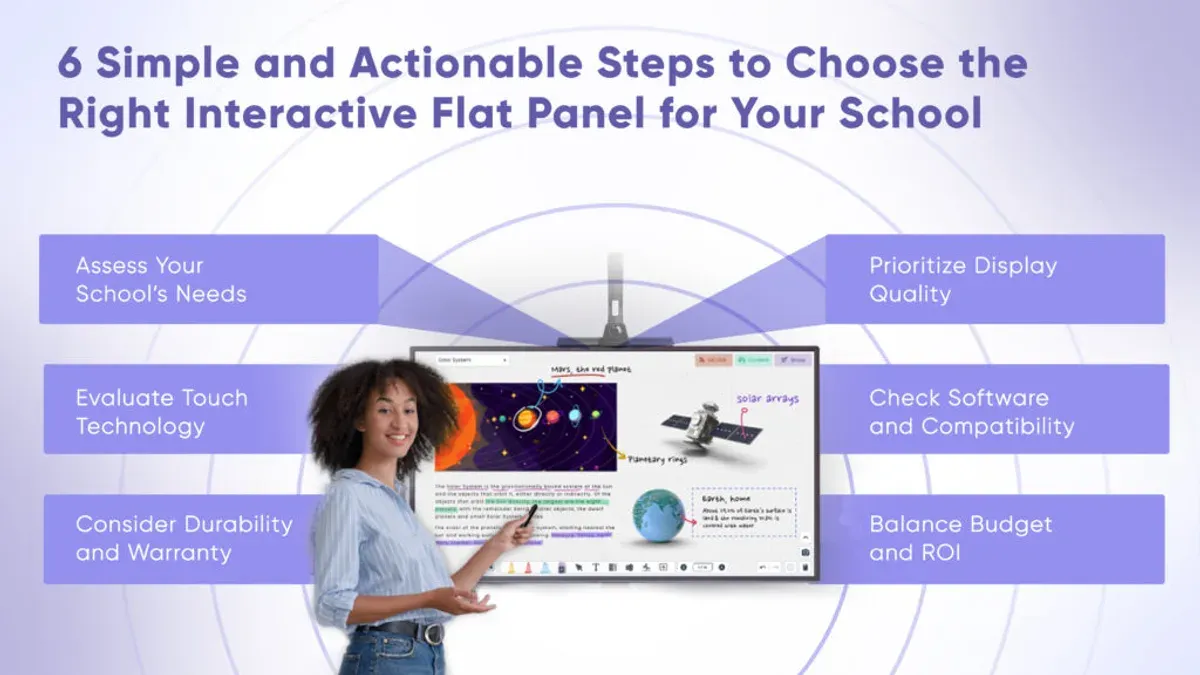
Schedule rollout activities carefully around your program hours and staff availability. Avoid introducing new technology during peak times or when staffing is limited, ensuring support is always on hand. Early engagement with key stakeholders—staff, parents, and IT support—builds buy-in and smooths troubleshooting. Share clear timelines and expectations to keep everyone aligned.
Prepare training materials tailored to non-technical users, focusing on practical tasks like launching apps or troubleshooting basic issues. Use simple language and visuals, such as step-by-step guides on accessing the interactive panel’s home screen or adjusting volume settings.
A sample phased timeline might look like this:
- Week 1–4: Pilot with select users during low-activity hours
- Week 5–6: Staff training sessions and feedback collection
- Week 7 onwards: Full deployment and ongoing support
Implement Installation and Setup with Minimal Disruption
Coordinate closely with your IT team to ensure network and power requirements are met before installation. Confirm that reliable Wi-Fi or wired Ethernet access is available near each panel location. Verify power outlets can support the device load, considering surge protectors to safeguard equipment.
When selecting mounting options, balance flexibility and security. Wall mounts provide stability and save floor space but limit repositioning. Mobile carts offer mobility for multi-use rooms but require secure locking mechanisms to prevent movement during use. For example, if your after-school program rotates rooms frequently, mobile carts with lockable wheels may be ideal despite their bulk.
Configure the panel’s software prioritizing user-friendly interfaces and security settings. Restrict guest access, enable automatic updates, and preload essential apps relevant to your program’s goals. Use administrative controls to set default input sources and disable unnecessary features that could confuse users.
Before rollout, conduct comprehensive testing of each panel. Check touch responsiveness, network connectivity, audio-visual functions, and software stability. Test during typical program hours to identify potential disruptions.
- Coordinate with IT on network and power setup
- Choose mounting option: wall mount for fixed rooms or mobile cart for flexible spaces
- Configure software for ease of use and security, including app setup and access controls
- Test all device functions thoroughly under real-use conditions
- Document installation details and user instructions for staff reference
Train Staff and Students for Effective Use
Design training sessions tailored to the roles of your users: coordinators, educators, and students. For example, coordinators might focus on managing device settings and scheduling, while students learn basic navigation and app usage. Keep sessions brief and practical, using hands-on demonstrations in the actual after-school spaces to build familiarity.
Provide quick reference guides highlighting common tasks like launching apps, adjusting volume, or connecting external devices. Address frequently asked questions upfront, such as how to reset the panel or troubleshoot connectivity issues, reducing downtime and frustration.
Plan follow-up support with refresher workshops scheduled a few weeks after initial training. For instance, one program found staff confidence improved noticeably after a 30-minute follow-up session, where users shared challenges and tips.
A sample training agenda might include: introduction (5 minutes), hands-on panel navigation (15 minutes), role-specific tasks (20 minutes), Q&A and troubleshooting (10 minutes), and distribution of reference materials.
- Create role-specific sessions
- Use hands-on demos in real settings
- Distribute simple quick guides
- Address common questions early
- Schedule refresher training and support
Avoid Common Pitfalls in After-School Interactive Flat Panel Rollouts
One critical mistake is ignoring the unique scheduling realities of after-school programs. Unlike traditional classes, these programs often have varied timing and fluctuating attendance, so rollout activities must be carefully timed to avoid peak usage hours. Programs that overlooked this faced interrupted sessions and frustrated users.
Underestimating ongoing support needs also undermines success. After the initial setup, many users encounter technical issues or require refresher training. Without a dedicated support plan, frustration mounts, and panels risk underutilization.
Overlooking user diversity and accessibility can alienate significant portions of your audience. For example, failing to configure accessibility features or provide multilingual interfaces can discourage participation from students with different abilities or language backgrounds.
Choosing overly complex software or hardware often backfires. After-school programs thrive on simplicity due to limited tech expertise among staff and students. One program that selected feature-heavy software saw frequent user complaints about navigation difficulties and slow response times.
Top user complaints during early rollouts often include slow system performance, confusing interfaces, lack of training, limited access during busy hours, and technical glitches.
Imagine an after-school art program that installed panels during peak activity without arranging support. Staff struggled with software updates during sessions, causing delays and disengagement. In contrast, a similar program scheduled installations during off-hours and assigned a tech support lead, resulting in smooth adoption and positive feedback.
- Schedule rollout activities considering after-school program hours and attendance patterns
- Establish ongoing technical and user support channels
- Ensure accessibility settings and multilingual options are configured
- Select user-friendly, appropriately featured software and hardware
- Prepare for and address common user complaints promptly
Read next
- Moving from Classroom Projector to Interactive Flat Panel: Your Expert Checklist
- Promethean Board Rollout Plan for After-School Programs: A Practical Guide
Frequently asked questions
What features should I prioritize when selecting interactive flat panels for after-school use?
Focus on durability and touchscreen responsiveness to handle diverse users and frequent use. Prioritize panels with multi-touch capability and easy-to-clean surfaces. Look for built-in speakers and reliable wireless connectivity to support varied activities without extra equipment.
How can I train staff with limited technical background effectively?
Use step-by-step, hands-on training sessions with simple, jargon-free instructions. Provide quick reference guides covering basic tasks like powering on, launching apps, and troubleshooting common issues. Schedule follow-up sessions and encourage peer support to build confidence gradually.
What are budget-friendly options for interactive flat panels without sacrificing quality?
Consider mid-range models from reputable brands that offer essential features without premium extras. Look for panels with standard screen sizes around 55 to 65 inches to balance cost and usability. Evaluate bundled software solutions included with the panel to reduce additional expenses.
How do I maintain the technology to ensure longevity in a busy after-school environment?
Establish a regular cleaning routine using microfiber cloths and manufacturer-approved cleaners to avoid screen damage. Schedule periodic software updates via the panel’s settings menu to maintain security and performance. Train staff to power down panels correctly and report issues promptly to prevent minor problems from escalating.
Quick checklist
- Identify key user groups and their schedules to tailor access and training times.
- Choose interactive flat panels with multi-touch capability and easy wireless connectivity.
- Schedule installations during low-activity hours to avoid disrupting after-school sessions.
- Provide hands-on training focusing on core features staff and students will use daily.
- Establish clear protocols for device care and troubleshooting to minimize downtime.
- Collect feedback after initial use to refine support and training materials.
What this advice does not cover
This guide does not cover integration with specific third-party educational platforms or advanced IT infrastructure upgrades that some programs might require. If your after-school program relies heavily on custom software or complex network configurations, consult with IT specialists or vendor support to ensure compatibility and security.
Start by mapping your program's schedule and user needs clearly. This foundational step allows you to make informed decisions about device selection, installation timing, and training plans that minimize disruptions while maximizing engagement and usability.