
Moving from SharePoint to Google Drive: Your Complete Checklist
This moving from SharePoint to Google Drive checklist guides you through preparing, planning, and executing a smooth migration with minimal disruption.

Short answer: Moving from SharePoint to Google Drive requires a strategic approach that addresses their different collaboration and permission models to avoid common pitfalls. This moving from SharePoint to Google Drive checklist guides you through understanding these differences, preparing your SharePoint environment, planning Google Drive’s structure, and executing a smooth migration.
This article covers the critical nuances of SharePoint’s site and library-level permissions versus Google Drive’s file-centric sharing and Drive-level access controls. You will learn how to anticipate challenges such as permission mapping, metadata handling, and collaboration workflow changes. By following this expert-driven step-by-step guide, you’ll ensure your migration minimizes disruption and maximizes the benefits of Google Drive’s flexible sharing and real-time collaboration features.
Understand Key Differences Between SharePoint and Google Drive
SharePoint organizes content primarily through sites and document libraries, where each site acts as a container for related projects or teams, and document libraries hold files within those sites. Google Drive, in contrast, uses a folder and Shared Drive model; Shared Drives are owned by teams rather than individuals, and folders within manage file organization.
Permissions differ significantly: SharePoint assigns access at the site and library level with granular control including unique permissions per folder or document. Google Drive permissions focus on Shared Drives and individual folders or files, with roles like Viewer, Commenter, Contributor, Content Manager, and Manager. A common migration pitfall is assuming that SharePoint’s unique folder-level permissions translate directly to Google Drive, which can cause unintended access issues.
For example, a team member granted folder-specific edit rights in SharePoint might lose those rights if the corresponding folder in a Google Shared Drive inherits the broader Shared Drive permissions. This difference can disrupt workflows if overlooked.
| Feature | SharePoint | Google Drive |
|---|---|---|
| Structure | Sites → Document Libraries → Folders → Files | Shared Drives → Folders → Files |
| Ownership | Sites owned by organization, libraries per site | Shared Drives owned by team, files belong to Shared Drive |
| Permission granularity | Site, Library, Folder, File-level permissions | Shared Drive, Folder, File-level permissions with fixed roles |
| Collaboration workflow | Versioning, check-in/check-out, alerts | Real-time editing with Google Docs apps, commenting, suggestions |
Prepare Your SharePoint Environment for Migration
Start by performing a comprehensive inventory of your SharePoint environment. Navigate to the SharePoint admin center and review all site collections, document libraries, and permission groups. Use the "Site Usage" and "Content and Structure" reports under the "Site Settings" menu to list active files and user access patterns.
Next, identify redundant, outdated, or trivial (ROT) data. For example, archived project folders from over two years ago that are no longer referenced can be candidates for deletion or offsite archiving. This cleanup often reduces migration time by a significant margin and lowers the risk of migration errors caused by legacy permissions or broken links.
Document any custom metadata fields, automated workflows (such as those built with Power Automate or SharePoint Designer), and third-party integrations. These elements require special handling during migration to ensure data integrity and continued functionality.
Consider a sample audit checklist:
- List all active site collections and their owners.
- Inventory document libraries and note large or rarely accessed files.
- Identify and classify ROT data for archiving or deletion.
- Record custom metadata schemas per library.
- Catalog workflows and integration points.
- Review permission groups and unique permissions on libraries and folders.
For instance, a team leader discovered 30% of their SharePoint files were obsolete, and cleaning these before migration reduced their data volume and simplified permission mapping in Google Drive.
Plan Your Google Drive Structure and Permissions
Decide early whether you will use My Drive, Shared Drives, or a hybrid approach to organize your files. Shared Drives excel for team-based content with consistent membership and easier bulk permission management, while My Drive suits individual work and temporary sharing. For example, a marketing team might use a Shared Drive to centralize campaign materials, granting Manager, Content Manager, and Contributor roles, whereas individual contributors keep drafts in their My Drive.
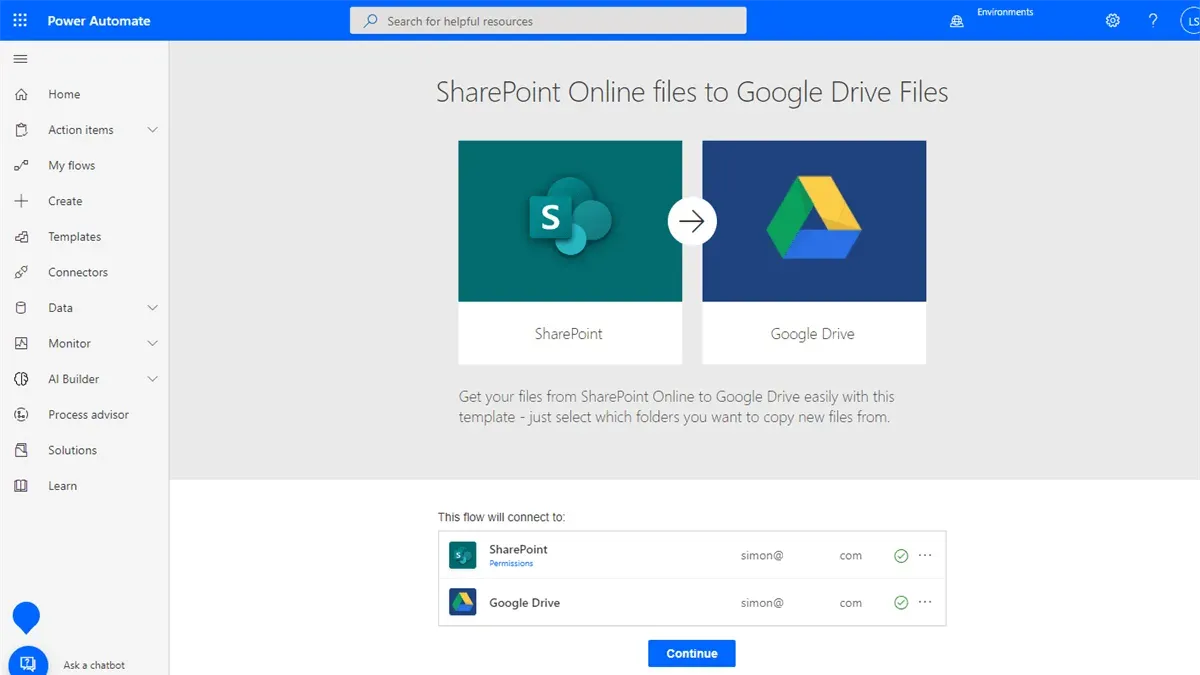
Map your SharePoint permission groups to Google Drive's sharing roles carefully. SharePoint's granular permissions often translate best into Shared Drive roles: Owners match SharePoint Site Owners, Content Managers resemble Site Members with edit rights, and Viewers correspond to read-only users. For instance, a SharePoint group with edit permissions on a document library should become Content Managers on the corresponding Shared Drive to maintain consistent access.
Configure organizational units (OUs) and sharing policies in the Google Workspace Admin console under Groups and Drive and Docs settings. Use OUs to enforce sharing restrictions, like disabling external sharing for sensitive departments. This ensures security compliance and aligns with your organizational hierarchy.
- Choose between My Drive, Shared Drives, or both based on team needs
- Map SharePoint permission groups to Google Drive roles (Owner, Content Manager, Viewer)
- Set up OUs in Google Workspace Admin and apply sharing policies per unit
- Use Shared Drives for stable team collaboration; My Drive for individual work
Execute the Migration Step-by-Step
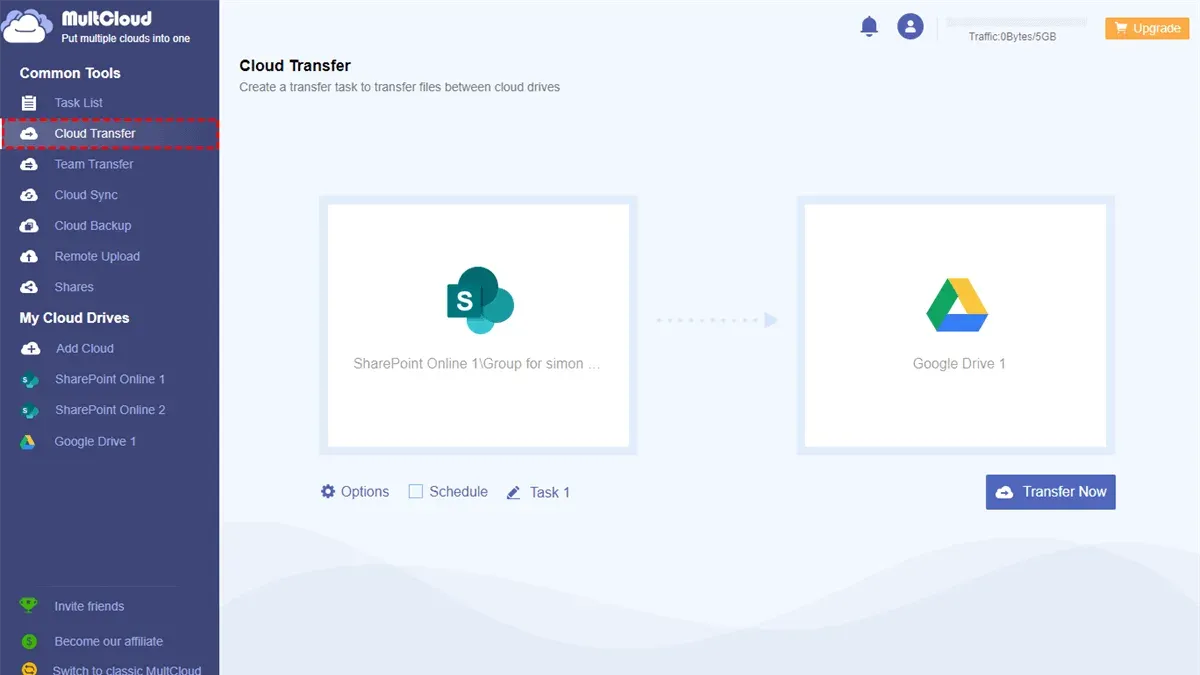
Begin by selecting a migration tool that fits your environment. Google Workspace Migration for Microsoft SharePoint offers a seamless integration, while third-party tools like Mover provide additional customization. For example, Mover’s dashboard displays detailed progress logs and success rates, which help track transfer integrity.
Start with a pilot migration using a representative subset of files—such as one team’s shared folder—to validate data fidelity and permission mapping. This phase typically takes a few days, allowing you to identify permission mismatches or broken links early.
After a successful pilot, migrate data in phases aligned to organizational units or projects. Post-migration, verify file count, folder structure, and permission accuracy by comparing source and destination reports. For instance, check that a SharePoint group with edit rights correctly translates to Google Drive’s Editor role.
Finally, train users on Google Drive’s interface and sharing models, highlighting differences like “Viewer,” “Commenter,” and “Editor” roles. Use hands-on sessions or video walkthroughs to ease the transition.
- Choose a migration tool and configure it with your credentials
- Run a pilot migration with a small data set
- Analyze pilot results for data integrity and permission accuracy
- Plan phased migrations by teams or projects
- After each phase, validate file counts and permissions
- Conduct user training focused on Google Drive collaboration and access
Avoid Common Mistakes That Derail SharePoint to Google Drive Moves
Permission mismatches are a leading cause of failure in SharePoint to Google Drive migrations. For example, a nonprofit organization experienced a critical outage when SharePoint’s finely tuned item-level permissions were loosely translated into Google Drive’s broader role-based access. Sensitive folders became accessible to unintended users, forcing an urgent rollback. To prevent this, carefully map each SharePoint permission to the correct Google Drive role and verify access with test accounts before going live.
Inadequate communication and training also undermine adoption. When a manufacturing firm rushed their migration without user education, over 40% of employees reported confusion using Google Drive’s interface, leading to delays and duplication of work. Preparing clear guides and scheduling hands-on sessions tailored to your teams ensures smoother transitions and higher productivity.
Another common oversight is neglecting metadata and version history preservation. Losing document versions or tags can disrupt workflows and audits. Use migration tools that support metadata retention and validate results post-migration.
Finally, rushing the migration without thorough testing and rollback plans invites downtime and data loss. Implement pilot migrations and establish rollback procedures to mitigate risks. This cautious approach helps you catch issues early and maintain business continuity.
- Map permissions precisely and test access before full migration.
- Communicate changes and provide comprehensive user training.
- Preserve metadata and version history using capable migration tools.
- Conduct pilot migrations and define rollback strategies.
Maintain and Optimize Google Drive After Migration
After migrating to Google Drive, governance is essential to sustain collaboration efficiency and data integrity. Start by enabling Google Workspace's Drive audit logs, accessible via Admin console > Reports > Audit > Drive. These logs track file sharing, access frequency, and permission changes, providing actionable insights.
Implement regular audits using the “Sharing Settings” report to identify files with overly broad access or external sharing. Schedule quarterly reviews to remove stale or redundant data and adjust permissions accordingly, maintaining compliance and reducing risk.
Encourage your teams to adopt naming conventions and folder hierarchies aligned with your organizational units. For example, setting up Shared Drives by department and using consistent file naming improves discoverability and reduces duplication.
Concrete example: A mid-sized company noticed frequent unauthorized external sharing flagged in audit reports. By tightening access roles and educating users on proper sharing etiquette, they reduced incidents significantly, improving security and user trust.
- Enable Drive audit logs in Google Workspace Admin console
- Conduct quarterly sharing and data hygiene audits
- Promote standardized file naming and folder structures
- Train users on sharing best practices and monitor adherence
Read next
- Moving from SharePoint to Dropbox Checklist for a Smooth Migration
- Moving from OneDrive to Google Drive Checklist for a Smooth Transition
- Google Drive Implementation Timeline: Your Complete Guide
- Google Drive Rollout Plan for School Administrators: A Practical Guide
Frequently asked questions
What are the biggest challenges when moving from SharePoint to Google Drive?
The primary challenges include adapting to Google Drive's flat folder structure versus SharePoint's nested site collections, and reconfiguring permission models since Google Drive uses sharing at file and folder levels rather than SharePoint’s granular site and library permissions. Additionally, preserving metadata and workflows often requires manual intervention because Google Drive does not natively support SharePoint-specific features.
Can I preserve SharePoint document version history in Google Drive?
Google Drive supports version history but does not automatically import SharePoint’s detailed version history during migration. Most migration tools preserve only the latest version of documents. To keep version history, you must export versions from SharePoint manually or use specialized migration services that explicitly handle version preservation, though this is often limited and may increase migration complexity.
What migration tools work best for SharePoint to Google Drive?
Popular options include Google’s native Drive migration tool (Google Workspace Migrate), third-party services like Mover.io (now part of Microsoft), and specialized platforms such as CloudFuze or ShareGate. Each tool varies in features like version history retention, metadata transfer, and permission mapping, so choose based on your priority areas and test with representative data before full migration.
How do permissions in SharePoint translate to Google Drive sharing settings?
SharePoint permissions often rely on groups and inheritance across sites and libraries, while Google Drive permissions are managed through direct sharing with users or groups at the folder and file level. During migration, SharePoint groups must be manually recreated as Google Groups or individual shares. Also, Google Drive’s permission levels (Viewer, Commenter, Editor) differ from SharePoint’s more granular roles, so expect some simplification or adjustment in access rights.
What this advice does not cover
This guide does not cover migrating complex SharePoint workflows, custom apps, or intranet sites, which require specialized solutions beyond file migration. If your organization relies heavily on these advanced SharePoint features, engaging a migration consultant or using dedicated third-party tools is essential to preserve functionality and avoid data loss.
Quick checklist
- Audit SharePoint permissions and document libraries before migration
- Map SharePoint groups to Google Workspace user groups strategically
- Design Google Drive folder hierarchy reflecting collaboration needs, not just file location
- Use Google Workspace Admin Console to preconfigure sharing settings and access controls
- Test migration on a small subset of data to identify permission or sync issues
- Communicate changes and new collaboration practices clearly to your teams
- Regularly monitor Google Drive activity and adjust permissions post-migration
Start by thoroughly auditing your current SharePoint permissions and document structures. Understanding exactly how your teams collaborate and share files will inform a Google Drive setup that avoids common pitfalls like overly broad sharing or lost access. This foundational step helps you build a migration plan that reflects your organization’s unique workflows and security needs.



