
Moving from OneDrive to Google Drive Checklist for a Smooth Transition
This checklist guides you through preparing, transferring, and setting up your files for a smooth move from OneDrive to Google Drive.

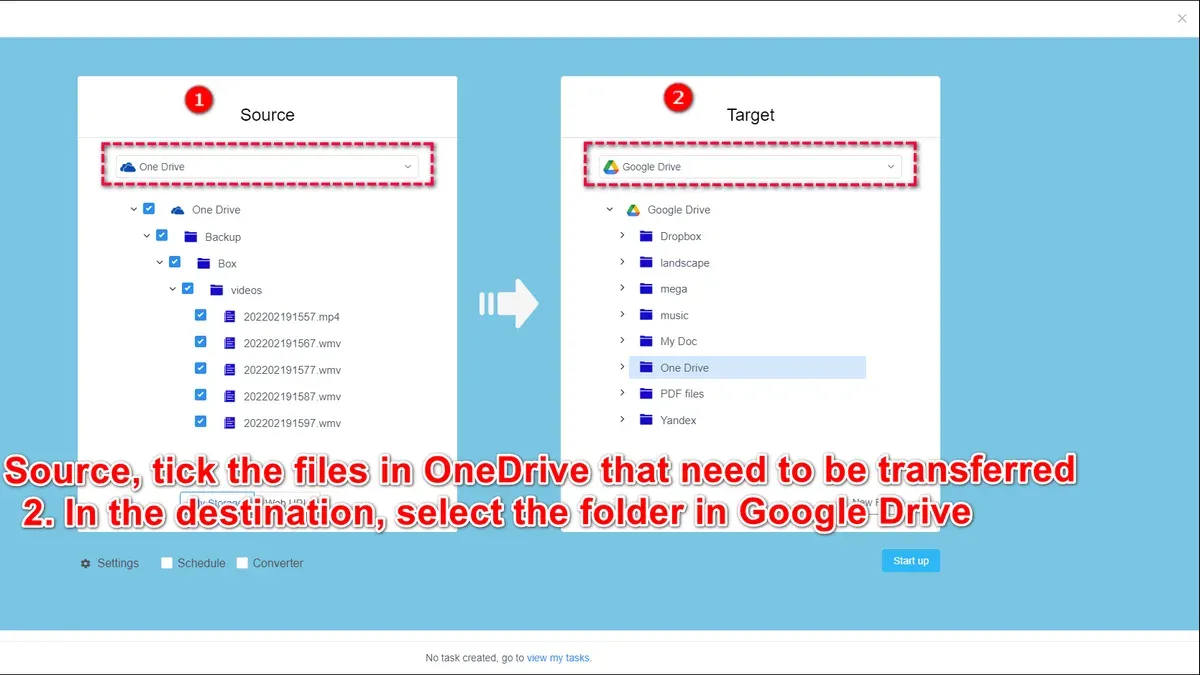
Short answer: Moving from OneDrive to Google Drive requires careful planning to avoid data loss and downtime. A clear moving from OneDrive to Google Drive checklist helps you navigate data preparation, transfer methods, and post-migration setup efficiently and securely.
This article guides you through each critical step, focusing on the specific needs of individual professionals and small teams. You'll learn how to prepare your OneDrive files, select the best transfer technique, configure Google Drive for seamless use, and avoid common pitfalls. The goal is a smooth transition without corporate IT overhead, ensuring your workflow stays uninterrupted and your files remain safe throughout the process.
Understand Why You Should Move from OneDrive to Google Drive
Moving from OneDrive to Google Drive often revolves around improved collaboration and ecosystem integration. Google Drive's real-time editing in Google Docs, Sheets, and Slides provides a seamless experience for teams working simultaneously, unlike OneDrive's reliance on Office Online, which can feel less fluid. If you use Gmail or Google Workspace apps regularly, Google Drive fits naturally into your workflow, reducing friction.
Storage cost and flexibility also differ. Google Drive offers a straightforward pricing structure with options that often provide more storage for the price, and its flexible sharing settings let you control access without complex permissions. In contrast, OneDrive’s storage tiers may be tied to Microsoft 365 plans, which might not suit professionals seeking just storage and file sharing.
For example, imagine you’re a freelance designer collaborating with a client via Google Drive. You can comment directly on files, assign action items, and manage versions effortlessly. OneDrive’s version history and sharing exist but can be less intuitive, slowing down feedback loops.
| Feature | OneDrive | Google Drive |
|---|---|---|
| Real-time Collaboration | Office Online, less seamless | Google Docs/Sheets/Slides, instant edits |
| Storage Pricing | Bundled with Microsoft 365 plans | Standalone plans with flexible tiers |
| Sharing Controls | Complex permission settings | Simple, granular sharing options |
| App Ecosystem | Microsoft Office Suite | Google Workspace apps integration |
Prepare Your OneDrive Data for Migration
Start by auditing your OneDrive files and folders. Use the OneDrive web interface or sync client to sort files by size, type, and last modified date. This helps you identify large files or outdated documents that may not need migrating. For example, you might find old project drafts or duplicate copies cluttering your storage.
Next, remove duplicates and obsolete files to reduce transfer time and storage use in Google Drive. Tools like Duplicate File Finder or manual checks in OneDrive’s "Details" pane can assist with this. Pay special attention to files shared with others; review sharing permissions under "Sharing" in OneDrive to understand who has access and replicate or adjust these settings after migration.
Before moving any data, back up critical files externally. Options include using Windows File History, exporting to an external hard drive, or cloud backups like Backblaze. A backup ensures you can restore data if issues arise during migration.
Here is a checklist to guide your audit:
- List files by size, type, and last modified date
- Identify and delete duplicates and obsolete files
- Review and note sharing permissions for important files
- Perform a full backup of critical data using reliable tools
For instance, create a simple file inventory report listing folder names, file counts, and total sizes. This report helps track what has been migrated and what remains.
Choose the Best Method to Transfer Files to Google Drive
When moving your data from OneDrive to Google Drive, your choice of transfer method depends largely on the volume of files, your technical comfort, and the time you can allocate.
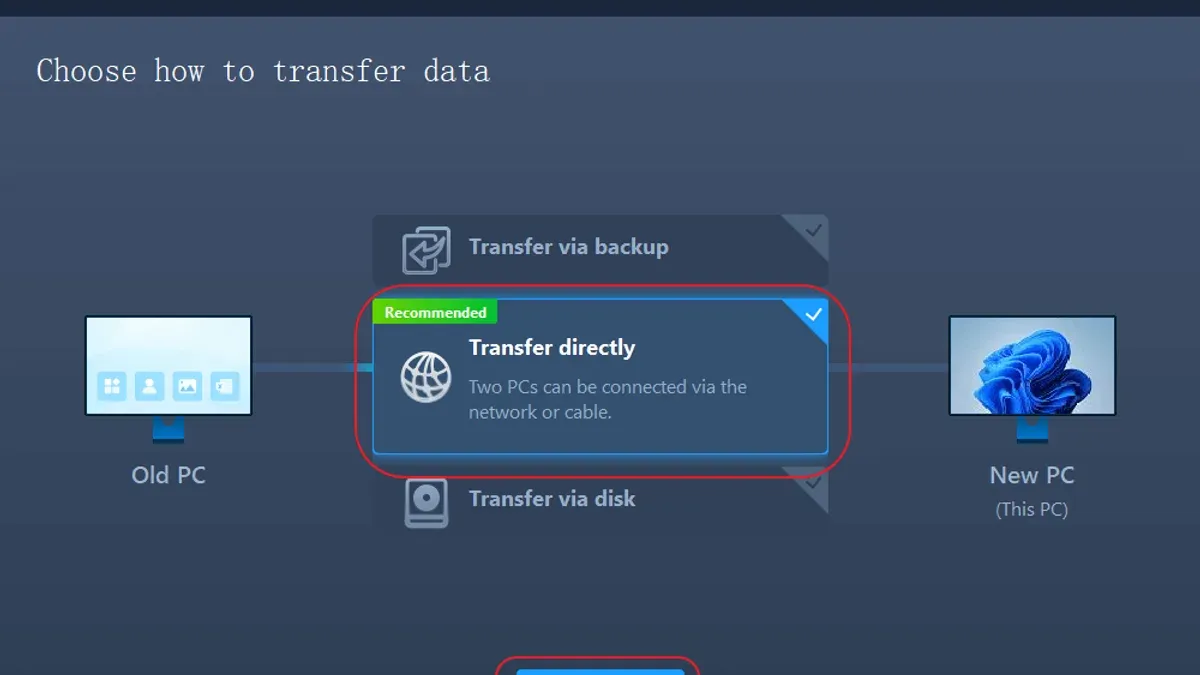
Manual Download and Upload
This straightforward approach involves downloading files from OneDrive via the web interface (select files/folders, then "Download") and uploading them to Google Drive (using the "New" > "File upload" or "Folder upload" options). For under 5 GB of data, this method is simple but can be time-consuming due to your internet speed and manual effort.
Google Drive for Desktop Sync
Installing Google Drive for desktop lets you sync files locally. You can copy or move files from your OneDrive synchronized folder directly into the Google Drive folder on your computer. This method is faster for medium data volumes (5–50 GB) and reduces manual upload steps.
Third-Party Migration Tools
Tools like MultCloud or Cloudsfer can automate transfers between cloud services. They handle large volumes efficiently and maintain file structure and metadata, but often come with subscription fees and require granting access to your cloud accounts. Consider them if you have over 50 GB or complex folder hierarchies.
Automated Scripts and Professional Services
For very large migrations or specialized needs, scripts using APIs or hiring a migration service can minimize downtime and ensure precision. This option suits teams without time or technical skills for hands-on migration.
For example, if you have 20 GB spread across various nested folders, using Google Drive for desktop sync offers a balance of speed and control without extra costs. For 100+ GB or many shared files, a third-party tool or professional help is more efficient.
- Assess your data size and complexity.
- Match the method to your technical comfort and time availability.
- Consider costs vs. time savings for third-party tools.
- Test a small batch before full migration.
Set Up Google Drive for Seamless Post-Migration Use
Once your files are in Google Drive, start by organizing them into a clear folder structure. For example, create top-level folders like "Projects," "Clients," and "Resources," then add subfolders such as "Project A" or "Client X" to keep content easy to find and share.
Next, configure sharing permissions carefully. Navigate to a folder or file, click "Share," and assign roles like Viewer, Commenter, or Editor. For team collaboration, limit Editor access to key members to prevent accidental changes, while allowing others to view or comment.
Integrate Google Drive with your most-used apps by visiting the Google Workspace Marketplace or using built-in connectors. For instance, link Drive to Gmail for attaching files quickly or to Google Docs for direct editing. This replicates and often improves your workflow compared to OneDrive.
Finally, enable offline access by selecting "Settings" (gear icon) in Google Drive and turning on "Offline." This lets you work without internet and sync changes later. Adjust syncing preferences in the Drive for Desktop app by choosing which folders to sync locally, balancing storage use and availability.
- Organize files into clear, consistent folders and subfolders
- Set sharing permissions: assign Viewer, Commenter, or Editor roles carefully
- Integrate Drive with Gmail, Google Docs, and other apps via Workspace Marketplace
- Enable offline access in Drive settings for work without internet
- Customize folder sync options using Drive for Desktop app
Avoid Common Mistakes When Moving from OneDrive to Google Drive
One frequent error is not backing up your OneDrive data before migration. Imagine losing critical files because a sync error occurred during transfer—without a backup, recovery is difficult and time-consuming.
Another overlooked detail is file version history and metadata. These often don’t migrate automatically, causing loss of important revision records or file context. For example, a marketing team once lost weeks of edits because only the latest file version transferred.
Shared file permissions and collaborators are also critical. In one case, a small team’s migration failed because the admin didn’t replicate sharing settings in Google Drive, leading to immediate workflow disruption and access complaints.
Finally, failing to communicate the migration plan and timing to your team causes confusion and delays. Everyone should know when access shifts to avoid working on outdated files.
- Back up all OneDrive data before starting migration
- Check and export file version history if needed
- Review and document all shared files and their permissions
- Inform all collaborators about migration timing and new access procedures
Maintain and Optimize Your Google Drive After Migration
To keep your Google Drive efficient and secure, regularly review your storage usage by visiting Drive's Storage page under Settings. Deleting obsolete files and emptying the trash can free up space and improve load times.
Master Google Drive’s search operators, like type:pdf or owner:me, to quickly locate documents. Use folders and color-coded labels to categorize files—this reduces time spent searching and fosters consistent organization.
Automate backups by linking your Google Drive to desktop sync apps or third-party tools such as Backup and Sync. This helps keep a local copy and ensures recovery options in case of accidental deletions.
Keep an eye on sharing activity via the “Shared with me” and “Sharing settings” menus. Regularly audit who has access, removing outdated permissions and enabling two-factor authentication for added security.
For example, a small team using color-coded folders combined with monthly permission reviews can reduce file retrieval time significantly and lower risk of unauthorized access.
- Check storage usage monthly and clean up unnecessary files
- Use advanced search operators and organize with folders and colors
- Set up automated sync or backup routines to protect data
- Review sharing permissions regularly and enable two-factor authentication
Read next
- How to Switch from Microsoft 365 to Google Drive: A Practical Guide
- Google Drive Rollout Plan for School Administrators: A Practical Guide
- Google Drive Implementation Timeline: Your Complete Guide
- Switching from OneDrive to Dropbox: Your Expert Migration Guide
Frequently asked questions
How long does it typically take to migrate from OneDrive to Google Drive?
The migration duration depends on the volume of data and your internet speed. Small to moderate file sets (a few gigabytes) may take a few hours, while larger datasets can extend to several days. Planning for off-peak hours and using stable, high-speed connections helps reduce transfer time.
Can I preserve file version history during the migration?
File version history is not preserved by default when moving files between OneDrive and Google Drive. To retain versions, you need specialized migration tools that explicitly support version history transfer. Without these tools, only the latest version of each file migrates.
What are the best third-party tools for migrating large amounts of data?
Reliable third-party tools for large-scale migrations include MultCloud, CloudFuze, and Mover.io. These services offer automated transfer, support for version history, and permission mapping. Choose one that fits your budget and supports the specific features you require.
How do sharing permissions transfer from OneDrive to Google Drive?
Sharing permissions do not automatically transfer between OneDrive and Google Drive. You must manually reconfigure sharing settings in Google Drive after migration. Some migration tools offer permission mapping, but double-check access rights post-migration to avoid unintended exposure or access loss.
What this checklist does not cover
This checklist does not cover enterprise-level migrations involving complex compliance or integration requirements, which require specialized IT support. If your organization must adhere to strict regulatory standards or involves custom workflows and system integrations, consult with IT professionals or migration specialists before proceeding.
Quick checklist
- Review and clean up your OneDrive files to remove duplicates and obsolete data.
- Decide whether to use Google Drive for desktop sync, manual downloads/uploads, or third-party migration tools based on your file volume and complexity.
- Ensure Google Drive storage limits meet your needs and upgrade if necessary.
- Set up Google Drive folder structures and sharing permissions before moving files.
- Transfer files in manageable batches, verifying successful uploads and accessibility.
- Update any document links and shortcuts to point to Google Drive locations.
- Configure Google Drive offline access and backup settings to match your workflow.
- Inform collaborators about the new location and access methods.
Start by auditing your OneDrive contents to identify what truly needs migrating. This targeted approach prevents unnecessary data clutter and speeds up the process. From there, selecting the right transfer method aligned with your file size and team size will save you time and reduce errors.



