
OneDrive Implementation Timeline: A Complete Guide to Getting Started
The OneDrive implementation timeline outlines key steps and milestones to adopt and deploy OneDrive effectively within your organization.

Short answer: The OneDrive implementation timeline outlines the essential steps and milestones for adopting and deploying OneDrive effectively within your organization. It starts from understanding OneDrive's core features, moves through initial setup, and extends to optimizing synchronization and data protection strategies.
This guide covers the historical development of OneDrive alongside practical, actionable steps to implement it successfully. You will learn how OneDrive evolved, the differences between personal and business versions, and best practices for rolling it out in your environment. Additionally, it addresses key features like file history and sync management, helping you avoid common pitfalls during deployment.
Understand What OneDrive Is and Why It Matters
OneDrive is Microsoft’s cloud storage and file syncing service designed to store files securely in the cloud and keep them accessible across devices. It plays a vital role in enhancing productivity by ensuring that your documents, photos, and work files are available wherever you need them, whether on a PC, mobile device, or through a web browser.
Beyond individual use, OneDrive integrates deeply with Microsoft 365 apps like Word, Excel, and Teams, enabling seamless collaboration and real-time co-authoring. This integration streamlines workflows within organizations by connecting file storage directly with communication and productivity tools.
OneDrive also serves as a reliable backup solution, protecting data from hardware failures or accidental deletions. Its sync capabilities ensure that updates made offline are automatically reflected once reconnected, reducing the risk of version conflicts and data loss.
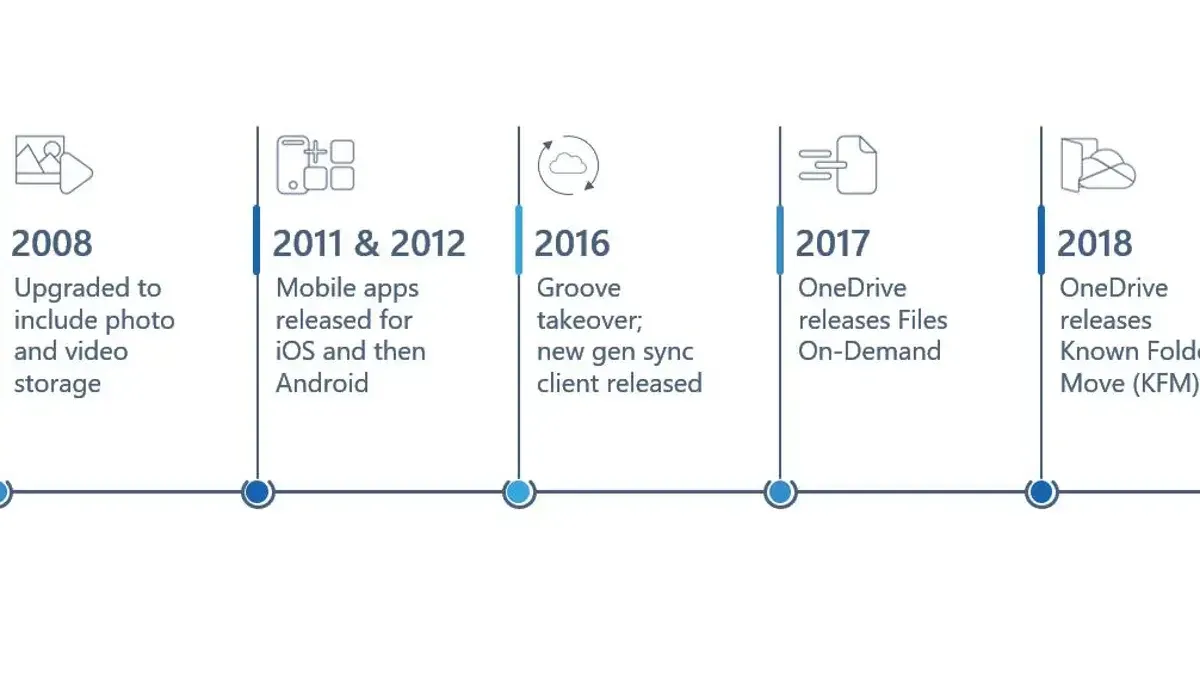
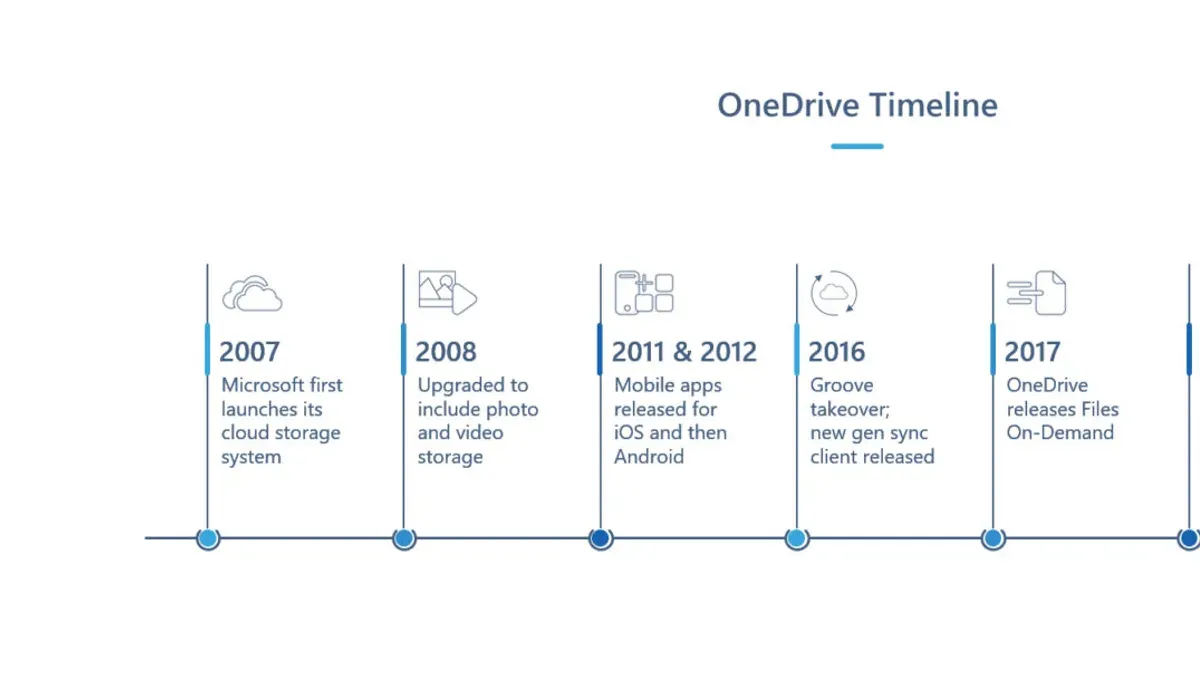
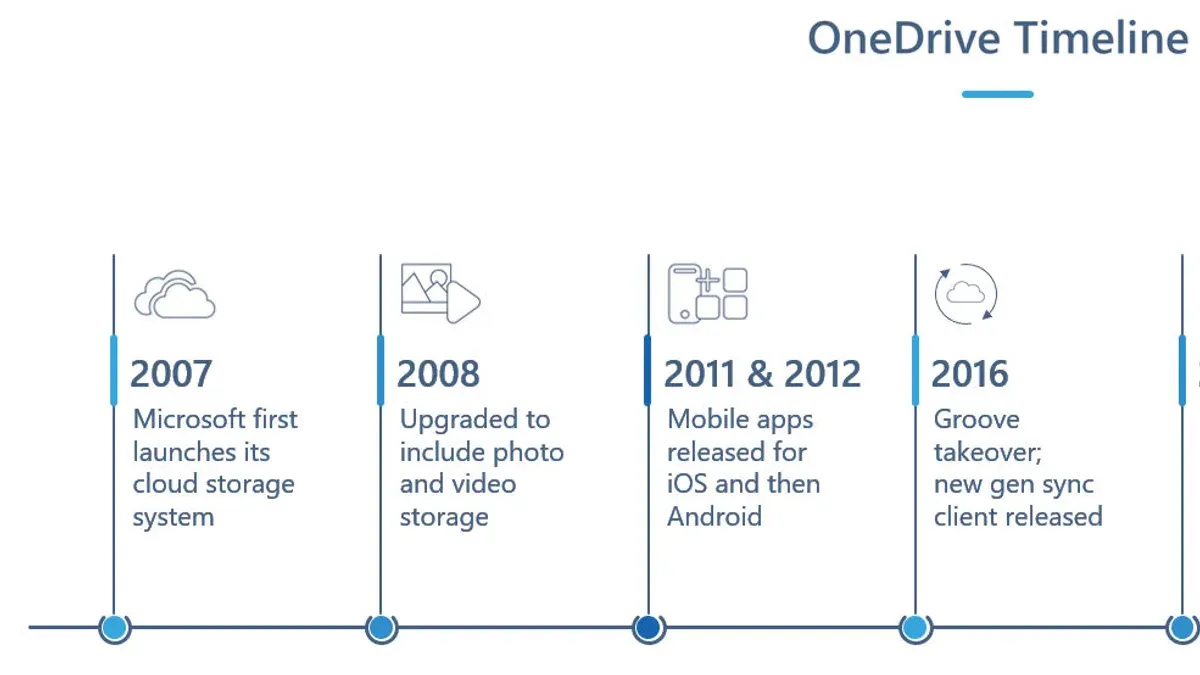
Understanding OneDrive’s timeline and feature evolution helps you plan deployment strategically. Knowing when key features like Files On-Demand or enhanced sharing were introduced allows you to leverage the right tools for your environment and anticipate user training needs.
For example, an IT manager deploying OneDrive across a mid-sized company benefits from recognizing how integration with Azure Active Directory simplifies user authentication and security policies, making centralized management more effective than standalone cloud storage providers.
Trace When and How OneDrive Was Introduced and Evolved
OneDrive began its journey under the name SkyDrive, launched by Microsoft as a cloud storage solution to complement its Office suite. The original release focused on personal file storage and sharing, targeting consumers looking for seamless access to documents across devices.
In the early years, key features such as automatic photo upload from mobile devices and improved file syncing were introduced, enhancing user convenience. A pivotal moment came when Microsoft rebranded SkyDrive to OneDrive, following a trademark dispute. This renaming clarified the product's identity and strengthened its association with Microsoft's cloud ecosystem.
Alongside the consumer-facing OneDrive, Microsoft developed OneDrive for Business, which diverged significantly by integrating with SharePoint and offering enterprise-grade collaboration and security capabilities. This separation allowed organizations to manage user access and compliance more effectively, while the consumer version continued focusing on ease of use and personal productivity.
Common confusion arises around launch dates because OneDrive's consumer and business versions followed distinct development paths. For example, while the consumer OneDrive was renamed and expanded around the early 2010s, OneDrive for Business matured through continuous updates linked to Microsoft 365 and SharePoint advancements.
Picture a company that first adopted SkyDrive for employee file backups, then transitioned smoothly to OneDrive for Business as collaboration needs grew, benefiting from tighter integration with Microsoft 365 apps and enhanced administration controls. This evolution reflects how OneDrive adapted to different user requirements over time.
| Year | Milestone | Notes |
|---|---|---|
| 2010 | SkyDrive Launch | Initial consumer cloud storage offering |
| Early 2010s | Feature Rollouts | Mobile photo uploads, file syncing improvements |
| 2014 | Rebranded to OneDrive | Brand consolidation after trademark issue |
| Mid 2010s | OneDrive for Business Growth | Integration with SharePoint, enterprise features |
| Ongoing | Regular Updates | Sync enhancements, admin controls, Microsoft 365 integration |
Get Started with OneDrive: First-Time Setup and Manual Start
To begin using OneDrive, ensure you have a Microsoft account or a work/school account linked to Microsoft 365. This account is essential for signing in and syncing your files across devices. Before installation, verify your device meets the minimum requirements: Windows 10 or later, macOS Sierra or later, or supported mobile platforms.
On Windows, OneDrive typically comes pre-installed. If not, download the latest OneDrive installer from Microsoft’s official site. Launch the installer and follow the setup wizard: enter your Microsoft account email, authenticate, and choose your sync folders. For example, selecting only the Documents and Desktop folders reduces local storage usage while keeping key files backed up.
On macOS, download OneDrive from the Mac App Store or Microsoft’s website. After installation, open OneDrive from the Applications folder and sign in with your Microsoft account. The setup wizard guides you through folder selection and sync preferences similarly to Windows.
If OneDrive does not start automatically after installation, you can manually launch it. On Windows, search for “OneDrive” in the Start menu and select the app. On Mac, find OneDrive in the menu bar or launch it from Applications. Once running, you’ll see a cloud icon indicating sync status.
For first-time users, organize your files by creating clear, hierarchical folders before syncing. For instance, use broad categories like "Projects" or "Reports" at the root, then subdivide by client or date. This structure improves findability and sync efficiency.
- Confirm Microsoft account availability and device compatibility.
- Download and run OneDrive installer if not pre-installed.
- Follow setup wizard: sign in, authenticate, select folders.
- Manually start OneDrive via Start menu (Windows) or Applications folder (Mac) if needed.
- Create organized folder structures before syncing.
Explore OneDrive’s Online and Business Version History
OneDrive's online version serves individual users, offering personal cloud storage accessible via onedrive.live.com. It focuses on straightforward file storage, sharing, and basic collaboration integrated with Microsoft accounts. This version targets consumers and small-scale users who prioritize ease of access and personal file management.
OneDrive for Business, by contrast, is embedded within Microsoft 365 and tailored for organizational use. It originated as a SharePoint-based service, evolving significantly to support enterprise-grade collaboration, compliance, and integration with Microsoft Teams and Outlook. This platform addresses the needs of IT administrators, teams, and large-scale deployments.
| Feature | OneDrive Online | OneDrive for Business |
|---|---|---|
| Storage Quota | Up to 5 TB (varies by subscription) | Starts at 1 TB per user, expandable by admins |
| File Sharing | Simple link sharing, basic permissions | Granular sharing with organizational controls |
| Collaboration | Real-time editing with Office Online | Advanced co-authoring and versioning tied to SharePoint |
| Compliance & Security | Standard consumer protections | Enterprise-grade compliance, data loss prevention |
| Admin Controls | Minimal | Extensive via Microsoft 365 Admin Center |
The rollout of OneDrive for Business features often lagged behind the consumer version by months or even years due to its integration complexity with SharePoint and Microsoft 365. For example, the Files On-Demand feature appeared first in OneDrive Online, then later integrated into OneDrive for Business after thorough testing.
Consider a mid-sized company planning deployment: they must factor in these differences to align rollout schedules. While users might be familiar with the consumer OneDrive interface, administrators will need additional time to configure security policies and sync settings specific to OneDrive for Business.
- Identify your user base: individual or organizational
- Review feature availability for both versions
- Plan rollout phases according to complexity and integration needs
- Train users on interface and sharing differences
- Set admin policies well before user deployment
Implement OneDrive in Your Organization: Timeline and Best Practices
Rolling out OneDrive across your organization requires a structured approach with clear phases: assessment, pilot, deployment, training, and support. Each phase plays a critical role in ensuring a smooth transition and effective adoption.
Phased Deployment Plan and Timeframes
Begin with an assessment phase lasting about 2–3 weeks. Evaluate current storage usage, existing file-sharing practices, and IT infrastructure compatibility, including network bandwidth and Microsoft 365 integration points like SharePoint and Teams.
Next, move to a pilot phase of 4–6 weeks involving a select group of users. This lets you test syncing policies, storage limits, and client configurations in a controlled environment. Adjust settings such as Files On-Demand and known folder move based on pilot feedback.
The full deployment phase typically spans 4–8 weeks depending on organization size. Roll out OneDrive client installations via centralized tools like Microsoft Endpoint Manager. Configure group policies for auto sign-in and sync exclusions to optimize performance.
Parallel to deployment, conduct targeted training sessions covering OneDrive basics, sharing permissions, and version history. Use Microsoft Learn resources and internal workshops to boost user confidence.
Finally, establish ongoing support with dedicated helpdesk resources and clear escalation paths for sync conflicts or permission issues.
Common Challenges and Integration Tips
Watch for bandwidth bottlenecks during large initial syncs by scheduling deployments during off-peak hours. Avoid user confusion by enforcing consistent folder structures and naming conventions aligned with your SharePoint sites.
Integrate OneDrive seamlessly with your existing Microsoft 365 environment by linking it to Azure AD groups and enabling conditional access policies. This strengthens security while maintaining user convenience.
Example: A mid-sized company started with a 3-week assessment, identifying heavy use of local file shares. Their 5-week pilot addressed sync throttling by adjusting client settings. Deployment over 6 weeks was coordinated with phased training webinars. They used Endpoint Manager to push configurations and set up a dedicated support channel, resulting in high user satisfaction and minimal downtime.
- Assess current infrastructure and user needs (2–3 weeks)
- Run a targeted pilot group test (4–6 weeks)
- Deploy OneDrive organization-wide with centralized management (4–8 weeks)
- Provide training sessions and documentation concurrently
- Set up continuous support and monitoring mechanisms
Leverage File History and Sync Features for Data Safety
OneDrive’s versioning feature automatically saves previous iterations of your files, enabling you to recover earlier versions if unwanted changes occur. Access this by right-clicking a file in OneDrive online and selecting Version history. For example, if a team member accidentally overwrites a report, you can restore the version from before the change within minutes, minimizing disruption.
File restore extends this capability, allowing you to recover multiple files or entire folders to a previous state, which is invaluable after ransomware or mass accidental deletion events. You initiate this via Settings > Restore your OneDrive in the OneDrive web interface, choosing a restore point up to 30 days prior.
Syncing keeps your files updated across devices, but conflicts can arise when simultaneous edits occur offline. OneDrive flags these as conflicted copies, appending the device name and timestamp to the filename. To resolve, compare versions and merge changes manually, then delete duplicates to avoid confusion.
Best practices include ensuring stable internet connections during sync, regularly reviewing the OneDrive sync client’s status icon, and educating users to avoid simultaneous offline edits of critical files. Enabling the Files On-Demand feature helps manage local storage without sacrificing access.
Note that OneDrive’s file history retains versions for up to 30 days for business accounts and typically 30 days for personal accounts; beyond this, older versions are purged. For long-term archiving or compliance, integrate OneDrive with additional backup solutions or Microsoft 365 retention policies.
- Use Version history to recover individual file versions quickly.
- Employ Restore your OneDrive to revert multiple files or folders after major data loss.
- Monitor and resolve conflicted copies promptly to maintain data integrity.
- Encourage stable syncing environments and educate users on conflict risks.
- Supplement OneDrive’s retention limits with dedicated backup strategies for critical data.
Avoid Common Mistakes When Starting with OneDrive
Skipping thorough user training and change management can lead to widespread confusion and resistance. Many organizations underestimate the importance of guiding users through new syncing behaviors, resulting in support tickets and reduced productivity.
Ignoring storage limits and sync settings often causes unexpected sync failures. For example, users exceeding assigned OneDrive quotas or syncing too many large files without adjusting the "Files On-Demand" setting can experience delays and data inconsistency.
Misunderstanding the distinctions between personal OneDrive accounts and business ones creates access and compliance issues. A common scenario involves users mixing personal accounts with corporate files, leading to data leakage risks and difficulties in centralized management.
Neglecting to plan for offline access and manual start options exposes users to workflow disruptions. Employees working remotely or traveling may find their files unavailable without prior setup of offline folders or enabling the OneDrive client to start automatically with Windows.
Consider a mid-sized company that deployed OneDrive without mandatory training. Employees saved files only locally or used personal accounts, causing sync errors and lost work. The IT team had to intervene repeatedly, extending the rollout timeline and decreasing user confidence.
- Design and schedule comprehensive user training sessions emphasizing syncing, storage limits, and account types.
- Configure and communicate storage quotas and encourage use of "Files On-Demand" to optimize sync.
- Clearly differentiate personal and business OneDrive usage policies and enforce account separation.
- Ensure offline access is set up and OneDrive client start-up is enabled to maintain file availability.
Read next
- Switching from Google Workspace to OneDrive: A Practical Migration Guide
- Moving from Dropbox to OneDrive Checklist: Your Step-by-Step Guide
- Switching from Dropbox to SharePoint: Your Expert Migration Guide
Frequently asked questions
When did onedrive start?
OneDrive started as Windows Live Folders during its early development phase, officially launching under the OneDrive name after a rebranding effort. This transition marked Microsoft's entry into cloud storage services, expanding its integration with Windows and Office products.
What is getting started with onedrive?
Getting started with OneDrive involves setting up your account, installing the OneDrive client on your devices, and configuring sync settings to manage which folders and files are backed up. It also includes learning to use the OneDrive web interface and mobile apps for accessing files anywhere, ensuring seamless collaboration and data protection.
When did onedrive launch?
OneDrive officially launched following Microsoft’s rebranding from SkyDrive, introducing enhanced features and tighter integration with Microsoft Office and Windows. This launch was a key step in positioning OneDrive as a comprehensive cloud storage and file-sharing service.
When was onedrive introduced?
OneDrive was introduced as part of Microsoft's broader cloud strategy, succeeding SkyDrive after a trademark dispute. This introduction brought improvements in storage capacity, security features, and cross-platform support, making it a versatile tool for both personal and business use.
How long has onedrive been around?
OneDrive has been around for well over a decade, evolving from earlier cloud storage services offered by Microsoft. Throughout its history, it has continuously added features like real-time collaboration, expanded storage options, and enterprise-level management tools.
Quick checklist
- Confirm your organization's Microsoft 365 subscription includes OneDrive for Business.
- Set up OneDrive sync client on user devices via Settings > Accounts > Access work or school.
- Configure storage limits and sharing permissions in the Microsoft 365 admin center.
- Enable Files On-Demand to save local disk space while maintaining file availability.
- Educate users on file version history and restore options under OneDrive Settings > Version history.
- Schedule regular reviews of sync status and storage usage to preempt issues.
- Establish clear guidelines on folder structure and naming conventions for smooth collaboration.
This guide’s scope and limitations
This guide focuses on OneDrive implementation timelines and practical setup; it does not cover detailed security configurations or advanced administration for enterprise environments. For complex compliance requirements, data loss prevention policies, or large-scale migration strategies, consult specialized Microsoft documentation or certified professionals.
Start with setting up the OneDrive sync client correctly on your primary device. Navigate to Settings > Accounts > Access work or school, connect your account, and enable Files On-Demand under OneDrive settings. This step ensures efficient use of local storage and seamless access to cloud files, forming the foundation for a smooth OneDrive adoption journey.



