Moving from Edpuzzle to Quizizz: Your Practical Transition Checklist
Use this practical moving from Edpuzzle to Quizizz checklist to migrate quizzes smoothly and boost student engagement with flexible features.

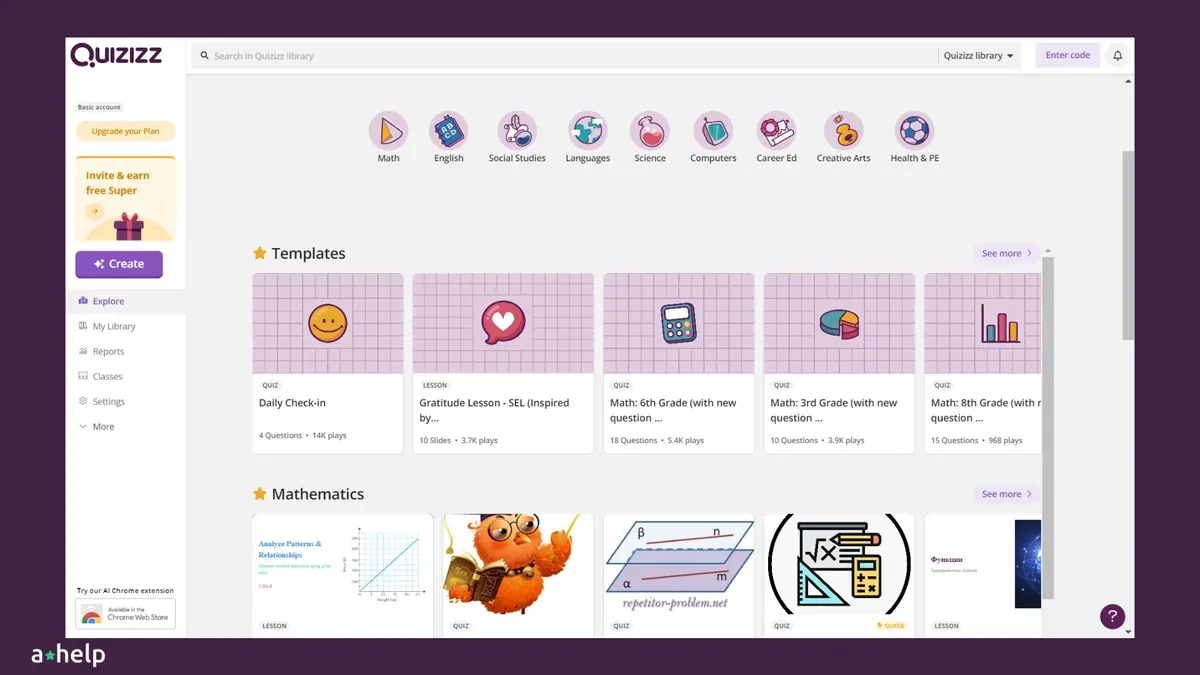
Short answer: Moving from Edpuzzle to Quizizz requires careful planning but is straightforward if you follow a clear moving from Edpuzzle to Quizizz checklist. Quizizz addresses key frustrations with Edpuzzle’s quiz features by offering smoother quiz creation, better student engagement tracking, and more flexible live and homework modes.
This article breaks down what makes the switch worthwhile, how to prepare your Edpuzzle content before moving, and the exact steps to migrate quizzes and videos without losing data or disrupting your lesson flow. You’ll get practical advice on using Quizizz effectively after the switch and learn common pitfalls to avoid, ensuring a seamless transition for you and your students.
What makes moving from Edpuzzle to Quizizz worth it?
Edpuzzle’s video quizzes often frustrate teachers due to rigid retake policies and limited control over skipping. For example, once a student finishes a quiz, Edpuzzle typically locks out retakes, even if you want to allow practice or remediation. Additionally, Edpuzzle enforces video watching rules that can interrupt flow, such as restricting skipping sections, which can cause disengagement.
Quizizz approaches quizzes differently, offering more flexibility. Students can retake quizzes multiple times without extra setup, and teachers can enable or disable skipping questions freely. This flexibility leads to higher student engagement, as learners feel less pressured and more motivated to improve their scores. Teachers report smoother classroom interaction because Quizizz’s instant feedback and leaderboard features create a lively, competitive environment.
Pricing and access also factor in. Quizizz allows free access to core quiz features and unlimited student participation, whereas Edpuzzle’s free tier restricts some options, pushing users toward paid plans for full functionality. This accessibility makes Quizizz a practical choice for classrooms with budget constraints.
Consider a middle school math teacher who struggled with Edpuzzle’s no-retake rule during test prep. Switching to Quizizz enabled her students to practice as many times as needed, tracking progress with clear reports and enjoying a game-like atmosphere. This direct impact on motivation and learning outcomes is a key reason to switch.
User satisfaction ratings consistently show stronger approval for Quizizz’s engagement tools and user-friendly interface. Feature availability charts highlight Quizizz’s superior flexibility in retakes, question skipping, and real-time feedback. These differences justify the switch for educators seeking an interactive, adaptable quiz platform.
How to use Edpuzzle features you rely on before you switch
Edpuzzle offers some core functionalities that you need to understand fully before transitioning. Retaking a quiz isn’t automatic; students can only retake if you enable "Allow Multiple Attempts" in the assignment settings. Without this, each student has one chance, and any retake resets their progress and score.
Accessing answers on Edpuzzle is limited. The platform doesn’t provide a "free answers" feature or auto-complete options. Teachers can view student responses and correct answers by going to the "Gradebook" tab in the assignment dashboard. Students cannot see correct answers during or after the quiz unless you manually share feedback.
Skipping or speeding up videos is restricted by default to ensure students watch the content. Students cannot fast-forward unless you disable "Prevent Skipping" in the video settings. This setting is found under "Video Options" after selecting your video. If skipping is enabled, students can drag the progress bar; otherwise, they must watch sequentially.
Running Live sessions requires logging into Edpuzzle and selecting "Live Participation" from the dashboard. This mode streams videos in real-time to students, who join using a code. You can monitor progress live but cannot pause or rewind for individual students; control is collective. This is useful for synchronous classes but limits flexibility.
- Enable "Allow Multiple Attempts" in assignment settings to allow quiz retakes
- View student answers and scores under the "Gradebook" tab; no automatic answer reveals
- Disable "Prevent Skipping" in "Video Options" to allow students to skip or speed up videos
- Use "Live Participation" from the dashboard for real-time class sessions with a join code
How Quizizz works differently to solve Edpuzzle’s common issues
Quizizz handles quiz retakes with clear settings under Settings > Attempts, allowing you to enable unlimited retakes or limit them precisely. Unlike Edpuzzle’s rigid retake system, Quizizz lets you control whether students see correct answers immediately or only after completion through Settings > Feedback. This flexibility removes confusion and supports diverse teaching strategies.
When it comes to skipping and pacing, Quizizz offers both Live and Self-Paced modes. In Live mode, you control pacing centrally, but students cannot skip questions, ensuring uniform progress. In Self-Paced mode, students move at their own speed and can skip questions freely, unlike Edpuzzle where skipping is often restricted or disabled, frustrating learners who want control.
Quizizz integrates multimedia seamlessly with question types supporting images, videos, and audio. You can insert interactive videos within quizzes or use standalone video lessons, combining them with polls, multiple-choice, or open-ended questions. This contrasts with Edpuzzle’s singular video-centric approach, which can limit how you mix content types to maintain engagement.
| Feature | Edpuzzle | Quizizz |
|---|---|---|
| Quiz Retakes | Limited retake options, fixed answer visibility | Unlimited or limited retakes; control answer feedback timing |
| Skipping Questions | Generally disabled or limited | Allowed in Self-Paced; disabled in Live for pacing control |
| Modes | Video-based with some Live features | Distinct Live and Self-Paced modes for different pacing |
| Multimedia Integration | Video-centric with embedded questions | Supports video, images, audio across various question types |
Picture this: You want students to watch a science clip, answer questions, and revisit tricky parts without rerunning the whole video. Edpuzzle restricts skipping, forcing frustration. With Quizizz, you can assign a Self-Paced quiz embedding that video plus interactive questions. Students skip or rewatch freely, retake as needed, and see correct answers only after they finish, matching your teaching style. This approach solves common Edpuzzle pain points around control and engagement.
Step-by-step checklist to transition your content from Edpuzzle to Quizizz
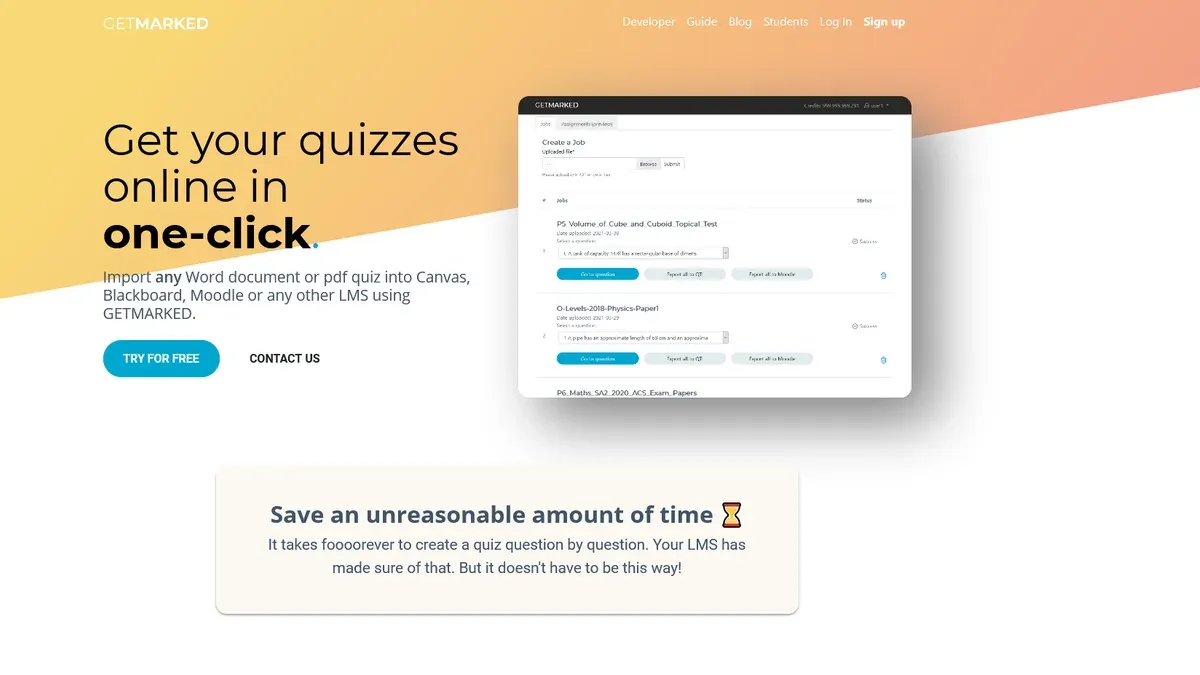
Start by reviewing your Edpuzzle quizzes to identify video segments and question types you use most. Edpuzzle does not offer a direct export for quizzes, so plan to recreate your questions in Quizizz manually. For instance, if you have a 10-minute video with 5 embedded multiple-choice questions, note the exact timestamps and question wording.
On Quizizz, create a new quiz and upload the video or link it if supported. Quizizz allows you to segment videos by setting start and end times for each question, so adapt your Edpuzzle segments accordingly. Recreate your questions using Quizizz’s interface; multiple-choice, true/false, and open-ended options are supported. This process typically takes 15-30 minutes for a quiz with 5-10 questions.
Next, import your student roster by navigating to the "Classes" tab in Quizizz and selecting "Import Students." Upload a CSV file exported from your school’s system or enter emails manually. Setting up classes ensures smooth assignment and tracking. If you haven’t exported rosters from Edpuzzle, export any available student progress data for reference.
Before assigning, preview your Quizizz quiz using the "Preview" button to test video playback, question timing, and scoring. Check for pacing mismatches or skipped segments that can confuse students. Adjust question timing and video segments as needed.
Example: Converting an Edpuzzle quiz on photosynthesis involved noting the original video timestamps (0:00–2:30, 2:31–5:00) for two question breaks. In Quizizz, segments were set with matching start/end points. Questions were retyped, and a 20-minute test run helped catch a skipped video segment. The entire transition took roughly 45 minutes.
- Identify key video segments and questions in Edpuzzle
- Create a new quiz in Quizizz and upload video segments
- Recreate questions using Quizizz’s question editor
- Import or set up classes and student rosters
- Preview and test the quiz fully before assigning
How to use Quizizz effectively in your classroom after switching
Start by choosing between Live sessions and self-paced challenges depending on your lesson goals. Live sessions, accessed via the "Host" menu, allow you to control pacing and provide instant feedback. Use the "Student Paced" option for homework or review, letting students work at their own speed and revisit questions if needed.
Leverage Quizizz’s detailed reports to track individual and class progress. Navigate to "Reports" after an activity to see question-level insights, identify common misconceptions, and adjust your instruction accordingly. Sharing these insights with students helps them focus on weak areas.
Maintain momentum by pacing quizzes thoughtfully. Avoid rushing through questions; use the "Timer" settings to balance challenge and completion time. Enable immediate feedback so students see correct answers after each question, reinforcing learning in real time.
Integrate Quizizz seamlessly with your lesson plans by embedding quizzes in platforms like Google Classroom or Microsoft Teams. This keeps students engaged within familiar environments and simplifies assignment management.
Use gamification features such as leaderboards, memes, and power-ups to motivate students. For example, a middle school teacher reported that after switching to Quizizz, student participation increased noticeably, and quiz scores improved as students responded well to the competitive and interactive elements.
Picture this: You launch a live session on a biology unit with a tight timer and instant feedback. Students race to answer, see their rank climb, then review missed questions immediately. Post-quiz, you analyze the report to reteach a tough concept, closing learning gaps efficiently.
Common mistakes to avoid when switching from Edpuzzle to Quizizz
One frequent mistake is overlooking the differences in question types and media support between the platforms. For example, Edpuzzle allows embedding open-ended questions directly on videos, while Quizizz separates video content from quiz questions, requiring you to segment videos and create standalone questions. Teachers who skipped this step found their quizzes confusing and had to redo large parts to match Quizizz’s format.
Failing to communicate the switch clearly to students and parents causes avoidable confusion. An educator who did not announce the change saw students miss deadlines or struggle with new login procedures. Clear communication via email or your learning management system (LMS) about when and how to access Quizizz quizzes prevents lost instructional time.
Not testing quizzes fully before assigning is a common trap. Quizizz's settings for retakes, answer visibility, and pacing differ from Edpuzzle’s defaults. One teacher assigned a quiz without enabling multiple attempts, frustrating students used to retrying on Edpuzzle. Running through the entire quiz yourself, toggling retake permissions under the "Settings" menu, and previewing the student experience avoids this.
Ignoring differences in retake policies or answer visibility can disrupt your grading workflow. Quizizz lets you control answer visibility post-quiz under "Reports" settings, but defaults may show correct answers immediately. Teachers who didn’t adjust this found students sharing answers prematurely, undermining assessment integrity.
- Review Quizizz’s question types and video segmentation before migrating content.
- Send detailed announcements to students and parents about the switch.
- Preview quizzes fully, including retake and answer visibility settings.
- Adjust retake policies and answer visibility in Quizizz to match your teaching style.
Answering your burning questions about Edpuzzle features before you switch
How do you retake an Edpuzzle quiz? Retakes depend on the settings your teacher or administrator enabled. If retakes are allowed, you can re-enter the quiz by clicking the assignment link again and starting over. If not, Edpuzzle locks the quiz after the first attempt. For example, if you completed a video quiz but want to improve your score, check the assignment details or contact your teacher to confirm if retakes are enabled.
How do you get or view Edpuzzle answers? Edpuzzle does not provide direct access to correct answers during or after the quiz for students. Teachers see detailed reports, but students only get feedback if the teacher shares it. If you need to review answers, ask your teacher to release the quiz report or discuss it in class.
Can you skip or speed up Edpuzzle videos? By default, Edpuzzle disables video skipping to ensure students watch content fully. The "Allow skipping" option must be enabled by the teacher, but speeding up videos is not supported. So, if you try to fast-forward, you’ll be blocked unless skipping is allowed.
How do you run an Edpuzzle Live session? Live sessions require the teacher to start a "Live" assignment from the dashboard. Students join via a generated code or link and answer questions in real time. This mode locks the pacing to the teacher’s controls, so students can’t pause or skip. If you’re a student, wait for your teacher’s invite and follow their instructions to join promptly.
How do you log into Edpuzzle? Go to Edpuzzle.com and select "Log In." You can sign in using Google, Microsoft, Clever, or your email/password if you have an account. If your school uses single sign-on (SSO), use those credentials. If you forget your password, use the "Forgot Password" link to reset it via your registered email.
Frequently asked questions
How to retake an edpuzzle quiz?
You can retake an Edpuzzle quiz only if your teacher has enabled multiple attempts. If allowed, log in to Edpuzzle, navigate to the assignment, and select the quiz again. If multiple attempts are disabled, you must ask your teacher to reset your progress for a retake.
How to get answers on edpuzzle?
Edpuzzle does not provide answer keys directly to students to maintain assessment integrity. Answers are accessible only to teachers through the gradebook and analytics sections. If you need clarification on questions, discuss them with your instructor.
How to view edpuzzle answers?
Teachers can view student responses and correct answers by opening the gradebook for the specific assignment. The 'Analytics' tab shows detailed question-by-question results. Students cannot view correct answers after submission unless the teacher shares feedback or unlocks the quiz.
How to skip on edpuzzle?
Skipping content on Edpuzzle depends on the settings your teacher applies. If the 'Prevent skipping' option is off, you can freely fast-forward or skip sections during the video. Otherwise, the player disables seek controls until you answer embedded questions, so check the assignment settings.
How to do an edpuzzle live?
Edpuzzle Live mode does not exist as a distinct feature. Instead, teachers assign videos for students to complete within a set timeframe. For real-time interaction, you must monitor progress via the dashboard while students watch asynchronously.
Quick checklist
- Review your current Edpuzzle video quizzes and list essential questions and interactions.
- Download or export your Edpuzzle videos and any attached media for upload to Quizizz.
- Create a new quiz in Quizizz using the “Create Quiz” button and select video quiz format.
- Upload your videos to Quizizz; note that Quizizz supports MP4 and YouTube links.
- Manually recreate question sets with Quizizz’s quiz builder, adjusting for different interaction types.
- Test your new Quizizz video quiz in preview mode to check timing and question flow.
- Share the Quizizz game code with your students and monitor live responses via the Reports tab.
What this advice does not cover
This guide does not cover switching from Edpuzzle to platforms other than Quizizz. Some advanced Edpuzzle video editing features, like precise in-video cropping or embedded branching questions, cannot be replicated exactly in Quizizz. If your teaching depends heavily on Edpuzzle’s embedded video question format and fine-tuned video edits, expect to redesign your content significantly or consider hybrid use rather than a full switch.
The single most useful next step is to start recreating a simple video quiz in Quizizz using a familiar Edpuzzle video. This hands-on approach will reveal key differences and allow you to adapt your questions early, minimizing disruption when you switch fully.
See also: Moving from Edpuzzle to Microsoft Forms: A Practical Transition Guide · Moving from Edpuzzle to Kahoot: Your Step-by-Step Checklist · Switching from Edpuzzle to Gimkit: A Practical Guide for Teachers · Switching from Edpuzzle to Formative: A Practical Explainer