Moving from ClassLink to Google Admin Console: A Practical Checklist
This checklist guides you through moving from ClassLink to Google Admin Console, covering preparation, migration steps, and avoiding common pitfalls.

Short answer: Moving from ClassLink to Google Admin Console requires understanding that ClassLink focuses on single sign-on and resource access, while Google Admin Console manages devices and users across your domain. This moving from ClassLink to Google Admin console checklist guides you through preparing your environment, migrating accounts and settings, and avoiding common pitfalls.
This article covers the key differences between the two platforms, why you might make the switch, and the step-by-step process to migrate without disrupting user access. You’ll find practical advice on pre-migration preparation, handling identity and device management transitions, maintaining security, and recognizing what the migration does not address to plan alternative solutions if needed.
What is ClassLink and how does it differ from Google Admin Console?
ClassLink serves primarily as a single sign-on (SSO) platform and a learning resource launcher. It centralizes access to educational apps and digital content using identity federation, enabling students and staff to log in once and access multiple tools without repeated authentication. ClassLink focuses on simplifying resource access rather than managing devices or enforcing IT policies.
Google Admin Console, part of Google Workspace for Education, is a device and user management tool. It lets you configure user accounts, set device policies, manage Chrome devices, and enforce security settings across your domain. Unlike ClassLink, it does not act as a portal for launching external learning resources but controls how devices and accounts operate within Google's ecosystem.
| Feature | ClassLink | Google Admin Console |
|---|---|---|
| Primary Role | SSO and resource access | User and device management |
| Identity Management | Federated login across apps | User account provisioning and authentication |
| Device Management | None | Manage Chrome devices, mobile device policies |
| Application Launch | Centralized app launcher | No app launcher; manages Google apps only |
| Policy Enforcement | Limited to access controls | Comprehensive device and user policies |
For example, if you currently use ClassLink, a student logs in once to access multiple third-party educational apps. Moving to Google Admin Console means you manage that student's Google account and device settings rather than providing a single portal for all apps. You shift from enabling easy access to external resources toward controlling device configurations, user permissions, and security policies within Google Workspace.
Why move from ClassLink to Google Admin Console?
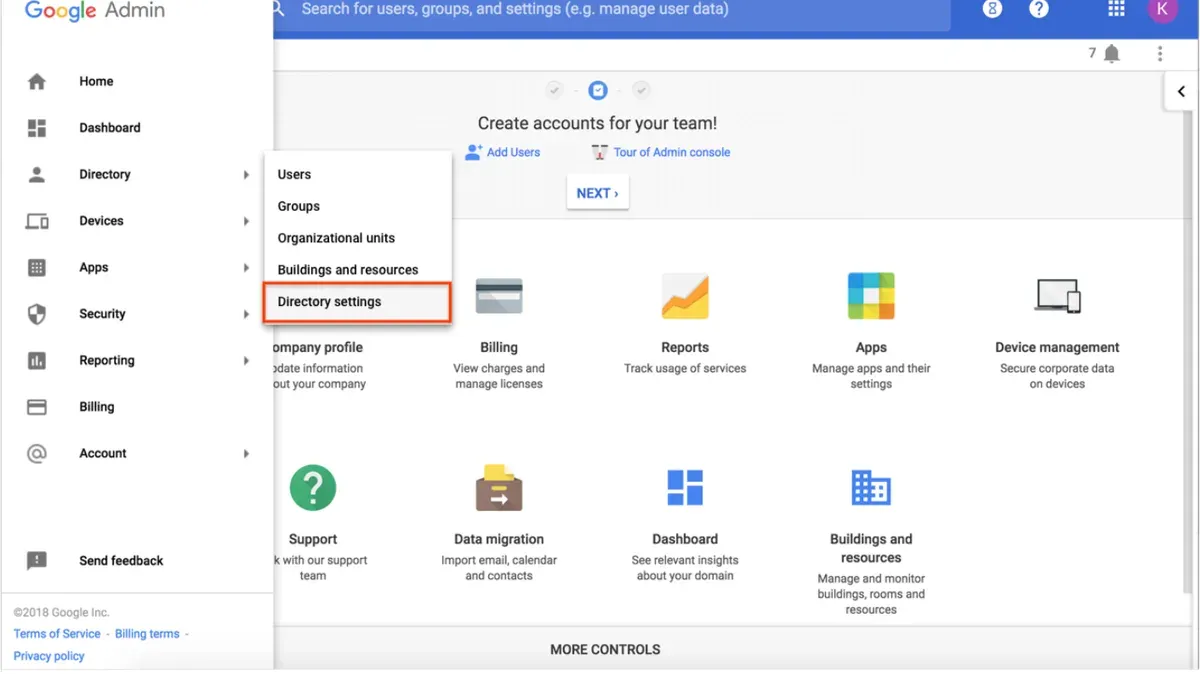
Moving to Google Admin Console gives you direct control over devices and users, enabling policy enforcement that ClassLink alone cannot provide. You can enforce device-level settings such as password requirements, app installations, and network configurations centrally under Devices > Chrome Management or Users > Organizational Units. This level of control reduces security risks and ensures compliance with district policies.
Google Admin Console also streamlines user provisioning by integrating directly with Google Workspace accounts. Instead of managing identity in a separate system, you handle user access and group membership within Users > Groups, simplifying account lifecycle management. This reduces administrative overhead and minimizes synchronization errors common with external identity platforms.
Cost efficiency is another driver. By consolidating management within Google Admin Console, schools reduce licensing fees for third-party SSO platforms and avoid duplicate management tools. Plus, the seamless integration with Google Workspace's suite of apps improves operational efficiency. For example, a mid-sized district reported faster device deployment times and fewer support tickets after moving management fully into Google Admin Console.
How to prepare your environment before starting the migration
Begin by auditing your ClassLink environment to identify all user accounts, linked applications, and shared resources. Use the ClassLink Admin Dashboard to export a list of active users and apps under Management > Users and Management > Applications. Pay attention to custom app integrations and shared folders that may require manual mapping in Google Admin Console.
Next, review your Google Workspace environment. Verify license types and quantities under Billing > Subscriptions in the Admin Console. Check existing organizational units and device management policies under Directory > Organizational units and Devices > Chrome management. Confirm you have the necessary admin privileges to make changes and deploy policies.
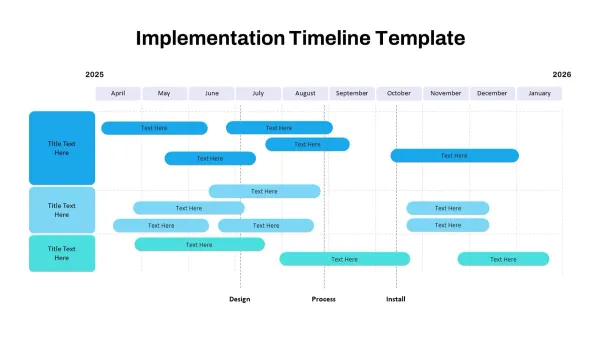
Communicate with stakeholders early to set expectations for downtime and access changes. A phased timeline reduces disruption; for example, migrate 25% of users per week over four weeks. Share a clear schedule and support contacts to manage issues promptly.
- Export ClassLink user and app lists
- Identify custom apps and shared resources
- Verify Google Workspace license coverage
- Review Admin Console organizational units and device policies
- Confirm admin permissions
- Develop phased migration timeline with stakeholder communication
Step-by-step migration process from ClassLink to Google Admin Console
Start by exporting your ClassLink user lists and app assignments via the Admin Dashboard's Data Export tool. Back up this data securely in CSV format. Next, configure Google Admin Console by creating Organizational Units (OUs) that mirror your school's structure, such as by grade or department. Assign policies under Device Management > Settings, including screen lock times and app installation permissions.
Map ClassLink roles to Google Admin Console roles carefully. For example, ClassLink's 'Teacher' role with app access correlates to a Google Admin OU with user privileges and specific app whitelisting via Google Workspace Marketplace. Transition user authentication by enabling Single Sign-On (SSO) with Google Workspace and updating user passwords as needed.
Validate the migration by testing user logins and app accessibility across different OUs. Use Google Admin Console's Reports section to monitor device status and user activity. Common issues include app permissions not syncing; resolve these by revisiting app whitelisting settings or reassigning users in the OU structure.
- Export and back up ClassLink user and app data.
- Create and configure OUs and policies in Google Admin Console.
- Map ClassLink roles to Google Admin Console roles precisely.
- Enable SSO and update user authentication settings.
- Test logins, app access, and monitor via Reports.
Common mistakes to avoid during the migration
Ignoring the differences in user provisioning protocols between ClassLink and Google Admin Console is a frequent pitfall. ClassLink uses SAML and OAuth for identity federation, while Google Admin Console relies on Google Workspace’s user and group management. Overlooking this can lead to orphaned accounts or failed authentications, disrupting access for teachers and students. For example, one school faced a week-long outage because they did not sync their user groups properly, delaying role assignments.
Failing to communicate the migration clearly to staff and end users causes confusion and support overload. When a district switched without detailed notices or training sessions, helpdesk tickets spiked by 40% in the first two days, as users struggled with new login procedures and device policies.
Skipping backups and testing phases risks data loss and misconfigurations going unnoticed. A middle school experienced blocked device access because device policies were misapplied due to skipped testing, forcing a rollback that took several days.
Misconfiguring device policies is another common error. For instance, applying overly restrictive Chrome OS policies blocked access to necessary educational apps, stalling classroom activities until IT adjusted settings.
- Verify user provisioning protocols and map roles accurately.
- Communicate migration details and train users beforehand.
- Perform full backups and conduct phased testing.
- Review device policy settings carefully before deployment.
How to maintain security and compliance post-migration
Once you complete the migration, enforce multi-factor authentication (MFA) by navigating to Security > Authentication > 2-step verification in the Google Admin Console. Require MFA for all users, especially those with admin privileges, to reduce unauthorized access risks. Set up access control rules under Devices > Settings > Chrome Management to restrict sign-ins to managed devices only.
Monitor device compliance continuously by enabling Device Management > Endpoint Verification. This tracks device status, OS versions, and security patch levels. For example, if a Chromebook is running an outdated OS version, you can automatically block access until it updates, ensuring policy adherence.
Keep your Admin Console aligned with best practices by regularly reviewing Security > Security Health page for alerts and recommendations. Schedule quarterly compliance audits, checking settings like password policies, session lengths, and device enrollment status. Document audit results in a simple table listing each policy, its compliance status, and any corrective actions taken.
Security checklist:
- Enable 2-step verification for all users
- Restrict device access to managed devices
- Activate Endpoint Verification for continuous monitoring
- Review Security Health page monthly
- Conduct quarterly compliance audits with documented results
What this migration does not cover and who should consider other options
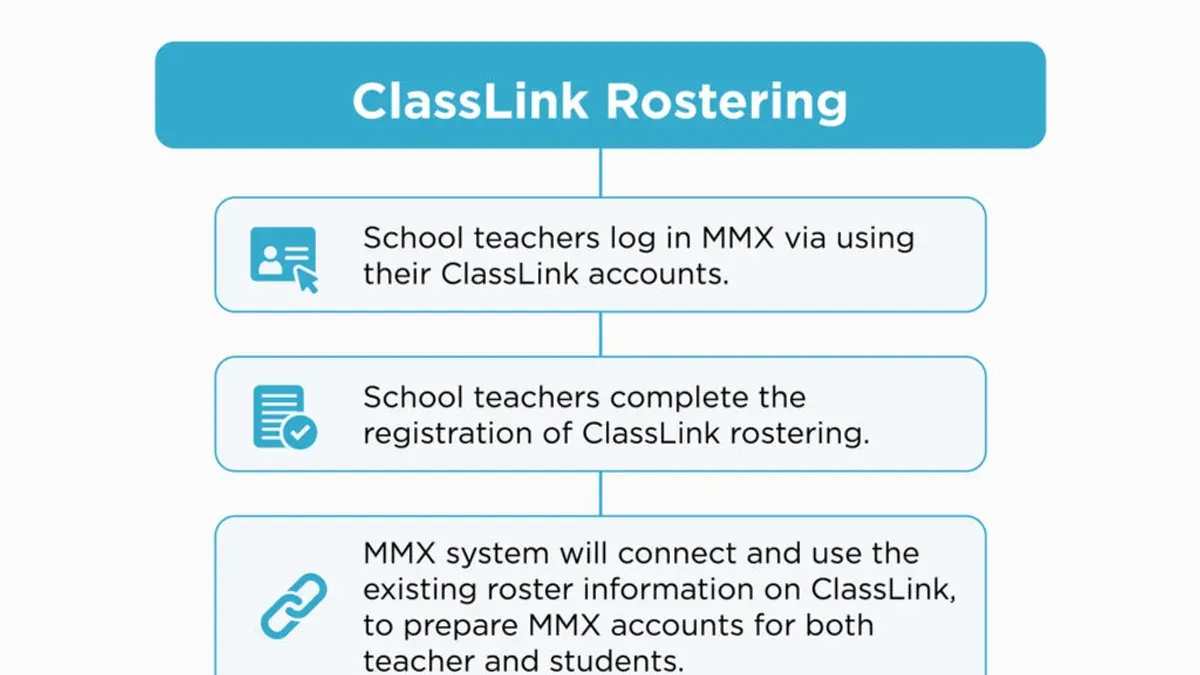
This migration does not extend to resource launch capabilities and third-party app integrations that ClassLink supports natively. Google Admin Console focuses on device and user management within Google Workspace, lacking built-in single sign-on for diverse educational apps beyond Google’s ecosystem. Schools relying heavily on ClassLink’s learning management system (LMS) integrations, such as Canvas or Schoology, may find Google Admin Console alone insufficient for seamless access and rostering.
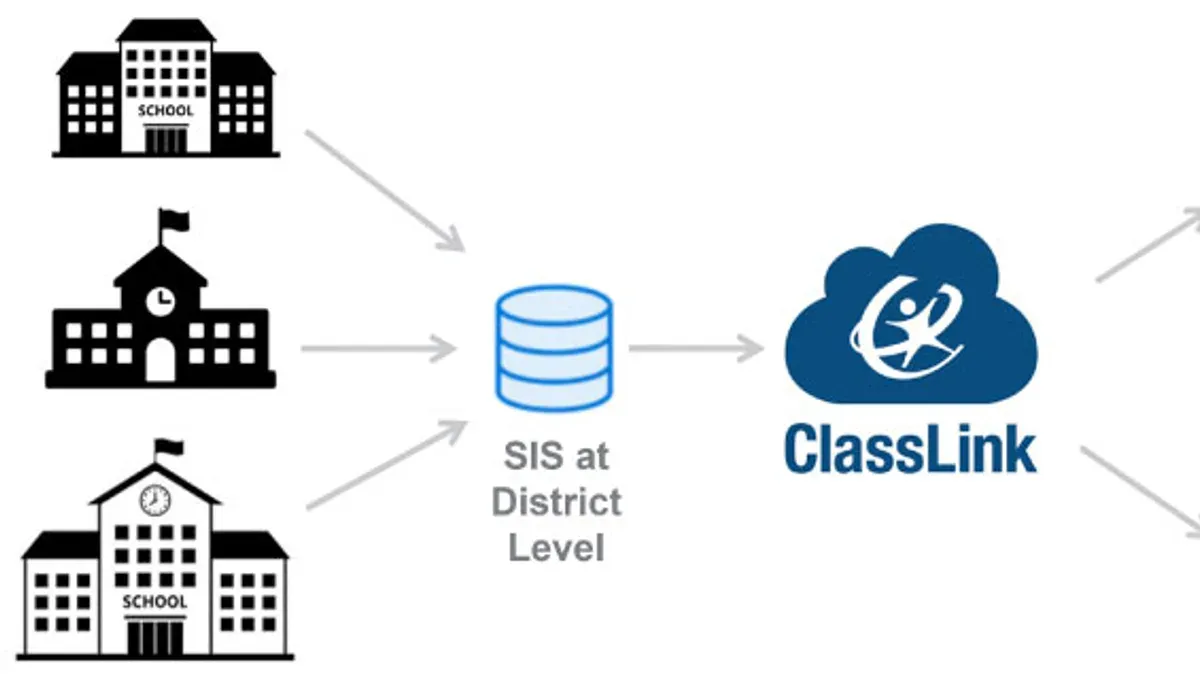
For institutions with complex integration needs, a hybrid or phased approach incorporating additional tools like Google Cloud Identity or third-party identity providers is necessary. For example, a district that used ClassLink to launch over 50 external educational apps with automatic roster syncing found they needed to retain ClassLink or implement a federated identity solution alongside Google Admin Console to maintain workflows.
Consider your environment’s reliance on app launch and LMS connectivity before fully switching. If your workflow depends on those features, evaluate complementary platforms or maintain a hybrid model instead of a full migration.
Frequently asked questions
Can I run ClassLink and Google Admin Console simultaneously during transition?
Yes, you can run both platforms concurrently to minimize disruption. Use ClassLink for identity and resource access while gradually configuring Google Admin Console for device and user management. Plan a clear cutover date to avoid conflicts in user authentication and device policies.
Will user passwords or data be lost during the migration?
User passwords managed by ClassLink are not transferred to Google Admin Console; you’ll need to reset or synchronize passwords using Google Workspace Admin tools. Data tied to ClassLink’s resource platform won’t migrate automatically, so back up critical information before starting.
How do I handle apps and resources that were integrated with ClassLink?
Apps and resources integrated with ClassLink require manual reconfiguration in Google Admin Console or corresponding Google Workspace settings. Identify each app’s authentication method and adjust OAuth or SAML settings accordingly. Document current integrations thoroughly to avoid missing any during migration.
What support is available if issues arise after migration?
Google provides support through the Admin Console Help Center and Google Workspace support channels. ClassLink support remains available for issues related to their platform. Prepare internal escalation paths and consider a pilot phase to catch problems early.
Quick checklist
- Confirm all user accounts are synced correctly in Google Admin Console under Directory > Users.
- Verify device enrollment settings in Devices > Chrome Management before decommissioning ClassLink managed devices.
- Set up Single Sign-On (SSO) via Security > Set up single sign-on (SSO) with a third party to maintain user access continuity.
- Review and replicate resource access policies from ClassLink to Google Groups and organizational units.
- Communicate migration timelines and new login procedures to end users with clear instructions.
This guide does not cover complex scripting or large-scale automation
This guide assumes a basic familiarity with Google Workspace administration but does not cover deep technical scripting or API automation required for very large or complex migrations. If your environment includes tens of thousands of devices or requires custom integration beyond Google Admin Console’s standard tools, consider engaging a specialized migration consultant or Google Cloud Partner. Additionally, this migration focuses on device and user management and does not address migrating third-party resource content or deep identity federation scenarios.
Start by auditing your current Google Admin Console setup to identify gaps in device enrollment and user provisioning. This targeted review prevents overlooked configurations and smooths your transition from ClassLink.
See also: Moving from ClassLink to Clever Checklist: A Practical Guide · Moving from Apple School Manager to Google Admin Console: Your Complete Checklist