Apple School Manager Rollout Plan for Private Schools: A Practical Guide
Learn how Apple School Manager streamlines device deployment, app distribution, and account management for private schools.

Short answer: Apple School Manager streamlines device deployment, app distribution, and account management tailored for private schools. It integrates with your existing school systems to centralize control and reduce manual setup, making it essential for efficient Apple device management in your environment.
This article covers the Apple School Manager rollout plan for private schools, focusing on the unique decisions and challenges you face. You'll learn how Apple School Manager fits with your current infrastructure, the specific steps to implement it, ways to apply its features to daily operations, and common pitfalls to avoid. The guide is designed to help you execute a smooth, effective rollout that aligns with your school's policies and constraints.
What is Apple School Manager and why does it matter for private schools?
Apple School Manager is a web-based portal that centralizes the management of Apple devices, apps, and accounts for educational institutions. It integrates device enrollment, content distribution, and user provisioning into one streamlined system, eliminating manual setup and reducing IT workload. For private schools, this means faster deployment of iPads and Macs with the right settings and apps pre-configured for each role—students, teachers, or administrators.
Unlike public districts, private schools often have smaller, more diverse environments with unique scheduling, privacy needs, and limited IT staff. Apple School Manager supports these nuances by enabling role-based access control and flexible account management through integration with existing student information systems via SFTP or API. This makes it easier to maintain data privacy and tailor device use policies specific to your school’s structure.
For example, a private school in a metropolitan area used Apple School Manager to cut device onboarding time by half. By automating device enrollment and pushing required apps directly from the portal, the IT coordinator avoided manual configuration for each device. This freed up time to focus on training staff in using classroom tools effectively rather than on technical setup.
How does Apple School Manager work with your existing school systems?
Apple School Manager (ASM) syncs directly with your school's Student Information System (SIS) to import student, staff, and class data. This connection automates rostering, assigning users to correct groups and classes without manual entry. Supported SIS options include PowerSchool, Infinite Campus, Skyward, and Blackbaud, among others. If your SIS is listed in ASM’s compatibility page, you configure the connection by uploading a secure SIS export file or using an API-based integration under Settings > Accounts > Data Sources.
Once synced, ASM pushes user and class information to your Mobile Device Management (MDM) solution, such as Jamf Pro or Mosyle, enabling device assignment and app deployment based on roles and classes. The MDM handles device enrollment, configuration profiles, and restrictions, while ASM manages identity and roster accuracy. This handoff is set up in ASM by linking your MDM server under the Device Management tab, generating a server token that your MDM requires.
If your SIS or directory service isn't fully compatible, you can use manual CSV uploads or third-party middleware to bridge data gaps. However, this adds complexity and delays updates. A common oversight is failing to schedule regular SIS syncs, which causes outdated rosters and provisioning errors. Always confirm the sync frequency in ASM matches your school’s operational cadence.
| SIS | API Integration | Manual Upload | Common Use |
|---|---|---|---|
| PowerSchool | Yes | No | Large private schools |
| Infinite Campus | Yes | Yes | Mid-size schools |
| Blackbaud | No | Yes | Private institutions |
| Skyward | Yes | Yes | Small to mid-size schools |
Example workflow: Your SIS exports a daily roster update that ASM imports automatically overnight. ASM processes changes and updates class rosters, then syncs with your MDM. The MDM pushes new profiles to devices so students receive the correct apps and access rights by morning. This cycle minimizes manual work and ensures devices reflect current enrollment.
- Check your SIS compatibility on Apple’s website.
- Set up secure data source connections in ASM under Settings > Accounts.
- Link your MDM server in ASM and obtain the server token.
- Schedule regular SIS syncs to keep data fresh.
- Test the workflow by enrolling a test user and device before full rollout.
What are the key steps in rolling out Apple School Manager in your private school?
Start with a thorough audit of your current setup: catalog all Apple devices, identify all user accounts, and document existing device management tools. This baseline reveals gaps and informs planning. Next, create and verify your Apple School Manager account by submitting proof of school ownership via the Apple Business Manager portal. Verification can take several days, so initiate early.
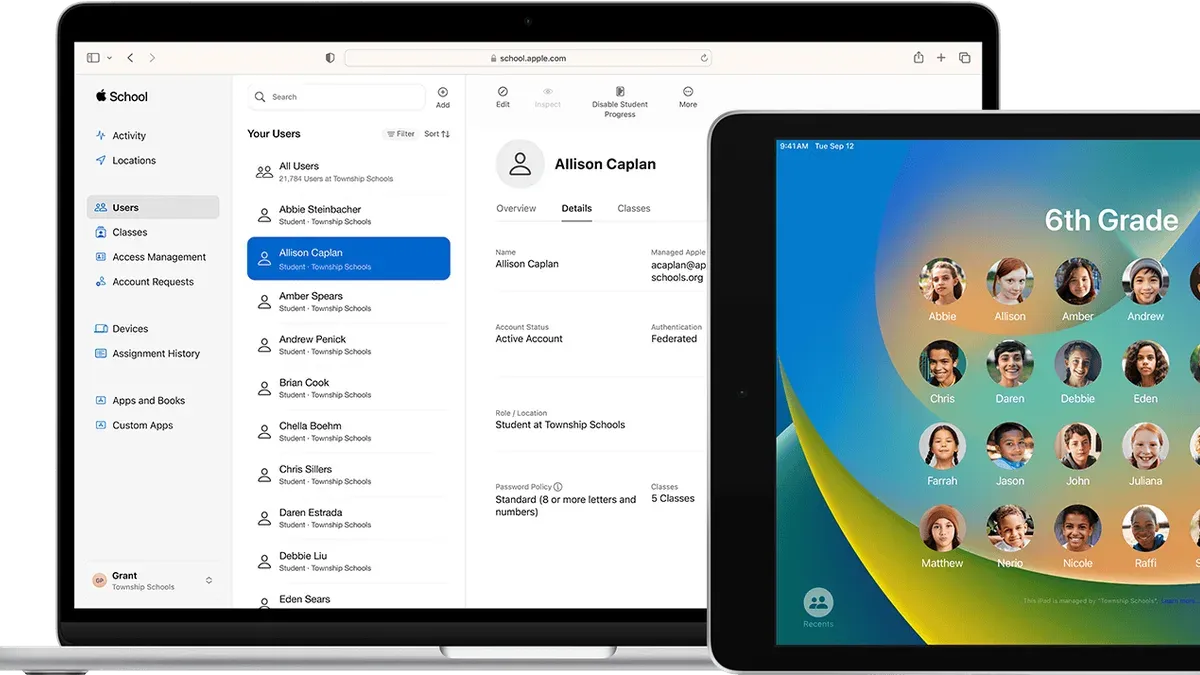
After verification, configure roles and permissions under "Settings > Roles and Privileges." Assign appropriate access levels to IT staff and administrators. Integrate your Student Information System (SIS) and Mobile Device Management (MDM) solution by uploading your SIS data and connecting with the MDM server via the Apple School Manager interface. Schedule regular automatic syncs to keep user and device data current.
Train your IT team and educators on managing the platform. Focus training on device enrollment workflows, content distribution, and troubleshooting. Use Apple’s official guides and consider hands-on workshops. Begin device enrollment and content deployment in phases—start with a pilot group of devices and users, monitor for issues, then scale. For example, a mid-sized private school with 500 devices might spend two weeks auditing, one week on account setup and integration, one week on training, and four weeks on phased rollout.
Checklist of key tasks and estimated time:
- Audit devices, users, management systems (1-2 weeks)
- Create and verify Apple School Manager account (3-7 days)
- Configure roles and permissions (1-2 days)
- Integrate SIS and MDM (2-3 days)
- Train IT staff and educators (3-5 days)
- Phased device enrollment and content deployment (3-4 weeks)
How do you apply Apple School Manager features to improve daily operations?
Managed Apple IDs provide secure, personalized access for students and staff, enabling seamless use of Apple services while keeping data separate from personal accounts. This reduces password issues and unauthorized access, lowering IT support requests significantly. For example, a private school reported cutting login-related helpdesk tickets by over half after issuing Managed Apple IDs.
Distributing apps and textbooks through the Volume Purchase Program (VPP) streamlines content delivery. You can assign apps directly to devices or users without manual installation, saving hours each week. One school deployed over 200 educational apps to 500 devices within a day, a task that previously took multiple IT staff days.
Automating device setup via Apple School Manager’s integration with your MDM allows new devices to enroll automatically with preconfigured settings and apps. This eliminates manual configuration, freeing IT staff to focus on strategic tasks. Before automation, one school spent up to 30 minutes per device on setup; afterward, devices were ready to use out of the box.
Class rostering syncs class lists from your SIS into Apple School Manager, enabling teachers to manage digital classrooms easily. Teachers can assign work and track progress without administrative delays. Adoption rates improved when teachers had immediate access to organized classes, with one school observing a 40% rise in digital assignment use within weeks.
- Issue Managed Apple IDs to all users for secure, personalized access
- Use VPP to assign apps and textbooks directly to users or devices
- Set up automated device enrollment through your MDM
- Leverage class rostering to keep teacher rosters current and enable digital classrooms
What common mistakes should you avoid during rollout?
Skipping SIS integration or using an incompatible system is a frequent error that disrupts roster syncing and device assignment. For example, a private school that used a non-compatible SIS faced repeated failures in importing student data, causing delays in device activation and mounting IT support tickets. Verify SIS compatibility early to avoid such interruptions.
Underestimating training needs for staff and teachers leads to confusion and inefficient use of Apple School Manager features. Staff unfamiliar with the portal’s role assignments or app deployment workflows often submit excessive support requests, slowing down the rollout. Plan dedicated, hands-on training sessions covering the specific settings and workflows your school will use.
Misconfiguring roles in Apple School Manager creates access gaps and security risks. Assigning broad privileges to non-administrative users or failing to separate duties means sensitive data or settings might be unintentionally exposed or altered. Carefully review role definitions in Settings > Roles and ensure they align with your school's operational structure.
Delaying a phased rollout can cause significant disruption. Implementing Apple School Manager all at once without pilot testing often results in device enrollment bottlenecks and classroom interruptions. Schools that staged device deployment over several weeks reported smoother transitions and fewer support incidents.
- Confirm SIS compatibility before integration.
- Provide thorough, role-specific training to staff and teachers.
- Assign roles precisely to prevent access and security issues.
- Roll out devices in phases to minimize disruption.
Frequently asked questions
Can Apple School Manager work without a compatible SIS?
Apple School Manager requires integration with a Student Information System (SIS) to automate user and class data import. Without a compatible SIS, you must manually create Managed Apple IDs and classes, which increases administrative workload and risks errors. Some third-party tools offer partial import solutions, but full functionality depends on SIS compatibility.
How do Managed Apple IDs differ from personal Apple IDs for students?
Managed Apple IDs are created and controlled by the school through Apple School Manager, allowing IT to manage access, reset passwords, and restrict purchases. Personal Apple IDs are owned by users and lack centralized control, which can lead to inconsistent security and access issues. Managed IDs also enable access to school-specific resources like iCloud Drive with storage limits tailored for education.
What happens if my private school changes SIS providers after setup?
If you switch SIS providers, you must update the SIS integration in Apple School Manager to maintain data sync. This involves disconnecting the old provider and connecting the new one, then verifying data accuracy. During transition, manual updates may be necessary to avoid disruptions to user accounts and class rosters.
Is Apple School Manager suitable for schools with mixed device environments?
Apple School Manager is designed primarily for managing Apple devices but can coexist with other platforms. It handles Apple device enrollment, app distribution, and user management efficiently, but you will need separate management tools for non-Apple devices. Planning for interoperability and clear device policies ensures smooth operation across all devices.
What this guide doesn’t cover and who should look elsewhere
This guide assumes your private school has a basic IT infrastructure: reliable internet, managed Apple devices or the ability to manage them, and a compatible Student Information System (SIS) that supports integration with Apple School Manager (ASM). If your school lacks these, you may need additional IT support or consider other device management solutions better suited to your environment. This advice also does not cover detailed device-level troubleshooting or advanced custom scripting within ASM; for those, consult Apple-certified IT professionals or Apple support resources.
Quick checklist
- Confirm your SIS supports ASM integration and enable it via your SIS vendor portal.
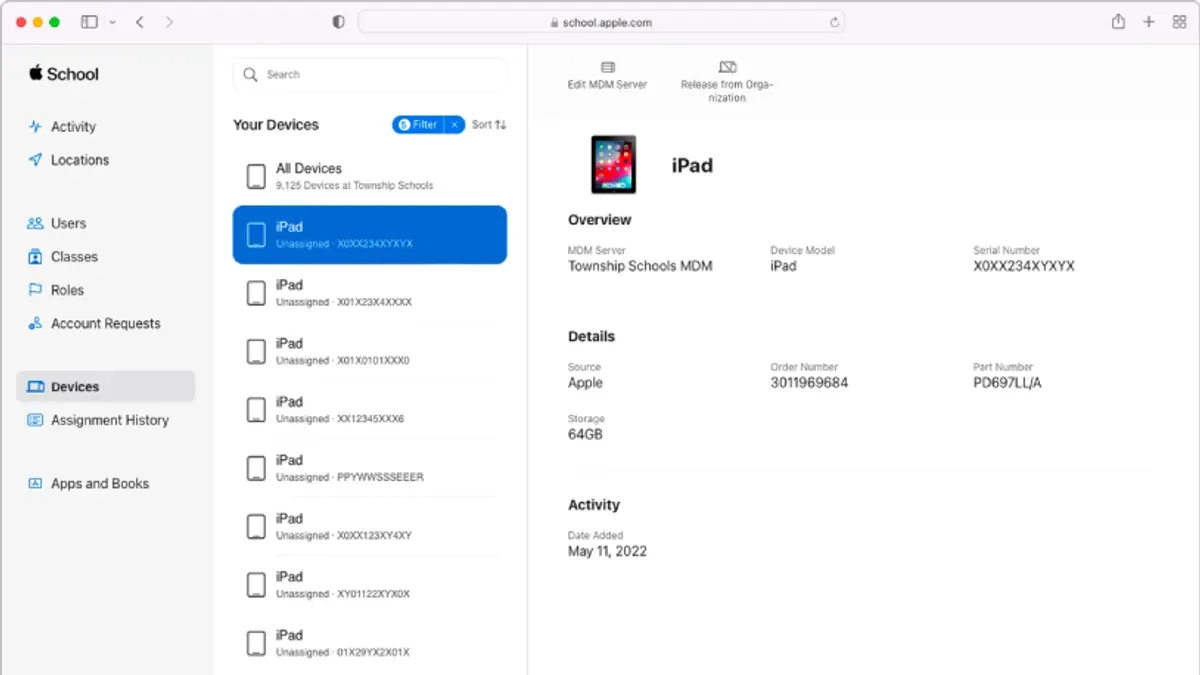
- Enroll your devices through Apple Business Manager or ASM Device Enrollment Program (DEP).
- Create Managed Apple IDs for staff and students through ASM settings.
- Set up location-based device management profiles in your Mobile Device Management (MDM) solution.
- Assign apps and content licenses using ASM's Apps and Books section.
- Test the enrollment and profile assignment on a small set of devices before full rollout.
- Train your IT staff on ASM console navigation and common troubleshooting steps.
- Communicate clearly with teachers and students about device use policies and support channels.
Start by verifying your SIS’s compatibility and enabling the ASM integration feature there. This step unlocks automated account creation and syncing, which reduces manual workload and errors. Without it, your rollout will face unnecessary complexity. From that foundation, build your device enrollment and management process, ensuring you test and adjust before scaling to the full school population.
See also: Apple School Manager Implementation Timeline: Step-by-Step Guide for Education IT Leaders · MagicSchool AI Rollout Plan for Volunteers: A Practical Guide · Google Gemini Rollout Plan: A Practical Guide for Office Managers