Moving from Apple School Manager to Microsoft Intune: Your Complete Checklist
This checklist guides education IT admins through moving from Apple School Manager to Microsoft Intune, ensuring smooth migration and secure device management.

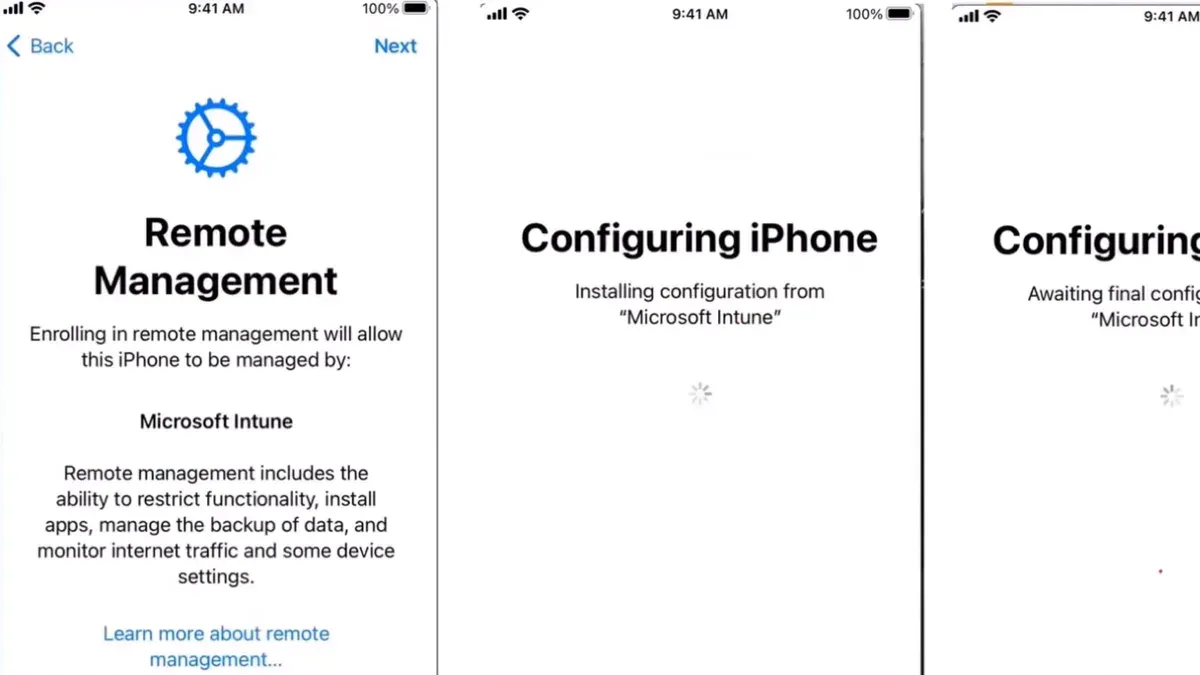
Short answer: Moving from Apple School Manager to Microsoft Intune requires careful planning to handle differences in device enrollment, app deployment, and user management. This moving from Apple School Manager to Microsoft Intune checklist guides you through the critical steps to ensure smooth migration, avoid data loss, and maintain security across platforms.
This article breaks down the challenges of shifting from Apple’s integrated education ecosystem to Microsoft’s versatile device management platform. You’ll find clear explanations of core differences, preparatory actions, a detailed migration process, common pitfalls to avoid, and strategies to secure your environment after the switch. The focus is on practical guidance tailored for education IT administrators navigating cross-platform compatibility and data continuity.
What is Apple School Manager and why switch to Microsoft Intune?
Apple School Manager (ASM) is Apple's centralized platform for managing devices, apps, and accounts within educational institutions. It simplifies deployment by linking Apple IDs, enabling bulk device enrollment, and integrating with the Volume Purchase Program (VPP) for app distribution. ASM works best when managing Apple devices exclusively, leveraging Apple’s ecosystem for seamless updates and configurations.
Microsoft Intune offers a broader device management solution that supports multiple platforms, including iOS, macOS, Windows, and Android. Its tight integration with Microsoft 365 services allows schools to manage user identities, policies, and access from a single console. Intune’s conditional access, compliance settings, and app protection policies cater specifically to diverse device environments common in schools expanding beyond Apple hardware.
Schools often switch to Intune to unify management across different device types, reduce costs by consolidating licensing, and align with existing Microsoft infrastructure. For example, a district with a mix of iPads, Windows laptops, and Chromebooks benefits from Intune’s cross-platform approach. However, moving from ASM to Intune introduces challenges such as ensuring smooth enrollment of Apple devices in Intune and maintaining data continuity across ecosystems.
| Feature | Apple School Manager | Microsoft Intune |
|---|---|---|
| Device Enrollment | Apple-specific, zero-touch for iOS/macOS | Cross-platform, supports iOS/macOS, Windows, Android |
| User & App Management | Apple IDs, VPP apps | Microsoft 365 integration, app protection policies |
| Policy Enforcement | Apple device restrictions | Conditional access, compliance policies |
| Platform Ecosystem | Apple only | Multi-vendor device support |
How does device management differ between Apple School Manager and Microsoft Intune?
Apple School Manager uses Automated Device Enrollment (ADE) to streamline Apple device onboarding. When a device is purchased through Apple or authorized resellers, it’s automatically added to your ADE portal. From there, devices enroll into Apple’s Mobile Device Management (MDM) solution seamlessly during setup, enforcing policies like supervised mode and mandatory app installations without user interaction.
Microsoft Intune supports Apple device enrollment via Apple’s Device Enrollment Program (DEP), which is the same underlying technology as ADE. However, Intune’s approach differs because it manages multiple platforms—iOS, macOS, Android, and Windows—through a unified console. Enrollment for Apple devices requires you to link your Apple School Manager account to Intune, then assign devices to an Intune MDM server. For non-Apple devices, Intune uses platform-specific enrollment methods such as Android Enterprise or Windows Autopilot.
Policy deployment and app management also vary. Apple School Manager integrates tightly with Apple’s Volume Purchase Program (VPP) for app licensing and distribution, enabling silent app installs and updates. Intune leverages Microsoft Store for Education and Apple VPP but may require user interaction for some app installations on Apple devices. Additionally, Intune’s cross-platform policies can’t enforce certain Apple-specific restrictions, like activation lock removal, without additional Apple tools.
Consider a device enrollment hiccup: a school assigned iPads to Intune but overlooked syncing the ADE token, causing devices not to enroll automatically. The fix involved refreshing the token in Intune’s Device Enrollment > Apple Enrollment > Enrollment Program Tokens, then reassigning devices. This step is often missed and is critical for smooth migration.
What are the key preparatory steps before starting the migration?
Begin by creating a detailed inventory of all devices currently managed via Apple School Manager. Include device types, serial numbers, assigned users, and associated apps. For example, you might find 150 iPads, 60 MacBooks, and 30 Apple TVs linked to specific classrooms or departments. Next, audit existing policies and configurations—such as Wi-Fi profiles, restrictions, and app deployment rules—and map each to its closest Microsoft Intune equivalent. Documenting the Apple School Manager settings in detail ensures you replicate critical controls without gaps.
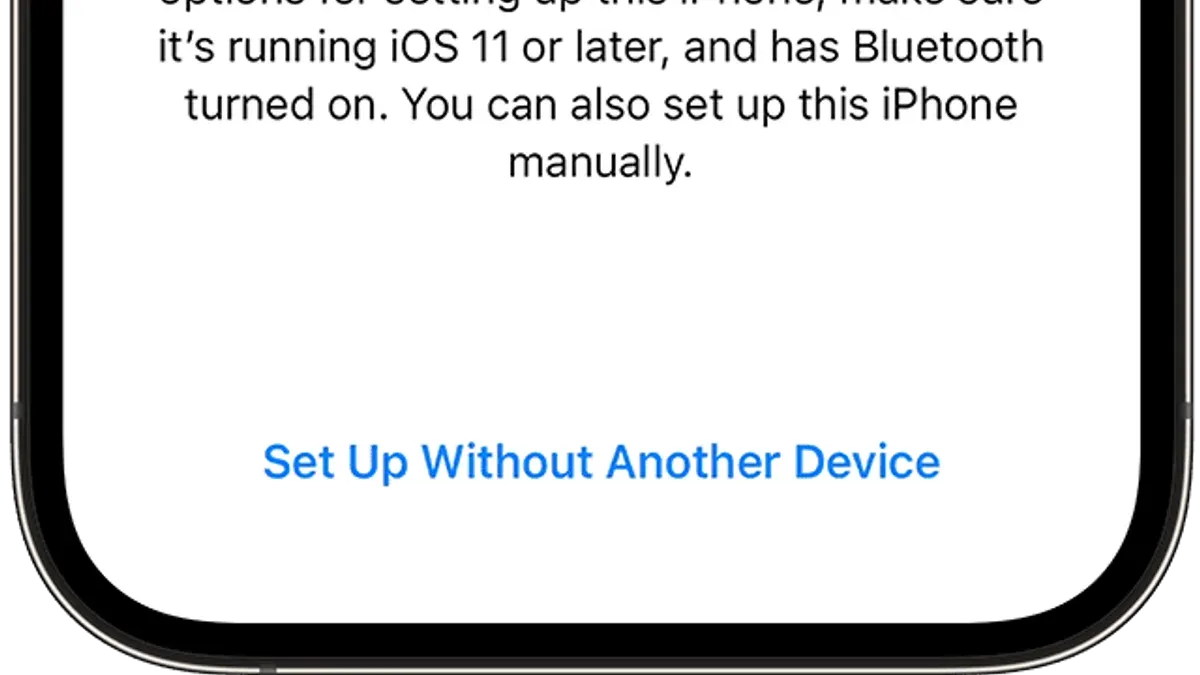
Backup all essential user data and settings before migration to prevent data loss. Export user lists and configurations where possible. Communicate the upcoming changes clearly to all stakeholders, including IT staff, educators, and students, and schedule migration windows during low-usage periods to minimize disruption.
Finally, review your Microsoft Intune licensing and subscription needs based on your device count and feature requirements. Confirm all necessary licenses are procured and active before starting the migration to avoid enrollment issues.
- Inventory devices, users, and apps with detailed attributes
- Audit and map Apple School Manager policies to Intune
- Backup critical data and export settings
- Notify stakeholders and plan migration windows
- Verify and secure Microsoft Intune licenses
How to migrate devices and users to Microsoft Intune step-by-step?
Start by unassigning devices from Apple School Manager’s Automated Device Enrollment (ADE) if they are currently bound to your Apple MDM server. Navigate to Apple School Manager > Devices, select each device or device group, and remove the existing MDM server assignment. This step ensures devices can be enrolled into Intune without conflicts.
Next, enroll devices into Microsoft Intune. For Apple DEP-enabled devices, integrate Intune by adding the Apple DEP token in the Intune portal under Devices > iOS/iPadOS > Enrollment Program Tokens. Assign devices to Intune's enrollment profile here. For devices not eligible for DEP, use manual enrollment via the Company Portal app. This dual approach covers all device types.
Configure Intune device profiles and compliance policies to replicate your previous Apple configurations. Set device restrictions, Wi-Fi, VPN, and app deployment through Intune’s Device Configuration profiles. Match these carefully to avoid disrupting user experience. Deploy Microsoft Office apps and any education-specific tools your institution requires.
Before full rollout, select a pilot group of 10-20 devices to enroll. Monitor their enrollment status under Intune > Devices, checking for compliance and app installation success. Troubleshoot common issues like DEP token mismatches or user authentication errors promptly.
- Unassign devices from Apple School Manager ADE server (Apple School Manager > Devices > Select > Remove MDM)
- Upload Apple DEP token to Intune (Intune portal > Devices > iOS/iPadOS > Enrollment Program Tokens > Add)
- Assign devices to Intune enrollment profiles
- Enroll non-DEP devices via manual Company Portal app installation
- Create and deploy Intune device profiles matching Apple policies
- Deploy necessary apps via Intune
- Test with small pilot group; monitor enrollment and compliance
- Resolve enrollment errors before full-scale deployment
For example, a school district with 200 iPads first unassigned their devices from Apple School Manager ADE, uploaded their DEP token to Intune, then assigned enrollment profiles. They enrolled a pilot of 15 iPads, ensuring Wi-Fi and VPN profiles deployed correctly and that Office apps installed without user interruption. After confirming seamless compliance and no data loss, they proceeded with the full rollout.
What common mistakes should you avoid during the switch?
One frequent error is failing to fully unassign devices from Apple School Manager before enrolling them into Microsoft Intune. This oversight can cause enrollment failures or duplicate device records, delaying deployment. For example, a school district experienced a two-week stall because devices still linked to Apple School Manager rejected Intune profiles, requiring manual cleanup.
Another pitfall is overlooking differences in app licensing and deployment. Apple’s volume purchase program and Microsoft Store apps have distinct license management, so failing to adjust app assignments can leave users without critical tools.
Ignoring user training and communication leads to confusion and increased support requests. Users need clear instructions on device changes and new app access.
Underestimating troubleshooting time for cross-platform quirks—like macOS device enrollment errors or conditional access policy conflicts—can extend migration timelines.
Finally, not validating compliance policies post-migration risks security gaps. Ensure all Intune policies replicate your security baseline and test conditional access rigorously.
- Unassign devices completely from Apple School Manager before Intune enrollment
- Review and adjust app licensing and deployment methods
- Communicate changes and train users on new processes
- Allocate extra time for troubleshooting cross-platform issues
- Validate compliance and conditional access policies after migration
How to maintain device and data security post-migration?
Once devices are enrolled in Microsoft Intune, configure Conditional Access policies via the Azure AD portal under Security > Conditional Access. Target policies to require multi-factor authentication and compliant device status before granting access to Microsoft 365 apps. For example, enforce "Require device to be marked as compliant" with a policy named "Education Device Compliance" targeting student and staff groups.
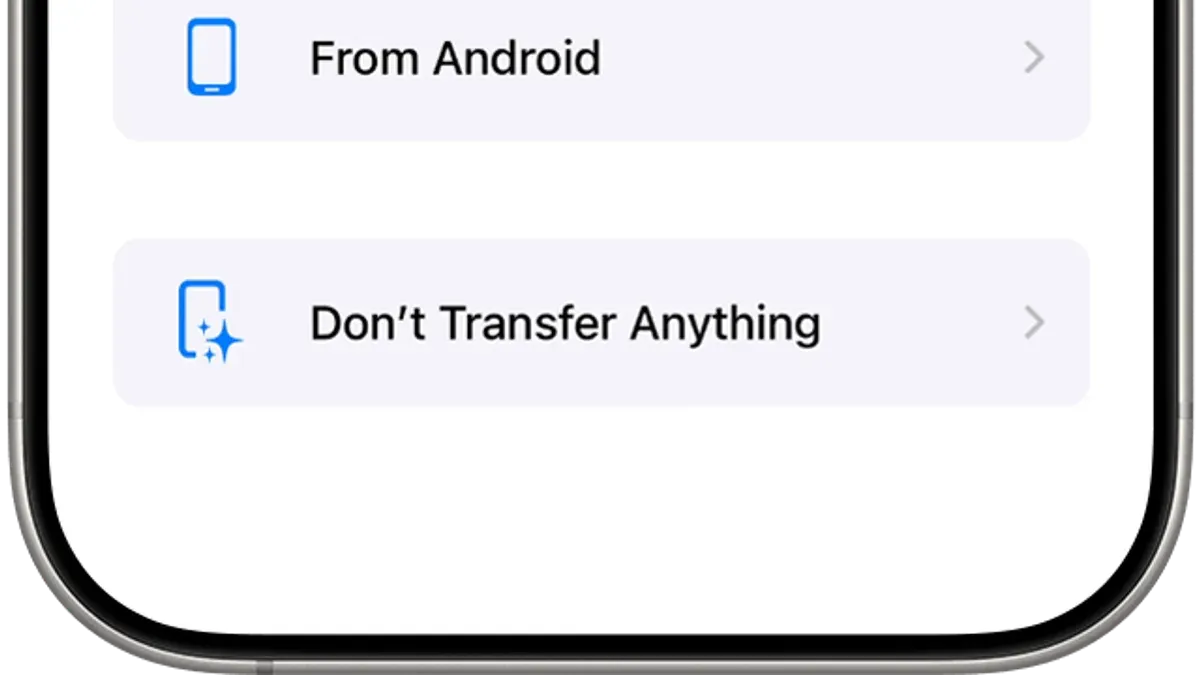
Use Intune’s built-in reporting tools found in the Endpoint Manager admin center under Reports > Device compliance to monitor compliance trends and detect outliers. Regularly review these reports to identify non-compliant devices and remediate issues proactively.
Keep device profiles and app deployments current by scheduling profile updates and app version pushes. For instance, automate app updates with the "Update policies" feature to reduce vulnerabilities caused by outdated software.
Train IT staff and educators on new security protocols, including conditional access workflows and Intune portal navigation. This reduces support tickets and security risks from user errors.
Plan for continuous support by establishing a maintenance calendar for policy reviews and Intune updates. Ongoing vigilance ensures your school’s data stays protected as threats evolve.
- Configure Conditional Access policies requiring compliant devices and MFA.
- Regularly monitor device compliance reports and address issues.
- Automate profile and app updates to close security gaps.
- Train staff on Intune security features and access procedures.
- Set a recurring schedule for policy and system maintenance.
Who should reconsider switching from Apple School Manager to Microsoft Intune?
If your school is heavily invested solely in Apple hardware and uses the Apple ecosystem extensively, reconsider the switch. Apple School Manager supports features such as Classroom app integration, Apple Schoolwork, and Shared iPad management that Intune does not fully replicate. For example, if teachers rely on Shared iPad to let multiple students use a single device with individualized profiles, Intune’s limited support for this can disrupt workflows.
Organizations without an established Microsoft 365 infrastructure or sufficient Intune expertise may face steep learning curves and increased complexity. Intune’s broader cross-platform capabilities come with more intricate policy configuration and troubleshooting compared to Apple’s streamlined environment.
Cost considerations also matter. If your current setup meets all needs, the additional licensing and management overhead of Intune might outweigh benefits. Expert advice often highlights that schools with minimal cross-platform device diversity and no pressing need for Microsoft 365 integration should carefully weigh the transition.
In short, if your environment depends on Apple-only management features or lacks Microsoft support resources, staying with Apple School Manager may be more practical.
Frequently asked questions
Can I manage Apple devices fully in Microsoft Intune without Apple School Manager?
You cannot fully manage Apple devices in Intune without enrolling them through Apple School Manager or Apple Business Manager. These services provide the Device Enrollment Program (DEP), enabling automated supervision and zero-touch enrollment. Without them, you lose critical management features like remote wipe, app deployment, and configuration profiles tailored for education.
Will switching affect student data or classroom apps?
Switching device management platforms does not directly delete student data or classroom apps, but app licenses and configurations tied to Apple School Manager may need reassignment or reconfiguration in Intune. Expect to reauthorize apps through Microsoft’s system and verify that classroom management tools maintain their functionality. Backup critical data before migration to prevent accidental loss.
How long does a typical migration take?
The migration timeline varies by institution size and complexity but typically spans several weeks. Initial planning and preparation can take a few days, while device enrollment and configuration rollout may require one to two weeks or more. Allocate extra time for testing, troubleshooting, and training IT staff and educators.
Is it possible to run Apple School Manager and Microsoft Intune side by side during transition?
Yes, running both platforms in parallel during the transition is common and recommended. Apple School Manager can continue managing existing devices while you gradually enroll new or reset devices into Intune. This approach minimizes disruption but requires clear device assignment policies to avoid conflicts.
What this guide does not cover
This guide does not cover detailed configuration of Microsoft Intune policies unrelated to education contexts or non-Apple device management. If your environment includes significant numbers of Windows or Android devices, or you require advanced Intune role-based access controls and conditional access policies beyond basic device enrollment and compliance, consult specialized Microsoft Intune documentation or a certified Intune consultant. This checklist assumes you have basic familiarity with both Apple School Manager and Microsoft Intune portals.
Quick checklist
- Verify Apple School Manager account access and export all device and user records.
- Confirm Microsoft Intune licensing includes Apple device management.
- Set up Apple MDM Push certificate in Microsoft Intune.
- Create device enrollment profiles in Intune matching your school’s requirements.
- Communicate migration timeline clearly to staff and students.
- Unassign devices from Apple School Manager prior to Intune enrollment.
- Enroll devices into Intune using Apple Automated Device Enrollment (ADE).
- Assign appropriate device and user policies in Intune.
- Test functionality on a small pilot group before full rollout.
- Monitor device compliance and troubleshoot enrollment failures promptly.
The single most useful next step is to set up your Apple MDM Push certificate in Microsoft Intune immediately. Without this certificate, Intune cannot manage Apple devices properly. Go to the Microsoft Endpoint Manager admin center, navigate to Devices > iOS/iPadOS > Enrollment program tokens, and upload the certificate you obtain from Apple School Manager. This action unlocks the core capability to manage your Apple devices through Intune and ensures a smoother migration.
See also: Moving from Apple School Manager to Jamf School: Your Essential Checklist · Moving from Apple School Manager to Google Admin Console: Your Complete Checklist · How to Switch from Apple School Manager to ClassLink: A Practical Guide · Apple School Manager Rollout Plan for Private Schools: A Practical Guide