Quizlet Rollout Plan Tailored for Special Education Teachers
Learn how to create a successful Quizlet rollout plan tailored for special education teachers to enhance student engagement and accessibility.

Short answer: A successful Quizlet rollout plan for special education teachers involves tailoring the platform’s features to meet diverse learning needs through customization, accessibility settings, and ongoing feedback. This ensures that students engage meaningfully and benefit from the tool’s strengths while minimizing frustration.
This article guides you through a detailed, step-by-step Quizlet rollout plan for special education teachers. You will learn how to assess your classroom’s unique requirements, prepare your technology and team, customize content for accessibility, implement the tool with student input, avoid common pitfalls, and sustain success with continuous support. Each step emphasizes practical actions, helping you confidently integrate Quizlet to enhance learning outcomes for your students.
Understand Why Quizlet Matters for Special Education
Quizlet offers powerful support for special education classrooms by accommodating diverse learning needs through its customizable study sets and varied learning modes. You can tailor content with images, audio, and text to match individual student profiles, making study sessions more accessible and relevant.
Multisensory learning and repetition are crucial for students with learning differences. Quizlet’s features—such as Learn mode, Write mode, and Match games—engage multiple senses and reinforce concepts through repeated practice, helping improve retention.
Using digital tools like Quizlet fosters greater student engagement and independence. For example, a special education teacher working with students who have language processing challenges can create sets that combine spoken definitions and visuals, enabling students to study at their own pace and revisit challenging terms as needed.
Research indicates that digital flashcards enhance memory retention and motivation for special education learners by providing immediate feedback and interactive learning opportunities. This makes Quizlet a practical and adaptable addition to your instructional toolkit.
Assess Your Classroom Needs and Set Clear Goals
Begin by reviewing your students’ cognitive, communication, and motor skills to determine which Quizlet features align best. For example, students with fine motor challenges may benefit from voice-recorded flashcards or matching games instead of typing-intensive activities. Those with communication difficulties might engage more with Quizlet’s audio features and picture-based sets.
Next, align your Quizlet objectives with each student’s IEP or individualized goals. If a student’s goal is to improve vocabulary retention, plan to use Quizlet’s Learn mode for repeated exposure and progress tracking. For a student targeting sentence formation, consider creating custom flashcards with sentence starters and using the Write mode for practice.
Decide on the types of content that fit your classroom context. Visual learners may respond well to image-rich sets, while others may need simplified terminology or step-by-step sequences. For example, a student with processing delays might need sets broken into smaller chunks of 5–7 terms rather than larger lists.
Working example: If a student’s IEP goal is to recognize and use 10 new sight words, you could create a Quizlet set with pictures and audio for each word and use the Match game to reinforce recognition. This targeted use shows how features map to specific needs.
- Identify key student skills affecting Quizlet use (cognitive, communication, motor)
- Set objectives linked to IEP goals, such as vocabulary or sentence formation
- Select Quizlet content types and features suited to these needs
- Create small, focused sets matching individual learning pace
- Plan for multimodal engagement: audio, images, and interactive games
Prepare Your Tech and Team for a Smooth Launch
Begin by verifying that all devices used in your classroom support Quizlet’s platform and accessibility features. For example, confirm that iPads or Chromebooks have up-to-date operating systems and that settings like VoiceOver (iOS) or ChromeVox (Chrome OS) are enabled for students who rely on screen readers. Also, activate text-to-speech options within Quizlet’s settings to aid students with reading difficulties.
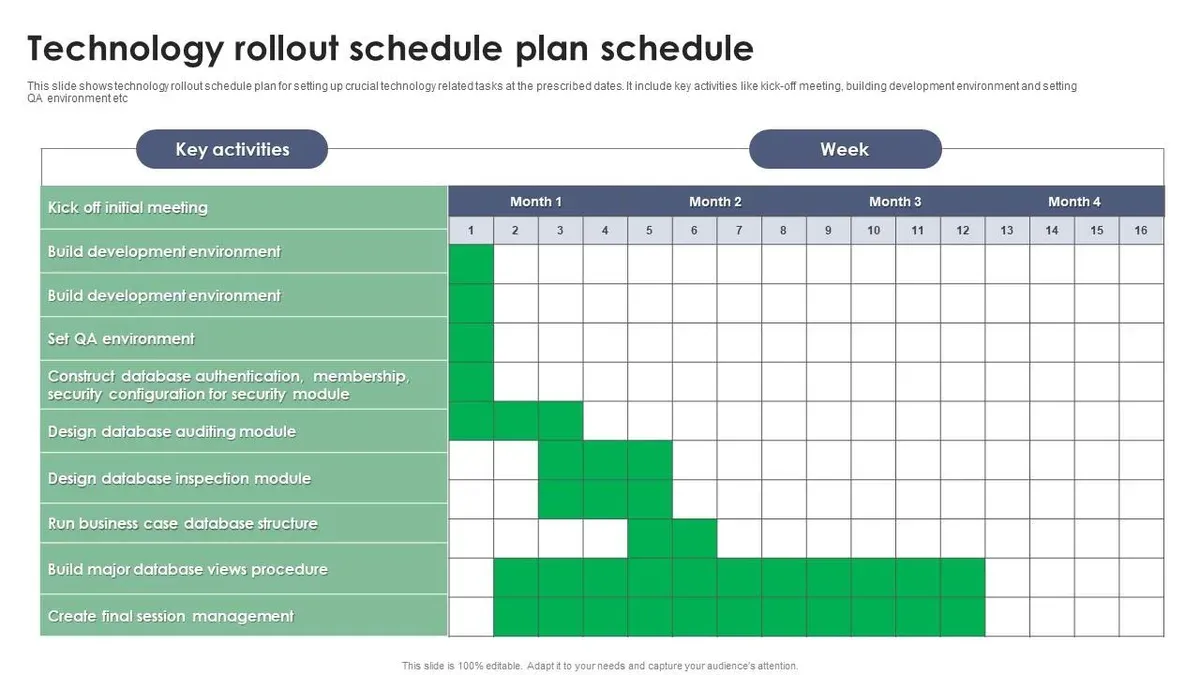
Next, organize a focused training session for your support staff and co-teachers. Cover key functionalities such as creating accessible flashcards, using Quizlet’s Immersive Reader, and monitoring student progress. A sample agenda might include: 1) Overview of Quizlet’s special education tools, 2) Hands-on practice creating and customizing study sets, 3) Troubleshooting common issues, and 4) Strategies for integrating Quizlet with IEP objectives.
Finally, plan clear communication with parents and administrators. Share a concise letter or email explaining the rollout purpose, expected benefits, and how you will support students during the transition. Include contact information for questions and invite feedback to encourage collaboration.
- Check device OS versions and enable accessibility features like VoiceOver or ChromeVox
- Activate Quizlet’s text-to-speech and Immersive Reader tools
- Conduct a training session with agenda: tools overview, practice, troubleshooting, IEP integration
- Send a communication template informing parents and administrators about the rollout
Customize Quizlet Content for Accessibility and Engagement
To meet diverse learner needs, adapt your Quizlet flashcards by simplifying language and adding clear, relevant visuals. For example, instead of a standard flashcard that defines "photosynthesis" with complex text, create one with a simple phrase like "How plants make food" paired with a clear diagram showing sunlight, leaves, and water.
Leverage Quizlet’s audio feature by enabling "Show audio" in the flashcard settings to support auditory learners. Alternative study modes such as "Learn" and "Match" can cater to different preferences; adjust settings to limit time pressures, reducing stress for students who need more processing time.
Incorporate gamification carefully—use "Match" for engagement but avoid modes like "Gravity" that add fast-paced challenges, which may overwhelm some students. Thoughtful use of these tools keeps motivation high without sacrificing accessibility.
| Standard Flashcard | Adapted Flashcard |
|---|---|
| Definition-heavy text, no image | Simple phrase with supportive image |
| Text-only, complex vocabulary | Clear, concise language with audio playback |
| Fast-paced game modes enabled | Slower-paced, low-pressure modes selected |
Example set: A vocabulary set on emotions where each card has a simple word, a matching facial expression image, and audio pronunciation, plus "Learn" mode with extended answer time enabled.
- Simplify language and add meaningful images to flashcards
- Enable audio features to support auditory learners
- Choose alternative study modes with adjustable settings to reduce stress
- Use gamification selectively to motivate without overwhelming
Implement Step-by-Step with Student Feedback Loops
Begin your Quizlet rollout by selecting a pilot group representing a range of student abilities and needs. A typical pilot might last four to six weeks, allowing time to observe initial use, gather feedback, and make adjustments before full implementation. For example, start with a small group of 5–10 students and their aides using Quizlet sets focused on core IEP goals.
Collect both qualitative and quantitative feedback regularly. Use simple surveys asking students and aides questions such as, "Which Quizlet activities helped you learn best?", "What was confusing or difficult?", and "Did the visuals or audio support your understanding?" Track metrics like time spent per study session, number of cards reviewed, and quiz accuracy to monitor engagement and progress.
Use this feedback to refine content and teaching strategies. If students struggle with certain terms or formats, simplify language or add more visuals. Adjust session length or frequency if attention wanes. Iteration ensures the tool fits your classroom’s unique dynamics and maximizes learning outcomes.
- Choose a diverse pilot group
- Run pilot for 4–6 weeks
- Gather feedback via simple surveys and usage data
- Analyze challenges and successes
- Adjust content and practices accordingly
Avoid Common Pitfalls in Special Education Rollouts
One common mistake is overlooking accessibility settings, which can overwhelm students with unnecessary features. For example, a rollout in a middle school failed when complex Quizlet modes like "Match" and "Gravity" were introduced without simplifying flashcards or enabling audio support, leading to frustration and disengagement.
Another frequent issue is insufficient training for staff and students. Without thorough walkthroughs of Quizlet’s accessibility menu—found under the "Settings" icon in the study mode—teachers struggled to troubleshoot basic issues, causing inconsistent use and low adoption.
Finally, failing to align Quizlet activities with individualized learning plans (IEPs) can limit its effectiveness. A special education coordinator overlooked syncing Quizlet content with IEP goals, resulting in activities that did not reinforce targeted skills, wasting time for both teachers and students.
To prevent these pitfalls, focus on tailoring accessibility features, provide hands-on training sessions, and review all Quizlet content against IEP objectives before launch.
- Enable only necessary accessibility features per student needs
- Conduct detailed training on Quizlet’s special education tools
- Map Quizlet sets directly to IEP goals
- Test content in small pilot groups before full rollout
Maximize Long-Term Success with Continuous Support
To sustain effective Quizlet use in your special education classroom, establish regular check-ins and refresher trainings. Schedule monthly meetings with your team to discuss challenges, share updates on Quizlet features, and review usage data via the Quizlet Teacher Dashboard to identify areas needing support.
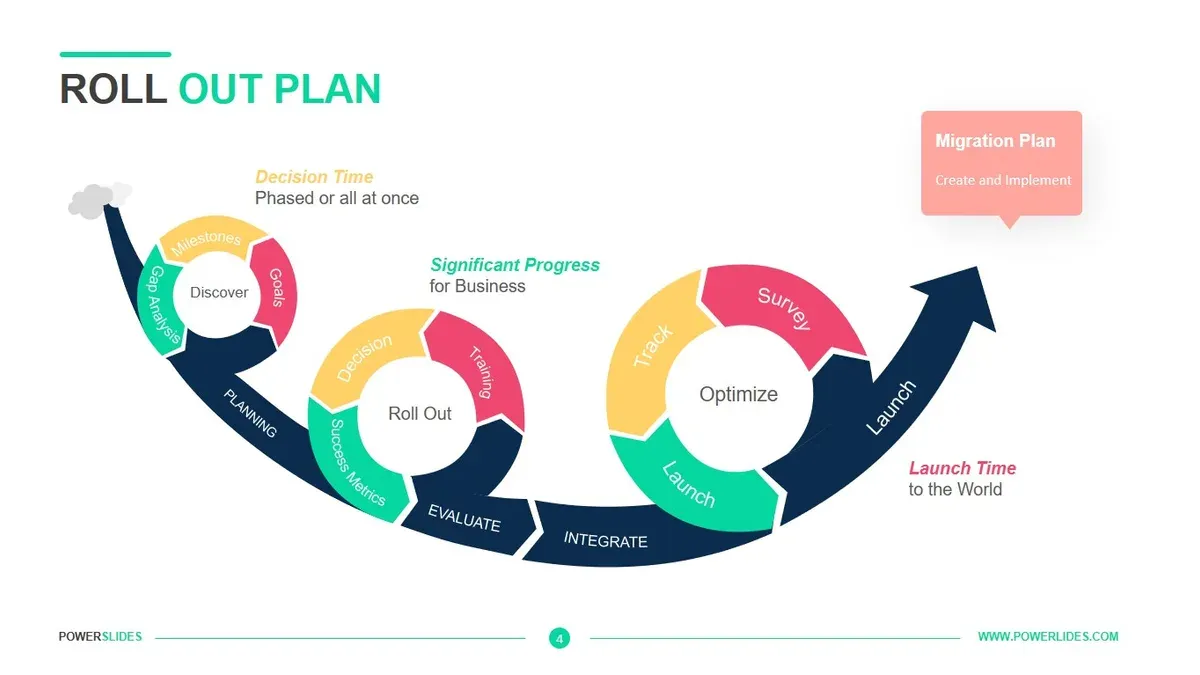
Encourage collaboration by creating a shared digital space, such as a Teams or Google Classroom group, where educators exchange tailored study sets, accessibility tips, and engagement strategies. This peer network helps maintain motivation and innovation.
Regularly update Quizlet content to reflect evolving student needs and curriculum changes. For example, a special education coordinator at a middle school refreshed vocabulary sets quarterly, incorporating student feedback to keep materials relevant and engaging. This approach led to higher participation and measurable progress reported by educators.
- Schedule monthly team check-ins using the Quizlet Teacher Dashboard for data insights
- Create a shared collaboration space for resource and strategy exchange
- Update study sets periodically based on student progress and feedback
Read next
- Master Your Quizlet Implementation Timeline for Smooth Adoption
- Switching from Pear Deck to Quizlet: A Practical Educator’s Guide
- Switching from Nearpod to Quizlet: A Clear Guide for Educators
- Switching from Padlet to Quizlet: A Complete Educator’s Guide
Frequently asked questions
How can I ensure Quizlet is accessible to students with different disabilities?
Use Quizlet’s built-in accessibility features such as text-to-speech and adjustable font sizes, found under Settings > Accessibility. Pair these with external tools like screen readers or switch devices if needed. Customize content with clear, simple language and visuals to support comprehension for diverse learners.
What types of Quizlet activities work best for special education learners?
Flashcards and matching games are effective as they reinforce memory without overwhelming students. Use the Learn mode for repetition at a comfortable pace, and incorporate images or audio to cater to different learning styles. Avoid timed tests to reduce anxiety and focus on mastery instead.
How do I measure progress when using Quizlet in special education?
Track completion rates and accuracy within Quizlet’s progress reports accessible via your dashboard. Combine this data with observational notes on student engagement and skill application during lessons. Set small, measurable goals like mastering five new terms per week to monitor steady improvement.
What should I do if students struggle to use Quizlet independently?
Provide guided practice sessions and create step-by-step visual instructions for navigation. Pair students with peers or aides for initial support and gradually increase independence. Simplify the interface by limiting content sets and disabling features like timer or complex modes to reduce cognitive load.
Quick checklist
- Identify specific learning goals tailored to your students' needs before starting.
- Ensure all devices have updated browsers and Quizlet app versions.
- Set up student accounts with appropriate privacy and accessibility settings.
- Customize Quizlet sets using images, audio, and simplified language.
- Introduce Quizlet gradually, monitoring student engagement and understanding.
- Collect and incorporate student feedback after each session.
- Train support staff on Quizlet features and troubleshooting.
- Regularly review progress and adjust content or approach as needed.
What this advice does not cover
This guide does not cover district-wide IT policies or procurement processes, which vary widely and require separate consultation. If you are responsible for network security settings, software licensing negotiations, or large-scale device management, consult your district’s IT department or vendor specialists.
Additionally, this plan focuses on classroom-level implementation and does not address individualized education program (IEP) development or legal compliance beyond accessibility considerations.
Start by assessing your students’ unique needs and setting clear, achievable goals for Quizlet use. This foundational step directs every subsequent action and ensures technology serves meaningful learning outcomes rather than becoming an add-on.