Switching from Pear Deck to Quizlet: A Practical Educator’s Guide
Discover practical steps for switching from Pear Deck to Quizlet, adapting lesson design while keeping students engaged and improving learning outcomes.

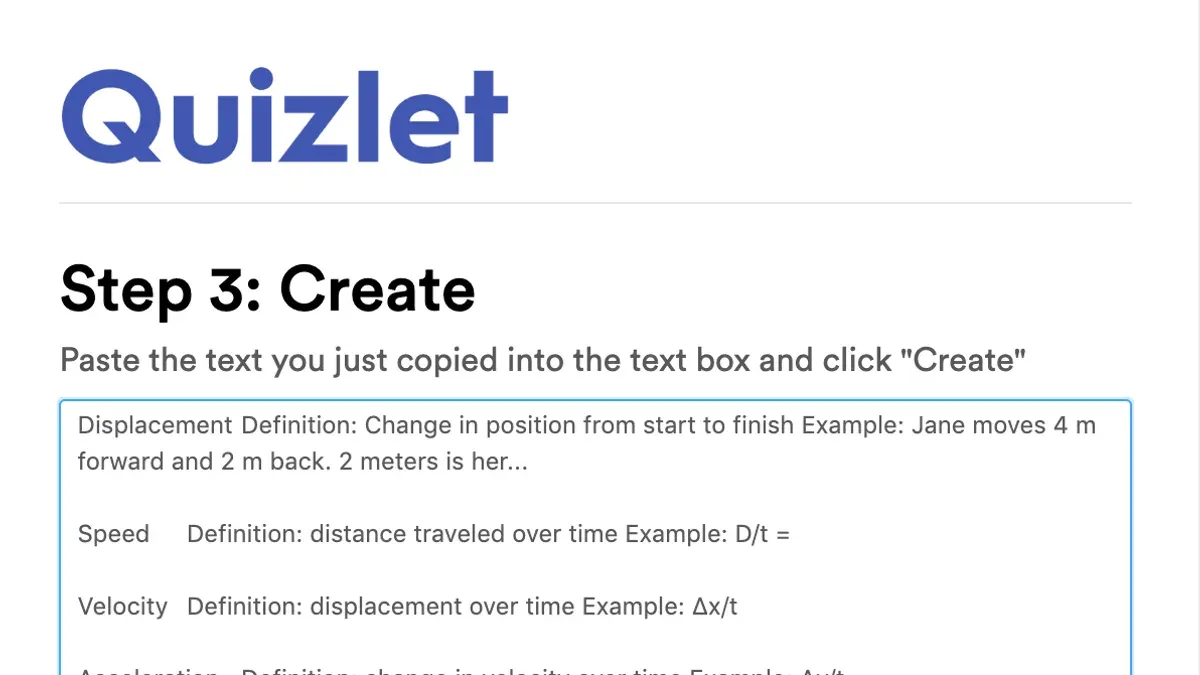
Short answer: Switching from Pear Deck to Quizlet involves adapting from interactive, slide-based formative assessments to a study set and flashcard model focused on memorization and review. You’ll need to rethink lesson design to maintain engagement and learning outcomes while leveraging Quizlet’s strengths in repeated practice and self-paced study.
This article guides you through the practical steps of the transition, starting with understanding the core differences between the platforms, moving on to how to repurpose your Pear Deck presentations into effective Quizlet study sets. It also covers features in Pear Deck you may miss and strategies to compensate, common pitfalls to avoid, and how to smoothly integrate Quizlet into your existing teaching workflow without sacrificing interactivity or student accountability.
What is Pear Deck and why do educators use it?
Pear Deck is an interactive presentation tool designed to enhance classroom engagement by integrating directly with Google Slides and Microsoft PowerPoint. Its primary function is to enable formative assessments within live lessons, allowing educators to gauge student understanding in real time.
During a typical Pear Deck session, a teacher presents slides that include interactive questions such as multiple-choice, draggable items, or text responses. Students respond live through their devices, and the teacher receives immediate feedback displayed visually on the instructor dashboard. This dynamic interaction helps maintain focus and adapt instruction based on student input.
Educators favor Pear Deck because it transforms passive slide presentations into active learning experiences. The tool supports continuous assessment rather than end-of-unit testing, promoting ongoing insight into student comprehension. For example, a math teacher might present a slide with a geometry problem, ask students to draw angles or label shapes, and instantly see who needs further clarification.
While exact usage numbers vary, many classrooms regularly run Pear Deck sessions with dozens of participants simultaneously, demonstrating its scalability and reliability for live formative assessment.
How does Quizlet differ from Pear Deck in learning approach?
Quizlet focuses on self-paced learning through flashcards, games, and test modes, emphasizing memorization and review. Unlike Pear Deck, which facilitates live interactive lessons and real-time formative assessments, Quizlet lacks live classroom interaction but compensates with spaced repetition algorithms and varied study options to reinforce retention over time.
For example, in Quizlet’s "Learn" mode, students progress through terms with adaptive prompts that adjust to their mastery level, while "Match" and "Gravity" games make review engaging. This contrasts with Pear Deck’s live slide questions where students respond simultaneously during a lesson.
| Feature | Pear Deck | Quizlet |
|---|---|---|
| Primary Use | Live formative assessment during lessons | Self-paced study and memorization |
| Interaction | Real-time student responses | Individual study with interactive modes |
| Assessment Style | Immediate feedback to teacher | Adaptive testing and review |
| Content Format | Slides with interactive questions | Flashcards, tests, games |
Imagine you’ve designed a Pear Deck lesson on photosynthesis with embedded questions to gauge understanding live. Switching to Quizlet, you’d create a study set with key terms like "chlorophyll" and "light-dependent reactions," enabling students to study definitions at their own pace and test themselves repeatedly. While you lose the immediacy of live feedback, you gain tools that promote long-term retention and flexible review outside class time.
How to make a Pear Deck presentation and why that matters when switching
Creating a Pear Deck presentation begins by opening a Google Slides or PowerPoint file and launching the Pear Deck Add-in from the Extensions menu in Slides or the Insert menu in PowerPoint. This add-in enables you to insert interactive question slides directly into your presentation.
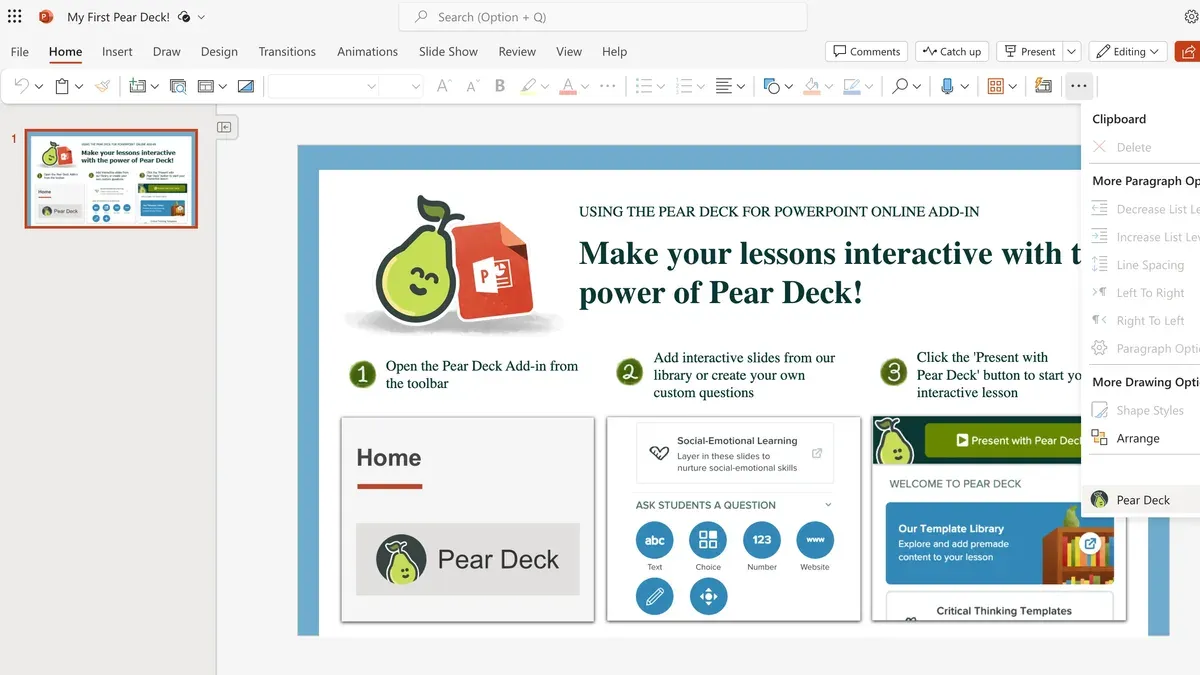
You can add various question types: multiple choice, draggable (where students move items on the slide), text responses, number responses, and more. For example, to add a multiple-choice question, select the slide, click the Pear Deck sidebar, choose "Add Question," then "Multiple Choice," and enter your prompt and answer options.
Each interactive slide collects live responses during the lesson, so your questions are embedded alongside your content. For instance, a slide with a diagram might include a draggable question where students label parts by dragging terms onto the image.
Understanding this creation process is crucial when switching to Quizlet because you need to identify which interactive elements to convert into Quizlet’s study sets. Quizlet primarily uses flashcards, matching games, and quizzes, so multiple choice questions map well to Quizlet’s quiz mode, while text responses translate into flashcard definitions or terms.
- Open your presentation in Google Slides or PowerPoint
- Activate the Pear Deck Add-in via Extensions or Insert menu
- Add interactive questions: multiple choice, draggable, text response
- Design slides that integrate content with questions
- Note which question types you'll later recreate in Quizlet formats
How to access and use Pear Deck features you’ll miss in Quizlet
Pear Deck excels in live lesson joining, enabling educators to share a session link that students join in real time, fostering synchronous engagement. Quizlet, in contrast, offers asynchronous study sets without live session controls. For example, Pear Deck’s instant feedback during formative assessments—where students submit answers and teachers see responses live—is not natively available in Quizlet’s self-paced flashcard or quiz modes.
Additionally, Pear Deck provides elapsed time tracking and the ability to pause or control the session pace, which helps manage lesson flow and keep students aligned. Quizlet lacks these session management tools, relying instead on learners to progress at their own speed.
To compensate, pair Quizlet with synchronous video conferencing tools like Zoom or Google Meet to replicate live engagement. Use breakout rooms for small-group practice and share Quizlet sets as homework or in-class activities. For instant formative feedback, consider Google Forms with quizzes and real-time response summaries. Setting timers manually during live sessions can approximate Pear Deck's pacing controls.
One educator shared that combining Quizlet sets with live video check-ins preserved student interaction while leveraging Quizlet’s memorization strengths, though it required careful session planning.
- Use Pear Deck live session links for real-time interaction (not in Quizlet)
- Pair Quizlet with video calls to simulate live engagement
- Use Google Forms quizzes for instant feedback alongside Quizlet
- Manually track time and control pacing during live lessons
- Plan sessions to blend Quizlet’s asynchronous practice with synchronous check-ins
How to create effective Quizlet study sets to replace Pear Deck lessons
Start by dissecting your Pear Deck lesson into discrete question-and-answer pairs. For example, a Pear Deck slide asking "Name the three branches of government" becomes a Quizlet flashcard with the term "Branches of Government" and the definition listing the three branches. Use Quizlet’s Flashcard Factory to input these pairs efficiently, allowing students to practice recalling definitions or terms.
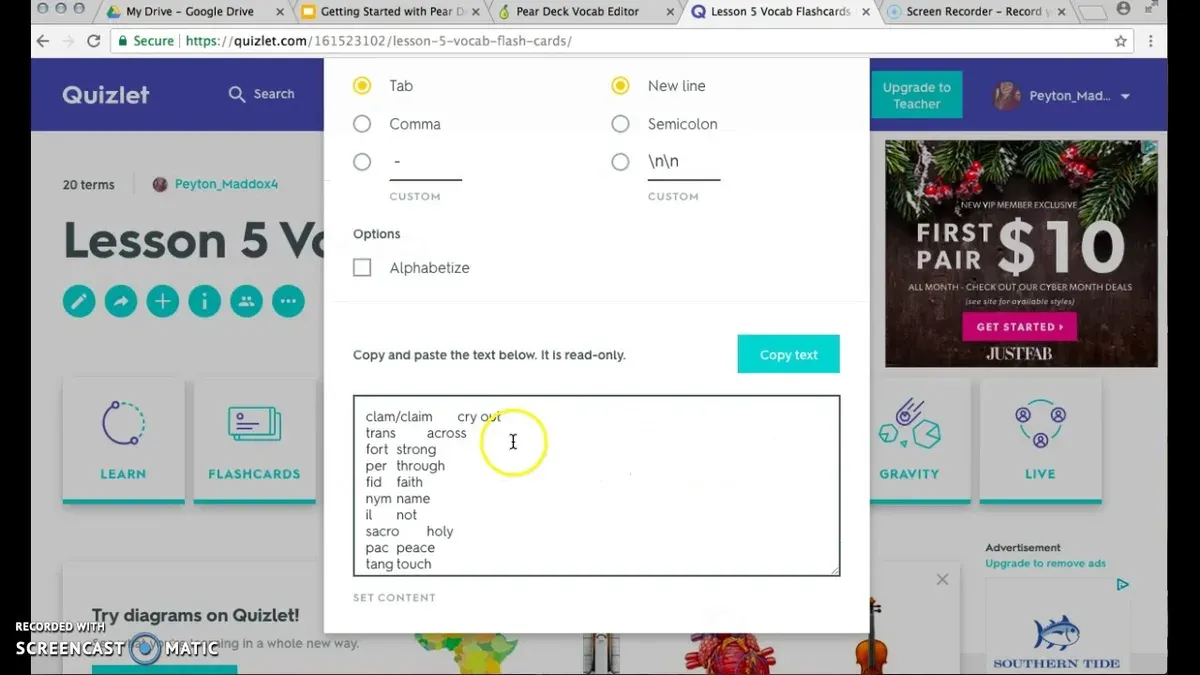
Enhance your study sets by including images and audio where relevant. For instance, add a diagram of government branches or record pronunciation for challenging vocabulary. This multimedia approach compensates for the lost interactivity from Pear Deck.
Organize your sets by topic or lesson objectives, such as "US Government Structure," to keep learning focused and searchable. Quizlet’s Test and Match modes provide varied practice formats beyond flashcards, promoting engagement and retention.
Example: A Pear Deck formative question "What is photosynthesis?" can become a Quizlet card with the term "Photosynthesis" and the definition "The process by which plants convert sunlight into energy." Adding a plant diagram image and a recorded definition helps replicate the depth of the original lesson.
- Break Pear Deck questions into term-definition pairs
- Use Flashcard Factory to create cards quickly
- Add images and audio to enrich cards
- Group sets by lesson objectives or topics
- Utilize Quizlet’s Test and Match modes for varied practice
Common mistakes to avoid when switching from Pear Deck to Quizlet
Expecting Quizlet to replicate Pear Deck’s live interactivity often leads to disappointment. Quizlet is designed for self-paced study, so relying on it for real-time formative assessment without supplementing with live tools can reduce student engagement. For example, a teacher who stopped Pear Deck’s live sessions and switched solely to Quizlet flashcards noticed students completing tasks passively and missing opportunities for immediate feedback.
Failing to prepare students for the change in format also causes confusion. Students accustomed to interactive live lessons may struggle without clear communication about Quizlet’s self-directed structure and expectations.
Another pitfall is misaligning Quizlet sets with lesson goals and pacing. Dumping an entire Pear Deck presentation’s worth of content into one large Quizlet set without segmenting by topic or lesson stage overwhelms students and undermines retention.
To avoid these issues, inform students upfront about the new format, break content into manageable study sets aligned with your lesson flow, and combine Quizlet with synchronous check-ins or discussions to maintain engagement and learning effectiveness.
How to integrate Quizlet into your existing teaching workflow post-switch
After transitioning from Pear Deck, use Quizlet to assign homework and review sessions that reinforce lesson content at students’ own pace. For example, assign a Quizlet study set on vocabulary terms every Friday for self-assessment. Pair this with a Monday live discussion where students share challenges and insights, maintaining interaction you miss from Pear Deck.
Leverage Quizlet’s “Class Progress” tab to track who has completed sets and their accuracy rates. This helps identify students needing additional support before live sessions. Encourage students to explore Quizlet’s varied study modes—such as “Learn” for adaptive practice and “Match” for timed games—to foster ownership of their learning journey.
Consider this weekly plan: Monday: Introduce new concepts in class. Wednesday: Conduct a live Q&A using video conferencing. Friday: Assign Quizlet homework with flashcards and practice tests. By Tuesday, review Quizlet analytics to tailor your follow-up.
- Assign Quizlet homework for self-paced review
- Combine Quizlet with live discussions or video calls
- Use “Class Progress” reports to monitor student completion and accuracy
- Promote use of varied Quizlet study modes to increase engagement
- Adjust lesson pacing based on Quizlet analytics before live sessions
Read next
- Moving from Pear Deck to Quizizz: Your Essential Checklist
- Switching from Pear Deck to Padlet: A Practical Guide for Educators
- Switching from Pear Deck to Microsoft Forms: A Practical Educator’s Guide
- Switching from Pear Deck to Gimkit: A Practical Educator’s Guide
Frequently asked questions
How to access pear deck?
You can access Pear Deck by visiting peardeck.com and signing up with your Google or Microsoft account. After logging in, you can integrate Pear Deck directly into Google Slides via the Pear Deck add-on, found under "Add-ons" > "Get add-ons" in Google Slides. This integration allows seamless creation and delivery of interactive lessons within your existing presentation workflow.
What is pear deck learning?
Pear Deck learning centers on interactive presentations that engage students through formative assessments embedded in slides. It enables real-time feedback and participation, helping educators gauge understanding during lessons. This approach supports active learning rather than passive content consumption.
How to use pear deck?
To use Pear Deck, create or open a Google Slides presentation, then launch the Pear Deck add-on and add interactive question slides like multiple choice or draggable points. Present in "Student-Paced" or "Instructor-Paced" mode to control timing. During the session, students join via a code at joinpd.com to respond on their devices.
What does pear deck do?
Pear Deck transforms standard presentations into interactive lessons by embedding question types that capture student responses in real-time. It tracks participation and understanding, allowing educators to adjust instruction based on live data. This makes formative assessment a natural part of the teaching process.
Why use pear deck?
Educators use Pear Deck to increase student engagement through active participation and immediate feedback. It simplifies formative assessments and provides insights into student comprehension, helping tailor instruction effectively. Its integration with Google Slides streamlines lesson creation without switching platforms.
What this guide does not cover
This guide does not cover switching from Pear Deck to Quizlet for subjects requiring complex formative assessment beyond flashcard-style review, nor does it address premium subscription differences in depth. If your teaching relies heavily on Pear Deck’s real-time student response features for nuanced formative assessment, consider supplementing Quizlet with additional tools designed for interactive assessments. Also, if you require detailed comparisons of Pear Deck’s and Quizlet’s paid plans, consult their official pricing and feature pages directly.
Quick checklist
- Review your Pear Deck presentations and identify key learning objectives for each slide.
- Note interactive elements in Pear Deck that you need to replicate or replace.
- Create Quizlet study sets with clear terms and definitions that align with your objectives.
- In Quizlet, use features like Learn mode and Write mode to encourage active recall.
- Test your Quizlet sets with a small group of students to gather feedback on engagement.
- Avoid trying to replicate Pear Deck’s slide-by-slide interaction exactly; adjust your pedagogy to Quizlet’s flashcard strengths.
- Integrate Quizlet links or embed codes into your existing lesson plans and LMS.
The most practical next step is to start by converting one well-structured Pear Deck lesson into a Quizlet study set. Focus on clear, concise terms and definitions, then gradually incorporate Quizlet’s learning modes. This approach helps you preserve your pedagogical goals while adapting smoothly to Quizlet’s strengths and limitations.